

Netzpolitik & Belletristik

Windows 10 für Dummies (3. Auflg.)
Windows 10 hält Ihren PC am Laufen: Es verwaltet Ihre Dateien und bietet eine Plattform für alle wichtigen Programme und Anwendungen. Kurz gesagt, es ist die Schaltstelle Ihres Computers. Mit diesem Buch lernen Sie Windows 10 richtig kennen, aktuell zum 2004 Update aus 2020. Mit den leicht nachvollziehbaren Schritt-für-Schritt-Anleitungen und vielen wertvollen Tipps richten Sie Ihren Computer so ein, wie es für Sie am besten passt. Andy Rathbone informiert Sie umfassend. Und auch wenn mal etwas nicht so läuft wie erhofft, finden Sie in diesem Buch eine schnelle und verständliche Lösung. Es werden keine Vorkenntnisse vorausgesetzt.Andy Rathbone ist einer der Urväter der "... für Dummies"-Reihe und hat zahlreiche Bücher für PC-Anwender geschrieben. Er versteht es, komplexe Themen leicht verständlich zu erklären und seine Bücher mit der richtigen Dosis Humor zu würzen.ÜBER DEN AUTOR9Danksagung 9EINFÜHRUNG21Über dieses Buch 21Wie Sie mit diesem Buch arbeiten 22Tablet-PCs bleiben nicht außen vor 23Törichte Annahmen über den Leser 24Wie dieses Buch aufgebaut ist 24Teil I: Windows-10-Grundlagen 24Teil II: Apps, Programme und Dateien 24Teil III: Ab ins Internet 24Teil IV: Die Windows-Werkstatt 25Teil V: Musik, Fotos und Filme 25Teil VI: Hilfe! 25Teil VII: Der Top-Ten-Teil 25Symbole, die in diesem Buch verwendet werden 26Wie es weitergeht 26TEIL I: WINDOWS-10-GRUNDLAGEN 27KAPITEL 1 WAS GENAU IST WINDOWS 10?29Was ist Windows und warum benutzen Sie es? 29Was ist neu in Windows 10? 32Was ist nun wirklich dran an Windows 10? 35Warum verändert sich Windows 10 ständig? 36Läuft Windows 10 auf Ihrem Computer? 37Die verschiedenen Varianten von Windows 10 38KAPITEL 2 WIR STARTEN MIT DEM STARTMENÜ39Willkommen in der Welt von Windows 40Benutzerkonten verstehen 42Ihr Konto schützen 42Mit einem Microsoft-Konto anmelden 45Das Startmenü erforschen 46Zwischen Tablet- und Desktopmodus hin- und herschalten 50Eine App über das Startmenü starten 51Geöffnete Apps anzeigen und schließen 52Eine App im Startmenü ausfindig machen 54Apps »für umsonst« 55Kacheln im Startmenü hinzufügen oder daraus entfernen 58Das Startmenü passend machen 59Windows beenden 64Eine kurze Pause einlegen 65Den Computer ausschalten 66KAPITEL 3 DER TRADITIONELLE DESKTOP 69Desktop und Startmenü entdecken 70Mit dem Desktop arbeiten 71Apps über das Startmenü aufrufen 73Den Desktop aufpeppen 74Den Tabletmodus ein- und ausschalten 76Mit der Taskleiste arbeiten 79Fenster zu einem Symbol in der Taskleiste schrumpfen 81Die Sprunglisten der Taskleiste als Sprungbrett verwenden 82Auf die sensiblen Stellen der Taskleiste klicken 82Das Info-Center einblenden 85Die Taskleiste an Ihre Anforderungen anpassen 87Virtuelle Desktops einrichten 90Programme leichter ausfindig machen 93KAPITEL 4 DIE VIELFALT DER FENSTERTECHNIKEN95Ein typisches Desktopfenster in seine Bestandteile zerlegen 96Fenster am Kragen packen 97Mit der Adressleiste in Ordnerfenstern navigieren 99Befehle im Menüband ausfindig machen 100Mit der Bildlaufleiste im Ordnerfenster blättern 104Alles im Rahmen 106Fenster auf dem Desktop arrangieren 107Ein Fenster oben auf dem Stapel ablegen 107Ein Fenster von hier nach da verschieben 107Die Fenstergröße maximieren 108Ein Fenster vergrößern oder verkleinern 109Zwei Fenster nebeneinander positionieren 109Bitte stets dieselbe Fenstergröße! 110KAPITEL 5 SPEICHERORTE – INTERN, EXTERN UND ÜBER DEN WOLKEN111Der digitale Aktenschrank 112Was es mit den Ordnern auf sich hat 116Einen Blick auf Laufwerke, in Ordner und andere Speichermedien riskieren 117Was tummelt sich auf einem Laufwerk? 117Einen neuen Ordner anlegen 121Dateien und Ordner umbenennen 123Mehrere Dateien oder Ordner auswählen 124Dateien oder Ordner loswerden 125Dateien und Ordner kopieren oder verschieben 126Details zu Dateien und Ordnern anzeigen 128Auf CDs und DVDs schreiben 131Die richtigen Rohlinge verwenden 132Dateien auf oder von CDs oder DVDs kopieren 133Mit Speichersticks und Speicherkarten hantieren 136OneDrive – Ihre Ablage in den Wolken 137OneDrive einrichten 138Die OneDrive-Einstellungen ändern 141Dateien in OneDrive öffnen und speichern 143Die Funktion »Dateien bei Bedarf« einrichten 144Vom Webbrowser aus auf OneDrive-Dateien zugreifen 147TEIL II: APPS, PROGRAMME UND DATEIEN 149KAPITEL 6 MIT PROGRAMMEN, APPS UND DOKUMENTEN JONGLIEREN151Apps oder Programme starten 152Dokumente öffnen 154Dokumente speichern 156Welches Programm öffnet welche Datei? 158Im Microsoft Store shoppen 161Neue Apps aus dem Store downloaden 162Apps deinstallieren 165Apps aktualisieren 165Der bequeme Weg der Verknüpfungen 166Alles, was Sie über Ausschneiden, Kopieren und Einfügen wissen müssen 167Auf die Schnelle ausschneiden, kopieren und einfügen 168Elemente zum Ausschneiden oder Kopieren auswählen 168Ausgewählte Elemente ausschneiden oder kopieren 170Ausgeschnittene oder kopierte Elemente einfügen 172KAPITEL 7 GESUCHT UND GEFUNDEN175Aktuell geöffnete Apps und Programme aufstöbern 175Aktuell geöffnete Fenster aufspüren 177Nach Apps, Programmen, Einstellungen oder Dateien suchen 178Mit Cortana suchen 181Cortana Fragen stellen 181Nach einer Datei in einem Ordner suchen 183Verloren geglaubte Bilder aufspüren 186Andere Computer im Netzwerk aufspüren 186KAPITEL 8 IHRE ARBEIT DRUCKEN UND SCANNEN189In Apps drucken 189Vom Desktop aus drucken 191Druckseiten einrichten 193Druckereinstellungen anpassen 195Einen Druckauftrag abbrechen 197Eine Webseite drucken 198Druckerprobleme beheben 199Die Scanner-App verwenden 201TEIL III: AB INS INTERNET 205KAPITEL 9 UNTERWEGS IM WEB207Sinn und Zweck von ISPs 208Eine drahtlose Verbindung zum Internet herstellen 209Mit Microsoft Edge im Web surfen 212Von Webseite zu Webseite springen 214Eine Startseite für Microsoft Edge festlegen 215Lieblingssites erneut besuchen 217Im Internet fündig werden 218Mehr Infos auf einer Website aufspüren 219Informationen aus dem Internet speichern 220Eine Webseite speichern 220Text speichern 220Ein Bild speichern 220Ein Programm, einen Song oder einen anderen Dateityp herunterladen 221KAPITEL 10 SOZIALE KONTAKTE PFLEGEN223Ihre Konten in Windows einbinden 223Die Mail-App kennenlernen 225Die Ansichten, Menüs und Konten der Mail-App erkunden 226Eine E-Mail-Nachricht schreiben und senden 229Eine empfangene Mail lesen 231Dateien per Mail senden und empfangen 233Kontakte in der Kontakte-App pflegen 236Kontakte hinzufügen 237Kontakte löschen oder bearbeiten 239Termine in der Kalender-App verwalten 239KAPITEL 11 SICHERES ARBEITEN AM COMPUTER UND IM INTERNET243Die Sicherheitsabfragen verstehen 243Auf der sicheren Seite mit Windows-Sicherheit 244Viren meiden und entfernen 247Phishing unterbinden 249Mit den Familienoptionen den elektronischen Jugendschutz einrichten 251TEIL IV: DIE WINDOWS-WERKSTATT 255KAPITEL 12 WINDOWS ANPASSEN257Den richtigen Schalter finden 258Die Einstellungen-App 259System 260Geräte 267Telefon 271Netzwerk und Internet 272Personalisierung 273Apps 277Konten 280Zeit und Sprache 281Spielen 281Erleichterte Bedienung 281Suche 283Datenschutz 283Update und Sicherheit 284KAPITEL 13 WINDOWS HEGEN UND PFLEGEN285Daten mit dem Dateiversionsverlauf retten 286Technische Daten über Ihren Computer anzeigen 290Platz auf der Festplatte freiräumen 292Mit Gerätetreibern hantieren 294KAPITEL 14 EINEN RECHNER MIT ANDEREN TEILEN297Benutzerkonten verstehen lernen 298Ein Benutzerkonto ändern oder ein neues erstellen 299Schnell zwischen verschiedenen Benutzern wechseln 305Mit dem Profilbild Profil zeigen 307Kennwörter und sonstige Sicherheitsvorkehrungen 309Mit Windows Hello anmelden 310KAPITEL 15 COMPUTER IN EINEM NETZWERK VERBINDEN313Die Netzwerkkomponenten kennenlernen 314Ein kleines Netzwerk einrichten 316Netzwerkkomponenten besorgen 316Einen drahtlosen Router einrichten 317Windows für eine Verbindung mit einem Netzwerk einrichten 318Dateien in einem Netzwerk freigeben 320Ein privates Heimnetzwerk einrichten 321Dateien und Ordner im privaten Netzwerk teilen 324Auf das zugreifen, was andere teilen 326Einen Drucker im Netzwerk teilen 328Mit Umgebungsfreigabe teilen 328TEIL V: MUSIK, FOTOS UND FILME 333KAPITEL 16 MUSIK ABSPIELEN UND KOPIEREN 335Musik mit der Groove-Musik-App abspielen 335Musik mit Windows Media Player abspielen 339Die Medienbibliothek von Windows Media Player auffüllen 341Die Medienbibliothek von Windows Media Player erkunden 345Musikdateien abspielen 348Die aktuelle Wiedergabe steuern 349CDs abspielen 351DVDs abspielen 351Videos und TV-Aufzeichnungen wiedergeben 352Mit Wiedergabelisten arbeiten 353CDs auf Ihren Computer rippen 355Musik-CDs brennen 356KAPITEL 17 DIGITALE FOTOSCHÄTZE359Ihr Computer – der digitale Schuhkarton 360Fotos mit der Kamera-App aufnehmen 363Ihr Smartphone mit Ihrem PC koppeln 365Fotos in der Fotos-App anschauen und bearbeiten 366Fotosammlungen anzeigen 367Fotoalben anzeigen 370Eine Diashow präsentieren 373Fotos auf CD oder DVD kopieren 373TEIL VI: HILFE! 375KAPITEL 18 WENN GAR NICHTS MEHR GEHT … 377Zwischen Tablet- und Desktopmodus hin- und herschalten 378Die magischen Wartungsfunktionen von Windows 379Den PC wiederherstellen 379Daten aus dem Dateiversionsverlauf wiederherstellen 383Windows fragt ständig nach Berechtigungen 388Gelöschte Dateien aus dem Papierkorb fischen 389Kaputte Apps reparieren 390Chaos in den Einstellungen 391Kennwort vergessen 393Rechner eingefroren 394KAPITEL 19 SELTSAME FEHLERMELDUNGEN397Microsoft-Konto hinzufügen 397Wählen Sie eine Aktion für … 398Wollten Sie die App wechseln? 399Möchten Sie zulassen, dass durch diese App Änderungen an Ihrem Gerät vorgenommen werden? 400Möchten Sie die Änderungen an Unbenannt speichern? 401Wie soll dieses Element geöffnet werden? 401Bedrohungen gefunden 402Wie soll diese Datei geöffnet werden? 403Positionseinstellungen sind deaktiviert 404Schließen Sie das Laufwerk wieder an. 404Zugriff auf den Zielordner nicht möglich 405KAPITEL 20 VON EINEM ALTEN RECHNER AUF EINEN WINDOWS-10-COMPUTER UMZIEHEN407Eine externe Firma für den Umzug engagieren 408PCmover von Laplink 408Eine Werkstatt besuchen 409Den Umzug selbst durchführen 410KAPITEL 21 HILFE BEIM WINDOWS-HILFESYSTEM ANFORDERN415Tipps von Windows 10 415Support kontaktieren 416Kostenloser Microsoft-Support 418TEIL VII: DER TOP-TEN-TEIL 421KAPITEL 22 DIE TOP TEN DER NERVIGSTEN WINDOWS-FUNKTIONEN (UND WAS SIE DAGEGEN TUN KÖNNEN)423Windows 10 verändert sich laufend 423Weg mit den Apps 424Apps aus dem Startmenü und vom Rechner entfernen 424Desktop-Programme statt Apps für das Öffnen von Dateien bestimmen 426Weg mit dem Desktop 426Ich will kein Microsoft-Konto 427Weg mit der Kennworteingabe beim Sperrbildschirm 428Die Taskleiste soll nicht verschwinden 429Fenster nebeneinander ausrichten 429Die lästigen Berechtigungsanfragen 430Welche Windows-Version hab’ ich denn? 430Die Taste »Druck« will nicht 431Stichwortverzeichnis 435

WordPress für Dummies (3. Auflg.)
Gestalten Sie mit WordPress Ihre Website - auch wenn Sie keinerlei Vorkenntnisse haben! Profitieren Sie von Tausenden meist kostenlosen Design-Vorlagen, den WordPress-Themes. WordPress begann als einfache Weblog-Software und ist inzwischen das beliebteste System zur Gestaltung von Webseiten überhaupt. Dieser Entwicklung trägt dieses Buch Rechnung: Hier finden Sie Rat und Hilfe - als Blogger, als Webdesigner, als Anfänger und als Umsteiger. Schritt für Schritt erfahren Sie, wie Sie Ihre Website oder Ihren Blog aufbauen, Bilder und Videos einbinden und vieles mehr. Lisa Sabin-Wilson ist Mitinhaberin von WebDevStudios, einer Webagentur, die sich auf die Entwicklung von WordPress-Plugins und WordPress-Themes spezialisiert hat. Sie hält Vorträge zu WordPress und ist auch Autorin von "Webdesign mit WordPress für Dummies", einem WordPress-Buch für fortgeschrittene WordPress-Nutzer. VORWORT 9 Über die Autorin 9 Widmung 10 EINLEITUNG21 Über dieses Buch 21 Törichte Annahmen über den Leser 22 Symbole, die in diesem Buch verwendet werden 23 Wie es weitergeht 23 TEIL I: EINFÜHRUNG IN WORDPRESS 25 KAPITEL 1 DAS KANN WORDPRESS FÜR SIE TUN27 Die Leistungen von WordPress 27 Schnell und einfach einrichten 28 Den Funktionsumfang von WordPress erweitern 29 In der Community mitwirken 30 Eine WordPress-Plattform auswählen 31 Die gehostete Version von WordPress.com 32 Die selbst gehostete Version von WordPress.org 33 KAPITEL 2 WORDPRESS-GRUNDLAGEN 35 WordPress im Rampenlicht 35 Kleiner Einblick in die WordPress-Technologie 36 Archivierung Ihrer Veröffentlichungen 37 Austausch mit Ihren Lesern über Blogkommentare 38 Ihre Leser auf dem Laufenden halten 39 Trackbacks 41 Der Umgang mit Kommentar- und Trackback-Spam 42 Der Einsatz von WordPress als Content-Management-System 42 Unterschiede zwischen Website und Blog 42 Beispiele: Blog im Unterschied zu Website 43 Vor dem Start 45 TEIL II: WORDPRESS EINRICHTEN 47 KAPITEL 3 DAS BASISLAGER FÜR DEN BLOG EINRICHTEN 49 Ihre Domain einrichten 49 Domainnamenerweiterungen 50 Was kostet ein Domainname? 51 Ihren Domainnamen registrieren 51 Eine Heimat für Ihre Website finden 52 Hilfe beim Hosten von WordPress 53 Umgang mit Speicherplatz und Bandbreite 54 Die SFTP-Grundlagen 56 SFTP für Ihren Web-Account einrichten 57 Kostenlose und einfach bedienbare SFTP-Programme 60 Via SFTP mit dem Webserver verbinden 60 Dateien von A nach B übertragen 63 Dateien per SFTP bearbeiten 64 Dateizugriffsrechte ändern 65 WordPress installieren 67 Vorinstallierte WordPress-Versionen 67 WordPress von Hand installieren 67 Die MySQL-Datenbank einrichten 68 Die WordPress-Dateien hochladen 70 Der letzte Schritt: Das Installationsskript ausführen 72 KAPITEL 4 DAS WORDPRESS.ORG-DASHBOARD NUTZEN79 Im Dashboard anmelden 80 Das Dashboard nutzen 81 Auf einen Blick 82 Aktivität 83 Schneller Entwurf 84 WordPress-Veranstaltungen und Neuigkeiten 85 Das Dashboard nach Ihren Wünschen anordnen 85 Dashboard-Module entfernen 86 Die Inlinedokumentation und die Hilfe nutzen 87 Einstellungen im Dashboard vornehmen 88 Die Einstellungen anpassen 89 Allgemein 89 Schreiben 93 Lesen 94 Diskussion 96 Medien 101 Permalinks 103 Datenschutz 103 Ihr persönliches Profil erstellen 104 Das Format Ihrer Website einstellen 107 Beiträge 107 Medien 108 Seiten 108 Kommentare 109 Design 109 Plugins 110 Benutzer 110 Werkzeuge 111 KAPITEL 5 DIE REDAKTIONELLE ARBEIT AUFNEHMEN113 Themen in Kategorien einordnen 113 Den Namen einer Kategorie ändern 114 Neue Kategorien erstellen 116 Die Adresse von Beiträgen bearbeiten: Permalinks 119 Beitragslinks aufhübschen 119 Permalinks selbst anpassen 121 Die Funktionsfähigkeit der Permalinks auf Ihrem Server sicherstellen 122 Die umfangreichen WordPress-RSS-Optionen verwenden 124 Den ersten Beitrag schreiben 126 Einen Blogbeitrag verfassen 126 Einen Blogbeitrag formatieren 127 Andere Blocktypen erstellen 129 Beiträge mit Bildern, Videos und Sound aufpeppen 130 Feinschliff des Beitrags 131 Den Beitrag veröffentlichen 133 Beiträge bearbeiten 135 Wer spricht über Ihre Website? 136 Kommentare und Trackbacks verwalten 136 Kommentare und Trackbacks moderieren 138 Spam mit Akismet bekämpfen 138 TEIL III: WORDPRESS ERWEITERN 139 KAPITEL 6 MEDIENDATEIEN VERWALTEN: BILDER, AUDIOUND VIDEODATEIEN141 Bilder in Ihre Beiträge einfügen 141 Formatierung und Einstellungen für Bilder festlegen 143 Bilder bearbeiten 144 Eine Fotogalerie einfügen 145 Videos in Blogbeiträge einfügen 147 Audiodateien in Beiträge einfügen 149 Mediendateien verwalten 150 KAPITEL 7 WORDPRESS-PLUGINS OPTIMAL NUTZEN153 Was sind Plugins? 154 Die Plugins-Seite 155 Plugins mit einem Klick aktualisieren 157 Die mit WordPress ausgelieferten Plugins 159 Akismet einbinden 159 Hello Dolly 163 Die Grundlagen der Verwendung von Plugins 163 Plugins von Hand installieren 165 Die Dateien finden und herunterladen 165 Die Installationshinweise lesen 168 Plugins hochladen und aktivieren 168 Ein neues Plugin hochladen 169 Das Plugin aktivieren 171 Plugin-Optionen einstellen 171 Plugins deinstallieren 172 Die Open-Source-Umgebung verstehen 173 KAPITEL 8 WORDPRESS-THEMES FINDEN UND INSTALLIEREN175 Mit kostenlosen Themes loslegen 175 Kostenlose Themes finden 176 Unsichere Themes meiden 178 Themes in der Vorschau betrachten 178 Themes herunterladen 179 Ein neues Theme aktivieren 180 Themes vom Dashboard aus durchsuchen und installieren 182 Entscheidung für kommerzielle Themes 184 TEIL IV: WORDPRESS ANPASSEN 187 KAPITEL 9 THEMES UND TEMPLATES VERSTEHEN189 WordPress-Themes verwenden: Die Grundlagen 190 Anatomie eines Stylesheets 193 Template-Tags, Werte und Parameter 195 Die Grundlagen 196 Parameter verwenden 197 Häufig verwendete Tags anpassen 198 Neue Widget-Bereiche erstellen 198 Ihr Widget registrieren 199 Neue Widgets in Ihrer Seite anzeigen 200 Die Anpassung mit Funktionen vereinfachen 200 Häufige Probleme beheben 201 Der Hauptindex und die Schleife 201 Das Kopfzeilen-Template 204 Das Seitenleisten-Template 208 Das Fußzeilen-Template 208 Weitere Template-Dateien 209 Blog-Beiträge mit Template-Tags individualisieren 210 Ein Theme zusammensetzen 211 Die Templates verbinden 211 Zusätzliche Stylesheets verwenden 219 KAPITEL 10 WORDPRESS-THEMES ANPASSEN221 Die Header-Grafik ändern 222 Die Bildabmessungen beachten 223 Eine Kopfzeilengrafik hochladen 223 Ihr Theme mit CSS personalisieren 225 CSS-Selektoren 226 CSS-IDs und -Klassen 226 CSS-Eigenschaften und -Werte 228 Grundlegende HTML-Techniken für Ihre Site 228 Grundelemente für ein individuelles Erscheinungsbild der Site anpassen 229 Schriftfamilie, -farbe- und -größe ändern 229Rahmen gestalterisch einsetzen 232Weitere Ressourcen 232Fortgeschrittene Theme-Entwicklung 232Einen guten Ausgangspunkt finden 233Das Theme an Ihre Bedürfnisse anpassen 233Neue Template-Dateien hinzufügen 234Templates mit Namensparametern erstellen 234Template-Parts erstellen und verwenden 236Inhaltsspezifische Standard-Templates 240Seiten-Templates einsetzen 242Deaktivierte Theme-Features hinzuschalten 243Benutzerdefinierte Navigationsmenüs hinzuschalten 244Benutzerdefinierte Beitragstypen hinzuschalten 251Unterstützung für Beitragsformate hinzufügen 258KAPITEL 11 PARENT- UND CHILD-THEMES NUTZEN269Themes mit Child-Themes anpassen 269Ein Child-Theme erzeugen 270Den Stil eines Parent-Themes laden 272Das Parent-Theme gestalten 274Bilder in Child-Themes verwenden 275Die Theme-Struktur durch Child-Themes verändern 278Übergeordnete Template-Dateien außer Kraft setzen 279Neue Template-Dateien hinzufügen 279Template-Dateien entfernen 280Die Theme-Funktionen verändern 281Ein Parent-Theme vorbereiten 282KAPITEL 12 WORDPRESS ALS CONTENT-MANAGEMENT-SYSTEM (CMS) 285Die Startseite Ihrer Website erstellen 286Eine statische Seite erzeugen 288Eine statische Seite als Startseite festlegen 290Der Seite einen Webseitenlook zuweisen 291Einen Blog in Ihre Website einfügen 292Eine leere Seite für den Blog erstellen 293Die neue Seite als Blogseite definieren 293Benutzerdefinierte Seitenvorlagen für unterschiedliche Layouts und Stile erstellen 294Das Standard-Seiten-Template (page.php) öffnen 294Ein neues Seiten-Template erstellen 295Zwei Seiten-Templates vergleichen 297Inhalte aus einer einzigen Kategorie holen 297Ein näherer Blick auf einige Parameter 298Das Tag WP_Query(); hinzufügen 298Unterschiedliche Seitenleisten- und Fußzeilen-Templates erstellen 300Benutzerdefinierte Stile für Beiträge auf der Startseite, Kategorien und Schlagwörter erstellen 301Ihre WordPress-Site für Suchmaschinen optimieren 303Keywords in die Website einfügen 303Beitrags- und Seitentitel für den Suchmaschinen-Erfolg optimieren 304Für Ihre Leser schreiben 305Suchmaschinentaugliche Kategorien erstellen 305Bilder mit dem -Tag versehen 306KAPITEL 13 MEHRERE SITES MIT WORDPRESS HOSTEN 307Vorüberlegungen zum Webhosting 307Die WordPress-Netzwerkfunktion aktivieren 309DNS (Domain Name Server) 311Apache mod_rewrite 311Virtual Host 312PHP (PHP Hypertext Processor) 312Das Netzwerk in Ihrer Site installieren 313Das Dashboard-Menü »Netzwerkverwaltung« 315Ihr Netzwerk verwalten 317Einstellungen 318Websites 323Benutzer 326Themes 328Plugins 329Aktualisierungen 331Spam-Registrierungen und Splogs bekämpfen 331Splogger mit Einstellungen und Code erkennen 331Plugins zur Spam-Bekämpfung 332KAPITEL 14 UPGRADE, SICHERUNG UND UMZUG333Benachrichtigung über verfügbare Upgrades 334Sicherung Ihrer Daten 335WordPress automatisch aktualisieren 336WordPress manuell aktualisieren 338Eine vorhandene Website nach WordPress migrieren 339Warum umziehen? 340Vorbereitung auf den großen Umzug 340Templates konvertieren 342Mit der Website nach WordPress umziehen 342Import aus Blogger 343Import aus LiveJournal 345Import aus Movable Type und TypePad 346Import aus Tumblr 348Import aus WordPress 349Import aus einem RSS-Feed 350Andere Importressourcen finden 351Mit Ihrer Website zu einem anderen Hosting-Service umziehen 352Manueller Umzug 352Datensicherung und Umzug mit einem Plugin 354TEIL V: DER TOP-TEN-TEIL 355KAPITEL 15 ZEHN BELIEBTE WORDPRESS-PLUGINS357AppPresser – Mobile App Framework 357Jetpack 358All in One SEO Pack 361Redirection 361BackupBuddy 361WP-Print 362WP Super Cache 363WooCommerce 363Google XML Sitemaps 364Sucuri Sitecheck Malware Scanner 364KAPITEL 16 ZEHN KOSTENLOSE WORDPRESS-THEMES365Hybrid Core 365Hestia 366Responsive 366P2 367Annotum Base 368Blackbird 368Esquire 369Nisarg 370WP-Creativix 370Optics 370Stichwortverzeichnis 375

Serverless Swift
Decrease development time to market with Serverless Swift—the event-based modern architecture for full stack developers. This book reviews how to use the Apache OpenWhisk framework to enrich your standalone applications with cloud-based functionalities from data sources up to Artificial Intelligence.You'll leverage serverless in your mobile apps with use case scenarios and gain the skills that will allow you to create robust, performant, secure yet economically viable systems in a cloud native environment. Finally, you'll see how to participate in the creation and further development of this open source project with Apache Foundation, which is supported by IBM, Google, and othersServerless has become a new style of coding, and it can be used to offload your mobile apps without incurring unnecessary costs. Get a solid, hands-on introduction into serverless, function-as-a-service, and cloud function technologies and learn why startups and enterprises are so excited about using them.WHAT YOU'LL LEARN* Employ Apache OpenWhisk in your apps* Expand your iOS skills with Cloud Native Serverless programming* Use a Docker container as a Polyglot actionWHO THIS BOOK IS FORDevelopers, development leaders in the enterprise, and startup CTOs who want to learn a leading technology for the cloud in order to enrich applications with SaaS, Social Networks, and cloud based AI and APIs.LENNART FRANTZELL is a Developer Advocate with IBM in San Francisco, focusing on Blockchain and AI. Born in Sweden, Lennart moved to Silicon Valley in the late 1980s to WORK WITH EXPERT SYSTEMS. He worked on a team that specialized in taking prototypes from IBM Research and productizing them, making them ready for distribution to all over the world. When the "AI Winter" put the breaks to development of Expert Systems, Lennart moved to Object Oriented programming and from there to the IBM Internet Division, part of the burgeoning Internet and Web movement in the late 1990s.MAREK SADOWSKI is a full stack developer advocate, a robotics startup founder and an entrepreneur. Born in Poland, he has about 20 years experience in consulting large enterprises in America, Europe, Japan, the Middle East, and Africa. As a graduate from the International Space University, Marek pioneered research on VR goggles for the virtual reality system to control robots on Mars in NASA Ames in 1999. He also founded a startup to deliver robotics solutions and services for industries. In 2014, Marek moved to Silicon Valley to promote Edge, IoT, robotics, and mobile solutions driven with AI, APIs, Cloud Native.Chapter 1: Introducing ServerlessChapter 2: Actors in the Serverless spaceChapter 3: Apache OpenWhisk - OpenSource projectChapter 4: Hello World from Apache OpenWhisk in SwiftChapter 5: Apache OpenWhisk Deep DiveChapter 6 : Create an iOS app Using Serverless SwiftChapter 7: Use CasesChapter 8: Cloud Native Development Best PracticesChapter 9 : ConclusionsAppendix: Signing up for the IBM Cloud Account

WhatsApp für Senioren
WhatsApp ist eine der beliebtesten Apps für Smartphones. Wie Sie alle seine Vorteile auf Ihrem iPhone gezielt nutzen, zeigt Ihnen dieses Handbuch.Systematisch lernen Sie, wie Sie WhatsApp installieren, Nachrichten inklusive Anhänge versenden und empfangen, in einer Gruppe kommunizieren, Chats löschen, Ihre Daten auf ein neues Gerät übertragen u. v. m. Erfahren Sie zudem alles Wichtige zum Thema Datenschutz und Sicherheit, z. B. wie Sie unerwünschte Teilnehmer blockieren oder festlegen, wer Ihr Profilbild sehen darf.Freuen Sie sich auf viele hilfreiche Praxistipps – und bleiben Sie mit Familie und Freunden in Kontakt!- Nachrichten emotional gestalten und versenden- Fotos und Videos verschicken und erhalten- An einem Gruppenchat teilnehmen- Lesebestätigung – wie funktioniert das?- Status: Die schönsten Momente mit allen teilen- Was ist ein Broadcast?- Über WhatsApp telefonieren und ein Livebild übertragen- Persönliche Einstellungen, Datenschutz und Sicherheit- WhatsApp am PC bedienen- Tipps für Ihren Umzug auf das neue Smartphone

Fake News & Verschwörungstheorien
Wer einmal im Internet "Impfungen" googelt, gerät schnell auf die Websites der Anhänger von Verschwörungstheorien, die zum Bei- spiel behaupten, dass Impfungen gegen Hepatitis B multiple Sklero- se hervorrufen, was nachgewiesenermaßen Unfug ist. Und dieselben Websites verbreiten oft auch andere Verschwörungstheorien, etwa von der drohenden "Umvolkung" durch Flüchtlinge bis hin zu Chem- trails, Außerirdischen oder den unsäglichen, aber anscheinend auch unausrottbaren Protokollen der Weisen von Zion.Bronner erklärt, wie Fake News und Verschwörungstheorien funktio- nieren, warum wir so leicht auf sie hereinfallen und wie wir Informa- tionen auf ihren Realitätsgehalt hin checken können.GÉRALD BRONNER, geboren 1969, ist ein bekannter französischer Soziologe, der sich vor allem mit Fanatismus, Radikalisierung und Verschwörungstheorien auseinandergesetzt hat.KRASSINSKY (Jean-Paul Krassinsky), geboren 1972, ist ein in Bay- ern geborener sehr gefragter französischer Comickünstler.

Build Location Apps on iOS with Swift
Work with Apple Maps, Google Maps, and Mapbox in iOS with Swift programming. Guided by practical examples, this book covers all three map frameworks to ensure you properly select which one best suits your iOS app's needs in working with iOS location.You'll see how Apple's privacy settings apply to a user's location, and how to access that user's location from an application. Once you have access to the user's location, allow your app to display points of interest from Apple's database on the map inside the app, as well as to provide a search through that database by name.You can also incorporate turn by turn directions inside your own app to provide routes. Or trigger different functionality or notifications based on locational queues. With Build Location Apps on iOS with Swift, you'll even find out how to provide offline map support for hiking, camping, or other outdoors applications where cell phone service is weak.WHAT YOU'LL LEARN* Display points of interest within your own app* Work with Apple's privacy settings so pertinent information comes through* Trigger functionality based on geographic prompts* Create your own custom map styles with Mapbox Studio and display them in the appWHO THIS BOOK IS FORIntermediate to advanced Swift programmers who would like to add location based services to their apps.JEFF LINWOOD is an experienced author who has worked on many iOS and Android apps that use maps or location functionality. He's also taught and mentored college student application teams as they develop their first apps. In teaching, he noticed a lack of good sample applications and tutorials for map and location applications. He'd like to create the definitive book for developers creating these types of apps. Chapter 1: Creating your first MapKit appGetting StartedAdding a MapAdding a Pin to your MapChapter 2: Getting the user's locationUnderstanding CoreLocationPrivacy and Location PermissionsUsing the Core Location Location Manager (CLLManager)Chapter 3: Displaying points of interest on a MapKit mapDisplaying multiple pins on a MapKit mapCustomizing the appearance of those pinsDisplaying annotations for pinsCustomizing the annotationsChapter 4: Searching for Points of Interest with MapKitGetting started with MKLocalSearchRequestProviding search inside your app for points of interestLimiting that search to the region displayed on the mapDisplaying the points of interest on a mapChapter 5: Providing Route Directions from MapKitIntroduction to Apple's routingBuilding a walking tour appSending a routing request to the APIDisplaying directions in a list within the AppsChapter 6: Working with Geofences in CoreLocationSetting up geofencesListening for geofence triggersDisplaying a local notification inside the appRemoving geofences from the appChapter 7: Getting Started with Google Maps SDK for iOSIntroduction to Google Maps on iOSDifferences between Google Maps for the Web and iOSSetting up Google Maps for iOSDisplaying a Google map in the appDisplaying a pin and a callout in the appChanging the layers used by the mapChapter 8: Using Google Places with iOSRequirements for using Google Places in your appGetting started with the Google Places APIProviding search inside your app for Google PlacesDisplaying Google Places locations on a mapChapter 9: Using Directions with the Google Directions APIIntroduction to the Google Directions APIBuilding a package delivery appUsing the Google Directions APIChapter 10: Getting Started with Mapbox for iOSSigning up with MapboxInstalling the Mapbox libraryDisplaying a basic mapAdding an annotation to the mapDisplaying different map layersChapter 11: Customizing Map Styles with MapboxIntroduction to customizationCustomizing map colorsTurning off features for a simpler mapCollaborating with designers on Mapbox mapsChapter 12: Turn by Turn Navigation with MapboxIntroduction to Mapbox Navigation APIBuilding a rideshare appUsing the Mapbox Navigation APIChapter 13: Using Offline Maps with MapboxIntroduction to offline mappingDownloading map tiles from MapboxUsing offline map tiles in your mapConsiderations for offline tile management

YouTube Channels For Dummies
CREATE A YOUTUBE CHANNEL THAT DRAWS SUBSCRIBERS WITH TOP-NOTCH CONTENTYouTube has the eyes and ears of two billion monthly users. YouTube Channels for Dummies, 2nd Editionoffers proven steps to attracting a chunk of those billions to your personal or business channel.This updated guide offers insight from a quartet of YouTube channel content creators, managers, marketers, and analysts as they share the secrets of creating great content, building an audience, and interacting with your viewers. The book includes information on:· Setting up a channel· Creating videos that attract viewers· Putting together a video studio· Editing your final product· Reaching your target audience· Interacting with your fans· Building a profitable business· Tips on copyright lawWritten for both the budding YouTube creator and the business professional seeking to boost their company’s profile on the popular social networking site, YouTube Channels for Dummies allows its readers to access the over two billion active YouTube users who log on each day.Learn how to create a channel, build a YouTube following, and get insight on content creation, planning, and marketing from established YouTube creators.ROB CIAMPA works with worldwide brands, agencies, and business leaders on sales, marketing, and YouTube strategies. THERESA GO is Vice President of Platform Partnerships for Pixability. MATT CIAMPA has been a professional YouTube video creator and producer for more than a decade. RICH MURPHY is a Product Manager at Pixability and an expert on YouTube advertising and analytics. INTRODUCTION 1About This Book 2Foolish Assumptions 3How This Book is Organized 4Part 1: Getting Started with YouTube Channels 4Part 2: Making Good Videos and Not Making Bad Videos 5Part 3: Growing and Knowing Your Audience 5Part 4: YouTube Channels Are Serious Business 5Part 5: The Part of Tens 5Icons Used in This Book 5Beyond the Book 6Where to Go from Here 6PART 1: GETTING STARTED WITH YOUTUBE 7CHAPTER 1: MAKING A HOME ON YOUTUBE 9The YouTube Phenomenon: Why You Need to Be on YouTube 10Audience, audience, audience 11Incorporating YouTube into your business and marketing plans 12Becoming a star! 14Going viral 15Wasting lots and lots of time 16Seeing What Makes a YouTube Channel Unique 16Angling for subscriptions 18Establishing your brand 19Managing Channels for Fun and/or Profit 21Creating content 21Building an audience 22Building a business 23Monetizing 23CHAPTER 2: THE BASICS OF YOUTUBE 25What You’ll Find on YouTube 26Managing your identity 26Navigating the home page 27Watching a video 36Working with a YouTube Account 41Logging On to Your YouTube Account 48Creating a YouTube Channel 49Verifying Your YouTube Channel 56Setting Up a Custom Channel URL 60Joining the YouTube Partner Program 61CHAPTER 3: BUILDING YOUR CHANNEL FROM THE GROUND UP 63Navigating Your Channel 63The Your Channel menu item 64The Channel tabs 66Customizing and Branding Your Channel 68Creating channel art 68Managing channel art 70Creating the Channel icon 72Uploading the channel icon 73Managing your links 74Managing Uploads 76PART 2: MAKING A GREAT YOUTUBE VIDEO 79CHAPTER 4: WHAT MAKES A GOOD VIDEO A GOOD VIDEO? 81Picking the Right Camera for Your Needs 82Knowing What Makes a Good Video 85Mastering the Genres in Your YouTube Videos 87Mastering music videos 87Producing your very own vlog 89Making an educational video 91Making tutorial and how-to videos 92Let’s play (and make) gaming videos 93Making animal videos 94Capturing sporting events 95Film and animation 96Entertainment 97News and information 98Autos and vehicles 99Comedy 99Travel and events 100Science and technology 101Nonprofits and activism 101Viral Videos versus Evergreen Content 102Viral content 103Evergreen content 103CHAPTER 5: MAKING PLANS BOTH LARGE AND SMALL 105Establishing Your Channel’s Mission 106Determining your goals 107Being different, being valuable, being authentic 109Surveying the YouTube landscape 110Understanding Your Target Audience 112Going narrow versus going broad 113Knowing why your audience matters 113Finding out the nitty-gritty about your audience 114Defining Desired Actions 115Planning an Outstanding YouTube Channel 116Having a spokesperson 117Branding 117Planning the channel layout 118Crafting a Content Strategy 120Recognizing that content includes video and more 120Looking at content formats 121Curation recycling 123Programming for Success 124Delivering content consistently 124Being flexible and reactive 125Going live for more engagement 126Planning Never Ends 127CHAPTER 6: ACQUIRING THE TOOLS OF THE TRADE 129Checking Out Your Camera Options 129Working through the (camera) basics 130Looking at DSLRs 133Settling for smartphones 137Stabilizing the Shot 138Seeing Your Way with Light 139Setting up 3-point lighting 139Setting up high-key lighting 140Capturing Sound 141Looking at microphones 141Capturing good audio 142CHAPTER 7: PUTTING IT ALL TOGETHER TO CAPTURE SOME VIDEO 145Setting Up for a Shoot 146Getting organized 146Completing your checklists and shoot sack 146Arriving on set 149Planning a realistic shooting schedule 150Practicing good habits before a shot 151Maintaining continuity 152Shooting a Great-Looking Video 153Composing and dividing the screen 154Determining the best shot 154Moving and grooving the camera 156Matching your eyelines 157Following the 180-degree rule 158Shooting an interview 159Shooting extra footage and B-roll 160Capturing the perfect take — several times 160Working with Voice 161Practicing diction and dialects 161The power of the pause 162Managing crowd audio 163CHAPTER 8: FIXING IT IN POST: THE EDIT 165Picking the Right Software Package 165Mac tools 166Windows tools 167Knowing Where to Get Started with Editing 169Attempting a test project 169Handling file formats, resolution, and conversion 170Editing Your Video 172Logging your footage 173Trimming video clips 175Making a rough cut 176Switching it around 177Creating cuts 178Filling the gaps with B-roll 180Polishing Your Video 180Fine-tuning your edit 181Adding bells and whistles 181Adding Music to Your Video 182Adding built-in music in video editing tools 183Incorporating stock music libraries 184Putting music in your video 184Adding emotional impact 185Cutting your video to music 186Cutting your music to video 186Incorporating Voiceover and Sound Effects 187Exporting the Final Version 188CHAPTER 9: PREPARING FOR UPLOAD DAY 189Preparing Your Channel for Uploads 190Checking your YouTube account hygiene 190Enabling channel features 193Tending to Video SEO Matters 194Titles 195Descriptions 197Tags 199Thumbnails 200Uploading Your Video 201Picking the source 202Going public about YouTube privacy 202Uploading to YouTube 203Entering information about your video 206Setting upload defaults 213Publishing and Unpublishing Videos 213PART 3: GROWING AND KNOWING YOUR AUDIENCE 217CHAPTER 10: BUILDING YOUR AUDIENCE 219Developing a Community 220Deciphering audience evolution 220Determining what you want your audience to do 221Appreciating the importance of community 221Determining your subscription source 223Understanding Subscribers and Their Value 224Persuading viewers to subscribe 225Specifying how subscribers get updates 226Controlling channel settings and privacy levels 227Managing Comments 230Seeing why comments matter 231Setting up your channel for comments 232Moderating comments 233Reacting to inappropriate comments 234Configuring Community Settings 235Getting Viewers to Engage 236Capturing the Captioning Opportunity 238Producing Live Events 240CHAPTER 11: KNOWING YOUR AUDIENCE 241Getting Started with YouTube Analytics 242Reading YouTube Analytics reports 243Breaking down the report components 246Grouping information 248Comparing data 249Setting up report filters 249Selecting a report 250Understanding visual charts 251Understanding the table 254Learning about Video Views 254Seeing which content is the most popular 254Determining whether viewers are watching or leaving 255Understanding Your Audience 258Diving into demographics 258Diving into subscribers 260Optimizing Discoverability 261Seeing where viewers find your content 261Finding out where (and how) viewers watch your content 264Making Sure Your Audience is Engaged 266Imagining the Future of YouTube Analytics 268PART 4: YOUTUBE CHANNELS ARE SERIOUS BUSINESS 269CHAPTER 12: HOW AND WHY BUSINESSES USE YOUTUBE 271Understanding Video and Business 272Understanding Your YouTube Business Components 274Content matters 275Community and content creators 279Advertising 281Integrating YouTube with Other Campaigns 283Cross-media integration 283YouTube is TV now 284YouTube isn’t Google, either 286CHAPTER 13: EXPANDING YOUR AUDIENCE WITH GOOGLE ADS 287Understanding YouTube Advertising 289Recognizing the importance of ad policy 290Looking at YouTube ad types 290Planning for Advertising 292Creating a Google Ads account 292Linking your Google Ads account and YouTube channel 293Determining Your Ad Targets 296People targeting 297Content targeting 299Navigating Google Ads 300Setting Up a YouTube Ad Campaign 302Going with a general campaign 302Creating an ad group and setting up targeting 306Creating a YouTube Ad 308Setting up remarketing lists 313Looking at Your campaign details 315Measuring Clicks and Results 316Looking at campaign information 316Getting earned metrics 318Optimizing Your Campaign 319CHAPTER 14: YOUTUBE MONETIZATION: HOW TO EARN MONEY ON YOUTUBE 321Partnering with YouTube 323From Ads to AdSense 323Setting up YouTube monetization 324Analyzing ad performance with YouTube Analytics 326Getting your YouTube revenue information 327Seeing which metrics are offered 327Making changes to your video strategy based on the data 329Strikes 330Brand safety and suitability 331Federal Trade Commission Guidelines and COPPA 332PART 5: THE PART OF TENS 335CHAPTER 15: TEN KEY STEPS TO IMPROVING YOUTUBE SEARCH RESULTS 337Updating Video Metadata 338Managing Video Titles 339Understanding Working Titles 340Optimizing Thumbnails for Viewer Session Time 340Managing Video Descriptions 341Adding Closed Captioning 342Handling Tags 343Refreshing Metadata 343Understanding Channel SEO 343Avoiding Misleading Metadata 345CHAPTER 16: TEN THINGS TO KNOW ABOUT COPYRIGHT 347Remember Who Owns the Copyright 348Attribution Does Not Absolve a Copyright Violation 348Know the Consequences 349The Profit Motive is Irrelevant 351Get Permission for Using Copyrighted Material 351Fair Use is s Complicated 352Don’t Let Copyright Issues on YouTube Lead to a Strikeout 353Wipe the Slate Clean 354YouTube’s Algorithms Are Good at Finding Copyright Infringements 354Copyright is (Almost) Forever 355Index 357

Hacking und Bug Hunting
Bugs in Websites aufspüren, Gutes tun, Spaß dabei haben ... und Geld verdienen Ein praktischer Leitfaden für die Suche nach Softwarefehlern Ein Blick hinter die Kulissen: Sie sehen, wie professionelle Bughunter vorgehen Eine Anleitung, wie man mit Bughunting Geld verdient Lernen Sie, wie Hacker Websites knacken und wie auch Sie das tun können. Dieses Buch ist ein praktischer Leitfaden für die Suche nach Software-Bugs. Egal ob Sie in die Cybersicherheit einsteigen, um das Internet zu einem sichereren Ort zu machen, oder ob Sie als erfahrener Entwickler sichereren Code schreiben wollen – Peter Yaworski, ein überzeugter "Ethical Hacker", zeigt Ihnen, wie es geht. Sie lernen die gängigsten Arten von Bugs kennen, wie Cross-Site-Scripting, unsichere Objekt-Referenzen oder Server-Side Request-Forgery. Echte Fallbeispiele aufgedeckter und entlohnter Schwachstellen in Anwendungen von Twitter, Facebook, Google und Uber zeigen erstaunliche Hacks, und sie erfahren, wie Hacker bei Überweisungen Race Conditions nutzen, URL-Parameter verwenden, um unbeabsichtigt Tweets zu liken, und vieles mehr. Sie lernen: - wie Angreifer Websites kompromittieren - wo Sie mit der Suche nach Bugs anfangen - welche Funktionalitäten üblicherweise mit Schwachstellen assoziiert werden - wie Sie Bug-Bounty-Programme finden - wie Sie effektive Schwachstellen-Reports verfassen "Hacking und Bug-Hunting" ist eine faszinierende und umfassende Einführung in die Sicherheit von Webanwendungen, mit Geschichten von der vordersten Schwachstellenfront und praktischen Erkenntnissen. Mit Ihrem neu gewonnenen Wissen um die Websicherheit und Schwachstellen können Sie das Web zu einem sichereren Ort machen—und dabei noch Geld verdienen.

Windows 10 For Dummies
TIME-TESTED ADVICE ON WINDOWS 10Windows 10 For Dummies remains the #1 source for readers looking for advice on Windows 10. Expert author Andy Rathbone provides an easy-to-follow guidebook to understanding Windows 10 and getting things done based on his decades of experience as a Windows guru.Look inside to get a feel for the basics of the Windows interface, the Windows apps that help you get things done, ways to connect to the Internet at home or on the go, and steps for customizing your Windows 10 experience from the desktop wallpaper to how tightly you secure your computer.• Manage user accounts• Customize the start menu• Find and manage your files• Connect to a printer wirelesslyRevised to cover the latest round of Windows 10 updates, this trusted source for unleashing everything the operating system has to offer is your first and last stop for learning the basics of Windows!ANDY RATHBONE is a respected Windows guru whose expertise has been helping Windows users for more than 25 years. He is the author of all editions of Windows For Dummies, which has sold millions of copies and is the bestselling computer how-to book of all time. Andy answers Windows questions and shares insight at www.andyrathbone.com. INTRODUCTION 1About This Book 2How to Use This Book 3Touchscreen Owners Aren’t Left Out 4And What about You? 5Icons Used in This Book 5Beyond the Book 6Where to Go from Here 6PART 1: WINDOWS 10 STUFF EVERYBODY THINKS YOU ALREADY KNOW 7CHAPTER 1: WHAT IS WINDOWS 10? 9What is Windows, and Why Are You Using It? 9What’s New in Windows 10? 12What’s So Different about Windows 10? 15Why Does Windows 10 Keep Changing? 16Can My Current PC Still Run Windows 10? 17The Different Flavors of Windows 10 18CHAPTER 2: STARTING WITH THE START MENU 19Being Welcomed to the World of Windows 20Understanding user accounts 22Keeping your account private and secure 23Signing up for a Microsoft account 26Figuring Out the Windows 10 Start Menu 27Toggling between Tablet and Desktop mode 30Launching a Start menu program or app 31Finding something on the Start menu 33Viewing, closing, or returning to apps 34Getting to know your free apps 35Adding or removing Start menu items 38Customizing the Start menu 39Exiting from Windows 44Temporarily leaving your computer 44Leaving your computer for the day 46CHAPTER 3: THE TRADITIONAL DESKTOP 49Finding the Desktop and the Start Menu 50Working with the Desktop 51Launching apps with the Start menu 53Jazzing up the desktop’s background 54Toggling between Tablet mode and the desktop 56Dumpster diving in the Recycle Bin 58Bellying Up to the Taskbar 59Shrinking windows to the taskbar and retrieving them 61Switching to different tasks from the taskbar’s Jump Lists 62Clicking the taskbar’s sensitive areas 62Opening the Action Center 66Customizing the taskbar 67Setting Up Virtual Desktops 69Making Programs Easier to Find 72CHAPTER 4: BASIC DESKTOP WINDOW MECHANICS 75Dissecting a Typical Desktop Window 76Tugging on a window’s title bar 77Navigating folders with a window’s Address bar 79Finding commands on the Ribbon 80Quick shortcuts with the Navigation Pane 82Moving inside a window with its scroll bar 84Boring borders 85Maneuvering Windows around the Desktop 86Moving a window to the top of the pile 86Moving a window from here to there 87Making a window fill the whole desktop 87Closing a window 88Making a window bigger or smaller 88Placing two windows side by side 89Making windows open to the same darn size 90CHAPTER 5: STORAGE: INTERNAL, EXTERNAL, AND IN THE CLOUD 91Browsing the File Explorer File Cabinets 92Getting the Lowdown on Folders 96Peering into Your Drives, Folders, and Other Media 97Seeing the files on a drive 97Seeing what’s inside a folder 100Creating a New Folder 101Renaming a File or Folder 103Selecting Bunches of Files or Folders 104Getting Rid of a File or Folder 105Copying or Moving Files and Folders 106Seeing More Information about Files and Folders 108Writing to CDs and DVDs 111Buying the right kind of blank CDs and DVDs for burning 111Copying files to or from a CD or DVD 112Working with Flash Drives and Memory Cards 115OneDrive: Your Cubbyhole in the Clouds 116Setting up OneDrive 117Changing your OneDrive settings 120Opening and saving files from OneDrive 122Customizing OneDrive for different devices with OneDrive Files On Demand 123Accessing OneDrive from the Internet 126PART 2: WORKING WITH PROGRAMS, APPS, AND FILES 129CHAPTER 6: PLAYING WITH PROGRAMS, APPS, AND DOCUMENTS 131Starting a Program or an App 132Opening a Document 134Saving a Document 136Choosing Which Program Should Open Which File 138Navigating the Microsoft Store 141Adding new apps from the Store app 142Uninstalling apps 145Taking the Lazy Way with a Desktop Shortcut 146Absolutely Essential Guide to Cutting, Copying, and Pasting 147The quick ’n’ dirty guide to cut ’n’ paste 148Selecting things to cut or copy 148Cutting or copying your selected goods 149Pasting information to another place 151CHAPTER 7: FINDING THE LOST 153Finding Currently Running Apps and Programs 153Finding Lost Windows on the Desktop 155Locating a Missing App, Program, Setting, or File 156Searching with Cortana 159Asking Cortana questions 160Finding a Missing File inside a Folder 161Finding Lost Photos 164Finding Other Computers on a Network 164CHAPTER 8: PRINTING AND SCANNING YOUR WORK 167Printing from a Start Menu App 168Printing Your Masterpiece from the Desktop 170Adjusting how your work fits on the page 171Adjusting your printer’s settings 173Canceling a print job 175Printing a web page 176Troubleshooting your printer 178Scanning from the Start Menu 180PART 3: GETTING THINGS DONE ON THE INTERNET 183CHAPTER 9: CRUISING THE WEB 185What’s an ISP, and Why Do I Need One? 186Connecting Wirelessly to the Internet 187Browsing the Web with Microsoft Edge 190Moving from one web page to another 192Making Microsoft Edge open to your favorite site 193Revisiting favorite places 195Finding things on the Internet 196Finding More Information on a Website 197Saving Information from the Internet 198Saving a web page 198Saving text 199Saving a picture 199Downloading a program, song, or other type of file 200CHAPTER 10: BEING SOCIAL: MAIL, PEOPLE, AND CALENDAR 201Adding Your Accounts to Windows 202Understanding the Mail App 204Switching among the Mail app’s views, menus, and accounts 204Composing and sending an email 207Reading a received email 209Sending and receiving files through email 211Managing Your Contacts in the People App 213Adding contacts 215Deleting or editing contacts 216Managing Appointments in Calendar 217CHAPTER 11: SAFE COMPUTING 221Understanding Those Annoying Permission Messages 221Staying Safe with the New Windows Security Center 222Avoiding and removing viruses 224Avoiding phishing scams 226Setting up controls for children 228PART 4: CUSTOMIZING AND UPGRADING WINDOWS 10 233CHAPTER 12: CUSTOMIZING SETTINGS IN WINDOWS 235Finding the Right Switch 236Flipping Switches with the Windows Settings App 237System 238Devices (adjusting mice, keyboards, scanners, and other gadgets) 244Phone 248Network & Internet 250Personalization (changing your PC’s look and feel) 250Apps 255Accounts 256Time & Language 257Gaming 258Ease of Access 258Search 260Privacy 260Update & Security 261CHAPTER 13: KEEPING WINDOWS FROM BREAKING 263Backing Up Your Computer with File History 264Finding Technical Information about Your Computer 268Freeing Up Space on Your Hard Drive 270Setting Up Devices That Don’t Work (Fiddling with Drivers) 272CHAPTER 14: SHARING ONE COMPUTER WITH SEVERAL PEOPLE 275Understanding User Accounts 276Changing or Adding User Accounts 277Adding an account for a family member or friend 278Changing existing accounts 282Switching Quickly between Users 283Changing a User Account’s Picture 285Setting Up Passwords and Security 287Signing in with Windows Hello 289CHAPTER 15: CONNECTING COMPUTERS WITH A NETWORK 293Understanding a Network’s Parts 294Setting Up a Small Network 296Buying parts for a network 296Setting up a wireless router 297Setting up Windows computers to connect to a network 298Sharing Files with Your Networked Computers 300Setting your home network to private 300Sharing files and folders on your private network 303Accessing what others have shared 305Sharing a printer on the network 307Sharing with Nearby Sharing 307Turning on Nearby Sharing 308Sharing files with Nearby Sharing 309PART 5: MUSIC, PHOTOS, AND VIDEOS 311CHAPTER 16: PLAYING AND COPYING MUSIC 313Playing Music with the Groove Music app 314Handing Music-Playing Chores Back to Windows Media Player 317Stocking the Windows Media Player Library 320Browsing Windows Media Player’s Libraries 323Playing Music Files in a Playlist 326Controlling Your Now Playing Items 327Playing CDs 329Playing DVDs 330Playing Videos and TV Shows 330Creating, Saving, and Editing Playlists 332Ripping (Copying) CDs to Your PC 333Burning (Creating) Music CDs 335CHAPTER 17: FIDDLING WITH PHOTOS (AND VIDEOS) 337Dumping Photos from a Phone or Camera to Your Computer 338Taking Photos with the Camera App 341Linking Your Phone with Your PC through the Your Phone App 343Viewing Photos with the Photos App 345Viewing your photo collection 346Viewing photo albums 349Viewing a slideshow 351Copying digital photos to a CD or DVD 352PART 6: HELP! 355CHAPTER 18: THE CASE OF THE BROKEN WINDOW 357Toggling between Tablet and Desktop Mode 358The Magic Fixes in Windows 359Resetting your computer 359Restoring backups with File History 363Windows Keeps Asking Me for Permission 367I Need to Retrieve Deleted Files 369I Need to Fix Broken Apps 369My Settings Are Messed Up 370I Forgot My Password 372My Computer is Frozen Solid 373CHAPTER 19: STRANGE MESSAGES: WHAT YOU DID DOES NOT COMPUTE 375Add Your Microsoft Account 376Choose What Happens with This Device 376Did You Mean to Switch Apps? 377Do You Want to Allow This App to Make Changes to Your Device? 378Do You Want to Save Changes? 379How Do You Want to Open This? 379Threats Found 380How Do You Want to Open This File? 381We’re Not Allowed to Find You 382Reconnect Your Drive 382You Don’t Currently Have Permission to Access This Folder 383CHAPTER 20: MOVING FROM AN OLD PC TO A NEW WINDOWS 10 PC 385Hiring a Third Party to Make the Move 386Buying Laplink’s PCmover program 386Visiting a repair shop 388Transferring Files Yourself 389CHAPTER 21: HELP ON THE WINDOWS HELP SYSTEM 393Getting Started with Windows 10 394Contacting Support 395Microsoft’s paid support options 396Microsoft’s free support options 396PART 7: THE PART OF TENS 401CHAPTER 22: TEN THINGS YOU’LL HATE ABOUT WINDOWS 10 (AND HOW TO FIX THEM) 403Windows 10 Keeps Changing! 403I Want to Avoid the Apps! 404Pruning apps from the Start menu and your PC 404Telling desktop programs, not apps, to open your files 406I Want to Avoid the Desktop! 407I Don’t Want a Microsoft Account 408Windows Makes Me Sign in All the Time 408The Taskbar Keeps Disappearing 409I Can’t Line Up Two Windows on the Screen 410It Won’t Let Me Do Something Unless I’m an Administrator! 411I Don’t Know What Version of Windows I Have 412My Print Screen Key Doesn’t Work 412CHAPTER 23: TEN OR SO TIPS FOR TABLET AND LAPTOP OWNERS 415Turning on Tablet Mode 416Switching to Airplane Mode 417Connecting to a New Wireless Internet Network 418Toggling Your Tablet’s Screen Rotation 419Adjusting to Different Locations 420Backing Up Your Laptop before Traveling 421Accessing the Mobility Center 422Turning Calculator into a Road Warrior Tool 422Index 425
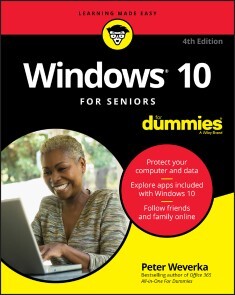
Windows 10 For Seniors For Dummies
THE EASY WAY TO GET UP AND RUNNING WITH WINDOWS 10!With Windows 10 For Seniors For Dummies, becoming familiarized with Windows 10 is a painless process. If you’re interested in learning the basics of this operating system without having to dig through confusing computer jargon, look no further.This book offers a step-by-step approach that is specifically designed to assist first time Windows 10 users who are over-50, providing easy-to-understand language, large-print text, and an abundance of helpful images along the way!* Protect your computer* Follow friends and family online* Use Windows 10 to play games and enjoy media* Check your security and maintenance status Step-by-step instructions are provided to ensure that you don't get lost at any point along the way.PETER WEVERKA has decades of experience helping tech newcomers. He has written on Office and its various applications, Windows, and Internet technologies. He is the author of all previous editions of Windows 10 For Seniors For Dummies.INTRODUCTION 1About This Book 2Conventions Used in This Book 2How to Read This Book 3Foolish Assumptions 4How This Book is Organized 4Beyond the Book 5PART 1: GETTING STARTED WITH WINDOWS 10 7CHAPTER 1: GETTING ACQUAINTED WITH WINDOWS 10 9Tell Your Computer What to Do 10Move the Mouse 11Touch the Screen 11Use a Keyboard 12View the Touch Keyboard 14Turn On Your Computer 18Check Out the Start Screen 20Shut Down Your Computer 23Start Again on the Lock Screen 25CHAPTER 2: USING THE START SCREEN AND APPS 27Open Windows 10 Apps 28Switch among Open Apps 32Close Windows 10 Apps 34Use the App Bar 36Add a Location in Weather 37Change App Settings 40Search for a Desktop App 42Arrange and Group Apps on the Start Screen 45CHAPTER 3: ADJUSTING WINDOWS 10 SETTINGS 49Access the Settings Screen 50Personalize the Lock Screen 52Choose an Account Picture 54Check for Important Updates 56Make Windows 10 Easier to Use 58Customize the Start Menu 61Handle Notifications 62CHAPTER 4: WORKING WITH USER ACCOUNTS 65Connect to the Internet 66Disconnect (or Switch to Airplane Mode) 70Create a New Microsoft Account 72Create a Local Account 75Switch from a Local to an Existing Microsoft Account 77Create a Local Account for Someone in Your Household 79Create a Password for a Local Account 82Change or Remove a Local Account Password 84Delete a Local Account 85CHAPTER 5: GETTING COMFORTABLE WITH THE DESKTOP 87Check Out the Desktop 88Change the Date or Time 90Explore the Parts of a Window 93Resize a Window 95Arrange Some Windows 96Snap a Window 97Open a Second Desktop 99Choose a Desktop Background 101Pin Icons to the Taskbar 103Stop Apps with the Task Manager 104PART 2: WINDOWS 10 AND THE WEB 107CHAPTER 6: FINDING WHAT YOU NEED ON THE WEB 109Browse the Web with Edge 111Open Multiple Pages in Separate Tabs 114Search for Anything 115Bookmark and Revisit Your Favorite Websites 117Explore Edge Features 121Block Ads on Web Pages 124CHAPTER 7: EMAILING FAMILY AND FRIENDS 129Use the Mail App 130Write an Email Message 132Format Email 134Send Files and Pictures 136Read and Respond to Incoming Email 137Change Mail Settings 139Add an Email Account to Mail 142CHAPTER 8: EXPLORING APPS FOR YOUR DAILY LIFE 145Add Contacts to the People App 146Delete a Contact 148Add a Birthday or Anniversary to the Calendar 149Search and Explore with the Maps App 154Remind Yourself to Do Tasks with Alarms & Clock 156Write Documents with WordPad 159Write a Sticky Note to Yourself 161Tweak Quick Status Settings 162Chat Face-to-Face with Skype 163Ask Questions of Cortana 166PART 3: HAVING FUN WITH WINDOWS 10 169CHAPTER 9: EXPLORING THE MICROSOFT STORE 171Explore Apps and Games by Category 172Search for an App or Game by Name 175Install a New App or Game 177Examine Your Apps and Games 180Rate and Review an App or Game 182Add Billing Information to the Microsoft Store 183CHAPTER 10: TAKING PHOTOS AND MORE 185Take Photos (and Videos) with Your Computer 186Choose Camera Settings 187Copy Photos from Your Camera 189View Photos with the Photos App 193Organizing Photos Using the Photos App 196Edit Photos Using the Photos App 199Print Photos Using the Photos App 201Scan Photos and Documents 202CHAPTER 11: ENJOYING MUSIC AND VIDEOS 205Play and Copy Music from a CD 206Listen to the Groove Music App 210Create and Manage Playlists 213Watch Videos 216Burn a CD 218Make a Voice Recording 221PART 4: BEYOND THE BASICS 223CHAPTER 12: MAINTAINING WINDOWS 10 225Install a New Program on the Desktop 226Remove Desktop Programs 228Control Startup Apps 232Explore System Information 233Check Your Security and Maintenance Status 235Speed Up Your Computer 238Protect Your Computer from Viruses and Other Threats 241CHAPTER 13: CONNECTING A PRINTER AND OTHER DEVICES 243Trust USB Plug and Play for Hardware 244See All Devices 246Connect a Printer or Other Device 247Access Device Options on the Desktop 248Calibrate Your Touchscreen 251CHAPTER 14: WORKING WITH FILES 253Save and Open a File 254Find a Misplaced File 256Add a Location to Quick Access 261Use File Explorer for Easy Access to Files 262Create a Folder to Organize Your Files 264Use Check Boxes to Select Files 265Add the Undo Button to File Explorer 267Move a File from One Folder to Another 268Rename a File or a Folder 270Delete a File or Folder 272Get Back a File or Folder You Deleted 273CHAPTER 15: BACKING UP AND RESTORING FILES 275Add an External Hard Drive or Flash Drive 277Copy Files to or from a Flash Drive 278Use OneDrive to Store File Copies 282Turn On File History 286Restore Files with File History 289Reset a Misbehaving Computer 291Index 293

Ubuntu 20.04 LTS
* GANZ EINFACH UND SCHRITT FÜR SCHRITT AUF UBUNTU UMSTEIGEN* DIE BENUTZEROBERFLÄCHE GNOME KENNENLERNEN UND AN DIE EIGENEN BEDÜRFNISSE ANPASSEN* WINDOWS UND UBUNTU PARALLEL BETREIBENSteigen Sie mit Ubuntu ein in die Linux-Welt! Egal, ob Sie Ubuntu parallel zu einem anderen Betriebssystem einsetzen oder ausschließlich damit arbeiten wollen: Dieses Buch nimmt Sie an die Hand und ermöglicht Ihnen einen einfachen Start mit Ubuntu 20.04.Christoph Troche erläutert Ihnen gut nachvollziehbar die verschiedenen Installationsmöglichkeiten von Ubuntu (Live-Version, Festinstallation, allein oder parallel zu Windows). Er zeigt Ihnen Schritt für Schritt, wie Sie Ubuntu einrichten, und macht Sie mit der Arbeitsoberfläche Gnome vertraut, so dass Sie direkt loslegen können.Sie erfahren außerdem, wie Sie Software, die ursprünglich für den Betrieb unter Windows gedacht ist, trotzdem installieren können. Für einen kompletten Umstieg empfiehlt er Ihnen aber auch geeignete Linux-Alternativen. Dabei lernen Sie Möglichkeiten kennen, mit denen Sie den Funktionsumfang der Arbeitsoberfläche, der Dateiverwaltung und der Benutzerverwaltung erweitern können.So hilft Ihnen dieses Praxisbuch optimal dabei, alle im Alltag anfallenden Aufgaben problemlos mit Ubuntu zu meistern.AUS DEM INHALT:* Linux und Ubuntu* Live-Version und vollständige Installation* Die grafische Oberfläche Gnome* Finetuning – Ubuntu einrichten* Anwendungen nachinstallieren* Windows-Programme mit Ubuntu nutzen* Linux-Alternativen zu Windows-Programmen* Ubuntu in der Gruppe* Sicherheit im System* Nautilus, Kommandozeile und VerzeichnisbaumChristoph Troche ist Fachbuchautor und Linux-User der ersten Stunde. Er legt besonders großen Wert auf die praktische Anwendbarkeit und Benutzerfreundlichkeit seiner Anleitungen.

Human Compatible
Künstliche Intelligenz und wie der Mensch die Kontrolle über superintelligente Maschinen behält »Das bedeutendste Buch über KI in diesem Jahr.«- The Guardian, 24.09.2019Werden Maschinen bald auf nahezu allen Gebieten intelligenter sein als der Mensch? Auch wenn das vielversprechend klingt, ist die Entwicklung einer Superintelligenz zugleich ein ernstzunehmendes Risiko. Denn ist diese einmal da, können wir nicht mehr einfach den Stecker ziehen. Niemand kann die Chancen und Risiken der künstlichen Intelligenz besser beurteilen als Stuart Russell, der seit mehr als einer Dekade an vorderster Front der KI-Forschung arbeitet. Er veranschaulicht mit brillanten Analogien, wie sich natürliche und künstliche Intelligenz voneinander unterscheiden, und macht deutlich, weshalb wir vermeiden müssen, dass die Maschinen für uns unkontrollierbar werden. Fundiert, eindringlich und visionär zeigt Human Compatible neue Perspektiven und Lösungswege für die KI-Forschung auf, um zu gewährleisten, dass superintelligente Maschinen unsere Ziele verfolgen und nicht ihre eigenen.

Creation of Postfix Mail Server Based on Virtual Users and Domains
It is common these days for a single system to host many domains, for example uniswa.com and mtn.com or acme .com may run on a single host machine, but behave as if they were on three different hosts. A system usually has a canonical domain, it has its usual or local domain name, and additional domains are configured as virtual domains. The purpose behind this work is to create a mail server solution based on Postfix that is based on virtual users and domains, i..e. users and domains that are in a MySQL database. The goal is to have completely virtual users and domains. bob@uniswa.com != bob@acme.com. This means creating a separate name spaces for reach domain.It will also demonstrate the installation and configuration of Courier-Imap (IMAP/POP3), so it can authenticate against the same MySQL database Postfix uses. The resulting postfix server is capable of quota which is not built into Postfix by default; the project will demonstrate how to patch postfix appropriately. Passwords are stored in encrypted form in the database. The work also covers the installation of Mail Scanner, SpamAssassin and ClamAv so that emails will be scanned for spams and viruses. The administration of MySQL database can be done through a web based tool Postfixadmin or can be done manually in the MySQL shell. Postfixadmin is a web based management tool created for Postfix that handles Postfix style virtual domains and users that are stored in MySQL. The squirrelmail web based email client is installed, in order to check emails from anywhere in world via internet. All installations were done in Fedora 5 Linux machine.I am Dr. Hidaia Mahmoud Mohamed Alassouli. I completed my PhD degree in Electrical Engineering from Czech Technical University by February 2003, and my M. Sc. degree in Electrical Engineering from Bahrain University by June 1995. I completed also one study year of most important courses in telecommunication and computer engineering courses in Islamic university in Gaza. So, I covered most important subjects in Electrical Engineering, Computer Engineering and Telecommunications Engineering during my study. My nationality is Palestinian from gaza strip.I obtained a lot of certified courses in MCSE, SPSS, Cisco (CCNA), A+, Linux.I worked as Electrical, Telecommunicating and Computer Engineer in a lot of institutions. I worked also as a computer networking administrator. I had considerable undergraduate teaching experience in several types of courses in many universities. I handled teaching the most important subjects in Electrical and Telecommunication and Computer Engineering. I could publish a lot of papers a top-tier journals and conference proceedings, besides I published a lot of books in Publishing and Distribution houses.I wrote a lot of important Arabic articles on online news websites. I also have my own magazine website that I publish on it all my articles: http:// www.anticorruption.000space.comMy personal website: www.hidaia-alassouli.000space.comEmail: hidaia_alassouli@hotmail.com

JavaScript
ALL OF JAVASCRIPT'S NEWEST FEATURES, IN DEPTH, MADE EASY TO UNDERSTAND.JavaScript is a rapidly changing language and it can be challenging to keep up with all the new toys being added. JavaScript: The New Toys explores the newest features of the world's most popular programming language while also showing readers how to track what's coming next. After setting the stage by covering who manages the process of improving JavaScript, how new features get introduced, terminology, and a high-level overview of new features, it details each new or updated item in depth, with example uses, possible pitfalls, and expert recommendations for updating old habits in light of new features. JavaScript: The New Toys:* Covers all the additions to JavaScript in ES2015-ES2020 plus a preview of what's coming next* Explores the latest syntax: nullish coalescing, optional chaining,```let```and```const```,```class```syntax, private methods, private fields,```new.target```, numeric separators, BigInt, destructuring, default parameters, arrow functions,```async```functions,```await```, generator functions,```...```(rest and spread), template literals, binary and octal literals,```**```(exponentiation), computed property/method names,```for-of```,```for-await-of```, shorthand properties, and others* Details the new features and patterns including modules, promises, iteration, generators, Symbol, Proxy, reflection, typed arrays, Atomics, shared memory, WeakMap, WeakSet, and more* Highlights common pitfalls and explains how to avoid them* Shows how to follow the improvements process and even participate in the process yourself* Explains how to use new features even before they're widely supportedWith its comprehensive coverage and friendly, accessible style, JavaScript: The New Toys provides an invaluable resource for programmers everywhere, whether they work in web development, Node.js, Electron, Windows Universal Apps, or another JavaScript environment.About the authorT.J. CROWDER is a software engineer with 30 years of experience, including over 15 years of professional work in JavaScript. He runs Farsight Software, a software contracting and product company. He's often found helping people on Stack Overflow, where he's a top 10 all-time contributor and the top JavaScript contributor. When not working or writing, he…no, sorry, he's always working or writing – or spending time with his wonderful, supportive wife and fantastic son.Visit us at www.wiley.com for free code samples.Introduction xxxiCHAPTER 1: THE NEW TOYS IN ES2015–ES2020, AND BEYOND 1Definitions, Who’s Who, and Terminology 2What are the “New Toys”? 4How Do New Toys Get Created? 6Keeping Up with the New Toys 9Using Today’s Toys in Yesterday’s Environments, and Tomorrow’s Toys Today 10Review 15CHAPTER 2: BLOCK-SCOPED DECLARATIONS: LET AND CONST 17An Introduction to let and const 18True Block Scope 18Repeated Declarations are an Error 19Hoisting and the Temporal Dead Zone 20A New Kind of Global 22const: Constants for JavaScript 24Block Scope in Loops 26Old Habits to New 36CHAPTER 3: NEW FUNCTION FEATURES 39Arrow Functions and Lexical this, super, etc. 40Default Parameter Values 45“Rest” Parameters 50Trailing Commas in Parameter Lists and Function Calls 52The Function name Property 53Function Declarations in Blocks 55Function Declarations in Blocks: Standard Semantics 57Old Habits to New 60CHAPTER 4: CLASSES 65What is a Class? 66Introducing the New class Syntax 66Comparing with the Older Syntax 75Creating Subclasses 77Leaving Off Object.prototype 97new.target 98class Declarations vs. class Expressions 101More to Come 103Old Habits to New 104CHAPTER 5: NEW OBJECT FEATURES 105Computed Property Names 106Shorthand Properties 107Getting and Setting an Object’s Prototype 107Method Syntax, and super Outside Classes 109Symbol 112New Object Functions 120Symbol.toPrimitive 123Property Order 125Property Spread Syntax 127Old Habits to New 128CHAPTER 6: ITERABLES, ITERATORS, FOR-OF, ITERABLE SPREAD, GENERATORS 131Iterators, Iterables, the for-of Loop, and Iterable Spread Syntax 131Generator Functions 146Old Habits to New 163CHAPTER 7: DESTRUCTURING 165Overview 165Basic Object Destructuring 166Basic Array (and Iterable) Destructuring 169Defaults 170Rest Syntax in Destructuring Patterns 172Using Different Names 173Computed Property Names 174Nested Destructuring 174Parameter Destructuring 175Destructuring in Loops 178Old Habits to New 179CHAPTER 8: PROMISES 181Why Promises? 182Promise Fundamentals 182Using an Existing Promise 186Adding Handlers to Already Settled Promises 201Creating Promises 202Other Promise Utility Methods 207Promise Patterns 210Handle Errors or Return the Promise 210Promises in Series 211Promises in Parallel 213Promise Subclasses 218Old Habits to New 219CHAPTER 9: ASYNCHRONOUS FUNCTIONS, ITERATORS, AND GENERATORS 221async Functions 222async Iterators, Iterables, and Generators 232for-await-of 238Old Habits to New 238CHAPTER 10: TEMPLATES, TAG FUNCTIONS, AND NEW STRING FEATURES 241Template Literals 241Improved Unicode Support 250Iteration 255New String Methods 256Updates to the match, split, search, and replace Methods 259Old Habits to New 260CHAPTER 11: NEW ARRAY FEATURES, TYPED ARRAYS 263New Array Methods 264Iteration, Spread, Destructuring 276Stable Array Sort 276Typed Arrays 277Old Habits to New 292CHAPTER 12: MAPS AND SETS 293Maps 293Sets 300WeakMaps 304WeakSets 314Old Habits to New 316CHAPTER 13: MODULES 319Introduction to Modules 319Module Fundamentals 320Renaming Exports 331Re-Exporting Exports from Another Module 332Renaming Imports 333Importing a Module’s Namespace Object 333Exporting Another Module’s Namespace Object 334Importing a Module Just for Side Effects 335Import and Export Entries 335Imports are Live and Read-Only 338Module Instances are Realm-Specific 340How Modules are Loaded 341Import/Export Syntax Review 348Dynamic Import 350Tree Shaking 357Bundling 359Import Metadata 360Worker Modules 360Old Habits to New 362CHAPTER 14: REFLECTION—REFLECT AND PROXY 365Reflect 365Proxy 371Old Habits to New 395CHAPTER 15: REGULAR EXPRESSION UPDATES 397The Flags Property 398New Flags 398Named Capture Groups 400Lookbehind Assertions 405Unicode Features 408Old Habits to New 413CHAPTER 16: SHARED MEMORY 417Introduction 417Here There Be Dragons! 418Browser Support 418Shared Memory Basics 420Memory is Shared, Not Objects 426Race Conditions, Out-of-Order Stores, Stale Values, Tearing, and More 427The Atomics Object 429Shared Memory Example 434Here There Be Dragons! (Again) 455Old Habits to New 460CHAPTER 17: MISCELLANY 461BigInt 462New Integer Literals 465New Math Methods 467Exponentiation Operator (**) 468Date.prototype.toString Change 470Function.prototype.toString Change 471Number Additions 471Symbol.isConcatSpreadable 474Various Syntax Tweaks 475Various Standard Library / Global Additions 479Annex B: Browser-Only Features 482Tail Call Optimization 488Old Habits to New 491CHAPTER 18: UPCOMING CLASS FEATURES 493Public and Private Class Fields, Methods, and Accessors 493Old Habits to New 514CHAPTER 19: A LOOK AHEAD . . .517Top-Level await 518WeakRefs and Cleanup Callbacks 525RegExp Match Indices 533String.prototype.replaceAll 535Atomics asyncWait 535Various Syntax Tweaks 536Legacy Deprecated RegExp Features 537Thank You for Reading! 538APPENDIX: FANTASTIC FEATURES AND WHERE TO FIND THEM 539Index 557

E-Fam Exodus (heise online Welten)
Ein Fall für John Mayer und Otto - ein Krimi aus der Edition heise online Welten Die Mega-City Neun, Heimat von Millionen Bürgern, arbeitet an ihrem eigenen Zerfall. Einige Bewohner, darunter hochrangige Persönlichkeiten, hauchen unfreiwillig die Lebensgeister aus. Bei dem Versuch, einem Programmierer das Leben zu retten, kommt Privatermittler John Mayer einem verbindenden Element zwischen all den Todesfällen auf die Schliche und wird so selbst zum Gejagten. Zur Flucht gezwungen muss er sich eingestehen, dass auch sein treuer Begleiter, der E-Fam Otto, in die Geschehnisse verstrickt sein könnte. Welchem Plan folgt der Elektronische Famulus? Johns Vertrauen wird auf eine harte Probe gestellt. Doch zum Verschnaufen bleibt keine Zeit, altbekannte Gegenspieler sind ihm dicht auf den Fersen. Der Autor Arno Endler, geboren als Sonntagskind 1965 in Neuwied, infizierte sich im Alter von 12 Jahren mit dem Science-Fiction-Virus. Als Schüler durchstöberte er bereits sämtliche Buchhandlungen seiner Heimatstadt auf der Suche nach Büchern des Genres und litt nur an einem Mangel an Taschengeld. Er studierte Steuerrecht und betreute als Landesbeamter verschiedene IT-bezogene Projekte. Seit dem Jahr 2008 wagte er schriftstellerisch Blicke in die nähere und fernere Zukunft und publizierte Dutzende Kurzgeschichten im c't-Magazin. Seit 2016 schreibt er für die Serie Perry Rhodan NEO und veröffentlichte mehrere Romane in verschiedenen Verlagen.

Configuration of Microsoft ISA Proxy Server and Linux Squid Proxy Server
The paper concerns about basic Microsoft ISA server and Linux Squid Server configuration As a lot of technicians switch between ISA server and Squid server, I decided to write this paper to present some reference when configuring ISA and Squid. There a lot of issues that not covered, and you can go to the manual of ISA server and Squid server for detailed configuration of ISA and Squid. The paper is composed from two parts 1.Microsoft ISA server 2004 Configuration2.Linux Squid Server ConfigurationNote that, this work was done without proper simulation, because of the lack of resources, as testing firewall configuration requires many computers, with one of them should have many network cards. Also the ISA server is not used in the computer center now.I am Dr. Hidaia Mahmoud Mohamed Alassouli. I completed my PhD degree in Electrical Engineering from Czech Technical University by February 2003, and my M. Sc. degree in Electrical Engineering from Bahrain University by June 1995. I completed also one study year of most important courses in telecommunication and computer engineering courses in Islamic university in Gaza. So, I covered most important subjects in Electrical Engineering, Computer Engineering and Telecommunications Engineering during my study. My nationality is Palestinian from gaza strip.I obtained a lot of certified courses in MCSE, SPSS, Cisco (CCNA), A+, Linux.I worked as Electrical, Telecommunicating and Computer Engineer in a lot of institutions. I worked also as a computer networking administrator. I had considerable undergraduate teaching experience in several types of courses in many universities. I handled teaching the most important subjects in Electrical and Telecommunication and Computer Engineering. I could publish a lot of papers a top-tier journals and conference proceedings, besides I published a lot of books in Publishing and Distribution houses.I wrote a lot of important Arabic articles on online news websites. I also have my own magazine website that I publish on it all my articles: http:// www.anticorruption.000space.comMy personal website: www.hidaia-alassouli.000space.comEmail: hidaia_alassouli@hotmail.com

Selling on Amazon For Dummies
SELL ON AMAZON AND MAKE THEM DO THE HEAVY LIFTINGSelling on Amazon has become one of the most popular ways to earn income online. In fact, there are over 2 million people selling on Amazon worldwide. Amazon allows any business, no matter how small, to get their products in front of millions of customers and take advantage of the largest fulfillment network in the world. It also allows businesses to leverage their first-class customer service and storage capabilities.Selling on Amazon For Dummies walks owners through the process of building a business on Amazon—a business that can be built almost anywhere in the world, as long as you have access to a computer and the internet.* The basics of selling on Amazon* Using FBA* Getting started* Deciding what to sell* Conducting product research* Finding your way around Seller Central* Product sourcing, shipping and returns, Amazon subscription, fees, sales tax, and more* How to earn ROIs (Returns on Your Investments)Selling on Amazon For Dummies provides the strategies, tools, and education you need, including turnkey solutions focused on sales, marketing, branding, and marketplace development to analyze and maximize opportunities.DENIZ OLMEZ is an Amazon consultant who specializes in search engine optimization, new account setup and management, FBA, and branding services. JOE KRAYNAK has authored and coauthored numerous books including Flipping Houses For Dummies and Foreclosure Self-Defense For Dummies.INTRODUCTION 1About This Book 1Foolish Assumptions 2Icons Used in This Book 3Where to Go from Here 4PART 1: GETTING STARTED WITH SELLING ON AMAZON 5CHAPTER 1: LAYING THE GROUNDWORK 7Getting the Lowdown on Selling Online 7Weighing the pros and cons of online retailing 8Taking a tour of online stores and marketplaces 9Exploring How Amazon Works 10Before you start selling 10Selling products 11Using Fulfillment by Amazon (FBA) 11Comparing Amazon Business Types 13Vendor (1P) versus Seller (3P) 13Individual versus Professional 14Arbitrage versus private label 15Sellers with and without brand registry 17Tabulating the Costs 18Product sourcing 18Shipping and storage 18Amazon Seller fees 19Returns 19Other costs 20Following Amazon’s Rules 20Seller code of conduct 20Accurate information 21Acting fairly 21Ratings, feedback, and reviews 22Communications 22Customer information 22Circumventing the sales process 22Multiple Amazon Seller accounts 23CHAPTER 2: SELLING ON AMAZON IN A NUTSHELL 25First Things First: Finding Products to Sell 26Deciding what to sell and not sell 26Exploring product sourcing options 29Listing Products for Sale on Amazon 30Prepping and Shipping Products to Customers 31Introducing Amazon Prime 31Fulfillment by Amazon (FBA) and Small and Light (SNL) 32Fulfillment by Merchant (FBM) 33Seller Fulfilled Prime 34Drop-shipping 34Multi-Channel Fulfillment 35Boosting Sales with Advertising and Promotions 35Providing Stellar Customer Service 37CHAPTER 3: SETTING UP YOUR AMAZON SELLER ACCOUNT 39Registering to Become an Amazon Seller 39Completing Your Amazon Seller Business Profile 42Business Address 42Official Registered Address 43Language for Feed Processing Report 43Legal Entity 43Merchant Token 44Display Name 44Checking and Adjusting Your Account Settings 45Entering Shipping and Return Settings 46Shipping settings 46Return settings 47Securing Your Amazon Seller Account 49CHAPTER 4: BECOMING FAMILIAR WITH SELLER CENTRAL 53Finding Your Way around Seller Central 53Switching marketplaces 54Navigating the menu bar 54Using the search bar 60Viewing your payments summary 61Taking advantage of Amazon business reports 62Accessing the Buyer-Seller Messaging Service 64Getting Help and Information 65Engaging in the seller forums 66Contacting Amazon support for help 67Managing your case log 67Consulting Amazon Selling Coach 68Skimming Amazon headline news 69Checking out Amazon’s app store: The Service Provider Network (SPN) 69Exploring Amazon’s Seller University 70PART 2: PROCURING PRODUCTS TO SELL ON AMAZON 71CHAPTER 5: KNOWING WHAT YOU CAN AND CAN’T SELL ON AMAZON 73Recognizing Products You Can Sell: Amazon’s Product Categories 73Open categories 74Categories that require approval 75Steering Clear of Restricted Products 76Brushing Up on Food Safety Rules 78Organic products 79Chilled and frozen products 80CHAPTER 6: FINDING PRODUCTS WITH PROFIT POTENTIAL 81Recognizing the Characteristics of Products with High Profit Potential 82Uniqueness 82Price range and profit margin 82Sales volume 83Shipping cost/complexity 84Reviews 84Steering Clear of Troublesome Products 84Trademarked products 85Mechanically complex products 85Products that are difficult and costly to store and ship 86Products sold in large retail stores 87Conducting Your Own Product Research 87Using product research tools 87Sizing up the competition 89Exploring Alibaba and other Chinese online wholesale marketplaces 90Validating or Rejecting Product Ideas 92Weighing the pros and cons of carrying the latest, greatest products 92Considering seasonal products 93Giving new brands a try (or not) 93Focusing on Price and Sales Volume 94Checking out different pricing strategies 95Keeping an eye on the competition 95Estimating sales volume 97Setting realistic profit projections 98CHAPTER 7: EXPLORING YOUR PRODUCT SOURCING OPTIONS 101Mastering Retail Arbitrage 102Buying from brick-and-mortar retailers 102Buying from online retailers 105Recognizing the importance of having a purchase order (PO) or receipt 107Sourcing Products at Auctions and Liquidation Sales 107Weighing the Pros and Cons of Drop-Shipping 109Buying from Manufacturers, Distributors, and Wholesalers 110Deciding whether a manufacturer is best 111Knowing when to opt for a distributor 111Deciding when a wholesaler is best 112Sourcing Products from Alibaba 114Finding Suppliers at Tradeshows 117Making and Selling Your Own Products: Amazon Handmade and Custom 119Selling your own hand-crafted products 119Selling customized products on Amazon 121CHAPTER 8: EVALUATING AND NEGOTIATING WITH SUPPLIERS 123Deciding Whether to Use Domestic or Foreign Suppliers or Both 124Recognizing the pros and cons of working with domestic suppliers 124Weighing the pros and cons of working with foreign suppliers 125Selecting Suppliers with the Right Stuff 126Gauging experience and expertise 127Ensuring clear communication 127Sizing up a supplier’s reputation 128Assessing a supplier’s responsiveness 130Comparing prices 131Negotiating Prices and Terms 132Prepping for negotiation 132Brushing up on effective negotiating tactics 133Obtaining a purchase order contract 134PART 3: GETTING DOWN TO THE BUSINESS OF SELLING 137CHAPTER 9: LISTING PRODUCTS FOR SALE ON AMAZON 139Knowing What’s Required to Own the Buy Box 140Ensuring buy-box eligibility 140Meeting the quality metrics for winning the buy box 141Thinking outside the buy box 144Obtaining High-Quality Product Photos 144Brushing up on Amazon’s product photo rules and restrictions 145Procuring manufacturer photos 146Taking your own photos 146Outsourcing product photos 147Checking out Amazon Imaging Services 148Creating a Product Listing 149Matching to an existing product listing 149Creating a new product listing 151Listing multiple products in bulk 155Listing variations and bundles 159Creating product subscriptions 162Increasing Your Product Search Ranking on Amazon 164Harnessing the power of the A9 algorithm 164Checking out the competition 166Using keywords to your advantage 166CHAPTER 10: FULFILLING CUSTOMER ORDERS 171Choosing an Order Fulfillment Method 172Fulfillment by Amazon (FBA) 172Fulfillment by Merchant (FBM) 174Seller Fulfilled Prime 175Drop-shipping 177Using Fulfillment by Amazon (FBA) 178Accounting for the costs 179Knowing what to send and not send to FBA 182Signing up for FBA 185Preparing and shipping products to FBA 185Removing inventory from FBA 190Shipping Products Yourself: Fulfillment by Merchant (FBM) 193CHAPTER 11: HELPING SHOPPERS FIND YOU AND YOUR PRODUCTS 195Gaining Traction with Product and Seller Ratings and Feedback 195Encouraging customers to review products 196Improving your seller rating and feedback 199Harnessing the Power of Search Engine Optimization (SEO) 200Jazzing Up Your Listings with A+ Content 201Driving Web Traffic from Outside Amazon to Your Product Listings 203Generating buzz via social media 203Creating a website or landing page 204Using pay-per-click advertising 206CHAPTER 12: BOOSTING SALES WITH MARKETING AND ADVERTISING 207Exploring Different Ad Types 208Sponsored Products 208Sponsored Brands 210Sponsored Display 211Amazon demand-side platform (DSP) 211Custom ads 212Deals and coupons 212Optimizing Your Search Rank with Sponsored Product Ads 214Letting Amazon target your Sponsored Product ad for you 214Targeting your own Sponsored Product Ads 215Evaluating and adjusting your ad campaigns 217Boosting Brand Awareness with Sponsored Brands 219Giving Your Shoppers an Added Incentive to Buy: Deals and Coupons 221Offering special deals 221Offering coupon discounts 223Creating promotions 224Taking Advantage of External Marketing Options 225Dipping into social media marketing 226Harnessing the power of influencer marketing 228Firing Up Your Email Marketing Machine 229CHAPTER 13: FOCUSING ON CUSTOMER SERVICE 231Understanding Why Customer Satisfaction Is So Important 232Laying the Groundwork for Quality Customer Service 233Managing and Shipping Orders 234Responding to Customer Questions, Concerns, and Complaints 235Processing Returns, Refunds, and Cancellations 236Handling returns 237Issuing refunds 239Following up on order cancellations 239Managing Seller Feedback and Product Reviews 240Monitoring and responding to seller feedback 241Monitoring and responding to product ratings and reviews 243Fielding A-to-Z Claims 244CHAPTER 14: BUILDING AND MANAGING YOUR OWN WEBSTORE 247Choosing Where to Build Your Webstore: Inside or Outside Amazon or Both 248Weighing the pros and cons of building an Amazon Store 248Weighing the pros and cons of building a webstore outside Amazon 249Creating two webstores 250Laying the Groundwork for Your Webstore 250Choosing a unique and recognizable domain name 250Deciding how to build your webstore 251Categorizing your products 252Gathering the essentials to build your store 254Creating Your Amazon Store 257Creating a Stand-Alone Webstore 259Designing your storefront 259Making sure you have everything in place 261CHAPTER 15: MANAGING YOUR INVENTORY 263Grasping the Importance of Inventory Management 263Managing Inventory via Amazon’s Manage Inventory Page 264Maintaining Sufficient Stock 266Forecasting sales 266Accounting for lead time 267Replenishing FBA inventory 268Setting up replenishment alerts 269Avoiding FBA’s long-term storage fees 271Getting Some Cash or Credit to Buy Inventory 272Hitting Amazon up for a loan 272Getting daily payouts with Payability 273Making savvy use of credit cards 274Financing with loans or lines of credit 274PART 4: TAKING YOUR BUSINESS TO THE NEXT LEVEL 277CHAPTER 16: PUTTING ADDITIONAL AMAZON SELLER TOOLS TO WORK FOR YOU 279Tracking Your Account’s Health and Performance 280Checking your account health 280Reviewing customer feedback 282Monitoring and managing your A-to-Z Guarantee claims 282Monitoring and managing your chargeback claims 283Accessing Amazon’s performance notifications 284Gaining additional insight via the Voice of the Customer feature 284Improving your performance via Seller University 285Dealing with Sales Tax 285Grasping the basics of Marketplace Tax Collection 286Using Amazon’s Tax Calculation Service (TCS) 287Generating Business and Inventory Reports 289Sales reports 289Inventory reports 290Payments reports 292Customer concession reports 292Removal reports 293Managing Your Amazon Seller Account with the Mobile App 293Getting the Amazon Seller Mobile App 294Navigating the Amazon Seller Mobile App 294CHAPTER 17: BUILDING YOUR OWN BRAND (OR NOT) 297Deciding Whether Branding Is Right for You 298Creating Your Own Brand 299Discover your purpose 299Analyze your competition 300Identify your target market 300Identify your brand’s key benefits 301Write a slogan 302Visualize your brand 302Work it: Reinforce your brand 302Trademarking Your Brand 303Registering your trademark on USPTO.gov 303Streamlining the trademark registrationprocess with IP Accelerator 304Adding your trademark to the Amazon Brand Registry 305Building a Brand with Private-Label Products 309CHAPTER 18: TAKING ADVANTAGE OF THIRD-PARTY TOOLS AND SERVICE PROVIDERS 311Taking Product Research to the Next Level 312Managing the Backend of Your Ecommerce Business 313Handling multi-channel integration 314Streamlining order management 315Simplifying inventory management 315Automating price changes 316Automating Feedback and Reviews 317Finding Help through Amazon’s Service Provider Network 318CHAPTER 19: EXPANDING YOUR OPERATIONS: B2B AND GLOBAL SALES 321Selling Products to Amazon as a Vendor 322Weighing the pros and cons of selling to Amazon as a vendor 322Increasing your chances of getting invited to become a vendor 323Selling to Other Businesses 323Getting up to speed on performance standards and rules 324Managing business pricing and quantity discounts 325Creating business-only offers 328Enrolling in Amazon’s tax exemption program 329Negotiating business prices 330Expanding Your Operations Globally 331Simplifying the process with FBA Export 331Expanding your operations into other countries using Amazon Global Selling 333PART 5: THE PART OF TENS 335CHAPTER 20: TOP TEN ADVERTISING TIPS 337Get to Know the Different Ad Types 337Test the Market with Automatic Targeting 338Make the Most of Manual Targeting 339Find Your Long-Tail Search Terms 339Research Your Competitor’s Search Terms 340Write Copy Specific to Your Product 340Avoid These Common Search Terms Mistakes 341Specify Negative Search Terms 342Always Test and Track 343Don’t Rush! Good Advertising Takes Time 343CHAPTER 21: TEN TIPS TO DELIVER AWESOME CUSTOMER SERVICE 345Follow Amazon’s Rules and Updates 346Respond in a Timely Manner 346Be Honest 347Be Empathetic 347Go the Extra Mile 348Ask Questions 348Personalize Your Responses 349Stay Calm 349Remain Positive 350Think Long Term 350CHAPTER 22: TEN (PLUS ONE) TIPS TO FIND BEST-SELLING PRODUCTS 353Recognize Key Product Selection Criteria 354Find a Niche 354Sell What You Know and Love 355Do Your Own Thing 355Don’t Expect Seasonal Products to Sell Year-Round 356Decide Whether to Pursue Best Sellers 357Capitalize on Low Competition 357Focus on Products That Sell for More than 20 Bucks 358Check Competitors’ Reviews 359Reduce Returns 359Avoid Legal Issues 360Index 361

Some Tutorials in Computer Networking Hacking
The objective of this work is to provide some quick tutorials in computer networking hacking.The work includes the following tutorials:* Tutorial 1: Setting Up Penetrating Tutorial in Linux.* Tutorial 2: Setting Up Penetrating Tutorial in Windows.* Tutorial 3: OS Command Injection: * Tutorial 4: Basic SQL Injection Commands. * Tutorial 5: Manual SQL injection using order by and union select technique.* Tutorial 6: Damping SQL Tables and Columns Using the SQL Injection.* Tutorial 7: Uploading Shell in the Site having LFI.* Tutorial 8: Advanced Way for Uploading Shell* Tutorial 9: Uploading shell Using Sqli Command.* Tutorial 10: Uploading Shell Using SQLmap* Tutorial 11: Post Based SQL Injection* Tutorial 12: Cracking the Hashes Using Hashcat. * Tutorial 13: Hacking windows 7 and 8 through Metasploite * Tutorial 14: Tutorial on Cross Site Scripting * Tutorial 15: Hacking Android Mobile Using Metasploit* Tutorial 16: Man of the middle attack:* Tutorial 17: Using SQLmap for SQL injection* Tutorial 18: Hide Your Ip* Tutorial 19: Uploading Shell and Payloads Using SQLmap * Tutorial 20: Using Sql Shell in SQLmap* Tutorial 21: Blind SQL Injection* Tutorial 22: Jack Hridoy SQL Injection Solution* Tutorial 23: Using Hydra to Get the PasswordTutorial 24: Finding the phpmyadmin page using websploit. * Tutorial 25: How to root the server using back connect * Tutorial 25: How to root the server using back connect* Tutorial 26: HTML Injection* Tutorial 27: Tutuorial in manual SQl Injection* Tutorial 28: Venom psh-cmd-exe payload * Tutorial 29: Cross site Request Forgery (CSRF)* Tutorial 30: Disable Victim Computer* Tutorial 31: Exploit any firefox by xpi_bootstrapped addon* Tutorial 32: Hack android mobile with metasploit* Tutorial 33: PHP Code Injection to Meterpreter Session* Tutorial 34: Basic google operators* Tutorial 35: Hacking Credit Cards with google* Tutorial 36: Finding Vulnerable Websites in Google* Tutorial 37: Using the httrack to download website* Tutorial 38: Getting the credit cards using sql injection and the SQLi dumper* Tutorial 39: Using burp suite to brute force password

Internet of Crimes
Das Internet bietet Verbrechern ganz neue Möglichkeiten: Hacker attackieren Bezahlsysteme, beeinflussen Wahlen und ganze Demokratien. Gehackt und erpresst werden nicht nur Konzerne und Internetgrößen wie Facebook oder Microsoft, auch kleine und mittlere Unternehmen sind immer häufiger im Visier der Internetmafia. Jeder, der das Internet nutzt, ob privat oder beruflich, kann Opfer einer Attacke werden.Gerald Reischl zeigt in seinem Buch »Internet of Crimes«, mit welchen Szenarien wir alle rechnen müssen, wie man die Gefahr eindämmen kann und was jeder Einzelne tun kann, um nicht selbst Opfer von Internetkriminalität zu werden.Gerald Reischl ist gefragter Tech- und IT-Security-Experte, Journalist und Buchautor. Er war Redakteur für diverse österreichische Tageszeitungen, baute das führende Technologie-Nachrichtenportal Österreichs auf und war Geschäftsführer im öffentlich-rechtlichen Rundfunk. Heute ist er Kommunikationschef eines der führenden Technologie-Unternehmen Österreichs.

Teach Yourself VISUALLY Windows 10
MASTER WINDOWS 10 BY READING ONLY ONE BOOKTeach Yourself Visually Windows 10, 3rd Edition brings together all of the necessary resources to make you an expert in the use of the latest version of Windows. Using highly visual techniques to maximize learner retention and memory, Teach Yourself Visually Windows 10 will have you breezing through the most popular operating system in the world in no time.The book includes hundreds of step-by-step and illustrated sets of instructions to teach you both the basics and the complexities of Windows 10 operation. Lessons include:* Installing and repairing applications* System maintenance* Setting up password-protection* Downloading photos* Managing media files* And moreTeach Yourself Visually Windows 10 combines the best of visual learning techniques with comprehensive source material about the interface and substance of Windows 10 to leave you with encyclopedic knowledge of the operating system.Perfect for beginners and intermediate users alike, this book will turn your Windows-using experience from a slow slog into a lighting-fast masterclass of efficiency.PAUL MCFEDRIES (Toronto, Ontario) is the president of Logophilia Limited, a technical writing company. He has been programming since he was a teenager in the mid-1970s, has programmed everything from mainframes to desktops to bar code scanners, and has worked with many different languages, including Fortran, assembly language, C++, and, of course, JavaScript. Paul has written more than four dozen books that have sold more than two million copies worldwide. These books include Windows 8 Visual Quick Tips, Teach Yourself VISUALLY Macs, 2nd Edition, Macs Portable Genius, and Teach Yourself VISUALLY Windows 10. Paul encourages all readers to drop by his Web site, www.mcfedries.com.CHAPTER 1 GETTING STARTED WITH WINDOWSExplore the PC Screen 4Explore the Tablet Screen 5Start and Close an App 6Connect to Your Wireless Network 8Put Windows to Sleep 10Restart or Shut Down Windows 11Switch to a Microsoft Account 12Install an App 16Switch Between Running Apps 18Uninstall an App 20CHAPTER 2 CUSTOMIZING WINDOWSPin an App to the Start Menu 24Open the Settings App 26Change the Lock Screen Background 28Add an App to the Lock Screen 30Synchronize Settings Between PCs 32Access an App’s Features 34Pin an App to the Taskbar 36Adjust the Volume 38Set the Time Zone 39Configure Windows to Work with Multiple Monitors 40Customize the Taskbar’s Notification Area 42Set Up Multiple Desktops 44CHAPTER 3 SURFING THE WEBOpen a Web Page 48Open a Web Page in a Tab 50Navigate Web Pages 52Find Text on a Page 53Navigate with the History List 54Change Your Startup Page 56Save Favorite Web Pages 58Take Advantage of the Favorites Bar 60Share a Web Page 62Search for Sites 64Download a File 66CHAPTER 4 SENDING AND RECEIVING EMAIL CONFIGURE AN EMAIL ACCOUNT 70Send an Email Message 72Format the Message Text 74Add a File Attachment 76Save a Draft of a Message 78Receive and Read Email Messages 80Reply to a Message 82Forward a Message 84Open and Save an Attachment 86Delete a Message 88Create a Folder for Saving Messages 90Configure Mail Options 92CHAPTER 5 GETTING SOCIAL WITH WINDOWS CREATE A CONTACT 96Add Your Google Account 98Add Your iCloud Account 100View a Contact 102Edit a Contact 104Assign a Photo to a Contact 106Add Extra Fields to a Contact 108Filter the Contacts List 110Combine Multiple Profiles for a Contact 112View Your Calendar 114Add an Event to Your Calendar 116Create a Recurring Event 118Add an Event Reminder 119Send or Respond to an Event Invitation 120Customize Your Calendar 122CHAPTER 6 PERFORMING DAY-TO-DAY TASKS WITH APPS SEARCH YOUR PC 126Configure the Cortana Voice Assistant 128Control Your PC with Cortana 130Configure Skype 132Call Someone Using Skype 134Display a Location on a Map 136Get Directions to a Location 138Check Your Weather Forecast 140Check Another City’s Weather Forecast 142Perform Calculations 144Record a Voice Memo 146Set an Alarm 148Write a Note 150CHAPTER 7 WORKING WITH IMAGES IMPORT IMAGES FROM A DIGITAL CAMERA 154Scan an Image 156Navigate the Pictures Folder 158View Your Images 160Start a Slide Show 162Repair an Image 164Add a Photo Effect 166Crop an Image 168Rotate an Image 170Delete an Image 171Print an Image 172Take a Picture with Your PC Camera 174CHAPTER 8 WORKING WITH MULTIMEDIA IMPORT VIDEOS FROM A DIGITAL CAMERA 178Navigate the Videos Folder 180Watch a Video 182Edit a Video 184Make a Movie 188Play a Music CD 192Copy Tracks from a Music CD 196Navigate the Music Folder 198Play Music 200Create a Playlist 202Switch Between Audio Devices 204CHAPTER 9 EDITING DOCUMENTS CREATE AND SAVE A DOCUMENT 208Open a Document 210Change the Text Font 212Find Text 214Replace Text 216Insert Special Symbols 218Make a Copy of a Document 220Create a OneNote Notebook 222Add Pages and Sections to a Notebook 224Add Text Notes 226Add an Image to a Notebook Page 228Work with Notebook Lists 230Print a Document 232CHAPTER 10 WORKING WITH FILES SELECT A FILE 236Change the File View 238Preview a File 239Copy a File 240Move a File 241Rename a File 242Create a New File 243Delete a File 244Restore a Deleted File 245Add a File to Your OneDrive 246Extract Files from a Compressed Folder 248Specify a Different Program When Opening a File 250CHAPTER 11 SHARING YOUR COMPUTER DISPLAY USER ACCOUNTS 254Create a User Account 256Switch Between Accounts 258Change Your User Account Picture 260Change a User’s Password 262Delete an Account 264Add a Child to Your PC 266Set Restrictions on a Child Account 268Share a Document or Folder 270View Network Resources 272Chapter 12 Getting More from a Tablet PC Understanding Gestures 276Using Gestures to Control Windows 278Input Text with the Touch Keyboard 280Configure the Touch Keyboard 282Configure Your Tablet to Work with a Second Monitor 284Adjust Screen Brightness 286Monitor Battery Life 287CHAPTER 13 IMPLEMENTING SECURITY UNDERSTANDING WINDOWS SECURITY 290Check for Security Problems 292Create a Picture Password 294Sign In with a PIN 298Set Up a Fingerprint Sign‐In 300Lock Your Computer 302Configure Your PC to Lock Automatically 304Browse the Web Privately 306Control Your Private Information 308Clear Your Activity History 310CHAPTER 14 MAINTAINING WINDOWS CHECK HARD DRIVE FREE SPACE 314Delete Unnecessary Files 316Refresh Your Computer 318Create a Recovery Drive 320Keep a History of Your Files 322Restore a File from Your History 324Check Your Hard Drive for Errors 326Check Your Devices for Errors 328Index 33

Linux Bible
THE INDUSTRY FAVORITE LINUX GUIDELinux Bible, 10th Edition is the ultimate hands-on Linux user guide, whether you're a true beginner or a more advanced user navigating recent changes. this updated tenth edition covers the latest versions of Red Hat Enterprise Linux (RHEL 8), Fedora 30, and Ubuntu 18.04 LTS. It includes information on cloud computing, with new guidance on containerization, Ansible automation, and Kubernetes and OpenShift. With a focus on RHEL 8, this new edition teaches techniques for managing storage, users, and security, while emphasizing simplified administrative techniques with Cockpit. Written by a Red Hat expert, this book provides the clear explanations and step-by-step instructions that demystify Linux and bring the new features seamlessly into your workflow.This useful guide assumes a base of little or no Linux knowledge, and takes you step by step through what you need to know to get the job done.* Get Linux up and running quickly* Master basic operations and tackle more advanced tasks* Get up to date on the recent changes to Linux server system management* Bring Linux to the cloud using Openstack and Cloudforms* Simplified Linux administration through the Cockpit Web Interface * Automated Linux Deployment with Ansible * Learn to navigate Linux with Amazon (AWS), Google (GCE), and Microsofr Azure Cloud services Linux Bible, 10th Edition is the one resource you need, and provides the hands-on training that gets you on track in a flash.CHRISTOPHER NEGUS has been teaching and writing about Linux and UNIX for more than 25 years. He is an instructor and principal technical writer for Red Hat, Inc., and the author of dozens of Linux and UNIX books, including Red Hat Linux Bible (all editions), CentOS Bible, Fedora Bible, Ubuntu Linux Toolbox, Linux Troubleshooting Bible, Linux Toys, and Linux Toys II.Acknowledgments xiIntroduction xxxvPART I: GETTING STARTED 1CHAPTER 1: STARTING WITH LINUX 3Understanding What Linux Is 4Understanding How Linux Differs from Other Operating Systems 6Exploring Linux History 7Free-flowing UNIX culture at Bell Labs 7Commercial UNIX 9GNU transitions UNIX to freedom 11BSD loses some steam 12Linus builds the missing piece 13OSI open source definition 14Understanding How Linux Distributions Emerged 16Choosing a Red Hat distribution 16Choosing Ubuntu or another Debian distribution 19Finding Professional Opportunities with Linux Today 19Understanding how companies make money with Linux 20Becoming Red Hat certified 21Summary 25CHAPTER 2: CREATING THE PERFECT LINUX DESKTOP 27Understanding Linux Desktop Technology 28Starting with the Fedora GNOME Desktop Live image 30Using the GNOME 3 Desktop 31After the computer boots up 31Setting up the GNOME 3 desktop 38Extending the GNOME 3 desktop 39Starting with desktop applications 41Stopping the GNOME 3 desktop 46Using the GNOME 2 Desktop 46Using the Metacity window manager 48Changing GNOME’s appearance 49Using the GNOME panels 50Adding 3D effects with AIGLX 54Summary 57Exercises 57PART II: BECOMING A LINUX POWER USER 59CHAPTER 3: USING THE SHELL 61About Shells and Terminal Windows 62Using the shell prompt 63Using a Terminal window 63Using virtual consoles 65Choosing Your Shell 65Running Commands 66Understanding command syntax 67Locating commands 70Recalling Commands Using Command History 72Command-line editing 73Command-line completion 75Command-line recall 76Connecting and Expanding Commands 78Piping between commands 78Sequential commands 79Background commands 79Expanding commands 80Expanding arithmetic expressions 80Expanding variables 80Using Shell Variables 81Creating and using aliases 81Exiting the shell 83Creating Your Shell Environment 84Configuring your shell 84Setting your prompt 85Adding environment variables 87Getting Information about Commands 88Summary 90Exercises 90CHAPTER 4: MOVING AROUND THE FILESYSTEM 93Using Basic Filesystem Commands 96Using Metacharacters and Operators 98Using file-matching metacharacters 98Using file-redirection metacharacters 99Using brace expansion characters 101Listing Files and Directories 101Understanding File Permissions and Ownership 105Changing permissions with chmod (numbers) 106Changing permissions with chmod (letters) 107Setting default file permission with umask 108Changing file ownership 109Moving, Copying, and Removing Files 109Summary 111Exercises 111CHAPTER 5: WORKING WITH TEXT FILES 113Editing Files with vim and vi 113Starting with vi 115Skipping around in the file 119Searching for text 119Using ex mode 120Learning more about vi and vim 120Finding Files 120Using locate to find files by name 121Searching for files with find 122Searching in files with grep 128Summary 129Exercises 129CHAPTER 6: MANAGING RUNNING PROCESSES 131Understanding Processes 131Listing Processes 132Listing processes with ps 132Listing and changing processes with top 134Listing processes with System Monitor 136Managing Background and Foreground Processes 137Starting background processes 138Using foreground and background commands 139Killing and Renicing Processes140Killing processes with kill and killall 140Setting processor priority with nice and renice 142Limiting Processes with cgroups 143Summary 144Exercises 145CHAPTER 7: WRITING SIMPLE SHELL SCRIPTS 147Understanding Shell Scripts 147Executing and debugging shell scripts 148Understanding shell variables 149Performing arithmetic in shell scripts 152Using programming constructs in shell scripts 153Trying some useful text manipulation programs 159Using simple shell scripts 161Summary 163Exercises 163PART III: BECOMING A LINUX SYSTEM ADMINISTRATOR 165CHAPTER 8: LEARNING SYSTEM ADMINISTRATION 167Understanding System Administration 167Using Graphical Administration Tools 169Using the root User Account 174Exploring Administrative Commands, Configuration Files, and Log Files 178Administrative commands 178Administrative configuration files 179Using Other Administrative Accounts 185Checking and Configuring Hardware 186Checking your hardware 187Managing removable hardware 189Working with loadable modules 191Summary 193Exercises 193CHAPTER 9: INSTALLING LINUX 195Choosing a Computer 196Installing Fedora from Live Media 198Installing Red Hat Enterprise Linux from Installation Media 201Understanding Cloud-Based Installations 204Installing Linux in the Enterprise 205Exploring Common Installation Topics 207Upgrading or installing from scratch 207Dual booting 208Installing Linux to run virtually 209Using installation boot options 210Using specialized storage 213Partitioning hard drives 214Using the GRUB boot loader 217Summary 219Exercises 219CHAPTER 10: GETTING AND MANAGING SOFTWARE 221Managing Software on the Desktop 221Going Beyond the Software Window 223Understanding Linux RPM and DEB Software Packaging 224Understanding DEB packaging 225Understanding RPM packaging 226Managing RPM Packages with YUM 229Transitioning from yum to dnf 229Understanding how yum works 229Using YUM with third-party software repositories 233Managing software with the yum command 233Installing, Querying, and Verifying Software with the rpm Command 241Installing and removing packages with rpm 241Querying rpm information 242Verifying RPM packages 244Managing Software in the Enterprise 245Summary 246Exercises 247CHAPTER 11: MANAGING USER ACCOUNTS 249Creating User Accounts 249Adding users with useradd 252Setting user defaults 255Modifying users with usermod 257Deleting users with userdel 258Understanding Group Accounts 259Using group accounts 259Creating group accounts 260Managing Users in the Enterprise 261Setting permissions with Access Control Lists 262Centralizing User Accounts 269Summary 270Exercises 270CHAPTER 12: MANAGING DISKS AND FILESYSTEMS 273Understanding Disk Storage 273Partitioning Hard Disks 275Understanding partition tables 275Viewing disk partitions 276Creating a single-partition disk 277Creating a multiple-partition disk 281Using Logical Volume Manager Partitions 285Checking an existing LVM 286Creating LVM logical volumes 289Growing LVM logical volumes 290Mounting Filesystems 291Supported filesystems 291Enabling swap areas 293Disabling swap area 294Using the fstab file to define mountable file systems 295Using the mount command to mount file systems 297Mounting a disk image in loopback 298Using the umount command 299Using the mkfs Command to Create a Filesystem 300Managing Storage with Cockpit 301Summary 303Exercises 303PART IV: BECOMING A LINUX SERVER ADMINISTRATOR 305CHAPTER 13: UNDERSTANDING SERVER ADMINISTRATION 307Starting with Server Administration 308Step 1: Install the server 308Step 2: Configure the server 310Step 3: Start the server 311Step 4: Secure the server 312Step 5: Monitor the server 314Checking and Setting Servers 316Managing Remote Access with the Secure Shell Service 316Starting the openssh-server service 317Using SSH client tools 318Using key-based (passwordless) authentication 324Configuring System Logging 326Enabling system logging with rsyslog 326Watching logs with logwatch 331Checking System Resources with sar 332Checking System Space 334Displaying system space with df 334Checking disk usage with du 334Finding disk consumption with find 335Managing Servers in the Enterprise 336Summary 336Exercises 337CHAPTER 14: ADMINISTERING NETWORKING 339Configuring Networking for Desktops 340Checking your network interfaces 342Configuring network interfaces 349Configuring a network proxy connection 352Configuring Networking from the Command Line 353Configure networking with nmtui 354Editing a NetworkManager TUI connection 354Understanding networking configuration files 355Setting alias network interfaces 360Setting up Ethernet channel bonding 361Setting custom routes 363Configuring Networking in the Enterprise 364Configuring Linux as a router 364Configuring Linux as a DHCP server 365Configuring Linux as a DNS server 365Configuring Linux as a proxy server 366Summary 366Exercises 367CHAPTER 15: STARTING AND STOPPING SERVICES 369Understanding the Initialization Daemon (init or systemd) 370Understanding the classic init daemons 371Understanding systemd initialization 377Checking the Status of Services 384Checking services for SysVinit systems 385Stopping and Starting Services 387Stopping and starting SysVinit services 387Enabling Persistent Services 391Configuring persistent services for SysVinit 391Configuring a Default Runlevel or Target Unit 394Configuring the SysVinit default runlevel 394Adding New or Customized Services 396Adding new services to SysVinit 396Adding new services to systemd 399Summary 401Exercises 401CHAPTER 16: CONFIGURING A PRINT SERVER 403Common UNIX Printing System 403Setting Up Printers 405Adding a printer automatically 405Using web-based CUPS administration 406Using the Print Settings window 409Working with CUPS Printing 415Configuring the CUPS server (cupsdconf) 415Starting the CUPS server 417Configuring CUPS printer options manually 417Using Printing Commands 418Printing with lp 419Listing status with lpstat -t 419Removing print jobs with lprm 419Configuring Print Servers 420Configuring a shared CUPS printer 420Configuring a shared Samba printer 422Summary 424Exercises 424CHAPTER 17: CONFIGURING A WEB SERVER 427Understanding the Apache Web Server 427Getting and Installing Your Web Server 428Understanding the httpd package 428Installing Apache 431Starting Apache 432Securing Apache 433Understanding the Apache configuration files 435Adding a virtual host to Apache 440Allowing users to publish their own web content 442Securing your web traffic with SSL/TLS 443Troubleshooting Your Web Server 449Checking for configuration errors 449Accessing forbidden and server internal errors 451Summary 453Exercises 453CHAPTER 18: CONFIGURING AN FTP SERVER 455Understanding FTP 455Installing the vsftpd FTP Server 457Starting the vsftpd Service 458Securing Your FTP Server 461Opening up your firewall for FTP 461Configuring SELinux for your FTP server 463Relating Linux file permissions to vsftpd 465Configuring Your FTP Server 465Setting up user access 465Allowing uploading 467Setting up vsftpd for the Internet 468Using FTP Clients to Connect to Your Server 469Accessing an FTP server from Firefox 470Accessing an FTP server with the lftp command 470Using the gFTP client 472Summary 473Exercises 473CHAPTER 19: CONFIGURING A WINDOWS FILE SHARING (SAMBA) SERVER 475Understanding Samba 475Installing Samba 476Starting and Stopping Samba 478Starting the Samba (smb) service 478Starting the NetBIOS (nmbd) name server 480Stopping the Samba (smb) and NetBIOS (nmb) services 481Securing Samba 482Configuring firewalls for Samba 482Configuring SELinux for Samba 484Configuring Samba host/user permissions 486Configuring Samba 486Configuring the [global] section 486Configuring the [homes] section487Configuring the [printers] section 489Accessing Samba Shares 493Accessing Samba shares in Linux 493Accessing Samba shares in Windows 496Using Samba in the Enterprise 497Summary 497Exercises 498CHAPTER 20: CONFIGURING AN NFS FILE SERVER 499Installing an NFS Server 502Starting the NFS service 502Sharing NFS Filesystems 503Configuring the /etc/exports file 504Exporting the shared filesystems 507Securing Your NFS Server 508Opening up your firewall for NFS 508Allowing NFS access in TCP wrappers 510Configuring SELinux for your NFS server 511Using NFS Filesystems 512Viewing NFS shares 512Manually mounting an NFS filesystem 512Mounting an NFS filesystem at boot time 513Using autofs to mount NFS filesystems on demand 517Unmounting NFS filesystems 520Summary 521Exercises 521CHAPTER 21: TROUBLESHOOTING LINUX 523Boot-Up Troubleshooting 523Understanding Startup Methods 524Starting from the firmware (BIOS or UEFI) 526Troubleshooting the GRUB boot loader 528GRUB 2 Boot loader 530Starting the kernel 532Troubleshooting Software Packages 542Fixing RPM databases and cache 545Troubleshooting Networking 547Troubleshooting outgoing connections 547Troubleshooting incoming connections 550Troubleshooting Memory 553Uncovering memory issues 554Troubleshooting in Rescue Mode 559Summary 561Exercises 561PART V: LEARNING LINUX SECURITY TECHNIQUES 563CHAPTER 22: UNDERSTANDING BASIC LINUX SECURITY 565Implementing Physical Security 565Implementing disaster recovery 566Securing user accounts 566Securing passwords 570Securing the filesystem 576Managing software and services 579Advanced implementation 580Monitoring Your Systems 580Monitoring log files 581Monitoring user accounts 584Monitoring the filesystem 587Auditing and Reviewing Linux 595Conducting compliance reviews 595Conducting security reviews 596Summary 596Exercises 597CHAPTER 23: UNDERSTANDING ADVANCED LINUX SECURITY 599Implementing Linux Security with Cryptography 599Understanding hashing 600Understanding encryption/decryption 602Implementing Linux cryptography 610Implementing Linux Security with PAM 618Understanding the PAM authentication process 619Administering PAM on your Linux system 622Obtaining more information on PAM 633Summary 633Exercises 633CHAPTER 24: ENHANCING LINUX SECURITY WITH SELINUX 635Understanding SELinux Benefits 635Understanding How SELinux Works 637Understanding Type Enforcement 637Understanding Multi-Level Security 638Implementing SELinux security models 639Configuring SELinux 645Setting the SELinux mode 645Setting the SELinux policy type 647Managing SELinux security contexts 648Managing SELinux policy rule packages 651Managing SELinux via Booleans 653Monitoring and Troubleshooting SELinux 654Understanding SELinux logging 654Troubleshooting SELinux logging 656Troubleshooting common SELinux problems 657Putting It All Together 659Obtaining More Information on SELinux 659Summary 660Exercises 660CHAPTER 25: SECURING LINUX ON A NETWORK 663Auditing Network Services 663Evaluating access to network services with nmap 665Using nmap to audit your network services advertisements 668Working with Firewalls 672Understanding firewalls 673Implementing firewalls 674Summary 688Exercises 688PART VI: ENGAGING WITH CLOUD COMPUTING 691CHAPTER 26: SHIFTING TO CLOUDS AND CONTAINERS 693Understanding Linux Containers 694Namespaces 695Container registries 695Base images and layers 696Starting with Linux Containers 697Pulling and running containers 697Starting and stopping containers 701Building a container image 702Tagging and pushing an image to a registry 705Using containers in the enterprise 706Summary 706Exercises 707CHAPTER 27: USING LINUX FOR CLOUD COMPUTING 709Overview of Linux and Cloud Computing 710Trying Basic Cloud Technology 713Setting Up a Small Cloud 714Configuring hypervisors 715Configuring storage 718Creating virtual machines 720Managing virtual machines 724Migrating virtual machines 725Summary 727Exercises 727CHAPTER 28: DEPLOYING LINUX TO THE CLOUD 729Getting Linux to Run in a Cloud 729Creating Linux Images for Clouds 731Configuring and running a cloud-init cloud instance 731Investigating the cloud instance 733Cloning the cloud instance 734Using cloud-init in enterprise computing 738Using OpenStack to Deploy Cloud Images 739Starting from the OpenStack Dashboard 739Using Amazon EC2 to Deploy Cloud Images 744Summary 746Exercises 746CHAPTER 29: AUTOMATING APPS AND INFRASTRUCTURE WITH ANSIBLE 749Understanding Ansible 750Exploring Ansible Components 751Inventories 751Playbooks 752Stepping Through an Ansible Deployment 753Installing Ansible 756Running Ad-Hoc Ansible Commands 760Automating Tasks with Ansible Tower Automation Framework 762Summary 763Exercises 763CHAPTER 30: DEPLOYING APPLICATIONS AS CONTAINERS WITH KUBERNETES 765Understanding Kubernetes 766Kubernetes masters 766Kubernetes workers 767Kubernetes applications 767Kubernetes interfaces 768Trying Kubernetes 768Getting Kubernetes 769Running the Kubernetes Basics tutorial 771Enterprise-Quality Kubernetes with OpenShift 782Summary 783Exercises 783PART VII: APPENDIXES 785Appendix A: Media 787Appendix B: Exercise Answers 797Index 863

Discord For Dummies
CONNECT WITH THE NEWEST AND MOST VIBRANT ONLINE COMMUNITYThough it was originally a virtual meeting place primarily for gamers, Discord’s userbase has quintupled in size in just two years and branched to include discussions on a multitude of topics. Discord For Dummies shows readers how to connect with the massive Discord audience, both within and well beyond the gaming niche.Celebrated writer, broadcaster, gamer, and technologist Tee Morris teaches readers how to set up a profile, establish channels, and join other conversations. Along the way, he’ll show you how to grow your audience and utilize Discord in your business. You’ll also learn to:· Play by the rules of Discord, both written and unwritten· Build a Discord studio· Create a community· Acquire must-have accessoriesWith an audience of over 250,000,000 active users, you can’t afford to ignore the Discord community. Discord For Dummies is perfect for businesses seeking a larger audience, established media looking for a presence in private chat, and groups looking to organize their communication.TEE MORRIS is a writer, broadcaster, and cutting-edge technologist. An early adopter of using social media to reach audiences for his sci-fi and fantasy novels, he continues to blog, podcast, and stream content of all kinds. He's the author of Twitch For Dummies and co-author of Podcasting For Dummies.

Windows 10
Windows 10 sicher beherrschen! Jörg Hähnle zeigt Ihnen in diesem kompakten Handbuch den Weg. In wenigen Schritten installieren Sie das Betriebssystem, nutzen Apps und Programme, verwalten Ihre Daten, stellen eine Internetverbindung her und genießen Fotos, Musik und Videos an Ihrem Rechner. Sie lernen auch, wie Sie Ihre Daten schützen und was bei Problemen zu tun ist. Farbige Abbildungen, zahlreiche Tipps und ein ausführliches Stichwortverzeichnis machen dieses Buch zu einer praktischen Bedienungsanleitung für Einsteiger und Fortgeschrittene. Aus dem Inhalt: Windows 10 installierenBei Windows anmeldenWo finde ich was in Windows 10?Programme und AppsDatei- und Ordnerverwaltung mit dem ExplorerDateien und Ordner suchenIns Internet mit Windows 10Surfen mit Microsoft EdgeSicherheit im InternetKontakte speichern und verwaltenDie Kalender-App verwendenMit OneDrive Daten online in der Cloud speichernWindows 10 individuell anpassenDie Bildschirmeinstellungen ändernDen Desktop einrichtenBenutzerkonten erstellen, verwenden und verwaltenGeräte anschließenDrucken mit Windows 10USB-Sticks und -Festplatten anschließenBilder, Musik und VideosEin Netzwerk einrichtenEine Netzwerkverbindung herstellenFernsteuerung und Fernwartung: Remotezugriff mit Windows 10Warten, pflegen, absichernDie Festplatte defragmentierenProgramme deinstallierenWindows-UpdatesAntivirenprogramm und FirewallBackup: Sichern und wiederherstellenDer DateiversionsverlaufDatenschutz und PrivatsphäreProbleme lösenAbgestürzte Programme beendenÄltere Programme unter Windows 10 nutzenTastenkürzel, Fehlermeldungen und Hilfe 1. Herzlich willkommen! ... 11 Vorwort ... 12 Was ist neu in Windows 10? ... 14 Wo finde ich was? ... 18 2. Schnelleinstieg in Windows 10 ... 23 Ist Ihr Computer bereit für Windows 10? ... 24 Welche Editionen von Windows 10 gibt es? ... 25 Windows 10 installieren und einrichten ... 26 Bei Windows anmelden ... 30 Das Startmenü auf einen Blick ... 32 Das »Hamburger-Menü« aufrufen ... 34 Die App-Leiste einblenden ... 35 Der Desktop in der Übersicht ... 36 Zwischen Desktop und Startmenü wechseln ... 38 Eine Desktop-Verknüpfung erstellen ... 39 Die Programmübersicht aufrufen ... 40 Der Task-Manager im Überblick -- 1 ... 41 Der Task-Manager im Überblick -- 2 ... 42 Den Computer starten ... 43 Den Computer ausschalten ... 45 So gehen Sie mit der Maus um ... 47 So bedienen Sie die Tastatur ... 50 Windows 10 auf einem Touchscreen bedienen ... 52 Hilfe erhalten ... 56 Die Windows-Einstellungen ... 57 Das Info-Center ... 58 Programmsymbole auf dem Desktop anordnen ... 60 3. Programme und Apps ... 61 Hier finden und starten Sie Programme und Apps ... 62 Apps -- die modernen Windows-Anwendungen ... 63 Der Microsoft Store -- Marktplatz für neue Apps ... 72 Eine App wieder deinstallieren ... 77 Programme in der Desktop-Ansicht ... 78 Programme beenden ... 85 Programme entfernen ... 87 Ein Programm von DVD installieren ... 90 Nach Systemeinstellungen suchen ... 92 Mit mehreren Desktops arbeiten ... 93 Die erweiterte Zwischenablage ... 95 4. Dateien, Ordner, Bibliotheken ... 97 Dateien und Ordner ... 98 Verknüpfte Dateien und virtuelle Ordner ... 100 Den Explorer öffnen ... 101 So ist der Explorer aufgebaut ... 102 Die Symbolleiste des Explorers ... 104 Dateien anzeigen und sortieren ... 109 Dateien und Ordner verschieben, kopieren oder löschen ... 121 Mit komprimierten Dateien arbeiten ... 125 Mit Datenträgern und Wechselmedien arbeiten ... 129 Dateien und Ordner suchen ... 132 Ein Dokument ausdrucken ... 138 PDFs mit Windows 10 ... 139 Bibliotheken ... 141 5. Internet ... 145 Ins Internet mit Windows 10 ... 146 Per WLAN ins Internet ... 147 Surfen mit Microsoft Edge ... 148 Sicherheit im Internet ... 160 6. E-Mails, Adressen und Termine im Griff ... 175 Die Mail-App nutzen ... 176 Kontakte speichern und verwalten ... 186 Alle Termine im Griff mit der Kalender-App ... 192 Mit OneDrive Daten in der »Wolke« sichern ... 196 7. Windows 10 individuell anpassen ... 203 Startmenü und Sperrbildschirm einrichten ... 204 Die Bildschirmeinstellungen ändern ... 211 Das Startmenü anpassen ... 213 PC-Einstellungen individuell anpassen ... 221 Den Desktop einrichten ... 226 Neue Designs für Ihr Windows 10 ... 227 Benutzerkonten erstellen, verwenden und verwalten ... 229 Erleichterte Bedienung ... 236 8. Geräte anschließen ... 239 Drucker ... 240 Bilder von einem Fotoapparat importieren ... 244 Lautsprecher ... 245 USB-Festplatte oder USB-Stick ... 247 Smartphones und andere mobile Geräte ... 248 Der Geräte-Manager im Überblick ... 252 Gerätetreiber installieren und aktualisieren -- 1 ... 253 Gerätetreiber installieren und aktualisieren -- 2 ... 254 9. Bilder, Musik und Videos ... 255 Die Fotos-App ... 256 Die Kamera-App ... 270 Musik mit Windows 10 ... 273 Die App »Filme & TV« ... 276 Der Windows Media Player ... 280 Die Windows-Spracherkennung ... 284 10. Netzwerke und Umgebungsfreigaben ... 287 Einen Netzwerkspeicher mit der Fritz!Box nutzen ... 288 Dateien mit Computern in Ihrer Nähe teilen ... 292 Fernsteuerung und Fernwartung ... 294 11. Warten, pflegen, absichern ... 299 Windows 10 regelmäßig aktualisieren ... 300 Die Festplatte optimieren ... 302 Die Datenträgerbereinigung ... 304 Die Windows-Speicheroptimierung ... 305 Windows zusätzlich schützen ... 306 Daten mithilfe eines Systemabbilds sichern ... 310 BitLocker -- Laufwerke und Daten verschlüsseln ... 314 Das Windows-Gedächtnis -- der Dateiversionsverlauf ... 318 App-Einstellungen für Datenschutz und Privatsphäre ... 320 12. Probleme lösen ... 323 Schwierigkeiten beim Start oder mit der Leistung? ... 324 Wiederherstellen, auffrischen, zurücksetzen ... 330 Hilfreiche Tastenkombinationen ... 339 Glossar ... 345 Stichwortverzeichnis ... 353

Windows 10
Das große Standardwerk zu Windows 10 – aktuell zu allen Updates! In diesem umfassenden Handbuch erfahren Einsteiger und schon versiertere Nutzer alles, um das neue Betriebssystem sicher und effektiv zu handhaben. Die Windows-Expertin Mareile Heiting hat das geballte Wissen zu Windows 10 für eine reibungslose Anwendung in der Praxis aufbereitet und hält dabei eine Fülle an Insidertipps für Sie parat. So beherrschen Sie alles schnell und mühelos – von der Dateiverwaltung über die Systemwartung bis zum Einrichten von Netzwerken. Aus dem Inhalt: Windows 10 installieren und upgradenBenutzerkonten einrichtenDateien und Einstellungen von anderen Computern übertragenStartmenü und Taskleiste richtig nutzenDen Explorer ausführlich kennenlernenProgramme und Apps installieren und verwaltenNach Dateien und Apps suchenIns Internet mit Microsoft EdgeSo nutzen Sie OneDriveMehrere Computer miteinander verbindenE-Mails schreiben und organisierenTermine und Kontakte verwaltenFotos laden, sortieren und bearbeitenMusik, Filme, SpieleGeräte anschließen und verwendenDie Systemwiederherstellung einsetzenDaten sichern und wiederherstellenDie neue Timeline und Aktivitäten-HistorieDaten vor fremdem Zugriff schützenCortana und SpracherkennungDie Windows Registry nutzenVirtuelle Systeme einrichtenWindows 10 SetsTipps und Tricks für die tägliche Arbeit TEIL I. Start mit Windows 10 ... 19 1. Windows 10 installieren und upgraden ... 21 1.1 ... Die Systemanforderungen prüfen ... 21 1.2 ... Windows-10-Varianten ... 23 1.3 ... Ein Installationsmedium mit dem Medienerstellungstool erstellen ... 25 1.4 ... Von null auf Windows 10 ... 30 1.5 ... Windows 10 nachträglich aktivieren ... 46 1.6 ... Von einer älteren Windows-Version umsteigen ... 49 2. Ein erster Rundgang über die Oberfläche von Windows 10 ... 53 2.1 ... Am Computer anmelden ... 53 2.2 ... Die Desktopoberfläche im Überblick ... 55 2.3 ... Die Taskleiste ... 56 2.4 ... Das Startmenü ... 61 2.5 ... Den Computer herunterfahren ... 65 2.6 ... Die Oberfläche per Tastatur steuern ... 68 3. Erste wichtige Einstellungen vornehmen ... 71 3.1 ... Einstellungen und Systemsteuerung im Überblick ... 71 3.2 ... Eine Netzwerkverbindung herstellen ... 74 3.3 ... Die Energieeinstellungen kontrollieren und optimieren ... 75 3.4 ... Sicherheitseinstellungen überprüfen ... 79 3.5 ... Die Synchronisierungseinstellungen individuell anpassen ... 86 3.6 ... Anmeldung per PIN oder Bildcode aktivieren ... 87 3.7 ... Eingabehilfen einrichten ... 92 3.8 ... Datenschutz: Das »Nach-Hause-Telefonieren« unterbinden ... 98 4. Benutzerkonten anlegen und verwalten ... 103 4.1 ... Sicherheitsaspekte: Administrator versus Standardbenutzer ... 103 4.2 ... Ein neues Benutzerkonto anlegen ... 106 4.3 ... Kennwörter verwalten ... 116 4.4 ... Die automatische Anmeldung einrichten ... 120 4.5 ... Konten für Familienmitglieder verwalten ... 121 4.6 ... Benutzerkonten wieder entfernen ... 130 4.7 ... Die Benutzerkontensteuerung ... 132 4.8 ... Das Microsoft-Konto verwalten ... 134 4.9 ... Den Computernamen ändern ... 136 TEIL II. Die Oberfläche kennenlernen ... 139 5. Windows 10 anpassen und personalisieren ... 141 5.1 ... Den Sperrbildschirm individuell einstellen ... 141 5.2 ... Ein Profilbild ergänzen und anpassen ... 148 5.3 ... Das Aussehen des Desktops anpassen ... 152 5.4 ... Das Startmenü anpassen ... 168 5.5 ... Die Taskleiste anpassen ... 184 5.6 ... Das Info-Center anpassen ... 192 5.7 ... Windows 10 und die Uhrzeit ... 202 5.8 ... Weitere Sprachen installieren ... 206 6. Nützliche Funktionen des Desktops ... 217 6.1 ... Verknüpfungen auf dem Desktop anlegen ... 217 6.2 ... Programme und Dateien über die Taskleiste öffnen ... 226 6.3 ... Die Timeline-Funktion als Gedächtnisstütze ... 232 6.4 ... Mit virtuellen Desktops arbeiten ... 234 7. Windows 10 auf dem Tablet ... 243 7.1 ... Wissenswertes rund um den Tabletmodus ... 243 7.2 ... Windows 10 auf dem Touchscreen bedienen ... 255 7.3 ... Texteingabe per Bildschirmtastatur ... 262 TEIL III. Programme und Dateien ... 269 8. Dateien und Ordner verwalten mit dem Explorer ... 271 8.1 ... Den Explorer öffnen ... 271 8.2 ... Navigieren mit dem Explorer ... 277 8.3 ... Den Explorer individuell anpassen ... 285 8.4 ... Arbeiten mit Dateien und Ordnern ... 291 8.5 ... Bibliotheken anlegen, verwalten und löschen ... 299 8.6 ... Den Onlinespeicher OneDrive nutzen ... 307 8.7 ... ZIP-Archive erstellen ... 316 8.8 ... Gelöschte Daten über den Papierkorb wiederherstellen ... 319 8.9 ... Dateien mit Markierungen versehen ... 321 8.10 ... Zugriffsrechte auf Dateien und Ordner verwalten ... 323 8.11 ... Die Zwischenablage von Windows 10 mit neuer Funktionalität ... 326 8.12 ... Nützliche Tastaturkürzel für den Explorer ... 336 9. Programme und Apps verwalten ... 337 9.1 ... Alles rund um den Umgang mit den Programmfenstern ... 337 9.2 ... Apps aus dem Microsoft Store installieren ... 349 9.3 ... Beliebige Programme installieren ... 360 9.4 ... Apps und Programme deinstallieren ... 367 9.5 ... Standardprogramme festlegen ... 370 10. In Windows 10 erfolgreich auf die Suche gehen ... 375 10.1 ... Suchanfragen über das Suchfeld der Taskleiste starten ... 375 10.2 ... In Programmen und Apps suchen ... 380 10.3 ... Mithilfe des Explorers nach Dateien und Ordnern suchen ... 382 10.4 ... Den Suchindex für Suchanfragen nutzen ... 391 11. Nützliche Apps und Programme unter Windows 10 ... 401 11.1 ... Ihr persönlicher Wecker: die App Alarm & Uhr ... 401 11.2 ... Von Ort zu Ort mit der Karten-App ... 403 11.3 ... Der Taschenrechner von Windows 10: die Rechner-App ... 406 11.4 ... Ausschneiden und skizzieren mit Windows 10 ... 407 11.5 ... Das Zeichenprogramm Paint 3D nutzen ... 414 11.6 ... Der Sprachrekorder von Windows 10 ... 417 11.7 ... Die Wetteraussichten mit Windows 10 ... 420 12. Gute Unterhaltung - Fotos, Videos, Musik und Spiele ... 425 12.1 ... Fotos verwalten und bearbeiten mit der Fotos-App ... 425 12.2 ... Fotos präsentieren und mit anderen teilen ... 446 12.3 ... Die Kamera-App von Windows 10 im Einsatz ... 457 12.4 ... Musik hören mit der Groove-Musik-App ... 463 12.5 ... Musik genießen mit dem Windows Media Player ... 470 12.6 ... Spiele unter Windows 10 ... 476 TEIL IV. Netzwerken mit Windows 10 ... 479 13. Mit dem Browser Microsoft Edge im Internet surfen ... 481 13.1 ... Ein erster Überblick über Microsoft Edge ... 482 13.2 ... Mit Microsoft Edge im Internet suchen ... 486 13.3 ... Webseiten noch schneller erreichen ... 491 13.4 ... Microsoft Edge mit Add-Ons erweitern ... 501 13.5 ... Webseiten drucken ... 505 13.6 ... Microsoft Edge und die Sicherheit ... 506 13.7 ... PDFs und E-Books lesen mit Microsoft Edge ... 520 13.8 ... Mobilgerät und PC im Team ... 523 13.9 ... Nützliche Tastenkürzel zur Bedienung von Microsoft Edge ... 529 14. Internetverbindung herstellen und PCs vernetzen ... 531 14.1 ... Eine Netzwerkverbindung einrichten ... 531 14.2 ... Dateien, Ordner und Geräte im Netzwerk freigeben ... 542 15. Mail, Kontakte, Kalender und Skype nutzen ... 551 15.1 ... E-Mails lesen und schreiben mit der Mail-App ... 551 15.2 ... Adressen verwalten mit der Kontakte-App ... 569 15.3 ... Termine im Blick mit der Kalender-App ... 577 15.4 ... Mit Skype telefonieren und chatten ... 583 TEIL V. Geräte, Wartung und Sicherheit ... 589 16. Geräte anschließen und konfigurieren ... 591 16.1 ... Einen Drucker oder Scanner anschließen ... 591 16.2 ... Einen Monitor anschließen ... 596 16.3 ... Smartphone oder Wechseldatenträger per USB-Kabel mit dem PC verbinden ... 600 16.4 ... Treiber im Griff ... 606 16.5 ... Bluetooth-Hardware anschließen und nutzen ... 610 16.6 ... Die richtigen Einstellungen zum Energiesparen ... 613 16.7 ... Die Datenträgerverwaltung ... 617 17. Wartung: Das System aktuell halten und sichern ... 629 17.1 ... Windows Updates im Griff ... 629 17.2 ... Vorabversionen von Windows 10 testen ... 644 17.3 ... Mit der Systemwiederherstellung zurück zu einem stabilen System ... 649 17.4 ... Datensicherung mithilfe des Dateiversionsverlaufs ... 654 17.5 ... Ein Systemabbild erstellen und zurückspielen ... 659 17.6 ... Den Computer zurücksetzen ... 664 18. Schutz vor Schadsoftware ... 667 18.1 ... Aktuelle Bedrohungen ... 667 18.2 ... Das Windows-Sicherheit-Center ... 668 18.3 ... Der Viren- & Bedrohungsschutz ... 671 18.4 ... Die Windows-Firewall ... 678 18.5 ... Sicherheitslösungen von Drittanbietern verwenden ... 683 18.6 ... Sichere Zugänge zu Konten und Websites ... 688 18.7 ... Dateien, Ordner und Laufwerke verschlüsseln ... 693 19. Probleme aufspüren und lösen ... 705 19.1 ... Softwareprobleme beheben ... 705 19.2 ... Hardwareprobleme lösen ... 714 19.3 ... Startprobleme beheben ... 720 19.4 ... Systemproblemen von Windows 10 auf der Spur ... 727 19.5 ... Wichtige Hilfsforen im Internet ... 734 TEIL VI. Windows 10 für geübte Anwender ... 737 20. Die Registrierungsdatenbank von Windows 10 ... 739 20.1 ... Das sollten Sie über die Registry wissen ... 739 20.2 ... Sichern und Wiederherstellen der Registry ... 743 20.3 ... Nützliche Tipps für den Umgang mit der Registry ... 747 20.4 ... Ausgewählte Registry-Hacks ... 754 21. Spracherkennung und Cortana ... 767 21.1 ... Erste Schritte bei der Einrichtung der Spracherkennung ... 767 21.2 ... Die Windows-Spracherkennung nutzen ... 775 21.3 ... Cortana - die sprachgesteuerte Assistentin ... 782 22. Hyper-V und Virtualisierung ... 793 22.1 ... Was ist Virtualisierung? ... 793 22.2 ... Hyper-V einrichten ... 794 22.3 ... Ein Betriebssystem auf einem virtuellen Computer per Hyper-V installieren ... 796 22.4 ... VirtualBox als Alternative ... 809 22.5 ... Programme testen in der Windows-Sandbox ... 815 23. Hilfe aus der Ferne per Remotezugriff ... 819 23.1 ... Die Remoteunterstützung in der Praxis ... 819 23.2 ... Der TeamViewer als Alternative ... 826 24. Eingabeaufforderung und Windows PowerShell ... 831 24.1 ... Ein paar Grundlagen vorweg ... 831 24.2 ... Die Eingabeaufforderung in der Praxis ... 835 24.3 ... Die Windows PowerShell in der Praxis ... 843 Stichwortverzeichnis ... 851