

Netzpolitik & Belletristik

Xiaomi Redmi Note 9 / 9 Pro / 9S
Die verständliche Anleitung für Ihr Smartphone:- Alle Funktionen & Einstellungen auf einen Blick- Schritt für Schritt erklärt – mit praktischen TippsMit diesem smarten Praxisbuch gelingt Ihnen der schnelle und sichere Einstieg in Ihr Smartphone. Lernen Sie die Modelle Redmi Note 9 / 9 Pro / 9S von Grund auf kennen und beherrschen!Anschauliche Anleitungen, Beispiele und Bilder zeigen Ihnen gut nachvollziehbar, wie Sie Ihr mobiles Gerät optimal handhaben – von der Ersteinrichtung und Personalisierung über die große Funktionsvielfalt bis zu den wichtigsten Anwendungen. Nutzen Sie darüber hinaus die übersichtlichen Spicker-Darstellungen: Damit können Sie jene Bedienungsschritte, die man am häufigsten braucht, aber immer wieder vergisst, auf einen Blick finden und umsetzen. Freuen Sie sich auf viele hilfreiche Tipps und legen Sie ganz einfach los!Aus dem Inhalt:- Alle Bedienelemente der Modelle Redmi Note 9 / 9 Pro / 9S auf einen Blick- Ersteinrichtung und Tipps zum Umzug- Google-Konto erstellen und verwalten- Die Benutzeroberfläche Ihres Smartphones personalisieren- Apps aus dem Play Store herunterladen- Kontakte anlegen und im Adressbuch verwalten- Anrufe tätigen und SMS austauschen - Nachrichten über Mail und WhatsApp versenden und empfangen- Uhr, Kalender, Maps und andere praktische Apps nutzen - Fotos sowie Videos aufnehmen, verwalten und teilen- Ins Internet gehen über WLAN und mobile Daten - Updates, Datenschutz und Sicherheit
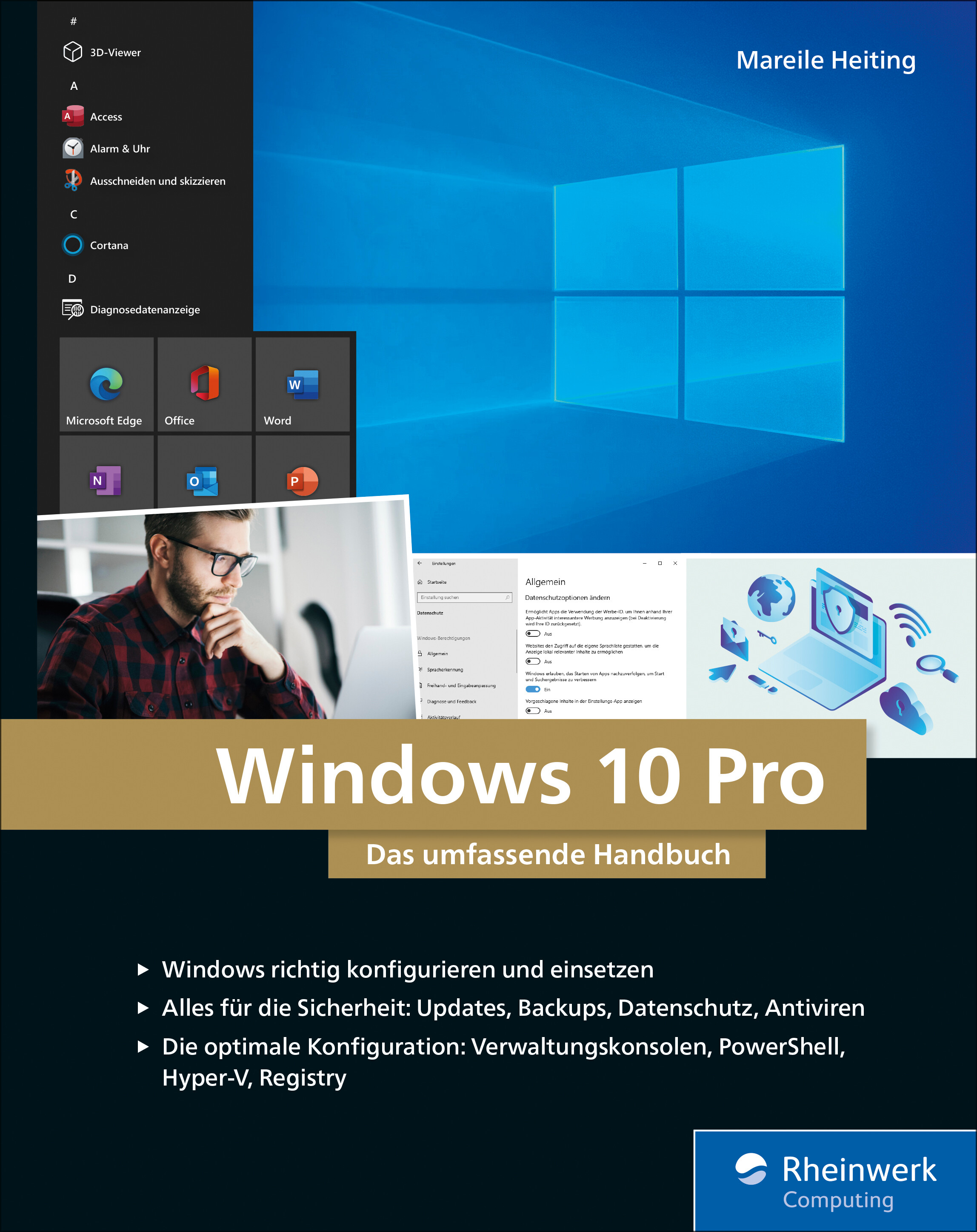
Windows 10 Pro
Das umfassende Handbuch - umfassendes Praxiswissen für Windows-Profis, aktuelle Auflage Februar 2021.Dieses Buch bietet Ihnen auf über 900 Seiten fundiertes Wissen für Windows-Anwender. Praxisnah dank der zahlreichen Anwendungsbeispiele und mit einer Fülle an Profitipps durchleuchtet Mareile Heiting alle Ecken und Winkel des Windows-Systems. Erfahren Sie, welche Features sich unter der Oberfläche verstecken und wie Sie Ihren Workflow spürbar verbessern. Profitieren Sie von aktuellen, effektiven Tipps für ein rundum abgesichertes System. Meistern Sie die Arbeit mit Windows-Rechnern und setzen Sie auch anspruchsvolle Anforderungen um: Netzwerk & VPN einrichten, Aufgaben automatisieren, Daten verschlüsseln und vieles mehr. Ideal als Nachschlagewerk für Power User und erfahrene Anwender von Windows 10.Alles zu Windows 10Updates und InstallationWindows 10 richtig nutzen: Desktop & AppsDaten verwalten und sichern: BitLocker, DatensicherungAlle Optionen und KonfigurationsmöglichkeitenSystemdienste und VerwaltungskonsolenTreiberprobleme lösen, Hardware einrichtenDatenschutz und PrivatsphäreVirenschutz und FirewallDatenfreigabe im NetzwerkRemotezugriff und VPNPowerShell & Windows Subsystem für LinuxVirtualisierung mit Hyper-VLeseprobe (PDF-Link)

Der eigene Webshop mit Shopify
So gelingt Ihr Start in den Onlinehandel. Egal, ob Sie bereits ein Ladenlokal besitzen oder erst Ihr eigenes Business starten wollen – mit diesem Ratgeber erhalten Sie schnelle und verständliche Lösungen. Sie erfahren, wie Sie selbst hergestellte Produkte verkaufen oder Ihre Dienstleistungen anbieten können. Jens Jacobsen zeigt Ihnen alles, was Sie für einen erfolgreich laufenden Webshop benötigen. Sie erhalten das Wissen, den Shop mit Shopify richtig einzurichten und zu gestalten, Sie lernen die grundlegenden Marketingstricks und SEO-Maßnahmen kennen. Inklusive wichtiger Hinweise zu den rechtlichen Voraussetzungen. Aus dem Inhalt: Onlineshopping – Trends & MöglichkeitenDer schnelle Weg zum eigenen ShopIhre Geschäftsidee – Grundlage Ihres ErfolgsDie Startseite als SchaufensterDie ProduktdetailseiteSuche & NavigationWarenkorb & Check-outVersand, Kontakt & ServiceAGB, Datenschutz, ImpressumDie KundendatenbankWarenwirtschaft richtig nutzenSEO, Marketing & Werbung Vorwort ... 13 1. Onlineshopping -- Trends und Möglichkeiten ... 17 1.1 ... Der Handel geht online -- die Vorteile ... 18 1.2 ... Was möchten/können Sie erreichen? ... 20 1.3 ... Chancen für neue Anbieter ... 21 1.4 ... Möglichkeiten für etablierte Geschäfte ... 22 1.5 ... Warum Shopify? ... 23 1.6 ... Weshalb ein Online-Marktplatz nicht reicht ... 28 1.7 ... Fazit ... 30 1.8 ... Interview mit Nina Danelon und Ingrid Hottner -- Ina Bonheur ... 30 2. Für Ungeduldige -- in nur einem Tag zum eigenen Shop ... 35 2.1 ... Anmelden bei Shopify ... 35 2.2 ... Das erste Produkt einstellen ... 38 2.3 ... Den Shop kundenfertig machen ... 43 2.4 ... Geld entgegennehmen ... 55 2.5 ... Interview mit Stefan Matte, Geschäftsführer Paper & Tea GmbH ... 65 3. Ihre Geschäftsidee -- Grundlage Ihres Erfolgs ... 69 3.1 ... Was wollen Sie verkaufen? ... 69 3.2 ... Von der Konkurrenz lernen ... 71 3.3 ... Das können nur Sie -- Ihre USP ... 71 3.4 ... Ihre Kunden kennenlernen ... 74 3.5 ... Kunden greifbar machen mit Personas ... 80 3.6 ... Kalkulation -- jetzt wird Geld verdient ... 83 4. Der erste Eindruck entscheidet -- die Startseite als Schaufenster ... 91 4.1 ... Besucher mit der richtigen Domain locken ... 91 4.2 ... Was erwartet der Besucher auf der Startseite? ... 96 4.3 ... Die Startseite für Käufe(r) optimieren ... 100 4.4 ... Gut aussehen auf Smartphone und Tablet ... 116 4.5 ... Interview mit Izar Carazo, Unai Rollan, Sergio Errandonea, Iñigo Echeverria -- Indigraph ... 120 5. Produktdetailseite -- Umkleide, Showroom und Verkaufsgespräch ... 123 5.1 ... Die vielen Aufgaben der Produktdetailseite (PDS) ... 123 5.2 ... Produkte vorbereiten ... 124 5.3 ... Produkte einstellen ... 132 5.4 ... Bewertungen und Rezensionen ... 150 6. Kategorieseiten, Suche, Navigation -- vom Stöbern und Finden ... 159 6.1 ... Fundament jedes Shops: Informationsarchitektur ... 159 6.2 ... Kategorieseiten einstellen ... 162 6.3 ... Kategorien anlegen ... 164 6.4 ... Menüs organisieren ... 168 6.5 ... Besuchern beim Suchen helfen ... 174 6.6 ... Suchfunktion und Suchergebnisseite -- finden und inspirieren ... 176 7. Warenkorb und Checkout -- jetzt rollt der Rubel ... 181 7.1 ... Die meisten Bestellungen werden abgebrochen ... 182 7.2 ... Zahlungsmethoden auswählen ... 183 7.3 ... Zahlung testen ... 190 7.4 ... Stolpersteine auf dem Weg zur Kasse ausräumen ... 193 7.5 ... Umsatzsteuer korrekt erheben ... 196 8. Die Ware verschicken -- das müssen Sie beim Versand beachten ... 201 8.1 ... Versandkostenfrei verschicken? ... 202 8.2 ... Den richtigen Versanddienstleister aussuchen ... 202 8.3 ... Versandkosten korrekt angeben ... 204 8.4 ... Versandkosten im Shop richtig angeben ... 210 8.5 ... Rechnungen stellen ... 214 8.6 ... Das Paket packen ... 219 8.7 ... Und ab die Post ... 223 8.8 ... Lokale Zustellung und Abholung vor Ort ... 224 9. Kontakt und Service -- Ihr Kunde ist König ... 229 9.1 ... Das erwarten Ihre Kunden ... 229 9.2 ... Kontakt via E-Mail ... 231 9.3 ... Kontakt via Telefon und Messenger ... 233 9.4 ... Kontakt per Chat und sozialen Medien ... 234 9.5 ... Arbeitserleichterung mit der Shopify-App ... 236 9.6 ... Professionelle Support-Systeme ... 237 9.7 ... Anfragen reduzieren mit Selbstbedienung ... 237 10. AGB, Datenschutzhinweis, Impressum -- lästig, aber notwendig ... 245 10.1 ... Was ist überhaupt eine Abmahnung? ... 246 10.2 ... Brauche ich AGB? ... 247 10.3 ... Wer hilft beim Erstellen der AGB? ... 248 10.4 ... Welche Rechtstexte Sie unbedingt brauchen ... 249 10.5 ... Die Rechtstexte bei Shopify einbauen ... 250 10.6 ... Keine Angst vor der DSGVO ... 251 10.7 ... Cookie-Banner hinzufügen ... 254 10.8 ... Weitere Abmahngründe ... 256 10.9 ... Auch Rechtstexte sind für Menschen ... 259 10.10 ... Buttons richtig beschriften ... 261 10.11 ... Interview mit Michael Rohrlich, Rechtsanwalt ... 261 11. Ihre Kundendatenbank -- ein ungehobener Schatz ... 265 11.1 ... Kundendaten pflegen ... 265 11.2 ... E-Mails an Kundengruppen schicken ... 267 11.3 ... Rabattcodes erstellen ... 268 11.4 ... Geschenkgutscheine ... 272 11.5 ... Abgebrochene Bestellungen ansehen ... 274 11.6 ... Aus abgebrochenen Bestellungen lernen ... 282 11.7 ... Conversion Tracking/Analytics ... 283 12. Die Warenwirtschaft richtig nutzen ... 285 12.1 ... Inventarverwaltung mit Shopify ... 286 12.2 ... Mehr Ordnung mit SKUs ... 293 12.3 ... Bestellungen vor Ort und per Telefon aufnehmen ... 295 12.4 ... Warenwirtschaft professionalisieren ... 297 13. Marketing und Werbung -- gut fürs Geschäft ... 299 13.1 ... Pflicht: Über-uns-Seite ... 300 13.2 ... Das eigene Blog ... 304 13.3 ... Wenn's denn sein muss: Logo und Briefpapier ... 309 13.4 ... Der eigene Newsletter ... 310 13.5 ... Social-Media-Marketing ... 316 13.6 ... Links zu Social Media einbauen ... 321 13.7 ... Werbung bei Google, Facebook, Instagram und Co. ... 325 13.8 ... Altmodisch, aber wirkungsvoll: Werbung offline ... 331 14. Suchmaschinen-Optimierung -- entspannt zu noch mehr Kunden ... 333 14.1 ... Die gelassene Suchmaschinen-Strategie ... 334 14.2 ... Linkaufbau -- Off-Page-Optimierung ... 350 14.3 ... Performance -- wichtig für SEO und Kunden ... 350 Stichwortverzeichnis ... 355

Learn FileMaker Pro 19
Discover how easy it is to create multi-user, cross-platform custom solutions with FileMaker Pro, the relational database platform published by Apple subsidiary Claris International, Inc. Meticulously rewritten with clearer lessons, more real-world examples and updated to include feature changes introduced in recent versions, this book makes it easier to get started planning, building and deploying a custom database solution.The material is presented in an easy to follow manner with each chapter building on the last. After an initial review of the user environment and application basics, it begins a deep exploration of the integrated development environment that seamlessly combines the full stack of data table schema, business logic and interface layers into one visual programming experience. This book includes everything needed to get started building custom databases and contains advanced material that seasoned professionals will appreciate.Written by a professional developer with decades of real-world experience, Learn FileMaker Pro 19 is your comprehensive learning and reference guide. Join millions of users and developers worldwide in achieving a new level of workflow efficiency with FileMaker Pro.WHAT YOU’LL LEARN* Discover interface and feature changes in FileMaker 17-19* Create and maintain healthy files* Plan and create custom tables, fields, relationships* Write calculations using built-in and custom functions* Build recursive and repeating formulas* Discover advanced features using cURL, JSON, SQL, ODBC and FM URL* Manipulate data files in the computer directory with scripts* Deploy solutions to a server and share with desktop, iOS and web clients WHO THIS BOOK IS FORCasual programmers, full time consultants, and IT professionalsMark Conway Munro is a software developer and the author of AppleScript: Developer Reference (2010, Wiley) and Learn FileMaker Pro 16 (2017, Apress). After a 1988 introduction to FileMaker, Mark began using AppleScript and FileMaker for information management and process automation tasks. In 1994, Mark founded Write Track Media, a computer consultancy firm that develops custom database and workflow automation solutions. Mark builds time-saving custom systems for a diverse list of clients across industries, including education, entertainment, finance, news, publishing, and manufacturing, and more. Understanding the virtue of using technology to free human focus from repetitive tasks so they can pursue a higher level of productivity, Mark is unwavering in his commitment to developing the highest quality workflow management solutions.PART I USING FILEMAKERPages01 Introducing FileMakerProduct family changesApp now includes version numberMention file compatibility across recent versions and how to convert older formatsMaybe combine with Chapter 2 if I can compress the two enough1602 Exploring the ApplicationLaunch window changes2603 Exploring a Database Window1604 Working with Records3805 Transferring DataNew Import Dailog20PART II DEFINING DATABASE STRUCTURES006 Working with Database Files3607 Working with TablesMention Add-on tables (refer to layout/portals)1608 Defining FieldsDefault Fields3209 Connecting Tables with Relationships3010 Managing Containers1011 Managing Value ListsFix typo on conditional value list and clarify greatly16PART III — WRITING FORMULAS AND FUNCTIONS012 Writing Formulas3413 Exploring Built in FunctionsOne chapter to replace the previous function reference chaptersFocus on specific examplesAccessing machine/enviorment values (Get Functions)Using Logical Functions (Case, Choose, Let, Self, GetNth, While, etc.)Using Aggregate Functions (Count, List, Sum,Manipulating Text (Filter, FilterValues, Left, Right, Middle, GetValues, Length, Substitute, Sort, unique, etc.)Formatting Text in formulas (mention layout vs formula)Manipulating DatesNumeric (Rounding, Fomratting (layout vs formula)4014 Manipulating JSON ObjectsExpand examples1515 Creating Custom FunctionsExpand examplesSet RecursionChanges to limits for non-tail recursion2016 Introducing ExecuteSQLFix three typos from last book22PART IV — DESIGNING INTERFACES017 Introducing Layout Mode1818 Getting Started with Layouts4019 Exploring Layout PalettesIntegrated PaletteField Palette changesObject Palette changes3020 Creating Layout ObjectsPortals, add on tablesPortals, master-detail layout7221 Manipulating ObjectsSelect objects in groupMove objects with shift+arrow key (10+ larger increment)2022 Using Themes and Styles1223 Customizing MenusMenus can now be copy-pasted within and between files24PART V — AUTOMATING TASKS WITH SCRIPTS024 Introduction to Scripting2825 Common Scripting TasksMaybe expand examples and mention new script stepsCreate directoriesCreate-Delete-Read-Write-Rename-Etc Files4426 Debugging Scripts827 Using Script Triggers1428 Extending Features with Plug-ins4PART VI — SHARING DATABASES ON A NETWORK029 Introducing Network SharingFileMakerURL now version specific3030 Securing Database AccessNew Interface, features2831 Advanced Sharing and Analysis16ESTIMATE PAGE TOTAL775

.NET Developer's Guide to Augmented Reality in iOS
Attention .NET developers, here is your starting point for learning how to create and publish augmented reality (AR) apps for iOS devices.This book introduces and explores iOS augmented reality mobile app development specifically for .NET developers. The continued adoption and popularity of Xamarin, a tool that allows cross-platform mobile application development, opens up many app publishing opportunities to .NET developers that were never before possible, including AR development.You will use Xamarin to target Apple’s augmented reality framework, ARKit, to develop augmented reality apps in the language you prefer—C#. Begin your journey with a foundational introduction to augmented reality, ARKit, Xamarin, and .NET. You will learn how this remarkable collaboration of technologies can produce fantastic experiences, many of them never before tried by .NET developers. From there you will dive into the fundamentals and then explore various topics and AR features. Throughout your learning, proof of concepts will be demonstrated to reinforce learning.After reading this book you will have the fundamentals you need, as well as an understanding of the overarching concepts that combine them. You will come away with an understanding of the wide range of augmented reality features available for developers, including the newest features included in the latest versions of ARKit.WHAT YOU WILL LEARN* Create rich commercial and personal augmented reality mobile apps* Explore the latest capabilities of ARKit* Extend and customize chapter examples for building your own amazing apps* Graduate from traditional 2D UI app interfaces to immersive 3D AR interfacesWHO THIS BOOK IS FORDevelopers who want to learn how to use .NET and C# to create augmented reality apps for iOS devices. It is recommended that developers have some Xamarin experience and are aware of the cross-platform options available to .NET. A paid Apple developer account is not needed to experiment with the AR code samples on your devices.LEE ENGLESTONE is an innovative, hands-on software development manager and technical lead, based in Stockport, England. He has been a .NET developer for many years, writing code for Windows, web, mobile, cloud, and augmented reality applications in his spare time. He believes that there are many new exciting opportunities for developers in the area of augmented reality and is excited to share them with his fellow .NET developers. In recognition of his community contributions, he has been awarded a Microsoft MVP in Developer Technologies.CHAPTER 1 - SETTING UP YOUR ENVIRONMENTCHAPTER 2 - BASIC CONCEPTSCHAPTER 3 - NODES, GEOMETRIES, MATERIALS, AND ANCHORSCHAPTER 4 - BUILT IN AR GUIDESCHAPTER 5 - ANIMATIONSCHAPTER 6 - CONSTRAINTSCHAPTER 7 - LIGHTINGCHAPTER 8 - VIDEO AND SOUNDCHAPTER 9 - PLANE DETECTIONCHAPTER 10 - IMAGE DETECTIONCHAPTER 11 - FACE TRACKING AND EXPRESSION DETECTIONCHAPTER 12 - TOUCH GESTURES AND INTERACTIONCHAPTER 13 - 3D MODELSCHAPTER 14 - PHYSICSCHAPTER 15 - OBJECT DETECTIONCHAPTER 16 - BODY TRACKINGCHAPTER 17 - PUBLISHING TO THE APP STORE

Samsung Galaxy M11
Die verständliche Anleitung für Ihr Smartphone:- Alle Funktionen & Einstellungen auf einen Blick- Schritt für Schritt erklärt – mit praktischen TippsMit diesem smarten Praxisbuch gelingt Ihnen der schnelle und sichere Einstieg in Ihr Smartphone. Lernen Sie Ihr Handymodell von Grund auf kennen und beherrschen! Anschauliche Anleitungen, Beispiele und Bilder zeigen Ihnen gut nachvollziehbar, wie Sie Ihr mobiles Gerät optimal handhaben – von der Ersteinrichtung und Personalisierung über die große Funktionsvielfalt bis zu den wichtigsten Anwendungen. Nutzen Sie darüber hinaus die übersichtlichen Spicker-Darstellungen: Damit können Sie jene Bedienungsschritte, die man am häufigsten braucht, aber immer wieder vergisst, auf einen Blick finden und umsetzen. Freuen Sie sich auf viele hilfreiche Tipps und legen Sie ganz einfach los!Aus dem Inhalt:- Alle Bedienelemente des Smartphones auf einen Blick- Ersteinrichtung und Tipps zum Umzug- Google-Konto erstellen und verwalten- Die Benutzeroberfläche Ihres Smartphones personalisieren- Apps aus dem Play Store herunterladen- Kontakte anlegen und im Adressbuch verwalten- Anrufe tätigen und SMS austauschen - Nachrichten über Mail und WhatsApp versenden und empfangen- Uhr, Kalender, Maps und andere praktische Apps nutzen - Fotos sowie Videos aufnehmen, verwalten und teilen- Ins Internet gehen über WLAN und mobile Daten - Updates, Datenschutz und Sicherheit

PowerShell - kurz & gut
Der kompakte Schnellstart für die PowerShell 7 Handlich und übersichtlich: ideal zum Nachschlagen der PowerShell-Features Themen sind Objektorientierung und Pipelining, Systemadministration, Webservices, Remoteadministration Zeigt die Unterschiede zwischen PowerShell 7 und Windows PowerShell 5 Expertenwissen vom deutschen PowerShell-Kenner Thorsten Butz Die PowerShell ist in der Version 7 zu einer plattformunabhängigen Lösung für Windows, Linux und MacOS gereift. Längst ist sie mehr als ein Werkzeug zur Windowsadministration. Sie verfolgt einen für eine Scriptsprache einzigartigen Ansatz: Objektorientierung und Pipeling kombiniert sie mit einer einprägsamen, leicht erlernbaren Skriptsprache. Gleichzeitig erweitert sich mit PowerShell 7 der Anwendungsbereich spürbar – ihre Verwendung in Microsoft 365, Azure, AWS und GoogleCloud beschleunigt die Entwicklung zu einer flexibel erweiterbaren Shell. Thorsten Butz beschreibt in diesem Buch die Grundlagen der PowerShell 7. Sie lernen, Skripte zu schreiben, den Funktionsumfang der Shell zu erweitern und Befehle remote auszuführen. Ein besonderes Augenmerk liegt hierbei auf der Kompatibilität zur Windows PowerShell 5 und möglichen Besonderheiten, die sich im Zusammenspiel mit älteren Schnittstellen ergeben.

Der Zufall in Physik, Informatik und Philosophie
Zufall als Fundament der Welt, aus der Buchreihe "Die blaue Stunde der Informatik".Der Zufall ist uns unheimlich. Wir dachten, es gäbe ihn nicht, hinter allem stehe Gott oder eine vernünftige Erklärung. Aber wir wissen heute: Es gibt ihn. Wir wissen, dass vieles dessen, was uns umgibt und das wir nicht durchschauen, trotzdem kausal abläuft. Anders als zu Zeiten der Aufklärung gedacht, ist der Zufall um uns eher die Regel als die gesetzmäßige Ordnung. Die Wolken sind Fraktale, die Wellen auf dem Meer sind eine reine Zufallsmaschinerie. Der Philosoph Charles Peirce hat genau in diesem Sinn noch vor Quanten- und Chaostheorie die fundamentale Bedeutung des Zufalls erkannt und der Lehre ihren Namen gegeben: Tychismus.Ohne Zufall gäbe es nichts Neues, kein Leben, keine Kreativität, keine Geschichte.Dieses Buch betrachtet den Zufall aus Sicht der Physik, der Informatik und der Philosophie. Es spannt den Bogen von der Antike zur Quantenphysik und zeigt, dass der Zufall fest in die Welt eingebaut ist und es sie ohne Zufall nicht gäbe.Dr. Walter Hehl ist vielseitiger Physiker und Autor recht verschiedener Bücher zu IT, Management, Religion, Philosophie und zur Geschichte der Wissenschaft. Sein Buch über Galilei erhielt 2019 den Preis der Woitschach-Stiftung für das beste kritische, aber faire Wissenschaftsbuch.

Samsung Galaxy A51
Die verständliche Anleitung für Ihr Smartphone:- Alle Funktionen & Einstellungen auf einen Blick- Schritt für Schritt erklärt – mit praktischen TippsMit diesem smarten Praxisbuch gelingt Ihnen der schnelle und sichere Einstieg in Ihr Smartphone. Lernen Sie Ihr Handymodell von Grund auf kennen und beherrschen! Anschauliche Anleitungen, Beispiele und Bilder zeigen Ihnen gut nachvollziehbar, wie Sie Ihr mobiles Gerät optimal handhaben – von der Ersteinrichtung und Personalisierung über die große Funktionsvielfalt bis zu den wichtigsten Anwendungen. Nutzen Sie darüber hinaus die übersichtlichen Spicker-Darstellungen: Damit können Sie jene Bedienungsschritte, die man am häufigsten braucht, aber immer wieder vergisst, auf einen Blick finden und umsetzen. Freuen Sie sich auf viele hilfreiche Tipps und legen Sie ganz einfach los!Aus dem Inhalt:- Alle Bedienelemente des Smartphones auf einen Blick- Ersteinrichtung und Tipps zum Umzug- Google-Konto erstellen und verwalten- Die Benutzeroberfläche Ihres Smartphones personalisieren- Apps aus dem Play Store herunterladen- Kontakte anlegen und im Adressbuch verwalten- Anrufe tätigen und SMS austauschen - Nachrichten über Mail und WhatsApp versenden und empfangen- Uhr, Kalender, Maps und andere praktische Apps nutzen - Fotos sowie Videos aufnehmen, verwalten und teilen- Ins Internet gehen über WLAN und mobile Daten - Updates, Datenschutz und Sicherheit

Samsung Galaxy A71
Die verständliche Anleitung für Ihr Smartphone:- Alle Funktionen & Einstellungen auf einen Blick- Schritt für Schritt erklärt – mit praktischen TippsMit diesem smarten Praxisbuch gelingt Ihnen der schnelle und sichere Einstieg in Ihr Smartphone. Lernen Sie Ihr Handymodell von Grund auf kennen und beherrschen! Anschauliche Anleitungen, Beispiele und Bilder zeigen Ihnen gut nachvollziehbar, wie Sie Ihr mobiles Gerät optimal handhaben – von der Ersteinrichtung und Personalisierung über die große Funktionsvielfalt bis zu den wichtigsten Anwendungen. Nutzen Sie darüber hinaus die übersichtlichen Spicker-Darstellungen: Damit können Sie jene Bedienungsschritte, die man am häufigsten braucht, aber immer wieder vergisst, auf einen Blick finden und umsetzen. Freuen Sie sich auf viele hilfreiche Tipps und legen Sie ganz einfach los!Aus dem Inhalt:- Alle Bedienelemente des Smartphones auf einen Blick- Ersteinrichtung und Tipps zum Umzug- Google-Konto erstellen und verwalten- Die Benutzeroberfläche Ihres Smartphones personalisieren- Apps aus dem Play Store herunterladen- Kontakte anlegen und im Adressbuch verwalten- Anrufe tätigen und SMS austauschen - Nachrichten über Mail und WhatsApp versenden und empfangen- Uhr, Kalender, Maps und andere praktische Apps nutzen - Fotos sowie Videos aufnehmen, verwalten und teilen- Ins Internet gehen über WLAN und mobile Daten - Updates, Datenschutz und Sicherheit

Bloggen für Einsteiger
Von der ersten Idee bis zum eigenen Blog mit WordPress.Ein Blog gibt dir die Möglichkeit, dich kreativ auszudrücken, mit Gleichgesinnten zu kommunizieren, dich persönlich weiterzuentwickeln und – wenn du es geschickt anstellst – sogar einen kleinen finanziellen Ausgleich für deine Arbeit erhalten. Und das Tolle ist: Du brauchst dafür keine großen Vorkenntnisse, sondern kannst sofort starten.Yvonne Kraus hat schon viele erfolgreiche Blogs an den Start gebracht und kennt die Fragen, die du als angehende Bloggerin oder Blog-Anfänger hast. Mit ihrem Ratgeber hast du eine Anleitung zur Hand, um schnell deinen Blog mit WordPress zu erstellen und die ersten Besucher anzusprechen. Dabei lernst du alle Facetten des Bloggens kennen. Schritt-für-Schritt-Anleitungen und bewährte Tipps aus der Praxis unterstützen dich. Und wenn deine ersten Artikel stehen, erfährst du, wie du mit Social Media, E-Mail-Marketing und SEO auf dich aufmerksam machst, eine Community aufbaust und sogar Geld verdienen kannst.Leseprobe (PDF-Link)

Content Design
Lernen Sie, wie Sie Content und Design zusammenführen, um potenzielle Kunden von Ihrem Angebot zu überzeugen.Die Autoren erklären Ihnen, wie Sie mit psychologischen Triggern aus Besuchern Ihrer Website Newsletter-Abonnenten, Leads und Kunden machen und wie Sie durch Content-Optimierung nachhaltig Ihre Umsätze steigern. Das Buch bietet Ihnen eine Übersicht über die Voraussetzungen für erfolgreiches Content Design sowie eine klar strukturierte Einführung in die Gestaltung und Konzeption digitaler Inhalte – insbesondere Text, Bild und Video. Profitieren Sie nicht nur vom Expertenwissen der Autoren, sondern auch von erfahrenen Marketingverantwortlichen bei Facebook, Zalando, Pixum und LogMeIn. Mithilfe der Tipps zur Content- und Conversion-Optimierung sowie passenden Tool-Empfehlungen haben Sie alles was Sie brauchen, um Ihr eigenes Content Marketing auf den nächsten Level zu heben.Mit ihrem Buch richten sich Robert Weller und Ben Harmanus sowohl an Einsteiger als auch an erfahrene Online-Marketer, die nicht nur einzelne Aufgaben schnell umsetzen, sondern den Zusammenhang von Content und Design in Bezug auf das Marketing in seiner Vielschichtigkeit verstehen wollen.Zahlreiche visuelle Beispiele, bewährte Tipps aus der Marketingpraxis sowie Erfahrungsberichte, Worksheets und Checklisten helfen Ihnen dabei.Aus dem Inhalt:• Voraussetzungen für erfolgreiches Content Design• Grundlagen der Gestaltung• Content – Text, Bild & Video• Design – Landing Pages, E-Mails & Conversion-Elemente• Conversion-Optimierung (inkl. Tool-Tipps)

Suchmaschinen-Optimierung für Dummies (2. Auflg.)
Sie haben ein Unternehmen gegründet und Ihre Website geht demnächst online? Sie sind gerüstet für zahlreiche Besucher und hoffen auf hohe Umsätze? Dann ist es Zeit für das Feintuning. Dieses Buch zeigt Ihnen, wie Ihre Website von Google besser gefunden wird und wie Sie bei Google ganz nach oben kommen. Finden Sie die richtigen Suchbegriffe und stimmen Sie Ihre Inhalte darauf ab, optimieren Sie Ihre Snippets und unterstützen Sie den Google-Crawler beim Erfassen der Seiten. Zahlreiche Beispiele und Anekdoten aus der Praxis sorgen nicht nur für ein gutes Ranking, sondern auch für Spaß beim Lesen. Julian Dziki ist Gründer und Geschäftsführer von Seokratie, einer SEO- und Online-Marketing-Agentur in München. Nebenher hält er Vorträge über SEO, schreibt Beiträge für den firmeneigenen SEO-Blog und organisiert SEO-Meetups und -Veranstaltungen in München. Er zertifiziert außerdem beim Bundesverband der digitalen Wirtschaft (BVDW) Fachkräfte für Suchmaschinen-Optimierung.Über den Autor 9Vorwort zur 1 Auflage 23EINLEITUNG25Über dieses Buch 26Was Sie nicht lesen müssen 27Törichte Annahmen über den Leser 27Wie dieses Buch aufgebaut ist 28Teil I: So funktioniert die Welt von Google 28Teil II: Das Suchergebnis optimieren 28Teil III: Content optimieren 28Teil IV: Duplicate Content 28Teil V: Crawling und interne Verlinkung 28Teil VI: Linkbuilding 29Teil VII: Der Top-10-Teil 29Symbole, die in diesem Buch verwendet werden 29Wie es weitergeht 30TEIL I: SO FUNKTIONIERT DIE WELT VON GOOGLE 31KAPITEL 1 DAS PASSIERT WIRKLICH, WENN SIE BEI GOOGLE SUCHEN33Crawling und der Index 34Die Berechnung der Ergebnisse: SERPs und eine gesunde Mischung 34Alle Nutzer zufriedenstellen 35Die Universal Search und der Knowledge Graph 37Die vertikale Suche 37Die Universal Search 38Der Knowledge Graph 38Rankingfaktoren: Wie bewertet Google die Relevanz von Webseiten? 40Onpage-Faktoren: Technik und Inhalte 40Offpage-Faktoren: Backlinks sind wichtig 41Welche Faktoren sind wirklich wichtig? 42KAPITEL 2 WAS SIND KEYWORDS UND WARUM SIND SIE SO WICHTIG?45Der Google-Keyword-Planer 46Welche Keywords sind die richtigen für mich? 50Longtail und Shorthead 51Wo baue ich Keywords ein? 53Das Meta-Keyword-Tag 53KAPITEL 3 DIE GOOGLE-RICHTLINIEN55Das kann die Google Search Console 56So melden Sie sich in der Search Console an 56Benachrichtigungen in der Search Console 58Die Google-Richtlinien im Detail 59»Erstellen Sie Seiten in erster Linie für Nutzer, nicht für Suchmaschinen« 59Allgemeine Anforderungen von Google 60Anforderungen von Google bezüglich Relevanz und Inhalt 61Anforderungen von Google hinsichtlich der Qualität von Webseiten 62Was passiert, wenn ich mich nicht an die Richtlinien halte? 64Wann werde ich benachrichtigt und was muss ich dann tun? 64Offizielle Google-Ressourcen und Möglichkeiten zum Kontakt 66TEIL II: DAS SUCHERGEBNIS OPTIMIEREN 69KAPITEL 4 TITLE UND DESCRIPTION – DER ERSTE EINDRUCK ZÄHLT!71Klick mich! Die Click-Through-Rate oder Klickrate 72Wie Sie Title und Description erstellen 73Wie Sie Title und Description einfügen 73Sieben goldene Regeln für einen guten Title 74Neun goldene Regeln für eine gute Description 75Beispiele für Titles und Descriptions 76Die Site-Abfrage 80Die Klickrate in der Search Console analysieren 81Strukturierte Daten und Rich Snippets 83Darum sollten Sie Rich Snippets für Ihre Webseite generieren 85So generieren Sie Rich Snippets 86URLs von der Indexierung und Archivierung ausschließen 89Die Noindex-Anweisung 89Weitere Anweisungen im Quelltext 90Nofollow 90All/None 91Nosnippet 91Noarchive 92KAPITEL 5 DEN DOMAINNAMEN UND DIE URLS IHRER WEBSITE OPTIMIEREN95Das Protokoll 95HTTP oder HTTPS? Google mag SSL-Verschlüsselung 96So bekommen Sie ein SSL-Zertifikat 96Die Subdomain 96Mit www oder ohne www? 97Wann verwende ich eine eigene Subdomain? 97Der Domainname 98Freie Domains finden 99Bereits vergebene Domains kaufen 101Sind Keyworddomains sinnvoll? 101Die Domainendung 102CNOBI-Domainendungen: COM & Co. 102Länder-TLDs: Die Endung de 103Neue Domainendungen – SHOP oder KAUFEN 103Welche Endung ist die richtige? 104Das Verzeichnis 104Tipps für eine gute Verzeichnisstruktur 105So nicht! Ungünstige Verzeichnisstrukturen 106Die Datei 107Unterstützte Formate bei Google 107HTML5 ist heute Standard 108Die Dateiendung ist nur selten HTML 109Tipps für gute Dateinamen 109Jede URL sollte es nur einmal geben 110TEIL III: CONTENT OPTIMIEREN 111KAPITEL 6 QUALITATIV HOCHWERTIGEN CONTENT ERSTELLEN113Was ist qualitativ hochwertiger Content? 113Die Beweggründe von Google verstehen 114Die Google Quality Rater Guidelines 115Nutzersignale helfen, guten Content zu identifizieren 116Nutzersignale: Short-Klicks 116Wie werden Nutzersignale erfasst? 117Verschiedene Suchintentionen: Information, Navigation oder Transaktion? 118Ganzheitlicher Content: Holistische Ergebnisse schaffen 120Content gut präsentieren 121Nutzergenerierte Inhalte 122Bilder & Videos 123KAPITEL 7 TECHNISCHE ANFORDERUNGEN AN CONTENT127Erwähnung des Keywords im Content 127Die Keyworddichte 127WDF*IDF – Texte nach Kurven schreiben 128Das Keyword in Auszeichnungen und Listen 131H1 bis H6 – So erstellen Sie gute Überschriften für SEO 131Schriftarten und Schriftfarbe 134Ausklappbarer Text oder Text in Tabs versteckt 135Die Textlänge 136Bilder-SEO 138Das Alt-Attribut 139Das Ranking von Bildern in der Google-Bildersuche verbessern 141Hotlinking 142Was sieht Google? 143TEIL IV: DUPLICATE CONTENT BEKÄMPFEN 145KAPITEL 8 DUPLICATE CONTENT AUF DER EIGENEN WEBSITE ÜBERPRÜFEN147Was genau ist Duplicate Content? 147Welches Problem hat Google mit Duplicate Content? 148Wichtig für Google: Gestohlene Inhalte oder Versehen? 149Aggregierte Inhalte 149Keyword-Kannibalisierung 150So identifizieren Sie Duplicate Content 152Bei Google suchen 152Duplicate-Content-Check in der Google Search Console 154Duplicate-Content-Check mit Ryte.com 154Duplicate-Content-Check mit Siteliner und Copyscape 155Den eigenen Content mit Google Alerts überwachen 157Der Sonderfall »wiederkehrende Textbausteine« 158KAPITEL 9 MIT DER 301-WEITERLEITUNG URLS ZUSAMMENFÜHREN161Duplicate Content auf Domainebene 162Die Standarddomain definieren 162So überprüfen Sie, ob eine Weiterleitung besteht 164Sprechende URLs und Weiterleitungen 165So leiten Sie einzelne Duplikate weiter 168KAPITEL 10 MIT DEM CANONICAL-ATTRIBUT ÄHNLICHE SEITEN MARKIEREN171So funktioniert rel="canonical" 172So binden Sie das Canonical-Attribut ein 172Anwendungsfälle von rel="canonical" 174Dynamische URLs 174Inhalte unter mehreren URLs erreichbar 175Inhalte in anderen Formaten 175Inhalte auf anderen Domains 176Überprüfen der Funktionsfähigkeit von rel="canonical" 178Einzelne URLs überprüfen 178Mehrere URLs überprüfen 180Rel-Next und Rel-Prev 181KAPITEL 11 HREFLANG FÜR INTERNATIONALE WEBSITES183So binden Sie hreflang ein 184Referenzierung im Quelltext 184hreflang X-Default 186hreflang-Implementierung über den HTTP-Header 187hreflang-Implementierung über die Sitemap 187So generieren und überprüfen Sie das hreflang-Attribut 189TEIL V: CRAWLING UND INTERNE VERLINKUNG 193KAPITEL 12 DER GOOGLEBOT GEHT UM – SO FUNKTIONIERT CRAWLING195Webcrawler und User Agents 195Das URL-Prüftool 197So reichen Sie eine URL bei Google ein 198Der Bericht »Abdeckung« 198Probleme beim URL-Testen identifizieren 200Crawling-Budget und Crawling-Frequenz 205So können Sie das Crawling Ihrer Website begrenzen 207So können Sie das Crawling von Parameterseiten steuern 207Crawling-Fehler ausfindig machen 211KAPITEL 13 DIE ROBOTS.TXT213Befehle in der robots.txt 213Aussperren oder nicht? 215Die robots.txt in der Search Console überprüfen 217Blockierte Ressourcen in der robots.txt 217KAPITEL 14 XML-SITEMAPS221Technische Grundlagen 221So erstellen Sie eine XML-Sitemap 223Mit den gebräuchlichen Content-Management-Systemen eine Sitemap erstellen 223So erstellen Sie eine Sitemap manuell 224Ihre Sitemap bei Google einreichen 225KAPITEL 15 MOBILE SEO UND LADEGESCHWINDIGKEIT229Typen mobiler Websites 230Responsives Webdesign 231Dynamische Bereitstellung von Inhalten 232Unterschiedliche URLs 233Die mobile Website auf Nutzerfreundlichkeit testen 234Live URL-Test 234Nutzerfreundlichkeit auf Mobilgeräten 235Schnell und einfach 236Die Ladegeschwindigkeit Ihrer Website überprüfen 238Tools für die Messung Ihrer Seitenladegeschwindigkeit 238So machen Sie Ihre Website schneller 240Google Core Web Vitals 241Largest Contentful Paint (LCP) 242First Input Delay (FID) 242Cumulative Layout Shift (CLS) 243So messen Sie die Core Web Vitals Ihrer Website 246Tipps für die Optimierung der Core Web Vitals 248KAPITEL 16 INTERNE VERLINKUNG, PAGERANK UND LINKJUICE249PageRank 249Das Grundprinzip von PageRank 250Der Niedergang des PageRank 251Linkjuice 252So verteilt sich Linkjuice 253Die besten Strategien zur optimalen Verteilung des internen Linkjuice 254Das Reasonable-Surfer-Modell: Prominente Links werden besser gewertet 265Im Fließtext verlinken 267Links auf 404-Seiten und Weiterleitungen 268Broken Links 268Links auf Weiterleitungen 268So finden Sie Broken Links und Weiterleitungen 269KAPITEL 17 DER LINKTEXT BEI INTERNEN LINKS271So erstellen Sie gute interne Links 272Beispiele für gute und schlechte Linktexte 273TEIL VI: BACKLINKS UND LINKBUILDING 277KAPITEL 18 LINKBUILDING: EIN KATZ-UND-MAUS-SPIEL279So entstand Linkbuilding 279Katz-und-Maus-Spiel zwischen SEOs und Google 280Natürliches Linkwachstum simulieren 281Google hält sich bedeckt 281Manuelle Maßnahmen 282Linkbuilding ist oft eine Grauzone 283Links sind nicht mehr der wichtigste Rankingfaktor 284KAPITEL 19 DAS LINKPROFIL ANALYSIEREN 287Backlinks finden 287Backlinkchecker 287Kostenlose Backlinkchecker 288Backlinks in der Google Search Console 289Kostenpflichtige Backlinkchecker 289Wichtige Link-Kennzahlen 290Linkpopularität 290Domainpopularität 291IP-Popularität 293Class-C-Popularität 294Domainendung und der Standort des Servers 295Follow & Nofollow 296PageRank 299Sichtbarkeit 299Trust und einige andere Kennzahlen 302Linktexte auswerten 302Der Linktext bei externen Links 302Natürliche Linktexte und Keyword-Links 303Brand oder Keyword? Vier Arten von Linktexten 304Das richtige Verhältnis 304So werten Sie Linktexte aus 305KAPITEL 20 BACKLINKS, DIE SIE MEHR ODER WENIGER SELBST SETZEN307Ein paar Gedanken zu Nutzen, Aufwand, Risiko 308Webkataloge 310Indizien für schlechte Webkataloge 311Indizien für gute Webkataloge 311Branchenbücher 313Social Bookmarks 314Artikelverzeichnisse 315Presseportale und Pressemitteilungen 315Links aus Blogkommentaren 316Gästebücher 319Internetforen 320Forenlinks und Google 320Die rechtliche Problematik 322Frage-Antwort-Portale 322Wikipedia-Artikel 322Gratisblogs und kostenlose Homepages 324Private Blog Networks und Expired Domains 325Expired Domains 326Ein PBN erstellen und betreiben 328Wie Sie ein Private Blog Network erkennen 329Warum Sie saubere Links aufbauen sollten 330KAPITEL 21 LINKS VON ANDEREN WEBMASTERN333Andere Webmaster um einen Link bitten 333Hub- oder Verteilerseiten anfragen 335Kooperationspartner und Freunde kontaktieren 336Webmaster um Content bitten 337Infografiken anbieten 338Sonstige kreative Ideen 339Linkbaits auslegen 340WordPress-Themes oder Widgets anbieten 341Gastbeiträge schreiben 343Linktausch 345Die Vorteile von Linktausch 346Die Nachteile von Linktausch 347So tauschen Sie Links 348KAPITEL 22 LINKS KAUFEN353Wie Google gekaufte Links erkennen kann 354Linkkauf wurde gemeldet 354Anträge auf Wiederaufnahme auswerten 355Der Algorithmus erkennt Muster 355Spendable Linkkäufer beobachten 355Wie gut sind gekaufte Links? 355Welche Arten von Links kann man kaufen? 356Links im Footer oder in der Sidebar 356Nachträglich in den Content eingefügte Links 358Links in eigens geschriebenen Beiträgen 358Wo Sie Links kaufen können 361Direkt vom Webmaster 361Bei Linkhandelsbörsen 361Aus Excel-Listen und von Linkhändlern 363So erkennen Sie einen schlechten Link 364Die Website als Ganzes betrachten 364Die Inhalte und die Links analysieren 365KAPITEL 23 EIN LINKAUDIT DURCHFÜHREN369Für welche Websites ist ein Linkaudit sinnvoll? 370Die Disavow-Datei 372So sieht eine Disavow-Datei aus 372So laden Sie eine Disavow-Datei hoch 373Zwei Wege zum Linkaudit 374Mit einer Linkliste in Excel arbeiten 374Ein Linkaudit mit den LinkResearchTools durchführen 375Welche Links Sie disavowen sollten 378Einen Antrag auf Wiederaufnahme stellen 381TEIL VII: DER TOP-10-TEIL 383KAPITEL 24 ZEHN TIPPS FÜR GUTE LOKALE RANKINGS 385Erstellen Sie einen Google-My-Business-Eintrag 386Füllen Sie alle Felder so detailliert wie möglich aus 387Laden Sie Fotos und Videos hoch 387Wählen Sie eine gute Adresse 387Sorgen Sie für Local Citations 388Sorgen Sie für eine Telefonnummer mit Ortsvorwahl 388Versuchen Sie, gute Backlinks zu bekommen 388Lassen Sie Ihre Kunden zu sich kommen 389Onpage-SEO nicht vergessen 389Sorgen Sie für Bewertungen auf Google 389KAPITEL 25 ZEHN MARKETING-KANÄLE, DIE IHRE SEO-STRATEGIE UNTERSTÜTZEN391Implementieren Sie SEO in die Prozesse Ihres Unternehmens 391Steigern Sie die Bekanntheit Ihrer Marke 392Schalten Sie Anzeigen mit Google Ads 392Betreiben Sie Social-Media-Marketing 393Kümmern Sie sich um eine benutzerfreundliche Website 393Betreiben Sie E-Mail-Marketing 394Erstellen Sie erstklassige Inhalte 394Betreiben Sie Content-Marketing 394Erzählen Sie Geschichten: Storytelling 395Denken Sie immer zuerst an Ihre User 395KAPITEL 26 SO OPTIMIEREN SIE IHRE WORDPRESS SEITE FÜR SEO397Nehmen Sie Ihr WordPress-Theme genau unter die Lupe 397Installieren Sie ein Caching-Plug-in 398Betreiben Sie Ihre WordPress-Seite mit SSL 399Holen Sie sich einen auf WordPress spezialisierten Webhoster 399Installieren Sie ein SEO-Plug-in 399Schreiben Sie Ihren Content SEO-gerecht 400Achten Sie auf eine gute interne Verlinkung 401Stellen Sie Ihre Permalinks richtig ein 402Wählen Sie Ihre Plug-ins mit Bedacht 403Machen Sie regelmäßig Backups Ihrer Website! 403Stichwortverzeichnis 407

Mac für Dummies (10. Auflg.)
Sie wollen sich einen Mac anschaffen und ihn optimal nutzen können? Oder Sie haben schon einen Mac, wollen aber auf das neue Betriebssystem umsteigen? Dann bildet dieses Buch eine passende Grundlage für den Umgang mit einem Mac. Bob LeVitus zeigt Ihnen alles was Sie im Umgang mit einem Mac wissen müssen. Im Besonderen wird auf das neue Betriebssystem Big Sur eingegangen. Sie lernen wie Sie mit dem Dock umgehen, Safari nutzen und mit den iLife-Programmen arbeiten. Auch für potenzielle Probleme zeigt Ihnen das Buch Möglichkeiten des Troubleshooting und gibt Ihnen hilfreiche Tipps. Bob "Dr. Mac" LeVitus hat über 60 Computerbücher und unzählige Zeitschriftenartikel geschrieben und hält Vorträge über Mac, iPhone und andere Apple-Technologien. Als weltweit bekannter Mac-Guru ist er nicht nur für sein Fachwissen, sondern auch für seinen humorvollen und verständlichen Schreibstil bekannt.EINFÜHRUNG21Über dieses Buch 21Was in diesem Buch nicht zu finden ist 21Konventionen in diesem Buch 22Törichte Annahmen über den Leser 22Symbole, die in diesem Buch verwendet werden 22Wie es weitergeht 23TEIL I: EINFÜHRUNG IN MACOS BIG SUR – DIE GRUNDLAGEN 25KAPITEL 1 DIE GRUNDLAGEN VON MACOS BIG SUR – VORAUSSETZUNGEN: KEINE 27Ein Sicherheitsnetz für absolute Anfänger (oder alle Anwender) 28Starten Sie die Motoren! 28Was Sie beim Start sehen sollten 28Allzeit bereit … oder? 30Korrektes Herunterfahren 30Einige Dinge, die Sie Ihrem Mac definitive nicht antun sollten 31Zeigen und klicken – die Grundlagen 33Help! (Nein, nicht der Beatles-Film!) 35Eine Reise durch den Finder und seinen Schreibtisch 37Anatomie eines Fensters 38Der symbolische Höhepunkt eines Fensters 41Rollen 42(Hyper-)Aktive Fenster 44Dialoge (zwischen Mensch und Maschine) 45Mit Fenstern arbeiten 47Fenster öffnen und schließen 47Fenster und Fensterbereiche skalieren 48Fenster verschieben 49Fenstermanagement 49Menügrundlagen 51… und ewig wechseln die Menüs 51Kontextmenüs: Immer bei der Sache 52Inaktive Befehle erkennen 53Untermenüs 54Unter dem Apfel(menü)baum 54Tastaturkurzbefehle 57KAPITEL 2 IS WAS, DOCK?59Eine kurze Einführung zum Dock 59Die Standardsymbole im Dock 60Die Geheimnisse des Papierkorbs 62Programmmenüs im Dock 64Die Körpersprache des Docks 66Dateien über das Dock öffnen 66Das Dock anpassen 67Dock-Symbole hinzufügen 68Symbole aus dem Dock entfernen 70Das Dock skalieren 70Was sollten Sie in Ihrem Dock ablegen? 70Die Dock-Einstellungen 71KAPITEL 3 DER FINDER UND SEINE SYMBOLE77Finder, Schreibtisch und Symbole – eine Einführung 77Den Schreibtisch erkunden 78Die Symbolleiste in Finder-Fenstern 80Die Natur von Symbolen entschlüsseln 82Die verschiedenen Finder-Symbole 83Aliasse – das Beste seit der Erfindung von geschnittenem Brot 85Alles Ansichtssache – die verschiedenen Darstellungsarten von Finder-Fenstern 87Ordnung schaffen mit dem Menü »Darstellung« 92Das Finder-Menü 94Wie eine Straßenkarte: Das Einblendmenü im Fenster 97Gehe zu … ja, wohin denn eigentlich? 98Finder und Finder-Fenster anpassen 100Ordner in der Seitenleiste 100Die Einstellungen des Finders 101Was das Info-Fenster über Symbole verrät 104Noch tiefer in den Schreibtisch und Finder von Big Sur eintauchen 106Den Schreibtisch mit Stapeln automatisch aufräumen 107Schnellaktionen in Big Sur 109Schneller arbeiten mit Finder-Schnellaktionen 114Vier weitere coole Tricks in Big Sur 116TEIL II: CLEVERER UMGANG MIT BIG SUR 119KAPITEL 4 GANZ WIE SIE WÜNSCHEN121Die Systemeinstellungen 121Die Systemeinstellung »Schreibtisch & Bildschirmschoner« 124Bildschirmschoner einrichten 125Die Systemeinstellung »Allgemein« 127Tastatur, Maus und andere Hardware anpassen 130Die Systemeinstellung »Tastatur« 130Der Bereich »Eingabequellen« 134Die Systemeinstellung »Maus« 135Die Systemeinstellung »Trackpad« 136Die Systemeinstellung »Ton« 137Ändern des Hinweistons 138Aus- und Eingabeoptionen 138KAPITEL 5 DATEIEN UND ORDNER ORGANISIEREN139Die Ordnerstruktur von macOS 140Verschachtelte Ordner 141Von oben nach unten: Der Computer 142Ein Blick in den Programme-Ordner 143Schriften (und vieles mehr) im öffentlichen Library-Ordner 143Der Systemordner: Rühr mich nicht an 144Zu Hause ist es am schönsten 145Ihre persönliche Bibliothek 146Dokumente sichern – bevor es zu spät ist 148Ein typischer Sicherungsvorgang 149Viele Wege führen nach Rom: »Sichern unter« versus »Duplizieren« 154Zu einer vorherigen Version zurückkehren 156Sesam, öffne dich! 157Drag-and-drop 158Ein schneller Blick – die »Übersicht«-Funktion 159Wenn Ihr Mac eine Datei nicht öffnen kann 160Wahl der Waffen 161Ordnung schaffen mit Ordnern 162Dateien versus Ordner 163Besser organisiert mit Unterordnern 164Neue Ordner anlegen 165Aufspringende Ordner 166Intelligente Ordner 167Dateien und Ordner: Die Karten neu mischen 168Dateien und Ordner anordnen 168Mehrere Symbole markieren 169Symbole umbenennen 171Dateien komprimieren 172Objekte löschen 172Das unglaubliche iCloud Drive 173KAPITEL 6 MIT DER ZWISCHENABLAGE ARBEITEN175Dateien und Ordner kopieren 177Einsetzen des Inhalts der Zwischenablage 178Die universelle Zwischenablage von Big Sur 179KAPITEL 7 FÜNF NÜTZLICHE ZEITSPARPROGRAMME181Alles schnell im Blick mit der Übersicht 182Inhalte mit anderen teilen 183Den ganzen Kram wiederfinden – und zwar schnell! 184Den »Suchen«-Befehl verwenden 185Das Spotlight-Menü und sein Tastenkürzel 186Heben Sie ab mit Mission Control 187Kurz und schmerzlos – Mission Control einrichten 187Aktive Ecken 189Spaces in Mission Control – ein Überblick! 189Spaces einrichten 191Mit Spaces arbeiten 192Wichtige Einstellungen effizient steuern 193Wo sich alle Programme tummeln: Das Launchpad 194TEIL III: MEIN MAC MACHT SICH NÜTZLICH 197KAPITEL 8 IHR LEBEN ORGANISIEREN199Die Übersicht behalten mit dem Kalender 200Reine Ansichtssache – die verschiedenen Darstellungsarten in Kalender 200Kalender anlegen 201Kalender löschen 202Ereignisse erstellen und verwalten 202Andere Personen einladen 204Hinweise festlegen 205Ein Mittel gegen das Vergessen: Erinnerungen 206Erinnerungen – eine Einführung 206Tun oder nicht tun: Erinnerungen anlegen 207Listen teilen 208Alles, was Sie über die Mitteilungszentrale wissen müssen 209Mitteilungszentrale anpassen 209Widgets verwalten 211Die Mitteilungszentrale nutzen 213Notizen 213Produktivität im Blick behalten mit Bildschirmzeit 217KAPITEL 9 SIRI 219Was Siri für Sie tun kann 220Mit Siri arbeiten 222Siri personalisieren 223KAPITEL 10 MENSCHEN UND ORTE FINDEN225Karten – Wo geht’s ab? 225Finden Sie Ihre aktuelle Position mit Karten 225Eine Person, einen Ort oder ein Ding finden 226Betrachten, Zoomen und Verschieben 227Karten und Kontakte 229Zeitsparende Helferlein: Favoriten, Zuletzt benutzt und Kontakte 230Reiseführer 230Pfiffige Kartentricks 231Informationen über öffentliche Verkehrsmittel erhalten 233Flyover-Touren und Umsehen 233Flyover-Touren 234Umsehen 234KAPITEL 11 AUS IOS ÜBERNOMMENE ANWENDUNGEN237Den Markt beobachten mit Aktien 237Aktien, Fonds und Indizes hinzufügen und löschen 238Details, Details, Details 240Kurscharts analysieren 240Sprachnotizen aufnehmen mit Sprachmemos 241a Eine Sprachnotiz aufnehmen 242b Eine Sprachnotiz anhören 243Eine Sprachnotiz umbenennen 243Eine Sprachnotiz kürzen 243Lampen, Schlösser und mehr steuern mit Home 244KAPITEL 12 AB INS INTERNET247Eine Internetverbindung herstellen 248Der Internetprovider und Sie 248Eine Safari durch das Web 251Machen Sie sich mit der Symbolleiste vertraut 252Die Safari-Seitenleiste nutzen 254Bevorzugte Adressen als Favoriten speichern 254Lesezeichen in der Seitenleiste anzeigen 255Website-spezifische Einstellungen 256Und was steht auf Ihrer Leseliste? 256Suchen mit Google 257Schützen Sie sich vor Übeltätern (und Werbung) 258Safaris Hilfe-Center 259Audio- und Video-Anrufe mit FaceTime 259KAPITEL 13 KONTAKTE PFLEGEN263Kontakte pflegen 263Kontakte hinzufügen 264Kontakte aus anderen Programmen importieren 265Gruppen erstellen 266Intelligente Gruppen erstellen (basierend auf bestimmten Kriterien) 267Synchronisation von + Kontakten – Ihre Kontakte immer mit dabei 268KAPITEL 14 ÜBER MAIL UND NACHRICHTEN KOMMUNIZIEREN271E-Mails mit Mail senden und empfangen 271Mail einrichten 272Ein kurzer Blick auf die Symbolleiste 273Eine neue Nachricht erstellen 274E-Mail-Versand an einen Kontakt 276E-Mails abrufen und verarbeiten 277Hilfe im Kampf gegen Spam 278Reguläre und intelligente Postfächer 279Reguläre Postfächer 279Intelligente Postfächer 280Einstellungen ändern 281Hier bitte unterschreiben 281Mail-Regeln 282Vorschau und Diashow in Mail 284Das Big-Sur-Duo: Markup und Mail Drop 284Markup 284Mail Drop 284Kommunikation mit Nachrichten 285Gruppentherapie mit Nachrichten 286KAPITEL 15 DEN MAC MIT ANDEREN (FREIWILLIG) TEILEN291Netzwerke und Dateifreigabe – eine Einführung 292Porträt eines Heimnetzwerks 293Drei Möglichkeiten, ein Netzwerk aufzubauen 294Dateifreigabe einrichten 296Zugriffe und Berechtigungen: Wer darf was? 297Benutzer, Gruppen und Gäste 298Benutzer anlegen 299Accounts ändern 302Accounts löschen 303Benutzerrechte einschränken 304Die Standardordnerfreigabe: macOS weiß es am besten 305Freigabe eines Ordners oder einer Disk durch Ändern der Zugriffsrechte 306Ordner freigeben 308Nützliche Einstellungen für die Zugriffsrechte 310Verbindungsaufnahme mit einem entfernten Mac 313Passwort ändern 315Das eigene Passwort am eigenen Mac ändern 315Das Passwort eines anderen Benutzers am eigenen Mac ändern 316Das eigene Passwort von einem anderen Mac aus ändern 317Weitere Formen der Freigabe 317Bildschirmfreigabe 318Internetfreigabe 318Internetfreigabe 319Und noch ein paar Möglichkeiten zur Freigabe 319TEIL IV: KREATIV MIT BIG SUR 321KAPITEL 16 DER MUSIKALISCHE MAC323Apple Music und iTunes Match rocken! 323Einführung in Musik (früher iTunes) 326Der Umgang mit Mediendateien 327Songs hinzufügen 328Internetradio hören 330Alles über Playlists 330Reguläre Playlists erstellen 331Die Mediathek filtern 332Das Filterfeld aktivieren und nutzen 332Den Spaltenbrowser aktivieren und nutzen 333Intelligente Playlists 333Playlists auf CD brennen 334Genius – eine geniale Funktion 335KAPITEL 17 DER MULTIMEDIALE MAC 337Filme und Musik mit dem QuickTime Player abspielen 337Fernsehen 339Bücher auf dem Mac 340E-Books und Hörbücher kaufen 340E-Books lesen 342Podcasts finden und anhören 344Das perfekte Tool zur Selbstinszenierung: Photo Booth 346Bilder und PDFs in Vorschau betrachten und konvertieren 347Medien von einer Kamera oder einem Camcorder importieren 348Digitale Fotos herunterladen 349KAPITEL 18 WORT UND SCHRIFT351Textverarbeitung mit TextEdit 351Ein Dokument erstellen 352Grundlagen der Textverarbeitung 353Grafiken und Texte kombinieren 354Font-Mania 355Die verschiedenen Schriftformate 355Font-Verwaltung mit Schriftsammlung 356KAPITEL 19 EIN LEITFADEN FÜR DEN UMGANG MIT DRUCKERN359Vorbereitungen 359Drucker anschließen und hinzufügen 360Drucker anschließen 360Die Ersteinrichtung 360Drucker mit anderen Anwendern teilen 363Die Seiteneinstellungen vornehmen 363Endlich: Drucken 365Ein Dokument ausdrucken 365Zwischen verschiedenen Druckern wechseln 366Angepasste Einstellungen 366Die eigenen Einstellungen speichern 369Vorschau und PDF-Optionen 369TEIL V: HEGE UND PFLEGE DES MAC 371KAPITEL 20 EIN SICHERHEITSNETZ FÜR IHREN MAC: BACKUPS UND ANDERE SICHERHEITSASPEKTE373Backups zu erstellen, ist (k)eine Kunst 374Backups mit Big Surs exzellenter Time Machine 374Was wird von Time Machine gesichert? 375Wie kann ich meine Daten (oder einen Kontakt, ein Foto, einen Termin und so weiter) zurückholen? 376Manuelle Backups (auf die »brutale« Art) 376Backups mithilfe kommerzieller Backup-Software 377Warum Sie zwei Backup-Sätze benötigen 378Andere Sicherheitsrisiken 378Über Viren und andere Schädlinge 379Firewall: Ja oder nein? 381Software-Updates installieren 383Schutz vor neugierigen Blicken 383Einschränkung der Verbindungen 384Daten verschlüsseln mit FileVault 384Noch mehr Sicherheitsoptionen 385KAPITEL 21 FEHLERBEHEBUNG UNTER MACOS387Über Startlaufwerke und das Booten 387Ein Startlaufwerk finden oder erstellen 388Das Verbotszeichen und was es damit auf sich hat 388Das System vom Recovery-Laufwerk aus starten 389Schritt 1: Die Erste-Hilfe-Funktion starten 390Schritt 2: Sicherer Systemstart 391Schritt 3: Zurücksetzen des PRAM/NVRAM 392Schritt 4: macOS neu installieren 393Schritt 5: Den Mac reparieren lassen (und was Sie davor noch tun können) 393Absturz schon während des Startvorgangs 394Speicher optimieren 394TEIL VI: DER TOP-TEN-TEIL 397KAPITEL 22 ZEHN NÜTZLICHE HEINZELMÄNNCHEN399Rechner 399Der Mac als Gesprächspartner 400Zum Diktat, bitte! Sie sprechen, Ihr Mac tippt 401Mit dem Mac sprechen 402Dem Mac zuhören 402Automatische Automationen 405AppleScript 405Automator 406Energie sparen 408Automatische Anmeldung 409Boot Camp 410AirPlay Mirroring 411Aktivitätsanzeige 411Terminal 413Schlüsselbundverwaltung 413Festplatten-Dienstprogramm 415Erste Hilfe 415Löschen 416KAPITEL 23 NAHEZU ZEHN METHODEN, DIE GESCHWINDIGKEIT ZU STEIGERN417Mit Tastaturkurzbefehlen arbeiten 417Tippen lernen 418Auflösung – mehr als die Antwort auf ein Rätsel 419Einen neuen, schnelleren Mac kaufen 420Davon kann man nie zu viel haben: RAM 421Einen zweiten Bildschirm anschließen 421Das iPad als zweiten Bildschirm verwenden 422Auf ein Solid-State-Drive (SSD) aufrüsten 422Den Speicherplatz erweitern 422Stichwortverzeichnis 427

E-Mail-Marketing-Tipps
Dieses Buch gibt tolle Tipps und Tricks, wie E-Mail-marketing in der richtigen Weise zu tun. Was sind die Methoden oder Ansätze für gutes E-Mail-marketing, E-Mail-Marketingstrategien und wie kann man seine Gewinne mit E-Mail-marketing und Beziehungsmarketing steigern? Dieses Buch besteht aus 26 Kapiteln und ist in ungefähr 15000 Wörtern verfasst.ContentsWerbung, Nicht Zu Spammen.Effizientes E-Mail Marketing.E-Mail-Marketing-FehlerE-Mail-Marketing-Ansatz.Zusammenführung von E-Mail-Marketing mit anderen Arten von Marketing.E-Mail-Marketing mit E-NewsletterBewertung Ihres E-Mail-Marketings.Holen Sie sich Unterstützung bei Ihrer E-Mail marketing Kampagne.Wie kann Ihr Unternehmen von E-Mail-Marketing profitieren?Ist E-Mail Marketing Das Richtige Für Ihr Unternehmen?.Ist Ihr E-Mail-Marketing Spam?.Funktioniert Ihr E-Mail Marketing?.Marketing Effektiv Mit E-MailOrganisieren Sie Ihre E-Mail-Marketing-Kampagne.Erreichen Ihrer Zielgruppe Im E-Mail Marketing.Subtiles E-Mail-Marketing.Die Reaktion Auf Ihr E-Mail Marketing.Die richtigen Inhalte für Ihr E-Mail Marketing.E-Mail-Marketing Verstehen.Verwenden von Werbung im E-Mail-Marketing.Erstellen von E-Mail-Listen für Marketingkampagnen.Wenn E-Mail-Marketing nicht FunktioniertWenn E-Mail-Marketing Nicht AusreichtWann Beenden Sie Ihre E-Mail-Marketingkampagne.Warum Nicht E-Mail-Marketing?.Mundpropaganda Marketing Von E-Mail Marketing.EinsehenOne of the Best Book on Email MarketingAffiliate Marketing, Website EarningsOpt-In List Building Strategies, AutorespondersSmall Scale-Business, Part time businessWork from home, Part time WorkRelationship Marketing, Internet MarketingMoney Making from email marketingOne of the Best Book on Internet MarketingEines der Besten Bücher über E-Mail-MarketingAffiliate-Marketing, Website-EinnahmenOpt-In-Liste Gebäude-Strategien, AutoresponderKleinbetrieb, TeilzeitbetriebArbeit von zu Hause, TeilzeitarbeitRelationship-Marketing, Internet-MarketingGeld Verdienen mit E-Mail-marketingEines der Besten Bücher über Internet-MarketingHi myself is Avneet Kumar Singla from India. I am Graduate. We are the team of professionals. Each genre is divided in to the category of that professional. We are publishing books with Amazon, Kobo and similar big platforms from quite a time. Thanks

Email Marketing Tips
This book gives great tips and trips on how to do email marketing in right way. What are the methods or approaches of good email marketing, email marketing strategies and how one can increase his/her profits with email marketing?ContentsAdvertising, Not SpammingEfficient email MarketingEmail Marketing ErrorEmail Marketing ApproachBringing Together Email Marketing with other types of MarketingE-Mail Marketing With E NewslettersAppraisal Of Your Email MarketingGet assistance with your email marketing campaignHow your business can get benefit from email Marketing?Is Email Marketing Right For Your Business?Is Your Email Marketing Spam?Does Your Email Marketing Work?Marketing Effectively With EmailOrganize Your Email Marketing CampaignReaching Your Target Group In Email MarketingSubtle Email MarketingThe Reaction To Your Email MarketingThe right content for your email MarketingUnderstanding Email MarketingUsing advertising in email MarketingBuilding email lists for marketing campaignsWhen Email Marketing Doesn't WorkIf Email Marketing Is Not EnoughWhy Not Email Marketing?Word Of Mouth Marketing From Email MarketingMyself Avneet Kumar Singla from India. I had done graduation from Government Rajindra College affiliated to Punjabi University Patiala in India. My hobbies are watching YouTube informational videos, reading, writing and surfing Internet. Thank You for purchasing my book.

Hilfe, ich habe meine Privatsphäre aufgegeben!
Wie uns Spielzeug, Apps, Sprachassistenten und Smart Homes überwachen und unsere Sicherheit gefährdet.Neue Technologien sollen unser Leben komfortabler machen. Doch der Preis, den wir dafür zahlen, ist hoch. Die zunehmende Vernetzung durch Geräte, die permanent mit dem Internet verbunden sind, bringt eine Überwachung von ungeahntem Ausmaß mit sich. Das Absurde dabei ist, dass wir unsere Privatsphäre freiwillig aufgeben – und das, ohne uns der Auswirkungen in vollem Umfang bewusst zu sein.Im Kinderzimmer ermöglichen App-gesteuerte Spielzeug-Einhörner böswilligen Hackern, dem Nachwuchs Sprachnachrichten zu senden. Im Wohnzimmer lauschen mit der digitalen Sprachassistentin Alexa und ihren Pendants US-Konzerne mit und ein chinesischer Hersteller smarter Lampen speichert den Standort unseres Heims auf unsicheren Servern. Nebenbei teilen Zyklus- und Dating-Apps alle Daten, die wir ihnen anvertrauen, mit Facebook & Co.In diesem Buch zeigt Ihnen Barbara Wimmer, was Apps und vernetzte Geräte alles über Sie wissen, was mit Ihren Daten geschieht und wie Sie sich und Ihre Privatsphäre im Alltag schützen können.Wie die zunehmende Vernetzung Ihre Privatsphäre und Sicherheit gefährdet:Smart Home: Überwachung und SicherheitslückenSpielzeug mit Online-Funktionen und die Gefahren für Kind und HeimSicherheitslücken und Unfallrisiken bei Connected CarsLauschangriff der digitalen SprachassistentenDatenmissbrauch zu Werbezwecken durch Apps auf dem SmartphoneContact Tracing mit Corona-AppsGesichtserkennung und Überwachung in Smart CitysPerspektiven: Datenschutz und digitale SelbstbestimmungInhaltsverzeichnis & Leseprobe (PDF-Link)

Convolutional Neural Networks with Swift for Tensorflow
Dive into and apply practical machine learning and dataset categorization techniques while learning Tensorflow and deep learning. This book uses convolutional neural networks to do image recognition all in the familiar and easy to work with Swift language.It begins with a basic machine learning overview and then ramps up to neural networks and convolutions and how they work. Using Swift and Tensorflow, you'll perform data augmentation, build and train large networks, and build networks for mobile devices. You’ll also cover cloud training and the network you build can categorize greyscale data, such as mnist, to large scale modern approaches that can categorize large datasets, such as imagenet.Convolutional Neural Networks with Swift for Tensorflow uses a simple approach that adds progressive layers of complexity until you have arrived at the current state of the art for this field.WHAT YOU'LL LEARN* Categorize and augment datasets* Build and train large networks, including via cloud solutions* Deploy complex systems to mobile devicesWHO THIS BOOK IS FORDevelopers with Swift programming experience who would like to learn convolutional neural networks by example using Swift for Tensorflow as a starting point. BRETT KOONCE is the CTO of Quarkworks, a mobile consulting agency. He's a developer with five years experience creating apps for iOS and Android. His team has worked on dozens of apps that are used by millions of people around the world. Brett knows the pitfalls of development and can help you avoid them. Whether you want to build something from scratch, port your app from iOS to Android (or vice versa) or accelerate your velocity, Brett can help.Chapter 1: MNIST: 1D Neural NetworkChapter 2: MNIST: 2D Neural NetworkChapter 3: CIFAR: 2D Nueral Network with BlocksChapter 4: VGG NetworkChapter 5: Resnet 34Chapter 6: Resnet 50Chapter 7: SqueezeNetChapter 8: MobileNrt v1Chapter 9: MobileNet v2Chapter 10: Evolutionary StrategiesChapter 11: MobileNet v3Chapter 12: Bag of TricksChapter 13: MNIST RevisitedChapter 14: You are Here

Internet für Senioren für Dummies (3. Auflg.)
Sie wollen mit Ihren Enkeln per Videochat in Kontakt bleiben? Oder auch die Möglichkeit des Onlineversands nutzen? Dann zeigt Ihnen dieses Buch wie Sie in den Weiten des Internet navigieren und welche Dienste Sie nutzen können. Von der Suche nach Informationen über Nachrichtenvermittlung bis zu Onlinebanking. Das Internet kann das Leben erleichtern. Wenn man weiß wie es geht. Mit diesem Buch erhalten Sie leicht verständliche Schritt-für-Schritt-Anleitungen zur Nutzung des Internet. Sandra Weber ist Informatikerin und Computerlinguistik-Expertin. Mit zusätzlicher Qualifikation in Erwachsenenpädagogik bietet sie seit 1996 Computer- und Internetkurse für Erwachsene an.Über die Autorin 7EINFÜHRUNG 17Über dieses Buch 17Törichte Annahmen über den Leser 18Konventionen in diesem Buch 18Wie dieses Buch aufgebaut ist 19Symbole, die in diesem Buch verwendet werden 20Wie es weitergeht 20TEIL I: DER (TECHNISCHE) WEG INS NETZ 21KAPITEL 1 INTERNET FÜR ALLE23Und so funktioniert das Internet 24Was Sie im Internet finden und was nicht 25Sicherheit im Internet 27KAPITEL 2 VORAUSSETZUNGEN FÜR DEN INTERNETZUGANG29Geräte – mit diesen Computern kommen Sie ins Internet 30Ein neuer Computer 30Ein alter Computer 31Internet im Urlaub 31Internetanschluss 32Die Leitung herstellen: Router 33Anbieterauswahl und den Internetanschluss einrichten 34Den passenden Anbieter wählen 35Den Anschluss einrichten 35Über ein Netzwerk (WLAN) ins Internet 37Hotspots nutzen 39TEIL II: DIE GROẞE WELT DES INTERNETS 41KAPITEL 3 IM INTERNET SURFEN43Einen Browser bedienen 43Das kann der Browser 44Wie Internetadressen aufgebaut sind 44Internetadressen in den Browser eingeben 46Einen Link erkennen 48Befehle im Browser nutzen 49Suchmaschinen 50Google, Bing, DuckDuckGo, Startpage und Co 50Suchbegriff(e) verwenden 51Allgemeine Suche 54Die Suche mit Filtern eingrenzen 54Die Suche weiter verfeinern 56KAPITEL 4 TIPPS UND ZUSATZPROGRAMME61Tipps für den Browser 61Favoriten oder Lesezeichen setzen 62Die Startseite ändern 64Registerkarten oder Tabs verwenden 66Mit Pop-up-Fenstern umgehen 68Cookies 70Ein Zusatzprogramm für Ihren Browser 72KAPITEL 5 (FACH-)WISSEN IM NETZ SUCHEN75Lexika im Internet 75Wikipedia 76Weitere Nachschlagewerke 79Filme in der IMDb 79Telefonbuch 80Rezepte finden mit Chefkoch.de 81Gesundheit im Internet 83Das Siegel HONcode 83Das Siegel afgis 84Gesundheitsportale nutzen 85NetDoktor.de 85Apotheken-Notdienste finden 86Ärztinnen und Ärzte finden 87KAPITEL 6 IM INTERNET EINKAUFEN89Bestellungen bei Amazon 89Bei Amazon ein Benutzerkonto anlegen 93Verbraucherschutz 97Privatanbieter auf Marketplace 98Einkauf bei Fleurop 98KAPITEL 7 AUKTIONEN IM INTERNET107Das Internetauktionshaus eBay 107Ein Benutzerkonto bei eBay anlegen 108Sicherheit durch Bewertungen 110Sofort-Kauf oder Auktion 110Bei eBay ein Gebot abgeben 112Auktionen bei eBay beobachten 115Eine eigene Auktion bei eBay starten 116Die Bank PayPal 119Alternative Auktionshäuser 120Die Firma Hood 120KAPITEL 8 REISEPLANUNG IM INTERNET123Öffentliche Verkehrsmittel 123Bahnverbindungen finden 124Ein Bahnticket online kaufen 128Mit Bus, Straßenbahn und Fähre unterwegs 136Flüge online buchen 137Mit Hotelbewertungen das beste Hotel finden 142HolidayCheck 142Hotels online buchen 144Vorab den Urlaubsort virtuell besuchen 145Reiserouten mit Google Maps planen 146Google Earth 149Mit Google Street View die Straßen einer Stadt entdecken 152KAPITEL 9 ONLINEBANKING157Benutzername und PIN 157Was ist eine TAN? 160Viele Wege führen zur TAN 160pushTAN auf dem Smartphone, Tablet oder PC empfangen 161Der TAN-Generator chipTAN 162Transaktionen durchführen 164Eine Überweisung tätigen 165Empfängerdaten speichern 168Einen Dauerauftrag einrichten 169Sicherheit beim Onlinebanking 172KAPITEL 10 SICHER INS INTERNET175Gefahren im Internet 176Computerviren 177Computerwürmer 177Viren und Würmer per E-Mail 178Phishing 179Wie Sie sich schützen können 180Persönliche Daten richtig absichern 181Passwörter sicher wählen 181Schutzprogramme 182Kostenloser Virenschutz 183Avira AntiVir 183Firewall 188Aktuelle Sicherheitsinformationen 189Hoax-Info TU Berlin 189BSI für Bürger 191TEIL III: KOMMUNIKATION IM NETZ 193KAPITEL 11 E-MAIL NUTZEN195Was Sie über E-Mail wissen müssen 195Eine E-Mail-Adresse einrichten 196Einen kostenlosen E-Mail-Service nutzen 196Ein kostenloses E-Mail-Postfach bei GMX einrichten 198Abmeldung bei GMX 203E-Mails lesen und schreiben 204Ein E-Mail-Programm einrichten 211Mozilla Thunderbird einrichten und nutzen 212E-Mails mit Mozilla Thunderbird lesen 216E-Mails schreiben 218E-Mails markieren und löschen 220E-Mails weiterleiten oder drucken 221KAPITEL 12 DIE FEINHEITEN DES E-MAIL-VERSANDS223Eine Datei bei GMX per E-Mail verschicken 224Eine Datei mit Mozilla Thunderbird versenden 226Anhänge öffnen 230Anhänge öffnen mit GMX und Mozilla Thunderbird 230Die unterschiedlichen Dateitypen 233Ein E-Mail-Adressbuch einrichten und nutzen 234Filter setzen 239Filter bei GMX 240Filter in Mozilla Thunderbird 242Bestätigungen für den Versand und Empfang von E-Mails 244KAPITEL 13 ÜBER DAS INTERNET TELEFONIEREN247Mit Skype über das Internet telefonieren 248Skype herunterladen und installieren 248Skype einrichten 253Skype benutzen 258Kontakte suchen 259Kontakt bestätigen 261Kontakte speichern 261Skype-Profil mit Bild 262Ein Anruf mit Skype 263Videotelefonat mit Skype 264Textnachrichten per Skype 265Skype beenden 265TEIL IV: MULTIMEDIA 267KAPITEL 14 RADIO IM INTERNET269Verschiedene Arten von Radio 269Reguläre Radiosender 269Internetradiosender 270Radiosender im Internet finden 271Deutschlandfunk und Deutschlandradio Kultur 271Regionale Sender 272Radiosender finden 273Favoriten sammeln 275Software für Radiosender 277Was Sie tun können, wenn kein Ton zu hören ist 281KAPITEL 15 MUSIK UND VIDEO IM NETZ283Musik hören und Filme abspielen 284Groove Musik Player 284Filme & TV 286VLC media player 288Filme abspielen 292YouTube 292Videos auf YouTube hochladen 295Videos mit YouTube finden 299KAPITEL 16 FERNSEHEN IM INTERNET301Fernsehprogramm mit TV-Browser 301Öffentlich-rechtliches Fernsehen 308Aktuelle Nachrichten 308Eine Sammlung von Livestreams mit Zattoo 310Mediatheken 312TEIL V: BESONDERE ANGEBOTE 317KAPITEL 17 DATEIEN AUS DEM INTERNET HERUNTERLADEN319Programme und Dateien herunterladen 319Bilder herunterladen 320Programme sicher herunterladen 322Nutzungsrechte im Internet 325Private Nutzung von fremden Dateien 326KAPITEL 18 NETZWERKE: KONTAKTE FINDEN UND PFLEGEN327Soziale Netzwerke 327Facebook 328Privatsphäre in sozialen Netzwerken 333StayFriends 334Netzwerke speziell für Senioren 337Feierabend.de 337KAPITEL 19 MITTEILUNGEN AN DIE WELT341Im Internet eigene Texte veröffentlichen 341Kurznachrichten mit Twitter veröffentlichen 342Zitieren, Antworten und Favorisieren 345Direkte Nachrichten bei Twitter 346Eine Fehlermeldung bei Twitter 347Bloggen 348Eigene Fotos im Internet veröffentlichen 353flickr 353Bei flickr anmelden 354Mit PicPick Fotos bearbeiten 356KAPITEL 20 FAMILIENGESCHICHTE IM INTERNET ERFORSCHEN359Ahnenforschung leicht gemacht 360Den eigenen Stammbaum erstellen 360Im Internet nach Ahnen suchen 366Kostenpflichtige Plattformen zur Ahnenforschung 368Stichwortverzeichnis 373
Windows 10 All-in-One For Dummies
DIG INTO THE INS AND OUTS OF WINDOWS 10Computer users have been "doing Windows" since the 1980s. That long run doesn't mean everyone knows the best-kept secrets of the globally ubiquitous operating system. Windows 10 All-in-One For Dummies, 4th Edition offers a deep guide for navigating the basics of Windows 10 and diving into more advanced features.Authors and recognized Windows experts Ciprian Rusen and Woody Leonhard deliver a comprehensive and practical resource that provides the knowledge you need to operate Windows 10, along with a few shortcuts to make using a computer feel less like work.This book teaches you all about the most important parts of Windows 10, including:* Installing and starting a fresh Windows 10 installation * Personalizing Windows 10 * Using Universal Apps in Windows 10 * How to control your system through the Control Panel in Windows 10 * Securing Windows 10 against a universe of threats Windows 10 All-in-One For Dummies, 4th Edition is perfect for business users of Windows 10 who need to maximize their productivity and efficiency with the operating system. It also belongs on the bookshelf of anyone who hopes to improve their general Windows 10 literacy, from the complete novice to the power-user.WOODY LEONHARD was one of the first Microsoft Consulting Partners and Microsoft beta testers. His monthly Q&A columns in ZD Smart Business magazine have one million readers, and he has been honored with multiple Computer Press Awards.CIPRIAN RUSEN is co-founder and chief editor of Digital Citizen, a tech-focused blog at digitalcitizen.life. He is also the author of a number of technology books on Windows, Microsoft Office, and other topics.INTRODUCTION 1About This Book 3Foolish Assumptions 4Icons Used in This Book 5Beyond the Book 6Where to Go from Here 6BOOK 1: STARTING WINDOWS 10 7CHAPTER 1: WINDOWS 10 4 N00BS 9Hardware and Software 12Why Do PCs Have to Run Windows? 12A Terminology Survival Kit 17What, Exactly, is the Web? 21Getting inside the Internet 22What is the World Wide Web? 24Who pays for all this stuff? 25Buying a Windows 10 Computer 26Inside the big box 29Inside a touch-sensitive tablet 32Screening 36Managing disks and drives 36Making PC connections 40Futzing with video, sound, and multitudinous media 44Ultrabooks and convertibles 46What’s Wrong with Windows 10? 46CHAPTER 2: WINDOWS 10 FOR THE EXPERIENCED 49If You Just Upgraded from Windows 7 or 8.1 to Windows 10 50A Brief History of Windows 10 52Exploring the Versions of Windows 10 55The Different Kinds of Windows Programs, Er, Apps 56What’s New for the XP Crowd 60Improved performance 60Better video 62A genuinely better browser is emerging 63Cortana 63Other improvements 64What’s New for Windows 7 Users 65Getting the hang of the new Start menu 66Exploring new stuff in the old-fashioned desktop 68What’s New for Windows 8 and 8.1 Users 69What’s New for All of Windows 70The Start menu 70Microsoft Edge 71Search 73Cortana 74Virtual desktops and task view 75Security improvements 76Game mode and Xbox 77Other Windows 10 apps 78What you lose 79Do You Need Windows 10? 80CHAPTER 3: WHICH VERSION? 83Counting the Editions 84Buying the right version the first time 87Narrowing the choices 87Choosing 32 Bit versus 64 Bit 89Which Version of Windows Are You Running? 91BOOK 2: PERSONALIZING WINDOWS 95CHAPTER 1: GETTING AROUND IN WINDOWS 97Windows’ New Beginnings 98A tale of two homes 99Switching to tablet mode and back 102Navigating around the Desktop 103Keying Keyboard Shortcuts 109CHAPTER 2: CHANGING THE LOCK AND LOGIN SCREENS 113Working with the Lock Screen 114Using your own picture 115Adding and removing apps on the lock screen 118Logging On Uniquely 120Using a picture password 120Creating a PIN 124Windows Hello 125Bypassing passwords and login 126CHAPTER 3: WORKING WITH THE ACTION/NOTIFICATION CENTER 127What is the Action Center? 128What, Exactly, is a Notification? 129Working with Notifications 131Working with Settings Shortcuts 133CHAPTER 4: CONTROLLING USERS 137Why You Need Separate User Accounts 138Choosing Account Types 139What’s a standard account? 139What’s an administrator account? 141Choosing between standard and administrator accounts 141What’s Good and Bad about Microsoft Accounts 143Adding Users 145Changing Accounts 148Changing other users’ settings 148Changing your own settings 153Switching Users 154The Changing Environment 154CHAPTER 5: MICROSOFT ACCOUNT: TO SYNC OR NOT TO SYNC? 157What, Exactly, is a Microsoft Account? 158Deciding Whether You Want a Microsoft Account 159Setting Up a Microsoft Account 161Setting up a Hotmail/Outlook.com account 163Making any email address a Microsoft account 164Stop Using Your Microsoft Account 166Taking Care of Your Microsoft Account 167Controlling Sync 168CHAPTER 6: PRIVACY CONTROL 171Why You Should Be Concerned 172Privacy Manifesto 174The past: Watson to WER 175Customer Experience Improvement Program 175Feedback & Diagnostics tab and DiagTrack 176Denial ain’t nuthin’ but a river 178Knowing What Connections Windows Prefers 179Controlling Location Tracking 180Blocking all location tracking 183Blocking location tracking in an app 184Minimizing Privacy Intrusion 185BOOK 3: WORKING ON THE DESKTOP 187CHAPTER 1: RUNNING YOUR DESKTOP FROM START TO FINISH 189Tripping through Windows 10’s Three Personas 190Working with the Traditional Desktop 192Changing the background 193Cleaning up useless icons and programs 195Mousing with Your Mouse 196What’s up, dock? 197Changing the mouse 199Starting with the Start button 201Touching on the Taskbar 204Working with Files and Folders 205Using File Explorer 207Navigating 208Viewing 210Creating files and folders 211Modifying files and folders 212Showing filename extensions 212Sharing folders 215Using the \Public folder 216Recycling 218Creating Shortcuts 219Keying Keyboard Shortcuts 221Sleep: Perchance to Dream 222CHAPTER 2: PERSONALIZING THE START MENU 225Touring the Start Menu 226Modifying the Start Menu 228Changing your picture 229Manipulating the Most Used section 230Controlling the left-side lists 230Circumnavigating the Start apps list 233Resizing the Start Menu 235Changing Tiles on the Start Menu 236Organizing Your Start Menu Tiles 238Add, add, add your tiles 238Forming and naming your groups 239CHAPTER 3: PERSONALIZING THE DESKTOP AND TASKBAR 241Decking out the Desktop 242Resolving Desktop Resolution 247Setting the screen resolution 247Changing the size of text, apps, and other items 249Using magnification 250Putting Icons and Shortcuts on the Desktop 252Creating shortcuts 253Arranging icons on the desktop 255Tricking out the Taskbar 258Anatomy of the taskbar 259Jumping 259Changing the taskbar 261Working with the taskbar 263CHAPTER 4: INTERNET EXPLORER, CHROME, AND FIREFOX 265Which Browser is Best? 267Considering security 268Looking at privacy 269Picking a browser 270Setting a browser as your default 272Using Internet Explorer on the Desktop 274Navigating in IE 275Changing the home page 282Dealing with cookies 283Why you should stop using IE 285Customizing Firefox 286Installing Firefox 286Browsing privately in Firefox 288Bookmarking with the Fox 290Changing the default search engine 292Adding Firefox’s best add-ons 294Optimizing Google Chrome 295Installing Chrome 296Navigating in Chrome 297Searching on the Web 300Finding what you’re looking for 301Using Advanced Search 303Pulling out Google parlor tricks 305Referring to Internet Reference Tools 305Internet speed test 306DNSstuff 306Monitis Traceroute 307Down for everyone or just me? 308The Wayback Machine 308CHAPTER 5: HEY, CORTANA! 309The Cortana Backstory 311Make Cortana Respond to “Hey, Cortana” 312Setting up Cortana 316Using Cortana Settings 317Useful or Fun Commands for Cortana 320CHAPTER 6: MAINTAINING YOUR SYSTEM 323Rolling Back with the Three Rs 324Creating Password Reset Questions 326Establishing password security questions 327Using password recovery questions 329Making Windows Update Work 330Maintaining Drives 331What is formatting? 331Introducing hard-drive-maintenance tools 332Running an error check 332Defragmenting a drive 334Maintaining Solid-State Drives 335Zipping and Compressing 336Compressing with NTFS 338Zipping the easy way with compressed (zipped) folders 340BOOK 4: USING THE BUILT-IN WINDOWS 10 APPS 343CHAPTER 1: USING THE MAIL AND CALENDAR APPS 345Choosing a Mail/Calendar App 347Comparing email programs 348Comparing Calendar apps 352Choosing the right package 353Drilling Down on Windows 10 Mail 354Creating a new message 358Searching for email in the Mail app 361Mail Settings 361Adding a new email account 362Setting extra options 364Avoiding Calendar App Collisions 365Adding Calendar items 367Struggling with Calendar shortcomings 368Beyond Email 369CHAPTER 2: KEEPING TRACK OF PEOPLE 371The Contact List in Windows 10 372Putting Contacts in the People App 373Adding accounts to People 373Editing a contact 377Adding people in People 379Putting a Contact on the Taskbar 380Alternatives to the Win10 People App 382CHAPTER 3: ZOOMING THE PHOTOS APP AND BEYOND 385Discovering What the Windows 10 Photos App Can Do 386Touring Photos 386Editing Photos 389Setting Settings 392Adding Photos 394Importing Pictures from a Camera or an External Drive 394Working with Albums 395Storing and Managing Photos Online 395CHAPTER 4: NOTING ONENOTE 401Getting Started in OneNote with or without a Pen 402Setting Up Notebooks, Sections, Pages 403Embellishing on a OneNote Page 407Sending to OneNote 409Setting Settings 411CHAPTER 5: MAPS, MUSIC, MOVIES — AND TV 413Making Maps 414Basic map functions 414Navigating with the Maps app 417Taking a map offline 418Get Your Groove Music On 420Getting Your Music and Movies into the Apps 422Running around the Groove Music App 425Finding music and playlists 427Running around the Movies & TV App 428BOOK 5: CONNECTING WITH THE WINDOWS 10 APPS 431CHAPTER 1: INTRODUCING EDGE 433A Walk through Microsoft Edge 435Working with the Immersive Reader 439A Sampler of Edge Settings 440Adding Edge Extensions 445CHAPTER 2: USING SKYPE IN WINDOWS 10 449Signing Up with Skype 450Making First Contact 454Adding a Contact 455Settings 458Making Group Calls 459Recording Calls 460A Few Tips from Skype-ologists 461Exploring Skype Alternatives 463CHAPTER 3: NAVIGATING THE MICROSOFT STORE 467Checking out What a Universal Windows App Can Do 469Browsing the Microsoft Store 472Searching the Microsoft Store 475Updating Your Microsoft Store Apps 476CHAPTER 4: GAMES, GAMES, AND GAMES 479Searching the Store for Games 481Enabling Game Mode 483Using the Game Bar 484Testing Your Connection to Xbox Live Services 486Bringing Back the Classics 487BOOK 6: SOCIALIZING AND SHARING FROM WINDOWS 10 491CHAPTER 1: USING ONEDRIVE 493What is OneDrive? 494Setting Up a OneDrive Account 496The Four States of OneDrive Data 498Changing the States of OneDrive Data 505Sharing OneDrive Files and Folders 506CHAPTER 2: GETTING STARTED WITH FACEBOOK 509Choosing a Facebook App 511Signing Up for a Facebook Account 512Choosing basic Facebook privacy settings 516Interpreting the Facebook interface lingo 520Building a Great Timeline 521Using the Facebook Apps for Windows 10 525CHAPTER 3: GETTING STARTED WITH TWITTER 527Understanding Twitter 528Setting Up a Twitter Account 532Tweeting for Beginners 536Beware hacking 536Using the @ sign and Reply 537Retweeting for fun and profit 538Direct Messaging 538Hooking Twitter into Windows 539CHAPTER 4: GETTING STARTED WITH LINKEDIN 541Signing Up for LinkedIn 542Using LinkedIn for Fun and Profit 546BOOK 7: CONTROLLING YOUR SYSTEM 549CHAPTER 1: SETTINGS, SETTINGS, AND MORE SETTINGS 551Introducing the Settings App 553Spelunking through the Control Panel 556Putting Shortcuts to Settings on Your Desktop 558God Mode 562Installing New Languages 563CHAPTER 2: TROUBLESHOOTING AND GETTING HELP 565Troubleshooting the Easy Way 566Troubleshooting the Hard Way 567Tackling installation problems 567Problems with installing updates 571System Stability and Reliability Monitor 580Windows Sandbox 582Tricks to Using Windows Help 583The problem(s) with Windows Help 584Using different kinds of help 584How to Really Get Help 585Snapping and Recording Your Problems 588Taking snaps that snap 588Recording live 590Connecting to Remote Assistance 593Understanding the interaction 593Making the connection 594Limiting an invitation 598Troubleshooting Remote Assistance 599Getting Help Online 600CHAPTER 3: WORKING WITH LIBRARIES 603Understanding Libraries 604Making Your Libraries Visible 604Working with Your Default Libraries 608Customizing Libraries 610Adding a folder to a library 611Changing a library’s default save location 613Creating Your Own Library 614CHAPTER 4: STORING IN STORAGE SPACES 617Understanding the Virtualization of Storage 618Setting Up Storage Spaces 621Working with Storage Spaces 625Storage Space Strategies 626CHAPTER 5: TAKING CONTROL OF UPDATES AND UPGRADES 627The Case Against Windows Automatic Update 628Terminology 101 629The Great Divide: Home versus Pro 631Keeping Your Windows 10 Machine Protected From Updates 632Postponing Windows 10 Updates 636Keep Up on the Problems 637Stopping Windows 10 Updates from Rebooting Your PC 638CHAPTER 6: RUNNING THE BUILT-IN APPLICATIONS 641Setting Alarms & Clock 642Getting Free Word Processing 645Running Notepad 645Writing with WordPad 647Taming the Character Map 650Calculating — Free 651Painting 653CHAPTER 7: WORKING WITH PRINTERS 657Installing a Printer 658Attaching a local printer 659Connecting a network printer 661Using the Print Queue 663Displaying a print queue 663Pausing and resuming a print queue 664Pausing, restarting, and resuming a document 665Canceling a document 666Troubleshooting Printing 667Catching a Runaway Printer 669BOOK 8: MAINTAINING WINDOWS 10 671CHAPTER 1: FILE HISTORY, BACKUP, DATA RESTORE, AND SYNC 673What Happened to the Windows 7 Backup? 674The Future of Reliable Storage is in the Cloud 674Backing Up and Restoring Files with File History 676Setting up File History 676Restoring data from File History 680Changing File History settings 683Storing to and through the Cloud 686Considering cloud storage privacy concerns 687Reaping the benefits of backup and storage in the cloud 688Choosing an online backup and sharing service 689CHAPTER 2: A FRESH START: RESTORE AND RESET 693The Three R’s — and an SF and a GB 694Resetting Your PC 697Resetting Your PC to Factory Settings 701Starting Fresh 703Restoring to an Earlier Point 704Enabling System Protection 706Creating a restore point 706Rolling back to a restore point 708Entering the Windows Recovery Environment 710CHAPTER 3: MONITORING WINDOWS 713Viewing Events 714Using Event Viewer 714Events worthy — and not worthy — of viewing 716Gauging System Reliability 718CHAPTER 4: USING SYSTEM TOOLS 723Tasking Task Manager 724Task Manager Processes 726Task Manager Performance 727Task Manager App History 728Task Manager Startup and Autoruns 728Task Manager Details and Services 731Managing Startup Apps from Settings 732Installing a Second Hard Drive 733Running a Virtual Machine 736BOOK 9: SECURING WINDOWS 10 745CHAPTER 1: SPIES, SPAMS, AND SCAMS ARE OUT TO GET YOU 747Understanding the Hazards — and the Hoaxes 748The primary infection vectors 749Zombies and botnets 751Phishing 754419 scams 758I’m from Microsoft, and I’m here to help 7610day exploits 762Staying Informed 763Relying on reliable sources 764Ditching the hoaxes 764Is My Computer Infected? 766Evaluating telltale signs 767Where did that message come from? 767What to do next 769Shunning scareware 771Getting Protected 773Protecting against malware 773Disabling Java and Flash 774Using your credit card safely online 775Defending your privacy 777Reducing spam 779Dealing with Data Breaches 781CHAPTER 2: FIGHTING VIRI AND SCUM 785Basic Windows Security Do’s and Don’ts 786Making Sense of Malware 790Deciphering Browsers’ Inscrutable Warnings 793Chrome 793Firefox 795CHAPTER 3: RUNNING BUILT-IN SECURITY PROGRAMS 797Working with Windows Security 798Adjusting Windows Security 800Running Windows Security manually 802Controlling Folder Access 804Judging SmartScreen 806Booting Securely with UEFI 810A brief history of BIOS 810How UEFI is different from/better than BIOS 811How Windows 10 uses UEFI 813Controlling User Account Control 813Poking at Windows Defender Firewall 816Understanding Firewall basic features 817Speaking your firewall’s lingo 818Peeking into your firewall 819Making inbound exceptions 820CHAPTER 4: TOP SECURITY HELPERS 825Deciding about BitLocker 826Managing Your Passwords 829Using password managers 829Which is better: Online or in-hand? 830Rockin’ RoboForm 831Liking LastPass 832Keeping Your Other Programs Up to Date 834Blocking Java and Flash in Your Browser 835Fighting Back at Tough Scumware 838Securing Your Communication with PIA 839What’s a VPN? 840Setting up a VPN 841BOOK 10: ENHANCING WINDOWS 10 843CHAPTER 1: WORKING REMOTELY WITH WINDOWS 10 845Enabling Remote Desktop Connections 846Connecting with Remote Desktop Connection 847Connecting a Second Monitor 849Installing a Webcam 851Adding Clocks to the Taskbar 852CHAPTER 2: USING ANDROID, IPHONE, AND KINDLE WITH WINDOWS 10 855What, Exactly, is Android? 856Getting clear on Android 858Making Windows talk to your Android phone or tablet 858Linking an Android Smartphone to a PC 860Linking an iPhone to a PC 863Turning a Smartphone into a Webcam for Your PC 864Running iTunes on Windows — or Maybe Not 865Deciding whether to use iTunes for Windows 866Installing iTunes 868Setting up iTunes 869Moving files from Windows 10 to an iPhone 870Controlling Windows 10 from an iPhone or iPad 872Wrangling E-Book Files 873Introducing popular e-book formats 873Reading e-book files on your PC 874Organizing your e-book files with calibre 875Getting Media from Your PC to Your Kindle 878Emailing books from your PC to your Kindle 878Receiving emailed books from a friend 879Adding music to your Kindle 881CHAPTER 3: GETTING STARTED WITH GMAIL, GOOGLE APPS, AND DRIVE 883Finding Alternatives to Windows with Google 884Setting Up Gmail 888Moving an Existing Account to Gmail 892Using the Google Apps 894Moving Your Domain to Google 898CHAPTER 4: USING WEB-BASED OUTLOOK.COM (NEE HOTMAIL) 903Getting Started with Outlook.com 904Bringing Some Sanity to Outlook.com Organization 909Handling Outlook.com Failures 911Importing Outlook.com Messages into Gmail 913Weighing the Alternatives 915CHAPTER 5: BEST FREE WINDOWS ADD-ONS 917Windows Apps You Absolutely Must Have 918File History 918VLC Media Player 919LastPass 920Recuva 921The Best of the Rest — All Free 922Nextpad (Notepad replacement) 922Ninite 923Revo Uninstaller 924Paint.net 9257-Zip 925qBittorrent 926Dropbox, Google Drive, OneDrive, or 927Other interesting free software 927You may not need to buy Microsoft Office 928Don’t Pay for Software You Don’t Need! 929Windows 10 has all the antivirus software you need 930Windows 10 doesn’t need a disk defragger 930Windows 10 doesn’t need a disk partitioner 930Windows 10 doesn’t need a Registry cleaner 931Windows 10 doesn’t need a backup program 931Don’t turn off services or hack your Registry 932Index 933

UI Design for iOS App Development
Design is a challenge for most developers. Without a background or training in user interface skills, it’s hard to navigate what choices make the best sense for the end user. This book shows you how to migrate from Storyboards to SwiftUI to design dynamic and engaging UIs for iOS apps.SwiftUI is new in iOS 13 but you may want to support past versions as well. To satisfy this, you'll start by reviewing nib/xib files and Storyboards and then move into SwiftUI and explore how to design apps in both UI toolkits. Gaining a firm base in technologies old and new will allow you to future proof your UI during this period of transition.Developers generally want to stay in code, but UI development tends to be a visual effort. This book takes a very structured and code-like approach to UI design to take the fear away. You’ll grasp Storyboards and Auto-Layout/Constraints, while also learning to move past them with the easier options in SwiftUI. A clear understanding of both technologies is key to keeping your most functional coding and also making things look right.With UI Design for iOS App Development, you’ll learn SwiftUI easily and get back into your code quickly.WHAT YOU'LL LEARN* Build iOS app UIs both in current and new paradigms* Work with Storyboards and Auto-Layout/Constraints* Design UIs in a coder friendly wayWHO THIS BOOK IS FORiOS developers building a strong foundation in UI design to fill in the gaps from their training. For veteran developers, it’s vital to be able to match your coding skills with equal UI/UX abilities.BEAR CAHILL has been a developer since he was 12. Like many developers, he initially wanted to be a game developer, but that’s not as accessible as data-driven development roles. Much of the focus of education and job experience is low- level and based in binary data. UI design, while technical, is often neglected. Developers tend to struggle and “get by” at best. He has experience in teaching Auto-Layout/Constraints and other “difficult” UI topics to coders who are used to working in dry code.Chapter 1: Intro to SwiGUI* ContentView UI * SceneDelegate and State Changes * Real-Time UI Design Chapter 2: UI Basics* Text Display * Image * Modifiers for Text * State Variables and Binding * Compared to Storyboards Chapter 3: UI Elements* Stepper for Numeric Input * Picker for Single Item Selection * Segmented Control * Text Input * Animation & Property Animator * Gestures Chapter 4: UI Stacks* Horizontal Layout with HStack * VStack for Vertical Layout * ZStack Layering UI * Stack Modifiers Chapter 5: Displaying Groups of Items* List for Scrolling Tables User Interaction with Lists * Updating and State Chapter 6: Observable Objects and Environment Variables* Combine Framework * SwiGUI Data Flow * ObservableObject Protocol * @Published * @ObservedObject * Environment Variables Chapter 7: Navigation* NavigationView * Tab Bars with Tab View * Alert Sheet * Hos=ng Controller for Storyboards * Segues * Size Classes Chapter 8: UI Organization* View Creation * Including Views View Controllers * UIViewControllerRepresentable Protocol Chapter 9: Dynamic UI* SF Symbols * Systematic Colors * Dark Mode

Samsung Galaxy A21s
Die verständliche Anleitung für Ihr Smartphone:- Alle Funktionen & Einstellungen auf einen Blick- Schritt für Schritt erklärt – mit praktischen TippsMit diesem smarten Praxisbuch gelingt Ihnen der schnelle und sichere Einstieg in Ihr Smartphone. Lernen Sie Ihr Handymodell von Grund auf kennen und beherrschen! Anschauliche Anleitungen, Beispiele und Bilder zeigen Ihnen gut nachvollziehbar, wie Sie Ihr mobiles Gerät optimal handhaben – von der Ersteinrichtung und Personalisierung über die große Funktionsvielfalt bis zu den wichtigsten Anwendungen. Nutzen Sie darüber hinaus die übersichtlichen Spicker-Darstellungen: Damit können Sie jene Bedienungsschritte, die man am häufigsten braucht, aber immer wieder vergisst, auf einen Blick finden und umsetzen. Freuen Sie sich auf viele hilfreiche Tipps und legen Sie ganz einfach los!Aus dem Inhalt:- Alle Bedienelemente des Smartphones auf einen Blick- Ersteinrichtung und Tipps zum Umzug- Google-Konto erstellen und verwalten- Die Benutzeroberfläche Ihres Smartphones personalisieren- Apps aus dem Play Store herunterladen- Kontakte anlegen und im Adressbuch verwalten- Anrufe tätigen und SMS austauschen - Nachrichten über Mail und WhatsApp versenden und empfangen- Uhr, Kalender, Maps und andere praktische Apps nutzen - Fotos sowie Videos aufnehmen, verwalten und teilen- Ins Internet gehen über WLAN und mobile Daten - Updates, Datenschutz und Sicherheit
Linux Command Line and Shell Scripting Bible
ADVANCE YOUR UNDERSTANDING OF THE LINUX COMMAND LINE WITH THIS INVALUABLE RESOURCELinux Command Line and Shell Scripting Bible, 4th Edition is the newest installment in the indispensable series known to Linux developers all over the world. Packed with concrete strategies and practical tips, the latest edition includes brand-new content covering:* Understanding the Shell * Writing Simple Script Utilities * Producing Database, Web & Email Scripts * Creating Fun Little Shell Scripts Written by accomplished Linux professionals Christine Bresnahan and Richard Blum, Linux Command Line and Shell Scripting Bible, 4th Edition teaches readers the fundamentals and advanced topics necessary for a comprehensive understanding of shell scripting in Linux. The book is filled with real-world examples and usable scripts, helping readers navigate the challenging Linux environment with ease and convenience.The book is perfect for anyone who uses Linux at home or in the office and will quickly find a place on every Linux enthusiast’s bookshelf.RICHARD BLUM has over three decades of experience working as a system and network administrator. He is the author of several Linux books and is an accomplished online Linux instructor.CHRISTINE BRESNAHAN is an Adjunct Professor at Ivy Tech Community College where she teaches Linux certification and Python classes. She is the author of several Linux books, including the CompTIA Linux+ Study Guide, Fourth Edition.Acknowledgments xiPART I: THE LINUX COMMAND LINE 1CHAPTER 1: STARTING WITH LINUX SHELLS 3Investigating Linux 3Looking into the Linux kernel 4System memory management 5Software program management 6Hardware management 8Filesystem management 8The GNU utilities 9The core GNU utilities 10The shell 10The Linux desktop environment 11The X Window software 12The KDE Plasma desktop 12The GNOME desktop 13Other desktops 15Examining Linux Distributions 17Core Linux distributions 18Specialized Linux distributions 19Summary 20CHAPTER 2: GETTING TO THE SHELL 21Reaching the Command Line 21Console terminals 22Graphical terminals 22Accessing CLI via a Linux Console Terminal 23Accessing CLI via Graphical Terminal Emulation 26Using the GNOME Terminal Emulator 27Accessing GNOME Terminal 27The menu bar 32Using the Konsole Terminal Emulator 36Accessing Konsole 36The menu bar 38Using the xterm Terminal Emulator 42Accessing xterm 43Command-line parameters 44Summary 45CHAPTER 3: BASIC BASH SHELL COMMANDS 47Starting the Shell 47Using the Shell Prompt 48Interacting with the Bash Manual 49Navigating the Filesystem 53Looking at the Linux filesystem 53Traversing directories 57Using absolute directory references 57Using relative directory references 59Listing Files and Directories 60Displaying a basic listing 61Displaying a long listing 63Filtering listing output 64Handling Files 66Creating files 66Copying files 66Using command-line completion 69Linking files 69Renaming files 71Deleting files 73Managing Directories 74Creating directories 74Deleting directories 75Viewing File Contents 77Viewing the file type 77Viewing the whole file 78Using the cat command 78Using the more command 78Using the less command 80Viewing parts of a file 80Using the tail command 80Using the head command 82Summary 82CHAPTER 4: MORE BASH SHELL COMMANDS 85Monitoring Programs 85Peeking at the processes 85Unix-style parameters 86BSD-style parameters 89The GNU long parameters 91Real-time process monitoring 93Stopping processes 95The kill command 95The pkill command 96Monitoring Disk Space 96Mounting media 97The mount command 97The umount command 99Using the df command 100Using the du command 101Working with Data Files 102Sorting data 102Searching for data 106Compressing data 108Archiving data 109Summary 111CHAPTER 5: UNDERSTANDING THE SHELL 113Investigating Shell Types 113Exploring Parent and Child Shell Relationships 117Looking at process lists 121Creatively using subshells 123Investigating background mode 123Putting process lists into the background 125Looking at co-processing 126Understanding External and Built-In Commands 127Looking at external commands 128Looking at built-in commands 129Using the history command 130Using command aliases 134Summary 135CHAPTER 6: USING LINUX ENVIRONMENT VARIABLES 137Exploring Environment Variables 137Looking at global environment variables 138Looking at local environment variables 140Setting User-Defined Variables 141Setting local user-defined variables 141Setting global environment variables 142Removing Environment Variables 144Uncovering Default Shell Environment Variables 145Setting the PATH Environment Variable 150Locating System Environment Variables 152Understanding the login shell process 152Viewing the /etc/profi le file 152Viewing the $HOME startup files 156Understanding the interactive shell process 157Understanding the noninteractive shell process 158Making environment variables persistent 159Learning about Variable Arrays 159Summary 161CHAPTER 7: UNDERSTANDING LINUX FILE PERMISSIONS 163Exploring Linux Security 163The /etc/passwd file 164The /etc/shadow file 165Adding a new user 166Removing a user 169Modifying a user 169usermod 170passwd and chpasswd 170chsh, chfn, and chage 171Using Linux Groups 173The /etc/group file 173Creating new groups 174Modifying groups 175Decoding File Permissions 176Using file permission symbols 176Default file permissions 178Changing Security Settings 179Changing permissions 180Changing ownership 181Sharing Files 182Access Control Lists 184Summary 186CHAPTER 8: MANAGING FILESYSTEMS 189Exploring Linux Filesystems 189Exploring the Linux filesystem evolution 190Looking at the ext filesystem 190Looking at the ext2 filesystem 190Digging into journaling filesystems 191Looking at the ext3 filesystem 191Looking at the ext4 filesystem 191Looking at the JFS filesystem 192Looking at ReiserFS 192Looking at XFS 192Understanding the volume-managing filesystems 192Looking at the ZFS filesystem 193Looking at the Btrfs filesystem 193Looking at the Stratis filesystem 193Working with Filesystems 194Creating partitions 194Looking at the fdisk utility 194Working with gdisk 197The GNU parted command 198Creating a filesystem 199Checking and repairing a filesystem 201Managing Logical Volumes 202Exploring LVM layout 203Physical volume 203Volume group 203Logical volume 203Understanding the LVM in Linux 203Create the PVs 204Create a VG 204Create an LV 205Using the Linux LVM 206Format and mount an LV 206Growing or shrinking your VGs and LVs 206Summary 207CHAPTER 9: INSTALLING SOFTWARE 209Exploring Package Management 209Inspecting the Debian-Based Systems 210Managing packages with apt 211Installing software packages with apt 213Upgrading software with apt 215Uninstalling software with apt 216The apt repositories 218The Red Hat–Based Systems 220Listing installed packages 220Installing software with dnf 221Upgrading software with dnf 223Uninstalling software with dnf 223Dealing with broken dependencies 223RPM repositories 224Managing Software Using Containers 225Using snap containers 225Using flatpak containers 227Installing from Source Code 229Summary 232CHAPTER 10: WORKING WITH EDITORS 235Visiting the vim Editor 235Checking your vim package 236Exploring vim basics 237Editing data 240Copying and pasting 240Searching and substituting 241Navigating the nano Editor 242Exploring the Emacs Editor 244Checking your Emacs package 245Using Emacs on the console 246Exploring the basics of Emacs 247Editing data 248Copying and pasting 249Searching and replacing 249Using buffers in Emacs 250Using windows in console mode Emacs 251Using Emacs in a GUI 252Exploring the KDE Family of Editors 253Looking at the KWrite editor 253Looking at the Kate editor 259Exploring the GNOME Editor 263Starting gedit 264Understanding basic gedit features 265Managing plugins 268Summary 271PART II: SHELL SCRIPTING BASICS 273CHAPTER 11: BASIC SCRIPT BUILDING 275Using Multiple Commands 275Creating a Script File 276Displaying Messages 278Using Variables 279Environment variables 280User variables 281Command substitution 283Redirecting Input and Output 284Output redirection 285Input redirection 285Employing Pipes 287Performing Math 289The expr command 290Using brackets 292A floating-point solution 293The basics of bc 293Using bc in scripts 295Exiting the Script 297Checking the exit status 297The exit command 298Working through a Practical Example 300Summary 301CHAPTER 12: USING STRUCTURED COMMANDS 303Working with the if-then Statement 303Exploring the if-then-else Statement 306Nesting ifs 307Trying the test Command 311Using numeric comparisons 313Using string comparisons 314Looking at string equality 315Looking at string order 316Looking at string size 318Using file comparisons 320Checking directories 320Checking whether an object exists 321Checking for a file 322Checking for read access 324Checking for empty files 325Checking whether you can write to a file 326Checking whether you can run a file 327Checking ownership 328Checking default group membership 329Checking file date 330Considering Compound Testing 331Working with Advanced if-then Features 332Using single parentheses 332Using double parentheses 333Using double brackets 335Considering the case Command 335Working through a Practical Example 337Summary 343CHAPTER 13: MORE STRUCTURED COMMANDS 345Looking at the for Command 345Reading values in a list 346Reading complex values in a list 347Reading a list from a variable 349Reading values from a command 350Changing the field separator 351Reading a directory using wildcards 352Trying the C-Style for Command 354The C language for command 355Using multiple variables 356Exploring the while Command 357Basic while format 357Using multiple test commands 358Using the until Command 359Nesting Loops 361Looping on File Data 364Controlling the Loop 365The break command 365Breaking out of a single loop 365Breaking out of an inner loop 366Breaking out of an outer loop 367The continue command 368Processing the Output of a Loop 371Working through a Few Practical Examples 372Finding executable files 373Creating multiple user accounts 374Summary 375CHAPTER 14: HANDLING USER INPUT 377Passing Parameters 377Reading parameters 377Reading the script name 380Testing parameters 381Using Special Parameter Variables 382Counting parameters 382Grabbing all the data 384Being Shifty 386Working with Options 388Finding your options 388Processing simple options 388Separating options from parameters 389Processing options with values 391Using the getopt command 392Looking at the command format 392Using getopt in your scripts 393Advancing to getopts 395Standardizing Options 398Getting User Input 399Reading basics 399Timing Out 401Reading with no display 402Reading from a file 403Working through a Practical Example 404Summary 408CHAPTER 15: PRESENTING DATA 411Understanding Input and Output 411Standard file descriptors 412STDIN 412STDOUT 413STDERR 414Redirecting errors 414Redirecting errors only 414Redirecting errors and data 415Redirecting Output in Scripts 416Temporary redirections 416Permanent redirections 417Redirecting Input in Scripts 418Creating Your Own Redirection 419Creating output file descriptors 419Redirecting file descriptors 420Creating input file descriptors 421Creating a read/write file descriptor 422Closing file descriptors 423Listing Open File Descriptors 424Suppressing Command Output 426Using Temporary Files 427Creating a local temporary file 427Creating a temporary file in /tmp 428Creating a temporary directory 429Logging Messages 430Working through a Practical Example 431Summary 433CHAPTER 16: SCRIPT CONTROL 435Handling Signals 435Signaling the Bash shell 435Generating signals 436Interrupting a process 436Pausing a process 437Trapping signals 438Trapping a script exit 440Modifying or removing a trap 441Running Scripts in Background Mode 443Running in the background 443Running multiple background jobs 445Running Scripts without a Hang-up 447Controlling the Job 448Viewing jobs 448Restarting stopped jobs 450Being Nice 451Using the nice command 452Using the renice command 453Running like Clockwork 454Scheduling a job using the at command 454Understanding the at command format 454Retrieving job output 455Listing pending jobs 457Removing jobs 457Scheduling regular scripts 458Looking at the cron table 458Building the cron table 459Viewing cron directories 460Looking at the anacron program 460Starting scripts with a new shell 462Working through a Practical Example 463Summary 469PART III: ADVANCED SHELL SCRIPTING 471CHAPTER 17: CREATING FUNCTIONS 473Exploring Basic Script Functions 473Creating a function 474Using functions 474Returning a Value from a Function 477The default exit status 477Using the return command 478Using function output 479Using Variables in Functions 480Passing parameters to a function 480Handling variables in a function 482Global variables 483Local variables 484Investigating Array Variables and Functions 485Passing arrays to functions 485Returning arrays from functions 487Considering Function Recursion 488Creating a Library 489Using Functions on the Command Line 491Creating functions on the command line 491Defining functions in the bashrc file 492Directly defining functions 492Sourcing function files 493Working Through a Practical Example 494Downloading and installing 494Building the library 495The shtool library functions 496Using the library 497Summary 497CHAPTER 18: WRITING SCRIPTS FOR GRAPHICAL DESKTOPS 499Creating Text Menus 499Create the menu layout 499Create the menu functions 501Add the menu logic 502Putting it all together 502Using the select command 504Doing Windows 505The dialog package 506The msgbox widget 507The yesno widget 508The inputbox widget 508The textbox widget 510The menu widget 511The fselect widget 512The dialog options 513Using the dialog command in a script 515Getting Graphic 516The KDE environment 517kdialog widgets 517Using kdialog 519The GNOME environment 521zenity Widgets 521Using zenity in scripts 523Working Through a Practical Example 525Summary 529CHAPTER 19: INTRODUCING SED AND GAWK 531Manipulating Text 531Getting to know the sed editor 532Defining an editor command in the command line 533Using multiple editor commands in the command line 534Reading editor commands from a file 534Getting to know the gawk program 535Visiting the gawk command format 536Reading the program script from the command line 536Using data field variables 537Using multiple commands in the program script 538Reading the program from a file 539Running scripts before processing data 539Running scripts after processing data 540Looking at the sed Editor Basic Commands 542Introducing more substitution options 542Substituting flags 542Replacing characters 543Using addresses 544Addressing the numeric line 544Using text pattern filters 545Grouping commands 546Deleting lines 547Inserting and appending text 549Changing lines 551Transforming characters 552Printing revisited 553Printing lines 554Printing line numbers 555Listing lines 555Using files with sed 556Writing to a file 556Reading data from a file 557Working Through a Practical Example 559Summary 564CHAPTER 20: REGULAR EXPRESSIONS 565Exploring Regular Expressions 565A definition 565Types of regular expressions 567Defining BRE Patterns 567Plain text 567Special characters 569Anchor characters 570Starting at the beginning 570Looking for the ending 571Combining anchors 572The dot character 572Character classes 573Negating character classes 575Using ranges 576Special character classes 577The asterisk 578Trying Out Extended Regular Expressions 579The question mark 579The plus sign 580Using braces 581The pipe symbol 582Grouping expressions 583Working Through Some Practical Examples 584Counting directory files 584Validating a phone number 585Parsing an email address 587Summary 589CHAPTER 21: ADVANCED SED 591Looking at Multiline Commands 591Navigating the next command 592Using the single-line next command 592Combining lines of text 593Navigating the multiline delete command 595Navigating the multiline print command 596Holding Space 598Negating a Command 599Changing the Flow 602Branching 603Testing 605Replacing via a Pattern 606Using the ampersand 606Replacing individual words 607Placing sed Commands in Scripts 608Using wrappers 608Redirecting sed output 609Creating sed Utilities 610Spacing with double lines 610Spacing files that may have blanks 611Numbering lines in a file 612Printing last lines 613Deleting lines 614Deleting consecutive blank lines 615Deleting leading blank lines 616Deleting trailing blank lines 616Removing HTML tags 617Working Through a Practical Example 619Summary 624CHAPTER 22: ADVANCED GAWK K 627Using Variables 627Built-in variables 628The field and record separator variables 628Data variables 631User-defined variables 634Assigning variables in scripts 634Assigning variables on the command line 635Working with Arrays 636Defining array variables 636Iterating through array variables 637Deleting array variables 638Considering Patterns 638Regular expressions 639The matching operator 639Mathematical expressions 640Structured Commands 641The if statement 641The while statement 643The do-while statement 644The for statement 645Printing with Formats 645Using Built-in Functions 648Mathematical functions 649String functions 650Time functions 652Trying Out User-Defined Functions 653Defining a function 653Using your functions 654Creating a function library 654Working Through a Practical Example 655Summary 657CHAPTER 23: WORKING WITH ALTERNATIVE SHELLS 659Considering the Dash Shell 659Looking at the Dash Shell Features 661The Dash command-line parameters 661The Dash environment variables 662Default environment variables 662Positional parameters 663User-defined environment variables 663The Dash built-in commands 664Scripting in Dash 665Creating Dash scripts 665Things that won’t work 665Using arithmetic 666The test command 666The function command 667Exploring the zsh Shell 668Viewing Parts of the zsh shell 668Shell options 669Built-in commands 670Core built-in commands 670Add-in modules 673Viewing, adding, and removing modules 673Scripting with zsh 674Mathematical operations 674Performing calculations 674Mathematical functions 675Structured commands 676Functions 677Working Through a Practical Example 677Summary 678PART IV: CREATING AND MANAGING PRACTICAL SCRIPTS 679CHAPTER 24: WRITING SIMPLE SCRIPT UTILITIES 681Performing Backups 681Backing up files daily 682Obtaining the required functions 682Creating a daily archive location 685Creating a daily backup script 686Running the daily archive script 688Creating an hourly archive script 689Running the hourly archive script 692Managing Account Deletion 693Obtaining the required functions 693Getting the correct account name 693Creating a function to get the correct account name 695Verifying the entered account name 696Determining whether the account exists 698Removing any account processes 699Finding account files 702Removing the account 702Creating the script 703Running the script 708Monitoring Your System 710Obtaining the default shell audit functions 710Obtaining the permission audit functions 714Creating the script 716Running the script 719Summary 721CHAPTER 25: GETTING ORGANIZED 723Understanding Version Control 723Working directory 724Staging area 725Looking at the local repository 725Exploring a remote repository 726Branching 726Cloning 726Using Git for VCS 727Setting Up Your Git Environment 727Committing with Git 732Summary 739Appendix A: Quick Guide to Bash Commands 741Appendix B: Quick Guide to sed and gawk 755Index 767

PowerShell 7 for IT Professionals
TAKE ADVANTAGE OF EVERYTHING MICROSOFT’S NEW POWERSHELL 7 HAS TO OFFERPowerShell 7 for IT Pros is your guide to using PowerShell 7, the open source, cross-platform version of Windows PowerShell. Windows IT professionals can begin setting up automation in PowerShell 7, which features many improvements over the early version of PowerShell Core and Windows PowerShell. PowerShell 7 users can enjoy the high level of compatibility with the Windows PowerShell modules they rely on today. This book shows IT professionals—especially Windows administrators and developers—how to use PowerShell7 to engage in their most important tasks, such as managing networking, using AD/DNS/DHCP, leveraging Azure, and more.To make it easy to learn everything PowerShell 7 has to offer, this book includes robust examples, each containing sample code so readers can follow along. Scripts are based on PowerShell 7 running on Windows 10 19H1 or later and Windows Server 2019.• Learn to navigate the PowerShell 7 administrative environment• Use PowerShell 7 to automate networking, Active Directory, Windows storage, shared data, and more• Run Windows Update, IIS, Hyper-V, and WMI and CIM cmdlets within PowerShell 7• Understand how to handle reporting in the new PowerShell 7 environmentPowerShell 7 for IT Pros provides exclusive coverage of using PowerShell with both cloud-based systems and virtualized environments (Hyper V and Azure). Written by PowerShell veteran Thomas Lee, this is the only book you’ll need to get started with PowerShell 7.THOMAS LEE is an IT consultant/trainer/writer who holds numerous Microsoft certifications. He has been awarded Microsoft's MVP award 17 times. He has written numerous books on TCP/IP and PowerShell. Thomas currently helps clients to deliver training and build training courses. He continues to give back to the community as Group Administrator for the PowerShell forum on Spiceworks, where he is also a Site Moderator. Foreword xiiiIntroduction xxxiiiCHAPTER 1 SETTING UP A POWERSHELL 7 ENVIRONMENT 1What is New in PowerShell 7 2Systems Used in This Book and Chapter 3Installing PowerShell 7 5Installing and Configuring VS Code 14Using the PowerShell Gallery 21Creating a Local PowerShellGet Repository 24Creating a Code-Signing Environment 30Summary 35CHAPTER 2 POWERSHELL 7 COMPATIBILITY WITH WINDOWS POWERSHELL 37Examining PowerShell Modules 38Introducing the Compatibility Solution 48Things That Do Not Work with PowerShell 7 51Summary 54CHAPTER 3 MANAGING ACTIVE DIRECTORY 55Systems Used in This Chapter 58Establishing a Forest Root Domain 60Installing a Replica DC 66Installing a Child Domain 70Configuring a Cross-Forest Trust 75Managing AD Users, Computers, and OUs 86Adding Users to AD via a CSV 96Configuring Just Enough Administration (JEA) 100Summary 109CHAPTER 4 MANAGING NETWORKING 111Systems Used in This Chapter 112Configuring IP Addressing 113Testing Network Connectivity 117Installing the DHCP Service 121Configuring DHCP Scopes 124Configuring DHCP Failover 128Configuring the DNS Service 133Configuring DNS Zones and Resource Records 138Summary 144CHAPTER 5 MANAGING STORAGE 145Systems Used in This Chapter 146Managing Disks and Volumes 147Managing NTFS Permissions 154Managing Storage Replica 163Managing Filestore Quotas 175Managing File Screening 183Summary 190CHAPTER 6 MANAGING SHARED DATA 191Systems Used in This Chapter 193Setting Up and Securing an SMB File Server 194Creating and Securing SMB Shares 198Creating and Using an iSCSI Target 207Setting Up a Clustered Scale-Out File Server 218Summary 229CHAPTER 7 MANAGING PRINTING 231Systems Used in This Chapter 232Installing and Sharing Printers 233Publishing a Printer in AD 238Changing the Spool Folder 240Printing a Test Page 245Creating a Printer Pool 248Summary 249CHAPTER 8 MANAGING HYPER-V 251Systems Used in This Chapter 253Installing and Configuring Hyper-V 254Creating a Hyper-V VM 257Using PowerShell Direct 262Configuring VM Networking 265Configuring VM Hardware 271Implementing Nested Virtualization 277Using VM Checkpoints 282Using VM Replication 291Managing VM Movement 305Measuring VM Resource Usage 311Summary 314CHAPTER 9 USING WMI WITH CIM CMDLETS 315Exploring WMI Namespaces 320Exploring WMI Classes 328Getting Local and Remote Objects 330Invoking WMI Methods 334Managing WMI Events 339Implementing Permanent WMI Event Handling 347Summary 355CHAPTER 10 REPORTING 357Systems Used in This Chapter 358Reporting on AD Users and Computers 359Managing Filesystem Reporting 365Collecting Performance Information Using PLA 374Reporting on PLA Performance Data 379Creating a Performance Monitoring Graph 382Creating a System Diagnostics Report 385Reporting on Printer Usage 387Creating a Hyper-V Status Report 390Reviewing Event Logs 395Summary 402Index 403