

Computer und IT

Azure Data Factory by Example
Data engineers who need to hit the ground running will use this book to build skills in Azure Data Factory v2 (ADF). The tutorial-first approach to ADF taken in this book gets you working from the first chapter, explaining key ideas naturally as you encounter them. From creating your first data factory to building complex, metadata-driven nested pipelines, the book guides you through essential concepts in Microsoft’s cloud-based ETL/ELT platform. It introduces components indispensable for the movement and transformation of data in the cloud. Then it demonstrates the tools necessary to orchestrate, monitor, and manage those components.The hands-on introduction to ADF found in this book is equally well-suited to data engineers embracing their first ETL/ELT toolset as it is to seasoned veterans of Microsoft’s SQL Server Integration Services (SSIS). The example-driven approach leads you through ADF pipeline construction from the ground up, introducing important ideas and making learning natural and engaging. SSIS users will find concepts with familiar parallels, while ADF-first readers will quickly master those concepts through the book’s steady building up of knowledge in successive chapters. Summaries of key concepts at the end of each chapter provide a ready reference that you can return to again and again.WHAT YOU WILL LEARN* Create pipelines, activities, datasets, and linked services* Build reusable components using variables, parameters, and expressions* Move data into and around Azure services automatically* Transform data natively using ADF data flows and Power Query data wrangling* Master flow-of-control and triggers for tightly orchestrated pipeline execution* Publish and monitor pipelines easily and with confidenceWHO THIS BOOK IS FORData engineers and ETL developers taking their first steps in Azure Data Factory, SQL Server Integration Services users making the transition toward doing ETL in Microsoft’s Azure cloud, and SQL Server database administrators involved in data warehousing and ETL operationsRICHARD SWINBANK is a data engineer and Microsoft Data Platform MVP. He specializes in building and automating analytics platforms using Microsoft technologies from the SQL Server stack to the Azure cloud. He is a fervent advocate of DataOps, with a technical focus on bringing automation to both analytics development and operations. An active member of the data community and keen knowledge-sharer, Richard is a volunteer, organizer, speaker, blogger, open source contributor, and author. He holds a PhD in computer science from the University of Birmingham (UK).1. Creating an Azure Data Factory Instance2. Your First Pipeline3. The Copy Data Activity4. Expressions5. Parameters6. Controlling Flow7. Data Flows8. Integration Runtimes9. Power Query in ADF10. Publishing to ADF11. Triggers12. Monitoring

Pro Windows Subsystem for Linux (WSL)
This book covers everything a developer needs to know to hit the ground running and get the most out of Windows Subsystem for Linux (WSL).Since its release, Windows Subsystem for Linux (WSL) has been growing in popularity, moving from curious early adopters to wide-scale interest, including enterprise development teams using WSL in production. This authoritative guide to WSL covers the gamut, introducing developers to WSL architecture, installation and configuration, the WSL command line, all the way to advanced use cases and performance tunings. Practical examples are sprinkled throughout to reinforce understanding. This book is designed to efficiently and effectively get developers comfortable using this highly useful platform for open-source development on Windows. WSL is uniquely suited to cloud and cross-platform development, and system administrator workflows on Windows.Windows developers will begin with the basics of installation and then be introduced to the vast library of open source tools that they can integrate into their own workflows, using their existing development tools, such as Code, Visual Studio, and JetBrains IDEs. Readers will learn, hands on, about using WSL to develop cross-platform and cloud-native applications, work with containers, and deploy a local Kubernetes cluster on WSL.“Much of what WSL is, is what developers make of it” is expert Barnes’ guiding mantra, a theme that is reinforced throughout this valuable cross-platform learning journey. Developers will get excited about the many new opportunities at their fingertips and be astounded at what they can do and achieve with WSL.WHAT YOU WILL LEARN* Install and configure WSL, a unique and novel configuration process* Receive an unbiased overview of WSL, its architecture, installation, the command line, practical use cases, and advanced configuration* Create a development workstation using WSL* Compare and contrast the differences between WSL 1 and WSL 2* Explore, in depth, some of the more popular workflows in WSL, including Docker containers* Consider and plan key factors for a large scale enterprise deployment of WSLWHO THIS BOOK IS FORDevelopers who need to know WSL and how to build a development stack, integrating it with their preferred code editor or IDE if they so choose; existing Windows and Linux system administrators who want to learn how to install, deploy, and manage WSL; power users who are comfortable in a command line, but may be new to Linux or WSLHAYDEN BARNES is Engineering Manager for Ubuntu on Windows Subsystem for Linux (WSL) at Canonical, and a recognized Microsoft MVP. Hayden regularly presents on the topic of WSL at conferences such as Microsoft Build and is the founder of WSLConf. He has consulted for enterprises, academic institutions, and government agencies to help them deploy WSL. Before joining Canonical, Hayden founded Pengwin, the first company to create a custom Linux distribution built specifically for Windows. He is passionate about WSL because it opens up a myriad of opportunities for cross-platform development, open source development, and collaboration between Linux and other communities.Chapter 1: WSL ArchitectureChapter 2: Enabling WSLChapter 3: Managing WSL DistrosChapter 4: Linux Distro MaintenanceChapter 5: Configuring WSL DistrosChapter 6: Configuring WSL 2Chapter 7: Rolling Your Own Init SystemChapter 8: Going Further with WSL 2Chapter 9: Maximizing Windows InteroperabilityChapter 10: Using WSL for Enterprise DevelopmentChapter 11: Troubleshooting WSLChapter 12: Deploying WSL at Scale

Visual Studio Code Distilled
Use Visual Studio Code to write and debug code quickly and efficiently on any platform, for any device, using any programming language, and on the operating system of your choice.Visual Studio Code is an open source and cross-platform development tool that focuses on code editing across a variety of development scenarios, including web, mobile, and cloud development. This second edition of VISUAL STUDIO CODE DISTILLED has been updated and expanded with two new chapters on writing apps with Python and building apps for the cloud and deployment to Azure.The book teaches you how to be immediately productive with Visual Studio Code, from the basics to some of the more complex topics. You will learn how to work on individual code files, complete projects, and come away with an understanding of advanced code-editing features that will help you focus on productivity, and source code collaboration with Git.WHAT YOU WILL LEARN* Get started with practical guidance on Visual Studio Code, including expansive guidance on writing apps with C# and Python* Comprehend Visual Studio Code in a way that is not just theory or a list of features, but an approach driven by developer tasks and needs* Understand integrated support for team collaboration with Git for executing and debugging code, and the many ways you can extend and customize Visual Studio Code* Debug code on multiple platforms through real-world guidance, such as working under corporate networks* Expand your coding intelligence from web to mobile to the cloud* Acquire valuable tips, tricks, and suggestions from hard-earned, real-world experience to be more productiveWHO THIS BOOK IS FORAll developers (including JavaScript, Java, NodeJS), not just those with a Microsoft background, who will benefit from learning and using VS code as a cross-platform and cross-language toolALESSANDRO DEL SOLE is Senior Software Engineer for a healthcare company, building mobile apps for doctors and dialysis patients. He has been in the software industry for more than 20 years, focusing on Microsoft technologies such as .NET, C#, Visual Studio, and Xamarin. He has been a trainer, consultant, and a Microsoft MVP since 2008 and is the author of many technical books. He is a Xamarin Certified Mobile Developer, Microsoft Certified Professional, and a Microsoft Programming Specialist in C#.Chapter 1: Introducing Visual Studio CodeChapter 2: Getting to Know the EnvironmentChapter 3: Language Support and Code Editing FeaturesChapter 4: Working with Files and FoldersChapter 5: Customizing Visual Studio CodeChapter 6: Installing and Managing ExtensionsChapter 7: Source Control with GitChapter 8:Automating TasksChapter 9: Building and Debugging Applications: .NET 5 and Other PlatformsChapter 10: Building Applications with PythonChapter 11: Deploying Applications to Azure

Wireless and Mobile Hacking and Sniffing Techniques
Sniffing is the process of monitoring and capturing all the packets passing through a given network using sniffing tools. It is a form of tapping phone wires and get to know about the conversation. It is also called wiretapping applied to the computer networks.Phishing is a cybercrime in which a target or targets are contacted by email, telephone or text message by someone posing as a legitimate institution to lure individuals into providing sensitive data such as personally identifiable information, banking and credit card details, and passwords.There are several ways how hackers can gain access to a public WiFi network and infiltrate connected devices to steal data. The most common practice that hackers use is called sniffing. This method allows hackers to hijack any packet of data that is being transmitted between a device and a router.The mobile device has become an inseparable part of life today. The attackers are easily able to compromise the mobile network because of various vulnerabilities, the majority of the attacks are because of the untrusted apps. SMS is another way the attackers are gaining access to the mobile devices by sending phishing messages/spam messages to userThis report covers the main Wireless and Mobile Hacking and Sniffing Techniques. The report contains the following pars: Part A: Setup LabPart B: Sniffer and Phishing HackingPart C: Wireless Hacking Networks in LinuxPart D: Mobile Platforms HackingI am Dr. Hidaia Mahmoud Mohamed Alassouli. I completed my PhD degree in Electrical Engineering from Czech Technical University by February 2003, and my M. Sc. degree in Electrical Engineering from Bahrain University by June 1995. I completed also one study year of most important courses in telecommunication and computer engineering courses in Islamic university in Gaza. So, I covered most important subjects in Electrical Engineering, Computer Engineering and Telecommunications Engineering during my study. My nationality is Palestinian from gaza strip.I obtained a lot of certified courses in MCSE, SPSS, Cisco (CCNA), A+, Linux.I worked as Electrical, Telecommunicating and Computer Engineer in a lot of institutions. I worked also as a computer networking administrator. I had considerable undergraduate teaching experience in several types of courses in many universities. I handled teaching the most important subjects in Electrical and Telecommunication and Computer Engineering. I could publish a lot of papers a top-tier journals and conference proceedings, besides I published a lot of books in Publishing and Distribution houses.I wrote a lot of important Arabic articles on online news websites. I also have my own magazine website that I publish on it all my articles: http:// www.anticorruption.000space.comMy personal website: www.hidaia-alassouli.000space.comEmail: hidaia_alassouli@hotmail.com

Footprinting, Reconnaissance, Scanning and Enumeration Techniques of Computer Networks
Reconnaissance is a set of processes and techniques (Footprinting, Scanning & Enumeration) used to covertly discover and collect information about a target system. During reconnaissance, an ethical hacker attempts to gather as much information about a target system as possible.Footprinting refers to the process of collecting as much as information as possible about the target system to find ways to penetrate into the system. An Ethical hacker has to spend the majority of his time in profiling an organization, gathering information about the host, network and people related to the organization. Information such as ip address, Whois records, DNS information, an operating system used, employee email id, Phone numbers etc is collected.Network scanning is used to recognize available network services, discover and recognize any filtering systems in place, look at what operating systems are in use, and to protect the network from attacks. It can also be used to determine the overall health of the network.Enumeration is defined as the process of extracting user names, machine names, network resources, shares and services from a system. The gathered information is used to identify the vulnerabilities or weak points in system security and tries to exploit in the System gaining phase.The objective of the report is to explain to the user Footprinting, Reconnaissance, Scanning and Enumeration techniques and tools applied to computer networks The report contains of the following parts:Part A: Lab Setup Part B: Foot printing and ReconnaissancePart C: Scanning MethodologyPart D: EnumerationI am Dr. Hidaia Mahmoud Mohamed Alassouli. I completed my PhD degree in Electrical Engineering from Czech Technical University by February 2003, and my M. Sc. degree in Electrical Engineering from Bahrain University by June 1995. I completed also one study year of most important courses in telecommunication and computer engineering courses in Islamic university in Gaza. So, I covered most important subjects in Electrical Engineering, Computer Engineering and Telecommunications Engineering during my study. My nationality is Palestinian from gaza strip.I obtained a lot of certified courses in MCSE, SPSS, Cisco (CCNA), A+, Linux.I worked as Electrical, Telecommunicating and Computer Engineer in a lot of institutions. I worked also as a computer networking administrator. I had considerable undergraduate teaching experience in several types of courses in many universities. I handled teaching the most important subjects in Electrical and Telecommunication and Computer Engineering. I could publish a lot of papers a top-tier journals and conference proceedings, besides I published a lot of books in Publishing and Distribution houses.I wrote a lot of important Arabic articles on online news websites. I also have my own magazine website that I publish on it all my articles: http:// www.anticorruption.000space.comMy personal website: www.hidaia-alassouli.000space.comEmail: hidaia_alassouli@hotmail.com

Common Windows, Linux and Web Server Systems Hacking Techniques
A Trojan horse or Trojan is a type of malware that is often disguised as legitimate software. Trojans can be employed by cyber-thieves and hackers trying to gain access to users' systems. Users are typically tricked by some form of social engineering into loading and executing Trojans on their systems. Once activated, Trojans can enable cyber-criminals to spy on you, steal your sensitive data, and gain backdoor access to your system.A computer virus is a type of computer program that, when executed, replicates itself by modifying other computer programs and inserting its own code. If this replication succeeds, the affected areas are then said to be "infected" with a computer virus. Computer viruses generally require a host program.System hacking is defined as the compromise of computer systems and software to access the target computer and steal or misuse their sensitive information. Here the malicious hacker exploits the weaknesses in a computer system or network to gain unauthorized access to its data or take illegal advantage.Web content is generated in real time by a software application running at server-side. So hackers attack on the web server to steal credential information, passwords, and business information by using DoS (DDos) attacks, SYN flood, ping flood, port scan, sniffing attacks, and social engineering attacks.This report covers the common techniques and tools used for System, Windows, Linux and Web Server Hacking. The report contains from the following sections:Part A: Setup Lab:Part B: Trojens and Backdoors and VirusesPart C: System HackingPart D: Hacking Web ServersPart E: Windows and Linux HackingI am Dr. Hidaia Mahmoud Mohamed Alassouli. I completed my PhD degree in Electrical Engineering from Czech Technical University by February 2003, and my M. Sc. degree in Electrical Engineering from Bahrain University by June 1995. I completed also one study year of most important courses in telecommunication and computer engineering courses in Islamic university in Gaza. So, I covered most important subjects in Electrical Engineering, Computer Engineering and Telecommunications Engineering during my study. My nationality is Palestinian from gaza strip.I obtained a lot of certified courses in MCSE, SPSS, Cisco (CCNA), A+, Linux.I worked as Electrical, Telecommunicating and Computer Engineer in a lot of institutions. I worked also as a computer networking administrator. I had considerable undergraduate teaching experience in several types of courses in many universities. I handled teaching the most important subjects in Electrical and Telecommunication and Computer Engineering. I could publish a lot of papers a top-tier journals and conference proceedings, besides I published a lot of books in Publishing and Distribution houses.I wrote a lot of important Arabic articles on online news websites. I also have my own magazine website that I publish on it all my articles: http:// www.anticorruption.000space.comMy personal website: www.hidaia-alassouli.000space.comEmail: hidaia_alassouli@hotmail.com
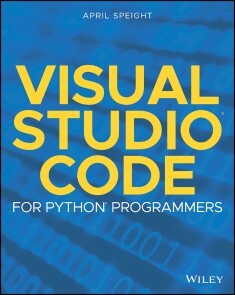
Visual Studio Code for Python Programmers
BECOME PROFICIENT AND EFFICIENT WITH VISUAL STUDIO CODE AND LEARN HOW TO INTEGRATE ALL YOUR EXTERNAL TOOLS!Visual Studio Code for Python Programmers helps Python developers become not just familiar, but productive in Visual Studio Code. To start, you’ll find the steps for installing Visual Studio Code on Windows, Mac and Linux platforms, along with an introduction to the editing features of the workspace. Coverage of more advanced functionality includes managing source code, debugging, unit testing, and Jupyter Notebook support. The book finishes with a walk-through of real-world projects which utilize Visual Studio Code features introduced in the book.For developers, the choice of an editor is a very personal one. You have idiosyncratic needs and wants that are unique to you as a developer. This book will help you learn how to customize Visual Studio Code to meet your needs and Python development workflow.* Introduces you to the features of the Visual Studio Code workspace and how those features can be customized* Demonstrates how Visual Studio Code allows you to choose your structure according to your needs* Covers editing code in Python, including syntax highlighting, code completion, object definition, refactoring, and code navigation* Describes Git integration and how to perform common Git functions (commits, checkouts, branches, and merges) from within Visual Studio Code* Highlights debugging features for Python developersA final section on Real World Applications will step you through several examples (and features integration with Django, Flask, Jupyter Notebook, Docker, and Azure), so you can hit the ground running with Visual Studio Code.APRIL SPEIGHT is a developer who specializes in Python and conversational design for chat bots and AI Assistants. Her passion for learning and teaching Python led to her first published title, Bite-Size Python: An Introduction to Python Programming. She currently works on content creation and developer community engagement for Spatial Computing and Mixed Reality at Microsoft. Introduction xixPART I WELCOME TO VISUAL STUDIO CODE 1CHAPTER 1 GETTING STARTED 3Installing Visual Studio Code 4The Visual Studio Code User Interface 4Activity Bar 5Side Bar 6Editor 7Panels 11Status Bar 12Command Palette 12Extensions 14Customizations 15Settings 16Color Themes and Icons 18Keybindings 18Display Langage 18Summary 19CHAPTER 2 HELLO WORLD FOR PYTHON 21Installing a Python Interpreter 21macOS 22Linux 22Windows 22Installing the Python Extension for Visual Studio Code 22Creating a Python File 23Selecting an Interpreter 24Setting a Default Interpreter 26Settings Editor 26settings.json File 26Selecting a Linter 26Editing a Python File 27Running a Python File 29Workflow Recap 30Summary 31CHAPTER 3 EDITING CODE 33Quick Fixes 34Code Completion, Definitions, and Declarations 35Formatting 38Edit Formatting Settings in the Settings Editor 39Edit Formatting Settings in settings.json 40Linting 41Enable and Disable Linting 41Run Linting 42Linting Settings 43Refactoring 44Extract Variable 44Extract Method 45Sort Imports 46Snippets 47Summary 48PART II ADDITIONAL VISUAL STUDIO CODE FEATURES 51CHAPTER 4 MANAGING PROJECTS AND COLLABORATION 53Files and Folders 53Open a Project 54Navigate Files 56Search across Files 57Close a File or Folder 60Environments 60Virtual Environments 61Conda Environments 61Source Control 63Initialize a Repository 65Commit Changes 66Branches 69Remotes 70Gutter Indicators 71View Diffs 71Push and Merge Commits 73Pull Requests 74Live Share 74Install Live Share 75Sign In to Live Share 76Share a Project 76Join a Session 78Editing and Collaboration 80Follow a Participant 80Share a Terminal 81Summary 82CHAPTER 5 DEBUGGING 83Starting a Debug Session 84Debug Commands 89Continue 89Step Over 90Step Into 90Step Out 91Stop 91Restart 92Call Stack 92Triggering a Breakpoint 93Logpoints 95Watch 96The Debug Console 98Launch Configurations 101Summary 104CHAPTER 6 UNIT TESTING 105Enable and Discover Tests 105Run Tests 109Debug Tests 113Summary 115CHAPTER 7 JUPYTER NOTEBOOK 117Creating and Opening a Jupyter Notebook 118Code Cell Modes 120Adding Cells 121Editing Cells 122Running a Cell 124Running a Single Cell 124Running All Code Cells 124Running Cells Above and Below a Code Cell 125Additional Commands 126Viewing Variables and Data 126Viewing Plots 128Debugging a Jupyter Notebook 129Connecting to a Remote Server 130Exporting a Notebook 131Summary 132CHAPTER 8 USING GIT AND GITHUB WITH VISUAL STUDIO CODE 135Getting Started 135GitHub Pull Requests and Issues Extension 136Publish a Project to GitHub 139Push Changes to GitHub 141Manage Pull Requests and Issues 143Pull Requests 144Issues 147Clone Repository 152Timeline View 154Summary 156CHAPTER 9 DEPLOY A DJANGO APP TO AZURE APP SERVICE WITH THE AZURE APP SERVICE EXTENSION 157Getting Started 157Creating a Django Project 159Creating an App 161Creating a Home Page 163Creating Website Pages 166Deploying to Azure 168Summary 175CHAPTER 10 CREATE AND DEBUG A FLASK APP 177Getting Started 177Create a Flask App 178Create and Render a Template 180Debug the Flask App 184Summary 187CHAPTER 11 CREATE AND DEPLOY A CONTAINER WITH AZURE CONTAINER REGISTRY AND AZURE APP SERVICE 189Getting Started 189Create a Container 191Add Docker Files to the Project 191Build an Image 193Build and Run a Container 195Debug a Container 197Push an Image to the Registry 197Create an Azure Container Registry 198Determine the Image’s Registry Location 199Deploy the Container Image to Azure 201Make Changes to the App and Deploy 205Multicontainer Apps 206Summary 207CHAPTER 12 DEPLOY AN AZURE FUNCTION TRIGGER BY A TIMER 209Getting Started 210Create an Azure Function 211Invoke the Function Locally 213Add the Code to the Function 214Deploy the Function to Azure 215Summary 220APPENDIX GETTING STARTED WITH AZURE 221Index 225

Choose Your InfoSec Path
Cybersecurity is a pressing issue across industries, as well as increasingly important in people’s personal lives. Learning the basic fundamentals is essential in order for companies and individuals to thrive. Although much of the literature around this hot-button topic can seem impenetrable and convoluted to a new learner, Choose Your InfoSec Path is an informative, fun, interactive cybersecurity adventure that has been written specifically with beginners in mind.Step into the shoes of a Chief Information Security Officer (CISO) and find out what could possibly go wrong during a breach. Author Alexander J. Roxon weaves together essential InfoSec concepts with an exciting and fast-paced storyline to make the lessons relatable and easy to understand. Determine what steps your character takes next and affect the outcome of your path. Will you emerge from the breach unscathed? With over 50 different endings, you can explore the what-ifs and experience a new path each time. A supporting glossary makes this book a resource you can return to long after your story is completed.Crucially, the integrity of the cybersecurity concepts is maintained and all events are genuinely plausible from a technical perspective. The book includes commentary to examine key concepts and reflect on decisions. This book is for those who are interested in understanding what cybersecurity is about but without a high technical barrier of entry. Learn some of the basics of incident response, how to dampen the effects of a breach, and get the jump on the bad guys. Your journey starts now.WHAT YOU’LL LEARN* Understand some of the basic concepts of incident response.* Experience how a real-life incident can go from zero to chaos very rapidly.* Find out how being proactive can significantly improve how information security breaches play out.* Discover how to dampen the effects of a breach.WHO THIS BOOK IS FORThis book is for those who are interested in understanding what cybersecurity is about but without a high technical barrier of entry. People who like to laugh as well as learn.Alexander J. Roxon likes to take complicated subjects and problems, then make them simpler and less intimidating. Alex works for the Cyber Defense team within Accenture, helping companies implement appropriate cyber security solutions and strategies. In his spare time, he likes to contribute to the industry with things like phishing awareness blogs full of fish puns, or a deck of playing cards designed to teach people about cyber security (The Infosec Deck). Inspired by the Give Yourself Goosebumps series, he decided to write his own interactive story in an effort to make information security more accessible. He is a Systems Security Certified Professional (SSCP) and Factor Analysis Information Risk (FAIR) accredited.

Integrating D3.js with React
Integrate D3.js into a React TypeScript project and create a chart component working in harmony with React. This book will show you how utilize D3 with React to bring life to your charts.Seasoned author Elad Elrom will show you how to create simple charts such as line, bar, donut, scatter, histogram and others, and advanced charts such as a world map and force charts. You'll also learn to share the data across your components and charts using React Recoil state management. Then integrate third-party chart libraries that are built on D3 such as Rechart, Visx, Nivo, React-vi, and Victory and in the end deploy your chart as a server or serverless app on popular platforms.React and D3 are two of the most popular frameworks in their respective areas – learn to bring them together and take your storytelling to the next level.WHAT YOU'LL LEARN* Set up your project with React, TypeScript and D3.js* Create simple and advanced D3.js charts* Work with complex charts such as world and force charts* Integrate D3 data with React state management * Improve the performance of your D3 components* Deploy as a server or serverless app and debug testWHO THIS BOOK IS FORReaders that already have basic knowledge of React, HTML, CSS and JavaScript.ELAD ELROM is a technical coach. As a writer, he authored and co-authored several technical books. Elad consulted for a variety of clients, from large corporations such as AT&T, HBO, Viacom, NBC Universal, and Weight Watchers, to smaller startups. Aside from coding, Elad is also a PADI diving instructor and a pilot.INTEGRATING D3.JS WITH REACT1. Setting Our Technology Stack2. Graphics and Interactions3. Basic Charts: Part 14. Basic Charts: Part 25. Integrating State Management6. World Chart: Part 17. World Chart: Part 28. Force Charts: Part 19. Force Charts: Part 210. Integrating Popular Chart Libraries Built on D311. Performance Knick-Knacks12. Publishing Your React d3 App

SPS-Programmierung mit dem Raspberry Pi und dem OpenPLC-Projekt
Einführung in die SPS-Programmierung mit dem Open-Source-Projekt auf dem Raspberry Pi und Modbus-Beispiele'mit dem'Arduino Uno und ESP8266Die SPS-Programmierung ist heute in der Industrie und in der Hausauto-mation sehr weit verbreitet. In diesem Buch beschreibt der Autor, wie der Raspberry Pi 4 als SPS eingesetzt werden kann. Angefangen mit der Softwareinstallation auf dem Raspberry Pi und dem SPS-Editor auf dem PC geht es nach einer Beschreibung der Hardware an das Programmieren.Es folgen interessante Beispiele nach IEC 61131-3 in den verschiedenen Programmiersprachen. Ausführlich wird auch erklärt, wie der SPS-Editor benutzt wird und wie die Programme auf den Raspberry Pi geladen und ausgeführt werden. Angefangen mit der Programmierung mit KOP (Kontaktplan) über ST (Structured Control Language) bis zu AS (Special Function Chart) werden alle IEC-Sprachen mit Beispielen behandelt. Diese können auf der Website des Autors heruntergeladen werden.Auch die Vernetzung kommt nicht zu kurz. Der Arduino Uno und der ESP8266 werden als ModbusRTU- bzw. ModbusTCP-Module program-miert, um ZugriŸ auf externe Peripherie zu erhalten. Damit ist es möglich, Sensoren einzulesen und Verbraucher zu schalten. Interessant dürften auch E/A-Schaltungen sein, die dem 24V-Industriestandard entsprechen.Befehlsübersichten für ST und KOP runden das Buch ab.Nach dem Durcharbeiten des Buches ist der Leser in der Lage, eigene SPS-Steuerungen mit dem Raspberry Pi zu verwirklichen.Josef Bernhardt hat sich schon früh mit Elektronik beschäftigt. Mit zwölf Jahren baute er seinen ersten Detektorempfänger. Die ersten Programmiererfahrungen sammelte er in den 80er-Jahren mit dem Commodore VC20. Auch Assemblerprogrammierung auf dem 8088-Prozessor ist ihm nicht fremd. Er kann auf über 30 Jahre Elektronikentwicklung an der Uni Regensburg zurückblicken. Dort war er im Bereich Elektronik- und Softwareentwicklung tätig. Mit der eigenen SMD-Fertigung setzt er auch Elektronikprojekte von Kunden um. Der Spaß an Elekt-ronik und Programmierung sowie sein Interesse an allem Neuen begleiten ihn schon sein ganzes Leben lang.
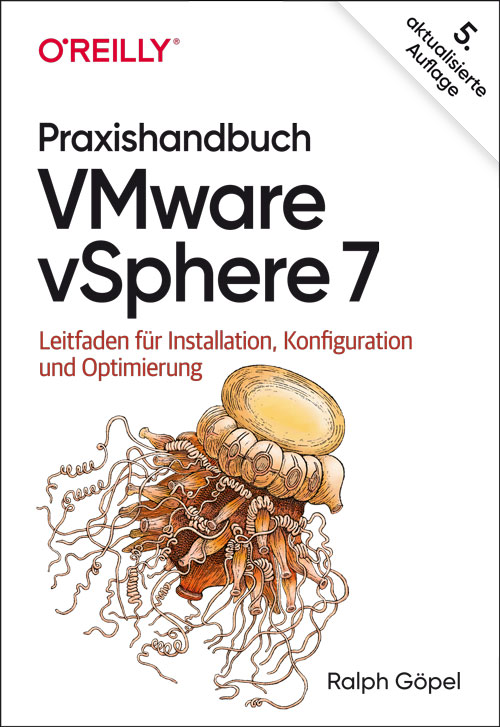
Praxishandbuch VMware vSphere 7 (5. Auflg.)
Leitfaden für Installation, Konfiguration und Optimierung.Sie brauchen praxisrelevante Informationen zur technischen Realisierung einer virtualisierten Infrastruktur mittels vSphere 7? Dann halten Sie mit dem »Praxishandbuch VMware vSphere 7.0« genau das richtige Buch in Ihren Händen. In diesem Handbuch finden Sie komprimiert alles, was Sie über Virtualisierung im Allgemeinen und vSphere 7 im Speziellen wissen müssen – samt unzähligen Tipps und Tricks aus der Praxis, Warnungen und Hinweisen zu angrenzenden Technologien.Schritt für Schritt zur optimalen virtualisierten UmgebungDas Buch gibt Ihnen schnell eine Übersicht über die einzelnen vSphere-Komponenten, deren Konfiguration und Optimierung. Sobald der Hypervisor (ESXi) installiert ist, können die ersten virtuellen Maschinen von Grund auf richtig eingerichtet und optimiert werden.Dann erfahren Sie, wie Sie Ihr Netzwerk am besten konfigurieren müssen und die ESXi Server an gemeinsamen Speicher anbinden. Was die Funktion Hostprofile, der VMware Lifecycle Manager oder der VMware Converter für Sie tun können, fehlt genauso wenig wie der Einsatz von vApps und Templates. Und auch wenn die vSphere-Umgebung steht, bleibt immer etwas zu tun: Backups und Sicherheitsstrategien (am Beispiel von Veeam Backup & Replication), die geschickte Verwaltung der Ressourcen und eine kontinuierliche Optimierung des laufenden Betriebs lassen sich mit den richtigen Werkzeugen und Konzepten besser in die Tat umsetzen. Auch die Kommandozeile und PowerCLI kommen nicht zu kurz.Aktualisierte fünfte AuflageDie fünfte Auflage wurde komplett auf VMware vSphere 7 aktualisiert. Zusätzlich aufgenommen wurden die Neuerungen von vSphere 7, z.B. vSAN, virtuelle Volumes, der HTML5-Client und die neue vSphere Appliance auf Photon Linux Basis. Weiterhin beinhaltet die fünfte Auflage die Themen Upgrade von einer Vorversion, NFS Storage unter Linux erstellen, Alarme, Hostprofile (erweitert), Troubleshooting (erweitert) und eine bestmögliche Netzwerkkonfiguration.

Samsung Galaxy A72
Die verständliche Anleitung für Ihr Smartphone:- Alle Funktionen & Einstellungen auf einen Blick- Schritt für Schritt erklärt – mit praktischen TippsMit diesem smarten Praxisbuch gelingt Ihnen der schnelle und sichere Einstieg in Ihr Smartphone. Lernen Sie Ihr Handymodell von Grund auf kennen und beherrschen! Anschauliche Anleitungen, Beispiele und Bilder zeigen Ihnen gut nachvollziehbar, wie Sie Ihr mobiles Gerät optimal handhaben – von der Ersteinrichtung und Personalisierung über die große Funktionsvielfalt bis zu den wichtigsten Anwendungen. Nutzen Sie darüber hinaus die übersichtlichen Spicker-Darstellungen: Damit können Sie jene Bedienungsschritte, die man am häufigsten braucht, aber immer wieder vergisst, auf einen Blick finden und umsetzen. Freuen Sie sich auf viele hilfreiche Tipps und legen Sie ganz einfach los!Aus dem Inhalt:- Alle Bedienelemente des Smartphones auf einen Blick- Ersteinrichtung und Tipps zum Umzug- Google-Konto erstellen und verwalten- Die Benutzeroberfläche Ihres Smartphones personalisieren- Apps aus dem Play Store herunterladen- Kontakte anlegen und im Adressbuch verwalten- Anrufe tätigen und SMS austauschen - Nachrichten über Mail und WhatsApp versenden und empfangen- Uhr, Kalender, Maps und andere praktische Apps nutzen - Fotos sowie Videos aufnehmen, verwalten und teilen- Ins Internet gehen über WLAN und mobile Daten - Updates, Datenschutz und Sicherheit

Societal Responsibility of Artificial Intelligence
The digital world is characterized by its immediacy, its density of information and its omnipresence, in contrast to the concrete world. Significant changes will occur in our society as AI becomes integrated into many aspects of our lives.This book focuses on this vision of universalization by dealing with the development and framework of AI applicable to all. It develops a moral framework based on a neo-Darwinian approach - the concept of Ethics by Evolution - to accompany AI by observing a certain number of requirements, recommendations and rules at each stage of design, implementation and use. The societal responsibility of artificial intelligence is an essential step towards ethical, eco-responsible and trustworthy AI, aiming to protect and serve people and the common good in a beneficial way.JEROME BERANGER is a scientific expert on the ethical approach of the digital revolution and Ethics by Evolution. He is cofounder and CEO of ADELIAA and is also an associate researcher in the Inserm 1295 BIOETHICS team at the University of Toulouse III, France.

IAPP CIPP / US Certified Information Privacy Professional Study Guide
PREPARE FOR SUCCESS ON THE IAPP CIPP/US EXAM AND FURTHER YOUR CAREER IN PRIVACY WITH THIS EFFECTIVE STUDY GUIDE - NOW INCLUDES A DOWNLOADABLE SUPPLEMENT TO GET YOU UP TO DATE ON THE 2022 CIPP EXAM!Information privacy has become a critical and central concern for small and large businesses across the United States. At the same time, the demand for talented professionals able to navigate the increasingly complex web of legislation and regulation regarding privacy continues to increase.Written from the ground up to prepare you for the United States version of the Certified Information Privacy Professional (CIPP) exam, Sybex’s IAPP CIPP/US Certified Information Privacy Professional Study Guide also readies you for success in the rapidly growing privacy field.You’ll efficiently and effectively prepare for the exam with online practice tests and flashcards as well as a digital glossary. The concise and easy-to-follow instruction contained in the IAPP/CIPP Study Guide covers every aspect of the CIPP/US exam, including the legal environment, regulatory enforcement, information management, private sector data collection, law enforcement and national security, workplace privacy and state privacy law, and international privacy regulation.* Provides the information you need to gain a unique and sought-after certification that allows you to fully understand the privacy framework in the US* Fully updated to prepare you to advise organizations on the current legal limits of public and private sector data collection and use* Includes access to the Sybex online learning center, with chapter review questions, full-length practice exams, hundreds of electronic flashcards, and a glossary of key termsPerfect for anyone considering a career in privacy or preparing to tackle the challenging IAPP CIPP exam as the next step to advance an existing privacy role, the IAPP CIPP/US Certified Information Privacy Professional Study Guide offers you an invaluable head start for success on the exam and in your career as an in-demand privacy professional.MIKE CHAPPLE, PHD, CIPP/US, is Teaching Professor of Information Technology, Analytics, and Operations at Notre Dame’s Mendoza College of Business. He is a bestselling author of over 25 books and serves as the Academic Director of the University’s Master of Science in Business Analytics program. He holds multiple additional certifications, including the CISSP, CySA+, CISM, PenTest+, and Security+.JOE SHELLEY, M.A., CIPP/US, is currently the Vice President for Libraries and Information Technology at Hamilton College in New York. Among other responsibilities he oversees information security and privacy programs, IT risk management, business intelligence and analytics, and data governance. He has also held certifications and certificates for ITIL, Project Management, and Scrum.Introduction xxiAssessment Test xxxCHAPTER 1 PRIVACY IN THE MODERN ERA 1Introduction to Privacy 2What Is Privacy? 3What Is Personal Information? 4What Isn’t Personal Information? 5Why Should We Care About Privacy? 7Generally Accepted Privacy Principles 8Management 9Notice 10Choice and Consent 10Collection 10Use, Retention, and Disposal 11Access 11Disclosure to Third Parties 12Security for Privacy 13Quality 14Monitoring and Enforcement 14Developing a Privacy Program 15Crafting Strategy, Goals, and Objectives 15Appointing a Privacy Official 17Privacy Roles 18Building Inventories 18Conducting a Privacy Assessment 19Implementing Privacy Controls 20Ongoing Operation and Monitoring 20Online Privacy 21Privacy Notices 21Privacy and Cybersecurity 22Cybersecurity Goals 23Relationship Between Privacy and Cybersecurity 24Privacy by Design 25Summary 26Exam Essentials 26Review Questions 27CHAPTER 2 LEGAL ENVIRONMENT 31Branches of Government 32Legislative Branch 32Executive Branch 33Judicial Branch 34Understanding Laws 36Sources of Law 36Analyzing a Law 41Legal Concepts 43Legal Liability 44Torts and Negligence 45Summary 46Exam Essentials 46Review Questions 48CHAPTER 3 REGULATORY ENFORCEMENT 53Federal Regulatory Authorities 54Federal Trade Commission 54Federal Communications Commission 60Department of Commerce 61Department of Health and Human Services 61Banking Regulators 62Department of Education 63State Regulatory Authorities 63Self-Regulatory Programs 64Payment Card Industry 64Advertising 65Trust Marks 66Safe Harbors 67Summary 67Exam Essentials 68Review Questions 69CHAPTER 4 INFORMATION MANAGEMENT 73Data Governance 74Building a Data Inventory 74Data Classification 75Data Flow Mapping 77Data Lifecycle Management 78Workforce Training 79Cybersecurity Threats 80Threat Actors 80Incident Response 85Phases of Incident Response 86Preparation 87Detection and Analysis 87Containment, Eradication, and Recovery 88Post-incident Activity 88Building an Incident Response Plan 90Data Breach Notification 92Vendor Management 93Summary 94Exam Essentials 94Review Questions 96CHAPTER 5 PRIVATE SECTOR DATA COLLECTION 101FTC Privacy Protection 103General FTC Privacy Protection 103The Children’s Online Privacy Protection Act (COPPA) 104Future of Federal Enforcement 107Medical Privacy 110The Health Insurance Portability and Accountability Act (hipaa) 110The Health Information Technology for Economic and Clinical Health Act 118The 21st Century Cures Act 120Confidentiality of Substance Use Disorder Patient Records Rule 120Financial Privacy 121Privacy in Credit Reporting 121Gramm–Leach–Bliley Act (GLBA) 125Red Flags Rule 128Consumer Financial Protection Bureau 129Educational Privacy 130Family Educational Rights and Privacy Act (FERPA) 130Telecommunications and Marketing Privacy 132Telephone Consumer Protection Act (TCPA) and Telemarketing Sales Rule (TSR) 132The Junk Fax Prevention Act (JFPA) 135Controlling the Assault of Non-solicited Pornography and Marketing (CAN-SPAM) Act 135Telecommunications Act and Customer Proprietary Network Information 137Cable Communications Policy Act 138Video Privacy Protection Act (VPPA) of 1988 139Summary 140Exam Essentials 141Review Questions 143CHAPTER 6 GOVERNMENT AND COURT ACCESS TO PRIVATE SECTOR INFORMATION 147Law Enforcement and Privacy 148Access to Financial Data 149Access to Communications 153National Security and Privacy 157Foreign Intelligence Surveillance Act (FISA) of 1978 157USA-PATRIOT Act 159The USA Freedom Act of 2015 162The Cybersecurity Information Sharing Act of 2015 163Civil Litigation and Privacy 164Compelled Disclosure of Media Information 164Electronic Discovery 166Summary 168Exam Essentials 168Review Questions 170CHAPTER 7 WORKPLACE PRIVACY 175Introduction to Workplace Privacy 176Workplace Privacy Concepts 176U.S. Agencies Regulating Workplace Privacy Issues 177U.S. Antidiscrimination Laws 178Privacy Before, During, and After Employment 181Employee Background Screening 182Employee Monitoring 185Investigation of Employee Misconduct 189Termination of the Employment Relationship 191Summary 193Exam Essentials 193Review Questions 195CHAPTER 8 STATE PRIVACY LAWS 199Federal vs. State Authority 200Financial Data 200Credit History 201California Financial Information Privacy Act 201Data Security 202Recent Developments 204Data Breach Notification Laws 212Elements of State Data Breach Notification Laws 212Key Differences Among States Today 214Recent Developments 215Marketing Laws 216Summary 217Exam Essentials 218Review Questions 219CHAPTER 9 INTERNATIONAL PRIVACY REGULATION 223International Data Transfers 224European Union General Data Protection Regulation 225Adequacy Decisions 228U.S.- EU Safe Harbor and Privacy Shield 228Binding Corporate Rules 230Standard Contractual Clauses 230Other Approved Transfer Mechanisms 231APEC Privacy Framework 231Cross- Border Enforcement Issues 233Global Privacy Enforcement Network 233Resolving Multinational Compliance Conflicts 234Summary 234Exam Essentials 235Review Questions 236APPENDIX ANSWERS TO REVIEW QUESTIONS 241Chapter 1: Privacy in the Modern Era 242Chapter 2: Legal Environment 243Chapter 3: Regulatory Enforcement 245Chapter 4: Information Management 247Chapter 5: Private Sector Data Collection 249Chapter 6: Government and Court Access to Private Sector Information 251Chapter 7: Workplace Privacy 252Chapter 8: State Privacy Laws 254Chapter 9: International Privacy Regulation 256Index 259
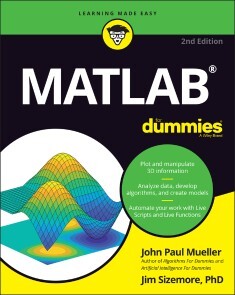
MATLAB For Dummies
GO FROM TOTAL MATLAB NEWBIE TO PLOTTING GRAPHS AND SOLVING EQUATIONS IN A FLASH!MATLAB is one of the most powerful and commonly used tools in the STEM field. But did you know it doesn’t take an advanced degree or a ton of computer experience to learn it? MATLAB For Dummies is the roadmap you’ve been looking for to simplify and explain this feature-filled tool.This handy reference walks you through every step of the way as you learn the MATLAB language and environment inside-and-out. Starting with straightforward basics before moving on to more advanced material like Live Functions and Live Scripts, this easy-to-read guide shows you how to make your way around MATLAB with screenshots and newly updated procedures. It includes:* A comprehensive introduction to installing MATLAB, using its interface, and creating and saving your first file * Fully updated to include the 2020 and 2021 updates to MATLAB, with all-new screenshots and up-to-date procedures * Enhanced debugging procedures and use of the Symbolic Math Toolbox * Brand new instruction on working with Live Scripts and Live Functions, designing classes, creating apps, and building projects * Intuitive walkthroughs for MATLAB’s advanced features, including importing and exporting data and publishing your work Perfect for STEM students and new professionals ready to master one of the most powerful tools in the fields of engineering, mathematics, and computing, MATLAB For Dummies is the simplest way to go from complete newbie to power user faster than you would have thought possible.JOHN PAUL MUELLER is an author and technical editor with experience in application development, database management, machine learning, and deep learning. He has written hundreds of books and articles helping everyday people learn everything from networking to database management.INTRODUCTION 1About This Book 1Foolish Assumptions 2Icons Used in This Book 3Beyond the Book 4Where to Go from Here 4PART 1: GETTING STARTED WITH MATLAB 7CHAPTER 1: INTRODUCING MATLAB AND ITS MANY USES 9Putting MATLAB in Its Place 10Understanding how MATLAB relates to a Turing machine 10Using MATLAB as more than a calculator 13Determining why you need MATLAB 14Discovering Who Uses MATLAB for Real-World Tasks 17Knowing How to Get the Most from MATLAB 18Getting the basic computer skills 18Defining the math requirements 19Applying what you know about other procedural languages 19Understanding how this book will help you 20Getting Over the Learning Curve 20CHAPTER 2: STARTING YOUR COPY OF MATLAB 21Installing MATLAB 22Discovering which platforms MATLAB supports 22Getting your copy of MATLAB 23Performing the installation 23Activating the product 24Meeting the MATLAB Interface 25Starting MATLAB for the first time 25Considering the default Toolstrip tabs 27Working with the Quick Access toolbar (QAT) 29Employing the Command Window 30Getting additional help with MATLAB 31Using the Current Folder toolbar 32Viewing the Current Folder window 32Changing the MATLAB layout 38CHAPTER 3: INTERACTING WITH MATLAB 41Using MATLAB as a Calculator 42Entering information at the prompt 42Entering a formula 44Copying and pasting formulas 44Changing the Command Window formatting 46Suppressing Command Window output 47Understanding the MATLAB Math Syntax 48Adding, subtracting, multiplying, and dividing 48Working with exponents 50Organizing Your Storage Locker 51Using ans — the default storage locker 52Creating your own storage lockers 52Operating MATLAB as More Than a Calculator 54Learning the truth 54Using the built-in functions 54Accessing the function browser 56Recovering from Mistakes 57Understanding the MATLAB error messages 58Stopping MATLAB when it hangs 58CHAPTER 4: STARTING, STORING, AND SAVING MATLAB FILES 61Examining MATLAB’s File Structure 62Understanding the MATLAB files and what they do 63Exploring folders with the GUI 65Exploring folders with commands 69Working with files in MATLAB 72Accessing and Sharing MATLAB Files 74Opening 74Exporting 75Importing 76Saving Your Work 78Saving variables with the GUI 78Saving variables using commands 78Saving commands with the GUI 79Saving commands using commands 79Using online storage 80PART 2: MANIPULATING AND PLOTTING DATA IN MATLAB 81CHAPTER 5: EMBRACING VECTORS, MATRICES, AND HIGHER DIMENSIONS 83Working with Vectors and Matrices 84Understanding MATLAB’s perspective of linear algebra 84Entering data 86Adding and Subtracting 92Understanding the Many Ways to Multiply and Divide 94Performing scalar multiplication and division 94Employing matrix multiplication 95Dividing two vectors 98Effecting matrix division 98Creating powers of matrices 101Using complex numbers 102Working with exponents 104Working with Higher Dimensions 105Creating a multidimensional matrix 105Accessing a multidimensional matrix 108Replacing individual elements 109Replacing a range of elements 110Modifying the matrix size 112Using cell arrays and structures 113Using the Matrix Helps 117CHAPTER 6: UNDERSTANDING PLOTTING BASICS 121Considering Plots 121Understanding what you can do with plots 122Comparing MATLAB plots to spreadsheet graphs 122Creating a plot using commands 123Creating a plot using the Workspace window 125Creating a plot using the Plots tab options 126Using the Plot Function 128Working with line color, markers, and line style 128Creating multiple plots in a single command 129Modifying Any Plot 130Making simple changes 130Adding to a plot 132Deleting a plot 134Working with subplots 134Plotting with 2D Information 137CHAPTER 7: USING ADVANCED PLOTTING FEATURES 139Plotting with 3D Information 140Using the bar() function to obtain a flat 3D plot 140Using bar3() to obtain a dimensional 3D plot 144Using barh() and more 146Enhancing Your Plots 147Getting an axes handle 147Modifying axes labels 148Adding a title 150Rotating label text 151Employing annotations 153Printing your plot 154Using the Plot Extras 155Creating axes dates using datetick() 155Creating plots with colorbar() 157Interacting with daspect 159Interacting with pbaspect 161PART 3: STREAMLINING MATLAB 163CHAPTER 8: AUTOMATING YOUR WORK 165Understanding What Scripts Do 166Creating less work for yourself 166Defining when to use a script 167Creating a Script 168Writing your first script 168Using commands for user input 170Copying and pasting into a script 171Converting the Command History into a script 172Continuing long strings 172Adding comments to your script 174Revising Scripts 179Calling Scripts 179Improving Script Performance 180Analyzing Scripts for Errors 181Using the MATLAB Profiler to Improve Performance 182CHAPTER 9: EXPANDING MATLAB’S POWER WITH FUNCTIONS 185Working with Built-in Functions 186Learning about built-in functions 186Sending data in and getting data out 191Creating a Function 191Understanding script and function differences 192Understanding built-in function and custom function differences 193Writing your first function 193Using the new function 195Passing data in 196Passing data out 198Creating and using global variables 199Using subfunctions 202Nesting functions 203Using Other Types of Functions 204Inline functions 204Anonymous functions 205CHAPTER 10: ADDING STRUCTURE TO YOUR SCRIPTS 207Making Decisions 208Using the if statement 208Using the switch statement 212Understanding the switch difference 214Deciding between if and switch 214Creating Recursive Functions 215Performing Tasks Repetitively 219Using the for statement 219Using the while statement 220Starting a new loop iteration using continue 221Ending processing using break 222Ending processing using return 223Determining which loop to use 225Creating Menus 225CHAPTER 11: WORKING WITH LIVE SCRIPTS 229Comparing a Live Script to a Regular Script 230Working with the Live Editor 231Opening the Live Editor 232Working with the Output pane 232Adding formatted text 235Using plots within the coded area 236Incorporating graphics 237Incorporating controls 238Running Live Script Sections 241Diagnosing Coding Errors 242CHAPTER 12: WORKING WITH LIVE FUNCTIONS 245Comparing a Live Function to a Regular Function 246Understanding Live Function Flexibility Differences 247Creating a Live Function 247Running a Live Function 248Refactoring a Live Function 249Using the specialized coding buttons 253Going to a specific function 254Converting a Function to a Live Function 255Sharing Live Functions and Live Scripts 256Using an interactive document 256Employing a full screen presentation 257Working with plain text 257Creating a static document 257Performing Comparisons and Merges 259Comparing Live Functions and Live Scripts 259Merging Live Functions and Live Scripts 260CHAPTER 13: DESIGNING AND USING CLASSES 263A Brief Overview of Object-Oriented Programming (OOP) 264Defining an object 264Considering how properties define an object 265Using methods to interact with an object 266Listening to an object using events 267Understanding the need for privacy 268Understanding OOP in MATLAB 268Comparing MATLAB OOP to other languages 269Uses of classes and objects in MATLAB 270Performing tasks with objects in MATLAB 271Creating a Basic MATLAB Class 272Starting the class 272Adding properties 275Specifying methods 278CHAPTER 14: CREATING MATLAB APPS 281Working with the App Designer 282Understanding apps 282Getting apps 283Starting the App Designer 286Defining an Interface 290Understanding the various components 290Changing the component properties 292Making the Interface Functional 293Working with Code View 294Creating a callback function 295Running the App 297Packaging Your App 298CHAPTER 15: BUILDING PROJECTS 301Considering the Need for Projects 302Creating a New Project 303Choosing a project type 303Using the Project editor 305Understanding the Project Dependencies 309Running Required Checks 311Checking project integrity 311Looking for potential updates 311PART 4: EMPLOYING ADVANCED MATLAB TECHNIQUES 315CHAPTER 16: IMPORTING AND EXPORTING DATA 317Importing Data 318Avoiding older import/export function calls 319Performing import basics 319Importing mixed strings and numbers 325Importing selected rows or columns 327Exporting Data 328Performing export basics 328Exporting scripts and functions 331Working with Images 332Exporting images 332Importing images 333CHAPTER 17: PRINTING AND PUBLISHING YOUR WORK 335Using Commands to Format Text 336Modifying font appearance 336Using special characters 344Adding math symbols 346Publishing Your MATLAB Data 350Performing advanced script and function publishing tasks 350Saving your figures to disk 354Printing Your Work 355Configuring the output page 355Printing the data 356CHAPTER 18: RECOVERING FROM MISTAKES 357Working with Error Messages 358Responding to error messages 359Understanding the MException class 361Creating error and warning messages 362Setting warning message modes 365Understanding Quick Alerts 366Relying on Common Fixes for MATLAB’s Error Messages 368Making Your Own Error Messages 369Developing the custom error message 370Creating useful error messages 374Using Good Coding Practices 375PART 5: SPECIFIC MATLAB APPLICATIONS 379CHAPTER 19: SOLVING EQUATIONS AND FINDING ROOTS 381Working with the Symbolic Math Toolbox 382Obtaining your copy of the Symbolic Math Toolbox 382Installing the Symbolic Math Toolbox 384Working with the GUI 386Typing a simple command in the Command Window 387Performing Algebraic Tasks 388Differentiating between numeric and symbolic algebra 389Solving quadratic equations 390Working with cubic and other nonlinear equations 392Understanding interpolation 393Working with Statistics 395Understanding descriptive statistics 395Understanding robust statistics 398Employing the Symbolic Math Toolbox for plotting 401CHAPTER 20: PERFORMING ANALYSIS 405Using Linear Algebra 406Working with determinants 406Performing reduction 407Using eigenvalues 409Understanding factorization 409Employing Calculus 411Working with differential calculus 411Using integral calculus 413Working with multivariate calculus 413Solving Differential Equations 415Using the numerical approach 415Using the symbolic approach 416PART 6: THE PART OF TENS 419CHAPTER 21: THE TOP TEN USES OF MATLAB 421Working with Linear Algebra 422Performing Numerical Analysis 422Designing a Neural Network Simulation 423Getting Involved in Science 423Logging Sensor Data 424Exploring Research 424Creating Light Animations Using Arduino 425Employing Image Processing 425Controlling Industrial Equipment 426Performing Audio Compression Using Wavelets 427CHAPTER 22: TEN WAYS TO MAKE A LIVING USING MATLAB 429Working with Green Technology 430Creating Speech Recognition Software 430Performing Antenna Analysis and Design 431Getting Disease under Control 432Becoming a Computer Chip Designer 432Working with Robots 433Keeping the Trucks Rolling 433Designing Equipment Used in the Field 434Reducing Risks Using Simulation 434Creating Security Solutions 435Appendix A: MATLAB Functions 437Appendix B: MATLAB’s Plotting Routines 447Index 453
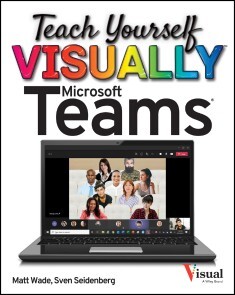
Teach Yourself VISUALLY Microsoft Teams
DISCOVER THE POWER OF MICROSOFT TEAMS WITH THIS INTUITIVE AND TIMELY NEW GUIDEMicrosoft Teams is unlocking the potential of remote work and virtual meetings at a time when they couldn’t be more necessary. Its feature-rich interface and ease-of-use promise to bring your team together—as long as you can harness its full suite of capabilities.In Teach Yourself VISUALLY Microsoft Teams, Microsoft experts and authors Matt Wade and Sven Seidenberg turn their years of engineering and IT experience loose on the virtual collaboration software now used by over one hundred million people across the globe. Using the book’s huge collection of vibrant and full-sized images and walkthroughs, you’ll see exactly what you need to do in order to:* Realize the key benefits of Teams by using its messaging and video-conferencing capabilities to stay connected with your colleagues* Manage multiple teams and channels to use Teams across your organization* Extend the functionality of Teams by using additional apps and add-ons* Learn valuable tips, best practices, and work-arounds to make the most of and avoid the landmines in TeamsRapidly becoming the central hub for working in Microsoft 365, Microsoft Teams promises to transform the way you work and communicate. And you’ll master it faster and easier by using this ultimate guide to get the most out of Microsoft’s latest and greatest software! MATT WADE is an engineer-turned IT nerd and Microsoft MVP. He's best known for his SharePoint and Office 365 infographics and advocating AI and chatbots to automate business workloads.SVEN SEIDENBERG is a Microsoft 365 advocate and Microsoft Teams geek with a strong focus on Microsoft Teams administration, change management, and adoption. He consults with organizations to develop procedures and best practices for using Microsoft 365 apps and services to work more productively and efficiently.CHAPTER 1 GETTING STARTED WITH TEAMSLog into Teams 4Install the Desktop App 10Modify Your Personal Settings 11Switch Between Dark Mode and Light Mode 12Add or Update Your Profile Photo 14Access and Manage Your Saved Messages 15Access a List of Keyboard Shortcuts 16Set Up and Manage Your Video and Audio Devices 17View a Person’s Contact Card 18View the Organization Chart 19Switch Between Organizations as a Guest 20Leave an Organization as a Guest 21Log Out of Teams 24CHAPTER 2 NOTIFICATIONS AND THE ACTIVITY FEEDNavigate the Activity Feed 28Filter the Activity Feed by Notification Type 29Set Your Status 30Set Your Status Message 31Enable Do Not Disturb 32Manage Priority Access 33Customize Your Notifications on the Desktop App 34Customize Your Notifications on the Mobile App 35Enable Quiet Hours on Mobile 37CHAPTER 3 THE FILES APPNavigate the Files App 42Add Outside Cloud Storage Locations 44CHAPTER 4 SEARCH AND SEARCH BOX FEATURESSearch in Teams 50Use Microsoft Search 52Search Tricks in Teams 54Use Hashtags 56Slash Commands 57CHAPTER 5 APPS, TABS, AND CONNECTORSOverview and Using the App Store 60Install an App from the App Store 62Pin an App to the App Bar 64Add a Tab to a Private Chat 65Add a Tab to a Channel 67Make an Office File a Tab 69Make a PDF File a Tab 71Add a SharePoint Page as a Tab 73Add a SharePoint Document Library as a Tab 76Add a Website as a Tab 79Add a Team (Channel) Calendar 81Send a File for Approval 84Respond to an Approval Request 85Add a Poll to a Conversation 86CHAPTER 6 PRIVATE CHATStart a Chat with Someone in Your Organization 90Start a Chat with a Teams User OutsideYour Organization 91Start a Chat with a Skype for Business or SkypeConsumer User Outside YourOrganization 92Add Someone to an Ongoing Chat 93Rename a Chat 94Format Your Chat Message 95@mention an Individual 96Mark Your Chat Message as Important 97Mark Your Chat Message as Urgent 98Add an Emoji, GIF, Sticker, or Memeto Your Chat Message 99Send Praise to Someone in Your Chat Message 100Edit a Chat Message 101Like or React to a Chat Message 102Save a Chat Message 103Delete a Chat Message 104Mark a Chat Message as Read or Unread 105Share a Chat Message to Outlook 106Translate a Chat Message 107Mute a Chat 108Pin a Chat 109Pop Out a Chat in a New Window 110Leave a Group Chat 111Delete or Hide a Chat 112Turn Chat Read Receipts On or Off 113Filter Your Chat Listing by Person,Read Status, and More 114Send a Quoted Reply 115Create a Buddy List of Important Contacts 116CHAPTER 7 FILES IN A PRIVATE CHATShare Files in a Private Chat 120Set Permissions of a File in a Private Chat 121Change Permissions of a File in a Private Chat 122Access Shared Files in a Private Chat 124Delete Files in a Private Chat 125CHAPTER 8 TEAMSUnderstanding a Team 130Create a Team from Scratch 132Create a Team from a Template 134Create a Team from an Existing SharePointOnline Team Site 137Create a Team from an ExistingMicrosoft 365 Group 138Search for a Team to Join 140Edit a Team Name and Description 141Edit Your Team Settings 142Add Internal People to Your Team by Invitation 143Add External Guests to Your Team by Invitation 144Remove People from a Team 146Accept Pending Join Requests for a Team 147Add People to a Team Using a Join Code 148Share a Team Using a Link 150Limit Who Can @mention Teams and Channels 151Create a Teams Tag 152Leave a Team 154Archive a Team 155Delete a Team 156Hide a Team 157CHAPTER 9 CHANNELSCreate a Standard Channel 160Create a Private Channel 161Add People to a Private Channel 162Manage Private Channel Owners 163Edit a Channel Name and Description 164Manage a Channel 165Delete a Channel 166Restore a Deleted Channel 167Set Channel Notifications 168Pin a Channel 169Moderate a Channel 170Share a Link to a Channel 171Send an Email to a Channel 172Share an Email from Outlook to Teams 174Email a Channel vs. Share to a Channel 176Silence a Channel 178Hide a Channel 179Leave a Channel 180Follow a Channel 181CHAPTER 10 CHANNEL CONVERSATIONSThe Case for Conversations Over Email 184Create a Standard Channel Conversation 186Create a Multichannel Conversation 187Create an Announcement 189Reply to a Channel Conversation 190Set Who Can Reply to Your Channel Conversation 191Format Your Channel Message 192Add a Subject to a New Channel Conversation 193@mention an Individual, Channel, or Team 194Mark Your Channel Message as Important 195Add an Emoji, GIF, Sticker, or Meme to YourChannel Message 196Send Praise to Someone in Your Channel Message 198Edit a Channel Message 199Like or React to a Channel Message 200Save a Channel Message 201Delete a Channel Message 202Delete an Entire Channel Conversation 203Mark a Channel Message as Read or Unread 204Get the Link to a Channel Message 205Share a Channel Conversation to Outlook 206Translate a Channel Message 207Pin a Channel Conversation 208Silence a Channel Conversation 209CHAPTER 11 FILES IN A TEAMUnderstanding Files in a Team 212Create a File in a Team 214Upload Files to a Team 215Upload Folders to a Team 216Attach Files to a Channel Conversation 217Rename a File in a Team 218Open and Edit Office Files in Teams or theDesktop App 219Co‐author Office Files 220Pin Files and Folders to the Top of the Tab 221Sort, Filter, and Group Files into Views 222View Your Files in List or Tile View 226Sync Files to Your Desktop 227Sync Files to Your Smartphone or Tablet 228Share a Link to an Existing File or Folder with aTeam Member 229Add a File to a Channel Conversation 230Start a Conversation Based on a File 231Move or Copy Files Between Teams, SharePoint,or OneDrive 232Download a File 233Check Files In and Out 234Delete a File or Folder 235Understanding Files in Private Channels 236Open Your Team’s Files in SharePoint 237Revert to a Previous Version of a File 238Restore a Deleted File or Folder 239Share a File Externally 241CHAPTER 12 CALLING AND VOICEMAILThe Calls App 244Set Up Your Voicemail 245Check Your Voicemail 246Call a Teams User in Your Organization or anExternal Guest 247Call a Teams User Outside Your Organization 248Call a Skype for Business or Skype ConsumerUser Outside Your Organization 249Dial an Outside Phone Number 251CHAPTER 13 PLANNING A MEETINGStart a Meet Now Meeting from a Private Chat 254Start a Meet Now Meeting from Your Calendar 255Start a Meet Now Meeting from a Channel 256Schedule a Meeting with Internal and/orExternal Attendees 257Schedule a Meeting from an Ongoing Private Chat 259Schedule a Meeting from Outlook 260Schedule a Channel Meeting 261Understanding Channel Meetings 262Find the Right Meeting Time 263Chat with Meeting Participants Before the Meeting 264Manage Meeting Options 265Change Who Can Bypass the Lobby 266Assign Meeting Roles 267Set Whether Attendees Can Unmute Themselves (Hard Mute) 269Set Whether the Meeting Chat Is Enabled 270Include a Dial‐in Number with a Meeting Invitation 271Update a Scheduled Meeting 272RSVP to a Meeting 273CHAPTER 14 JOINING A MEETINGJoin from Teams 276Join from Outlook 277Join from a Link or Email Invitation 278Join from a Telephone or Smartphone 280Select Your Audio and Video Devices 282Set Your Video Background 283Add a Room to a Meeting When Joining 285CHAPTER 15 DURING A MEETINGChange Your Meeting View and Layout 288Pin a Participant 290Spotlight a Participant 292Record a Meeting 294Let People in from the Meeting Lobby 295Add People to an Ongoing Meeting 296Mute Yourself 298Mute Someone Else 299Mute Everyone in the Meeting 300Force All Attendees to Stay on Mute (Hard Mute) 301Turn Your Video On or Off 302Set Background Blur or a Background Image 303Raise Your Hand 305React During a Meeting 306Share Your Screen During a Meeting 307Share a Single Window During a Meeting 309Present a PowerPoint Slide Deck During a Meeting (PowerPoint Live) 311Share the Meeting Whiteboard During a Meeting 314Share Your Video and Content Side by Side 316Share Files During a Meeting 318Share a Poll During a Meeting 322Enable Live Captions or Transcription 327Use the Meeting Chat 328Change Meeting Roles 329Take Meeting Notes 331Change Your Audio and Video Devices 333Turn Off Incoming Video to Improve Your Connection 334Transfer a Meeting or Call from Desktop to Mobile 335Remove a Participant from a Meeting 336Manage Meeting Options During a Meeting 337Meeting Settings Best Practices 338CHAPTER 16 MEETING BREAKOUT ROOMSCreate Breakout Rooms 342Assign or Switch Participants BetweenBreakout Rooms 343Rename Breakout Rooms 344Add a Breakout Room 345Delete a Breakout Room 346Set Participants to Join Breakout Rooms Automatically 347Open Breakout Rooms 348Allow Participants to Return to the Main Meeting 349Set a Time Limit for Breakout Rooms 350Send an Announcement to All Breakout Rooms 351Join a Breakout Room as the Organizer 353View Breakout Room Chat Without Joiningthe Breakout Room 354Record Breakout Rooms 355Send a Chat Message to the Organizeras a Breakout Room Attendee 356Close One or All Breakout Rooms 357CHAPTER 17 CLOSING A MEETINGLeave or End a Meeting 360Access the Meeting Recap 361Download the Attendance Report 362Access and Share the Meeting Recording 364Download the Meeting Transcript 366Use the Meeting Chat After the Meeting 367Index 368
MCA Microsoft Office Specialist (Office 365 and Office 2019) Complete Study Guide
MASTER ONE OF THE MOST ESSENTIAL SKILL SETS FOR THE CONTEMPORARY OFFICEAs Microsoft Office becomes ever more ubiquitous in modern offices across the world, competence and familiarity with its intricacies is more important than ever. Now you can set yourself apart from the pack and prove your skills with the Microsoft Office Specialist certification.The MCA Microsoft Office Specialist (Office 365 and Office 2019) Complete Study Guide : Word Associate Exam MO-100, Excel Associate Exam MO-200, and PowerPoint Associate Exam MO-300 delivers a comprehensive roadmap to achieving the certification with easy-to-follow instruction for each of the three required proficiencies: Word, Excel, and PowerPoint. You’ll enjoy access to chapter review questions and Exam Essentials, a feature that identifies critical subject areas.Discover practical, hands-on exercises that prepare you for real-world roles and jobs, and gain valuable experience as you reinforce key Microsoft Office skills that you’ll be expected to demonstrate in job interviews and your day-to-day professional life. Learn to manage and create text documents in Word, perform operations with formulas in Excel, and create engaging slideshows and presentations in PowerPoint.This practical book also provides:* Fully updated information for the latest Microsoft Office Specialist certification exams covering Microsoft Office 365 * Access to new career opportunities with a professional certification that’s relevant to virtually any office environment * Access to the Sybex online study tools, with chapter review questions, full-length practice exams, hundreds of electronic flashcards, and a glossary of key terms The MCA Microsoft Office Specialist (Office 365 and Office 2019) Complete Study Guide offers crystal-clear organization, comprehensive coverage, and easy-to-understand instruction. It’s perfect for anyone who hopes to prove their skills with the Microsoft Office Specialist certification or to improve their mastery of Microsoft Office 365.ABOUT THE AUTHORERIC BUTOW is the author of 41 books on technology topics and has developed and taught networking, computing, and usability courses for Ed2Go, Virtual Training Company, California State University, Sacramento, and Udemy. He has been using Office since 1994. He’s served as a technical writer for companies like Intel, Wells Fargo, Cisco Systems, and Hewlett-Packard. He is the founder and owner of Butow Communications Group in Jackson, California.Introduction xxiAssessment Test xxviiiAnswers to Assessment Test xlPART I WORD EXAM MO-100 1CHAPTER 1 WORKING WITH DOCUMENTS 3Navigating Within Documents 4Searching for Text 4Linking to Locations Within Documents 8Moving to Specific Locations and Objects in Documents 9Showing and Hiding Formatting Symbols and Hidden Text 10Formatting Documents 13Setting Up Document Pages 14Applying Style Settings 15Inserting and Modifying Headers and Footers 17Configuring Page Background Elements 18Saving and Sharing Documents 20Saving Documents in Alternative File Formatting 20Changing Basic Document Properties 21Modifying Print Settings 23Sharing Documents Electronically 24Inspecting Documents for Issues 26Locating and Removing Hidden Properties and Personal Information 26Finding and Fixing Accessibility Issues 28Locating and Correcting Compatibility Issues 29Summary 30Key Terms 31Exam Essentials 31Review Questions 33CHAPTER 2 INSERTING AND FORMATTING TEXT 35Adding and Replacing Text 36Finding and Replacing Text 36Inserting Symbols and Special Characters 40Formatting Text and Paragraphs 42Adding Text Effects 42Applying Formatting by Using Format Painter 43Setting Line and Paragraph Spacing and Indentation 43Applying Built-In Styles to Text 46Clearing Formatting 47Creating and Configuring Document Sections 50Formatting Text in Multiple Columns 50Inserting Page, Section, and Column Breaks 52Changing Page Setting Options for a Section 53Summary 56Key Terms 57Exam Essentials 57Review Questions 58CHAPTER 3 MANAGING TABLES AND LISTS 61Creating Tables 62Converting Text to Tables 64Switching Tables to Text 65Creating Tables by Specifying Rows and Columns 66Modifying Tables 68Sorting Table Data 68Configuring Cell Margins and Spacing 70Merging and Splitting Cells 73Resizing Tables, Rows, and Columns 75Splitting Tables 80Configuring a Repeating Row Header 82Creating and Formatting Lists 85Structuring Paragraphs as Numbered and Bulleted Lists 85Changing Bullet Characters and Number Formatting 86Defining Custom Bullet Characters and Number Formatting 88Increasing and Decreasing List Levels 91Restarting and Continuing List Numbering 92Setting Starting Number Values 94Summary 95Key Terms 96Exam Essentials 96Review Questions 97CHAPTER 4 BUILDING REFERENCES 99Creating and Managing Referencing Elements 100Inserting Footnotes and Endnotes 100Modifying Footnote and Endnote Properties 103Creating and Modifying Bibliography Citation Sources 104Inserting Citations for Bibliographies 107Working with Referencing Tables 109Inserting Tables of Contents 109Customizing Tables of Contents 110Adding Bibliographies 112Summary 113Key Terms 113Exam Essentials 114Review Questions 115CHAPTER 5 ADDING AND FORMATTING GRAPHIC ELEMENTS 117Inserting Illustrations and Text Boxes 118Adding Shapes 118Including Pictures 120Inserting 3D Models 121Adding SmartArt Graphics 122Placing Screenshots and Screen Clippings 123Inserting Text Boxes 125Formatting Illustrations and Text Boxes 127Applying Artistic Effects 127Adding Picture Effects and Picture Styles 128Removing Picture Backgrounds 131Formatting Graphic Elements 132Setting Up SmartArt Graphics 134Working with 3D Models 136Adding and Organizing Text 137Formatting Text in Text Boxes 137Adding Text in Shapes 139Changing SmartArt Graphic Content 141Modifying Graphic Elements 142Positioning Objects 142Wrapping Text Around Objects 143Adding Alt Text to Objects 146Summary 148Key Terms 148Exam Essentials 148Review Questions 149CHAPTER 6 WORKING WITH OTHER USERS ON YOUR DOCUMENT 151Adding Comments 152Inserting Comments 152Reviewing and Replying to Comments 153Resolving Comments 154Deleting Comments 155Tracking Your Changes 157Turning On Track Changes 157Reviewing Tracked Changes 158Accepting and Rejecting Tracked Changes 159Locking and Unlocking Change Tracking 162Summary 165Key Terms 165Exam Essentials 165Review Questions 166PART II EXCEL EXAM MO-200 169CHAPTER 7 MANAGING WORKSHEETS AND WORKBOOKS 171Importing Data into Workbooks 172Bringing in Data from TXT Files 173Importing Data from CSV Files 174Navigating Within Workbooks 178Searching for Data Within a Workbook 178Navigating to Named Cells, Ranges, or Workbook Elements 180Inserting and Removing Hyperlinks 182Formatting Worksheets and Workbooks 190Modifying Page Settings 190Adjusting Row Height and Column Width 192Customizing Headers and Footers 200Customizing Options and Views 206Customizing the Quick Access Toolbar 207Displaying and Modifying Workbook Content in Different Views 211Freezing Worksheet Rows and Columns 214Changing Window Views 216Modifying Basic Workbook Properties 218Displaying Formulas 219Configuring Content for Collaboration 222Setting a Print Area 222Saving Workbooks in Other File Formats 224Configuring Print Settings 224Inspecting Workbooks for Issues 225Summary 229Key Terms 229Exam Essentials 229Review Questions 231CHAPTER 8 USING DATA CELLS AND RANGES 233Manipulating Data in Worksheets 234Pasting Data by Using Special Paste Options 234Filling Cells by Using Auto Filling 238Inserting and Deleting Multiple Columns or Rows 240Adding and Removing Cells 242Formatting Cells and Ranges 245Merging and Unmerging Cells 245Modifying Cell Alignment, Orientation, and Indentation 246Formatting Cells by Using Format Painter 249Wrapping Text Within Cells 250Using Number Formatting 252Applying Cell Formatting from the Format Cells Dialog Box 253Working with Cell Styles 254Clearing Cell Formatting 256Defining and Referencing Named Ranges 258Defining a Named Range 258Naming a Table 263Summarizing Data Visually 265Inserting Sparklines 265Applying Built-In Conditional Formatting 269Removing Conditional Formatting 271Summary 275Key Terms 275Exam Essentials 275Review Questions 277CHAPTER 9 WORKING WITH TABLES AND TABLE DATA 279Creating and Formatting Tables 280Creating Excel Tables from Cell Ranges 280Applying Table Styles 282Converting Tables to Cell Ranges 283Modifying Tables 285Adding or Remove Table Rows and Columns 285Configuring Table Style Options 288Inserting and Configuring Total Rows 289Filtering and Sorting Table Data 292Filtering Records 292Sorting Data by Multiple Columns 296Summary 298Key Terms 299Exam Essentials 299Review Questions 300CHAPTER 10 PERFORMING OPERATIONS BY USING FORMULAS AND FUNCTIONS 303Inserting References 304Inserting Relative, Absolute, and Mixed References 305Referencing Named Ranges and Named Tables in Formulas 307Calculating and Transforming Datas 310Performing Calculations Using the AVERAGE(), MAX(), MIN(), and SUM() Functions 310Perform Conditional Operations by Using the IF() Function 321Formatting and Modifying Text 325Formatting Text Using the RIGHT(), LEFT(), and MID() Functions 325Formatting Text Using the UPPER(), LOWER(), and LEN() Functions 329Formatting Text Using the CONCAT() and TEXTJOIN() Functions 333Summary 336Key Terms 337Exam Essentials 337Review Questions 338CHAPTER 11 MANAGING CHARTS 341Creating Charts 342Building Charts 342Working with Chart Sheets 344Modifying Charts 348Adding Data Series to Charts 348Switching Between Rows and Columns in Source Data 351Adding and Modifying Chart Elements 352Formatting Charts 355Using Chart Layouts 356Applying Chart Styles 364Adding Alternative Text to Charts for Accessibility 366Summary 368Key Terms 368Exam Essentials 369Review Questions 370PART III POWERPOINT EXAM MO-300 373CHAPTER 12 CREATING PRESENTATIONS 375Modifying Slide Masters, Handout Masters, and Note Masters 377Changing the Slide Master Theme or Background 378Modifying Slide Master Content 383Creating Slide Layouts 384Modify Slide Layouts 389Modifying the Handout Master 393Modifying the Notes Master 400Changing Presentation Options and Views 406Changing the Slide Size 406Displaying Presentations in Different Views 408Setting Basic File Properties 410Configuring Print Settings for Presentations 411Printing All or Part of a Presentation 411Printing Notes Pages 413Printing Handouts 414Printing in Color, Grayscale, or Black and White 415Configuring and Presenting Slideshows 417Creating Custom Slideshows 417Configuring Slideshow Options 422Rehearsing Slideshow Timing 423Setting Up Slideshow Recording Options 427Presenting Slideshows by Using Presenter View 430Preparing Presentations for Collaboration 436Mark Presentations as Final 437Protecting Presentations by Using Passwords 438Inspecting Presentations for Issues 439Adding and Managing Comments 441Preserving Presentation Content 446Exporting Presentations to Other Formats 447Summary 456Key Terms 457Exam Essentials 457Review Questions 459CHAPTER 13 MANAGING SLIDES 461Inserting Slides 462Importing Word Document Outlines 462Inserting Slides from Another Presentation 465Inserting Slides and Selecting Slide Layouts 467Inserting Summary Zoom Slides 469Duplicating Slides 474Modifying Slides 475Hiding and Unhiding Slides 476Modifying Individual Slide Backgrounds 477Inserting Slide Headers, Footers, and Page Numbers 480Ordering and Grouping Slides 484Creating Sections 484Modifying the Slide Order 486Renaming Sections 488Summary 489Key Terms 490Exam Essentials 490Review Questions 491CHAPTER 14 INSERTING AND FORMATTING TEXT, SHAPES, AND IMAGES 493Formatting Text 495Applying Formatting and Styles to Text 495Formatting Text in Multiple Columns 501Creating Bulleted and Numbered Lists 502Inserting Links 504Inserting Hyperlinks 504Inserting Section Zoom Links and Slide Zoom Links 505Inserting and Formatting Images 509Resizing and Cropping Images 511Applying Built-In Styles and Effects to Images 513Inserting Screenshots and Screen Clippings 515Inserting and Formatting Graphic Elements 518Inserting and Changing Shapes 518Drawing by Using Digital Ink 520Adding Text to Shapes and Text Boxes 523Resizing Shapes and Text Boxes 525Formatting Shapes and Text Boxes 527Applying Built-In Styles to Shapes and Text Boxes 529Adding Alt Text to Graphic Elements for Accessibility 532Ordering and Grouping Objects on Slides 534Ordering Shapes, Images, and Text Boxes 534Aligning Shapes, Images, and Text Boxes 535Grouping Shapes and Images 537Displaying Alignment Tools 538Summary 539Key Terms 540Exam Essentials 540Review Questions 541CHAPTER 15 INSERTING TABLES, CHARTS, SMARTART, 3D MODELS, AND MEDIA 543Inserting and Formatting Tables 544Creating and Inserting Tables 544Inserting and Deleting Table Rows and Columns 545Applying Built-In Table Styles 548Inserting and Modifying Charts 551Creating and Inserting Charts 551Modifying Charts 554Inserting and Formatting SmartArt Graphics 560Inserting SmartArt Graphics 560Converting Lists to SmartArt Graphics 560Adding and Modifying SmartArt Graphic Content 563Inserting and Modifying 3D Models 565Inserting 3D Models 565Modifying 3D Models 567Inserting and Managing Media 568Inserting Audio and Video Clips 568Creating and Inserting Screen Recordings 576Configuring Media Playback Options 581Summary 584Key Terms 585Exam Essentials 585Review Questions 587CHAPTER 16 APPLYING TRANSITIONS AND ANIMATIONS 589Applying and Configuring Slide Transitions 590Applying Basic and 3D Slide Transitions 590Configuring Transition Effects 592Animating Slide Content 596Animating Text and Graphic Elements 596Animating 3D Models 606Configuring Animation Effects 609Configuring Animation Paths 612Reordering Animations on a Slide 617Setting Timing for Transitions 619Setting Transition Effect Duration 619Configuring Transition Start and Finish Options 620Summary 622Key Terms 622Exam Essentials 623Review Questions 624APPENDIX ANSWERS TO REVIEW QUESTIONS 627PART I: WORD EXAM MO-100 628Chapter 1: Working with Documents 628Chapter 2: Inserting and Formatting Text 628Chapter 3: Managing Tables and Lists 629Chapter 4: Building References 630Chapter 5: Adding and Formatting Graphic Elements 630Chapter 6: Working with Other Users on Your Document 631PART II: EXCEL EXAM MO-200 632Chapter 7: Managing Worksheets and Workbooks 632Chapter 8: Using Data Cells and Ranges 632Chapter 9: Working with Tables and Table Data 633Chapter 10: Performing Operations by Using Formulas and Functions 634Chapter 11: Managing Charts 634PART III: POWERPOINT EXAM MO-300 635Chapter 12: Creating Presentations 635Chapter 13: Managing Slides 636Chapter 14: Inserting and Formatting Text, Shapes, and Images 636Chapter 15: Inserting Tables, Charts, SmartArt, 3D Models, and Media 637Chapter 16: Applying Transitions and Animations 638Index 639

Mastering Microsoft Teams
Do you need to learn how to use Microsoft Teams? Are you questioning how to drive user adoption, govern content, and manage access for your Teams deployment? Either way, the second edition of this bestseller is your one-stop-shop to learning everything you need to know to find success with Microsoft Teams.Microsoft’s popular chat-based collaboration software has many rich features that enable teams to be more efficient, and save valuable time and resources. However, as with all software, there is a learning curve and pitfalls that should be avoided.Begin by learning the core components and use cases for Teams. From there, the authors guide you through ideas to create governance and adoption plans that make sense for your organization or customer. Wrap up with an understanding of features and services in progress, and a roadmap to the future of the product.WHAT YOU WILL LEARN* Implement, use, and manage Microsoft Teams* Understand how Teams drives productivity and engagement by combining the functionality of Microsoft 365 Groups, SharePoint, OneDrive, Outlook, and other services in one location* Govern, explain, and use Teams in your organization* Use Teams in a structured way to reduce users’ time spent in meetings* Know the pitfalls to avoid that may create challenges in your usage of Teams* Become familiar with the functionality and components of Teams via walk-throughs, including opportunities for automating business processes in Teams* See how educators and students can use Teams to improve remote learning* Be aware of business productivity in a remote world with Microsoft VivaWHO THIS BOOK IS FORAnyone who wants to learn Microsoft Teams. To get the most out of the book, a basic understanding of Microsoft 365 and a subscription, including a Microsoft Teams license, is useful.MELISSA HUBBARD specializes in driving productivity, collaboration, and communication in the modern workplace. She is a former Microsoft MVP and early adopter of Microsoft Teams, with a background in project management and the implementation of collaboration and business process automation solutions. She is particularly passionate about the topic areas of user adoption, governance, and trainingMATTHEW J. BAILEY is a Microsoft MVP and Microsoft Certified Trainer (MCT) for Noteworthy Technology Training, specializing in SharePoint, Microsoft 365 (including Teams), Azure, and Power BI. He combines his business expertise and his technical knowledge to resolve corporate challenges. He is a highly regarded presenter, avid blogger, and author, most recently of The SharePoint Business Analyst Guide.D’ARCE HESS is a Microsoft MVP who specializes in the creation of custom portals and experiences in SharePoint, Microsoft Teams and Microsoft 365. As a UI/UX designer and developer, she uses industry and Microsoft best practices as a base for creating solutions that simplify processes, and drive user adoption and governance from the start. She has worked with Fortune 500 companies and has become a trusted partner to her clients in the industries of healthcare, pharmaceuticals, legal, travel and tourism, and entertainment. She loves to volunteer in the community and is the leader of the Rhode Island SharePoint & Microsoft 365 User Group.MÅRTEN HELLEBRO is an Office Apps and Services MVP focused on Microsoft Teams and an expert in enterprise voice. As an infrastructure, migration, and user adoption lead, Mårten has extensive experience managing numerous Teams and Skype for Business implementation projects. He regularly speaks at Microsoft conferences and organizes one of the largest Microsoft Teams conference in the Nordics “Teamsdagen”. He also runs the Microsoft Teams blog msteamsswe.se, and co-hosts the Teams podcast “Teamspodden“.Chapter 1: Introduction to Microsoft TeamsChapter 2: Working in TeamsChapter 3: Communicating in TeamsChapter 4: Meetings in TeamsChapter 5: User Adoption in TeamsChapter 6: GovernanceChapter 7: Automating Business Processes in TeamsChapter 8: Known Challenges and the FutureChapter 9: Teams for EducationChapter 10: Introduction to Microsoft Viva

Lean Excellence in der Informationstechnologie
Jeder Prozess hat seine Verschwendungen: Dieser Umstand sorgt für einen enormen Organisationsaufwand und spielt gerade in der Wirtschaft eine bedeutende Rolle. Häufig kommt es vor, dass ein guter oder smarter Prozess zum Wettbewerbsvorteil oder gar zur Position des Weltmarktführers führt. Um einen verschwendungsarmen Prozess zu gestalten bedarf es an Führung, Organisation, bestimmten Methoden und Unternehmenskultur – diese bilden das Rückgrat der operativen Exzellenz. Wie ist das möglich, gerade wenn Prozesse kontinuierlich hinterfragt werden?Dieses Buch bietet eine mögliche Lösung: An einem konkreten Fallbeispiel wird detailliert erklärt, wie mit Hilfe eines Makigamis jegliche Prozesse aufgenommen und entsprechend aufbereitet werden. Das Makigami bietet uns eine einfache Möglichkeit, um hochindividuelle Prozesse standardisiert zu mappen, jegliche Arten der Verschwendung transparent darzustellen, sowie diese gleichzeitig zu quantifizieren.Der höchste Schwierigkeitsgrad der Prozessoptimierung ist in diesem Buch durch ein Fallbeispiel veranschaulicht. Rückblickend sind Prozessoptimierungen im physikalischen Umfeld gestartet. Nachfolgend konnten administrative Prozesse gestaltet und verbessert werden. Zuletzt sind es Prozessabläufe, die sich in der Interaktion unserer Computer wiederfinden.Nikola Vidovic wurde 1986 geboren. Nach seiner Berufsausbildung zum Bürokaufmann in einem Energieversorgungsunternehmen entschied er sich, nebenberuflich den Bachelor of Science in Wirtschaftsinformatik zu absolvieren. Dies erfolgte an der Hochschule Wismar, mit dem Schwerpunkt Operative Exzellenz in der IT. Anschließend erlangte er seinen Master of Science in IT-Management, mit dem Schwerpunkt Blockchain in der Energiewirtschaft. Mit der Erfahrung aus 16 Jahren Energiewirtschaft und seinen zahlreichen erfolgreich abgeschlossenen IT-Projekten ist Nikola Vidovic in der Rolle des Produktmanagers kontinuierlich dabei, die Digitalisierung mit digitalen Lösungen und den neuesten Methoden voranzutreiben.
Captain CiaoCiao erobert Java
Bessere Java-Skills entwickeln und trainieren. Das Trainingsbuch für besseres Java.Das große Java-Trainingsbuch – vom Autor des Klassikers »Java ist auch eine Insel«. Heben Sie Ihre Coding-Fähigkeiten auf das nächste Level und testen Sie Ihre Java-Kenntnisse an kniffligen Programmieraufgaben rund um den Piratenkapitän CiaoCiao. Christian Ullenboom bietet Ihnen alles, was Sie dazu brauchen: Übungen zu Features und Kniffen, die man als Profi im Detail kennen sollte, sowie ein intensives Training für Clean Code und durchdachtes Design, das auch komplexe Software trägt. Zahlreiche Best Practices und ausführlich kommentierte Lösungen zu den Aufgaben machen dieses Buch zum perfekten Workout für die professionelle Softwareentwicklung mit Java.Aus dem InhaltAlle BasicsAufgaben in drei SchwierigkeitsstufenThemen auf vielen NiveausThreadsicherheitStrings und reguläre AusdrückeFunktionale ProgrammierungComparator- und Comparable-InterfaceXML, JSON und mehr verarbeitenSchnittstellen zum BetriebssystemReflection-API von A bis ZStreams, Datenbanken u. v. m.Annotations gekonnt einsetzenInhalt (PDF-Link)Leseprobe (PDF-Link)

Warehouse Management mit SAP
Leere Läger oder explodierende Lagerkosten? Mit diesem Buch können Sie beides vermeiden! Es stellt sowohl die Abläufe in der Lagerverwaltung als auch die Funktionen und das grundlegende Customizing von WM umfassend dar. Anhand zahlreicher Beispiele erfahren Sie, wie Sie Ihre Prozesse verbessern und neue Prozesse effizient einsetzen können. Ob Sie WM implementieren, optimieren oder in der Fachabteilung nutzen: André Käber zeigt Ihnen, wie Sie Ihr Lager schnell und vor allem nachhaltig optimieren. Aus dem Inhalt: Betriebswirtschaftliche GrundlagenOrganisationsstrukturelementeStammdaten und BestandsverwaltungWareneingangsprozess und EinlagerungsstrategienAuslagerungssteuerungProduktionsversorgungsstrategienWarenbewegungen und operative LagerprozesseLieferabwicklungLagerprozess- und Materialflussoptimierung 1. Einleitung ... 17 2. Betriebswirtschaftliche Grundlagen der Lagerhaltung ... 21 2.1 ... Bedeutung der Lagerlogistik ... 21 2.2 ... Einfluss aktueller Markttrends auf die Lagerlogistik ... 22 2.3 ... Lagerkosten ... 23 2.4 ... Funktionen der Lagerhaltung ... 24 2.5 ... Kosteneffekte der Lagerhaltung ... 27 2.6 ... Lagerprozess ... 30 2.7 ... Lagerarten ... 31 2.8 ... Lagerverwaltung ... 32 2.9 ... Inventur ... 39 2.10 ... Funktionen von Lagerverwaltungssystemen ... 40 3. Organisationsstrukturelemente in WM und SAP LES ... 45 3.1 ... Übergreifende Organisationsstruktur von WM und LES ... 46 3.2 ... LES mit und ohne WM ... 48 3.3 ... Organisationseinheiten ... 51 3.4 ... Änderungen in SAP S/4HANA Stock Room Management ... 77 4. Stammdaten und Bestandsverwaltung in WM ... 79 4.1 ... Lagerplatzstammdaten ... 79 4.2 ... Materialstammdaten ... 84 4.3 ... Gefahrstoffstammdaten ... 94 4.4 ... Chargenstammdaten ... 96 4.5 ... Mindesthaltbarkeitsdatum/Verfallsdatum ... 98 4.6 ... Bestandsverwaltung ... 99 4.7 ... Lagerung unterschiedlicher Mengeneinheiten in WM ... 102 4.8 ... Lagereinheitenverwaltung in WM ... 104 4.9 ... Änderungen in SAP S/4HANA Stock Room Management ... 107 5. Elemente der Prozesssteuerung in WM ... 109 5.1 ... Bewegungsarten ... 109 5.2 ... Transportbedarfe ... 122 5.3 ... Umbuchungsanweisungen ... 125 5.4 ... Transportaufträge - zentrale Belege in WM ... 127 5.5 ... Bewegungssonderkennzeichen ... 137 5.6 ... Lagerortsteuerung ... 142 5.7 ... Änderungen in SAP S/4HANA Stock Room Management ... 150 6. Wareneingangsprozesse und Einlagerungsstrategien in WM ... 151 6.1 ... Wareneingangsprozesse in SAP ERP ... 151 6.2 ... Steuerung der Einlagerung ... 172 6.3 ... Einlagerungsstrategien von WM ... 176 6.4 ... Weitere Bestandteile des Einlagerungsprozesses ... 195 6.5 ... Änderungen in SAP S/4HANA Stock Room Management ... 201 7. Auslagerungssteuerung in WM ... 203 7.1 ... Auslagerungssteuerung ... 203 7.2 ... Auslagerungsstrategien ... 208 7.3 ... Weitere Steuerungskriterien der Auslagerung ... 218 7.4 ... Änderungen in SAP S/4HANA Stock Room Management ... 228 8. Produktionsversorgungsstrategien in WM ... 229 8.1 ... Betriebswirtschaftliche Grundlagen ... 229 8.2 ... Grundlagen der Fertigungsarten und der Materialbereitstellung in SAP ERP ... 230 8.3 ... Produktionsversorgung ohne WM-Bereitstellung ... 233 8.4 ... Produktionsversorgung mit WM-Bereitstellung ... 236 8.5 ... Kanban-Bereitstellung ... 255 8.6 ... Änderungen in SAP S/4HANA Stock Room Management ... 267 9. Warenbewegungen und operative Lagerprozesse in WM ... 269 9.1 ... Grundlagen von Umlagerungen in SAP ERP ... 269 9.2 ... Lagerinterne Umlagerungen ... 271 9.3 ... Umlagerungen zwischen Lagerorten ... 281 9.4 ... Umbuchungen ... 313 9.5 ... Sperren von Lagerplätzen, Lagereinheiten und Lagerbeständen ... 321 9.6 ... Nachschubprozesse in WM ... 325 9.7 ... Änderungen in SAP S/4HANA Stock Room Management ... 340 10. Lieferabwicklung in WM ... 341 10.1 ... Gesamtprozess der Auslagerung zum Kundenauftrag ... 341 10.2 ... Lieferbezogene Kommissionierung (Einzelauftragsbearbeitung) ... 351 10.3 ... Sammelgangsbearbeitung von Lieferungen ... 356 10.4 ... Lieferübergreifender Transportauftrag ... 362 10.5 ... Zweistufige Kommissionierung ... 365 10.6 ... Änderungen in SAP S/4HANA Stock Room Management ... 369 11. Weitere Grundfunktionen in WM ... 371 11.1 ... Handling Unit Management ... 371 11.2 ... Chargenverwaltung in WM ... 396 11.3 ... Gefahrstoffverwaltung in WM ... 403 11.4 ... Inventurabwicklung in WM ... 426 11.5 ... Operatives Lagercontrolling in WM ... 445 11.6 ... Leistungsdatenberechnung in WM ... 463 11.7 ... Änderungen in SAP S/4HANA Stock Room Management ... 474 12. WM-Komponenten zur Lagerprozess- und Materialflussoptimierung ... 475 12.1 ... Mobile Datenerfassung mit SAP Radio Frequency ... 475 12.2 ... Dezentrale Lagerverwaltung mit WM ... 513 12.3 ... Prozessoptimierung mit dem Task & Resource Management System (TRM) ... 523 12.4 ... Yard Management ... 537 12.5 ... Cross-Docking ... 559 12.6 ... Prozessoptimierung in Supply-Chain-Execution-Prozessen durch RFID und Event Management ... 568 12.7 ... SAP Auto-ID Infrastructure ... 579 12.8 ... Änderungen in SAP S/4HANA Stock Room Management ... 591 13. SAP Extended Warehouse Management (EWM) ... 595 13.1 ... Lagermodellierung ... 596 13.2 ... Prozesse in SAP EWM ... 599 13.3 ... Radio-Frequency-Framework ... 624 13.4 ... Integration mit SAP Transportation Management (TM) ... 625 13.5 ... Evolution von SAP EWM 9.0 zu SAP S/4HANA 1909 ... 629 14. SAP S/4HANA Stock Room Management ... 631 14.1 ... Funktionale Unterschiede ... 631 14.2 ... SAP-Lagerlösungen im Vergleich ... 634 14.3 ... Migration von WM nach SAP S/4HANA Stock Room Management ... 638 A. Glossar ... 641 B. Literaturverzeichnis ... 649 Der Autor ... 651 Index ... 653

SAP-Schnittstellenmanagement
So beherrschen Sie die Schnittstellen Ihrer komplexen Systemlandschaft. Dieser praktische Leitfaden hilft Ihnen dabei, sich im Dschungel der verschiedenen Schnittstellenformate und Datenaustauschprotokolle zurechtzufinden. Die Autoren stellen Ihnen die Werkzeuge der hybriden Integrationsplattform von SAP vor und führen Sie durch die Anwendung der Integration Solution Advisory Methodology (ISA-M). So entsteht eine kohärente Integrationsarchitektur aus Cloud- und On-Premise-Software. Aus dem Inhalt: Methoden und FrameworksSAP API Business Hub und SAP GraphIntegrationskonzepte und ArchitekturenSAP Enterprise MessagingSAP API ManagementOpen ConnectorsSAP Cloud IntegrationMonitoring, Governance und BetriebSAP Data IntelligenceDigital Integration Hub Einleitung ... 15 Teil I. Grundlagen ... 19 1. SAP-Schnittstellenverwaltung im Zeitalter der Digitalisierung ... 21 1.1 ... Was bedeutet Integration? ... 21 1.2 ... Evolution der Schnittstellentechnologien von SAP R/3 bis SAP S/4HANA ... 24 1.3 ... SAP-Schnittstellenbibliotheken ... 35 1.4 ... Herausforderungen an das Schnittstellenmanagement ... 44 2. Integrationskonzepte und -technologien im SAP-Umfeld ... 51 2.1 ... Integrationsarchitekturen ... 51 2.2 ... Integrationsstile ... 72 2.3 ... Integrationstechnologien, Standards und Protokolle ... 84 3. Methoden und Frameworks ... 109 3.1 ... Integration Solution Advisory Methodology (ISA-M) ... 109 3.2 ... Reifegradmodell ... 130 3.3 ... Integration Competency Center of Excellence ... 136 3.4 ... Hybrid Integration Platform ... 150 4. Die hybride Integrationsplattform von SAP ... 165 4.1 ... Vision ... 166 4.2 ... Komponenten ... 177 Teil II. Werkzeuge der hybriden Integrationsplattform von SAP ... 183 5. SAP Process Orchestration ... 185 5.1 ... Übersicht über SAP Process Orchestration ... 186 5.2 ... Funktionen für das Schnittstellenmanagement ... 189 5.3 ... Anwendungsmöglichkeiten ... 202 6. SAP Cloud Integration ... 207 6.1 ... Übersicht ... 208 6.2 ... Funktionen für das Schnittstellenmanagement ... 210 6.3 ... Anwendungsmöglichkeiten ... 220 7. SAP API Management ... 227 7.1 ... Übersicht ... 228 7.2 ... Funktionen für das Schnittstellenmanagement ... 232 7.3 ... Anwendungsmöglichkeiten ... 243 8. SAP Enterprise Messaging ... 247 8.1 ... Übersicht über SAP Enterprise Messaging ... 248 8.2 ... Funktionen für das Schnittstellenmanagement ... 250 8.3 ... Anwendungsmöglichkeiten ... 258 9. Open Connectors ... 265 9.1 ... Übersicht über Open Connectors ... 266 9.2 ... Funktionen für das Schnittstellenmanagement ... 267 9.3 ... Anwendungsmöglichkeiten ... 279 10. SAP Data Intelligence ... 283 10.1 ... Übersicht ... 284 10.2 ... Funktionen für das Schnittstellenmanagement ... 287 10.3 ... Anwendungsmöglichkeiten ... 298 11. Werkzeuge zur Datenintegration ... 301 11.1 ... Übersicht ... 302 11.2 ... Funktionen ... 310 11.3 ... Anwendungsmöglichkeiten ... 315 12. SAP Application Interface Framework ... 319 12.1 ... Übersicht ... 319 12.2 ... Funktionen für das Schnittstellenmanagement ... 321 12.3 ... Anwendungsmöglichkeiten ... 333 13. Digital Integration Hub ... 335 13.1 ... Übersicht über den Digital Integration Hub ... 336 13.2 ... Digital Integration Hub von SAP ... 338 13.3 ... Anwendungsmöglichkeiten und Empfehlungen ... 343 Teil III. Aufgaben des Schnittstellenmanagements ... 349 14. Governance ... 351 14.1 ... Prinzipien und Policys ... 351 14.2 ... Entwicklungsrichtlinien ... 363 14.3 ... Katalogisierung ... 377 14.4 ... Reporting ... 385 15. Betrieb ... 397 15.1 ... Monitoring und Alerting ... 397 15.2 ... Testmanagement ... 411 15.3 ... Change Management und Transportwesen ... 422 16. Organisation ... 437 16.1 ... Produktorientierte Organisationsmodelle ... 438 16.2 ... Rollen ... 446 16.3 ... Verantwortlichkeiten ... 457 17. Plattformwerkzeuge ... 465 17.1 ... SAP Solution Manager ... 465 17.2 ... SAP-Partnerlösungen ... 480 18. Zusammenfassung und Ausblick ... 497 18.1 ... Zusammenfassung ... 497 18.2 ... Ausblick ... 499 18.3 ... Schlusswort ... 500 Quellen- und Literaturverzeichnis ... 503 Die Autoren ... 505 Index ... 507

Windows 10
Setzen Sie Windows 10 richtig ein! Der Windows-Experte Robert Klaßen erklärt Ihnen Schritt für Schritt, wie Sie sich in Windows 10 zurechtfinden. Dank der anschaulichen Bilder erreichen Sie garantiert immer Ihr Ziel. Egal, ob Sie E-Mails schreiben, im Internet surfen, Fotos bearbeiten oder Einstellungen anpassen möchten: Hier erfahren Sie alles, was Sie benötigen. Für Desktop-PCs und Notebooks geeignet. Aktuell zu allen Updates. Aus dem Inhalt: Das neue Windows 10 meisternDen Desktop individuell anpassenApps und Programme sinnvoll nutzenIm Internet surfen und E-Mails schreibenFotos sortieren und bearbeitenMusik und Videos verwalten und wiedergebenTexte schreibenDen PC mit Maus und Tastatur bedienenPraktische Fingergesten für das Tablet kennenDrucker oder Scanner anschließenPersönliche Einstellungen vornehmenEin Netzwerk einrichtenDen PC vor Viren schützenNützliche Zusatzsoftware installierenHilfe bei häufigen Problemen bekommen 1. So bedienen Sie Ihren Computer ... 10 So funktioniert die Maus ... 12 Windows mit dem Touchpad steuern ... 14 Windows auf dem Tablet ... 16 Windows per Tastatur steuern ... 18 Windows mit Tastenkürzeln bedienen ... 20 2. Erste Schritte mit Windows 10 ... 24 Das Startmenü bedienen ... 26 Die Kacheln anordnen ... 28 Kacheln hinzufügen ... 30 Kacheln gruppieren ... 32 Apps öffnen und schließen ... 34 Apps an die Taskleiste anheften ... 36 Den Sperrbildschirm überwinden ... 37 Mit der Taskansicht arbeiten ... 38 Mit mehreren Desktops arbeiten ... 40 Fenster auf andere Desktops schieben ... 42 Desktop-Symbole ausblenden ... 43 Fenster öffnen und schließen ... 44 Fenster anordnen ... 46 Hilfe und Tipps erhalten ... 48 Die Windows-Diktierfunktion nutzen ... 50 Den Computer herunterfahren ... 51 3. Windows 10 Tag für Tag ... 52 Apps über die Suche finden ... 54 Kacheln aus dem Startmenü entfernen ... 55 Verknüpfungen auf dem Desktop erstellen ... 56 Der Explorer ... 58 Dateien öffnen, speichern, schließen ... 64 Einen neuen Ordner erstellen und umbenennen ... 66 Dateien in Ordner verschieben ... 67 Ausschneiden, kopieren, einfügen ... 68 Die Darstellung der Ordner ändern ... 70 Ordner und Dateien suchen ... 71 Überall suchen ... 72 Einstellungen suchen ... 73 Dateien löschen und den Papierkorb leeren ... 74 Eigenschaften von Dateien und Ordnern anzeigen ... 76 Dateien komprimieren und dekomprimieren ... 78 Dateitypen und ausgeblendete Elemente anzeigen ... 80 Mit mehreren Apps gleichzeitig arbeiten ... 82 4. Im Internet surfen ... 86 Eine Internetverbindung einrichten ... 88 Werbe-Cookies deaktivieren ... 90 Microsoft Edge kennenlernen ... 92 Edge konfigurieren ... 94 Webseiten besuchen ... 100 Den Vollbildmodus benutzen ... 101 Eine Startseite festlegen ... 102 Suchmaschine ändern ... 104 Favoriten speichern ... 106 Eine Favoritenleiste erstellen ... 108 Symbolleiste anpassen ... 110 Mit Bing im Internet suchen ... 112 Mit Sprache und Bildern suchen ... 114 Seiten laut vorlesen lassen ... 116 Sammlungen erstellen ... 118 Erweiterungen hinzufügen ... 120 Mit Tabs arbeiten ... 122 Webseiten als PDF ausgeben und drucken ... 124 5. E-Mails und Kontakte ... 128 Ein E-Mail-Konto einrichten ... 130 Die Mail-App in der Übersicht ... 132 Die Mail-App einrichten ... 134 E-Mails schreiben und senden ... 138 E-Mail-Texte gestalten ... 140 Anhänge versenden ... 142 E-Mails drucken ... 144 E-Mails kennzeichnen ... 146 E-Mails löschen ... 147 Eine E-Mail-Signatur anlegen ... 148 Kontakte anlegen und verwalten ... 150 E-Mail an einen Kontakt schicken ... 154 Kontakte sortieren ... 155 6. Fotos sortieren und bearbeiten ... 156 Fotos auf den Computer übertragen ... 158 Die Darstellung der Fotos-App anpassen ... 164 Fotos ansehen mit der Fotos-App ... 166 Fotos als Diashow ansehen ... 170 Bildeigenschaften abrufen ... 172 Quellen-Ordner hinzufügen ... 174 Die Dateigröße von Fotos ändern ... 176 Die Dateigröße von Fotos ändern (Forts.) ... 178 Ein Foto als Kopie speichern ... 180 Bilder automatisch korrigieren lassen ... 182 Bilder manuell bearbeiten ... 184 Zuschneiden und Flecken entfernen ... 186 Animierten Text hinzufügen ... 190 Animierten Text hinzufügen (Forts.) ... 192 3D-Effekte hinzufügen ... 194 Ein Bildschirmfoto aufnehmen ... 196 Ein eigenes Foto als Desktop-Hintergrund ... 200 Eine Desktop-Diashow erzeugen ... 202 Fotos ausdrucken ... 204 Fotos ausdrucken (Forts.) ... 206 7. Musik und Videos ... 208 Die App Groove-Musik auf einen Blick ... 210 Eine Musik-CD wiedergeben ... 212 Musik von einer CD kopieren ... 216 Eigene Musik abspielen ... 218 Wiedergabelisten anlegen ... 220 Wiedergabelisten verwalten ... 222 Den Equalizer benutzen ... 224 Bilder zur Musik ansehen ... 226 Spotify aktivieren ... 228 Musik nach Künstlern suchen ... 229 8. Texte schreiben ... 230 Texte mit WordPad verfassen ... 232 Kurznotizen erstellen ... 238 Emojis einsetzen ... 240 Die Lupe verwenden ... 242 Schreiben, zeichnen, malen ... 244 9. Weitere Geräte anschließen ... 246 Einen Drucker anschließen ... 248 Funktion des Druckers prüfen ... 250 Den Standarddrucker festlegen ... 252 Drucker entfernen ... 254 Lautsprecher anschließen und testen ... 256 Den Mikrofonanschluss testen ... 260 USB-Stick oder USB-Festplatte hinzufügen ... 264 Bluetooth-Geräte mit Windows verbinden ... 268 10. Windows 10 anpassen ... 274 Das Design anpassen ... 276 Die Akzentfarbe ändern ... 278 Den Nachtmodus einrichten ... 280 Den Desktop-Hintergrund verändern ... 282 Den Sperrbildschirm anpassen ... 284 Apps für den Sperrbildschirm ... 286 Die Taskleiste anpassen ... 288 Kontakte in die Taskleiste einfügen ... 290 Das Startmenü anpassen ... 294 Die Bildschirmanzeige anpassen ... 296 Ein Benutzerkonto einrichten ... 298 Das Benutzersymbol anpassen ... 302 Kennwort ändern ... 304 11. Der PC im Netzwerk ... 306 Netzwerkgrundlagen kennenlernen ... 308 Netzwerk- und Internetverbindung wählen ... 310 Daten und Apps gemeinsam nutzen ... 312 OneDrive -- Dateien überall griffbereit ... 318 12. Windows 10 sichern und pflegen ... 322 Mit dem Info-Center arbeiten ... 324 App-Benachrichtigungen konfigurieren ... 326 Schnellaktionen konfigurieren ... 330 Systemwiederherstellung konfigurieren ... 332 Ein komplettes System-Backup erstellen ... 334 Windows wiederherstellen ... 336 Windows-Updates konfigurieren ... 338 Die Windows Defender Firewall ... 340 Windows Defender ... 342 13. Hilfe bei Problemen ... 344 Die Windows-Version auslesen ... 346 Update-Infos einholen und Hilfe anfordern ... 348 Apps zurücksetzen und Software deinstallieren ... 350 Der Rechner wird langsamer -- was tun? ... 352 Die Speicheroptimierung nutzen ... 356 Den Task-Manager kennenlernen ... 358 Abgestürzte Apps schließen ... 360 Glossar ... 362 Stichwortverzeichnis ... 369

Adobe Premiere Pro
Adobe Premiere Pro ist die Schnittlösung Ihrer Wahl? Dann lassen Sie sich in diesem Buch zeigen, wie Sie die Software sinnvoll einsetzen und komplett ausreizen. Es führt Sie durch den gesamten Video-Workflow vom Import über Schnitt, Sound- und Effektbearbeitung bis hin zur perfekten Ausgabe für Web, Fernsehen und mobile Endgeräte. Zusätzlich erhalten Sie wichtige Hintergrundinfos zu Codecs und Formaten und lernen Premiere im Workflow mit den wichtigsten Adobe-Programmen kennen. Und Cut! Aus dem Inhalt: Die ArbeitsoberflächeWerkzeuge und FunktionenHD-Material importierenAnaloges Material digitalisierenGrob- und FeinschnittClips einfügen und trimmenSpezielle Schnitt-TechnikenÜberblendungen, Titel und EffekteAnimationen und KeyframesMasken und KeyingBild- und FarbkorrekturenAudioeffekteRendering und AusgabeArchivierungZusammenarbeit mit Adobe-Programmen Vorwort ... 19 TEIL I Grundlagen ... 22 1. First Contact -- Sichtkontakt mit Premiere Pro ... 23 1.1 ... Gut zu wissen ... 24 1.2 ... Was tun, wenn ...? ... 30 2. First Man -- Die Arbeitsoberfläche kennenlernen ... 43 2.1 ... Projekte öffnen und speichern ... 43 2.2 ... Die Projekteinstellungen ... 46 2.3 ... Die Arbeitsoberfläche ... 49 2.4 ... Premiere Pro interaktiv kennenlernen ... 56 2.5 ... Der Media-Browser ... 59 3. Basic -- Das sollten Sie wissen, bevor Sie Filme schneiden ... 69 3.1 ... Das Projektfenster ... 69 3.2 ... Metadaten ... 75 3.3 ... Die Monitore ... 80 3.4 ... Organisation im Schnittfenster ... 88 3.5 ... Die Protokoll-Palette ... 94 3.6 ... Tastaturanpassung ... 96 TEIL II Videoschnitt, Bearbeitung und Ausgabe ... 104 4. The Final Cut -- Schneiden und Trimmen ... 105 4.1 ... Clips vorschneiden ... 105 4.2 ... Der Timecode ... 117 4.3 ... Clips dem Schnittfenster hinzufügen und anordnen ... 119 4.4 ... Clips im Schnittfenster trimmen ... 124 4.5 ... Das Zuschneiden-Fenster ... 136 4.6 ... Spezielle Schnitttechniken ... 138 4.7 ... Noch mehr Schnitte ... 146 5. Mit Sequenzen arbeiten ... 151 5.1 ... Eine neue Sequenz erzeugen ... 151 5.2 ... Sequenzspuren ... 164 5.3 ... Mehrere Sequenzen einsetzen ... 167 5.4 ... Marken ... 174 5.5 ... Untertitel ... 180 5.6 ... Clip-Kopien und Clip-Instanzen in Sequenzen verwenden ... 188 5.7 ... Multikamera-Bearbeitung ... 192 5.8 ... Fotos in Sequenzen verarbeiten ... 199 6. Der Übergang -- Überblendungen einsetzen ... 201 6.1 ... Wissenswertes zu Überblendungen ... 201 6.2 ... Überblendungen im Schnittfenster bearbeiten ... 207 6.3 ... Überblendungen in den Effekteinstellungen bearbeiten ... 210 6.4 ... Morphing ... 218 6.5 ... Überblendungen rendern ... 221 7. Side Effects -- Effekteinstellungen und Bewegungsanimationen ... 223 7.1 ... GPU-beschleunigte Effekte ... 223 7.2 ... Grundsätzliches Effekt-Handling ... 226 7.3 ... Die fixierten Videoeffekte (proprietäre Effekte) ... 226 7.4 ... Die Standardvideoeffekte ... 233 7.5 ... Keyframes -- Effekte animieren ... 244 7.6 ... Zeitabläufe neu zuordnen ... 261 7.7 ... Keyframes im Schnittfenster bearbeiten ... 268 7.8 ... Überblendmodi ... 274 8. Masken und Keying ... 277 8.1 ... Einfache Masken ... 277 8.2 ... Der Zuschneiden-Effekt ... 290 8.3 ... Bildmaske-Key ... 295 8.4 ... Spurmaske-Key ... 302 8.5 ... Auto Reframe ... 307 8.6 ... Farben auskeyen ... 313 9. Bildkorrekturen ... 317 9.1 ... Anzeige-Farbmanagement aktivieren ... 317 9.2 ... Auto-Effekte ... 319 9.3 ... Helligkeit und Kontrast korrigieren ... 319 9.4 ... Die Lumetri-Farbkorrektur ... 321 9.5 ... Mit Einstellungsebenen korrigieren ... 347 9.6 ... Beleuchtung punktuell korrigieren ... 351 10. Audio ... 357 10.1 ... Grundlagen der Audiobearbeitung in Premiere Pro ... 357 10.2 ... Audio bearbeiten ... 369 10.3 ... Audiokosmetik mit Essential Sound ... 373 10.4 ... Audio und Video getrennt bearbeiten ... 382 10.5 ... Audioeffekte ... 386 10.6 ... Der Audiospur-Mischer ... 393 10.7 ... Audioüberblendungen ... 398 10.8 ... Adobe Stock Audio ... 400 11. Titel erzeugen ... 403 11.1 ... Die Möglichkeiten der Titelerstellung ... 403 11.2 ... Der Titelgenerator ... 405 11.3 ... Titel im Programmmonitor erstellen über Essential Graphics ... 413 11.4 ... Ebenen mit Essential Graphics animieren ... 428 11.5 ... Titelvorlagen nutzen ... 431 11.6 ... Rolltitel erzeugen ... 432 12. Export ... 435 12.1 ... Sequenzen vorbereiten ... 435 12.2 ... Exporteinstellungen ... 438 12.3 ... Der Adobe Media Encoder ... 452 12.4 ... Ordner überwachen ... 459 12.5 ... Premiere Rush ... 460 12.6 ... Einzelbilder exportieren ... 462 12.7 ... Projekte archivieren ... 468 12.8 ... Ausgabe als Premiere-Pro-Projekt ... 471 TEIL III Premiere Pro im Workflow ... 474 13. Import und Aufnahme ... 475 13.1 ... Der bandlose Workflow ... 475 13.2 ... Band-Workflow vorbereiten ... 479 13.3 ... Filmmaterial vom Band einspielen ... 482 13.4 ... Batchaufnahmen ... 488 14. Bridge -- Ordnung im Archiv ... 491 14.1 ... Die Oberfläche ... 491 14.2 ... Clips organisieren mit Adobe Bridge ... 498 14.3 ... Filtern und sortieren ... 501 14.4 ... Assets suchen ... 503 14.5 ... Assets übergeben ... 505 15. Korrekturen mit Audition ... 509 15.1 ... Der erste Start von Audition ... 509 15.2 ... Dateien übergeben ... 511 15.3 ... Arbeitsbereiche benutzen ... 514 15.4 ... Grundlagen ... 515 15.5 ... Audiobearbeitung ... 517 15.6 ... Stapelprozesse ... 525 15.7 ... Restauration ... 526 16. Premiere Pro und die Creative Cloud ... 535 16.1 ... Der praktische Workflow ... 535 16.2 ... Integration mit After Effects ... 537 17. Fachkunde ... 545 17.1 ... Von Fernsehnormen ... 545 17.2 ... Von Underscan und Overscan ... 548 17.3 ... Von Bildpunkten und Seitenverhältnissen ... 550 17.4 ... Von Farben und Kanälen ... 553 17.5 ... Von Kompressoren ... 556 17.6 ... Von Bit- und Datenraten ... 558 17.7 ... Von Einzelbildern ... 559 Index ... 561