

Knowhow

Salesforce Architect's Handbook
Take a deep dive into the architectural approach, best practices, and key considerations needed to comprehend, evaluate, and design an efficient, scalable, and sustainable Salesforce-based solution. This book takes a comprehensive look at the seven architectural domains that must be considered when architecting a Salesforce-based solution and equips you to develop the artifacts needed for an end-to-end enterprise architecture blueprint for Salesforce implementation and DevOps.This must-have handbook helps Salesforce professionals implement and manage Salesforce in their organization. You will learn Salesforce architecture: solution architecture, data architecture, security architecture, integration architecture, identity and access management architecture, and strategies that can be used for Salesforce-based mobile applications.In addition to the main architecture concepts, the book also offers industry best practices and the recommended framework for approaching, managing, delivering, and continuously improving a Salesforce solution using its Salesforce Development & Deployment Lifecycle.WHAT YOU WILL LEARN* Get a detailed overview of the Salesforce multi-tenant, metadata-driven architectural framework and the under-the-hood technology stack that supports Salesforce* Know the seven architecture domains, their intricacies, and the considerations needed within each when designing a Salesforce solution* Have an architectural mindset and the artifacts needed to architect an end-to-end enterprise-level implementation of Salesforce* Be familiar with the most common Salesforce products, licenses, AppExchange products, and the key considerations of using out-of-the-box declarative capabilities vs custom programmatic capabilities of Salesforce* Understand data architecture design considerations that include data modeling in Salesforce, identifying and mitigating large data volume concerns, and the key considerations for data migration and data archiving strategies* Understand security architecture considerations related to securing data within Salesforce and the various approaches to allow or restrict sharing and visibility from within Salesforce* Understand integration architecture considerations that provide an overview of the integration patterns and the integrations solutions that can be used with Salesforce to connect Salesforce with a remote system hosted on-premises, on the cloud, or by third-party solution providers* Understand identity and access management architectural considerations across the 9 stages of an identity and access management lifecycle* Be aware of the strategies available to design mobile solutions with Salesforce and the options available for Salesforce mobile architecture* Employ the principles of the DevOps & Development Lifecycle needed for an ideal state Salesforce implementationWHO THIS BOOK IS FORProfessionals interested in implementing, optimizing, and architecting Salesforce solutions enterprise-wide; Salesforce implementation (SI) partners needing a detailed playbook for architecting and delivering successful Salesforce solutions; Salesforce admins, developers, and architects looking for a one-stop educational resource to mastering the Salesforce architect domains or those pursuing the Salesforce architecture domain certification exams, including the Salesforce Certified Technical Architect (CTA) board examDIPANKER “DJ” JYOTI is an industry veteran with over two decades of experience in managing digital transformation engagements with Fortune 500 companies. He holds a total of 23 industry certifications (13 in Salesforce), including Salesforce Certified System Architect and Salesforce Certified Architect. Some of his other architect-level certifications include AWS Certified Solutions Architect-Professional, Google Cloud Certified Professional Architect, Microsoft Certified Azure Solutions Architect, and Certified Blockchain Expert.DJ currently works for IBM as an Associate Partner, managing IBM’s Global Salesforce Assets. Previous to IBM, he held executive positions at Capgemini, Accenture, and Citibank. His involvement with Salesforce began a decade ago as part of a strategic business transformation engagement, where he built a Salesforce proof of concept to demonstrate the capabilities of using a low-code/no-code CRM solution. He fell in love with Salesforce and has continued his journey to grow and share his knowledge among his peers and the cloud community. He currently manages an online blog on cloud architecture concepts (cloudmixdj). He lives with his wife, Junko, and two sons Kazuya and Ouji, in Rockville, Maryland. In his free time, he enjoys cooking for his family and watching premier-league soccer.JAMES A. HUTCHERSON is a seasoned business leader with more than 40 years of technology experience. His first Salesforce project was implemented in 2004 where he started his Salesforce journey. During this time, he has taken every opportunity to grow his Salesforce knowledge. He holds 17 Salesforce certifications, including Certified Salesforce Application Architect and Certified Salesforce System Architect. He is an avid educator and has hosted several no-cost Salesforce training sessions over the last few years to give back and grow the Salesforce ecosystem.Jim is currently a Principal and the Chief Technical Architect at Capgemini Government Solutions where he leads the Salesforce Practice, delivering enterprise-class solutions to US federal government customers. He earned an MBA from Baldwin-Wallace College, an MSCIS from the University of Phoenix, and a BA from Southern Illinois University-Carbondale. He and his wife, Sherry, live in Orlando, Florida, where they enjoy spending time with their family and four wonderful grandchildren.

Funktionalität und Standardunterstützung von IoT-Software-Plattformen
Derzeit konkurrieren über 450 Anbieter von IoT-Software-Plattformen miteinander, die Komplexität und die unterschiedlichen Eigenschaften dieser Plattformen führen zu einem intransparenten Markt. Folglich stehen Unternehmen, die eine IoT-Anwendung unter Weiternutzung ihrer bestehenden IT-Infrastruktur umsetzen wollen, vor der Herausforderung, die für diesen unternehmensspezifischen Anwendungsfall am besten geeignete IoT-Plattform aus einer Vielzahl von Kandidaten auszuwählen. Vor diesem Hintergrund werden Unternehmen durch das vorliegende Buch in die Lage versetzt, die Funktionalität und Standardunterstützung der am Markt verfügbaren IoT-Plattformen schnell zu verstehen und untereinander zu vergleichen.Sebastian Lempert forscht im Bereich des IoT und hat im März 2020 seine Dissertation zu IoT-Software-Plattformen fertiggestellt.Prof. Dr. Alexander Pflaum erforscht die digitale Transformation von Unternehmen und Branchen, die Auswirkungen der Digitalisierung auf Unternehmen und unternehmensübergreifende Wertschöpfungssysteme sowie die Rolle digitaler Plattformen in Wertschöpfungssystemen. Einleitung und Motivation.- Verwandte Arbeiten.- Methodik.- Einheitliche Beschreibung der Funktionalität und Standardunterstützung von IoT-Software-Plattformen.- Vergleich und Bewertung der Funktionalität und der Standardunterstützung von IoT-Software-Plattformen.- Zusammenfassung und Ausblick.
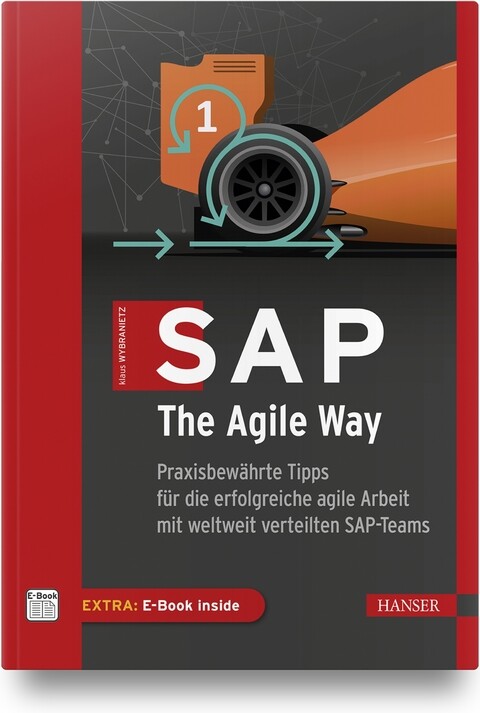
SAP, The Agile Way
Praxisbewährte Tipps für die erfolgreiche agile Arbeit mit weltweit verteilten SAP-Teams.Der weltweit tätige SAP-Berater und Agile Coach Klaus Wybranietz zerlegt in diesem Buch das hartnäckige Vorurteil: »Ja, Scrum ist toll, aber mit SAP funktioniert das nicht.« Er beweist nämlich seit Jahren das Gegenteil: Scrum und SAP können auf einen Nenner gebracht werden – und das sogar sehr erfolgreich. Denn in seinen Projekten für internationale Großkonzerne hat Klaus Wybranietz immer wieder die Erfahrung gemacht: Selbst über den Globus verteilte SAP-Teams können mit Scrum in der halben Zeit dreimal so effektiv sein.In diesem Buch erklärt der Autor die Entwicklungsstufen, über die er SAP-Teams aus dem klassischen Wasserfalldenken heraus und stattdessen hinein in die agile Performance führt. Das fängt beim Teambuilding trotz Superstars an, führt über den Aufbau von gezielten Kompetenzen und hilfreichen Regelwerken bis hin zum Schaffen echter Kundenwerte durch die Anwendung von Kanban-Metriken. Das alles funktioniert seit vielen Jahren auch mit weltweit verteilten SAP-Teams – »Ja, aber …« hat als Argument somit ausgedient.AUS DEM INHALT //- SAP und Scrum – das geht doch nicht?- Die Grundlagen von Scrum- Mit verteilten SAP-Teams remote arbeiten- Mit agilen SAP-Teams starten- Skalierung mit dem Agile Working Model 4 SAP- Praktiken für fortgeschrittene agile SAP-Teams

Microsoft 365 Portable Genius
POWER UP YOUR PROFICIENCY WITH THIS GENIUS GUIDE TO POPULAR MICROSOFT 365 APPSDo you want to make your Microsoft 365 account a productivity behemoth? Do you want to squeeze every last bit of awesome from Word, Excel, and PowerPoint and learn a little more about Outlook, too? Microsoft 365 Portable Genius has got you covered. A seasoned tech expert and trainer, author Lisa A. Bucki shows you how to build Word documents, Excel workbooks, and PowerPoint presentations the right way, as well as how to use high-impact design techniques to make your documents pop.This book answers 11 key questions about how to make the most of Microsoft 365, providing genius tips as it leads you through the essentials. You’ll learn how to:* Tackle common skills like creating files, adding basic content, navigating in a file, making selections, copying and moving content, and saving files* Build a new Word document by using outlining, bullets and numbering, columns, and other features for creating and enhancing content* Enhance Excel workbook files by organizing data on different sheets, filling entries, creating range names, and entering powerful, accurate formulas* Develop a PowerPoint presentation by choosing the right layout for each slide and adding content to placeholders, and then transform it into an on-screen show with transitions and animations* Add punchy design and branding by using text formatting, themes, and graphics in your files* Use lists, tables, and charts to make data easier to interpret* Create, send, reply to, and organize email in Outlook, as well as add contacts Share file contents on paper or digitally* Check out the Online Bonus Appendix at Wiley for more genius coverage of topics including additional Excel formula review techniques, essential Excel functions, theme colors and fonts changes, and WordArtWhether you have used Office in the past or are new to its subscription successor Microsoft 365, Microsoft 365 Portable Genius provides the expert guidance you need to work smarter in Microsoft 365.LISA A. BUCKI is an author, trainer, and content creator who's been educating others about computers and software since 1990. She's written dozens of books, provided marketing and training services to her clients, and written online tutorials. She is the co-founder of 1x1 Media.Fun, hip, and straightforward, the Portable Genius series gives forward-thinking technology users helpful information in handy, compact books that are easy to navigate and don't skimp on the essentials. Collect the whole series and make the most of your digital lifestyle.About the Author iiiAcknowledgments vIntroduction xiCHAPTER 1 HOW DO I START USING MICROSOFT 365? 2Starting and Exiting an App 4Taking a Look Around 6Reviewing key screen features 6Changing views 8Zooming 10Working with Files 11Creating a blank file 11Exploring templates 12Opening an existing file 14Switching to another file 15Typing in a Word Document 17Making Your First Cell Entries in Excel 19Exploring the Excel screen 19Moving around the sheet 21Adding text and values 22Adding dates and times 23Number formatting on the fly 24Adding Slide Content in PowerPoint 26Making and Working with Selections 27Selecting content in Word 27Selecting content in Excel 28Selecting content in PowerPoint 30Copying or moving a selection 31Refining Your Content 33Spell checking your work 34Using Find and Replace 36Saving and Closing a File 37CHAPTER 2 HOW DO I DEVELOP DOCUMENT CONTENT IN WORD? 40Using Outlining to Organize Your Thoughts 42More on Navigating, Selecting, and Editing in Word 44Creating Bulleted and Numbered Lists 47Working with Tabs and Indent Settings 49Setting tab stops 50Setting indents 52Working with Line, Page, and Section Breaks 54Creating Columns of Text 56Using Review Tools to Improve Your Writing 57Getting word suggestions from the Thesaurus 58Tracking changes and commenting 58CHAPTER 3 HOW DO I MAKE CHANGES IN EXCEL? 62Working with Sheets 64Adding, renaming, and jumping to a sheet 64Moving or copying a sheet 65Cell Editing Basics 66Making changes 66Clearing cell contents 67Using Auto Fill and Filling Series 68Inserting and Deleting Rows, Columns, and Cells 71Working with Column Width and Row Height 73Creating Range Names 75Using the Name box 76Using the New Name dialog box 77Deleting a range name 78Freezing Rows and Columns On-Screen 79CHAPTER 4 HOW DO I DO MATH WITH EXCEL FORMULAS AND FUNCTIONS? 82Entering a Basic Formula 84Typing the formula 84Cell and range references in formulas 85Using the mouse to save time 86Dealing with minor errors 88Learning More About Operators and Order of Precedence 88Reviewing operators in Excel 89Understanding how order of precedence works 91Using parentheses in formulas 93Making a Cell or Range Reference Absolute Rather Than Relative 94Changing the reference type in a formula 94How referencing works when filling, copying, or moving a formula 95Understanding and Using Functions 97Using AutoSum on the Home or Formulas tab 98Typing a function in a formula 101Using the Formulas tab to insert a function 103Using Range Names in Formulas 107CHAPTER 5 HOW DO I CREATE A POWERPOINT PRESENTATION? 110Understanding Slide Layouts 112Adding Slides 114Rearranging and Deleting Slides 116Working with Content Placeholders 117Regular content 117Speaker notes 119Editing Slide Content 120Changing Slide Size or Background 121Preparing and Playing the Slide Show 122Adding transitions 123Adding animations 124Playing the show 125CHAPTER 6 HOW DO I USE FORMATTING TO ENHANCE MY DOCUMENTS? 128Changing the Number or Date Format in Excel 130Using number formats 132Using date and time formats 134Changing Text Formatting 134Applying font formatting 135Applying alignment formatting 139Changing Paragraph and PageFormatting in Word and PowerPoint 142Changing overall line spacing 143Changing spacing before and after paragraphs 143Working with Borders and Shading 146Using borders and shading in Word 146Adding a page border in Word 147Changing cell borders and shading in Excel 148Using Styles 149Understanding Themes 152Reviewing elements of a theme 152Changing themes 153CHAPTER 7 HOW DO I USE GRAPHICS? 156Inserting Simple Graphics 158Shapes 158Pictures 160Icons 164Selecting and Formatting Graphics 165Adding text to shapes 165Changing styles 166Changing sizing and position 168Working with layering, alignment, and rotation 170Working with wrapping in Word 173Creating and Working with SmartArt 173Adding a SmartArt graphic 173Editing and rearranging shapes 176Changing the graphic type and formatting 177Deleting Graphics 177CHAPTER 8 HOW DO I MANAGE LISTS OF INFORMATION? 180Adding a Table in Word or PowerPoint 182Adding the table and making entries 182Adding and deleting rows or columns 183Arranging a List in Excel 184Understanding Excel’s Table Feature 187Converting a range to a table 187Importing or connecting to a list of data 189Resizing a table 192Adding a total row 192Sorting and Filtering Lists and Tables 193Changing Table Styles 197Converting a Table Back to Regular Content 198CHAPTER 9 HOW DO I PRESENT MY DATA IN CHARTS? 200Using Different Chart Types 202Creating a Chart in Excel 203Creating a Chart in Word or PowerPoint 207Changing the Chart Type and Layout 209Formatting Chart Elements 211Changing the Charted Data 213Deleting a Chart 215CHAPTER 10 HOW DO I MANAGE EMAILS AND CONTACTS IN OUTLOOK? 216Adding Your Account 218Creating and Sending Messages 220Receiving, Reading, and Replying to Messages 224Organizing Messages 227Adding Contacts 229CHAPTER 11 HOW DO I PRINT AND SHARE MY CONTENT? 232Creating Headers and Footers 234Changing Page Settings 238Margins 238Orientation and paper size 240Scaling an Excel printout 240Changing Sheet Settings in Excel 241Adding print titles 241Controlling whether gridlines and other features print 243Working with Page Breaks in Excel 243Setting a print area 243Viewing and moving breaks 245Previewing a Printout and Printing 246Sharing Information in Other Ways 247Exporting a PDF 247Using OneDrive 249Index 251

Excel Pivot-Tabellen für Dummies (2. Auflg.)
Pivot-Tabellen haben völlig zu Unrecht den Ruf, kompliziert und nur etwas für Excel-Profis zu sein. Wenn die Daten, die Sie auswerten wollen, in großen Excel-Tabellen vorliegen, sind auch für Sie Pivot-Tabellen ein unverzichtbares Werkzeug. Pivot-Tabellen ermöglichen Ihnen, Daten nach verschiedenen Kriterien auszuwählen, zusammenzufassen und zueinander in Beziehung zu setzen. Plötzlich wird in der Flut der Daten ein System erkennbar, Zusammenhänge werden sichtbar. Wie Sie aus üblichen Excel-Tabellen mit wenigen Mausklicks Pivot-Tabellen machen und worauf Sie bei den Quelldaten und bei der Formatierung achten sollten, erfahren Sie in diesem Buch. Fortgeschrittene Nutzer werden sich über die Einführung in Power Pivot und Power Query und die Themen Datenschnitte, Zeitachsen und berechnete Felder und Elemente freuen. Martin Weiß ist diplomierter Betriebswirt und war mehr als zwanzig Jahre in unterschiedlichen Analysten-Funktionen in Finanz-, Vertriebs- und Marketingabteilungen tätig, Excel gehörte dabei immer zu seinem täglichen Handwerkszeug. Aktuell arbeitet er als funktionaler SAP-Spezialist in der Region München. Darüber hinaus berät und unterstützt er Unternehmen in allen Anwendungsfällen von Excel und betreibt seit mehreren Jahren einen Excel-Blog: www.tabellenexperte.deÜber den Autor 9EINFÜHRUNG19Über dieses Buch 19Was Sie nicht lesen müssen 19Törichte Annahmen über den Leser 20Wie dieses Buch aufgebaut ist 20Teil I: Grundlagen 20Teil II: Das Auge isst mit: Optik und Feintuning 21Teil III: Fortgeschrittene Techniken 21Teil IV: Mit Power in höhere Sphären vordringen 21Teil V: Top-Ten-Teil 21Konventionen in diesem Buch 21Symbole, die in diesem Buch verwendet werden 22Wie es weitergeht 22TEIL I: DIE GRUNDLAGEN 23KAPITEL 1 AUF DIE WELT DER PIVOT-TABELLEN VORBEREITEN 25Das Kreuz mit den Kreuztabellen 25»Saubere« Quelldaten 28Keine Zwischensummen 28Keine Leerspalten und Leerzeilen 28Eindeutige Feldnamen 30Keine Gliederungen 30Formatierte Tabellen 32Eine formatierte Tabelle erstellen 33Der Tabellenentwurf 35Automatische Erweiterung der Tabelle 37Strukturierte Verweise 41Der sich automatisch anpassende und erweiternde Datenbereich 43KAPITEL 2 JETZT WIRD HAND ANGELEGT: PIVOT-TABELLEN ERSTELLEN 47Wo ist der alte Assistent geblieben? 47Wie man heute eine Pivot-Tabelle erstellt 48Der schnelle Weg für Unentschlossene 48Der beste Weg für (zukünftige) Pivot-Profis 50Der Aufbau einer Pivot-Tabelle und die ersten Schritte 51Spielereien mit Wertefeldern 55Teilergebnisse und Gesamtergebnisse 60In die Tiefe bohren (»Drilldown«) 66Den Quellbereich verändern 68Feldlisten, Schaltflächen und Feldkopfzeilen 72Die Feldliste ein- und ausblenden 73Die Plus- und Minus-Schaltflächen ein- und ausblenden 74Die Feldkopfzeilen ein- und ausblenden 75Pivot-Tabellen verschieben 77TEIL II: DAS AUGE ISST MIT: OPTIK UND FEINTUNING 81KAPITEL 3 FORMATIERUNGEN UND GESTALTUNGSMÖGLICHKEITEN 83Standardbeschriftungen ersetzen 83Berichtslayout anpassen 86Leichtes Spiel mit Formatvorlagen 88Vorhandene Formatvorlagen anpassen 91Immer nur die eine 96Zahlenformate ändern 97Sonderfall: Leere Zellen 100Ein starkes Duo: Pivot-Tabellen und bedingte Formatierung 102Wasser hat keine Balken … Pivot-Tabellen schon! 102In der Hitze der Nacht 107Fast wie im Straßenverkehr: Ampeln 112KAPITEL 4 FILTERN, SORTIEREN UND GRUPPIEREN 117Bevor alles zu viel wird: Filter verwenden 117Ein Datenfeld als Filter 118Filter entfernen 120Filtern in den Zeilen- und Spaltenbeschriftungen 121Wertefilter 124Top oder Flop? Hitlisten mithilfe von Filtern erstellen 126Ordnung ins Chaos bringen mit Sortierfunktionen 128Sortierreihenfolge verändern 128Die Feldliste sortieren 132Zusammenführen, was zusammengehört: Gruppieren von Elementen 134Elemente manuell gruppieren 135Automatisches Gruppieren 141Wertefelder gruppieren 144Gruppierungen wieder aufheben 146KAPITEL 5 EIN BILD SAGT MEHR ALS 1000 WORTE 149PivotCharts erstellen 149Ein PivotChart auf Basis einer vorhandenen Pivot-Tabelle erstellen 149Zwei Fliegen mit einer Klappe: PivotChart und Pivot-Tabellegemeinsam erzeugen 153Das PivotChart bekommt ein eigenes Arbeitsblatt 155… und wieder zurück ins PivotTable-Arbeitsblatt 156Besonderheiten eines PivotCharts 156Die Feldschaltflächen 157Die Feldliste 159Pivot-Tabelle und PivotChart: Henne oder Ei? 161Pivot-Tabelle und PivotChart entkoppeln 163Schöner geht’s immer: PivotCharts »aufhübschen« 169Alles eine Frage des Typs 169Wenn’s besonders eilig ist: Schnelllayout 171Farben ändern 172Einen neuen Komplettanstrich verpassen 173TEIL III: FORTGESCHRITTENE TECHNIKEN 175KAPITEL 6 DATENSCHNITTE UND ZEITACHSEN 177Alles in Scheiben zerteilen: Datenschnitte 178Datenschnitte erstellen 178»Ein Ring sie zu knechten …« 183Datenschnitte anpassen 186Datenschnitte löschen 188Schöner geht’s immer: Datenschnitte aufpolieren 190Überschriftenzeile anpassen 191Anordnung und Größe der Elemente anpassen 191Formatvorlagen verwenden 192Mit Fantasie geht noch mehr! 196Zeitachsen 200Einen Zeitraum auswählen 203Zeitfilter löschen 204Andere Zeiteinheiten verwenden 205Zeitachse anpassen 206Etwas Make-up kann nicht schaden 207Schutzmechanismen 210Zellschutz 211Blattschutz 211KAPITEL 7 JETZT WIRD GERECHNET! 213Wertefelder mehrfach auswerten 215Berechnete Felder 220Anlegen von berechneten Feldern 221Verändern von berechneten Feldern 223Für Fortgeschrittene: Excel-Funktionen in berechneten Feldern 225Berechnete Elemente 231Berechnete Elemente anlegen 231Berechnete Elemente verändern 235Berechnete Elemente löschen 236Manchmal nicht unwichtig: Die Lösungsreihenfolge 237Felder und Elemente: Haben Sie noch den Überblick? 238Wenn’s doch mal etwas länger dauert: Layoutaktualisierungen zurückstellen 239Mysteriöser Geselle im Hintergrund: Der Pivot-Tabellen-Cache 241Dubios – die Quelldatei erscheint, obwohl sie weg war 242Pivot-Tabellen ohne Cache speichern 247Besonderheiten bei der gemeinsamen Cache-Nutzung 249Jeder Tabelle ihren eigenen Cache 250Die Geister, die Sie riefen … 251KAPITEL 8 DAS ARMATURENBRETT FÜRS MANAGEMENT 255Wie baut man ein gutes Dashboard? 256Mit einem soliden Fundament fängt alles an 256Weitere Vorüberlegungen 257Schritt für Schritt zum Vertriebs-Dashboard 258Am Anfang steht … ein leeres Blatt 259Die erste Pivot-Tabelle: Umsatz nach Regionen 260Pivot, die zweite: Umsätze nach Verkäufer und Produkt 262Der erste Datenschnitt 263Der zweite Datenschnitt 267Das erste PivotChart 269Das zweite PivotChart 273Die Top-3-Produkte 277Die Top-3-Verkäufer 280Der Feinschliff 282Ausdrucken ist zwar eigentlich nicht Sinn der Sache … 284TEIL IV: MIT POWER IN HÖHERE SPHÄREN VORDRINGEN 287KAPITEL 9 MIT POWER QUERY ZU EINER PERFEKTEN DATENBASIS 289Was ist Power Query? 289Die ersten Schritte 291SVERWEIS war gestern: Aus zwei mach eins mit Power Query! 300Alles im Fluss: Transformationen in Power Query 310Verkehrte Welt: Pivot mal andersherum 315Möglichkeiten der Weiterverarbeitung 320KAPITEL 10 NOCH MEHR DRUCK AUF DEM KESSEL MIT POWER PIVOT 325Power Pivot aktivieren 326Wie bekommt man Daten ins Datenmodell? 328Möglichkeit 1: Beim Erstellen einer Pivot-Tabelle 328Möglichkeit 2: Beim Laden einer Abfrage aus Power Query 329Möglichkeit 3: Direkter Datenimport im Power Pivot-Fenster 330Datenimport leicht gemacht 330Beziehungen helfen nur dem, der sie hat 336Eine Pivot-Tabelle mit mehreren Datenquellen 341Da geht doch noch mehr, oder? 345Weitere Features in Power Pivot 353Zusammenfassung: Wann benutzt man Power Query und wann Power Pivot? 361TEIL V: DER TOP-TEN-TEIL363KAPITEL 11 ZEHN KNIFFE, DIE EIN PIVOT-PROFI KENNEN SOLLTE 365Nix is’ fix: Automatische Spaltenbreiten ein- und ausschalten 365Alle Filter auf einen Schlag entfernen 366Die Funktion PIVOTDATENZUORDNEN 367Tabellenformat versus Kurzformat 368Neuberechnung nicht vergessen 368Wenn die Feldliste verschwunden ist … 369»Welches Schweinderl hätten S’ denn gern?« 369Fehlerwerte loswerden 369Ein Name macht die Orientierung leichter 370Eindeutige Anzahl berechnen 370Stichwortverzeichnis 375

Zoom für Dummies
Sie wollen oder müssen Zoom zur Kommunikation nutzen? Egal ob privat oder geschäftlich, es gibt viele Funktionen, Einstellungen und Tipps, die Ihnen das Leben leichter machen. Phil Simon erklärt Ihnen in diesem Buch alles, was Sie über Chat, Videokonferenzen und das Einbinden von Apps wissen müssen. Egal ob das Erstellen von Einladungen, das Aufzeichnen von Konferenzen oder die Nutzung von Zoom Phones, alles wird ausführlich und leicht verständlich anhand von Screenshots erklärt. So nutzen Sie Zoom entspannt und effizient. Phil Simon ist erfahrener Autor und Unternehmer. Als anerkannter Trainer und Technikexperte unterrichtet er an der Universität und hält Reden in seinem Fachbereich.ÜBER DEN AUTOR7Widmung 7Danksagung des Autors 8EINLEITUNG17Über dieses Buch 19Törichte Annahmen über den Leser 19Symbole, die in diesem Buch verwendet werden 21Wie es weitergeht 21TEIL I: KOMMUNIKATION VIA ZOOM 23KAPITEL 1 DAS PRODUKTPORTFOLIO VON ZOOM25Was ist Zoom? 25Vorteile für heutige Videokonferenzlösungen 27Allgemeine Vorteile von Zoom 29Die wichtigsten Produkte und Services von Zoom 31Produkte von Zoom ohne Einrichtungsaufwand 32Meetings & Chat 32Videowebinare 37Produkte von Zoom mit Einrichtungsaufwand 39Zoom Rooms 39Zoom Phone 42KAPITEL 2 INSTALLATION UND EINRICHTUNG VON ZOOM45Ihre ersten Schritte mit Zoom 45Anlegen eines neuen Zoom-Kontos 46Ändern Ihres Zoom-Abonnements 50Herunterladen und Installieren des Desktop-Clients von Zoom 54Anmelden am Desktop-Client von Zoom 55Vervollständigen Ihres Zoom-Benutzerprofils 56Die Benutzeroberfläche von Zoom 57Die Benutzerverwaltung von Zoom 59Hinzufügen von neuen Benutzern zu Ihrem Zoom-Konto 59Deaktivieren vorhandener Benutzerprofile 61Löschen von Benutzern aus Ihrem Zoom-Konto 62Trennen der Verknüpfung von Benutzern mit Ihrem Zoom-Konto 62Benutzergruppen in Zoom 63Vorteile von Benutzerrollen in Zoom 66Standardrollen in Zoom 66Erstellen neuer Benutzerrollen 67Ändern der Rolle eines Benutzers 68TEIL II: MEETINGS & CHAT 69KAPITEL 3 VIRTUELLE MEETINGS MIT ZOOM71Eine kurze Einführung in Meetings mit Zoom 71Die verschiedenen Rollen in Meetings 72Ihr persönlicher Meeting-Raum 73Drei nützliche Extras für Ihre Meetings 75Veranstalten von Meetings 77Einladen von Teilnehmern in ein laufendes Meeting 78Planen eines zukünftigen Meetings 81Einlassen von Teilnehmern in ein laufendes Meeting 88Teilnehmen an Meetings anderer Benutzer 89Der erste Eindruck zählt 90Verfügbare Optionen während eines Meetings 92Aufzeichnungsoptionen 92Aufzeichnen eines Meetings 92Verwenden eines virtuellen Hintergrunds 93Verwalten von Meeting-Teilnehmern 95Starten von Live-Umfragen 96Verwenden von Breakout-Räumen während eines Meetings 100Freigeben von Bildschirminhalten für Meeting-Teilnehmer 102Nach dem Meeting ist vor dem Meeting 111Anzeigen von Meeting-Transkripten 111Abrufen Ihrer aufgezeichneten Meetings 113KAPITEL 4 CHATTEN IN ZOOM 117Verwalten Ihrer Kontakte in Zoom 118Hinzufügen von Kontakten zu Ihrem Zoom-Verzeichnis 119Entfernen eines Kontakts aus Ihrem Verzeichnis 121Einladen vorhandener Zoom-Kontakte in ein neues Meeting 121Hinzufügen interner Kontakte zu einem laufenden Meeting 122Kontaktspezifische Aktionen 122Statusmitteilungen in Zoom 123Unterscheiden von Statussymbolen 125Ändern Ihres Status in Meetings & Chat 126Anpassen der Benachrichtigungsoptionen 128Chatten in Zoom 129Chat mit einzelnen Kontakten in Zoom 129Gruppenchats in Zoom 131Erstellen von Threads in Chats 134Speichern von Nachrichtenentwürfen 135Bearbeiten und Löschen Ihrer Nachrichten 136Erwähnen eines Teilnehmers in einem Chat 137Einige Extras für Ihre Chatnachrichten 138Hochladen und Freigeben von Dateien in Zoom 141Senden von Screenshots 143Nachrichtenspezifische Aktionen 145Die Suchfunktion von Zoom 145Einfache Suchanfragen in Zoom 145Erweiterte Suchanfragen in Zoom 148Suchanfragen mit Platzhaltern 149TEIL III: ZOOM FÜR FORTGESCHRITTENE 151KAPITEL 5 FUNKTIONEN FÜR PROFIS IN MEETINGS & CHAT153Organisieren von Benutzern in Chatgruppen 154Sinn und Zweck von Chatgruppen 154Erstellen einer neuen Chatgruppe 155Hinzufügen von Benutzern zu Chatgruppen 156Weitere Optionen und nützliche Funktionen in Meetings & Chat 157Kanäle in Zoom 157Anpassen Ihrer Einstellungen für Benachrichtigungen 169Codeausschnitte 172Berichte in Zoom 176Rollenbasierte Berichtsoptionen in Zoom 176Aufrufen von Berichten 178Anpassen Ihrer Berichte 180Exportieren von Berichtsdaten 182KAPITEL 6 APPS VON DRITTANBIETERN FÜR ZOOM183Sinn und Zweck von Drittanbieter-Apps 184Vorteile von Apps in Zoom 184Die Notwendigkeit externer Entwickler 184Der App-Marktplatz von Zoom 185Eine spezifische App für Zoom suchen 187Stöbern nach Apps für Zoom 187Verwalten Ihrer Apps für Zoom 188Installieren einer App für Zoom 189Deinstallieren einer App für Zoom 192Anzeigen der installierten Apps Ihres Unternehmens 192Freigeben von Apps nur für bestimmte Chatgruppen 193Einschränken der App-Installationsoptionen für Mitglieder 194Einige nützliche Apps für Zoom 197Sicherheit von Drittanbieter-Apps 198KAPITEL 7 KOMMUNIKATION MIT PUBLIKUM PER WEBINAR201Ihre ersten Schritte mit Zoom-Webinaren 202Planen Ihres ersten Zoom-Webinars 202Anpassen der Registrierungsoptionen 204Vorbereitungen für Ihr Webinar 206Webinarspezifische Rollen in Zoom 211Drittanbieter-Apps und Integrationen für Zoom-Webinare 215Absagen Ihres Webinars 216Durchführen Ihres Webinars 217Starten Ihres Webinars 217Freigeben und Annotieren von Bildschirminhalten 219Interagieren mit Webinarteilnehmern 221Beenden Ihres Webinars 226Abrufen und Veröffentlichen der Aufzeichnung Ihres Webinars 226Herunterladen Ihres aufgezeichneten Webinars 227Erstellen von Berichten zu Ihrem Webinar 228Löschen Ihrer aufgezeichneten Webinare 230TEIL IV: ZOOM IN UNTERNEHMEN 231KAPITEL 8 SICHERHEIT BEIM ZOOMEN233Herausforderungen für Zoom im Kontext 233Schöpferische Zerstörung 234Massives Wachstum und seine Folgen 234Zoombombing 235Gegenmaßnahmen von Zoom 236Stärkere Präsenz von Datenschutz- und Sicherheitseinstellungen 236Verbesserte Verschlüsselung 237Kenncodes und Warteräume für alle Meetings 239Längere Meeting- und Webinar-IDs 239Zoom-Konfiguration für mehr Datenschutz und Sicherheit 240Regelmäßige Sicherheitsverbesserungen für Zoom 240Aktivieren der Zwei-Faktor-Authentifizierung 242Authentifizieren von Benutzerprofilen 245Verwenden von Kenncodes 248Empfohlene Sicherheitsmaßnahmen von Zoom 252Gesunder Menschenverstand beim Zoomen 253KAPITEL 9 GRUPPENBESPRECHUNGEN MIT ZOOM ROOMS257Die Anfänge immersiver Telepräsenzlösungen 257TelePresence von Cisco Systems 258Halo von Hewlett-Packard 259Gründe für das Scheitern früherer Telepräsenzsysteme 259Zoom Rooms 259Wesentliche Funktionen von Zoom Rooms 260Kosten und Funktionalität 261Geeignete Räumlichkeiten für Zoom Rooms 261Einrichten von Zoom Rooms 261Software 261Hardware 262Beleuchtung 266KAPITEL 10 ANRUFE MIT ZOOM PHONE 267Erste Schritte mit Zoom Phone 267Hinzubuchen von Zoom Phone zu Ihrem Abo 268Einrichten von Zoom Phone für eingehende Anrufe 270Einrichten von Zoom Phone für ausgehende Anrufe 272Grundlegende Funktionen von Zoom Phone 274Anpassen individueller Optionen von Zoom Phone 275Telefonieren mit Zoom Phone 278Weitere Aktionen mit Zoom Phone 282KAPITEL 11 ERFOLG MIT ZOOM IN TEAMS UND UNTERNEHMEN 287Einführung von Zoom ohne Hürden 287Zoom ist sehr benutzerfreundlich 288Zoom dient als Ergänzung, nicht als Ersatz für E-Mail 288Zoom erfordert keine radikale Änderung von Arbeitsabläufen 288Zoom ist eine etablierte Lösung mit großem Benutzerkreis 289Strategien bei der Einführung von Zoom 290Unternehmensweite Strategien 290Individuelle Strategien 292KAPITEL 12 ZUKÜNFTIGE FUNKTIONEN VON ZOOM 295Hochmoderne Technologien 296Augmented Reality 296Virtual Reality 296Künstliche Intelligenz und Maschinelles Lernen 297Spracherkennung 299Bessere Transkripte 299Nützlichere Sprachbefehle 299Übersetzung in Echtzeit 300Weitere Entwicklungen und Verbesserungen 300Robustere Drittanbieter-Apps 301Übernahmen und Partnerschaften 301Höhere Sicherheit 301TEIL V: DER TOP-TEN-TEIL 303KAPITEL 13 ZEHN TIPPS FÜR DIE ERFOLGREICHE NUTZUNG VON ZOOM305Kaufen Sie nicht die Katze im Sack 305Erwägen Sie ein Upgrade Ihres Abonnements 306Erachten Sie die Sicherheit als oberste Priorität 306Halten Sie Zoom auf dem aktuellsten Stand 307Verwenden Sie für Privates ein zweites Zoom-Konto 307Machen Sie sich mit den erweiterten Funktionen von Zoom vertraut 307Proben Sie den Ernstfall 308Erstellen Sie einen Notfallplan für wichtige Meetings 308Rechnen Sie mit Widerstand im Unternehmen 309Übertreiben Sie es nicht mit dem Zoomen 309Stichwortverzeichnis 313

Excel Makros für Dummies (2. Auflg.)
Excel-Makros sind ein Mysterium für Sie? Sie haben das Ziel, selbst Makros zu schreiben? Oder wollen wissen, wie Sie mit Excel Makros wertvolle Zeit sparen können? In dieser aktualisierten Auflage hat Michael Alexander die 70 gebräuchlichsten Excel-Makro-Anwendungen für Sie zusammengestellt. Er beginnt mit einer knappen Einführung in die Makrogrundlagen und VBA, erläutert aber auch, wie Sie Makros anwenden, an Ihre Bedürfnisse anpassen und sie selbst schreiben. So lernen Sie Makros effizient einsetzen und das Fehlerpotenzial manueller Eingaben reduzieren. Michael Alexander ist Microsoft Certified Application Developer und hat mehrere Bücher zu Access und Excel geschrieben. Auf der Seite datapigtechnologies.com gibt er Tipps zu Excel und Access.EINLEITUNG17Über dieses Buch 18Törichte Annahmen über die Leser 18Icons in diesem Buch 19Die Beispieldateien zu diesem Buch 19Wie es weitergeht 20TEIL I: HEILIGES MAKRO, BATMAN! 23KAPITEL 1 MAKROGRUNDLAGEN 25Warum sollten Sie Makros verwenden? 25Grundlagen der Makroaufzeichnung 26Das Makro untersuchen 28Das Makro testen 29Das Makro bearbeiten 29Absolute und relative Makroaufzeichnung im Vergleich 30Makros mit absoluten Verweisen aufzeichnen 30Makros mit relativen Verweisen aufzeichnen 33Weitere Konzepte für die Makroaufzeichnung 35Dateierweiterungen für Arbeitsmappen mit Makros 35Makrosicherheit ab Excel 2010 36Vertrauenswürdige Speicherorte 36Makros in Ihrer persönlichen Makroarbeitsmappe abspeichern 37Ein Makro einer Schaltfläche oder einem anderen Formularsteuerelement zuweisen 38Ein Makro in die Symbolleiste für den Schnellzugriff einfügen 40Makros im Einsatz – Beispiele 41Navigationsschaltflächen erstellen 41Pivot-Tabelle-Daten dynamisch neu anordnen 42Berichte mit einem Klick erstellen 43KAPITEL 2 MACHEN SIE SICH MIT DEM VISUAL-BASIC-EDITOR VERTRAUT45Im Visual-Basic-Editor arbeiten 45Mit dem Projekt-Explorer arbeiten 47Ein neues VBA-Modul einfügen 48Ein VBA-Modul entfernen 50Mit dem Codefenster arbeiten 50Fenster minimieren und maximieren 50VBA-Code in ein Modul einfügen 51Die VBA-Entwicklungsumgebung anpassen 53Die Registerkarte »Editor« 53Die Registerkarte »Editorformat« 56Die Registerkarte »Allgemein« 57Die Registerkarte »Verankern« 58KAPITEL 3 DIE ANATOMIE VON MAKROS59Ein kurzer Überblick über das Excel-Objektmodell 59Objekte verstehen 60Sammlungen 61Eigenschaften verstehen 61Methoden 62Ein kurzer Blick auf Variablen 62Die gängigen Variablentypen 62Ereignisprozeduren verstehen 64Tabellenblattereignisse 65Arbeitsmappenereignisse 67Fehlerbehandlung kurz und bündig 69On Error GoTo IrgendeineSprungmarke 69On Error Resume Next 70On Error GoTo 0 71TEIL II: AUFGABEN IN ARBEITSMAPPEN MIT WENIG ARBEIT ERLEDIGEN 73KAPITEL 4 MAKROS FÜR ARBEITSMAPPEN 75Eine neue Arbeitsmappe aus dem Nichts erstellen 75Wie es funktioniert 76So verwenden Sie es 77Eine Arbeitsmappe speichern, wenn eine bestimmte Zelle geändert wird 77So funktioniert es 78So verwenden Sie es 79Eine Arbeitsmappe vor dem Schließen speichern 80So funktioniert es 80So verwenden Sie es 81Ein Tabellenblatt vor dem Schließen schützen 82So funktioniert es 82So verwenden Sie es 83Beim Öffnen einer Arbeitsmappe den Blattschutz aufheben 84So funktioniert es 84So verwenden Sie es 84Beim Öffnen einer Arbeitsmappe ein bestimmtes Tabellenblatt anzeigen 85So funktioniert es 86So verwenden Sie es 86Eine vom Benutzer ausgewählte Arbeitsmappe öffnen 87So funktioniert es 87So verwenden Sie es 88Feststellen, ob eine Arbeitsmappe bereits geöffnet ist 88So funktioniert es 89So verwenden Sie es 91Überprüfen, ob eine Arbeitsmappe in einem Ordner vorhanden ist 91So funktioniert es 92So verwenden Sie es 93Alle Arbeitsmappen auf einmal schließen 93So funktioniert es 93So verwenden Sie es 94Alle Arbeitsmappen in einem Ordner drucken 94So funktioniert es 95So verwenden Sie es 96Arbeitsmappe erst dann schließen, wenn eine bestimmte Zelle Inhalte besitzt 96So funktioniert es 96So verwenden Sie es 97Backup der aktuellen Arbeitsmappe mit aktuellem Datum erstellen 98So funktioniert es 98So verwenden Sie es 99KAPITEL 5 MAKROS FÜR TABELLENBLÄTTER 101Ein neues Tabellenblatt einfügen und benennen 101So funktioniert es 101So verwenden Sie es 103Alle Tabellenblätter bis auf das aktive löschen 103So funktioniert es 103So verwenden Sie es 105Alle Tabellenblätter bis auf das aktive ausblenden 105So funktioniert es 105So verwenden Sie es 107Alle Tabellenblätter einer Arbeitsmappe einblenden 107So funktioniert es 107So verwenden Sie es 108Tabellenblätter verschieben 109So funktioniert es 109So verwenden Sie es 110Tabellenblätter nach Namen sortieren 110So funktioniert es 111So verwenden Sie es 112Tabellenblätter nach Farben gruppieren 113So funktioniert es 113So verwenden Sie es 115Ein Tabellenblatt in eine neue Arbeitsmappe kopieren 115So funktioniert es 116So verwenden Sie es 116Eine neue Arbeitsmappe für jedes Tabellenblatt erstellen 116So funktioniert es 117So verwenden Sie es 118Bestimmte Tabellenblätter drucken 118So funktioniert es 119So verwenden Sie es 119Alle Tabellenblätter schützen 120So funktioniert es 120So verwenden Sie es 121Den Blattschutz aller Tabellenblätter aufheben 121So funktioniert es 122So verwenden Sie es 123Ein Inhaltsverzeichnis Ihrer Arbeitsmappe erstellen 123So funktioniert es 124So verwenden Sie es 126Mit einem Doppelklick in einem Tabellenblatt rein- und rauszoomen 126So funktioniert es 127So verwenden Sie es 127Die aktive Zeile und Spalte hervorheben 128So funktioniert es 129So verwenden Sie es 129TEIL III: DATENBEARBEITUNG MIT EINEM KLICK 131KAPITEL 6 MAKROS FÜR ZELLEN UND ZELLBEREICHE 133Einen Bereich auswählen und formatieren 134So funktioniert es 134So verwenden Sie es 135Benannte Bereiche erstellen und auswählen 136So funktioniert es 138So verwenden Sie es 138Alle Zellen eines Bereichs in einer Schleife durchlaufen 139So funktioniert es 139So verwenden Sie es 140In einen Bereich leere Zeilen einfügen 140So funktioniert es 140So verwenden Sie es 142Alle Zeilen und Spalten einblenden 142So funktioniert es 142So verwenden Sie es 143Leere Zeilen löschen 143So funktioniert es 143So verwenden Sie es 145Leere Spalten löschen 145So funktioniert es 145So verwenden Sie es 147Den Scrollbereich einschränken 147So funktioniert es 147So verwenden Sie es 148Alle Formeln in einer Arbeitsmappe auswählen und formatieren 149So funktioniert es 149So verwenden Sie es 151Die erste leere Zeile oder Spalte finden und auswählen 152So funktioniert es 152So verwenden Sie es 154KAPITEL 7 MAKROS FÜR DAS BEARBEITEN VON ZELLDATEN 155Einen Zellbereich kopieren und einfügen 156So funktioniert es 156So verwenden Sie es 156Alle Formeln eines Zellbereichs in Werte konvertieren 157So funktioniert es 157So verwenden Sie es 159Den Befehl »Text in Spalten« auf alle Spalten anwenden 159So funktioniert es 160So verwenden Sie es 162Nachstehende Minuszeichen konvertieren 162So funktioniert es 162So verwenden Sie es 164Führende und nachstehende Leerzeichen aller Zellen in einem Bereich entfernen 165So funktioniert es 165So verwenden Sie es 166US-Postleitzahlen auf die ersten fünf Stellen kürzen 167So funktioniert es 167So verwenden Sie es 169Zellen mit führenden Nullen versehen 169So funktioniert es 170So verwenden Sie es 172Leere Zellen durch einen Wert ersetzen 172So funktioniert es 172So verwenden Sie es 174Vor oder nach dem Zellinhalt Text einfügen 174So funktioniert es 175So verwenden Sie es 176Nicht druckbare Zeichen entfernen 177So funktioniert es 177So verwenden Sie es 178Duplikate in einem Datenbereich hervorheben 178So funktioniert es 179So verwenden Sie es 180Alle Zeilen bis auf Zeilen mit Duplikaten ausblenden 180So funktioniert es 181So verwenden Sie es 183Festlegen, in welchen Spalten AutoFilter eingesetzt werden darf 183So funktioniert es 184So verwenden Sie es 185Gefilterte Zeilen in eine neue Arbeitsmappe kopieren 185So funktioniert es 185So verwenden Sie es 186In der Statusleiste die Spalten anzeigen, nach denen gefiltert wird 186So funktioniert es 187So verwenden Sie es 189TEIL IV: BERICHTE, E-MAILS UND EXTERNE DATENQUELLEN MIT MAKROS STEUERN 191KAPITEL 8 DIE ERSTELLUNG VON BERICHTEN AUTOMATISIEREN 193Alle Pivot-Tabellen einer Arbeitsmappe aktualisieren 194So funktioniert es 194So verwenden Sie es 195Eine Liste mit Informationen zu den Pivot-Tabellen einer Arbeitsmappe erstellen 195So funktioniert es 196So verwenden Sie es 199Die Titel aller Datenfelder der Pivot-Tabelle anpassen 199So funktioniert es 199So verwenden Sie es 201Für alle Datenelemente Summe verwenden 201So funktioniert es 202So verwenden Sie es 203Alle Datenelemente als Zahlen formatieren 204So funktioniert es 204So verwenden Sie es 207Alle Datenfelder alphabetisch sortieren 207So funktioniert es 207So verwenden Sie es 209Datenelemente benutzerdefiniert sortieren 209So funktioniert es 209So verwenden Sie es 210Einschränkungen für Pivot-Tabellen festlegen 210So funktioniert es 211So verwenden Sie es 212Einschränkungen für PivotTable-Felder festlegen 213So funktioniert es 213So verwenden Sie es 215Drilldown-Tabellenblätter automatisch entfernen 215So funktioniert es 215So verwenden Sie es 217Eine Pivot-Tabelle für jedes Element des Berichtsfilters drucken 219So funktioniert es 219So verwenden Sie es 221Für jedes Element des Berichtsfilters eine neue Arbeitsmappe erstellen 222So funktioniert es 222So verwenden Sie es 224Die Größe aller Diagramme eines Tabellenblatts ändern 225So funktioniert es 225So verwenden Sie es 226Diagramm platzieren 226So funktioniert es 226So verwenden Sie es 228Verknüpfung zwischen Diagramm und Daten lösen 228So funktioniert es 229So verwenden Sie es 230Alle Diagramme eines Tabellenblatts drucken 230So funktioniert es 230So verwenden Sie es 231KAPITEL 9 E-MAILS MIT EXCEL VERSENDEN 233Die aktive Arbeitsmappe als E-Mail-Anhang senden 233So funktioniert es 234So verwenden Sie es 235Einen bestimmten Zellbereich als E-Mail-Anhang senden 236So funktioniert es 236So verwenden Sie es 238Ein bestimmtes Tabellenblatt als E-Mail-Anhang senden 238So funktioniert es 238So verwenden Sie es 240Mail mit einem Link zu Ihrer Arbeitsmappe senden 240So funktioniert es 241So verwenden Sie es 242E-Mail an alle Adressen in einer Liste mit Kontakten senden 242So funktioniert es 243So verwenden Sie es 244Alle E-Mail-Anhänge in einem Ordner speichern 245So funktioniert es 245So verwenden Sie es 247Bestimmte E-Mail-Anhänge in einem Ordner speichern 247So funktioniert es 247So verwenden Sie es 250KAPITEL 10 EXTERNE DATEN MIT MAKROS BEARBEITEN 251Externe Datenverbindungen verwenden 251Eine Verbindung manuell erstellen 252Datenverbindungen manuell bearbeiten 255Mit Makros dynamische Verbindungen erstellen 258Alle Verbindungen in einer Arbeitsmappe in einer Schleife bearbeiten 260ADO und VBA verwenden, um externe Daten abzurufen 262ADO-Syntax verstehen 262ADO in einen Makro verwenden 264Mit Textdateien arbeiten 267Eine Textdatei öffnen 267Aus der geöffneten Textdatei lesen und in die Datei schreiben 268Praktisches Beispiel: Excel-Nutzung in einer Textdatei protokollieren 268Praktisches Beispiel: Textdatei in einen Bereich importieren 269TEIL V: DER TOP-TEN-TEIL 271KAPITEL 11 ZEHN NÜTZLICHE TIPPS FÜR DEN VISUAL-BASIC-EDITOR 273Kommentarblöcke verwenden 273Mehrere Codezeilen auf einen Rutsch kopieren 275Zwischen Modulen und Prozeduren springen 275Beamen Sie sich zu Ihren Funktionen 275In der richtigen Prozedur bleiben 276Den Code schrittweise ausführen 276Zu einer bestimmten Zeile in Ihrem Code springen 277Die Ausführung Ihres Codes an einer bestimmten Stelle unterbrechen 278Den Anfang und das Ende von Variablenwerten anzeigen 279Die automatische Syntaxüberprüfung ausschalten 280KAPITEL 12 ZEHN ORTE, WO SIE HILFE BEI DER MAKRO-PROGRAMMIERUNG ERHALTEN 283Lassen Sie Excel die Makros für Sie schreiben 283Verwenden Sie die VBA-Hilfedateien 284Stibitzen Sie Code im Internet 284Userforen optimal nutzen 285Besuchen Sie Experten-Blogs 285Suchen Sie auf YouTube nach Schulungsvideos 286Nehmen Sie an Online-Kursen teil 287Vom Office Dev Center lernen 287Analysieren Sie andere Excel-Dateien in Ihrem Unternehmen 287Fragen Sie Ihre Excel-Experten vor Ort 288KAPITEL 13 ZEHN METHODEN ZUR BESCHLEUNIGUNG VON MAKROS289Automatische Neuberechnung abschalten 289Die Bildschirmaktualisierung deaktivieren 290Aktualisierung der Statusleiste abschalten 291Excel anweisen, Ereignisse zu ignorieren 291Seitenwechsel ausblenden 292Die Aktualisierung von Pivot-Tabellen unterdrücken 293Kopieren und Einfügen vermeiden 293Die With-Anweisung verwenden 294Die Methode Select vermeiden 295Zugriffe auf das Tabellenblatt optimieren 296Stichwortverzeichnis 299

Coding Art
Finally, a book on creative programming, written directly for artists and designers! Rather than following a computer science curriculum, this book is aimed at creatives who are working in the intersection of design, art, and education. In this book you'll learn to apply computation into the creative process by following a four-step process, and through this, land in the cross section of coding and art, with a focus on practical examples and relevant work structures. You'll follow a real-world use case of computation art and see how it relates back to the four key pillars, and addresses potential pitfalls and challenges in the creative process. All code examples are presented in a fully integrated Processing example library, making it easy for readers to get started. This unique and finely balanced approach between skill acquisition and the creative process and development makes Coding Art a functional reference book for both creative programming and the creative process for professors and students alike. What You’ll Learn Review ideas and approaches from creative programming to different professional domainsWork with computational tools like the Processing languageUnderstand the skills needed to move from static elements to animation to interactionUse interactivity as input to bring creative concepts closer to refinement and depthSimplify and extend the design of aesthetics, rhythms, and smoothness with data structuresLeverage the diversity of art code on other platforms like the web or mobile applicationsUnderstand the end-to-end process of computation art through real world use casesStudy best practices, common pitfalls, and challenges of the creative process Who This Book Is For Thoselooking to see what computation and data can do for their creative expression; learners who want to integrate computation and data into their practices in different perspectives; and those who already know how to program, seeking creativity and inspiration in the context of computation and data. Introduction.- Part I: Creative Coding.- Chapter 1: Idea to Visuals.- Chapter 2: Composition and Structure.- Chapter 3: Refinement and Depth.- Chapter 4: Completion and Production.- Part II: An Example: MOUNTROTHKO.- Chapter 5: Inspiration.- Chapter 6: From idea to completion.- Part III: Coding Practice.- Chapter 7: Dealing with Problems.- Chapter 8: Learning Path.- Chapter 9: Creative Processes.- Conclusion.- Epilogue.

Moodle für Dozenten, Lehrer und Ausbilder
Homeschooling und Online-Kurse erfolgreich umsetzen.Die Lern-Plattform Moodle wird weltweit von Schulen, Universitäten und anderen Bildungseinrichtungen genutzt, um jede Art von Online-Kursen zu erstellen. Dabei bietet Moodle Dozenten, Lehrern und Ausbildern alles, was diese zum Unterrichten auf Distanz benötigen. Winfried Seimert zeigt Ihnen in diesem Buch die Möglichkeiten für Ihren Fern-Unterricht auf und geht auf die verschiedenen Bereiche des Programms ein. Sie erfahren anhand eines durchgängigen Beispiels, wie Sie Kurse anlegen, Aufgaben erstellen, Feedback geben und den Arbeitsbereich grafisch mit Bildern oder anderen Elementen aufwerten. So finden Sie für jede Aufgabe die passende Form, um Ihre Schüler interaktiv mit Arbeitsmaterialien zu versorgen. Viele Aktivitäten rund um die Lerninhalte wie die Chatfunktionen, Kalendereinträge, interaktive Übungen, Abstimmungen oder Bewertungen machen Ihren Unterricht lebendig. Zudem erfahren Sie, wie Sie Diskussionen eröffnen, Präsenzunterricht mit E-Learning-Einheiten verknüpfen und zusätzlich die Videoplattform BigBlueButton einbinden.Aus dem Inhalt: Die Vorteile von Moodle kennenlernen und die Grundstruktur verstehenOnline-Kurse einrichten und Lerninhalte bereitstellenVerschiedene Arbeitsmittel wie Textseite, Buch, Link und Datei verwendenAufgaben stellen und ganze Lernpakete schnürenEin Glossar, Wiki und eine Datenbank anlegenTests und Abstimmungen durchführenDie Chat-Funktion nutzen und ein Forum zur Verfügung stellenEine Videokonferenz mit BigBlueButton einbindenFeedback-Fragen anlegenInhaltsverzeichnis & Leseprobe (PDF-Link)

Haus und Wohnung smart vernetzt
Das umfassende Buch zum Nachschlagen. Praxistipps und Anleitungen zum vernetzten Zuhause.Ob Sie Daten zwischen Smartphone und PC austauschen möchten, vom Tablet drucken, Musik und Medien im ganzen Haus nutzen, Ihr WLAN optimieren, per App aus der Ferne Ihre Heizung anstellen möchten. Oder ob Ihr Kühlschrank selbstständig einkaufen soll, diese und weitere relevante Themen rund um Ihr vernetztes Zuhause werden in diesem Buch ausführlich besprochen. Viele praktische Tipps machen die Umsetzung für Sie leicht nachvollziehbar.Aus dem InhaltPC, Laptop und andere Geräte per LAN oder WLAN verbindenDaten im eigenen Netz freigeben und teilenDie richtigen Einstellungen für den RouterDaten zwischen Smartphone und PC austauschenCloud-Dienste geschickt nutzenDaten per Bluetooth austauschenDigitale Assistenten – Google Assistant, Cortana und Alexa Videos, Musik und Medien im Netzwerk nutzenFernsteuerung und FernwartungLicht und Heizung per App steuernLeseprobe (PDF-Link)

Blockchain Enabled Applications
Learn all about blockchain and its applications in cryptocurrency, healthcare, Internet of Things, finance, decentralized organizations, and more. Featuring case studies and practical insights, this book covers a unique mix of topics and offers insight into how to overcome hurdles that arise as the market and consumers grow accustomed to blockchain-based organizations and services.The book is divided into three major sections. The first section provides a historical background to blockchain technology. You will start with a historical context to financial capital markets when Bitcoin was invented, followed by mining protocols, the need for consensus, hardware mining, etc. Next, a formal introduction to blockchain is provided covering transaction workflow, role of decentralized network, and payment verification. Then, we dive deep into a different implementation of a blockchain: Ethereum. The main technical features, such as Ethereum Virtual Machine, are presented along with the smart contract programming language, Solidity.In this second section, you will look at some modern use cases for blockchain from a decentralized autonomous organization, high-performance computing in Ethereum and off-grid computations, and healthcare and scientific discovery. The final section of the book looks toward the future of blockchain. This is followed by chapters covering the rise of consortia in the blockchain world, the Hyperledger project, particularly the updates since 2018, and a chapter on educational blockchain games. This is followed by updates to EOS.IO, Chain Core, and Quorum, ICOs and a look at the major changes to financial markets brought about by blockchain and decentralized networks.WHAT YOU WILL LEARN* Get an overview of the popular games employed to teach the basic concepts of blockchain and decentralized networks* Be familiar with the rise of blockchain consortiums as well as updates to Hyperledger Project, 2020* Find out about cloud blockchains, including Microsoft Azure and Amazon Webservices, and how to set up test environments* Study machine learning integration in the blockchain and the role of smart contractsWHO THIS BOOK IS FORBlockchain developers interested in keeping up with the newest updates and students looking for a broad overview of this vast ecosystem, plus business executives who want to make informed product decisions about including blockchain as well as policy makers who want a better understanding of the current use casesVIKRAM DHILLON is an internal medicine resident physician at Wayne State University, Detroit Medical Center and a research fellow at the Institute of Simulation and Training, University of Central Florida (UFC). He holds a bachelor of science degree in molecular biology from the University of Central Florida where his main focus was bioinformatics, a Doctor of Osteopathic Medicine, and a doctoral degree from Nova Southeastern University. He has published multiple scientific papers on computational genomics. He has worked as a software and business development coach at the Blackstone Launchpad to mentor young entrepreneurs and startups through the process of building technology products. He was previously funded by the National Science Foundation through the Innovation Corps program to study customer discovery and apply it to commercialize high-risk startup ideas. He is a member of the Linux Foundation and has been involved in open-source projects and initiatives for the past several years. He often speaks at local conferences and meetups about programming, design, security, and entrepreneurship.DAVID METCALF is a serial entrepreneur who has launched multiple successful ventures and spinoff companies. He has reviewed thousands of emerging technology companies as an advisor and investor. He is the Director of the Mixed Emerging Technology Integration Lab at UCF’s Institute for Simulation and Training. His past projects involving XR and IoT span across education, health, space, cyber, and transportation. Current efforts include smart cities, blockchain, and enterprise learning transformation for government and industry. He is the co-editor/author of Voice Technology in Healthcare (2020) and Blockchain in Healthcare (2019) as part of the HIMSS Emerging Technology Series, Blockchain Enabled Applications (2018), Connected Health (2017), HIMSS mHealth Innovation (2014), and the HIMSS best-seller mHealth: From Smartphones to Smart Systems (2012).MAX HOOPER is the chief executive officer of Merging Traffic. He is responsible for the company’s management and growth strategy, serving as the corporate liaison to the financial services industry and various capital formation groups. Prior to starting the company, he was co-founder of Equity Broadcasting Corporation (EBC), a media company that owned and operated more than 100 television stations across the United States. He was responsible for activities in the cable, satellite, investment banking, and technology industries, and during his tenure, it grew to become one of the top 10 largest broadcasting companies in the country. He is a lifelong learner and has earned five doctorate degrees: PhD, DMin, PhD, ThD, and DMin from a variety of institutions. Hooper studied financial technology with cohorts at MIT, and cryptocurrency and business disruption with cohorts at the London School of Economics. As an avid runner, he has completed more than 100 marathons and an additional 20 ultra-marathons, which are 50- or 100-mile runs. He has completed the Grand Slam of Ultra Running. He is committed to his family and is a husband, father to five children, and grandfather to seven grandsons. He is active in many organizations and serves on various boards of directors. He works globally with several ministries and nonprofit aid groups and was honored to speak at the United Nations in New York in 2015.CHAPTER 1: BEHOLD THE DEAMERSChapter Goal: Provide a backdrop for introducing blockhain and the basics of a decentralized appSub -Topics:1. Financial crisis of 2008, the origins of bitcoin2. Basics of private-public keys3. What is a block, how is a block created4. What's a blockchain-enabled application? What is a decentralized application?CHAPTER 2: GOLD RUSH: MINING BITCOINChapter Goal: Provide a technical introduction to mining and the mathematical background to hashes, block headers, and consensusSub -Topics:1. Overview of mining, why is mining necessary for Bitcoin2. What is consensus3. Components of a block and a block header (mining components)4. What are hashes and how are they used in Bitcoin5. Hardware for mining (the gold rush part refers to the arms race that happened in hardware mining field).CHAPTER 3: FOUNDATIONS OF A BLOCKCHAINChapter Goal: Provide a technical introduction to transaction workflow, a blockchain network, simple payment verification, merkel roots, and block identifiersSub -Topics:1. What is a block header (block identifiers)2. How does the network participate3. A transaction workflow4. Unspent transaction outputs, transaction propagation5. Simple payment verification6. Merkel roots, blockchain forksCHAPTER 4: UNPACKING ETHEREUMChapter Goal: Provide a technical introduction to Ethereum, the differences between a Bitcoin blockchain and Ethereum blockchain, internal states, Ethereum Virtual Machine, and dAppsSub -Topics:1. Overview of Ethereum2. Proof of stake3. Accounts and contract model in Ethereum4. Global state, gas, internal storage5. Ethereum Virtual Machine6. Solidity programming language + Smart Contracts7. World Computer Model and components8. Blockchain as a service9. Decentralized apps10. Geth, MistCHAPTER 5: DECENTRALIZED ORGANIZATIONS (DAOS)Chapter Goal: Provide a technical introduction to DAOs and Aragon for setting up a DAO, including updates to new implementations of decentralized organizations in 2020.Sub -Topics:1. What is a DAO2. What is a blockchain organizations/companies3. Aragon-core and Kernel4. How do you make DAOs and other blockchain organizations using Aragon?5. How do you operate DAOs?CHAPTER 6: THE DAO HACKEDChapter Goal: Provide an overview to the vulnerabilities in the original DAO model, the conditions that led up to the hack, and the consequences to security hardening since.Sub -Topics:1. Concept of a DAO building on Vitalik’s concepts2. Slock.it and its involvement in making the DAO3. The Smart Contract for DAO4. The code vulnerability responsible for the hack5. Consequences of the hack6. Ethereum splitting into ETCCHAPTER 7: ETHEREUM TOKENS: HIGH PERFORMANCE COMPUTING (HPC)Chapter Goal: Provide an introduction to token in Ethereum by highlighting applications in HPC. Particularly, focus on Golem, SONM, and iEx.ec grid computing for off-chain computations and conflict resolution.Sub -Topics:1. Why tokens and what’s the value of using tokens2. Introduction to tokens, ERC 20 compatibility3. Token layer and an app layer4. Prototype for tokens and HPC – Ethereum Computation Markets5. Golem network, app registry, transaction framework, use-cases initially, and how the Smart Contract system ties them together6. SONM network and fog computing, use-cases, Smart Contract system, buyer-miner-hub interactions, purchasing computational power, Superglobal architecture, and OS7. iEx.ec, grid computing, sidechains, and how iEx.ec worksCHAPTER 8: BLOCKCHAIN IN HEALTHCAREChapter Goal: Provide an introduction to areas in healthcare where using a blockchain can provide benefit - Patient workflows, insurance claims processing, lightning network, verifiable data auditSub -Topics:1. Payer-provider-patient model, how claims work within this framework, and how will that change in the future2. Patient workflow based on permissions, blockchain-based workflow of a simple EHR, how permissions are passed as a patient moves from a general physician to a specialist3. Show how permissions work in blockchain insurance claims processing4. Waste management in healthcare and claims processing5. Concept of hotswitching, mentioning lightning network6. How can blockchain be used to reduce economic waste7. DeepMind’s Verifiable Data Audit as an alternative to blockchain8. Blockchain to streamline business processesCHAPTER 9: BLOCKCHAIN IN SCIENCEChapter Goal: Provide an introduction to major topics in science where blockchain can be beneficial – Reputation markets, reproducibility crisis, drug tracking, digital clinical trialsSub -Topics:1. Reproducibility crisis in science2. Prediction markets in science – Augur and Gnosis3. Initiatives to fix reproducibility traditionally4. Clinical trials using the blockchain, colored coins to demonstrate workflow5. Reputation systems using Blockchain6. Pharma drug tracking using blockchainCHAPTER 10: BUILDING HEALTHCARE COMPANIES ON BLOCKCHAINChapter Goal: Interview with John Bass on how to build a healthcare company on the blockchain and lessons learned along the way.Sub -Topics:1. The makings of Hashed Health2. Collaborative and consortium models3. Working groups for high-risk, high-reward technologies4. Governance models for Hashed Health consortia5. Member participationCHAPTER 11: RISE OF CONSORTIUMSChapter Goal: Provide an overview of consortium models that have become popular in the blockchain industry, the challenges consortiums hope to solve, and advantages to individual membersSub -Topics:1. Collaborative and consortium models2. Working groups for high-risk, high-reward technologies3. Governance models for Hashed Health consortiaCHAPTER 12: THE HYPERLEDGER PROJECTChapter Goal: Provide a broad overview of the Hyperledger Project and cover the rapid pace of developments since 2018 to the new products launched.Sub -Topics:1. Updates to all the components under Hyperledger umbrella including Fabric and Sawtooth2. New consensus algorithm (PBFT)3. Demo of Hyperledger Fabric Constructor4. Does your business need a blockchain (flowcharts)?5. Security in enterprise-grade Blockchains6. Smart Contracts in FabricCHAPTER 13: RECENT ADVANCES IN BLOCKCHAINChapter Goal: Provide a review of three major networks shaping the future of Blockchain – EOS.io with parallel processing virtual machine, chain-core with asset management, and Ivy Playground and Quorum with private–public transaction interfacesSub -Topics:1. EOS.io, how the tech works, the new advances such as parallel processing of smart contracts and instructions2. Chain Core, managing assets on blockchain, Ivy Playground as the new programming language to manage assets3. Quorum by JP Morgan, how the consensus works, how private transactions work, zero-knowledge proofs, Ethereum Enterprise AllianceCHAPTER 14: BLOCKCHAIN GAMESChapter Goal: Provide a review of the educational games and APIs that have been released to teach the basic concepts of a blockchain networkSub -Topics:1. Components of a blockchain game2. Formal education and training in blockchain3. Formalization of blockchain study with journals and research articles4. Review of major blockchain games (3)CHAPTER 15: CLOUD BLOCKCHAINSChapter Goal: Provide an overview of how to click and deploy a blockchain using cloud services and give a visual tutorial on how to set it upSub -Topics:1. Demo of Hyperledger Fabric Constructor on IBM Bluemix2. Azure blockchain deployment3. Amazon ECS cloud blockchain deployment4. Setting up your own blockchain test-lab and budget itCHAPTER 16: TECHNOLOGICAL REVOLUTIONS AND FINANCIAL CAPITALChapter Goal: Provide an overview of the financial markets and ICOs, focusing particularly on how to set up ICOs, how to manage them, advances to financial regulation technology based on blockchainSub -Topics:1. Dr. Hooper’s chapter focused on ICOs and financial capital markets2. Setting up ICOs, major pitfalls to avoid, and challenges to overcome during an ICO3. Major tech advances in financial markets using blockchain4. Reg TechAFTERWORD – CALL TO ACTION AND THE FUTURE OF BLOCKCHAIN

Mastering AutoCAD 2021 and AutoCAD LT 2021
GIVE LIFE TO YOUR DESIGNS AND KEEP YOUR CAD SKILLS FRESH WITH MASTERING AUTOCAD 2021 AND MASTERING AUTOCAD LT 2021AutoCAD continues to be the tool of choice for architects, project managers, engineers, city planners, and other design professionals, and when the industry experts need to learn the latest CAD techniques and trends, they turn to Mastering AutoCAD and AutoCAD LT. Packed with real-world examples, straightforward instructions, and downloadable project files, this edition of this bestselling AutoCAD reference has been fully updated for the latest features from the 2021 version of AutoCAD and AutoCAD LT. From getting familiar with the interface to preparing for Autodesk AutoCAD certification, Mastering AutoCAD 2021 and AutoCAD LT 2021 gives CAD professionals command of the software’s core functions and complex capabilities.* Develop AutoCAD drawings from concept to creation* Use hatches, fields, and tables* Work with dynamic blocks, attributes, drawing curves, and solid fills* Apply 3D modeling and imaging techniques* Customize your interface and configure template settings and styles* Get ready for the Autodesk AutoCAD Certification examWhether you’re seeking on-the-job certification or just looking to dream big and draw, Mastering AutoCAD 2021 and AutoCAD LT 2021 is the ultimate guide to all things AutoCAD.BRIAN C. BENTON is a CAD manager, civil designer, CAD service provider, technical writer, and blogger. He has more than 27 years of experience in various design fields (mechanical, structural, civil, survey, marine, environmental) and is well versed in many design software packages (CAD, GIS, and graphics). He has been Cadalyst magazine's Tip Patroller, AUGI HotNews production manager, and Infinite Skills' AutoCAD training video author.GEORGE OMURA is a licensed architect and Autodesk Authorized Author with more than 30 years' experience in architecture. He has used AutoCAD for over two decades and worked on design projects ranging from resort hotels to metropolitan transit systems and the San Francisco Library project. He is the all-time best-selling AutoCAD author and is a graduate of the University of California at Berkeley.Introduction xxviiPART 1 THE BASICS 1CHAPTER 1 EXPLORING THE INTERFACE 3Taking a Guided Tour 3Launching AutoCAD 4The AutoCAD Window 5Using the Application Menu 8Using the Ribbon 10Picking Points in the Drawing Area 15Using the UCS Icon 16Working in the Command Window 16Working with AutoCAD 17Opening an Existing File 17Getting a Closer Look 18Saving a File as You Work 22Making Changes 23Working with Multiple Files 24Adding a Predrawn Symbol with the Tool Palettes 28The Bottom Line 31CHAPTER 2 CREATING YOUR FIRST DRAWING 33Getting to Know the Home Tab’s Draw and Modify Panels 33Starting Your First Drawing 36Specifying Exact Distances with Coordinates 41Specifying Polar Coordinates 42Specifying Relative Cartesian Coordinates 44Interpreting the Cursor Modes and Understanding Prompts 45Understanding Cursor Modes 46Choosing Command Options 47Selecting Objects 52Selecting Objects in AutoCAD 53Providing Base Points 55Using Noun/Verb Selection 59Editing with Grips 64Stretching Lines by Using Grips 64Moving and Rotating with Grips 66Understanding Dynamic Input 69Displaying Data in a Text Window 74Displaying the Properties of an Object 75Getting Help 78Using the InfoCenter 78Finding Additional Sources of Help 79The Bottom Line 79CHAPTER 3 SETTING UP AND USING THE DRAFTING TOOLS 81Setting Up a Work Area 81Specifying Units 82Fine-Tuning the Measurement System 84Setting Up the Drawing Limits 85Looking at an Alternative to Limits 87Understanding Scale Factors 87Using Polar Tracking 88Setting the Polar Tracking Angle 90Exploring the Drawing Process 91Locating an Object in Reference to Others 92Modifying an Object 93Planning and Laying Out a Drawing 96Making a Preliminary Sketch 98Using the Layout 100Erasing the Layout Lines 106Putting on the Finishing Touches 108Aligning Objects by Using Object Snap Tracking 109Using the AutoCAD Modes as Drafting Tools 114Using Grid Mode as a Background Grid 115Using Snap Modes 117The Bottom Line 118CHAPTER 4 ORGANIZING OBJECTS WITH BLOCKS AND GROUPS 121Creating and Using a Symbol 121Understanding the Block Definition Dialog Box 124Inserting a Symbol 126Scaling and Rotating Blocks 129Using an Existing Drawing as a Symbol 131Modifying a Block 133Unblocking and Redefining a Block 134Saving a Block as a Drawing File 136Replacing Existing Files with Blocks 137Understanding the Write Block Dialog Box Options 138Other Uses for Blocks 138Understanding the Annotation Scale 139Grouping Objects 142Modifying Members of a Group 144Ungrouping, Adding, and Subtracting from a Group 147Working with the Object Grouping Dialog Box 148Working with the AutoCAD LT Group Manager 150The Bottom Line 152CHAPTER 5 KEEPING TRACK OF LAYERS AND BLOCKS 153Organizing Information with Layers 153Creating and Assigning Layers 154Working on Layers 162Controlling Layer Visibility 166Finding the Layers You Want 168Taming an Unwieldy List of Layers 169Assigning Linetypes to Layers 176Adding a Linetype to a Drawing 177Controlling Lineweights 182Keeping Track of Blocks and Layers 182Getting a Text File List of Layers or Blocks 183The Bottom Line 185PART 2 MASTERING INTERMEDIATE SKILLS 187CHAPTER 6 EDITING AND REUSING DATA TOWORK EFFICIENTLY Y 189Creating and Using Templates 190Creating a Template 190Using a Template 191Copying an Object Multiple Times 192Making Circular Copies 193Making Row and Column Copies 195Fine-Tuning Your View 197Finishing the Kitchenette 199Array Along a Path 200Making Changes to an Associative Array 201Developing Your Drawing 205Importing Settings 206Using Osnap Tracking to Place Objects 209Finding an Exact Distance Along a Curve 226Changing the Length of Objects 228Creating a New Drawing by Using Parts from Another Drawing 229Eliminating Unused Blocks, Layers, Linetypes, Shapes, Styles, and More 230The Bottom Line 232CHAPTER 7 MASTERING VIEWING TOOLS, HATCHES, AND EXTERNAL REFERENCES 235Assembling the Parts 235Taking Control of the AutoCAD Display 238Understanding Regeneration and Redrawing 239Saving Views 240Understanding the Frozen Layer Option 244Using Hatch Patterns in Your Drawings 246Placing a Hatch Pattern in a Specific Area 246Adding Predefined Hatch Patterns 248Positioning Hatch Patterns Accurately 250Updating a Block from an External File 251Changing the Hatch Area 253Modifying a Hatch Pattern 254Understanding the Boundary Hatch Options 255Controlling Boundaries with the Boundaries Panel 257Fine-Tuning the Boundary Behavior 257Controlling Hatch Behavior with the Options Panel 258Controlling Hatch Default Layer, Layout Scale, and ISO Line Weight 259Using Additional Hatch Features 259Using Gradient Shading 260Tips for Using Hatch 262Space Planning and Hatch Patterns 262Using External References 266Attaching a Drawing as an External Reference 266Other Differences Between External References and Blocks 270Other External Reference Options 272Clipping Xref Views and Improving Performance 274Editing Xrefs in Place 277Using the External Reference Tab 280Adding and Removing Objects from Blocks and Xrefs 280Understanding the Reference Edit Dialog Box Options 283The Bottom Line 284CHAPTER 8 INTRODUCING PRINTING, PLOTTING, AND LAYOUTS 285Plotting the Plan 285Understanding the Plotter Settings 290Paper Size 290Drawing Orientation 291Plot Area 291Plot Scale 292Shaded Viewport Options 295Plot Offset 296Plot Options 297Exit Options 298Plotting Using Layout Views 299Setting Plot Scale in the Layout Viewports 302Adding an Output Device 303Editing a Plotter Configuration 306Storing a Page Setup 308Using Electronic Plots 312Exporting to PDF Through the Plot Dialog Box 312Exporting to PDF Through the Export To DWF/PDF Ribbon Panel 314Exporting Autodesk DWF and DWFx Files 315The Bottom Line 316CHAPTER 9 ADDING TEXT TO DRAWINGS 317Preparing a Drawing for Text 317Organizing Text by Styles 319Getting Familiar with the Text and Annotation Scale Control Panels 320Setting the Annotation Scale and Adding Text 321Inserting Text 321Exploring Text and Scale 323Understanding the Text Style Dialog Box Options 326Styles 326Set Current/New/Delete 326Font 326Size 326Effects 327Exploring Text Formatting in AutoCAD 327Adjusting the Text Height and Font 328Understanding the Text Editor Tab 330Adding Symbols and Special Characters 331Setting Indents and Tabs 334What Do the Fonts Look Like? 338Adding Simple Single-Line Text Objects 340Justifying Single-Line Text Objects 342Using Special Characters with Single-Line Text Objects 343Using the Check Spelling Feature 345How Check Spelling Works 345Choosing a Dictionary 346Substituting Fonts 347Finding and Replacing Text 349The Bottom Line 353CHAPTER 10 USING FIELDS AND TABLES 355Using Fields to Associate Text with Drawing Properties 355Adding Tables to Your Drawing 359Creating a Table 360Adding Cell Text 361Adjusting Table Text Orientation and Location 363Editing the Table Line Work 365Adding Formulas to Cells 368Using Formulas Directly in Cells 369Using Other Math Operations 370Importing and Exporting Tables 370Importing a Table 371Exporting Tables 373Creating Table Styles 373Adding or Modifying a Table Style 373Exploring the Table Style Options 375The Bottom Line 376CHAPTER 11 USING DIMENSIONS 377Understanding the Components of a Dimension 377Creating a Dimension Style 378Setting Up the Primary Unit Style 380Setting the Height for Dimension Text 382Setting the Location and Orientation of Dimension Text 383Choosing an Arrow Style and Setting the Dimension Scale 384Setting Up Alternate Units 388Setting the Current Dimension Style 389Modifying a Dimension Style 390Drawing Linear Dimensions 390Understanding the Dimensions Panel 391Placing Horizontal and Vertical Dimensions 392Continuing a Dimension 393Drawing Dimensions from a Common Base Extension Line 394Adjusting the Distance Between Dimensions 396Editing Dimensions 397Appending Data to Dimension Text 397Using Grips to Make Minor Adjustments to Dimensions 399Changing Style Settings of Individual Dimensions 401Associating Dimensions with Objects 405Adding a String of Dimensions with a Single Operation 407Adding or Removing the Alternate Dimensions 408Dimensioning Nonorthogonal Objects 409Dimensioning Nonorthogonal Linear Distances 409Dimensioning Radii, Diameters, and Arcs 411Skewing Dimension Lines 415Using the Dimension Tool 416Adding a Note with a Leader Arrow 419Creating Multileader Styles 421Editing Multileader Notes 424Breaking a Dimension Line for a Leader 424Applying Ordinate Dimensions 425Adding Tolerance Notation 426Inserting Tolerance and Datum Values 426Adding Inspection Dimensions 427The Bottom Line 429PART 3 MASTERING ADVANCED SKILLS 431CHAPTER 12 USING ATTRIBUTES 433Creating Attributes 434Adding Attributes to Blocks 434Copying and Editing Attribute Definitions 437Turning the Attribute Definitions into a Block 440Inserting Blocks Containing Attributes 441Editing Attributes 445Editing Attribute Values One at a Time 445Editing Attribute Text Formats and Properties 446Making Global Changes to Attribute Values 447Making Invisible Attributes Visible 449Making Global Format and Property Changes to Attributes 450Other Block Attribute Manager Options 452Redefining Blocks Containing Attributes 453Extracting and Exporting Attribute Information 454Performing the Extraction 454Extracting Attribute Data to an AutoCAD Table 459The Bottom Line 461CHAPTER 13 COPYING EXISTING DRAWINGS FROM OTHER SOURCES 463Methods for Converting Paper Drawings to AutoCAD Files 463Importing a Raster Image 464Working with a Raster Image 466Scaling a Raster Image 468Controlling Object Visibility and Overlap with Raster Images 468Adjusting Brightness, Contrast, and Fade 471Clipping a Raster Image 472Turning Off the Frame, Adjusting Overall Quality,and Controlling Transparency 473Working with PDF Files 477Importing a PDF 477Scaling and Osnaps with PDFs 478Controlling the PDF Display 481Importing a PDF as an AutoCAD Drawing 483Reconstructing Imported AutoCAD SHX Fonts 485Coordinating Geographic Locations 486Making Adjustments to the Map 489Finding Measurements and Distances 491The Bottom Line 492CHAPTER 14 ADVANCED EDITING AND ORGANIZING 493Using External References 493Preparing Existing Drawings for External Referencing 494Assembling Xrefs to Build a Drawing 496Updating Blocks in Xrefs 500Importing Named Elements from Xrefs 502Controlling the Xref Search Path 505Managing Layers 507Saving and Recalling Layer Settings 507Other Tools for Managing Layers 510Using Advanced Tools: Filter and Quick Select 513Filtering Selections 513Using Quick Select 518Using the QuickCalc Calculator 520Adding Foot and Inch Lengths and Finding the Sum of Angles 522Converting Units with QuickCalc 525Using QuickCalc to Find Points 526Finding Fractional Distances Between Two Points 529Using QuickCalc While in the Middle of a Command 532Storing Expressions and Values 533Guidelines for Working with QuickCalc 535The Bottom Line 538CHAPTER 15 LAYING OUT YOUR PRINTER OUTPUT 541Understanding Model Space and Paper Space 541Switching from Model Space to Paper Space 542Setting the Size of a Paper Space Layout 544Creating New Paper Space Viewports 546Creating a Viewport from a Saved View 547Reaching Inside Viewports 548Working with Paper Space Viewports 551Scaling Views in Paper Space 552Setting Layers in Individual Viewports 554Creating and Using Multiple Paper Space Layouts 558Creating Odd-Shaped Viewports 560Understanding Lineweights, Linetypes, and Dimensions in Paper Space 562Controlling and Viewing Lineweights in Paper Space 562Using the Lineweight Settings Dialog Box 565Controlling Linetype Scales and Paper Space 565Dimensioning in Paper Space Layouts 566Other Uses for Paper Space 569The Bottom Line 570CHAPTER 16 MAKING “SMART” DRAWINGS WITH PARAMETRIC TOOLS 571Why Use Parametric Drawing Tools? 571Connecting Objects with Geometric Constraints 573Using AutoConstrain to Add Constraints Automatically 573Editing a Drawing Containing Constraints 574Using Other Geometric Constraints 578Using Constraints in the Drawing Process 579Controlling Sizes with Dimensional Constraints 579Adding a Dimensional Constraint 580Editing a Dimensional Constraint 581Using Formulas to Control and Link Dimensions 583Adding a Formula Parameter 584Testing the Formula 586Using Other Formulas 587Editing the Constraint Options 588Putting Constraints to Use 590The Bottom Line 591CHAPTER 17 USING DYNAMIC BLOCKS 593Exploring the Block Editor 593Opening the Block Editor 594Editing a Block and Creating New Blocks 595Creating a Dynamic Block 596Adding a Parameter 597Adding an Action 598Adding an Increment Value 600Editing Parameters and Actions 602Keeping an Object Centered 602Using Constraints in Dynamic Blocks 604Adding a List of Predefined Options 608Creating Multiple Shapes in One Block 612Rotating Objects in Unison 617Filling in a Space Automatically with Objects 621Including Block Information with Data Extraction 623The Bottom Line 625CHAPTER 18 DRAWING CURVES 627Introducing Polylines 627Drawing a Polyline 627Setting Polyline Options 629Editing Polylines 630Setting Pedit Options 634Smoothing Polylines 635Editing Vertices 636Creating a Polyline Spline Curve 646Using True Spline Curves 648Drawing a True Spline 648Understanding the Spline Options 650Fine-Tuning Spline Curves 651Marking Divisions on Curves 654Dividing Objects into Segments of Equal Length 654Dividing Objects into Specified Lengths 657The Bottom Line 658CHAPTER 19 GETTING AND EXCHANGING DATA FROM DRAWINGS 661Finding the Area of Closed Boundaries 661Finding the Area of an Object 662Using Hatch Patterns to Find Areas 663Adding and Subtracting Areas with the Area Command 665Getting General Information 669Determining the Drawing’s Status 669Keeping Track of Time 671Getting Information from System Variables 672Keeping a Log of Your Activity 672Capturing and Saving Text Data from the AutoCAD Text Window 673Understanding the Command Window Context Menu 674Storing Searchable Information in AutoCAD Files 675Searching for AutoCAD Files 676Recovering Corrupted Files 677Using the DXF File Format to Exchange CAD Data with Other Programs 677Exporting DXF Files 678Opening or Importing DXF Files 679Using AutoCAD Drawings in Page Layout Programs 681Exporting Raster Files 681Exporting Vector Files 685Using OLE to Import Data 687Editing OLE Links 690Importing Worksheets as AutoCAD Tables 690Understanding Options for Embedding Data 693Using the Clipboard to Export AutoCAD Drawings 694The Bottom Line 694PART 4 3D MODELING AND IMAGING 697CHAPTER 20 CREATING 3D DRAWINGS 699Getting to Know the 3D Modeling Workspace 699Drawing in 3D Using Solids 701Adjusting Appearances 702Creating a 3D Box 702Editing 3D Solids with Grips 704Constraining Motion with the Gizmo 705Rotating Objects in 3D Using Dynamic UCS 706Drawing on a 3D Object’s Surface 709Pushing and Pulling Shapes from a Solid 710Making Changes to Your Solid 712Creating 3D Forms from 2D Shapes 715Isolating Coordinates with Point Filters 720Moving Around Your Model 723Finding Isometric and Orthogonal Views 723Rotating Freely Around Your Model 724Changing Your View Direction 725Using SteeringWheels 727Changing Where You Are Looking 729Flying Through Your View 730Changing from Perspective to Parallel Projection 731Getting a Visual Effect 732Using Visual Styles 732Creating a Sketched Look with Visual Styles 733In-Canvas Viewport Controls 736Turning a 3D View into a 2D AutoCAD Drawing 736Using the Point Cloud Feature 738The Bottom Line 739CHAPTER 21 USING ADVANCED 3D FEATURES 741Setting Up AutoCAD for This Chapter 741Mastering the User Coordinate System 742Defining a UCS 743Saving a UCS 746Working in a UCS 746Building 3D Parts in Separate Files 748Understanding the UCS Options 750UCS Based on Object Orientation 750UCS Based on Offset Orientation 753UCS Rotated Around an Axis 754Orienting a UCS in the View Plane 756Manipulating the UCS Icon 756Saving a UCS with a View 757Using Viewports to Aid in 3D Drawing 758Using the Array Tools 762Making Changes to an Associative Array 763Creating Complex 3D Surfaces 764Laying Out a 3D Form 764Spherical and Cylindrical Coordinate Formats 765Using a 3D Polyline 766Creating a Curved 3D Surface 767Converting the Surface into a Solid 772Shaping the Solid 772Finding the Interference Between Two Solids 774Creating Tubes with the Sweep Tool 777Using Sweep to Create Complex Forms 779Creating Spiral Forms 781Creating Surface Models 784Slicing a Solid with a Surface 786Finding the Volume of a Cut 787Understanding the Loft Command 790Moving Objects in 3D Space 793Aligning Objects in 3D Space 793Moving an Object in 3D 795Rotating an Object in 3D 796The Bottom Line 797CHAPTER 22 EDITING AND VISUALIZING 3D SOLIDS 799Understanding Solid Modeling 799Creating Solid Forms 802Joining Primitives 802Cutting Portions Out of a Solid 804Creating Complex Solids 806Tapering an Extrusion 807Sweeping a Shape on a Curved Path 808Revolving a Polyline 809Editing Solids 812Splitting a Solid into Two Pieces 812Rounding Corners with the Fillet Tool 814Chamfering Corners with the Chamfer Tool 815Using the Solid-Editing Tools 816Streamlining the 2D Drawing Process 826Drawing Standard Top, Front, and Right-Side Views 827Creating 2D Drawings with the Base View Command 830Adding Dimensions and Notes in a Layout 836Using Visual Styles with a Viewport 837Visualizing Solids 839The Bottom Line 849CHAPTER 23 EXPLORING 3D MESH AND SURFACE MODELING 851Creating a Simple 3D Mesh 851Creating a Mesh Primitive 852Understanding the Parts of a Mesh 853Smoothing a Mesh 853Editing Faces and Edges 855Stretching Faces 857Moving an Edge 860Adding More Faces 862Rotating an Edge 865Adding a Crease 866Splitting and Extruding a Mesh Face 868Creating Mesh Surfaces 871Revolved Surface 871Edge Surface 873Ruled Surface 874Tabulated Surface 875Converting Meshes to Solids 876Understanding 3D Surfaces 877Editing Surfaces 879Using Extrude, Surface Trim, and Surface Fillet 881Using Surface Blend, Patch, and Offset 883Understanding Associativity 888Editing with Control Vertices 891Editing with the CV Edit Bar 895Making Holes in a Surface with the Project Geometry Panel 897Visualizing Curvature: Understanding the Analysis Panel 898The Bottom Line 901PART 5 CUSTOMIZATION AND INTEGRATION 903CHAPTER 24 CUSTOMIZING THE WORKSPACE ENVIRONMENT, LINETYPES, AND HATCH PATTERNS 905Using Workspaces 905Customizing the User Interface 907Taking a Quick Customization Tour 907Understanding the Customizations In All Files Panel 912Getting the Overall View 915Finding Commands in the Command List 916Opening Preview, Button Image, and Shortcuts 916Getting to the Core of Customization in the Properties Group 917Creating Your Own Ribbon Panels and Menus 918Customizing Ribbon Panel Tools 920Creating Macros in Tools and Menus 923Pausing for User Input 925Opening an Expanded Text Box for the Macro Option 925Editing Keyboard Shortcuts 926Saving, Loading, and Unloading Your Customizations 929Understanding the DIESEL Macro Language 932Using DIESEL at the Command Line 932Using DIESEL in a Custom Menu Macro 934Using DIESEL as a Menu Bar Option Label 935Using DIESEL and Fields to Generate Text 936Creating Custom Linetypes 938Viewing Available Linetypes 939Creating a New Linetype 940Understanding the Linetype Code 941Creating Complex Linetypes 942Creating Hatch Patterns 944The Bottom Line 947CHAPTER 25 MANAGING AND SHARING YOUR DRAWINGS 949Sharing Drawings Online 949Sharing Project Files with eTransmit 950Creating Additional Transmittal Setup Options 952Publishing Your Drawings 954Exchanging Drawing Sets 954Exploring Other Publish Options 957Creating a PDF or DWF File by Using the Plot Dialog Box 959Sharing Views for Commenting 961Using the Shared Views Tool 961Using the Autodesk Viewer Web Page 964Adding Hyperlinks to Drawings 965Creating Hyperlinks 965Editing and Deleting Hyperlinks 968Taking a Closer Look at the Hyperlink Options 968Managing Your Drawings with DesignCenter and the Tool Palettes 969Getting Familiar with DesignCenter 970Opening and Inserting Files with DesignCenter 973Finding and Extracting the Contents of a Drawing 974Exchanging Data between Open Files 978Loading Specific Files into DesignCenter 979Customizing the Tool Palettes with DesignCenter 980Comparing Drawing Versions to Discover Changes 985Using the Drawing Compare Tool 985Looking at the Compare Tab Tools 987Establishing Office Standards 987Establishing Layering and Text Conventions 987Checking Office Standards 988Converting Multiple Layer Settings 993Exploring Other Layer Translator Options 995The Bottom Line 996PART 6 APPENDICES 999APPENDIX A THE BOTTOM LINE 1001Chapter 1: Exploring the Interface 1001Chapter 2: Creating Your First Drawing 1001Chapter 3: Setting Up and Using the Drafting Tools 1002Chapter 4: Organizing Objects with Blocks and Groups 1003Chapter 5: Keeping Track of Layers and Blocks 1003Chapter 6: Editing and Reusing Data to Work Efficiently 1004Chapter 7: Mastering Viewing Tools, Hatches, and External References 1005Chapter 8: Introducing Printing, Plotting, and Layouts 1005Chapter 9: Adding Text to Drawings 1006Chapter 10: Using Fields and Tables 1007Chapter 11: Using Dimensions 1007Chapter 12: Using Attributes 1008Chapter 13: Copying Existing Drawings from Other Sources 1009Chapter 14: Advanced Editing and Organizing 1010Chapter 15: Laying Out Your Printer Output 1010Chapter 16: Making “Smart” Drawings with Parametric Tools 1011Chapter 17: Using Dynamic Blocks 1012Chapter 18: Drawing Curves 1012Chapter 19: Getting and Exchanging Data from Drawings 1014Chapter 20: Creating 3D Drawings 1015Chapter 21: Using Advanced 3D Features 1016Chapter 22: Editing and Visualizing 3D Solids 1017Chapter 23: Exploring 3D Mesh and Surface Modeling 1018Chapter 24: Customizing the Workspace Environment, Linetypes, and Hatch Patterns 1019Chapter 25: Managing and Sharing Your Drawings 1020APPENDIX B INSTALLING AND SETTING UP AUTOCAD 1021Before Installing AutoCAD 1021Proceeding with the Installation 1021Configuring AutoCAD 1022The Files Tab 1023The Display Tab 1025The Open And Save Tab 1027The Plot and Publish Tab 1030The System Tab 1030The User Preferences Tab 1032The Drafting Tab 1034The 3D Modeling Tab 1035The Selection Tab 1037The Profiles Tab 1039Turning On the Noun/Verb Selection Method 1040Turning on the Grips Feature 1040Setting Up the Tracking Vector Feature 1041Adjusting the AutoCAD 3D Graphics System 1041Finding Folders That Contain AutoCAD Files 1041Setting Up AutoCAD with a White Background 1042APPENDIX C THE AUTODESK AUTOCAD 2021 CERTIFICATION 1043Index 1047

Spring Cloud Data Flow
Work with big data applications by using Spring Cloud Data Flow as a unified, distributed, and extensible system for data ingestion and integration, real-time analytics and data processing pipelines, batch processing, and data export. With this book you will develop a foundation for creating applications that use real-time data streaming by combining different technologies and use the full power of Spring Cloud Data Flow.The first part of Spring Cloud Data Flow introduces the concepts you will need in the rest of the book. It begins with an overview of the cloud, microservices, and big data, before moving on to the Spring projects essential to modern big data applications in Java: Spring Integration, Spring Batch, Spring Cloud Stream, and Spring Cloud Task. The second part of the book covers the internals of Spring Cloud Data Flow, giving you the insights and knowledge required to build the applications you need. You'll learn how to use Spring Data Flow's DSL and how to integrate with third-party cloud platform solutions, such as Kubernetes.Finally, the book covers Spring Cloud Data Flow applications to impart practical, useful skills for real-world applications of the technologies covered throughout the rest of the book.WHAT YOU WILL LEARN* See the Spring Cloud Data Flow internals * Create your own Binder using NATs as Broker* Mater Spring Cloud Data Flow architecture, data processing, and DSL* Integrate Spring Cloud Data Flow with Kubernetes* Use Spring Cloud Data Flow local server, Docker Compose, and Kubernetes* Discover the Spring Cloud Data Flow applications and how to use them* Work with source, processor, sink, tasks, Spring Flo and its GUI, and analytics via the new Micrometer stack for realtime visibility with Prometheus and GrafanaWHO THIS BOOK IS FORThose with some experience with the Spring Framework, Microservices and Cloud Native Applications. Java experience is recommended. FELIPE GUTIERREZ is a solutions software architect, with a bachelors and master degree in computer science from Instituto Tecnologico y de Estudios Superiores de Monterrey Campus Ciudad de Mexico. With over 20 years of IT experience, during which time he developed programs for companies in multiple vertical industries, such as government, retail, healthcare, education, and banking. Right now, he is currently working as a principal technical instructor for Pivotal, specializing in Cloud Foundry, Spring Framework, Spring Cloud Native Applications, Groovy, and RabbitMQ, among other technologies. He has worked as a solutions architect for big companies like Nokia, Apple, Redbox, and Qualcomm, among others. He is also the author of Introducing Spring Framework, Pro Spring Boot and Spring Boot Messaging, all published by Apress.Part I. Introductions1 - Cloud, Microservices and Big Data an Overview2 - Quick Introduction to Spring Framework and Spring Boot3 - Spring Integration4 - Spring Batch5 - Spring Cloud6 - Spring Cloud App Stream7 - Binders8 – Spring Cloud Data Flow Introduction & InstallationPart II. Spring Cloud Data Flow: Internals9 - Spring Cloud Data Flow Internals10 - Custom Source, Processor, Sink, Tasks with Spring Cloud Task11 - Analytics: Counters and Gauges

Immersive 3D Design Visualization
Discover the methods and techniques required for creating immersive design visualization for industry. This book proposes ways for industry-oriented design visualization from scratch. This includes fundamentals of creative and immersive technology; tools and techniques for architectural visualization; design visualization with Autodesk Maya; PBR integration; and texturing, material design, and integration into UE4 for immersive design visualization.You’ll to dive into design and visualization, from planning to execution. You will start with the basics, such as an introduction to design visualization as well as to the software you will be using. You will next learn to create assets such as virtual worlds and texturing, and integrate them with Unreal Engine 4. Finally, there is a capstone project for you to make your own immersive visualization scene.By the end of the book you’ll be able to create assets for use in industries such as game development, entertainment, architecture, design engineering, and digital education.WHAT YOU WILL LEARN* Gain the fundamentals of immersive design visualization* Master design visualization with Autodesk Maya* Study interactive visualization with UE4* Create your immersive design portfolio WHO THIS BOOK IS FORBeginning-intermediate learners from the fields of animation, visual art, and computer graphics as well as design visualization, game technology, and virtual reality integration.DR. ABHISHEK KUMAR is an assistant professor in the Department of Computer Science at the Institute of Science at Banaras Hindu University. He is an Apple Certified Associate, Adobe Education Trainer, and certified by Autodesk. He is actively involved in course development in animation and design engineering courses for various institutions and universities as they will be a future industry requirement. Dr. Kumar has published a number of research papers indexed in Scopus and Web of Science and covered a wide range of topics in various digital scientific areas (image analysis, visual identity, graphics, digital photography, motion graphics, 3D animation, visual effects, editing, and composition).He holds eight patents in the field of computer science, design and IoT. Dr. Kumar has completed professional studies related to animation, computer graphics, virtual reality, stereoscopy, filmmaking, visual effects, and photography from Norwich University of the Arts, the University of Edinburgh, and Wizcraft MIME and FXPHD, Australia.He is passionate about the media and entertainment industry, and has directed two animation short films. Dr. Kumar has trained more than 50,000 students across the globe from 153 countries (top five: India, Germany, United States, Spain, and Australia). His alumni have worked on movies such as Ra-One, Krissh, Dhoom, Life of Pi, the Avengers series, the Iron Man series, GI Joe 3D, 300, Alvin and the Chipmunks, Prince of Persia, Titanic 3D, the Transformers series, Bahubali 1 and 2, London Has Fallen, Warcraft, Aquaman 3D, Alita, and more.CHAPTER 1: DESIGN FOR CREATIVE AND IMMERSIVE TECHNOLOGY• Scope of this book• Topics covered• Design visualization• Emerging technologies (VR, AR, and MR)CHAPTER 2: TOOLS FOR ARCHITECTURAL VISUALIZATION• MAYA for design visualization• Substance for PBR texturing• Design visualization gamification (UE4)CHAPTER 3: 3D DESIGN WITH AUTODESK MAYA• Basics of modelling• Basics of unwrapping• Basics of Substance PainterCHAPTER 4: INTERACTIVE VISUALIZATION WITH UE4• Interface of UE4• Exploring toolsCHAPTER 5: CREATING VIRTUAL WORLDS• Modelling assetsCHAPTER 6: UNWRAPPING OUR ASSETS• Introduction to unwrapping• Unwrapping assetsCHAPTER 7: LIGHTMAP ANALYSIS AND CORRECTION• Creating Lightmap UVs• Static vs. dynamic lighting• Lightmap analysis, correction, and padding• Shader analysis and tweakingCHAPTER 8: PBR INTEGRATED TEXTURING• Importing and baking maps• Texturing various assetsCHAPTER 9: MATERIAL DESIGN AND INTEGRATION• Exporting for UE4• Importing into UE4• Material setupCHAPTER 10: REAL-TIME/EMISSIVE MATERIALS• Emissive workflow in Substance Painter• Emissive workflow in UE4CHAPTER 11: INTERACTION DESIGN IN VR ENGINE• Importing 3D assets• Object properties editorCHAPTER 12: UNREAL® ENGINE 4 FOR LEVEL DESIGN• Creating level• Documenting problems and errorsCHAPTER 13: DESIGN VISUALIZATION CAPSTONE PROJECT: TESTING AND FIXING ERRORS• Fixing errorsCHAPTER 14: DESIGN VISUALIZATION CAPSTONE PROJECT: AESTHETIC DEVELOPMENT• Completing level design• Lighting our sceneCHAPTER 15: IMMERSIVE DESIGN PORTFOLIO• Cleaning up• Testing with VR headsets• Thoughts and suggestions

Microsoft Excel Pivot-Tabellen - Das Praxisbuch
Von ABC-Analyse bis Zeitachse: Mit PivotTables und Power Pivot alle Daten im Griff* Für Excel 2010–2019 und Excel 365* Mit vielen Praxisbeispielen aus dem Arbeitsalltag* Inkl. kostenloser Übungsdateien zum DownloadFür die Analyse größerer Datenmengen in Excel sind Pivot-Tabellen ein besonders leistungsfähiges Werkzeug. Das Buch zeigt, wie Excel-Anwender*innen mit Vorkenntnissen bei ihrer täglichen Arbeit von PivotTables profitieren können. Außerdem richtet sich das Buch an Anwender*innen, die PivotTables bereits nutzen, jedoch darüber hinaus verstehen wollen, wie diese richtig funktionieren, um gezielt professionelle Lösungen zu modellieren.Ein eigenes Kapitel widmet sich dem Tool Power Pivot, mit welchem Sie große Datenmengen aus mehreren Quellen importieren und analysieren können. Anhand praktischer Beispiele wie der Projektfinanzsteuerung, der Qualitätsanalyse oder der Personalstrukturanalyse lernen Sie die Funktionsweise von PivotTables und PivotCharts in Excel 2010 bis 2019 sowie 365 kennen, verstehen und gewinnbringend einzusetzen.Aus dem Inhalt:- Tipps für den PivotTable-Schnellstart- Planen und Vorbereiten- Daten aufbereiten und auswerten- Mit Daten jonglieren- Projektfinanzsteuerung- Stundenabweichungsanalyse- ABC-Analyse mit PivotTables- Personalkosten- und Personalstrukturanalyse- Umsatzanalysen mit Plan-Ist-Vergleichen- Datenmodelle und Beziehungen- Datenauswertung mit Power PivotHelmut Schuster ist Diplom-Betriebswirt und seit mehr als 30 Jahren als Trainer und Berater im Bereich betriebswirtschaftliche Anwendungen mit Office tätig. Er ist Spezialist für Planung, Budgetierung, Prognosen und Analysen mit Microsoft Excel und Power BI. Darüber hinaus hat er als Co-Autor zahlreiche IT-Fachbücher, u. a. "Excel 2016 – Das Handbuch", veröffentlicht. Außerdem ist er ausgebildeter psychologischer Coach und lässt dieses Know-how in die Trainings- und Projektprozesse nutzbringend einfließen.

Core Blender Development
Learn the essential source code of Blender and its unique build system. This book provides the inner workings of the Blender C-based source code, and will be indispensable for those wanting to contribute to this important open-source project.Blender is an open-source 3D modeling and rendering software package used in the production of assets for animated projects, 3D printing, games, and even scientific visualization. This book goes in depth and discusses the primary modules related to the GUI and the geometric modeling work. You'll start by learning how to reverse engineer geometric operators, and from there move on to the main features of the source code and how to apply them. When done, you'll have the necessary foundation for exploration in other modules of the Blender source code.Lack of software engineering knowledge, such as experience with large cross-platform code base, remains insurmountable for many new developers. While the Blender site includes much useful information, it is not detailed enough. Core Blender Development breaks down the barriers to entry for open-source development in 3-D modeling.WHAT YOU’LL LEARN* Find the code for various functions and editors in Blender* Track down bugs, and contribute new functionality to the Blender code base* Examine the .blend file and how it stores Blender state* Understand the Blender core code base beyond the community website documentation* Review the explicit code traces and source files of descriptions of the code baseWHO THIS BOOK IS FORPrimarily for novice to intermediate level developers and programmers with an interest in Blender, graphics, and visualization, who likely don’t have experience of reverse engineering a large code base.Brad Hollister holds a PhD from the University of California Santa Cruz in computer science, and has extensive software development experience both professionally and in the areas of open source, including BRL-CAD, VTK, and SCIRun. His research includes scientific visualization, virtual reality simulation for training, and computer graphics. Dr. Hollister is also faculty adviser for the Open Source Mozilla Campus Club at the California State University Dominguez Hills.Chapter 1. A First Encounter with Blender’s Source CodeChapter goal: To outline the Blender source tree, and provide an execution trace of how Blender registers geometric manipulation operators, and the execution of a few of the associated callbacks.• The Blender Projecto Discusses where Blender source code is hosted and how developers can find help online.• The Blender Source Treeo Listing of the modules included in Blender, and what each module does• The Blender CMake Build Systemo How Blender makes uses of the CMake build system, and how various modules can be included or excluded from a build• Some High-Level Geometric Modelling Tools & Their Operatorso Discusses how operators are registered in the C codeo Describes where primitive creation and geometric editing operators are registered and how to determine their callbacks• The Model-View-Controller Architecture of Blendero Explains the rationale for the general architecture of Blender and its history• Roadmap for the Remaining Booko What is “core” Blender? What this book covers and what it does not coverChapter 2. The Blend File FormatChapter goal: Explains the persistent data model and related data structures of the .blend file• What Does the .blend File Contain?o High-level description & purpose of the .blend file• Byte Layout of the .blend File• Backwards Compatibility of the .blend File• Blender DNA and the Data Modelo Shows how the contents of the .blend file map to DNA (data structures) and the data model and internal API• The Dependency GraphChapter 3. GHOST and the Main Event LoopChapter goal: Dissects the global host module (GHOST) and points out the high-level main event loop in the window manager module• Blender’s cross-platform support for multiple windowing and operating systems: gHOSTo Overview of the source files in the gHOST module• Trace of the Initialization Routines• GHOST and the Event Loop• Differences Between Linux, MS Windows, and MacOS buildsChapter 4. BlendLib & UtilitiesChapter goal: Discusses the suite of functions provided by the internal utilities libraries of Blender• The Math Utilitieso Explanation of the math utilities used throughout core Blender• The File Utilities• The global context and blendlibChapter 5. Blender Embedded Python EngineChapter goal: Describes the connection between Python API and the internal compiled code of the embedded (extended) interpreter• How Python is Embedded in a C Programo Preliminaries on embedded Python• How Blender Embeds Pythono UI dependencieso Associated source files & important module (externally linked) functionso Startup and initialization• The Data API & RNA generated codeChapter 6. Blender User Interface ComponentsChapter goal: Describes the internal graphical user-interface of Blender and how Blender uses OpenGL to draw and manage its custom UI• Internal UI APIo Describes Windows, Other UI Elements, and Events• How to construct simple UI Elements in C.• Hierarchy of UI Elements.• Trace of Window Updates and Drawing in C codeChapter 7. BMesh Data Structure and the bmesh ModuleChapter goal: Describes the bmesh data structure and how the associated geometric operators update its data.• BMesh Designo How BMesh stores geometry data? vertices edges topology etc.o How BMesh updates data?o How BMesh is linked to Python scripting modules via RNA (Data API)?o Trace of a Hypothetical BMesh update with the following operators Bevel Extrude Knife Cut etc.• Associated source code (modules and files) of bmesh• How BMesh is serialized in the .blend file?• Associated DNA structures and BMeshChapter 8. Adding a Custom Editor ModuleChapter goal: A details set of steps to add a new module to the Blender code base. Provides both an all C-code implementation of an editor, and then an implementation that uses Python to produce the same GUI components. The parallel views further reinforce the material from Chapters 5 & 6.• A Basic Window in Co Adding operators and buttons in C• Adding Operators and Buttons in Pythono How these UI elements map to C functions in core Blender• Adding Source Files for a New Editoro CMake additions for proper system build with a new module (editor)Chapter 9. Beyond Core Blender DevelopmentChapter goal: Suggests approaches to reverse engineering and developing non-Core Blender• Modifiers and Other Editors• Cycles Rendering• Physics Simulation

LibreOffice 7
Einfacher Einstieg in die kostenlose Alternative zu Microsoft Office Textverarbeitung, Tabellenkalkulation, Datenbankverwaltung, Präsentations- und Zeichenprogramm Schritt für Schritt erklärt Mit praxisnahen Beispielen zum besseren Verständnis Das freie und kostenlose Bürosoftware-Paket LibreOffice 7 bietet Ihnen alles, was Sie auch mit anderen gängigen Office-Paketen machen können. Alle Dateien in den verbreiteten Formaten lassen sich damit öffnen und abspeichern, so dass es auch keinerlei Probleme beim Bearbeiten von Dateien anderer Office-Programme gibt, insbesondere von Word- und Excel-Dokumenten. Mit diesem Buch erhalten Sie als Ein- oder Umsteiger einen umfassenden Überblick über alle wichtigen Programmfunktionen.Der Autor Winfried Seimert zeigt Ihnen anhand vieler Beispiele die vielseitigen Möglichkeiten aller LibreOffice-Programme: Textdokumente mit Writer verfassen, Tabellenkalkulationen mit Calc, Präsentationen mit Impress, Zeichnungen mit Draw oder Datenverwaltung mithilfe von Base. So lernen Sie wichtige Einsatzbereiche von LibreOffice kennen wie zum Beispiel Briefe formatieren, Diagramme erstellen, Formeln darstellen, Präsentationsfolien erstellen oder eine Adress-Datenbank füttern und abfragen. Dieses Wissen wird Ihnen Ihre tägliche Arbeit sehr erleichtern. Aus dem Inhalt: Basiswissen LibreOffice Textdokumente mit Writer Tabellenkalkulationen mit Calc Formeln mit Math Präsentationen mit Impress Zeichnungen mit Draw Datenbanken mit BaseWinfried Seimert ist IT-Dozent, Consultant und Autor zahlreicher Fachbücher insbesondere zu den Themen Software und Betriebssysteme. Dabei hat er immer den Komfort des Anwenders im Blick und erklärt entsprechend praxisnah. So erfreuen sich seine Bücher aufgrund ihrer durchdachten Struktur bereits seit Mitte der neunziger Jahre großer Beliebtheit.

Untersuchung von transienten Interferenzeffekten in einem Freistrahlwindkanal für Automobile
Der Fahrzeugwindkanal gehört in der Automobilindustrie zu den teuersten und meistgenutzten Prüfständen, seine Strömungsvorgänge sind hochkomplex und teilweise immer noch unklar. Christoph Schönleber verbessert mit seiner Studie das grundlegende Verständnis der Strömungsvorgänge im Windkanal und gibt Empfehlungen, wie Fehlmessungen durch Anregung von Instabilitäten verhindert werden können. Für seine Untersuchungen hat er unterschiedliche messtechnische Werkzeuge und Methoden verknüpft und durch den Einsatz von numerischer Simulation bestätigt. Stand der Technik und theoretische Grundlagen.- Prüfstände und Simulationsumgebung.- Experimentelle und simulative Ergebnisse sowie deren Bewertung und Diskussion.

Home Server
Das eigene Netzwerk mit Intel NUC oder Raspberry Pi - so richten Sie Ihren Heimserver ein.Mit einer eigenen Schaltzentrale in Ihrem Heimnetzwerk sorgen Sie dafür, dass Sie zuverlässig alle Ihre Daten und Dienste jederzeit im Zugriff haben. Wie Sie einen solchen Home Server einfach und günstig mit dem Raspberry Pi oder dem Intel NUC einrichten, zeigt Ihnen Dennis Rühmer in seinem neuen Leitfaden. Auf 800 Seiten lernen Sie alles, was Sie brauchen, mit vielen Anleitungen und Hinweisen zu Sicherheit und Telefonie. Ob Sie auf Ihre eigene Cloud von überall zugreifen wollen, ob Sie einen privaten Chat-Dienst einrichten möchten, Musik und Videos im eigenen Netzwerk gestreamt werden sollen, oder ob Sie einen zuverlässigen VPN-Server brauchen: Sie werden überrascht sein, wie Sie mit ein wenig Hardware und dem Wissen aus diesem Buch ein leistungsstarkes System zu Hause aufbauen können.Leseprobe (PDF-Link)

Dein iPhone 12
iPhone 12, iPhone 12 Pro, iPhone 12 Pro Max, iPhone 12 mini - einfach alles können. Inklusive Insidertipps zum aktuellen iOS 14.Die iPhone-iOS-Kombination bietet so viele Möglichkeiten, dass es nicht immer leichtfällt, den Überblick zu behalten. Dieses Buch des iPhone-Experten Philip Kiefer ist Ihr Kompass durch den Funktionsdschungel.Er erklärt leicht verständlich alle wichtigen Optionen der neuen iPhone-Modelle 12, 12 mini, 12 Pro und 12 Pro Max sowie der aktuellen iOS-Version 14: Sie nutzen die neue App-Mediathek, um Ihre Apps clever zu verwalten und wiederzufinden, senden Nachrichten, sind mit Safari im Internet unterwegs, mailen, fotografieren, telefonieren, tauschen Daten aus.Zudem bekommen Sie Infos zu vielen hilfreichen Apps und wie Sie Ihr iPhone vor ungewollten Zugriffen schützen können.Aus dem Inhalt:Ihr neues iPhone und iOS 14 kennenlernenIhr neues iPhone in Betrieb nehmen und clever bedienenApp Store, App-Mediathek und Co.: Apps finden, installieren, verwaltenMit dem iPhone telefonieren und chattenBehalten Sie mit dem iPhone Ihre Kontakte, Termine und Aufgaben im GriffIhre Befehle ausführen und Fragen beantworten: das kann SiriSo surfen Sie mit Ihrem iPhone 12 im InternetE-Mails senden und empfangen – das geht auch mit dem iPhoneMusik, Filme und weitere Medieninhalte auf dem iPhone abspielenMit der iPhone-Kamera tolle Fotos und Videos aufnehmenDas iPhone als hilfreicher Begleiter für unterwegsDie besten Apps für Shopping, Finanzen, Büro und mehrDaten sichern und austauschen – was Sie dazu wissen müssenVon Akku bis Zurücksetzen: alles zu Wartung und SicherheitInhalt & Leseprobe (PDF-Link)

Linux Mint - Einstieg und Umstieg
Dieses Buch richtet sich an Linux-Neulinge und Umsteiger von Windows oder macOS, die die beliebte Distribution Linux Mint einsetzen möchten.Leicht verständliche Schrittanleitungen und viele praktische Tipps helfen bei anfänglichen Startproblemen, die ein neues Betriebssystem mit sich bringen kann. Sie erfahren, was bei der Installation, den System- sowie Netzwerkeinstellungen zu beachten ist, und lernen geeignete Programme für Büro, Internet, Bildbearbeitung und Multimedia kennen, sodass Sie Linux Mint schnell produktiv im Alltag einsetzen.

Pro Google Cloud Automation
Discover the methodologies and best practices for getting started with Google cloud automation services including Google Cloud Deployment Manager, Spinnaker, Tekton, and Jenkins to automate deployment of cloud infrastructure and applications.The book begins with an introduction to Google cloud services and takes you through the various platforms available to do automation on the GCP platform. You will do hands-on exercises and see best practices for using Google Cloud Deployment Manager, Spinnaker, Tekton, and Jenkins. You’ll cover the automation aspects of the Google Cloud Platform holistically using native and upcoming open source technologies.The authors cover the entire spectrum of automation from cloud infrastructure to application deployment and tie everything together in a release pipeline using Jenkins. Pro Google Cloud Automation provides in-depth guidance on automation and deployment of microservices-based applications running on the Kubernetes platform. It provides sample code and best practice guidance for developers and architects for their automation projects on the Google Cloud Platform.This book is a good starting point for developers, architects, and administrators who want to learn about Google cloud automation.WHAT YOU WILL LEARN* Gain the fundamentals of Google’s automation-enabling services* See an architecture overview for Google Cloud Deployment Manager, Spinnaker, Tekton, and Jenkins* Implement automation for infrastructure and application use cases* Automate microservices-based applications running on GKE* Enable Google Cloud Deployment Manager, Spinnaker, Tekton, and Jenkins WHO THIS BOOK IS FORDevelopers, architects, and administrators who want to learn about Google cloud automation.Navin Sabharwal is an innovator, thought leader, author, and consultant in the areas of cloud computing, cloud lifecycle management, infrastructure as code, DevSecOps, AI, machine learning, big data analytics, and AIOPS. Navin has created niche award-winning products and solutions and has filed numerous patents in diverse fields such as IT services, assessment engines, ranking algorithms, capacity planning engines, and knowledge management.Piyush is a solution architect for automation, DevOps, and cloud services with overall ten years of IT experience. Piyush is currently working as a deputy general manager at HCL DRYiCE practice focusing on creating solutions catering to cloud adoption (including cloud landing zone, migration, and operations), automation, orchestration, and cloud lifecycle management.Chapter 1- Introduction to Google Cloud Automation Services• Google Cloud introduction• Introduction to Google Cloud Deployment Manager• Introduction to Spinnaker• Introduction to Kubernetes• Introduction to StackdriverChapter 2- Getting Started with Google Cloud Deployment Manager• Architecture overview of Google Cloud Deployment Manager• Hand on use case of Google Cloud Deployment ManagerChapter 3- Getting Started with Spinnaker• Architecture overview of Spinnaker• Getting started with setting up Spinnaker• Setting up integration• Hand on use case of CI/CD pipeline using SpinnakerChapter 4 – Getting Started with Kubernetes• Architecture overview of Kubernetes• Setting up Kubernetes• Hand on use case of GKE automation using KubernetesChapter 5- Getting Started with Stackdriver• Architecture overview of Stackdriver• Hand on use case of GCP monitoring• Runbook Automation use caseChapter 6- DevSecOps Automation• Scenarios of using Google Cloud Automation service• Hands on integrated use case of using all Automation services

MCA Microsoft Office Specialist (Office 365 and Office 2019) Study Guide
LEARN THE REALITIES OF BEING A MICROSOFT OFFICE SPECIALIST AND EFFICIENTLY PREPARE FOR THE WORD ASSOCIATE MO-100 EXAM WITH A SINGLE, COMPREHENSIVE STUDY GUIDEMCA Microsoft Office Specialist Study Guide: Word Associate Exam MO-100 comprehensively prepares you for the MO-100 Exam. Accomplished and experienced author Eric Butow provides readers with a one-stop resource for learning the job responsibilities of a Microsoft Office Specialist and succeeding on the MO-100 Exam.The study guide is written in a straightforward and practical style which, when combined with the companion online Sybex resources, allows you to learn efficiently and effectively. The online resources include hundreds of practice questions, flashcards, and a glossary of key terms. In addition to preparing you for the realities of the Microsoft Office Specialist job role, this study guide covers all the subjects necessary to do well on the certifying exam, including:* Managing documents* Inserting and formatting text, paragraphs, and sections* Managing tables and lists* Creating and managing references* Inserting and formatting graphics* Managing document collaborationPerfect for anyone seeking to begin a new career as a Microsoft Office Specialist, or simply wondering what the job entails, the Study Guide also belongs on the bookshelf of currently practicing professionals who want to brush up on the fundamentals of their role.ERIC BUTOW is the author or coauthor of 35 books on multiple aspects of technology. He has also developed and taught networking, computing, and usability courses for Ed2Go, Virtual Training Company, California State University/Sacramento, and Udemy. Eric began using Word, Excel, and PowerPoint professionally in 1992. He has been a technical writer for large and small companies, and presently provides website development, online marketing, and technical writing services through his company, Butow Communications Group. Introduction xviiAssessment Test xxiiCHAPTER 1 WORKING WITH DOCUMENTS 1Navigating Within Documents 2Searching for Text 2Linking to Locations Within Documents 6Moving to Specific Locations and Objects in Documents 7Showing and Hiding Formatting Symbols and Hidden Text 8Formatting Documents 11Setting Up Document Pages 12Applying Style Settings 13Inserting and Modifying Headers and Footers 15Configuring Page Background Elements 16Saving and Sharing Documents 18Saving Documents in Alternative File Formatting 18Changing Basic Document Properties 19Modifying Print Settings 21Sharing Documents Electronically 22Inspecting Documents for Issues 24Locating and Removing Hidden Properties and Personal Information 24Finding and Fixing Accessibility Issues 26Locating and Correcting Compatibility Issues 27Summary 28Key Terms 29Exam Essentials 29Review Questions 31CHAPTER 2 INSERTING AND FORMATTING TEXT 33Adding and Replacing Text 34Finding and Replacing Text 34Inserting Symbols and Special Characters 38Formatting Text and Paragraphs 40Adding Text Effects 40Applying Formatting by Using Format Painter 41Setting Line and Paragraph Spacing and Indentation 41Applying Built-In Styles to Text 44Clearing Formatting 45Creating and Configuring Document Sections 48Formatting Text in Multiple Columns 48Inserting Page, Section, and Column Breaks 50Changing Page Setting Options for a Section 51Summary 54Key Terms 55Exam Essentials 55Review Questions 56CHAPTER 3 MANAGING TABLES AND LISTS 59Creating Tables 60Converting Text to Tables 62Switching Tables to Text 63Creating Tables by Specifying Rows and Columns 64Modifying Tables 66Sorting Table Data 66Configuring Cell Margins and Spacing 68Merging and Splitting Cells 71Resizing Tables, Rows, and Columns 73Splitting Tables 78Configuring a Repeating Row Header 80Creating and Formatting Lists 83Structuring Paragraphs as Numbered and Bulleted Lists 83Changing Bullet Characters and Number Formatting 84Defining Custom Bullet Characters and Number Formatting 86Increasing and Decreasing List Levels 89Restarting and Continuing List Numbering 90Setting Starting Number Values 92Summary 93Key Terms 94Exam Essentials 94Review Questions 95CHAPTER 4 BUILDING REFERENCES 97Creating and Managing Referencing Elements 98Inserting Footnotes and Endnotes 98Modifying Footnote and Endnote Properties 101Creating and Modifying Bibliography Citation Sources 102Inserting Citations for Bibliographies 105Working with Referencing Tables 107Inserting Tables of Contents 107Customizing Tables of Contents 108Adding Bibliographies 110Summary 111Key Terms 111Exam Essentials 112Review Questions 113CHAPTER 5 ADDING AND FORMATTING GRAPHIC ELEMENTS 115Inserting Illustrations and Text Boxes 116Adding Shapes 116Including Pictures 118Inserting 3D Models 119Adding SmartArt Graphics 120Placing Screenshots and Screen Clippings 121Inserting Text Boxes 123Formatting Illustrations and Text Boxes 125Applying Artistic Effects 125Adding Picture Effects and Picture Styles 126Removing Picture Backgrounds 129Formatting Graphic Elements 130Setting Up SmartArt Graphics 132Working with 3D Models 134Adding and Organizing Text 135Formatting Text in Text Boxes 135Adding Text in Shapes 137Changing SmartArt Graphic Content 139Modifying Graphic Elements 140Positioning Objects 140Wrapping Text Around Objects 141Adding Alt Text to Objects 144Summary 146Key Terms 146Exam Essentials 146Review Questions 147CHAPTER 6 WORKING WITH OTHER USERS ON YOUR DOCUMENT 149Adding Comments 150Inserting Comments 150Reviewing and Replying to Comments 151Resolving Comments 152Deleting Comments 153Tracking Your Changes 155Turning On Track Changes 155Reviewing Tracked Changes 156Accepting and Rejecting Tracked Changes 157Locking and Unlocking Change Tracking 160Summary 163Key Terms 163Exam Essentials 163Review Questions 164APPENDIX ANSWERS TO REVIEW QUESTIONS 167Chapter 1: Working with Documents 168Chapter 2: Inserting and Formatting Text 168Chapter 3: Managing Tables and Lists 169Chapter 4: Building References 170Chapter 5: Adding and Formatting Graphic Elements 170Chapter 6: Working with Other Users on Your Document 171Index 173

Custom Fiori Applications in SAP HANA
Get started building custom Fiori applications for your enterprise. This book teaches you how to design, build, and deploy enterprise-ready, custom Fiori applications in SAP HANA. Tips and tricks collected from projects using Fiori applications (built consuming OData models and REST APIs) and integrating third-party JS libraries are presented. Also included are examples using Fiori templates from different tools such as the SAP Web IDE and the new Visual Studio Code extensions.This book explains the 5 design principles that all Fiori applications are built upon: Role-based, Responsive, Coherent, Simple, and Delightful. The book expands on consuming OData services and REST APIs internal and external to SAP HANA. The Fiori application exercise demonstrates the use of the MVC pattern, JavaScript modularization, reuse of SAP UI5 controls, debugging, and the tools required for a complete scenario. The book closes with an exercise showcasing a finished single page application with multiple views and layouts, navigation between the views, and deployment of the application to AWS.This book is simple enough for entry-level developers getting started in web frameworks but also highlights integration points from the data models being consumed from the application, and shows how the application communicates with back-end services, resulting in a complete front-end custom Fiori application.WHAT YOU WILL LEARN* Know the 5 Fiori design principles* Understand how to consume OData and REST API models* Apply the MVC pattern using XML views and the SAP UI5 controls along with controller behavior in JavaScript* Debug and deploy the applicationWHO THIS BOOK IS FORWeb developers and application leads who have some experience in JavaScript frameworks and web development and understand web protocol communicationSERGIO GUERRERO is a passionate software engineer with 10+ years of experience in web and database development in various technology stacks such as .NET and SAP HANA. He is the author of Microservices on SAP HANA XSA (Apress). On non-working days, Sergio cheers for the Green Bay Packers and Tigres UANL (MX soccer), Chapter 1: Fiori Applications in SAP HANACHAPTER GOAL: The goal is to explain what Fiori is and how it is developed in SAP HANA. There are five design principles for Fiori applications.NO OF PAGES 30SUB -TOPICS1. What is Fiori?2. Five design principles of Fiori3. Getting your system ready for Fiori applications4. Understanding layouts and floor plansChapter 2: Consuming Data in Fiori ApplicationsCHAPTER GOAL: This chapter explains how to mock data, how to consume data, how to understand and prepare data for the Fiori application.NO OF PAGES:SUB - TOPICS1. Understanding data and mocking it when not available2. OData and JSON Models3. Consuming REST APIs4. Data driven design approachesChapter 3: Fiori Application following the MVCCHAPTER GOAL: the goal for this chapter is to understand the moving pieces to create a Fiori applicationNO OF PAGES : 30SUB - TOPICS:1. MVC2. Tools for developing and debugging Fiori applications3. Integrating external JS libraries into (SAPUI5) Fiori4. Browser differences, limitations, and features5. Fiori application on various devicesChapter 4: Unit Testing of Fiori ApplicationsCHAPTER GOAL: The goal of this chapter is to start with unit testing, comparing different unit test frameworks and finish with an automated testing scenarioNO OF PAGES: 30SUB - TOPICS:1. Unit testing frameworks2. Fiori app unit testing3. Improvements resulting from unit testingChapter 5: Deploying Fiori ApplicationCHAPTER GOAL: The goal of the chapter is to help the reader to complete the software development cycle and be able to deploy the Fiori application to a production environment.1. Preparing the deployment, software versioning2. Deploying to different platforms such as SAP Cloud and AWS3. Automating deployment