

Knowhow

Photoshop Elements 2023 For Dummies
TRANSFORM YOUR IMAGES FROM ORDINARY TO EXTRAORDINARY IN PHOTOSHOP ELEMENTSGreat for non-professional photographers and designers, Adobe's Photoshop Elements is packed with all the photo editing tools you need to turn your images into showstoppers. And with the help of Photoshop Elements 2023 For Dummies, you'll discover the ins and outs of this affordable, beginner-friendly photo editing software. Learn all the tricks for simple, one-click fixes, before leaping into more advanced editing features. Work with layers, brighten colors, add filters, and make your images pop!* Learn the basics of Photoshop Elements and quickly improve your photos* Enhance color, boost contrast, and sharpen your images* Get to know more advanced Photoshop tools like layers* Create eye-catching images and improve your designsThis book is for you whether you’re new to Photoshop Elements or an experienced user needing a refresh on the latest features. You’re in good hands with Dummies. BARBARA OBERMEIER is principal of Obermeier Design and the Chair of the Visual Arts Department at California Lutheran University. TED PADOVA has written more than 70 computer applications aftermarket books primarily on Adobe Creative Cloud programs. INTRODUCTION 1About This Book 1Icons Used in This Book 2Beyond the Book 3Where to Go from Here 3PART 1: GETTING STARTED WITH PHOTOSHOP ELEMENTS 2023 5CHAPTER 1: GETTING STARTED WITH IMAGE EDITING 7Getting Familiar with the Home Screen 7Launching the Photo Editor 9Making Basic Edits in Quick Mode 10Sharing a Photo 12Retracing Your Steps 14Using the History panel 14Reverting to the last save 16Getting a Helping Hand 16Saving Files with Purpose 17Using the Save/Save As dialog box 17Saving files for the web 19CHAPTER 2: BASIC IMAGE-EDITING CONCEPTS 21Grappling with the Ubiquitous Pixels 22Understanding resolution 23Understanding image dimensions 25The Art of Resampling 25Choosing a Resolution for Print or Onscreen 28Working with File Formats 29JPEG (*.jpg, *.jpeg, *.jpe) 29PNG (*.png) 31TIFF (*.tif, *.tiff) 31Getting Familiar with Color 32Getting Color Right 33Color the easy way 34Calibrating your monitor 34Choosing a color workspace 35Understanding how profiles work 36CHAPTER 3: EXPLORING THE PHOTO EDITOR 37Examining the Photo Editor 37Examining the image window 41Uncovering the contextual menus 46Selecting the tools 46Selecting from the Tool Options 49Playing with panels 49Using the Photo Bin 53Creating different views of an image 53Viewing filenames 54Using Photo Bin Actions 54Using Some Creative Features 55Using Guided Edits 55Searching Guided Edits 56Controlling the Editing Environment 56Launching and navigating Preferences 57Checking out all the Preferences panes 58Perusing preset libraries 60PART 2: MANAGING MEDIA 63CHAPTER 4: NAVIGATING THE ORGANIZER 65Organizing Photos and Media on a Hard Drive 66Adding Images to the Organizer 68Adding files from folders and removable media 68Downloading camera images with the Elements Downloader 70Importing additional photos from folders 72Navigating the Media Browser 73Using a Scanner 74Understanding image requirements 75Using scanner plug-ins (Windows) 75Scanning on the Mac 77Scanning many photos at a time 77Phoning in Your Images 78Setting Organizer Preferences 80CHAPTER 5: ORGANIZING YOUR PICTURES 83Touring the Organizer 83Organizing Groups of Images with Tags 87Creating and viewing a tag 87Adding icons to tags 90Working with custom tags 91Working with default tags 92Working with sub-categories 93Sorting photos according to tags 94Auto Generating Tags 95Working with Auto Creations 95Adding new Events 96Rating Images with Stars 96Adding Images to an Album 98Creating an album 98Using albums for temporary work 100Editing an album 100Finding out more about sharing your albums 101Adding People in the Media Browser 101Placing Pictures on Maps 103Working with Events 105CHAPTER 6: VIEWING AND FINDING YOUR IMAGES 107Cataloging Files 107Using the Catalog Manager 108Working with catalogs 109Backing up your catalog 110Backing up photos and files 111Switching to a Different View 112Viewing Photos in Memories (Slideshow) 113Searching for Photos 115Using Search 115Searching for untagged items 117Searching captions and notes 117Searching by history 118Searching metadata 118Searching similarities 120Grouping Files That Get in the Way 121Marking files as hidden 121Stackin’ ’em up 122Creating versions 123PART 3: SELECTING AND CORRECTING PHOTOS 125CHAPTER 7: EDITING CAMERA RAW IMAGES 127Launching the Camera Raw Editor 127Understanding Camera Raw 128Learning Raw file format attributes 129Opening images in the Camera Raw Editor 130Getting Familiar with the Raw Editor 131Getting Familiar with the Panels 135Using the Basic panel 136Sharpening and reducing noise 139Using the Calibration panel 142Working with Filmstrips 142Working with Profiles 144Looking at the Adobe Camera Raw profiles 144Managing profiles 146Creating a Favorites list 147Opening Non-Raw Images in the Camera Raw Editor 147Changing Image Defaults 148Working with XML Files and Preferences 148Changing program defaults 149Using Save Options 150Using sidecar files 151CHAPTER 8: MAKING AND MODIFYING SELECTIONS 153Defining Selections 153Creating Rectangular and Elliptical Selections 154Perfecting squares and circles with Shift and Alt (Option on the Mac) 156Applying Marquee options 157Making Freeform Selections with the Lasso Tools 159Selecting with the Lasso tool 159Getting straight with the Polygonal Lasso tool 160Snapping with the Magnetic Lasso tool 162Working Wizardry with the Magic Wand 164Talking about Tolerance 165Wielding the Wand to select 165Modifying Your Selections 168Adding to, subtracting from, and intersecting a selection 168Avoiding key collisions 169Painting with the Selection Brush 169Painting with the Quick Selection Tool 171Selecting with the Auto Selection Tool 173Selecting Your Subject 175Fine-Tuning with the Refine Selection Brush 176Working with the Cookie Cutter Tool 178Eliminating with the Eraser Tools 180The Eraser tool 180The Background Eraser tool 181The Magic Eraser tool 183Using the Select Menu 183Selecting all or nothing 183Reselecting a selection 184Inversing a selection 184Feathering a selection 184Refining the edges of a selection 185Using the Modify commands 186Applying the Grow and Similar commands 187Saving and loading selections 187CHAPTER 9: WORKING WITH LAYERS 189Getting to Know Layers 189Converting a background to a layer 190Anatomy of the Layers panel 191Using the Layer and Select menus 194Working with Different Layer Types 196Image layers 196Adjustment layers 197Fill layers 200Shape layers 201Type layers 202Tackling Layer Basics 202Creating a new layer from scratch 202Using Layer via Copy and Layer via Cut 204Duplicating layers 204Dragging and dropping layers 204Using the Paste into Selection command 205Moving a Layer’s Content 206Transforming Layers 207Adding Layer Masks 208Flattening and Merging Layers 210Flattening layers 211Merging layers 212CHAPTER 10: SIMPLE IMAGE MAKEOVERS 213Cropping and Straightening Images 213Cutting away with the Crop tool 214Fixing distortion with the Perspective Crop tool 216Cropping with a selection border 218Straightening images 218Recomposing Images 219Employing One-Step Auto Fixes 222Auto Smart Fix 222Auto Smart Tone 222Auto Levels 224Auto Contrast 225Auto Haze Removal 225Auto Color Correction 225Auto Shake Reduction 226Auto Sharpen 226Auto Red Eye Fix 227Editing in Quick Mode 229Fixing Small Imperfections with Tools 233Cloning with the Clone Stamp tool 233Retouching with the Healing Brush 235Zeroing in with the Spot Healing Brush 237Repositioning with the Content-Aware Move tool 239Lightening and darkening with Dodge and Burn tools 241Smudging away rough spots 243Softening with the Blur tool 244Focusing with the Sharpen tool 245Sponging color on and off 246Replacing one color with another 248CHAPTER 11: CORRECTING CONTRAST, COLOR, AND CLARITY 251Editing Your Photos Using a Logical Workflow 252Adjusting Lighting 253Fixing lighting with Shadows/Highlights 253Using Brightness/Contrast 254Pinpointing proper contrast with Levels 255Adjusting Color 258Removing color casts automatically 258Adjusting with Hue/Saturation 260Eliminating color with Remove Color 261Switching colors with Replace Color 262Correcting with Color Curves 263Adjusting skin tones 266Defringing layers 267Eliminating haze 269Adjusting color temperature with photo filters 270Mapping your colors 271Adjusting Clarity 272Removing noise, artifacts, dust, and scratches 272Blurring when you need to 273Sharpening for better focus 276Opening closed eyes 278Colorizing a photo 279Smoothing skin 281Adjusting facial features 282Reducing shake 284Moving Overlays 284Moving Photos 286Moving Elements 287Working Intelligently with the Smart Brush Tools 289PART 4: EXPLORING YOUR INNER ARTIST 293CHAPTER 12: PLAYING WITH FILTERS, EFFECTS, STYLES, AND MORE 295Having Fun with Filters 295Applying filters 296Corrective or destructive filters 297One-step or multistep filters 297Fading a filter 298Selectively applying a filter 298Working in the Filter Gallery 299Distorting with the Liquify filter 301Correcting Camera Distortion 303Exploring Elements’ Unique Filters 305Creating a comic 305Getting graphic 306Using the Pen and Ink filter 308Dressing Up with Photo and Text Effects 308Adding Shadows, Glows, and More 311Applying styles 312Working with styles 313Using the Graphics panel 314Mixing It Up with Blend Modes 315General blend modes 315Darken blend modes 316Lighten blend modes 317Lighting blend modes 319Inverter blend modes 319HSL blend modes 321Using Photomerge 322Photomerge Panorama 322Photomerge Group Shot 324Photomerge Scene Cleaner 326Photomerge Exposure 327Photomerge Compose 330CHAPTER 13: DRAWING AND PAINTING 333Choosing Color 333Working with the Color Picker 334Dipping into the Color Swatches panel 335Sampling with the Eyedropper tool 337Getting Artsy with the Pencil and Brush Tools 339Drawing with the Pencil tool 339Painting with the Brush tool 341Using the Impressionist Brush 343Creating your own brush 345Filling and Outlining Selections 347Fill ’er up 347Outlining with the Stroke command 348Splashing on Color with the Paint Bucket Tool 349Working with Multicolored Gradients 350Applying a preset gradient 351Customizing gradients 353Working with Patterns 355Applying a preset pattern 356Creating a new pattern 356Creating Shapes of All Sorts 357Drawing a shape 358Drawing multiple shapes 360Specifying Geometry options 361Editing shapes 362CHAPTER 14: WORKING WITH TYPE 365Understanding Type Basics 365Tools 366Modes 366Formats 367Creating Point Type 367Creating Paragraph Type 369Creating Path Type 370Using the Text On Selection tool 370Using the Text On Shape tool 371Using the Text On Custom Path tool 373Specifying Type Options 374Editing Text 376Simplifying Type 377Masking with Type 378Stylizing and Warping Type 381Adjusting type opacity 381Applying filters to your type 381Painting your type with color and gradients 383Warping your type 384Using Text Overlay Templates 385PART 5: PRINTING, CREATING, AND SHARING 387CHAPTER 15: GETTING IT ON PAPER 389Getting Pictures Ready for Printing 390Working with Color Printer Profiles 391Printing a photo with the printer managing color 393Printing a photo with Elements managing color 395Printing a picture package or contact sheet 396Getting Familiar with the Print Dialog Box 396Using the Prints options 396Creating transfers, borders, and more with More Options 398Outsourcing Printing 399CHAPTER 16: SHARING YOUR WORK 401Getting Familiar with the Elements Sharing Options 401Planning ahead 402Understanding photo sharing in Elements 403Using the Share Panel 404Emailing photos 405Working with Adobe Premiere Elements 408Sharing your photos on social networks 408CHAPTER 17: MAKING CREATIONS 411Checking Out the Create Panel 411Grasping Creation-Assembly Basics 414Creating a Quote Graphic 418Creating a Memories Video 421Creating a PDF Slideshow 422Making Additional Creations 422CHAPTER 18: CREATING AND SHARING ON ELEMENTS WEB 423Launching Elements Web 423Uploading files from the Organizer 424Uploading files from the Share menu 425Uploading files from the Photo Editor 426Sharing Photos 427Sharing to Facebook 428Sharing on Elements Web 431Getting familiar with the Elements Web interface 432Managing images 433Making Creations 436Working with slideshows 436Viewing .mp4 video files 438Making photo collages 440PART 6: THE PART OF TENS 441CHAPTER 19: THE TEN BEST GUIDED EDITS 443Correct Skin Tone 443Sharpen 445Object Removal 446Perfect Portrait 448Replace Background 451Remove a Color Cast 453Levels 454Resize Your Photo 456Recompose 457Move & Scale Object 459CHAPTER 20: TEN (OR SO) MORE PROJECT IDEAS 463Screen Savers 463Flyers, Ads, and Online Auctions 464Clothes, Hats, and More 466Posters 467Household and Business Inventories 467Project Documentation 468School Reports and Projects 468Blogs 468Wait — There’s More 468Index 469

Building Quality Shaders for Unity®
Understand what shaders are and what they’re used for: Shaders are often seen as mystical and difficult to develop, even by skilled programmers, artists, and developers from other game design disciplines. This book dispels that idea by building up your shader knowledge in stages, starting with fundamental shader mathematics and how shader development mindset differs from other types of art and programming, and slowly delves into topics such as vertex and fragment shaders, lighting, depth-based effects, texture mapping, and Shader Graph.This book presents each of these topics with a comprehensive breakdown, the required theory, and some practical applications for the techniques learned during each chapter. The HLSL (High Level Shading Language) code and Shader Graphs will be provided for each relevant section, as well as plenty of screenshots.By the end of this book, you will have a good understanding of the shader development pipeline and you will be fully equipped to start making your own aesthetic and performant shader effects for your own games!YOU WILL LEARN TO• Use shaders across Unity’s rendering pipelines• Write shaders and modify their behavior with C# scripting• Use Shader Graph for codeless development• Understand the important math behind shaders, particularly space transformations• Profile the performance of shaders to identify optimization targetsWHO IS THIS BOOK FORThis book is intended for beginners to shader development, or readers who may want to make the jump from shader code to Shader Graph. It will also include a section on shader examples for those who already know the fundamentals of shaders and are looking for specific use cases. Daniel Ilett is an ambitious and motivated PhD student at the University of Warwick. He is a passionate game developer, specialising in shaders and technical art. He publishes a range of educational and tutorial content, including videos and written work, aimed at beginners and intermediate developers. He also does freelance work on shaders and visual effects for games. Chapter 1: Introduction to Shaders in UnitySub-topics:• Brief overview of shader fundamentals• Unity’s built-in pipeline• URP (Universal Render Pipeline)• HDRP (High Definition Render Pipeline)Chapter 2: Maths for Shader DevelopmentSub-topics:• Vectors in 2D and 3D• Dot product, cross product, and other vector operations• Matrices• Multiplication, transpose, inverse, and common matrix operations• Important spaces in computer graphics• Homogeneous coordinate systems• Transformation between spacesChapter 3: Your Very First ShaderSub-topics:• The shader pipeline, and data flow• ShaderLab, SubShaders and Fallbacks• Shader Tags• The appdata struct: Input to the vertex shader• The vertex shader• The v2f struct: Data passed between the vertex and fragment shader• The fragment shaderChapter 4: Shader GraphSub-topics:• The argument for node-based editors• The vertex and fragment stages• Shader nodes & properties• Your first Shader GraphChapter 5: Textures, UV Coordinates & Normal MappingSub-topics:• What is texture mapping?• What are UV coordinates?• Scaling, rotating and offsetting UVs• Sampler states• Normal mapping & tangent spaceChapter 6: TransparencySub-topics:• Transparency vs opacity• Alpha-blended transparency• Sorting• Screen-door (“dithered”) transparencyChapter 7: The Depth Buffer• What is the depth buffer?• Depth-testing and culling• Depth-based shader effectsChapter 8: More Shader FundamentalsSub-topics:• Shader keywords and variants• Single- and multi-pass shaders• GrabPass and UsePass• Unity’s standard shader librariesChapter 9: Lighting & ShadowsSub-topics:• Lighting theory: Diffuse, specular, ambient, and Fresnel light• Phong shading• Physically based rendering• Shadow castingChapter 10: Image Effects & Post ProcessingSub-topics:• Post Processing in the Built-in pipeline, URP and HDRP• Convolution kernels, Gaussian blur and multi-pass effects.• Edge detection with a Sobel kernel• Better edge detection using the depth texture and normal textureChapter 11: Advanced ShadersSub-topics:• Geometry shaders: adding or modifying vertices• Tessellation shaders: subdividing a mesh• Building an LOD system with tessellation shaders• Compute shaders: arbitrary computation on the GPUChapter 12: Profiling & OptimizationSub-topics:• The Unity Profiler and Frame Debugger• Branching in shaders• Avoiding overdraw• Multi-material objects• BatchingChapter 13: Shader Recipes For Your GamesSub-topics:• World-space reconstruction in post processing shaders• Custom lighting: cel-shading (toon shading)• Vertex displacement – realistic water (Gerstner waves)• Refraction by modifying the framebuffer• Interactive snow layers (modifying the height of a mesh based on gameplay actions)• Holograms using emissive colour• Using Voronoi noise to make marble

Datenbasiert entscheiden
Dieses Buch befasst sich mit der zielgerichteten Auswertung von vorhandenen Daten im Unternehmen. Während früher viele Entscheidungen aus dem Bauch heraus getroffen wurden, sind heute die resultierenden Erfolge durch das gestiegene Datenvolumen so gut messbar wie nie zuvor. Doch nicht jede Entscheidung wird durch Daten automatisch besser. Es gilt, Daten im Unternehmen zu identifizieren, Ziele zu definieren und die vorhandenen Daten sinnvoll auszuwerten. Damit dieser Schritt gelingt, zeigt dieses Buch anhand praktischer Tipps, wie auf Grundlage von Daten bessere Entscheidungen getroffen werden können. Neben den Grundlagen zur Datenanalyse werden Praxisbeispiele vorgestellt, aus denen anschließend Anregungen für Unternehmen abgeleitet werden.PAUL NIEBLER ist IT-Berater mit Schwerpunkt auf Data Science und unterstützt Kunden hauptsächlich in der Automobilbranche. Sein Ziel ist es, aus den bestehenden Daten neues Wissen zu extrahieren und diesen Erkenntnisgewinn verständlich an Fachabteilungen und Entscheidungsträger zu kommunizieren.DOMINIC LINDNER ist Associate Manager bei einem Rechenzentrumsprovider und promoviert im Bereich der Mittelstandsforschung an der FAU Erlangen-Nürnberg. Vor allem die Speicherung und schnelle Auswertung aus Sicht der Infrastruktur sind eine wichtige Herausforderung in seiner täglichen Arbeit.Vorbereitung der Daten im Unternehmen.- Daten im Unternehmen zielführend auswerten.- Objectives and Key Results (OKR).- Praxisbeispiele und Tipps für Entscheider.

Office für Senioren
Die Highlights von Office 2021 und Microsoft 365: Was ist neu, was ist anders?Dieses Buch mit großer, gut lesbarer Schrift führt Sie in das Office-Paket bzw. Microsoft 365 ein. In einfachen Schritt-für-Schritt-Anleitungen nimmt Sie Erfolgsautor Philip Kiefer mit auf eine Reise rund um das Thema Microsoft Office.Ob Sie in Word Briefe schreiben, in Excel Ihre Haushaltskosten in einer übersichtlichen Tabelle aufschlüsseln, Präsentationen in PowerPoint darstellen wollen oder in Outlook E-Mails an Ihre Enkel schreiben, der umfangreiche Einblick in die wichtigen Office-Funktionen hilft Ihnen, schon nach kurzer Zeit routiniert mit Microsoft Office umzugehen.Aus dem Inhalt:Ihre ersten Schritte mit Microsoft OfficeTexte verfassen: mit Word ganz einfachWeitere Inhalte in einen Text einfügenSeiten gestalten und ausdruckenMit Excel Tabellen erstellen und Berechnungen durchführenPräsentationen mit PowerPointE-Mails, Termine und Adressen mit OutlookDokumente in der Cloud speichern und mit anderen teilenLeseprobe (PDF-Link)

TikTok-Marketing
Fehlt TikTok noch in deinem Online-Marketing-Baukasten? Dann ist es Zeit, das zu ändern! In diesem Praxisbuch zeigt Anja Spägele dir, wie du dein Unternehmen erfolgreich auf TikTok positionierst und mit Challenges und viralem Content deine Zielgruppe begeisterst. Lerne Anhand praxisnaher Beispiele, wie du einen TikTok-Kanal konzipierst,die richtige Strategie für dein Unternehmen findest, deinen Content optimierst und deine Views, Watchtime und Kampagnen analysierst. So integrierst du TikTok spielend leicht in deine Online-Marketing-Strategie. Aus dem Inhalt: Die richtige Strategie für dein UnternehmenTikTok-Kanal konzipieren und aufbauenDie verschiedenen Formate im ÜberblickContent erstellen und optimierenEffekte, Sounds und Memes nutzenReichweite steigernChallenges und Influencer-Kampagnen betreuenCommunity-ManagementAdManager, Analytics etc. auswerten und analysieren Bildrechte, Tonrechte, Jugend- und Datenschutz Geleitwort ... 13 1. Einführung ins TikTok-Marketing ... 15 2. #GetToKnowMeBetter -- wie funktioniert TikTok? ... 21 2.1 ... Die Besonderheiten von TikTok ... 23 2.2 ... For You, Watch, Interact -- die Customer Journey auf TikTok ... 32 2.3 ... Warum TikTok die ideale Plattform für Unternehmen und Influencer ist ... 35 2.4 ... Ist TikTok für meine Branche interessant? ... 45 2.5 ... Was du vor deinem Start über TikTok wissen solltest ... 49 3. Mit strategischer Planung zum erfolgreichen TikTok-Kanal ... 51 3.1 ... Lerne die Zielgruppe von TikTok kennen ... 52 3.2 ... Leg deine Zielgruppe bei TikTok fest ... 60 3.3 ... Zieldefinition -- was möchtest du auf TikTok erreichen? ... 65 4. Dein Unternehmensprofil bei TikTok -- erste Schritte ... 71 4.1 ... Privates Konto, Erstellerkonto oder Unternehmenskonto? ... 72 4.2 ... Privates Konto in Unternehmenskonto oder Erstellerkonto umwandeln ... 75 4.3 ... Richte dein Business-Konto richtig ein ... 76 4.4 ... So bekommst du den blauen Haken ... 81 4.5 ... So richtest du eine zweistufige Authentifizierung ein ... 83 5. Das Kanalkonzept ... 85 5.1 ... #ItsAMatch -- der passende Content für dein Unternehmen und deine Zielgruppe ... 86 5.2 ... #TellYourStory -- heb deine Marke erfolgreich hervor ... 102 5.3 ... #BrandIt -- finde dein Markenzeichen ... 113 5.4 ... Praxisbeispiel: Hey Leute, Hausbautipp -- das Branding von @flovombauherrenforum ... 118 6. Influencer bei TikTok ... 121 6.1 ... Wie TikTok Creators an sich bindet ... 123 6.2 ... Influencer Marketing ... 130 7. Optimiere deine Inhalte für den Algorithmus ... 145 7.1 ... Den TikTok-Algorithmus verstehen ... 146 7.2 ... Mit den richtigen Hashtags Sichtbarkeit schaffen ... 148 8. Die verschiedenen TikTok-Formate ... 157 8.1 ... TikTok Live ... 158 8.2 ... Die verschiedenen Formate im Überblick ... 167 8.3 ... Strategische Planung der verschiedenen Formate ... 184 9. Memes bei TikTok ... 197 9.1 ... Was sind Memes? ... 198 9.2 ... Wie werden Memes bei TikTok verwendet? ... 199 9.3 ... Wie kann ich Memes in mein Content Marketing einbauen? ... 202 10. Dein Weg zum erfolgreichen Unternehmensprofil -- Videos erstellen ... 205 10.1 ... Das richtige Set-up ... 206 10.2 ... Video erstellen ... 207 11. TikTok Analytics ... 231 11.1 ... Was ist TikTok Analytics? ... 232 11.2 ... So findest du die Analytics ... 233 11.3 ... Einfach erklärt: TikTok Analytics ... 234 11.4 ... Erfolge messen ... 242 11.5 ... Reporting erstellen ... 245 12. #ReachThemAll -- wie du deine Reichweite steigern kannst ... 247 12.1 ... Welche Arten von Reichweite gibt es? ... 248 12.2 ... Reichweite organisch steigern ... 249 12.3 ... Reichweite kaufen ... 254 13. Werbung auf TikTok ... 257 13.1 ... Kampagne erstellen -- eine Anleitung für den Ads-Manager ... 260 13.2 ... Kampagne planen ... 263 13.3 ... Kampagnen verwalten und optimieren ... 272 13.4 ... Für Experten -- das TikTok Pixel ... 277 13.5 ... Best Practice: Gestalten von Werbevideos ... 281 13.6 ... Weitere Werbemöglichkeiten bei TikTok ... 285 14. Mit Followern kommunizieren -- warum gutes Community Management den Unterschied macht ... 289 14.1 ... Die TikTok-Community ... 290 14.2 ... Community Management ... 295 14.3 ... Community Monitoring ... 303 15. Bonus: Hilfreiche Tipps und Tricks ... 307 15.1 ... Weitere Einsatzmöglichkeiten deines TikTok-Contents ... 307 15.2 ... Nützliche Einstellungen ... 309 15.3 ... Hilfreiche Tools und ihre Einsatzgebiete ... 312 15.4 ... TikTok-Workflow -- alle wichtigen Aufgaben auf einen Blick ... 318 16. #GetItRight -- TikTok aus rechtlicher Sicht ... 325 16.1 ... Private und geschäftliche Nutzung von TikTok ... 325 16.2 ... Welches Recht und welche Regeln gelten bei TikTok? ... 326 16.3 ... Datenschutz ... 327 16.4 ... Jugendschutz (Mitverantwortung für die Plattformen) ... 329 16.5 ... Video- und Bildrechte (Urheberrecht: Bibliotheken, Stockmaterial, Remixes) ... 329 16.6 ... Abbildung von Personen und Sachen ... 335 16.7 ... Aufnahmen von Sachen und Gebäuden ... 339 16.8 ... Influencer und Werbekennzeichnung ... 339 16.9 ... Namens- und Markenrechte ... 343 16.10 ... Gewinnspiele und Wettbewerbe ... 345 16.11 ... Äußerungsrecht und Werbeaussagen ... 347 16.12 ... Haftung für Links, Kommentare und fremde Inhalte ... 348 Index ... 351

Enterprise Systems Architecture
Enhance your technical and business skills to better manage your organization’s technology ecosystem. This book aims to explain how to align the technology landscape to service your company’s business operating model.The book begins by exploring different architectural approaches before taking a deep dive into multiple layers of the architectural stack and the methodology of each component. You’ll also learn about the many products delivered by enterprise architecture. To complete the book, author Daljit Banger delves into the various roles and responsibilities of an enterprise architect.After completing Enterprise Systems Architecture, you will understand how to develop an ICT (Information Communication Technology) strategy to meet the needs of your organization.WHAT WILL YOU LEARN* Gain a complete understanding of enterprise architecture* Conceptualize the enterprise ecosystem using the EsA canvas* Master the products and services of an enterprise architecture functionWHO THIS BOOK IS FORArchitects (Enterprise, Solution, or Technical), CTOs, Business Analysts, or any stakeholder in delivering technology services to their organization.DALJIT BANGER has 40 years of solid IT Industry experience, having undertaken assignments in locations across the globe, including the UK, USA, Sweden, Switzerland, Finland, Hong Kong, and Brazil on behalf of large multinational companies.Daljit has successfully managed several large professional teams of Architects, written in several publications and is the author of several freeware software products for Enterprise Architecture.Daljit holds a Master of Science (MSc) Degree and is a Chartered IT Fellow of the British Computer Society and Chairs the British Computer Society Enterprise Architecture Specialist Group.Chapter 1: Architectural Approaches* MODAF (Ministry of Defense Architecture Framework)* DODAF (Department of Defense Architecture Framework)* TOGAF (The Open Group Architecture Framework)* Zachman Framework* Federal Enterprise Architecture* Meta ModelsChapter 2: Layers Expanded and Explores* Layer 0 (Business Operating Model)* Layer 1 (Business Process Later)* Layer 2 (Capabilities and Services)* Layer 3 (Applications)* Layer 4 (Data/Information Services)* Layer 5 (Technological Services)Chapter 3: Products for Delivering the EA.* Background* Contributing Factors* IT Governance * Technical Debt Management Chapter 4: Roles and Responsibilities* Enterprise Architect * Solutions Architect* Technical Architect* Aligning Architect Chapter 5: Developing the ICT Strategy* Simple Strategy Plan * Strategy CycleChapter 6: Final Note

Python für Excel
Befreien Sie sich aus dem Chaos der riesigen Arbeitsmappen, Tausenden von Formeln und hässlichen VBA-HacksExcel ist nach wie vor ein unverzichtbares Analysetool und hat in den letzten Jahren viele neue Funktionen hinzubekommen, doch die Automatisierungssprache VBA hat sich nicht parallel weiterentwickelt. Viele Excel-Poweruser nutzen daher bereits Python, um Routinearbeiten zu automatisieren. Felix Zumstein zeigt in diesem praktischen Leitfaden erfahrenen Excel-Benutzerinnen und -Benutzern, wie sich Python als Skriptsprache für Excel effizient verwenden lässt.Dieses Buch bietet Ihnen einen schnell zugänglichen Einstieg in Python, sodass Sie direkt in die Praxis starten können:Verwenden Sie Python ohne fortgeschrittene ProgrammierkenntnisseArbeiten Sie mit modernen Tools wie Jupyter-Notebooks und Visual Studio CodeNutzen Sie pandas zum Erfassen, Bereinigen und Analysieren von Daten und ersetzen Sie typische Excel-BerechnungenAutomatisieren Sie mühsame Aufgaben wie die Konsolidierung von Excel-Arbeitsmappen und das Erstellen von Excel-BerichtenSetzen Sie xlwings ein, um interaktive Excel-Tools zu erstellen, die Python als Berechnungsmodul verwendenVerbinden Sie Excel mit Datenbanken und CSV-Dateien und rufen Sie mit Python-Code Daten aus Internetquellen abVerwenden Sie Python als Universalwerkzeug, um VBA, Power Query und Power Pivot zu ersetzenAutor:Felix Zumstein ist der Schöpfer und Betreuer von xlwings, einem beliebten Open-Source-Paket, das die Automatisierung von Excel mit Python unter Windows und macOS ermöglicht. Er organisiert auch die xlwings-Treffen in London und New York City, um eine breite Palette innovativer Lösungen für Excel zu fördern.Als CEO von xltrail, einem Versionskontrollsystem für Excel-Dateien, hat er mit Hunderten von Anwendern gesprochen, die Excel für geschäftskritische Aufgaben verwenden, und ist daher mit den typischen Excel-Anwendungsfällen und -Problemen in verschiedenen Branchen bestens vertraut.Zielgruppe:Excel-Praktiker*innenBusiness-Analyst*innenVBA-Entwickler*innenData ScientistsLeseprobe (PDF-Link)

Data Science and Analytics for SMEs
Master the tricks and techniques of business analytics consulting, specifically applicable to small-to-medium businesses (SMEs). Written to help you hone your business analytics skills, this book applies data science techniques to help solve problems and improve upon many aspects of a business' operations.SMEs are looking for ways to use data science and analytics, and this need is becoming increasingly pressing with the ongoing digital revolution. The topics covered in the books will help to provide the knowledge leverage needed for implementing data science in small business. The demand of small business for data analytics are in conjunction with the growing number of freelance data science consulting opportunities; hence this book will provide insight on how to navigate this new terrain.This book uses a do-it-yourself approach to analytics and introduces tools that are easily available online and are non-programming based. Data science will allow SMEs to understand their customer loyalty, market segmentation, sales and revenue increase etc. more clearly. Data Science and Analytics for SMEs is particularly focused on small businesses and explores the analytics and data that can help them succeed further in their business.WHAT YOU'LL LEARN* Create and measure the success of their analytics project* Start your business analytics consulting career* Use solutions taught in the book in practical uses cases and problems WHO THIS BOOK IS FORBusiness analytics enthusiasts who are not particularly programming inclined, small business owners and data science consultants, data science and business students, and SME (small-to-medium enterprise) analystsAfolabi Ibukun is a Data Scientist and is currently a Senior Lecturer in the Department of Computer and Information Sciences, Covenant University. She holds a B.Sc in Engineering Physics, an M.Sc and Ph.D in Computer Science. Afolabi Ibukun has over 15 years working experience in Computer Science research, teaching and mentoring. Her specific areas of interest are Data & Text Mining, Programming and Business Analytics. She has supervised several undergraduate and postgraduate students and published several articles in international journals and conferences. Afolabi Ibukun is also a Data Science Nigeria Mentor and currently runs a Business Analytics Consulting and Training firm named I&F Networks SolutionsINTRODUCTIONWe introduce data science generally and narrow it down to data science for business which is also referred to as business analytics. We then give a detailed explanation of the process involved in business analytics in form of the business analytics journey. In this journey, we explain what it takes from start to finish to carry out an analytics project in the business world, focusing on small business consulting, even though the process is generic to all types of business, small or large. We also give a description of what small business refers to in this book and the peculiarities of navigating an analytics project in such a terrain. To conclude the chapter, we talk about the types of analytics problems that is common to small business and the tools available to solve these problems given the budget situation of small businesses when it comes to analytics project.· DATA SCIENCE· DATA SCIENCE FOR BUSINESS· BUSINESS ANALYTICS JOURNEY· SMALL AND MEDIUM BUSINESS (SME)· BUSINESS ANALYTICS IN SMALL BUSINESS· TYPES OF ANALYTICS PROBLEMS IN SME· ANALYTICS TOOLS FOR SMES· ROAD MAPS TO THIS BOOK· PROBLEMS· REFERENCESCHAPTER 1: DATA FOR ANALYSIS IN SMALL BUSINESSIn this chapter, we would look at the various sources of data generally and in small business. This chapter is important because the major challenge of consulting for small business is the lack of data or quality data for analysis. This chapter will therefore detail the sources of data for analysis explaining first the type or form that data exists and some general ideas of how to collect such data. It gives an overview on data quality and integrity issues and touches on data literacy. The chapter also includes the typical data preparation procedures for the common types of techniques used in small business analytics and by extension used in this book. To conclude the chapter, we look at data visualization, particularly towards preparing data for various analytics task as explained in section 1.3.· SOURCE OF DATA· DATA QUALITY & INTEGRITY· DATA GOVERNANCE· DATA PREPARATION· DATA VISUALIZATION· PROBLEMS· REFERENCESCHAPTER 2: BUSINESS ANALYTICS CONSULTINGIn this chapter, we will look at business analytics consulting, particularly what the concept implies and how to build such a career path. We will explain the types of business analytics consulting that exist and then narrow it down to how to navigate the world of business analytics consulting for small business. In this chapter, we will look at how to manage a typical analytics project and measure the success of analytics projects. In conclusion, we will discuss issues revolving around how to bill analytics project particularly as a consultant.· BUSINESS ANALYTICS CONSULTING· MANAGING ANALYTICS PROJECT· SUCCESS METRICS IN ANALYTICS PROJECT· BILLING ANALYTICS PROJECT· PROBLEMS· REFERENCESCHAPTER 3: BUSINESS ANALYTICS CONSULTING PHASESIn this chapter we will look at the stages involved business analytics consulting, particularly when the analytics service is offered as a product from either within or outside the business. We will look at the proposal and initial analysis stage which gives direction to the analytics project. Then we look at the details involved in the pre-engagement, engagement and post engagement phase. It is important to know that the stages are presented in a typical or generic way but when implemented, there might be reason to modify or customize them for the application scenario.· PROPOSAL & INITIAL ANALYSIS· PRE- ENGAGEMENT PHASE· ENGAGEMENT PHASE· POST ENGAGEMENT PHASE· PROBLEMS· REFERENCESCHAPTER 4: DESCRIPTIVE ANALYTICS TOOLSThis chapter is focused on the mostly common descriptive analytics tools used in business generally and specifically in small businesses. The chapter will help to use descriptive analytics tools to understand your business and make recommendations that can improve your business profits. For small business, descriptive analytics helps SMEs to make sense of available data in order to monitor business indicators at a glance, helps SME owners to observe sales trends and patterns on an overall basis, as well as deep-dive into product categories and customer groups. It also helps SME’s to plan product strategy, pricing policies that will maximize their projected revenues and derive a lot of valuable insights for getting more customers.· INTRODUCTION· BAR CHART· HISTOGRAM· LINE GRAPHS· SCATTER PLOTS· PACKED BUBBLES CHARTS· HEAT MAPS· GEOGRAPHICAL MAPS· A PRACTICAL BUSINESS PROBLEM I· PROBLEMS· REFERENCESCHAPTER 5: PREDICTION TECHNIQUESIn this chapter, we will explore the popular techniques used for prediction, particularly in retails business. The approach used in explaining these techniques us to use them in solving a business problem. The second business problem to be addressed is the sales prediction problem which is common in retail business. The chapter first explain the fundamental concept of prediction techniques, next we look at how such techniques are evaluated. After this, we describe the business problem we intend solving. We then pick each of the selected techniques one by one and explain the algorithms involved and how they can be used to solve the problem described. The prediction techniques used and compared are the Multiple linear regression, the Regression Trees and the Neural Network. To conclude the chapter, we compare the results of the three algorithms and conclude on the problem in question. In this chapter therefore, the analytics products being offered is to solve sales prediction problem for small retail business.· INTRODUCTION· PRACTICAL BUSINESS PROBLEM II (SALES PREDICTION)· MULTIPLE LINEAR REGRESSION· REGRESSIN TREES· NEURAL NETWORK (PREDICTION)· CONCLUSION ON SALES PREDICTION· PROBLEMS· REFERENCESCHAPTER 6: CLASSIFICATION TECHNIQUESIn this chapter, even though there are several classification techniques, we will explore the popular ones used for classification in the business domain. In doing this, we will use the third business problem centered on customer loyalty comparing neural network, classification tree and random forest algorithms. In solving this problem, we are particular about how to get and retain more customers for our small business. We will also introduce some other classification based techniques such as K-nearest neighbour logistic regression and persuasion modelling. We will use persuasion modelling for the fourth practical business problem. In using these techniques to solve the problem we explain the fundamental concepts in the chosen algorithms and use them to demonstrate how this problems solving process can be adopted in real business scenarios.· CLASSIFICATION MODELS & EVALUATION· PRACTICAL BUSINESS PROBLEM III (CUSTOMER LOYALTY)· NEURAL NETWORK· CLASSIFICATION TREE· RANDOM FOREST & BOOSTED TREES· K NEAREST NEIGHBOUR· LOGISTIC REGRESSION· PROBLEMS· REFERENCESCHAPTER 7: ADVANCED DESCRIPTIVE ANALYTICSThis chapter is focused mainly on advanced descriptive analytics techniques. In this chapter, we will first explain the concept of clustering which is a type of unsupervised learning approach. We will then pick one clustering technique which is the K means clustering. Using the fourth practical business problem, we will explain how we can use the K means clustering technique to solve a real business problem. Next will explain the association rule example and finally Network analysis. We conclude with the fifth business problem which is focused on using network analytics for employee efficiency.· CLUSTERING· K MEANS· PRACTICAL BUSINESS PROBLEM IV (Customer Segmentation)· ASSOCIATION ANALYSIS· NETWORK ANALYSIS· PRACTICAL BUSINESS PROBLEM V (Staff Efficiency)· PROBLEMS· REFERENCESCHAPTER 8: CASE STUDY PART IThis chapter is the beginning part of major consulting case study for this book. We will explain what transpired during a typical business analytics consulting and help to create a road map or an example of how to navigate a business analytics consulting project. We start with a description of the SME Ecommerce environment generally, since this is the business environment of our selected case study, we then talk about the sources of data for analytics peculiar this environment. Next we describe the business to be used as case study briefly, followed by the analytics road map peculiar to consulting for this business. This chapter ends with the results of the initial analysis and pre engagement phase which forms the bases for the detailed analytics and implementation phase in chapter 10.· SME ECORMERCE· INTRODUCTION TO SME CASE STUDY· INITIAL ANALYSIS· ANALYTICS APPROACH· PRE –ENGAGEMENT· PROBLEMS· REFERENCESCHAPTER 9: CASE STUDY PART IIIn this chapter, we will conclude the case study used for illustration of a typical business analytics consulting for an SME by presenting the details of the engagement phase for the case study in question. The post engagement phase is left out as the implementation of the recommendations is determined by the systems and procedures of the business. It is important to note that the consulting steps can be customized for any small business based on the intended problem. The whole steps described in chapter 9 and 10 have been made simple for understanding, though in real life business application there might be need to iterate the process until satisfactory results have been gotten. This is because you constantly need to incorporate feedback from the stakeholders and domain experts.· GOAL 1: INCREASE WEBSITE TRAFFIC· GOAL 2: INCREASE WEBSITE SALES REVENUE· PROBLEMS· REFERENCES

Produktion und Logistik in der digitalen Transformation
Dieses Buch beschreibt zahlreiche Erfahrungen, die in Produktionsunternehmen und in der Lehre mit der Umsetzung der Digitalisierung gesammelt wurden. Es werden unterschiedliche Entwicklungspfade aufgezeigt, die nicht alle beim Industrie-4.0-Musterunternehmen enden. Einbezogen werden dabei beispielsweise auch die neuen Anforderungen an Mitarbeiter und das Zusammenwirken mit anderen Unternehmen. Reifegradmodelle, Kennzahlensysteme sowie Praxisbeispiele bieten mögliche Wege, um die Digitalisierung in Unternehmen zu analysieren und neue Strategien umzusetzen. Zudem werden Kompromisslösungen und Maßnahmen beschrieben, die Wirtschaftlichkeit, Wettbewerbsfähigkeit und Weiterentwicklung bieten.

Make: Elektronik (3. Auflage)
Eine unterhaltsame Einführung für Maker, Kids, Tüftlerinnen und Bastler in 3. Auflage.Dinge verheizen, Sachen vermasseln – so lernt man. Beginnend mit den grundlegenden Konzepten können Sie anhand eigener praktischer Experimente und unter Verwendung erschwinglicher Teile und Werkzeuge lernen.Auf dem Weg dorthin können Sie eine Sicherung durchbrennen lassen, ein Relais zum Summen bringen und eine Leuchtdiode durchbrennen lassen. In Make: Elektronik gibt es kein misslungenes Experiment, denn alle Experimente sind ein wertvoller Lernprozess. Mit dieser dritten Auflage wird das bewährte Buch jetzt noch besser.Innerhalb weniger Stunden bauen Sie einen Reflexionstester, einen Einbruchsalarm, ein Quizspiel oder ein Zahlenschloss – und modifizieren sie, um noch viel mehr zu tun. Nachdem Sie die Grundlagen von Spannung, Strom, Widerstand, Kapazität und Induktivität kennengelernt haben, werden Sie die Grundlagen von Logikchips, Funk, Mikrocontrollern und Elektromagnetismus entdecken. Jedes Projekt passt auf ein einziges Breadboard, und die meisten erfordern keine Lötarbeiten.Alle Experimente arbeiten mit sicheren, niedrigen Spannungen, die meist von einer einzigen 9-Volt-Batterie geliefert werden. Make:-Elektronik zieht Leserinnen und Leser aller Altersgruppen angezogen, von 10-Jährigen bis hin zu Rentnerinnen und Rentnern, die endlich freie Zeit haben, um ihre Neugierde an Elektronik zu befriedigen.Zum Autor:Charles Platts erstes Elektronik-Projekt war ein Telefonanrufbeantworter, den er mit 15 selbst baute. Er wurde Science-Fiction-Autor (The Silicon Man), brachte Leuten das Erstellen von Computergrafiken bei und war Redakteur bei der Zeitschrift Wired, ehe er wieder zu seiner ersten Liebe, der Elektronik, zurückkehrte. Er ist Editor beim amerikanischen Make:-Magazin.

Trends und Entwicklungstendenzen im Qualitätsmanagement
Zielsetzung der Gesellschaft für Qualitätswissenschaft e.V. ist es, die Qualitätswissenschaft in Lehre und Forschung zu fördern und den Wissenstransfer in die industrielle Anwendung zu unterstützen. Geschehen soll dies unter anderem durch Pflege des wissenschaftlichen Erfahrungsaustauschs unter den auf diesem Gebiet tätigen Personen und Institutionen und der Verbreitung von Forschungs- und Entwicklungsergebnissen sowie der Unterstützung des Wissenstransfers zwischen Forschung und Praxis. Die Jahrestagung 2021 der Gesellschaft für Qualitätswissenschaft fand gemeinsam mit der Brandenburgischen Technischen Universität Cottbus - Senftenberg unter der Leitung von Prof. Dr.-Ing. Ralf Woll im September 2021 in Cottbus statt. Leitthema der Tagung war "Trends und Entwicklungstendenzen im Qualitätsmanagement". Der Tagungsband beinhaltet die eingereichten und begutachteten Beiträge, die im Rahmen der Tagung präsentiert worden sind. Diese decken ein weites thematisches Spektrum ab, von Potentialen neuronaler Netze zur Fehlervermeidung, automatisierte Maßnahmenempfehlung in Softwareentwicklungsprozessen über die zeitliche Veränderung von Kundenanforderungen bis hin zur Sicherheitskultur in der Agrar- und Ernährungsbranche.

Ubuntu 22.04 Schnelleinstieg
Ubuntu Linux ganz einfach und Schritt für Schritt installieren und einsetzenDie Benutzeroberfläche GNOME kennenlernen und an die eigenen Bedürfnisse anpassenWindows und Ubuntu parallel betreiben Steigen Sie mit Ubuntu ein in die Linux-Welt! Mit diesem Buch erhalten Sie eine leicht verständliche Schritt-für-Schritt-Anleitung für die Installation und den Einsatz von Ubuntu 22.04 LTS. Sie lernen die verschiedenen Installationsmöglichkeiten von Ubuntu kennen (Live-Version, Festinstallation, Ubuntu als einziges oder als zweites Betriebssystem parallel zu Windows). Darüber hinaus erfahren Sie, wie Sie Ubuntu einrichten und an Ihre individuellen Bedürfnisse anpassen. Sie erhalten eine detaillierte Einführung in die Arbeitsoberfläche GNOME sowie einen Überblick über vorinstallierte und weitere beliebte Linux-Software. So können Sie auch ohne Vorkenntnisse schnell und einfach auf Linux umsteigen. Darüber hinaus erfahren Sie, wie Sie auch Software, die eigentlich für den Betrieb unter Windows gedacht ist, installieren können. Eine Einführung in die wichtigsten Linux-Grundlagen wie die Datei- und Benutzerverwaltung, die Installation von Software (Paketverwaltung) sowie das Terminal runden diesen Praxiseinstieg ab. So sind Sie optimal darauf vorbereitet, alle im Alltag anfallenden Aufgaben problemlos mit Ubuntu zu meistern. Aus dem Inhalt: Grundlagen zu Linux und UbuntuInstallation und Live-VersionDie grafische Oberfläche GNOMEAnwendungen nachinstallierenWindows-Programme mit Ubuntu nutzenLinux-Alternativen zu gängigen Windows-ProgrammenBackups und SicherheitTerminal und Verzeichnishierarchie Robert Gödl ist überzeugter Linux-Nutzer mit einer Vorliebe für das Testen von freien Betriebssystemen und freier Software. Nach über 20 Jahren ohne Microsoft Windows möchte er anderen zeigen, dass Linux heute einfach zu installieren, zu nutzen und zu verstehen ist. Ohne viele technische IT-Begriffe macht er Linux auch Benutzern ohne Vorkenntnisse schnell und einfach zugänglich.

Building the Snowflake Data Cloud
Implement the Snowflake Data Cloud using best practices and reap the benefits of scalability and low-cost from the industry-leading, cloud-based, data warehousing platform. This book provides a detailed how-to explanation, and assumes familiarity with Snowflake core concepts and principles. It is a project-oriented book with a hands-on approach to designing, developing, and implementing your Data Cloud with security at the center. As you work through the examples, you will develop the skill, knowledge, and expertise to expand your capability by incorporating additional Snowflake features, tools, and techniques. Your Snowflake Data Cloud will be fit for purpose, extensible, and at the forefront of both Direct Share, Data Exchange, and Snowflake Marketplace.BUILDING THE SNOWFLAKE DATA CLOUD helps you transform your organization into monetizing the value locked up within your data. As the digital economy takes hold, with data volume, velocity, and variety growing at exponential rates, you need tools and techniques to quickly categorize, collate, summarize, and aggregate data. You also need the means to seamlessly distribute to release value. This book shows how Snowflake provides all these things and how to use them to your advantage.The book helps you succeed by delivering faster than you can deliver with legacy products and techniques. You will learn how to leverage what you already know, and what you don’t, all applied in a Snowflake Data Cloud context. After reading this book, you will discover and embrace the future where the Data Cloud is central. You will be able to position your organization to take advantage by identifying, adopting, and preparing your tooling for the coming wave of opportunity around sharing and monetizing valuable, corporate data.WHAT YOU WILL LEARN* Understand why Data Cloud is important to the success of your organization* Up-skill and adopt Snowflake, leveraging the benefits of cloud platforms* Articulate the Snowflake Marketplace and identify opportunities to monetize data* Identify tools and techniques to accelerate integration with Data Cloud* Manage data consumption by monitoring and controlling access to datasets* Develop data load and transform capabilities for use in future projectsWHO THIS BOOK IS FORSolution architects seeking implementation patterns to integrate with a Data Cloud; data warehouse developers looking for tips, tools, and techniques to rapidly deliver data pipelines; sales managers who want to monetize their datasets and understand the opportunities that Data Cloud presents; and anyone who wishes to unlock value contained within their data silosANDREW CARRUTHERS is the Director for the Snowflake Corporate Data Cloud at the London Stock Exchange Group. Comprising two Snowflake accounts supporting both ingestion data lake and consumption analytics hub, the Corporate Data Cloud services a growing customer base of over 7,000 end users. He also leads both the Centre for Enablement developing tooling, best practices and training, and the Snowflake Landing Zone provisioning Snowflake Accounts conforming to both internal standards and best practices.PART I. CONTEXT1. The Snowflake Data Cloud2. Breaking Data SiloesPART II. CONCEPTS3. Architecture4. Account Security5. Role Based Access Control (RBAC)6. Account Usage StorePART III. TOOLS7. Ingesting Data8. Data Pipelines9. Data Presentation10. Semi Structured and Unstructured DataPART IV. MANAGEMENT11. Query Optimizer Basics12. Data Management13. Data Modelling14. Snowflake Data Cloud By Example

Vue.js
Von Grundlagen bis Best Practices – für den Um- und Einstieg in Vue 3Dieses Buch ist ein praxisnaher Einstieg für alle, die sich Vue einmal genauer ansehen möchten. Fabian Deitelhoff erklärt den komponentenbasierte Ansatz, wie dieser umgesetzt wird und natürlich was für Vorteile er hat. Die Neuerungen von Vue 3 erläutert er detailliert. Und wer noch mit Vue 2 arbeiten muss oder möchte, findet hilfreiche Tipps und Hinweise zu Unterschieden und Stolpersteinen. Auch ein Blick in das Vue-Ökosystem rund um Themen wie State Management oder Internationalisierung sind Teil dieses Buchs. Angereichert mit vielen Code-Beispielen und praktischen Tipps aus der Webentwicklung begleitet Sie der Autor so von Projektstart, über Architektur bis Testen und Deployment.Autor:Dr. Fabian Deitelhoff arbeitet nach seiner Promotion zu „Source Code Comprehension“ als Tech-Lead Domestics an Cloud-Themen bei Miele. Darüber hinaus ist er mit brickobotik in der MINT-Bildung und mit Loosely in der Cross-Plattform-Softwareentwicklung tätig. Seine Schwerpunkte sind Low- und No-Code sowie digitale Geschäftsmodelle. Daneben ist er als freier Autor, Dozent und Softwareentwickler im .NET- und Web-Umfeld tätig. Sie erreichen ihn über deitelhoff.me, unter fabian@deitelhoff.me oder auf Twitter als @FDeitelhoff.Zielgruppe:Softwareentwickler*innenWebentwickler*innenFrontend-Entwickler*innenInformatikstudierendeAuszubildende

Digital Dictionary
"DIGITAL AGE", "DIGITAL SOCIETY", "DIGITAL CIVILIZATION": MANY EXPRESSIONS ARE USED TO DESCRIBE THE MAJOR CULTURAL TRANSFORMATION OF OUR CONTEMPORARY SOCIETIES.Digital Dictionary presents the multiple facets of this phenomenon, which was born of computers and continues to permeate all human activity as it progresses at a rapid pace. In this multidisciplinary work, experts, academics and practitioners invite us to discover the digital world from various technological and societal perspectives.In this book, citizens, trainers, political leaders or association members, students and users will find a base of knowledge that will allow them to update their understanding and become stakeholders in current societal changes.MARIE CAULI is an anthropologist and professor emeritus at the University of Artois in Arras, France. Her current work explores health, development, training and digital issues.LAURENCE FAVIER is a professor of information and communication sciences at the University of Lille, France. Her current work focuses on the organization of knowledge, archives in the digital age and the digital transformation of the state.JEAN-YVES JEANNAS works at the University of Lille, France. He is an expert in the European working group DigComp, vice-president of the AFUL and a member of the CNIL's national "Digital Education" group.Introduction xiMarie CAULI, Laurence FAVIER and Jean-Yves JEANNASA 1Accessibility 1Nathalie PinèdeAgricultural Robotics 4Philippe Le GuernAnthropology 10Marie CauliArt and Robotics 14Philippe Le GuernArtificial Intelligence 18Jean-Michel LoubesB 23Between Digital Transformation and Cultural Evolution 23Ilham Mekrami-GuggenheimBlockchain 25Jean-Paul DelahayeBrain-Computer Interfaces 28Frédéric Dehais and Fabien LotteC 33Coding 33Nicolas PettiauxCommunication 35Serge TisseronCommunity 37Edwige PierotComputer 40Laurent BlochComputer Science 42Jean-Pierre ArchambaultComputer Security 47Gérard BerryContributory Economy 50François ElieContributory Governance 55Michel BriandCourse Guidance 58Francis DanversCritical Thinking (Education for) 61Marie CauliCrowdsourcing 65Laurence FavierD 69Data Economy 69Bruno DeffainsData, Information, Knowledge 73Serge AbiteboulDigital Commons 76Sébastien ShulzDigital Humanities 79Joana CasenaveDigital Inclusion 83Vincent MeyerDigital Skills Repositories 87Jean-Yves JeannasDigital Sovereignty 90François PellegriniDigital Transition 94Vincent MeyerDisability 98Nathalie PinèdeDiversity 101Samia GhozlaneE 105Eco-digital Responsibility 105Jean-Yves Jeannas and Marie CauliEducational Digital Technology 109Valèse Mapto KengneElectronic Voting 113Chantal EnguehardEmpathy 118Serge TisseronEthics 121Gilles DowekF 125File Formats 125Jean-Yves JeannasFormal Language 128Gilles DowekFree and Open Source Software 132Jean-Yves JeannasFree Licenses 135Jean-Yves JeannasFree Software (in French National Education) 139Jean-Pierre ArchambaultH 145Habitele 145Dominique BoullierHacking 148Éric ZuffereyHealth Data 151Marie CauliHuman-system 155Julien Cegarra and Jordan NavarroI 161Indexing 161Ismaïl TimimiInformation Ethics 164Widad Mustafa El HadiInnovation 170Serge Miranda and Manel GuechtouliInteroperability 174Fabrice PapyIntimacy/extimacy 176Serge TisseronIT (in General Education) 179Jacques BaudéIT (Teaching of) 183Jean-Pierre ArchambaultJ 187Jim Gray's Paradigm 187Serge Miranda and Manel GuechtouliK 191Knowledge Organization 191Widad Mustafa El HadiL 197Law (Professions of -) 197Christophe MondouLethal Autonomous Weapon Systems 201Thierry Berthier and Gérard de BoisboisselLibrary 206Laure Delrue and Julien RocheM 211Medical Imaging 211Marie Cauli and Jean-Pierre PruvoMedicine, Health 216Marie Cauli and Jean-Pierre PruvomHealth 220Bruno BoidinMilitary Robotics 224Thierry Berthier and Gérard de BoisboisselMobiquity 229Serge Miranda and Manel GuechtouliMOOCs 231Serge Miranda and Manel GuechtouliMuseums 234Corinne BaujardO 239Open Science (Dissemination) 239Julien RocheOpen Science (Origins) 243Julien RocheP 247Predictive Justice 247Bruno DeffainsProcessors 251Laurent BlochProprietary Licenses 255Juliette SénéchalR 261Rob'Autisme 261Sophie SakkaRob'Éduc 264Sophie SakkaRobotics and Society 267Sophie SakkaRouting 269Laurent BlochS 275Science Fiction 275Guy ThuillierSeniors (the Internet) 279Aline Chevalier and Mylène SanchizSmart City 283Ornella ZazaSocial Contract 287Bruno DeffainsSocial Network 291Zhenfei FengSociotics 293Vincent MeyerSource Code 297Roberto Di CosmoSurveillance Capitalism 300Christophe MasuttiSurveillance Studies 303Christophe MasuttiT 309Training 309Samia GhozlaneW 313Web 2.0 313Zhenfei FengWork 316Sarah Abdelnour and Dominique MédaGlossary 321List of Authors 329Index 333

Teach Yourself VISUALLY Excel 365
EXCEL-ERATE YOUR EXCEL 365 KNOWLEDGE WITH THE CELEBRATED TEACH YOURSELF VISUALLY SERIESIn Teach Yourself VISUALLY: Excel 365, veteran tech educator and writer Paul McFedries delivers a practical, step-by-step guide to using the latest version of the world’s most popular spreadsheet app. The book is filled with easy two-page lessons containing large-size screenshots and walkthroughs demonstrating common and useful tasks in Excel 365. You’ll learn how to present, analyze, visualize, and organize your data, as well as how to:* Create and fill spreadsheets, charts, tables, and PivotTables* Filter and sort your data, use and create formulas, and organize your information* Visualize your data with a variety of effective charts, graphs, and moreA can’t-miss handbook perfect for anyone looking for straightforward and easy-to-follow tutorials on basic and advanced Excel techniques, Teach Yourself VISUALLY: Excel 365 offers users of previous Excel versions—and complete Excel newbies—a clear roadmap to mastering Excel. CHAPTER 1 GETTING STARTED WITH EXCELGetting to Know Excel 4Start Excel on the Desktop 6Navigate to Excel for the Web 7Tour the Excel Window 8Work with the Excel Ribbon 9CHAPTER 2 ENTERING DATALearning the Layout of a Worksheet 12Understanding the Types of Data You Can Use 13Enter Text into a Cell 14Enter a Number into a Cell 16Enter a Date or Time into a Cell 18Edit Cell Data 20Delete Data from a Cell 22CHAPTER 3 WORKING WITH RANGESSelect a Range 26Fill a Range with the Same Data 28Fill a Range with a Series of Values 30Flash Fill a Range 32Move or Copy a Range 34Insert a Row or Column 36Insert a Cell or Range 38Delete Data from a Range 40Delete a Range 42Hide a Row or Column 44Freeze Rows or Columns 46Merge Two or More Cells 48CHAPTER 4 WORKING WITH RANGE NAMESUnderstanding the Benefits of Using Range Names 52Define a Range Name 54Using Worksheet Text to Define a Range Name 56Navigate a Workbook Using Range Names 58Change a Range Name 60Delete a Range Name 62CHAPTER 5 FORMATTING EXCEL RANGESChange the Font and Font Size 66Apply Font Effects 68Change the Font Color 70Align Text Within a Cell 72Center Text Across Multiple Columns 74Rotate Text Within a Cell 76Add a Background Color to a Range 78Apply a Number Format 80Change the Number of Decimal Places Displayed 82Apply a Conditional Format to a Range 84Apply a Style to a Range 86Change the Column Width 88Change the Row Height 90Wrap Text Within a Cell 92Add Borders to a Range 94Copy Formatting from One Cell to Another 96CHAPTER 6 BUILDING FORMULASUnderstanding Excel Formulas 100Build a Formula 102Understanding Excel Functions 104Add a Function to a Formula 106Add a Range of Numbers 108Build an AutoSum Formula 110Add a Range Name to a Formula 112Reference Another Worksheet Range in a Formula 114Move or Copy a Formula 116Switch to Absolute Cell References 118Troubleshoot Formula Errors 120CHAPTER 7 MANIPULATING WORKSHEETSNavigate a Worksheet 124Rename a Worksheet 125Create a New Worksheet 126Move a Worksheet 128Copy a Worksheet 130Delete a Worksheet 132Zoom In on or Out of a Worksheet 134Split a Worksheet into Two Panes 136Hide and Unhide a Worksheet 138CHAPTER 8 DEALING WITH WORKBOOKSCreate a New Blank Workbook 142Create a New Workbook from a Template 144Save a Workbook 146Open a Workbook 147Find Text in a Workbook 148Replace Text in a Workbook 150CHAPTER 9 FORMATTING WORKBOOKSModify the Workbook Colors 154Set the Workbook Fonts 156Choose Workbook Effects 158Apply a Workbook Theme 160Add a Workbook Header 162Add a Workbook Footer 164CHAPTER 10 IMPORTING DATA INTO EXCELUnderstanding External Data 168Import Data from an Access Table 170Import Data from a Word Table 172Import Data from a Text File 174Import Data from a Web Page 176Import Data from an XML File 178Refresh Imported Data 180Separate Cell Text into Columns 182CHAPTER 11 WORKING WITH TABLESUnderstanding Tables 186Get to Know Table Features 187Convert a Range to a Table 188Select Table Data 190Insert a Table Row 192Insert a Table Column 193Delete a Table Row 194Delete a Table Column 195Add a Column Subtotal 196Convert a Table to a Range 198Apply a Table Style 199CHAPTER 12 ANALYZING WITH PIVOTTABLESUnderstanding PivotTables 202Explore PivotTable Features 203Build a PivotTable from an Excel Range or Table 204Refresh PivotTable Data 206Add Multiple Fields to the Row or Column Area 208Add Multiple Fields to the Data Area 210Move a Field to a Different Area 212Group PivotTable Values 214Apply a PivotTable Filter 216CHAPTER 13 ANALYZING DATASort a Range or Table 220Filter a Range or Table 222Set Data Validation Rules 224Create a Data Table 226Summarize Data with Subtotals 228Group Related Data 230Analyze Data with Goal Seek 232Highlight Cells That Meet Some Criteria 234Highlight the Top or Bottom Values in a Range 236Analyze Cell Values with Data Bars 238Analyze Cell Values with Color Scales 240Analyze Cell Values with Icon Sets 242CHAPTER 14 VISUALIZING DATA WITH CHARTSExamine Chart Elements 246Understanding Chart Types 247Create a Chart 248Create a Recommended Chart 250Add Chart Titles 252Add Data Labels 253Position the Chart Legend 254Display Chart Gridlines 255Display a Data Table 256Change the Chart Layout and Style 257Select a Different Chart Type 258Change the Chart Source Data 260Move or Resize a Chart 262CHAPTER 15 ADDING WORKSHEET GRAPHICSDraw a Shape 266Insert an Online Image 268Insert a Photo from Your PC 270Insert a SmartArt Graphic 272Move or Resize a Graphic 274Format a Picture 276CHAPTER 16 COLLABORATING WITH OTHERSAdd a Comment to a Cell 280Protect a Worksheet’s Data 282Protect a Workbook’s Structure 284Save a Workbook to Your OneDrive 286Send a Workbook as an Email Attachment 288Save Excel Data as a Web Page 290Make a Workbook Compatible with Earlier Versions of Excel 292Mark Up a Worksheet with Digital Ink 294Collaborate on a Workbook Online 296Index 298

Netzwerke mit Windows 11 - für Zuhause und Selbstständige
- Der Ratgeber zum smarten Vernetzen mehrerer Geräte- Problemlösungen und Tricks für den reibungslosen BetriebEin "gut geöltes" Windows 11-Heimnetzwerk macht das Leben sowohl auf privater als auch beruflicher Ebene einfacher. Dieses Buch zeigt, wie Sie mehrere Computer, Drucker, Smartphones und weitere WLAN-kompatible Geräte zu einer funktionalen Einheit verbinden. So werden Zugriffe untereinander, der Austausch von Daten oder Medien und das gemeinsame Arbeiten an Dokumenten zum Kinderspiel. Lernen Sie, wie Sie Ihren WLAN-Router – z. B. die FRITZ!Box – als zentralen Knotenpunkt einrichten und bei Bedarf über das Heimnetz hinaus für Fernzugriffe konfigurieren. Zudem erfahren Sie alles über WLAN Access Points, NAS, VPN, Freigaben, relevante Netzwerkprotokolle und vieles hilfreiches mehr. Christian Immler kennt alle Kniffe, Schwachstellen und versteckten Einstellmöglichkeiten im Netz mit Windows 11. Mit anschaulichen Anleitungen, Beispielen und Praxistipps zeigt er systematisch, wie Sie jedes Problem identifizieren und schnell in den Griff bekommen.Aus dem Inhalt:- Anforderungen an das Heimnetzwerk- FRITZ!Box: die Zentrale im Netzwerk- WLAN konfigurieren und optimieren- Neue Geräte ins Heimnetz integrieren- Benutzer- und Druckerfreigaben einrichten- Datenaustausch über Cloud-Speicher- NAS-Laufwerke im Netzwerk einbinden- Datenaustausch und -synchronisation- Medienstreaming im Heimnetzwerk- OneDrive, Dropbox, MagentaCLOUD & Co.- Netzwerk für Homeoffice & Freiberufler- Per VPN-Verbindung ins Firmennetz- Chats mit Kollegen über MS Teams- Videokonferenzen mit Zoom- Lösungen für häufige NetzwerkproblemeDer Autor:Christian Immler war viele Jahre als Dozent für Computer Aided Design an der Fachhochschule Nienburg und an der University of Brighton tätig. Seit mehr als 25 Jahren befasst er sich als erfolgreicher Autor mit Spezialthemen wie 3-D-Visualisierung, Smartphone-Betriebssysteme, Linux und Windows. Seine Leser schätzen seine Fähigkeit, selbst die kompliziertesten Sachverhalte anschaulich und gut nachvollziehbar zu erklären.

Bitcoin für Dummies
Bitcoin bieten Ihnen neue Möglichkeiten, wie Sie Ihr Geld anlegen und grundlegende Transaktionen im Zahlungsverkehr durchführen können. Der erste Schritt in die Welt der Kryptowährungen kann jedoch verwirrend und einschüchternd sein. Dieses Buch ist Ihre Orientierungshilfe: Peter Kent und Tyler Bain erklären Ihnen die technischen Hintergründe und zeigen Ihnen, wie Sie Bitcoin kaufen, eine Wallet erstellen und mit Bitcoin bezahlen. Außerdem erfahren Sie, was Sie bei der Investition in Bitcoin beachten müssen und wie Sie sich vor Betrügern schützen.Peter Kent ist langjähriger Tech-Autor, der hauptberuflich Online-Unternehmen aufbaut und entwickelt. Tyler Bain ist Elektroingenieur mit Schwerpunkt Stromnetze und außerdem zertifizierter Bitcoin Professional. Er vertraut der Widerstandsfähigkeit der Blockchain und weiß alles über Mining-Mechanik.

Penetration Tester werden für Dummies
Pentests sind für Unternehmen unverzichtbar geworden, denn nur wer die Schwachstellen kennt, kann auch dagegen vorgehen. Robert Shimonski erklärt Ihnen in diesem Buch alles, was Sie brauchen, um selbst Pentests durchzuführen. Von den nötigen Vorbereitungen über Risikoanalyse und rechtliche Belange bis hin zur eigentlichen Durchführung und späteren Auswertung ist alles dabei. Versetzen Sie sich in Hacker hinein und lernen Sie, wo Unternehmen angreifbar sind. Werden Sie selbst zum Penetration Tester.Autor:Robert Shimonski ist Leiter des Service-Managements bei Northwell Health und ein erfahrener Autor. Er hat bereits über 20 Bücher geschrieben. Seine Themen reichen von Penetration Testing über Netzwerksicherheit bis hin zu digitaler Kriegsführung.Leseprobe (PDF-Link)

Objektivierung des subjektiven Insassenempfindens bei längsdynamischen Beschleunigungsmanövern
Um Frontloading bei einer Fahrbarkeitsapplikation von Fahrzeugantrieben zu unterstützen, werden Zielwerte benötigt, die das subjektive Empfinden der Insassen beschreiben. Am Beispiel von Volllastbeschleunigungen stellt Marco Schlüter eine Methode vor, die es ermöglicht, das Insassenempfinden zu prognostizieren. Auf Grundlage von Messungen an realen Fahrzeugen definiert der Autor einen Untersuchungsraum. Im Stuttgarter Fahrsimulator macht er Varianten von Beschleunigungsmanövern erlebbar, die in einer Probandenstudie bewertet werden. Hieraus leitet er eine Metrik zur Objektivierung des Empfindens ab. Abschließend validiert Schlüter diese Metrik in realen Versuchsfahrten. Entwicklung einer Methode zur Objektivierung des Insassenempfindens.- Anwendung der Methode mit Hilfe des Stuttgarter Fahrsimulators.- Validierung mit Hilfe eines elektrisch angetriebenen Fahrzeugs.

Getting Started with Grafana
Begin working with the Grafana data visualization platform. This book is a “how-to manual” for deploying and administering Grafana, creating real-time dashboards and alerts, exploring the data you have, and even synthesizing new data by combining and manipulating data from multiple different sources. You’ll be able to see and manage data on any scale, from your laptop or a Raspberry Pi to a production datacenter or even a multi-region cloud environment!GETTING STARTED WITH GRAFANA takes a hands-on approach. You’ll learn by doing with easy-to-follow examples along with pointers to more resources to help you go deeper. The skills you’ll learn will help you provide business value by monitoring your operations in real time and reacting to changing circumstances as they occur. You’ll be able to derive new insights from your existing data through Grafana’s powerful and beautiful graphing capabilities, and you’ll be able to share your dashboards with colleagues so everyone in your organization can benefit.WHAT YOU WILL LEARN* Connect to data "where it lives” and work with multiple sources of data* Build beautiful and informative dashboards that show real-time status* Deploy Grafana at any scale and manage it efficiently* Integrate with other enterprise systems such as LDAP or Active Directory* Automate creation and deployment of Grafana, dashboards, and alerts* Understand what is available in the Enterprise version of GrafanaWHO THIS BOOK IS FORAnyone who has data that they want to understand visually, IT professionals who work with multiple sources of data on a regular basis and need to make sense of the confusion that this data sprawl causes, and people who learn best by doing and want to get hands-on experience quickly with a project and then grow their knowledgeRONALD MCCOLLAM is a “geek of all trades” with experience ranging from full stack development to IT operations management. He has a strong background in open source software dating back to when a stack of 3.5” Slackware floppies was the easy way to install Linux. When not on the road for work or in his lab building robots that can operate a Ouija board, Ronald resides on his back porch in Somerville, MA with a frosty beverage in hand. IntroductionPART I. GETTING STARTED1. Grafana Cloud2. Working with PanelsPART II. DEPLOYING AND MANAGING GRAFANA3. Deploying Grafana Locally4. Connecting to Data Sources5. User AdministrationPART III. MAKING THINGS USEFUL6. Dashboard Design7. Workflow8. Working with Multiple Data Sources9. Advanced Panels10. Dashboard Variables11. AlertingPART IV. ADVANCED GRAFANA12. Advanced Deployment and Management13. Programmatic Grafana14. Grafana Enterprise

Excel 2021 - Stufe 2
- Profiwissen im praktischen Einsatz- Was-wäre-wenn-Analysen, Pivot-Tabellen, Makros u. v. m.- Ausgewählte Funktionen von A wie Anzahl2 bis Z wie ZufallszahlSie arbeiten erfolgreich mit Excel? Dann sind Sie auch mit den wichtigsten Funktionen vertraut. Doch Excel bietet noch weit mehr, darunter viel zu wenig bekannte nützliche Werkzeuge wie Power Query oder PivotTables! Wie Sie damit Ihre Arbeitsvorgänge deutlich effizienter gestalten, zeigt Ihnen dieses Buch. Lernen Sie hilfreiche und neue Funktionen kennen und für komplexe Berechnungen einsetzen. Neben Auswertungs-, Logik-, Datums-, Text- und Verweisfunktionen kommen auch Pivot-Tabellen, der Import externer Daten, die Möglichkeiten der bedingten Formatierung, Werkzeuge zur Datenanalyse (Was-wäre-wenn) sowie Makros und besondere Diagrammtypen nicht zu kurz. Mit leicht nachvollziehbaren Anleitungen, anschaulichen Bildern und vielen praktischen Beispielen begleitet Sie dieses Buch auf dem Weg zum Excel-Profi. Freuen Sie sich auf zahlreiche Tipps der Autorin und profitieren Sie von ihrer langjährigen Erfahrung als Dozentin in der Erwachsenenbildung!Aus dem Inhalt:- Formeln und Funktionen, auch verschachtelt, eingeben - Eingabefehler durch Datenüberprüfung vermeiden- Auswertungs- und Statistikfunktionen verwenden- Nachschlage- und Verweisfunktionen einsetzen- Ausgewählte Datums-, Logik- und Textfunktionen- Daten aus mehreren Tabellen zusammenführen- Was-wäre-wenn-Analysen- Daten aus externen Quellen abrufen und aufbereiten (Power Query)- Tabellen mit PivotTable und PivotChart auswerten- Besondere Diagrammtypen (Histogramm, Wasserfall, Geodaten)- Makros und Steuerelemente einsetzen
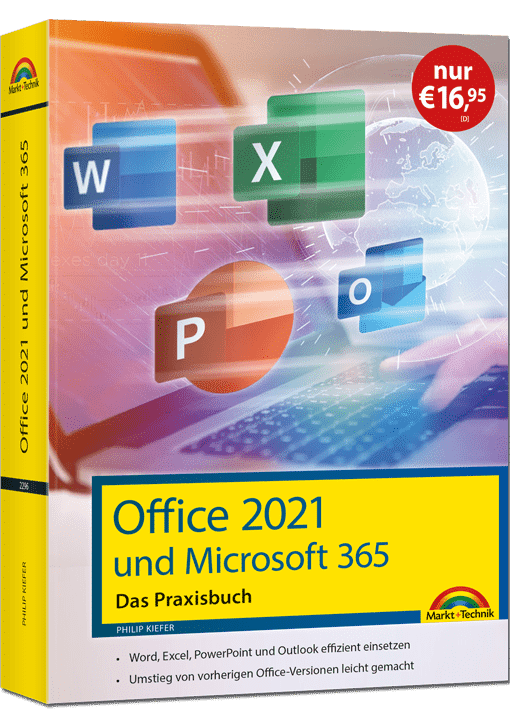
Office 2021 und Microsoft 365 – Praxisbuch
Lernen Sie den optimalen Umgang mit OfficeDieses praktische Handbuch hilft Ihnen, Office 2021 bzw. Microsoft 365 auf dem PC, Notebook oder Tablet im Nu zu beherrschen. Ob im Büro, Studium, in der Ausbildung, für private Anlässe oder Ihren Verein, konkrete Fallbeispiele und leicht nachvollziehbare Praxislösungen unterstützen Sie dabei, Ihre Office-Projekte umzusetzen. So finden Sie sich mühelos in Word, Excel, Outlook und PowerPoint zurecht, erstellen Dokumente, Tabellen und Präsentationen und machen sie dank Cloud-Anbindung überall verfügbar.Mit diesem preislich sehr attraktiven Nachschlagewerk sind Sie für den Office-Alltag gut gerüstet.Aus dem Inhalt:Die Highlights von Office 2021: Was ist neu, was ist anders?Die wichtigsten Arbeiten im optimalen Umgang mit OfficeWord – Texte überzeugend gestaltenExcel – Daten übersichtlich aufbereitenPowerPoint – beeindruckend präsentierenOutlook – Mailen und OrganisierenOptimale Zusammenarbeit zwischen den Office-ModulenOffice goes mobile – Arbeiten in der CloudLeseprobe (PDF-Link)

Einstieg in VBA mit Excel
Sie möchten Berechnungen automatisieren, eigene Dialogfelder erstellen und ganz einfach Excel in jeder Hinsicht an Ihre Bedürfnisse anpassen? Dieses Buch zeigt Ihnen, wie Sie Ihr Ziel schnell und einfach erreichen. Unser Autor Thomas Theis führt Sie Schritt für Schritt in VBA ein und zeigt Ihnen an zahlreichen Praxisbeispielen, wie Sie Makros für die verschiedensten Anwendungszwecke erstellen. Die Erläuterungen sind anschaulich und verständlich, so dass sich auch Programmieranfänger mühelos zurechtfinden werden. Das Buch enthält zahlreiche Übungsaufgaben inklusive Musterlösungen und ist somit perfekt zum Selbststudium geeignet. Aus dem Inhalt: Erste SchritteMakros aufzeichnen & anpassenObjekte & EreignisseGrundlagen von VBAFehler finden & vermeidenVBA für FortgeschritteneDiagramme & GrafikenVBA- & Worksheet-FunktionenDaten im- & exportierenAuf Access, Outlook & Word zugreifenEin- & Ausgabedialoge entwickelnVBA in der PraxisÜbungen & LösungenViele Beispielprojekte Materialien zum Buch ... 16 Geleitwort des Fachgutachters ... 17 1. Einführung ... 19 1.1 ... Was wird besser durch Makros und VBA? ... 19 1.2 ... Mit Makros arbeiten ... 21 1.3 ... Visual Basic Editor ... 31 1.4 ... Makrocode verstehen und ändern ... 34 1.5 ... Makro per Schaltfläche ausführen ... 36 1.6 ... Relative Verweise verwenden ... 37 1.7 ... Persönliche Makroarbeitsmappe ... 39 1.8 ... Code schreiben für einfache Ausgaben ... 40 1.9 ... Microsoft 365 ... 44 1.10 ... Web-Apps ... 45 2. Grundlagen von Objekten und Ereignissen ... 47 2.1 ... Objekthierarchie und Auflistungen ... 47 2.2 ... Arbeitsmappen bearbeiten ... 48 2.3 ... Tabellenblätter bearbeiten ... 56 2.4 ... Auf Zellen und Zellbereiche zugreifen ... 63 2.5 ... Ereignisprozeduren schreiben ... 88 3. Grundlagen der Programmierung mit VBA ... 93 3.1 ... Allgemeines ... 93 3.2 ... Variablen und Datentypen ... 95 3.3 ... Operatoren ... 103 3.4 ... Verzweigungen ... 113 3.5 ... Schleifen ... 118 4. Fehlerbehandlung ... 131 4.1 ... Eine Anwendung entwickeln ... 131 4.2 ... Syntaxfehler ... 132 4.3 ... Laufzeitfehler ... 133 4.4 ... Logische Fehler und Debugging ... 137 5. Mehr über die Programmierung mit VBA ... 141 5.1 ... Gültigkeitsbereiche ... 141 5.2 ... Datenfelder ... 143 5.3 ... Prozeduren und Funktionen ... 154 5.4 ... Benutzerdefinierter Datentyp ... 171 5.5 ... Modular programmieren ... 174 5.6 ... Module exportieren und importieren ... 177 6. Mehr über Objekte ... 181 6.1 ... Objektkatalog ... 181 6.2 ... Objekte referenzieren ... 182 6.3 ... Mit »With« auf Objekte zugreifen ... 184 6.4 ... Mit Objektvariablen arbeiten ... 185 6.5 ... For-Each-Schleife ... 190 6.6 ... Collections ... 192 6.7 ... Hauptobjekt »Application« ... 193 6.8 ... Filtern ... 195 7. Diagramme und Grafiken ... 199 7.1 ... Diagramm erstellen ... 200 7.2 ... Diagramm ändern ... 204 7.3 ... Diagramm verwalten ... 208 7.4 ... Beispiel: Formatiertes Kreisdiagramm ... 211 7.5 ... Shapes ... 214 7.6 ... WordArt ... 224 7.7 ... Bedingte Formatierungen ... 226 7.8 ... Sparklines ... 232 7.9 ... SmartArt ... 236 7.10 ... Grafiken aus Bilddateien ... 237 8. VBA- und Worksheet-Funktionen ... 243 8.1 ... Formeln zuweisen und lesen ... 244 8.2 ... Benutzereingaben ... 246 8.3 ... Einfacher Dialog mit dem Benutzer ... 251 8.4 ... Zeichenketten ... 259 8.5 ... Datum und Uhrzeit ... 265 8.6 ... Weitere Funktionen ... 273 9. Externe Daten ... 281 9.1 ... Ein Überblick ... 281 9.2 ... Einfache Textdateien ... 282 9.3 ... CSV-Dateien ... 286 9.4 ... Dateien mit wahlfreiem Zugriff ... 289 9.5 ... Mit Dateien arbeiten ... 295 9.6 ... Daten mit MS Word austauschen ... 301 9.7 ... Daten mit MS Outlook austauschen ... 311 9.8 ... Daten mit MS Access austauschen ... 332 9.9 ... Export in PDF-Dateien ... 347 10. Dialogfelder ... 355 10.1 ... Integrierte Dialogfelder ... 355 10.2 ... Eigene Dialogfelder ... 359 10.3 ... Mit Steuerelementen arbeiten ... 363 11. Funktionen aus Excel 2021 ... 377 11.1 ... Gleichmäßige Abfolge von Werten ... 377 11.2 ... Bereich mit zufälligen Werten ... 379 11.3 ... Alle unterschiedlichen Werte ... 382 11.4 ... Zellbereich filtern ... 384 11.5 ... Zellbereich sortieren ... 387 12. Beispielprojekte ... 391 12.1 ... Memory ... 391 12.2 ... Snake ... 400 12.3 ... Vokabeln ... 409 12.4 ... Puzzle ... 416 A. Lösungen der Übungsaufgaben ... 429 Index ... 449