

Netzpolitik & Belletristik

iOS Architecture Patterns
Develop well-structured applications using tested techniques and patterns. When you start to develop an application, you not only have to think about the idea of the finished application, but also about how it will evolve as it is built. This book shows you how to plan for changes, scope creep, and for the possibility of other developers joining in.Start by learning what architecture patterns for an application are. You’ll find out why it’s important for your applications to be based on these patterns and which ones are the most common. Then you’ll look at the MVC as one of the best known and used patterns. You’ll see how and when it can be implemented in your applications, as well as its advantages and disadvantages.From there, you’ll discover the first evolution of the MVC model: the MVP, which introduces a new layer (Presenter) to better manage views. The next evolution after that is the MVVM, which introduces the ViewModel layer and its connection with the views through Data Binding. With those prominent patterns covered, you’ll read about VIPER and VIP, Architecture Patterns that seeks to make applications easily maintainable, modularized, and highly scalable. All of which are hallmarks of Clean Architecture.Architecture patterns have developed and evolved to give your applications solid foundations. Understanding these patterns, you will reduce the problems that may arise when modifying existing functions, adding new ones, or correcting errors that may arise in the development process.WHAT YOU'LL LEARN* Code cleanly with solid foundations* Start your project ready to adapt and evolve as features and other developers are added* Find and apply the right patterns for the best results WHO THIS BOOK IS FORDevelopers with some programming knowledge who want to learn different architecture patterns, those who already have more experience and are looking for a starting point on complex patterns such as VIPER or VIP, and beginner programmersRAÚL FERRER GARCÍA holds a doctorate in Chemistry and started short-circuiting computer science by programming with a ZX Spectrum when he was 14. For the past decade as a Mobile Tech Lead, he has dedicated himself completely to the development and management of mobile applications for iOS. He also maintains a blog in which he tries to explain everything he’s learned and studied about the world of mobile development.1. Introduction1.1. What are architecture patterns?1.2. Why we need an architecture pattern for our apps?1.3. The search for a ‘Clean Architecture’.1.4. How to choose the right architecture.1.5. Most used architecture patterns.2. MVC: Model-View-Controller2.1. What is MVC.2.2. Components in MVC.2.3. How it works.2.4. When to use MVC.2.5. Applying MVC.2.6. Testing.2.7. Advantages and disadvantages of MVC.3. MVP: Model-View-Presenter3.1. What is MVP.3.2. Components in MVP.3.3. How it works.3.4. When to use MVP.3.5. Applying MVP.3.6. Testing.3.7. Advantages and disadvantages of MVP.4. MVVM: Model-View-ViewModel4.1. What is MVVM.4.2. Components in MVVM.4.3. How it works: Data binding.4.4. When to use MVVM.4.5. Applying MVVM.4.6. Testing.4.7. Advantages and disadvantages of MVVM4.8. MVVM-C: Abstracting Navigation from MVVM5. VIPER: View-Interactor-Presenter-Entity-Router5.1. What is VIPER.5.2. Components in VIPER.5.3. How it works.5.4. When to use VIPER.5.5. Applying VIPER.5.6. Testing.5.7. Advantages and disadvantages of VIPER6. VIP: View-Interactor-Presenter6.1. What is VIP.6.2. Components in VIP.6.3. How it works.6.4. When to use VIP.6.5. Applying VIP.6.6. Testing.6.7. Advantages and disadvantages of VIP7. Other Architecture Patterns7.1. RIBs: Router, Interactor and Builder7.2. TCA: The Composable Architecture7.3. Redux7.4. TEA: The Elm Architecture8. Conclusion8.1. Importance of Clean Architecture.8.2. Moving ForwardAudience: Intermediate

Dokumenten-Management
Informationen im Unternehmen effizient nutzenDas umfassende Kompendium zum Dokumenten-ManagementDieses Kompendium behandelt alle wesentlichen Fragen des Dokumenten-Managements ganzheitlich und umfassend. Dabei werden Fragen der Projektplanung und der Einführung von Dokumenten-Management-Lösungen ebenso behandelt wie organisatorische, wirtschaftliche und technische Aspekte. Außerdem werden die rechtlichen Rahmenbedingungen für Deutschland, die Europäische Union – soweit die entsprechenden Vorschriften einheitlich in der ganzen EU gültig sind – und für die Schweiz ausführlich dargestellt.Die Beschreibung von Funktion, Anwendung und Nutzen von Dokumenten-Management-Systemen (DMS) bildet auch in der vorliegenden Auflage einen Schwerpunkt. Sie werden sowohl mit dem für eine erfolgreiche Lösungsimplementierung erforderlichen Wissen ausgestattet, als auch in die Lage versetzt, die Funktionsweise von DMS zu verstehen und Systemalternativen zu beurteilen. Durch mehrere Anwenderberichte werden unterschiedliche Projektschwerpunkte und -ansätze veranschaulicht.Um den aktuellen Entwicklungen und Schwerpunkten besser gerecht zu werden, wurde das Buch vollständig neu strukturiert und umfassend überarbeitet. In der sechsten Auflage dieses Standardwerks werden aktuelle IT-Trends mit Relevanz für die Dokumentenverwaltung detailliert beschrieben. Neben den etablierten Cloud-Technologien werden auch neue Ansätze aus dem Bereich der Künstlichen Intelligenz oder Blockchains diskutiert und bewertet. Das Rechtskapitel wurde aufgrund der Änderungen im Bereich des Datenschutz-, IT- und Steuerrechts vollständig überarbeitet und ausgebaut. Neu eingeführt wurde ein Kapitel zum Thema Anforderungsanalyse. Die vorgestellten Anwendungsfälle wurden aktualisiert.Autoren:Klaus Götzer, Patrick Maué, Ulrich EmmertKlaus Götzer studierte Betriebswirtschaftslehre an der Universität München. Anschließend war er für mehrere Jahre in einem Unternehmen der Luft- und Raumfahrtindustrie in einer Organisationsabteilung als Organisator, Projektleiter und stellvertretender Hauptabteilungsleiter tätig. An der Universität des Saarlandes (Prof. Scheer) promovierte er mit dem Thema „Optimale Wirtschaftlichkeit und Durchlaufzeit im Büro“. Anschließend war er in einer Unternehmensberatung für den Bereich „Prozessoptimierung“ zuständig und leitete eine Geschäftsstelle. Seit 1993 ist er selbstständig und führt IT- und Organisationsprojekte vor allem im Öffentlichen Dienst, in Industrie- und Versicherungsunternehmen durch. Hierbei beschäftigt er sich vor allem mit den Themen Geschäftsprozessmanagement, Workflow und Dokumenten-Management.Dr. Patrick Maué hat für Studium und Promotion an der WWU Münster den Schwerpunkt Geoinformatik für sich entdeckt. In seinen Forschungsarbeiten und wissenschaftlichen Veröffentlichungen hat er sich mit der Semantik von Geodaten auseinandergesetzt. In den darauffolgenden Jahren hat er im Namen verschiedener Unternehmen Digitalisierungsprojekte im deutschen Behördenumfeld technisch und fachlich unterstützt und als Software Architekt die Umsetzung vieler Anwendungen begleitet. In den meisten Projekten stand dabei die Einführung oder Modernisierung von DMS Lösungen im Mittelpunkt. Als begeisterter Programmierer hat er aber stets die Nähe zur praktischen Umsetzung gesucht und arbeitet aktiv in Open Source Projekten mit. Heute leitet er ein Team von Software Entwicklern, die Produkte im DMS-Umfeld mit Fokus auf Sprachverständnis mit Hilfe maschinellen Lernens entwickeln.Ulrich Emmert ist seit 1996 Rechtsanwalt mit Schwerpunkt IT- und Datenschutzrecht, stellvertretender Vorstandsvorsitzender des ECM-Branchenverbandes VOI e. V., Geschäftsführer der esb data GmbH, die externe Datenschutzmandate übernimmt und Vorstand der Reviscan AG, die Signatursoftware und Datenbanksoftware herstellt und vertreibt. Daneben ist er im Aufsichtsrat von mehreren IT-Unternehmen vertreten.Zielgruppen:ManagementProjektleitungSachbearbeitende und Anwender*innenHochschullehrkräfteTrainer*innenStudierende
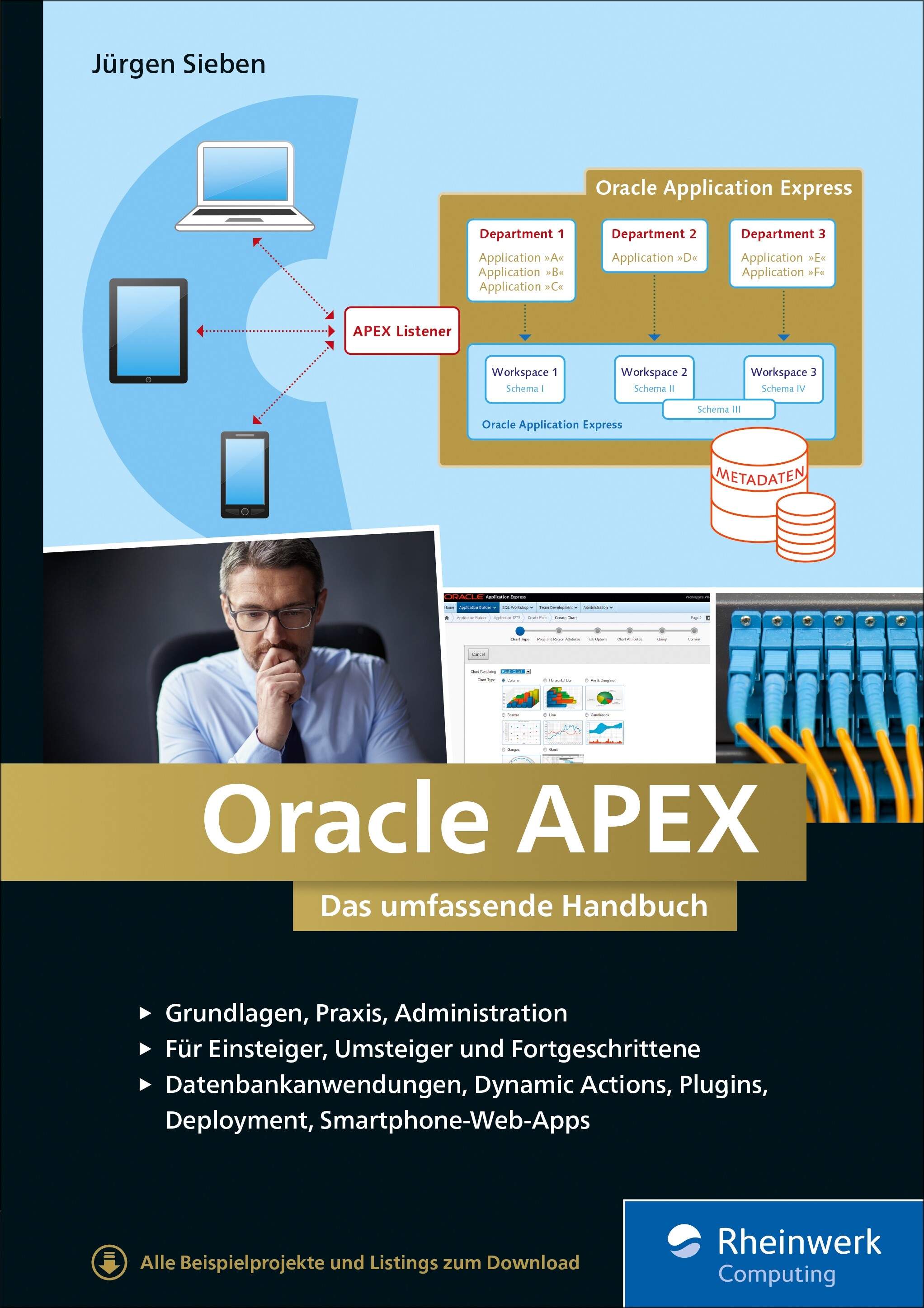
Oracle APEX
Das umfassende Handbuch Jürgen Sieben macht Sie in diesem Handbuch mit Oracle APEX vertraut und zeigt Ihnen ausführlich, wie Sie darin unternehmenstaugliche, webbasierte Datenbankanwendungen entwickeln – fachlich anspruchsvoll und didaktisch routiniert. Kenntnisse in SQL und PL/SQL werden vorausgesetzt. Inkl. Installations- und Upgrade-Anleitung.

Foundations of ARM64 Linux Debugging, Disassembling, and Reversing
Gain a solid understanding of how Linux C and C++ compilers generate binary code. This book explains the reversing and binary analysis of ARM64 architecture now used by major Linux cloud providers and covers topics ranging from writing programs in assembly language, live debugging, and static binary analysis of compiled C and C++ code. It is ideal for those working with embedded devices, including mobile phones and tablets.Using the latest version of Red Hat, you'll look closely at the foundations of diagnostics of core memory dumps, live and postmortem debugging of Linux applications, services, and systems. You'll also work with the GDB debugger and use it for disassembly and reversing. This book uses practical step-by-step exercises of increasing complexity with explanations and many diagrams, including some necessary background topics. In addition, you will be able to analyze such code confidently, understand stack memory usage, and reconstruct original C/C++ code.And as you'll see, memory forensics, malware, and vulnerability analysis, require an understanding of ARM64 assembly language and how C and C++ compilers generate code, including memory layout and pointers. This book provides the background knowledge and practical foundations you’ll need to understand internal Linux program structure and behavior.Foundations of ARM64 Linux Debugging, Disassembling, and Reversing is the perfect companion to Foundations of Linux Debugging, Disassembling, and Reversing for readers interested in the cloud or cybersecurity.WHAT YOU'LL LEARN* Review the basics of ARM64 assembly language* Examine the essential GDB debugger commands for debugging and binary analysis * Study C and C++ compiler code generation with and without compiler optimizations* Look at binary code disassembly and reversing patterns* See how pointers in C and C++ are implemented and usedWHO THIS BOOK IS FORSoftware support and escalation engineers, cloud security engineers, site reliability engineers, DevSecOps, platform engineers, software testers, Linux C/C++ software engineers and security researchers without ARM64 assembly language background, and beginners learning Linux software reverse engineering techniques.Dmitry Vostokov is an internationally recognized expert, speaker, educator, scientist, inventor, and author. He is the founder of the pattern-oriented software diagnostics, forensics, and prognostics discipline (Systematic Software Diagnostics), and Software Diagnostics Institute (DA+TA: DumpAnalysis.org + TraceAnalysis.org). Vostokov has also authored books on software diagnostics, anomaly detection and analysis, software and memory forensics, root cause analysis and problem solving, memory dump analysis, debugging, software trace and log analysis, reverse engineering, and malware analysis. He has over 25 years of experience in software architecture, design, development, and maintenance in various industries, including leadership, technical, and people management roles. In his spare time, he presents various topics on Debugging.TV and explores Software Narratology, its further development as Narratology of Things and Diagnostics of Things (DoT), Software Pathology, and Quantum Software Diagnostics. His current interest areas are theoretical software diagnostics and its mathematical and computer science foundations, application of formal logic, artificial intelligence, machine learning, and data mining to diagnostics and anomaly detection, software diagnostics engineering and diagnostics-driven development, diagnostics workflow, and interaction. Recent interest areas also include cloud native computing, security, automation, functional programming, and applications of category theory to software development and big data. He is based out of Dublin, Ireland.CHAPTER 1 - A64.1: MEMORY, REGISTERS, AND SIMPLE ARITHMETIC 11Memory and Registers inside an Idealized Computer 11Memory and Registers inside ARM 64-bit Computer 12“Arithmetic” Project: Memory Layout and Registers 13“Arithmetic” Project: A Computer Program 14“Arithmetic” Project: Assigning Numbers to Memory Locations 15Assigning Numbers to Registers 18“Arithmetic” Project: Adding Numbers to Memory Cells 19Incrementing/Decrementing Numbers in Memory and Registers 22Multiplying Numbers 25CHAPTER 2 - A64.2: CODE OPTIMIZATION 29“Arithmetic” Project: C/C++ Program 29Downloading GDB 31GDB Disassembly Output – No Optimization 32GDB Disassembly Output – Optimization 37CHAPTER 3 - A64.3: NUMBER REPRESENTATIONS 39Numbers and Their Representations 39Decimal Representation (Base Ten) 40Ternary Representation (Base Three) 41Binary Representation (Base Two) 42Hexadecimal Representation (Base Sixteen) 43Why are Hexadecimals Used? 44CHAPTER 4 - A64.4: POINTERS 47A Definition 47“Pointers” Project: Memory Layout and Registers 48“Pointers” Project: Calculations 50Using Pointers to Assign Numbers to Memory Cells 51Adding Numbers Using Pointers 58Incrementing Numbers Using Pointers 62Multiplying Numbers Using Pointers 65CHAPTER 5 - A64.5: BYTES, HALF WORDS, WORDS, AND DOUBLE WORDS 69Using Hexadecimal Numbers 69Byte Granularity 70Bit Granularity 71Memory Layout 72CHAPTER 6 - A64.6: POINTERS TO MEMORY 75Pointers Revisited 75Addressing Types 76Registers Revisited 81NULL Pointers 82Invalid Pointers 83Variables as Pointers 84Pointer Initialization 85Initialized and Uninitialized Data 86More Pseudo Notation 87“MemoryPointers” Project: Memory Layout 88CHAPTER 7 - A64.7: LOGICAL INSTRUCTIONS AND PC 99Instruction Format 99Logical Shift Instructions 100Logical Operations 101Zeroing Memory or Registers 102Instruction Pointer 103Code Section 105CHAPTER 8 - A64.8: RECONSTRUCTING A PROGRAM WITH POINTERS 107Example of Disassembly Output: No Optimization 107Reconstructing C/C++ Code: Part 1 110Reconstructing C/C++ Code: Part 2 112Reconstructing C/C++ Code: Part 3 114Reconstructing C/C++ Code: C/C++ program 116Example of Disassembly Output: Optimized Program 117CHAPTER 9 - A64.9: MEMORY AND STACKS 119Stack: A Definition 119Stack Implementation in Memory 120Things to Remember 122Stack Push Implementation 123Stack Pop Implementation 124Register Review 125Application Memory Simplified 126Stack Overflow 127Jumps 128Calls 130Call Stack 131Exploring Stack in GDB 133CHAPTER 10 - A64.10: FRAME POINTER AND LOCAL VARIABLES 137Stack Usage 137Register Review 138Addressing Array Elements 139Stack Structure (No Function Parameters) 140Function Prolog 141Raw Stack (No Local Variables and Function Parameters) 142Function Epilog 144“Local Variables” Project 145Disassembly of Optimized Executable 148CHAPTER 11- A64.11: FUNCTION PARAMETERS 149“FunctionParameters” Project 149Stack Structure 150Function Prolog and Epilog 152Project Disassembled Code with Comments 154Parameter Mismatch Problem 158CHAPTER 12 - A64.12: MORE INSTRUCTIONS 159PSTATE Flags 159Testing for 0 160TST - Logical Compare 161CMP – Compare Two Operands 162TST or CMP? 163Conditional Jumps 164Function Return Value 165CHAPTER 13 - A64.13: FUNCTION POINTER PARAMETERS 167“FunctionPointerParameters” Project 167Commented Disassembly 168CHAPTER 14 - A64.14: SUMMARY OF CODE DISASSEMBLY PATTERNS 173Function Prolog / Epilog 173ADR (Address) 174Passing Parameters 175Accessing Saved Parameters and Local Variables 176

Foundations of Linux Debugging, Disassembling, and Reversing
Review topics ranging from Intel x64 assembly language instructions and writing programs in assembly language, to pointers, live debugging, and static binary analysis of compiled C and C++ code. This book is ideal for Linux desktop and cloud developers.Using the latest version of Debian, you’ll focus on the foundations of the diagnostics of core memory dumps, live and postmortem debugging of Linux applications, services, and systems, memory forensics, malware, and vulnerability analysis. This requires an understanding of x64 Intel assembly language and how C and C++ compilers generate code, including memory layout and pointers.This book provides the background knowledge and practical foundations you’ll need in order to master internal Linux program structure and behavior. It consists of practical step-by-step exercises of increasing complexity with explanations and ample diagrams. You’ll also work with the GDB debugger and use it for disassembly and reversing.By the end of the book, you will have a solid understanding of how Linux C and C++ compilers generate binary code. In addition, you will be able to analyze such code confidently, understand stack memory usage, and reconstruct original C/C++ code. Foundations of Linux Debugging, Disassembling, and Reversing is the perfect companion to Foundations of ARM64 Linux Debugging, Disassembling, and Reversing for readers interested in the cloud or cybersecurity.WHAT YOU'LL LEARN* Review the basics of x64 assembly language* Examine the essential GDB debugger commands for debugging and binary analysis * Study C and C++ compiler code generation with and without compiler optimizations * Look at binary code disassembly and reversing patterns* See how pointers in C and C++ are implemented and usedWHO THIS BOOK IS FORSoftware support and escalation engineers, cloud security engineers, site reliability engineers, DevSecOps, platform engineers, software testers, Linux C/C++ software engineers and security researchers without Intel x64 assembly language background, beginners learning Linux software reverse engineering techniques, and engineers coming from non-Linux environments.Dmitry Vostokov is an internationally recognized expert, speaker, educator, scientist, inventor, and author. He is the founder of the pattern-oriented software diagnostics, forensics, and prognostics discipline (Systematic Software Diagnostics), and Software Diagnostics Institute (DA+TA: DumpAnalysis.org + TraceAnalysis.org). Vostokov has also authored books on software diagnostics, anomaly detection and analysis, software and memory forensics, root cause analysis and problem solving, memory dump analysis, debugging, software trace and log analysis, reverse engineering, and malware analysis. He has over 25 years of experience in software architecture, design, development, and maintenance in various industries, including leadership, technical, and people management roles. In his spare time, he presents various topics on Debugging.TV and explores Software Narratology, its further development as Narratology of Things and Diagnostics of Things (DoT), Software Pathology, and Quantum Software Diagnostics. His current interest areas are theoretical software diagnostics and its mathematical and computer science foundations, application of formal logic, artificial intelligence, machine learning, and data mining to diagnostics and anomaly detection, software diagnostics engineering and diagnostics-driven development, diagnostics workflow, and interaction. Recent interest areas also include cloud native computing, security, automation, functional programming, and applications of category theory to software development and big data. He is based out of Dublin, Ireland.CHAPTER ONE - X64.1: MEMORY, REGISTERS, AND SIMPLE ARITHMETIC 11Memory and Registers inside an Idealized Computer 11Memory and Registers inside Intel 64-bit PC 12“Arithmetic” Project: Memory Layout and Registers 13“Arithmetic” Project: A Computer Program 14“Arithmetic” Project: Assigning Numbers to Memory Locations 15Assigning Numbers to Registers 17“Arithmetic” Project: Adding Numbers to Memory Cells 18Incrementing/Decrementing Numbers in Memory and Registers 21Multiplying Numbers 24CHAPTER TWO - X64.2: CODE OPTIMIZATION 27“Arithmetic” Project: C/C++ Program 27Downloading GDB 28GDB Disassembly Output – No Optimization 29GDB Disassembly Output – Optimization 32CHAPTER THREE - X64.3: NUMBER REPRESENTATIONS 33Numbers and Their Representations 33Decimal Representation (Base Ten) 34Ternary Representation (Base Three) 35Binary Representation (Base Two) 36Hexadecimal Representation (Base Sixteen) 37Why are Hexadecimals Used? 38CHAPTER FOUR - X64.4: POINTERS 41A Definition 41“Pointers” Project: Memory Layout and Registers 42“Pointers” Project: Calculations 43Using Pointers to Assign Numbers to Memory Cells 44Adding Numbers Using Pointers 50Incrementing Numbers Using Pointers 53Multiplying Numbers Using Pointers 56CHAPTER FIVE - X64.5: BYTES, WORDS, DOUBLE, AND QUAD WORDS 61Using Hexadecimal Numbers 61Byte Granularity 62Bit Granularity 63Memory Layout 64CHAPTER SIX - X64.6: POINTERS TO MEMORY 67Pointers Revisited 67Addressing Types 68Registers Revisited 73NULL Pointers 74Invalid Pointers 75Variables as Pointers 76Pointer Initialization 77Initialized and Uninitialized Data 78More Pseudo Notation 79“MemoryPointers” Project: Memory Layout 80CHAPTER SEVEN - X64.7: LOGICAL INSTRUCTIONS AND RIP 89Instruction Format 89Logical Shift Instructions 90Logical Operations 91Zeroing Memory or Registers 92Instruction Pointer 93Code Section 95CHAPTER EIGHT - X64.8: RECONSTRUCTING A PROGRAM WITH POINTERS 97Example of Disassembly Output: No Optimization 97Reconstructing C/C++ Code: Part 1 99Reconstructing C/C++ Code: Part 2 101Reconstructing C/C++ Code: Part 3 103Reconstructing C/C++ Code: C/C++ program 104Example of Disassembly Output: Optimized Program 105CHAPTER NINE - X64.9: MEMORY AND STACKS 107Stack: A Definition 107Stack Implementation in Memory 108Things to Remember 110PUSH Instruction 111POP instruction 112Register Review 113Application Memory Simplified 115Stack Overflow 116Jumps 117Calls 119Call Stack 121Exploring Stack in GDB 123CHAPTER TEN - X64.10: FRAME POINTER AND LOCAL VARIABLES 127Stack Usage 127Register Review 128Addressing Array Elements 129Stack Structure (No Function Parameters) 130Function Prolog 131Raw Stack (No Local Variables and Function Parameters) 132Function Epilog 134“Local Variables” Project 135Disassembly of Optimized Executable 138CHAPTER ELEVEN - X64.11: FUNCTION PARAMETERS 139“FunctionParameters” Project 139Stack Structure 140Function Prolog and Epilog 142Project Disassembled Code with Comments 144Parameter Mismatch Problem 147CHAPTER TWELVE - X64.12: MORE INSTRUCTIONS 149CPU Flags Register 149The Fast Way to Fill Memory 150Testing for 0 152TEST - Logical Compare 153CMP – Compare Two Operands 154TEST or CMP? 155Conditional Jumps 156The Structure of Registers 157Function Return Value 158Using Byte Registers 159CHAPTER THIRTEEN - X64.13: FUNCTION POINTER PARAMETERS 161“FunctionPointerParameters” Project 161Commented Disassembly 162CHAPTER FOURTEEN - X64.14: SUMMARY OF CODE DISASSEMBLY PATTERNS 169Function Prolog / Epilog 169LEA (Load Effective Address) 171Passing Parameters 172Accessing Parameters and Local Variables 173

SEO
* Suchmaschinenoptimierung* Keyword- und Potenzialanalyse* Content-Optimierung* Technisches SEO* Linkstrukturen* Conversion-Optimierung* ErfolgskontrolleTEIL II:* Affiliate-Marketing* Provisionsmodelle* Amazon Partnerprogramm* Nischenthemen finden* Monetarisierung von InhaltenTEIL III:* Website aufbauen* Einsatz von WordPress* Rechtliche Grundlagen* Controlling mit Google AnalyticsPROF. DR. MARCO NIRSCHL ist Professor für E-Commerce Management an der Technischen Hochschule Amberg-Weiden. Dort leitet er den Bachelor-Studiengang Digital Business sowie die MBA-Studiengänge Digital Business Management und Digital Marketing. Marco Nirschl beschäftigt sich unter anderem mit Strategien und Prozessen im Digital Business und Online-Marketing. Er ist Autor, Speaker und Veranstalter von Tagungen im E-Commerce- und Online Marketing-Umfeld. Zuvor war er beim Sparkassenverband Bayern für Strategieentwicklung und -umsetzung innerhalb der Sparkassen-Finanzgruppe zuständig und verantwortete das Competence Center Retail bei dem Beratungsunternehmen ibi research. Marco Nirschl studierte Wirtschaftsinformatik an der Universität Regensburg und promovierte dort an der wirtschaftswissenschaftlichen Fakultät.STEFAN KALTENECKER ist Berater und Unternehmenstrainer für Online-Marketing. Er verfügt über eine umfassende Praxiserfahrung in den Themen Suchmaschinenoptimierung, Suchmaschinenwerbung und Webanalyse. Der Diplom-Betriebswirt (FH) ist seit 2002 Experte im Bereich E-Commerce und Online-Marketing. Nach seinem Marketing-Studium war er international als Unternehmensberater sowie im E-Commerce der Otto Group tätig. Bereits sein erstes Unternehmen im Online-Reisevertrieb generierte einen Millionenumsatz. Er verantwortete die Suchmaschinenoptimierung bei A.T.U. und leitete das Online-Marketing bei Netto Marken-Discount. Als Gründer und Coach der Erfolg E-Commerce GmbH unterstützt er Onlinehändler erfolgreich dabei, planbare und profitable Ergebnisse im Online-Marketing zu erzielen. Er lehrt Online-Marketing an mehreren Hochschulen, trainiert Unternehmen und gibt Fachseminare für mehr Erfolg im digitalen Unternehmertum.ALEXANDER EBERHARDT ist Online Marketing Manager in der Witt-Gruppe (einer Tochter des Otto Konzerns) in Weiden und derzeit im Bereich Suchmaschinenmarketing für alle organischen Aktivitäten zuständig. Zuvor steuerte er außerdem investive Suchkampagnen mit weltweitem Fokus. Alexander Eberhardt studierte Handels- und Dienstleistungsmanagement mit Schwerpunkt E-Commerce Management an der Ostbayerischen Technischen Hochschule Amberg-Weiden. Er spezialisierte sich auf Affiliate- und Suchmaschinenmarketing und betreibt erfolgreiche Affiliate-Websites.

SEO
* Suchmaschinenoptimierung* Keyword- und Potenzialanalyse* Content-Optimierung* Technisches SEO* Linkstrukturen* Conversion-Optimierung* ErfolgskontrolleTEIL II:* Affiliate-Marketing* Provisionsmodelle* Amazon Partnerprogramm* Nischenthemen finden* Monetarisierung von InhaltenTEIL III:* Website aufbauen* Einsatz von WordPress* Rechtliche Grundlagen* Controlling mit Google AnalyticsPROF. DR. MARCO NIRSCHL ist Professor für E-Commerce Management an der Technischen Hochschule Amberg-Weiden. Dort leitet er den Bachelor-Studiengang Digital Business sowie die MBA-Studiengänge Digital Business Management und Digital Marketing. Marco Nirschl beschäftigt sich unter anderem mit Strategien und Prozessen im Digital Business und Online-Marketing. Er ist Autor, Speaker und Veranstalter von Tagungen im E-Commerce- und Online Marketing-Umfeld. Zuvor war er beim Sparkassenverband Bayern für Strategieentwicklung und -umsetzung innerhalb der Sparkassen-Finanzgruppe zuständig und verantwortete das Competence Center Retail bei dem Beratungsunternehmen ibi research. Marco Nirschl studierte Wirtschaftsinformatik an der Universität Regensburg und promovierte dort an der wirtschaftswissenschaftlichen Fakultät.STEFAN KALTENECKER ist Berater und Unternehmenstrainer für Online-Marketing. Er verfügt über eine umfassende Praxiserfahrung in den Themen Suchmaschinenoptimierung, Suchmaschinenwerbung und Webanalyse. Der Diplom-Betriebswirt (FH) ist seit 2002 Experte im Bereich E-Commerce und Online-Marketing. Nach seinem Marketing-Studium war er international als Unternehmensberater sowie im E-Commerce der Otto Group tätig. Bereits sein erstes Unternehmen im Online-Reisevertrieb generierte einen Millionenumsatz. Er verantwortete die Suchmaschinenoptimierung bei A.T.U. und leitete das Online-Marketing bei Netto Marken-Discount. Als Gründer und Coach der Erfolg E-Commerce GmbH unterstützt er Onlinehändler erfolgreich dabei, planbare und profitable Ergebnisse im Online-Marketing zu erzielen. Er lehrt Online-Marketing an mehreren Hochschulen, trainiert Unternehmen und gibt Fachseminare für mehr Erfolg im digitalen Unternehmertum.ALEXANDER EBERHARDT ist Online Marketing Manager in der Witt-Gruppe (einer Tochter des Otto Konzerns) in Weiden und derzeit im Bereich Suchmaschinenmarketing für alle organischen Aktivitäten zuständig. Zuvor steuerte er außerdem investive Suchkampagnen mit weltweitem Fokus. Alexander Eberhardt studierte Handels- und Dienstleistungsmanagement mit Schwerpunkt E-Commerce Management an der Ostbayerischen Technischen Hochschule Amberg-Weiden. Er spezialisierte sich auf Affiliate- und Suchmaschinenmarketing und betreibt erfolgreiche Affiliate-Websites.

Linux Mint 21 - Schnelleinstieg
Der einfache Einstieg in die Linux-Welt Steigen Sie mit Linux Mint in die Linux-Welt ein! Mit diesem Buch erhalten Sie eine leicht verständliche Schritt-für-Schritt-Anleitung für die Installation und den Einsatz von Linux Mint 21. Dafür benötigen Sie keinerlei Linux-Kenntnisse und können schnell und einfach von Windows umsteigen. Sie werden Schritt für Schritt durch die verschiedenen Installationsmöglichkeiten von Linux Mint geführt (Live-Version, Festinstallation, Linux Mint als einziges oder als zweites Betriebssystem parallel zu Windows) und erfahren, wie Sie Linux Mint einrichten und an Ihre Bedürfnisse anpassen. Um sich schnell zurechtzufinden, erhalten Sie eine Einführung in die für Linux Mint empfohlenen Arbeitsoberflächen Cinnamon, Mate und XFCE sowie einen Überblick über vorinstallierte und weitere beliebte Linux-Software. Darüber hinaus erfahren Sie, wie Sie Software, die eigentlich für den Betrieb unter Windows gedacht ist, auch unter Linux installieren und nutzen können. Eine Einführung in die wichtigsten Linux-Grundlagen wie die Datei- und Benutzerverwaltung, die Installation von Software (Paketverwaltung) sowie das Terminal runden diesen Praxiseinstieg ab. So sind Sie optimal darauf vorbereitet, alle im Alltag anfallenden Aufgaben mit Linux Mint zu meistern.Aus dem Inhalt: Grundlagen zu Linux und MintInstallation und Live-VersionDie grafischen Oberflächen Cinnamon, Mate und XFCEAnwendungen nachinstallierenWindows-Programme mit Linux Mint nutzenLinux-Alternativen zu gängigen Windows-ProgrammenBackups und SicherheitTerminal und Verzeichnishierarchie

Asynchronous Programming with SwiftUI and Combine
Develop UI-heavy applications more easily, faster, and error-free. Based on several enhancements to the Swift language, SwiftUI takes a declarative approach to building UIs. Instead of imperatively coding the UI, this book will show you how to describe how you want your UI to look.SwiftUI treats the UI as a function of its state, thereby making managing your app’s state a lot easier. Change the underlying data model to redraw all parts of the UI that are connected to that particular slice of data. Likewise, easily update the underlying data model from the UI elements your data model is connected to. Combine is Apple’s Functional Reactive Programming framework. It complements SwiftUI and other frameworks, such as the networking APIs, in a natural way. Using Combine, you can subscribe to events and describe data processing in a way that is free of side effects. This allows for an easier implementation of event-driven applications.Using SwiftUI and Combine build more error-free apps in a shorter amount of time, targeting all of Apple’s platforms (iOS, iPadOS, watchOS, macOS, tvOS) with little to no overhead.By the end of the book you will have a solid understanding for architecting and implementing UI-heavy apps in a declarative and functional reactive way using SwiftUI, Combine, and async/await.You will:- Build simple and gradually more complex UIs in SwiftUI- Understand SwiftUI’s state management system- Work with Combine and Swift’s new async/await APIs to access the network and access other asynchronous APIs- Architect and structure modern applications on Apple platforms using SwiftUI, Combine, and async/awaitPeter Friese is a software engineer, author, speaker, and musician with a passion for helping developers build great apps. He works as a Developer Relations Engineer / Developer Advocate on the Firebase team at Google, where he focuses on helping developers build better apps using Firebase on iOS and other Apple platforms.Peter shares his knowledge and experience through writing on his personal blog, peterfriese.dev, publishing videos on YouTube, speaking at conferences and meet-ups, crafting sample apps and contributing to the Firebase SDKs.Prior to working at Google, he has held roles as a software engineer, software architect, and principal consultant at companies such as Lufthansa Systems, Gentleware, itemis, and Zühlke.Chapter 1: SwiftUI - A new Beginning* Why a New UI framework? * SwiftUI Principles * Declarative vs Imperative * State Management * Composition over Inheritance * Everything is a View * UIs are a function of their state * A quick tour of SwiftUI * Creating a new app * Anatomy of a SwiftUI app * Two-way tooling* Adding your first button * Print “hello” to the console * Explain live mode (need to turn on debug mode so you can see console output while in preview)* A brief overview of statement management * Use code editor and preview pane to update the “hello world” app to allow the user to give their name* TextField, Label, (Button) * @State to bind the TextField input * Bind Label, so it gets updated automatically * Run the app in live preview Chapter 2: Getting Started with SwiftUI○ Building Blocks* Views * View Modifiers * Property Wrappers * Simple UI Controls ■ Lists■ Navigation○ Composing UIs from simple UI elements* Building a list row* Making it reusable* extracting parts into separate structs / views * using ViewBuilders (properties / functions) Chapter 3: SwiftUI Foundation* Opaque return types * Implicit returns from single-expression functions * Function Builders * View Builders * Multiple Trailing Closures Domain Specific languages * Property Wrappers* The View Life Cycle Chapter 4: State Management* Managing State with Property Wrappers ■ @State ■ @ObservableObject ■ @ObservedObject■ @StateObject■ @EnvironmentObject* SwiftUI Patterns and State Management* Pattern: Drill-Down Navigation * Pattern: Input form * Pattern: Lookup field * Pattern: Local state in a single dialog * View Lifecycle * See Michael Long’s article * Maybe even build some sort of introspector? * Build my own debugging utilities Chapter 5: Building Input Forms* Building simple formsBuild a simple form with a couple of simple input fields. * Building advanced forms ■ Look-up fields■ Drill-down■ In-place editing (e.g. date picker) ■ Sections■ Forms and Data Binding / State Management■ Building a sign-up form■ Username■ Password / Repetition ■ Validation■ Come up with a non-Combine version for the following rules:* Do the passwords match? Password strong enough? * Username long enough? * Username still available? * How to handle state? Chapter 6: Functional Reactive Programming and Combine* Introduction to Functional Reactive Programming * What is it? * Why is it so cool / hot? * How can it help to make your apps better and more error-free * Core Combine Concepts ■ Publishers ■ Subscribers■ Operators* Combine Visualised * Marble Diagrams * Show some Combine operators as Marble Diagrams Chapter 7: Combine and SwiftUI○ Driving UI state○ Input validation using Combine* verify that the passwords match verify username length * verify username is still available * verify password meets password complexity rules * show error messages for the individual error conditions * combine all the above into a single state that drives the enabled state of the sign-up button* Optimise our code * use debounce to throttle the number of calls on our fake backend * ensure UI updates happen on the main thread (use receiveOn) * Closure Combine makes our code more maintainable. * It helps to decouple business logic from our UI * This also makes our code more testable Chapter 8: Testing Combine Code* Writing tests for asynchronous code * Mocking parts of your implementation * Some useful helpers Chapter 9: Advanced SwiftUI UIs○ LazyVGrid / LazyHGrid○ OutlinesChapter 10: Advanced SwiftUI - Building Reusable UI Components* Keep it lean and mean* Extracting functionality into sub-views * Using ViewBuilders to organise view code within a screen * Creating Container Components * Making your views customisable * Packaging your components using Swift Package Manager * Integrating views and view modifiers with the Xcode library Chapter 11: Building a Complete App with SwiftUI and Combine* Features of the app * Data Model * OpenLibrary API* FirebaseChapter 12: Displaying a list of books* Building a list cell from simple UI views * Compose a list view * Make your code reusable Chapter 13: Implementing a search screen○ Implementing a re-usable search bar* Designing the UI * Data Binding and State Management * Making the view re-usable ○ Connecting to the OpenLibrary API* Searching book titles * Using Combine to improve working with the API * Debounce * Mapping JSON Data * Error handling Automatic retriesChapter 14: Drill-Down Navigation and State Management○ Implementing a book details / edit screen○ Drill-down navigation patternChapter 15: Persisting Data in Firestore* What is Firebase? * What is Firestore? * NoSQL ■ Real-time Sync* Mapping our data model to Firestore * Reading and writing data from / to Firestore * Implementing Combine Publishers for Firestore Chapter 16: App Store Hero Animation* Magic Move* SwiftUI Magic Move Animations Explain how they work * Transition the current list view to make use of animations * Distribute your code Appendix A: An Overview of all SwiftUI Views

San Miceli
La storia dell'insediamento di San Miceli si colloca in un periodo di grandi cambiamenti che va dal IV al VII secolo e che porta alla fine del mondo antico per dare avvio all'alto Medioevo. L'impulso principale a questa progressiva evoluzione fu dato dall'affermarsi del cristianesimo che, oltre a modificare i modi di pensare e di vivere del popolo romano, ha favorito la trasformazione dell'assetto territoriale: abbandono o trasformazione delle ville, semplificazione degli insediamenti in villaggi accentrati, realizzazione di edifici di culto. Con la ricchezza del suo materiale archeologico, la diversità dei suoi fabbricati e la sua cronologia atipica rispetto ai dibattiti accademici, San Miceli contribuisce alla leggibilità di questi cambiamenti, con particolare riferimento ai caratteri della sua struttura insediativa rurale e al fenomeno della cristianizzazione, alla forma e alla modalità di occupazione, alla sua organizzazione agraria e artigianale, alle tipologie e tecniche costruttive e, in una certa misura, al sistema economico e sociale. The history of the settlement of San Miceli takes place in a period of great changes from the 4th to the 7th centuries which lead to the end of the ancient world and the beginning of the early Middle Ages. The main impulse to this progressive evolution was provided by the affirmation of Christianity which, in addition to modifying the ways in which the Roman people thought and lived, favored the transformation of the empire's territorial organization: the abandonment or transformation of the villas, the simplification of the settlements in centralized villages, and the construction of places of worship. With the richness of its archaeological material, the variety of its buildings and its modified chronology in contrast to those proposed in previous academic debates, San Miceli contributes to the understanding of these changes, with particular reference to the characteristics of its rural settlement organization within the context of Christianization, the form and method of its occupation, its agricultural and handcraft traditions, its artifact typologies and architectural construction techniques and, to a certain extent, its economic and social systems.

Spielkonsolen und Heimcomputer 1972 bis 2022 (5. Auflage)
50 Jahre Bildschirmspaß und digitale Action, chronologisch und fundiert in Klartext, Technik-Tabellen und über 800 Fotos.Die stark erweiterte und aktualisierte Neuauflage des beliebten Fachbuchs zu Videospiel-Hardware zeigt alle Konsolen, Handhelds und Computer aus Amerika, Japan und Europa, präsentiert klassische Software in authentischen Pixeln, nennt Hintergründe und historische Facts. 550 Traumgeräte, Millionenseller von Atari VCS über Commodore Amiga und SNES zu PS5 und Steam Deck, aber auch Entgleisungen und exotische Varianten präsentiert Spielkonsolen und Heimcomputer in durchgehend farbigen Kapiteln und ausführlichen Anhängen - für Alle, die ihr Leben lang spielen, sammeln und wissen wollen. Eine Zeitreise durch die Spielepochen, von der elektromechanischen Urzeit in die Ultra-HD-Gegenwart und von dort in die VR-Zukunft! Über 500 Traumgeräte, Millionenseller vom Commodore 64 zum iPad, vom Atari-Telespiel zur Xbox, und ebenso Flops, Entgleisungen und exotische Varianten präsentiert Spielkonsolen und Heimcomputer in durchgehend farbigen Kapiteln und ausführlichen Anhängen – für alle, die ihr Leben lang spielen, sammeln und wissen wollen.Das Buch wird gelobt als „geeignetes Nachschlagewerk“ und „empfehlens-werte Lektüre“ (c‘t), als „sehr verständlich (...) sehr unterhaltsam“ (Gamestar) oder einfach als „Ass“ (ComputerBILDSpiele) und „Pflichtlektüre“ (PlayZone), und wächst von einst 144 auf 288 Seiten: Eine Zeitreise durch die Spielepochen, von der elektromechanischen Urzeit bis in die Ultra-HD- und VR-Zukunft!Der Autor Winnie Forster, Publizist und Fachmann für digitale Medien, sitzt seit 1982 an der Tastatur, seit 1990 in der Computer- und Videospielbranche. Er war leitender Redakteur beim legendären PowerPlay-Magazin, Mitbegründer von Video Games und – als Redaktionsleiter des Fachverlages Cybermedia – des Multiformat-Magazins Man!ac, das er 1995 ins Netz bringt. Im 21. Jahrhundert arbeitet und spielt Forster am bayerischen Ammersee.

Hardening Your Macs
Learn the skills and solutions required to secure your Mac's operating system, the underlying hardware, and allow users to get work done safely. This book will show you how to create a Mac that’s made of steel and won’t buckle when attacked!Ok, there’s no such thing as unhackable. No magic tool or silver bullet will eliminate risk in all forms. Security is an ongoing journey – not a simple action or software application. And that is exactly what you’ll learn to master—the foundational knowledge, skills, and mindset to holistically protect Macs. Regardless of whether it’s your personal iMac or a fleet of MacBook Pro’s assigned to the remote employees within your organization, you’ll be able to limit access while identifying and mitigating risk unique to your environment.In addition to the information security best practices pertaining to protecting Apple computers, you’ll pivot to a coherent, security-focused mindset to better understand macOS-specific security. You’ll learn how it works and what tools and software are available to help. Both native and 3rd-party tool are covered. Safe guard your system’s privacy data and capitalize on effectively locking down the security of your Mac computers against known threats and newer trends that continue to evolve.Hardening Your Macs is the perfect roadmap to stopping malicious attacks and bad actors from spying on users through cameras, microphones, and other built-in tools that could potentially be used against users and organizations alike.WHAT YOU'LL LEARN* Grasp the mindset of attackers—how they plan and execute malicious incursions* Implement hardware solutions as well as software safeguards* Take advantage of Apple's built-in macOS security features in addition to 3rd party tools* Avoid attacks on your system that could compromise sensitive corporate data and personally identifiable informationWHO THIS BOOK IS FORIT admins responsible for managing Mac device security. Additionally users of Apple products that may have some experience using the platform in general but are not versed in security, as well as, those switching from Windows platforms will find useful information here. And anyone that wishes to expand their information security skills and/or develop a security-focused mindset to better protect their personal information and privacy data from the numerous and growing threats in the wild, such as malware and phishing.JESUS VIGO, JR. brings 25 years of experience, ranging from entry-level Help Desk to Systems Administrator, pivoting to Network Administration, with a concentration on Information Security. During this time, he has earned over thirty industry certifications – all current – and obtained a B.S. in CyberSecurity & Information Assurance, in addition to lending his expertise to CompTIA as a Subject Matter Expert and writing numerous online and printed publications on wide-ranging IT topics as they relate to cybersecurity and hardening endpoints to protect hardware, users, and private data. During this time, he expanded his skillset to incorporate Apple devices, including supporting macOS and iOS-based devices in a remote, 1:1 CYOD initiative, incorporating industry best practices, endpoint security configurations, and extensive scripting to achieve automating workflows to adhere to Device Lifecycle Management processes for over 60,000 Apple-based devices.Chapter 1: Security 101· Introduction· What is it?· Why is it important?· When is it necessary?· Who is responsible for it?Chapter 2: Risky Business· Risk· Assessments· Matrix· Tolerance/AppetiteChapter 3: (Return of) the Mac· macOS· Hardware· Software· Distribution· Frameworks (Security, Privacy, etc.)Chapter 4: A World of Hurt· Threat types· Attack types· Internal attacks· External attacksChapter 6: The Mind of an Attacker· Think like them· Act like them· Understand them· Protect against themChapter 7: Hardware Solutions· Startup· Full-Disk Encryption· Cable Lock· Sensor Covers· Accessories· Licensed CablesChapter 8: Software Solutions· Passwords· Login· User Account Types· Multifactor Authentication· FileVault· System Preferences· Screensaver· Lock-screen· Malware Protection· Firewall· VPN/ZTNA· iCloud· App Stores· Secure Memory· Transparency, Consent, and Control (TCC)· Touch ID· Apple Software Update· 3rd-party Patches· File Permissions· Sharing Permissions· Extensions· Backups· Remote WipeChapter 9: Work Smarter, Not Harder· Remote Controlling your fleet· Mobile Device Management· Device Configuration· App Deployment· Securing Devices· Automating Workflows· Zero TouchChapter 10: Make a Plan and Stick to It· Standardize your environment· Develop workflows to address common issues· Automate whenever possible· Stay on top of the latest security threats· Train users (or your friends) to recognize threats· Align with enterprise security frameworks· Comply with regulatory requirementsAudience: Advanced

Neongrau
Game over im NeurosubstratHamburg im Jahr 2112: Die Stadt wird immer wieder von Starkregen geflutet, im Binnendelta hat sich ein Slum aus schwimmenden Containern gebildet und über allem thront das gigantische Stadion. Zum »Turnier der Legenden« reisen Fans aus der ganzen Welt an, um die berühmten Glam-Gamer spielen zu sehen. Auch Go [Stuntboi] Kazumi begeistert sich für das VR-Gaming, fährt jedoch noch lieber Stunts auf dem Retro-Skateboard.Ein Sturz scheint das Aus für Gos Karriere zu bedeuten, doch dann wird Go ein Job im Stadion angeboten – bei den Rahmani-Geschwistern, den berühmtesten Gamern Deutschlands! Von da an überschlagen sich die Ereignisse und Gos Welt wird komplett auf den Kopf gestellt: ein Bombenanschlag, illegale Flasharenen, Tech-Aktivisten, Cyberdrogen, künstliche Intelligenzen – und dann ist da auch noch dieses Mädchen ...Autorin:Aiki Mira studierte Medienkommunikation in Stirling, London sowie Bremen und forschte zu Jugendkultur und Gaming. Heute lebt Aiki in der Science-Fiction und in Hamburg. Als Autorx erforscht Aiki die Grenzen unserer Beziehungen und der menschlichen Identität und schreibt, denkt und diskutiert gern queere Themen. Neben Romanen veröffentlicht Aiki Essays und Kurzgeschichten u. a. auf Tor Online, in Exodus, Phantastisch!, Queer*Welten, im Future Fiction Magazine und im c’t Magazin für Computertechnik.Drei Kurzgeschichten von Aiki standen 2022 auf der Shortlist für den Kurd-Laßwitz-Preis 2022 und für den Deutschen Science-Fiction-Preis. Mit der Story „Utopie27“ gewann Aiki beide Preise. Zusammen mit Uli Bendick und Mario Franke hat Aiki Mira die Anthologie „Am Anfang war das Bild“ herausgegeben, die ebenfalls für den Kurd-Laßwitz-Preis 2022 nominiert wurde und Platz 2 erreichte. Im Juni 2022 erschien Aikis Debütroman „Titans Kinder: Eine Space-Utopie“.Zielgruppe:Sci-Fi-FansThriller-Fansjunge ErwachseneLGBTQIA+Leseprobe (PDF-Link)

Produktiv auf der Linux-Kommandozeile
Sicher und souverän mit Linux arbeitenSouverän unterwegs auf der Kommandozeile: Dieses praktische Buch hilft Ihnen dabei, schneller, intelligenter und effizienter zu arbeiten. Sie erfahren, wie Sie komplexe Befehle erzeugen und ausführen, die echte Probleme lösen, Informationen abrufen, verarbeiten und lästige Aufgaben automatisieren.Sie werden außerdem verstehen, was hinter dem Shell-Prompt passiert. Ganz gleich, welche Befehle Sie im Einzelnen einsetzen: Sie werden Ihren Linux-Alltag problemlos meistern und sich mit solidem Wissen für den Arbeitsmarkt qualifizieren.Sie entwickeln gute bis fortgeschrittene Fähigkeiten auf der Kommandozeile und lernen dabei, wie Sie:Befehle auswählen oder konstruieren, die schnell Ihre Arbeitsaufgaben erledigen - effizient Befehle ausführen und mit Leichtigkeit durch das Linux-Dateisystem navigierenaus einfacheren Befehlen komplexe und leistungsstarke Befehle zusammensetzenTextdateien umbauen und sie wie Datenbanken abfragen, um geschäftliche Aufgaben zu lösendie Point-and-Click-Funktionen von Linux auf der Kommandozeile kontrollierenAutor:Daniel J. BarrettDaniel J. Barrett unterrichtet seit mehr als 30 Jahren Linux und verwandte Technologien im geschäftlichen wie im akademischen Umfeld. Der Autor von O’Reillys Linux kurz & gut und Koautor von Linux Security Cookbook sowie SSH, The Secure Shell: The Definitive Guide ist darüber hinaus Softwareentwickler, Heavy-Metal-Sänger, Systemadministrator, Universitätsdozent, Webdesigner und Komiker. Er arbeitet bei Google.Zielgruppe:Systemadministrator*innenEntwickler*innenMitarbeitende im Site Reliability Engineeringambitionierte User*innen
Windows PowerShell
Erprobtes Praxiswissen für den Einstieg in Windows PowerShell* Verständliche und praxisnahe Anleitungen vom international anerkannten PowerShell-Experten Dr. Tobias Weltner* PowerShell-Grundlagen aus dem Bestseller »PowerShell 5« für Einsteiger zusammengefasst * Ohne Vorwissen die mächtige Windows PowerShell Schritt für Schritt kennenlernen PowerShell ist die Standard-Skriptsprache für die Windows-Automation und nach wie vor unverzichtbar für Administratoren und ambitionierte Windows-Anwender. Mit PowerShell lassen sich wiederkehrende Aufgaben automatisieren, Reports erstellen, Drucker einrichten, Daten sichern und alle Handgriffe erledigen, die mehr als einmal anfallen.Ob Sie sich bereits PowerShell-Wissen angeeignet haben und nun eine gründliche Aufbereitung wünschen oder PowerShell ganz neu entdecken: Dieses verständlich geschriebene Praxisbuch erklärt umfassend und mit vielen Praxisbeispielen, wie Windows PowerShell funktioniert und Sie professionell damit arbeiten.Das Themenspektrum reicht von PowerShell-Befehlen (Cmdlets) und Skripten bis hin zu PowerShell Pipeline, eigenen Befehlen, Fehlerhandling und Debugging sowie Remoting. Die Beispiele verwenden den Befehlssatz der Windows PowerShell.Dr. Tobias Weltner ist seit 30 Jahren für Unternehmen rund um den Globus tätig, um komplexe IT-Prozesse zu automatisieren. Seine Erfahrung gibt er in Workshops, bei Projekten und auf Konferenzen weiter. Als erfahrener Didaktiker weiß er genau, wie man technische Zusammenhänge verständlich erklärt. Er ist Entwickler der PowerShell-Entwicklungsumgebung »ISESteroids«, hat 2016 die Fachkonferenz »psconf.eu« ins Leben gerufen und ist Mitglied der Microsoft Cmdlet Workinggroup, die den Befehlssatz der PowerShell weiterentwickelt. Tobias Weltner erhielt 22 MVP-Auszeichnungen der Firma Microsoft und zählt zu den bekanntesten PowerShell-Experten weltweit.

Cloud Computing nach der Datenschutz-Grundverordnung
Rechtliche Fragen und typische Probleme verständlich erklärt: Amazon Web Services, Google, Microsoft & Clouds anderer Anbieter in der Praxis.Cloud-Anwendungen von Anbietern wie Amazon Web Services (AWS), Google oder Microsoft werden von vielen Unternehmen, Organisationen und privaten Anwendern genutzt. Hierbei steht ihnen ein äußerst vielfältiges und umfangreiches Produktportfolio der jeweiligen Anbieter zur Verfügung. Datenschutz war in diesem Zusammenhang schon immer ein Thema, aber durch die europäische Datenschutz-Grundverordnung werden Verantwortliche nunmehr verstärkt in die Pflicht genommen. Bei Datenschutzverstößen drohen mitunter hohe Bußgelder sowie nicht absehbare Haftungsfolgen.Dieser Praxisleitfaden beschreibt die rechtlichen Fragen und typischen Probleme im Zusammenhang mit der Nutzung der von Cloud-Providern bereitgestellten Anwendungen im Allgemeinen wie beispielsweise Auswahl, Vorbereitung und konkrete rechtliche Umsetzung einer Auslagerung von Daten und Prozessen in eine Cloud, aber auch Fragen eines Exits, wie eine Datenmigration. Er geht aber auch ganz konkret auf einzelne Anwendungen ein und unterstützt hierzu mit konkreten Empfehlungen und Checklisten. Es werden keine Vorkenntnisse im Datenschutz oder in Bezug auf Cloud-Anwendungen vorausgesetzt.Autor:Dr. Thorsten Hennrich ist Rechtsanwalt mit den Schwerpunkten Informationstechnologie- und Datenschutzrecht. Er ist ein technikaffiner Jurist, der „beide Welten“ bestens kennt: als Rechtsanwalt im IT- und Datenschutzrecht, als Leiter der Rechtsabteilung eines Cloud-Anbieters sowie als langjähriger Geschäftsführer eines Cloud- und IT-Infrastruktur-Anbieters mit Rechenzentren in Frankfurt am Main und Amsterdam. Er blickt auf über 20 Jahre umfassende Praxiserfahrung zurück.Zielgruppe:IT-Verantwortlicheleitende AngestellteDatenschutzbeauftragteMitglieder der Geschäftsleitung

App Development Using iOS iCloud
Create a professional looking app from start to finish that takes advantage of iCloud technology. Rather than working with Storyboarding for building your UI, you’ll use code to build professional looking screens. Using code is standard for professional developers to fit form factor alignment across multiple screen sizes and other design constraints.First, you’ll build a basic, functional UX screen. Then you’ll incorporate iCloud with CloudKit for data persistence and private, public, and shared databases. Here your code-drive UI design will expand out to developing professional looking screens with animation. You’ll also learn to work with reminder and notification boxes, sharing data between your users, and adding functionally for interaction with other Apps. Finally, you’ll tackle testing and using Test Flight before publishing your app to the App Store.This book offers a practical guide for coders at any level who want to learn and create professional looking iOS apps leveraging the database features of iCloud and the numerous extensions that Apple provides in the Xcode environment. Create professional looking apps that are secure and your users will love!WHAT YOU'LL LEARN* Leverage CloudKit for Backend as a Service* Handle Asynchronous processes* Share data among users of your app with simultaneous modificationsWHO THIS BOOK IS FORiOS developers familiar with the basics of Swift coding who want to work with iCloud databases or move into more advanced fields, such as using extensions or designing UX in code.SHANTANU BARUAH is an Executive Vice President leading new business acquisition in the Life Sciences and Healthcare business at HCL Technologies. With over 21+ years of experience across multiple disciplines, Shantanu has been a pioneer in the fields of healthcare, life sciences, digital, and information technology at HCL Technologies. His leadership has guided delivery, practice building, and development of market-leading solutions to reach new heights. A leader with global exposure, Shantanu has successfully led teams across India, Singapore, France, and the U.S. His technological expertise and innovative leadership qualities have placed him at the forefront of important business acquisitions. Shantanu is an active in the app development community and has an approved app on Apple App Store. He has been recognized as one of the top 25 Healthcare IT Executives of 2020 by The IT Services Report. Shantanu lives in New Jersey. His philanthropic outreach includes education for children in developing nations.SHAURYA BARUAH has many interests in a variety of subjects – specifically, he has an interest in Math, Physics, and Computer Science. In his freshman year, he took AP Computer Science A and scored a 4 on the AP exam. Currently, in his sophomore year, he is taking Pre-Calculus Honors, a highly demanding course that is designed in a Problem Based Learning teaching method. He is also taking AP Physics 1, an algebra-based physics course, and Algorithms & Data Structures, a project-based course where students work on large programming projects as a team. Part I – Basic App BuildingChapter 1: About The Book Tracker App1.1 Overview1.2 Our Goal and Final WordsChapter 2: XCode2.1 About XCode2.2 Installation and System Requirements2.3 Interface IntroductionChapter 3: CloudKit3.1 Setting Up CloudKit3.2 Exploring CloudKit DashboardChapter 4: Book Tracker App Building4.1 Setting up the Tab View Controller4.2 Creating a Tab Application4.3 Add Book Screen4.3.1. Designing the Add Screen4.3.2. Assigning The Add View Controller file in Main.storyboard4.3.3. Running the Code4.3.4. Defining the UI Objects for the Add Screen4.3.5. Running the program4.4 Saving the Book Record in iCloud4.4.1. Data Validation is an important step4.4.2. Create a database function file4.4.3. Preparation before Saving the Book4.4.4. Function to save Book Record4.4.5. Setting Value before calling saveBook4.4.6. Post Save4.4.7. Reset Field4.5 Display the Book Records4.5.1. Setting Up Display View Controller4.5.2. Assigning The Display View Controller file in Main.storyboard4.5.3. Query The Book Table4.5.4. Call the Query Book4.5.5. Create A Table View4.5.6. Detailed Text Label4.6 Setting a Table Header4.7 Deleting a Table Record4.7.1. Deleting book from CloudKit Database4.7.2. Calling the Delete Book Function4.8 Searching Data Screen4.8.1. Create the Search View Controller4.8.2. Draw the Search Screen4.8.3. Query for all Records to enable Search4.8.4. Text field Events, Operations and Display4.8.5. Remove Constraints4.8.6. Table FunctionsChapter 5: Core Swift Concepts5.1 Variables5.2 Basic Types5.3 Classes, Structures & Objects5.4 Array5.5 Scope5.6 Functions5.7 Beautifying Strings using NSAttributedString5.8 Life Cycle Methods5.9 Type Casting5.10 Loop Controls5.11 UI ColorPart II — Advanced AppChapter 6: iCloud Setup6.1 Introduction6.2 Redesigning the UI of the Display Book Screen6.2.1. Initial Setup6.2.2. Defining UI Objects for the Top Views6.2.3. Lifecycle Method and Initial Setup6.2.4. Drawing the Screen6.2.5. Table Setup6.2.6. Top View Blocks6.3 Custom Delegation6.3.1. Define the Delegate Protocol6.3.2. Implementing the Delegate6.3.3. Calling the Delegate6.4 Add A Book6.4.1. Creation of View Controller and Linking it to the Tab Bar6.4.2. Inheriting Delegates6.4.3. Declaring Variables6.4.4. Declaring Screen Objects6.4.5. Screen Load Event and Initial Functions6.4.6. Displaying the Genre and Status Table6.4.7. Input Text Field Events6.4.8. Save the Book6.4.9. Saving Book Record to iCloud6.4.10. Reset Fields6.5 Book Details View Controller6.5.1. Initial Setup6.5.2. Drawing the Screen6.5.3. Displaying the Book Details6.5.4. Book Share6.5.5. Edit Book6.5.6. Book Delete6.5.7. Book Notes6.5.8. Book Reminder6.5.9. Mark Favorite6.5.10. Animation Function6.6 Shared Books Tab6.6.1. Accept the Share Record – Scene Delegate6.6.2. Share Record Function6.6.3. Shared Book Database Function6.7 Search Screen6.7.1. Create the View Controller6.7.2. Class Variables6.7.3. Class UI Objects6.7.4. Screen Setup6.7.5. Text Field Function6.7.6. Drawing The Table6.7.7. Removing the constraints6.7.8. Table Function6.8 ConclusionChapter 7: Packaging and Releasing7.1.1. Setting up the application logo7.1.2. Build the Archive and publish7.1.3. Setting Up the App in App Store7.1.4. Promote Development Database to Production Database7.1.5. Invite Test Users in Test FlightAudience: Intermediate

Modern Concurrency on Apple Platforms
Build solid software with modern and safe concurrency features. Concurrency is one of the hardest problems in computer science. For years, computer scientists and engineers have developed different strategies for dealing with concurrency. However, the original concurrency primitives are complicated and difficult to understand, and even harder to implement.Using the new async/await APIs in Swift, this book will explain how your code can abstract a lot of the complexity with a simpler interface so you never have to deal with concurrency primitives such as semaphores, locks, and threads yourself. This will allow you to write concurrent code that is easier to read, easier to write, and easier to maintain. These new APIs are deeply ingrained into Swift, offering compile-level features that will keep you from writing dangerous concurrent code.You’ll start by exploring why concurrency is hard to implement in a traditional system. Explaining the definition of concurrency and what its primitives are will help you understand why they are hard to use correctly. These concepts will become clearer as you work through the sample projects. The book’s focus then shifts exclusively to the new APIs, helping you understand how the integration of the system with the language itself makes it easier for you to write concurrent code without overstepping the bounds of the concurrency safe zone.By the end of the book, you’ll have a solid foundation for working safely with concurrent code using the new async/await APIs.WHAT YOU'LL LEARN* Understand concurrency and its traditional problems * Work with the new async/await API and all its features, from the basic usage and await keywords, to task groups and async sequences.* Implement modern and safe concurrent code that you can start using right awayWHO THIS BOOK IS FORExperienced iOS developers at a semi-senior or senior level. Knowledge on the Grand Central Dispatch is a bonus, but not required.ANDRÉS “ANDY” IBAÑEZ started writing iOS apps as a young college student in 2011. His first introduction to concurrency programming and its common pitfalls was in an Operating Systems class that introduced the importance (and complexity) of writing concurrent code. Since then, he has studied how this problem is solved in Apple’s platforms, including iOS. Andy has worked in institutions that make use of concurrent technologies to keep their services running for their costumers, including banks, applying the concepts to their mobile applications. Chapter 1: Introduction to Concurrency• What is concurrency?• Why is concurrency hard to implement?• Existing methods to implement concurrency in Apple Platforms (before async/await).Chapter 2: Async/Await Basics• The keywords and components that play a role in the new concurrency system• Explaining the `async` keyword• Explaining the `await` keyword• Understanding tasks• Understanding the meaning of Continuations.Chapter 3: Introducing Structured Concurrency• Understanding structured concurrency• Using the `async let` construct to create concurrency.• Migrating older delegate and callback-based code into async/await.Chapter 4: The Task Tree• The Task Tree structure• Understanding Task cancellation• What is cooperative task cancellation?Chapter 5: Task Groups• Understanding and implementing task groups.• Implementing concurrency with `withThrowingTaskGroup`• Understanding `withTaskGroup`.Chapter 6: Unstructured Concurrency• Launching concurrent tasks from non-concurrent contexts.• Understanding detached tasks and how to use them.Chapter 7: Actors and Global Actors• Understanding actors as reference types.• The purpose of state isolation.• Understanding the purpose of global actors.Chapter 8: Final Bits• Understanding the @TaskLocal property wrapper• Using the `AsyncSequence` protocol in Swift.• Using AsyncStream to receive events in an awaited loop.• Sendable typesAudience: Advanced

Die legendäre Küche von Zelda
Werden Sie zum Feinschmecker und tauchen Sie ein in die fantastische Welt von Hyrule.Entdecken Sie 50 Rezepte für alle Geschmäcker, inspiriert von Breath of the Wild und dem Rest der Saga! Inklusive Zutatenregister, Küchenlexikon und etlicher hilfreicher Kochtipps!Entdecken Sie Rezepte unter anderem für:Gefüllter DorfkürbisHerzchensuppeMarinierter FischEdelwild-ReisNusskuchen nach Orni-Art

Zoe zockt, Fiete fliegt!
Eine Geschichte über Gaming und Freundschaft Als in Fietes Klasse zwei Mitschüler geheimnisvolle Helme mit verdunkeltem Visier herumzeigen, ist die Aufregung groß. Mit diesen brandneuen Geräten kann man in fantastische Spielewelten eintauchen. Schon bald haben fast alle einen ViiZor und die ganze Klasse ist im Spielfieber. Die Kinder treten in Teams gegeneinander an und tauschen sich im spielinternen Chat aus. Fiete hat keinen eigenen Helm, aber zum Glück kann er nachmittags bei seiner besten Freundin Zoe mitzocken. Doch auf einmal lässt Zoe Fiete immer weniger mitmachen, und nachmittags hat sie jetzt auch keine Zeit mehr für ihn. Fiete muss sich etwas einfallen lassen, um Zoe und seine Freunde zurückzugewinnen. Aber ob der waghalsige Plan überhaupt gelingen kann? Eine charmante Erzählung, die Kinder und Erwachsene ins Gespräch bringt: über unseren Alltag mit Games & Co. und wie wir die digitalen Möglichkeiten mit Spaß und Gewinn nutzen können.Autoren: Wiebke Helmchen (Autorin) wuchs in Deutschland, den USA und der Schweiz auf. Heute arbeitet sie als freie Lektorin für Graphic Novels, Kinderbücher, Romane und Bildbände. Mit Freunden bringt sie zweimal im Jahr das Comicmagazin POLLE für Kinder zwischen 7 und 12 Jahren heraus. Valentin Krayl (Illustrator) studierte was Kreatives in Mannheim und Münster. Er macht eigene Comics und verschiedene künstlerische Projekte. Als Ausgleich hat er immer irgendeinen verrückten Nebenjob, momentan arbeitet er als Gärtner in einem buddhistischen Kloster. Außerdem gibt er viele Workshops für Kinder, Jugendliche und Erwachsene. Leseprobe (PDF-Link)Zielgruppe: Kinder ab 9Erwachsene, die mit (ihren) Kindern über Gaming & Co. ins Gespräch kommen wollen

Samsung Galaxy A23 5G
Die verständliche Anleitung für Ihr Smartphone:- Alle Funktionen & Einstellungen auf einen Blick- Schritt für Schritt erklärt – mit praktischen Tipps Mit diesem smarten Praxisbuch gelingt Ihnen der schnelle und sichere Einstieg in Ihr Smartphone. Lernen Sie das Samsung Galaxy A23 5G von Grund auf kennen und beherrschen! Anschauliche Anleitungen, Beispiele und Bilder zeigen Ihnen gut nachvollziehbar, wie Sie Ihr mobiles Gerät optimal handhaben – von der Ersteinrichtung und Personalisierung über die große Funktionsvielfalt bis zu den wichtigsten Anwendungen. Nutzen Sie darüber hinaus die übersichtlichen Spicker-Darstellungen: Damit können Sie jene Bedienungsschritte, die man am häufigsten braucht, aber immer wieder vergisst, auf einen Blick finden und umsetzen. Freuen Sie sich auf viele hilfreiche Tipps und legen Sie ganz einfach los!Aus dem Inhalt:- Alle Bedienelemente des Samsung Galaxy A23 5G auf einen Blick- Ersteinrichtung und Tipps zum Umzug- Google-Konto erstellen und verwalten- Die Benutzeroberfläche Ihres Smartphones personalisieren- Apps aus dem Play Store herunterladen- Kontakte anlegen und im Adressbuch verwalten- Anrufe tätigen und SMS austauschen- Nachrichten über Mail und WhatsApp versenden und empfangen- Uhr, Kalender, Maps und andere praktische Apps nutzen- Fotos sowie Videos aufnehmen, verwalten und teilen- Ins Internet gehen über WLAN und mobile Daten- Updates, Datenschutz und Sicherheit

Instagram For Dummies
ARE YOU ON INSTA? START SHARING PICTURES AND A LOT, LOT MOREInstagram For Dummies helps you navigate Instagram and all the updates coming to the platform. For new and experienced users, this book keeps you in the know, so you can post to your feed, create Reels and Stories, broadcast and watch live video, and so much more. This handy guide covers creating Reels to attract more followers, adding updates and stickers for stories, and the addition of multiple feeds so you can customize your experience. There are so many new features coming to this ever-more-popular social platform, you need a friend like Dummies to help you keep up. Create viral content, or just share cat pics with your close friends and family.* Learn the basics of the Instagram app and web interfaces* Get started with your first posts, Stories, and Reels* Discover the many new features that are making Instagram more fun than ever* Find out how to make your posts scroll-stopping and more popularThis is the perfect how-to guide for both newbie and experienced social media users who need a guide on setting up Instagram, expanding their audience, and doing more on the app. JENN HERMAN is a social media consultant and Instagram expert. COREY WALKER is a marketer and social media strategist with more than twenty years’ experience. ERIC BUTOW is the CEO of Butow Communications Group, a firm that specializes in online marketing. He is the author of more than 40 books on technology. Introduction 1PART 1: GETTING STARTED WITH INSTAGRAM 5Chapter 1: Setting Up Your Profile 7Chapter 2: Navigating Instagram 25PART 2: GETTING CREATIVE WITH INSTAGRAM CONTENT 37Chapter 3: Taking and Posting Great Photos 39Chapter 4: Recording and Posting Great Videos 61PART 3: CONNECTING WITH A COMMUNITY ON INSTAGRAM 75Chapter 5: Finding People to Follow 77Chapter 6: Direct Messaging with Others 91PART 4: TELLING TALES WITH INSTAGRAM STORIES 115Chapter 7: Creating Instagram Stories 117Chapter 8: Adding Style to Your Stories 143Chapter 9: Being Sneaky with Sharing Stories 165Chapter 10: Using Instagram Highlights to Keep Your Content Alive 175Chapter 11: Going Live on Instagram 185PART 5: BECOMING A PRO AT REELS 193Chapter 12: Understanding Reels 195Chapter 13: Creating a Reels Presence 201PART 6: THE PART OF TENS 221Chapter 14: Ten Things Not to Do on Instagram 223Chapter 15: Ten Types of Great Instagram Reels and Stories 231Index 243

Linux All-In-One For Dummies
LINUX IS FOR EVERYONE!Linux All-in-One For Dummies breaks down the ever-popular operating system to its basics and trains users on the art of Linux. This handy reference covers all the latest updates and operating system features. It presents content on Linux desktops, applications, and more. With eight books in one, you’ll have access to the most comprehensive overview of Linux around. Explore the inner workings of Linux machines, so you’ll know Linux front to back. This all-inclusive handbook also walks you through solving Linux problems—complete with hands-on examples—so you’ll be a Linux whiz before you know it.* Get familiar with Linux as you install and customize the operating system* Learn how to navigate the file system, use the Linux shell, and get online* Become a Linux guru with server hosting, scripting, and security how-tos* Study for your Linux certification by using this complete guide as your referenceThis book is a massive source of support for beginning and intermediate Linux users, as well as those looking to brush up on their knowledge for certification. And, thanks to the signature Dummies approach, it’s also a lot of fun. RICHARD BLUM has more than 30 years’ experience in the IT industry working as a systems and network administrator. He is an online instructor for Linux and programming courses and is the author of Linux Command Line and Shell Scripting Bible, Linux Essentials, and Linux For Dummies.INTRODUCTION 1About This Book 1Foolish Assumptions 2Icons Used in This Book 3Beyond the Book 4Where to Go from Here 4BOOK 1: GETTING STARTED WITH LINUX 5CHAPTER 1: INTRODUCING LINUX 7What Is Linux? 7The Linux kernel 8GNU utilities 11Linux user interfaces 12Linux Distributions: Why So Many? 16Core Linux distributions 17Specialized Linux distributions 18CHAPTER 2: INSTALLING LINUX 21Dual-Booting with Linux and Microsoft Windows 23Installing a second hard drive 24Partitioning an existing drive 24Partitioning using Windows tools 25Partitioning using Linux tools 26Finally, Finally, Before You Get Started 27Disabling the secure boot feature 27Creating a boot disk 28Installing Ubuntu 30Your First Ubuntu Boot 36CHAPTER 3: LIVING IN A VIRTUAL WORLD 39What Are Virtual Servers? 39Installing VirtualBox 40Creating a Linux Virtual Machine 42Installing Linux on a Virtual Machine 45Changing settings 45Loading the operating system 47Working with the sandbox 50CHAPTER 4: TRYING OUT LINUX 53Starting Linux 53Playing with the Shell 56Starting the bash shell 56Understanding shell commands 58Trying a few Linux commands 58Shutting Down 60CHAPTER 5: TROUBLESHOOTING AND CUSTOMIZING LINUX 63Using Text Mode Installation 64Lookin’ for Trouble 64Using the kernel ring buffer 65Using log files 66Using the journal 67Resolving Other Installation Problems 68Using KNOPPIX boot commands 68Handling the fatal signal 11 error 71Getting around the PC reboot problem 71Using Linux kernel boot options 71Setting Up Printers 74Managing DVDs, CD-ROMs, and Flash Drives 76Updating the Operating System 77Updating Ubuntu 77Updating openSUSE 78Installing New Software 79Adding applications 80Adding packages 81BOOK 2: LINUX DESKTOPS 85CHAPTER 1: THE GNOME DESKTOP 87Looking at the History of GNOME 87Breaking Down the GNOME Desktop 88Menu, please! 88The desktop 90Exploring the Activities Overview 91Customizing Your Ride 92CHAPTER 2: THE KDE PLASMA DESKTOP 93The KDE Plasma Desktop 93The Application launcher 95The panel 96The desktop 96Using Widgets 98Adding widgets 98Getting more widgets 99Plasma System Settings 99Desktop Settings 100CHAPTER 3: OTHER POPULAR DESKTOPS 103Spicing Things Up with Cinnamon 103Reviewing the history of Cinnamon 104Looking at the menu 105Changing settings 105Adding more spice 106Working with MATE 107The history of MATE 107Looking at the menu 109Changing desktop settings 109Applets 110The Xfce Desktop Interface 111The history of Xfce 111The Whisker menu 112Changing Xfce settings 113Applets 113CHAPTER 4: LINUX DESKTOP APPLICATIONS 115The LibreOffice Suite 115Browsing the Web with Firefox 117Configuring Firefox 117Communicating with Email 119Evolving into email 120Working with KMail 121The amazing Thunderbird 123Listening to Audio 124Listening to downloaded music 127Viewing Movie Files 129Creating and Modifying Graphics 130CHAPTER 5: THE LINUX FILE SYSTEM 133Pieces of the Puzzle 133Touring the Linux File System 134The root of the tree 134Where removable media lives 136Managing Your File System without a Net (or Mouse) 136Viewing information about files on the command line 136Understanding file listing information 137Comprehending file types 139Navigating the file system in Linux 140A Permissions Primer 141Checking out the triplets 141Beware of owners 143Hanging out in groups 143Clicking Your Way through the File System 144Using files 145Swimming with Dolphin 149Don’t forget Xfce! 151Finding Things 152CHAPTER 6: TEXT EDITORS 155Viewing the Contents of a Text File 155Editing Text Files with nano 156Going with gedit 157Editing Text in the KDE Plasma Desktop 158Writing with KWrite 159Meet Kate 160Text Editing with ed and vi 161Using ed 162Using vi 165BOOK 3: NETWORKING 171CHAPTER 1: CONNECTING TO THE INTERNET 173Understanding the Internet 174Deciding How to Connect to the Internet 175Connecting with DSL 176How DSL works 176DSL alphabet soup: ADSL, IDSL, SDSL 177Typical DSL setup 179Connecting with a Cable Modem 180How a cable modem works 181Typical cable modem setup 182CHAPTER 2: SETTING UP A LOCAL AREA NETWORK 185Understanding TCP/IP 185IP addresses 187Internet services and port numbers 189Setting Up an Ethernet LAN 190How Ethernet works 191Ethernet cables 192Configuring TCP/IP Networking 195Connecting Your LAN to the Internet 196CHAPTER 3: GOING WIRELESS 199Understanding Wireless Ethernet Networks 199Understanding infrastructure and ad hoc modes 201Understanding wireless security 201Setting Up Wireless Hardware 203Configuring the Wireless Access Point 204Configuring Wireless Networks 205CHAPTER 4: MANAGING THE NETWORK 207Configuring Network Features 207Manually editing network configuration files 208Using a graphical tool 210Using a command-line tool 212Basic Network Troubleshooting 216Advanced Network Troubleshooting 218BOOK 4: ADMINISTRATION 223CHAPTER 1: WORKING WITH THE SHELL 225Opening Terminal Windows and Virtual Consoles 225Using the Bash Shell 228Understanding the syntax of shell commands 228Working with files 230Combining shell commands 231Controlling command input and output 231Going wild with asterisks and question marks 233Discovering and Using Linux Commands 235Becoming root (superuser) 240Managing processes 241Working with date and time 242Processing files 243Writing Shell Scripts 246CHAPTER 2: INTRODUCING BASIC SYSTEM ADMINISTRATION 249Taking Stock of System Administration Tasks 250Becoming root 251Using the su - command 251Using the sudo command 252Understanding How Linux Boots 252Understanding the SysVinit method 253Understanding the Systemd method 259Monitoring System Performance 264Using the top utility 264Using the uptime command 266Using the vmstat utility 267Checking disk performance and disk usage 267Viewing System Information with the /proc File System 270Understanding Linux Devices 273Device files 274Persistent device naming with udev 275Managing Loadable Driver Modules 276Loading and unloading modules 276Understanding the /etc/modprobe.d files 277Scheduling Jobs in Linux 278Scheduling one-time jobs 278Scheduling recurring jobs 281Introducing Some GUI System Administration Tools 284CHAPTER 3: MANAGING USERS AND GROUPS 287Adding User Accounts 288Managing user accounts by using a GUI user manager 288Managing user accounts by using commands 290Managing Groups 291Exploring the User Environment 292Changing User and Group Ownership of Files 295CHAPTER 4: MANAGING FILE SYSTEMS 297Exploring the Linux File System 297Understanding the file-system hierarchy 298Mounting a device on the file system 299Examining the /etc/fstab file 303Sharing Files with NFS 304Installing NFS 305Exporting a file system with NFS 306Mounting an NFS file system 307Accessing a DOS or Windows File System 308Mounting a DOS or Windows disk partition 308Mounting an NTFS partition 309BOOK 5: MANAGING LINUX SERVERS 311CHAPTER 1: HOSTING INTERNET SERVICES 313What Is a Linux Server? 313Launching services 314Listening for clients 316Serving the Basics 318Web services 319Database services 320Mail services 322Serving Local Networks 324File servers 325Print servers 326Network resource servers 326CHAPTER 2: MANAGING A WEB SERVER 331Linux Web Servers 331Apache 331NGINX 333The Apache Web Server 333Installing an Apache server 333Configuring an Apache server 336The NGINX Server 344Installing NGINX 344Configuring NGINX 346CHAPTER 3: MANAGING A DATABASE SERVER 349Using the MySQL/MariaDB Database 349Installing MariaDB 350Looking at the MariaDB command prompt 353Using the mysql commands 356Creating database objects 360Using the PostgreSQL Database 363Installing PostgreSQL 364Looking at the PostgreSQL command interface 366Creating PostgreSQL database objects 370CHAPTER 4: WORKING WITH SAMBA AND NFS 373Sharing Files with NFS 373Installing NFS 374Exporting a file system with NFS 375Mounting an NFS file system 378Setting Up a Windows Server Using Samba 378Installing Samba 380Configuring Samba 382Trying out Samba 383CHAPTER 5: MANAGING MAIL SERVERS 385Working with sendmail 385The sendmail configuration file 386Syntax of the sendmail.cf file 391Other sendmail files 393The forward file 395The sendmail alias file 395Working with Postfix 396A Mail-Delivery Test 398Using the mail command 399The mail-delivery mechanism 400BOOK 6: SECURITY 401CHAPTER 1: INTRODUCING LINUX SECURITY 403Why Worry about Security? 404Establishing a Security Framework 404Determining business requirements for security 406Performing risk analysis 406Establishing a security policy 408Implementing security solutions (mitigation) 409Managing security 410Securing Linux 410Understanding the host-security issues 411Understanding network-security issues 412Delving Into Computer Security Terminology and Tools 413Keeping Up with Security News and Updates 418CHAPTER 2: SECURING LINUX 419Securing Passwords 420Shadow passwords 420Pluggable authentication modules (PAMs) 421Protecting Files and Directories 422Viewing ownerships and permissions 423Changing file ownerships 423Changing file permissions 423Setting default permission 424Checking for set user ID permission 426Encrypting and Signing Files with GnuPG 427Understanding public key encryption 427Understanding digital signatures 428Using GPG 429Monitoring System Security 433Securing Internet Services 434Turning off stand-alone services 434Configuring the Internet super server 435Configuring TCP wrapper security 436Using Secure Shell for Remote Logins 437Setting Up Simple Firewalls 439Using NAT 442Enabling packet filtering on your Linux system 443Security Files to Be Aware Of 447CHAPTER 3: VULNERABILITY TESTING AND COMPUTER SECURITY AUDITS 449Understanding Security Audits 450Nontechnical aspects of security audits 450Technical aspects of security audits 451Implementing a Security Test Methodology 452Some common computer vulnerabilities 453Host-security review 454Network-security review 458Vulnerability Testing Types 460Exploring Security Testing Tools 461BOOK 7: SCRIPTING 465CHAPTER 1: INTRODUCTORY SHELL SCRIPTING 467Trying Out Simple Shell Scripts 468Exploring the Basics of Shell Scripting 469Storing stuff 470Calling shell functions 471Controlling the flow 471Exploring bash’s built-in commands 475CHAPTER 2: ADVANCED SHELL SCRIPTING 479Trying Out sed 479Working with awk and sed 482Step 1: Pull out the ISBN 483Step 2: Calculate the 13th digit 484Step 3: Add the 13th digit to the other 12 485Step 4: Finish the process 485Final Notes on Shell Scripting 486CHAPTER 3: PROGRAMMING IN LINUX 487An Overview of Programming 488Exploring the Software-Development Tools in Linux 489GNU C and C++ compilers 490The GNU make utility 493The GNU debugger 502Understanding the Implications of GNU Licenses 509The GNU General Public License 510The GNU Library General Public License 511BOOK 8: LINUX CERTIFICATION 513CHAPTER 1: STUDYING FOR THE LINUX PROFESSIONAL INSTITUTE EXAMS 515Overview of LPI Certification Exams 515Overview of the Linux Essentials Exam 516Getting involved in the Linux community and finding a career in open source 517Finding your way on a Linux system 518The power of the command line 520The Linux operating system 521Security and file permissions 522Overview of the Linux Professionals Exams 524The LPIC-1 exams 524The LPIC-2 exams 527The LPIC-3 exams 528CHAPTER 2: STUDYING FOR THE COMPTIA LINUX+ EXAM 529Overview of the CompTIA Linux+ Exam 530System Management 531Security 532Scripting, Containers, and Automation 533Troubleshooting 533CHAPTER 3: OTHER LINUX CERTIFICATIONS 535Vendor-Neutral Certifications 535The Linux Foundation 535The GIAC Certifications 536Vendor-Specific Certifications 537Index 539

E-Commerce Manager*in
Als E-Commerce-Manager*in stehen Ihnen alle Wege im Online-Handel offen. Egal ob Sie eher eine operative oder eine strategische Ausrichtung wählen, mit diesem Handbuch legen Sie die Grundlage für eine erfolgreiche Karriere im E-Commerce. Mit dabei sind der Aufbau eines Online-Shops, Usability, UX, Shop-Systeme und Shop-Beurteilungskriterien, Online-Marketing, Kennzahlen und Controlling, Retourenmanagement, Projektmanagement. Inkl. Übungsaufgaben zu allen Teilbereichen. Auch fürs Selbststudium geeignet. Aus dem Inhalt: E-Commerce oder M-CommerceB2B/B2CKäufergruppe, Zielgruppe, Buyers PersonaDer Markt und seine BesonderheitenShopsoftware: Auswahl, Usability, UX, ContentOnline-Marketing: Kundenzentrierung statt ProduktzentrierungProzesse und UnternehmenskommunikationMarkt- & WettbewerbsanalysenRetourenmanagementRelevante Kennzahlen im E-CommerceCustomer Journey: SEO und SEABewertungs-Management inkl. Krisenmanagement Über dieses Buch ... 17 TEIL I Grundlagen des E-Commerce ... 21 1. Historie und Status quo des E-Commerce ... 23 1.1 ... Von den ersten Versandhändlern über das Kataloggeschäft bis zum heutigen E-Commerce ... 23 1.2 ... Die Fehleinschätzungen etablierter Unternehmen im Hinblick auf den E-Commerce ... 26 1.3 ... Das Wesen des Onlinehandels: Geht nicht gibt es (fast) nicht ... 31 1.4 ... Chancen im E-Commerce ... 36 1.5 ... Anteil E-Commerce am Gesamthandelsumsatz ... 38 1.6 ... Wahrnehmung insbesondere aus der Innensicht des Handels ... 42 1.7 ... Aufgaben für E-Commerce-Manager*innen ... 47 2. Natürliche Gegner: online vs. offline? ... 53 2.1 ... Was unterscheidet den E-Commerce von anderem Handel? ... 53 2.2 ... Wo liegen die Unterschiede zwischen B2C- und B2B-E-Commerce? ... 61 2.3 ... Was bedeutet GAFA(M) für den Handel insgesamt? ... 66 2.4 ... M-Commerce als Bindeglied zwischen stationärem und Onlinehandel ... 72 2.5 ... Single-Channel, Multi-Channel, Omni-Channel, Cross-Channel: Wie viele Kanäle sind genug? ... 79 2.6 ... Disruption im Handel: alte Prozesse neu denken ... 88 2.7 ... Übungsaufgaben zu Teil I ... 93 TEIL II Strategien entwickeln im E-Commerce ... 95 3. E-Commerce-spezifisches Kaufverhalten und Zielgruppenanalyse ... 97 3.1 ... Unterscheidung: Käufergruppe, Zielgruppe, Buyers Persona ... 97 3.2 ... Tools, Methoden und Modelle zur Analyse und Zielgruppensegmentierung ... 107 3.3 ... Warum kaufen Menschen online? ... 118 3.4 ... Wie die Plattformökonomie das Kaufverhalten beeinflusst ... 122 4. Der Markt und seine Besonderheiten ... 129 4.1 ... Vorüberlegungen zum Markteintritt ... 129 4.2 ... Timing des Markteintritts ... 136 4.3 ... Marktsegmentierung ... 143 4.4 ... Sortimentsgestaltung und Preisgestaltung ... 151 4.5 ... Beziehungsmarketing vs. Transaktionsmarketing ... 158 4.6 ... Skalierbarkeit von E-Commerce-Unternehmen ... 162 4.7 ... Übungsaufgaben zu Teil II ... 170 TEIL III Der Online-Shop ... 173 5. Entscheidungen rund um den Shop ... 175 5.1 ... Entscheidungskriterien rund um die Shopsoftware ... 175 5.2 ... Schnittstellen, Multi-/Cross-Channel-Verzahnungen ... 185 5.3 ... Warenkorb und Check-out ... 189 5.4 ... Agiles Arbeiten im E-Commerce ... 197 6. Ausgestaltung des Shops -- UX & Content ... 207 6.1 ... Accessibility und Usability als Pflicht ... 207 6.2 ... User Experience (UX) & Joy of Use als Kür: Gestaltung/Design ... 213 6.3 ... Erlernte Positionen im Shop ... 218 6.4 ... Wie misst man Usability? ... 227 6.5 ... Kundenbefragungen (NPS & CSAT) ... 233 6.6 ... Interaktionsmöglichkeiten als Schlüsselfaktor im Service ... 237 6.7 ... Wie sieht ein Content-Prozess aus? ... 242 6.8 ... Was macht einen Anbieter für die Kund*innen vertrauenswürdig? ... 252 6.9 ... Übungsaufgaben zu Teil III ... 255 TEIL IV Gestalten und Analysieren ... 257 7. Kundenzentrierte Gestaltung von Prozessen und Unternehmenskommunikation ... 259 7.1 ... Customer Journey & die Identifizierung von relevanten Touchpoints ... 259 7.2 ... Die Customer Journey ... 266 7.3 ... Buyers Persona in der Kommunikation ... 272 7.4 ... Welche Mehrwerte brauchen die Kund*innen? ... 280 7.5 ... Unterschiedliche Sichtweisen: Kund*innen vs. Händler*innen ... 288 8. Markt- und Wettbewerbsanalysen ... 293 8.1 ... Methoden der Markt- und Wettbewerbsanalysen ... 293 8.2 ... Potenziale im Wettbewerb aufdecken ... 301 8.3 ... Markt-Segmentierung analysieren ... 303 9. Retourenmanagement: Retouren verhindern ... 311 9.1 ... Retouren? Mein gutes Recht! ... 311 9.2 ... Retouren als zeitverzögerte Umsatzbereinigung ... 316 9.3 ... Was bedeuten Alpha-, Beta- und Gamma-Retourenquoten und wofür sind sie Indikatoren? ... 319 9.4 ... Was sind Retourenkosten? ... 323 9.5 ... Präventives Retourenmanagement ... 327 10. Relevante Kennzahlen und deren betriebswirtschaftliche Betrachtung ... 333 10.1 ... Ziele und Zielsysteme entwickeln ... 333 10.2 ... Strategische Planung ... 339 10.3 ... Arten von Kennzahlen ... 343 10.4 ... ROI -- was ist eigentlich rentabel? ... 345 10.5 ... ROMI oder ROAS -- was bringen Marketing und Werbung? ... 348 10.6 ... Alles ist Conversion, und ohne Conversion ist alles nichts ... 350 10.7 ... Was kostet der Kunde, und welchen Wert hat er (CAC, CLV, CLV:CAC-Ratio)? ... 354 10.8 ... Kennzahlen rund um Shop und Warenkorb ... 358 10.9 ... Deckungsbeitrag II im E-Commerce berechnen ... 363 10.10 ... Übungsaufgaben zu Teil IV ... 366 TEIL V Marketing im E-Commerce ... 367 11. Onlinemarketing im E-Commerce ... 369 11.1 ... Social Media ... 369 11.2 ... E-Mail-Marketing und Newsletter ... 377 11.3 ... Social Media: Affiliate- und Influencer-Marketing, Advertising -- was ist wann sinnvoll? ... 385 11.4 ... Regionales Internet-Marketing für den E-Commerce ... 394 12. Erste Touchpoints in der Customer Journey: Suchmaschine, Social Media und mehr ... 401 12.1 ... Social Media als erster Touchpoint in der Customer Journey ... 401 12.2 ... Wie funktionieren Suchmaschinen? ... 412 12.3 ... Die Suchmaschine als »Zero Moment of Truth« und unter Umständen erster bewusster Markenkontakt mit einem Händler ... 420 13. Bewertungs- und Beschwerdemanagement ... 427 13.1 ... Aktives Bewertungsmanagement ... 428 13.2 ... Bewertungen als Beeinflussungsfaktor in der Customer Journey ... 433 13.3 ... Aktives Beschwerdemanagement ... 437 14. Advertising für den E-Commerce: Kundenzentrierung statt Produktzentrierung ... 447 14.1 ... Werbung als Störfaktor ... 447 14.2 ... Display Advertising: Reach-Kampagnen über Display ... 449 14.3 ... Welche Vorteile bietet das Schalten von Suchanzeigen? ... 456 14.4 ... Social Advertising ... 463 15. Nachhaltigkeit im E-Commerce ... 467 15.1 ... Nachhaltigkeitsmanagement als soziale Verantwortung ... 468 15.2 ... Klimaschutz im Onlinehandel ... 469 15.3 ... Der Onlineshop: Auch Technik muss nachhaltig werden ... 470 15.4 ... Lieferung bis an die Haustür: Aber umweltschonend? ... 473 15.5 ... Nachhaltigkeit als Generationenthema? ... 474 15.6 ... Retouren als Nachhaltigkeitsfaktor ... 477 15.7 ... Übungsaufgaben zu Teil V ... 480 A. Lösungen zu den Übungsaufgaben ... 483 A.1 ... Lösungen zu Teil I ... 483 A.2 ... Lösungen zu Teil II ... 484 A.3 ... Lösungen zu Teil III ... 485 A.4 ... Lösungen zu Teil IV ... 486 A.5 ... Lösungen zu Teil V ... 486 Index ... 489