

Netzpolitik & Belletristik

Samsung Galaxy S21 / S21+ / S21 Ultra
Die verständliche Anleitung für Ihr Smartphone:- Alle Funktionen & Einstellungen auf einen Blick- Schritt für Schritt erklärt – mit praktischen TippsMit diesem smarten Praxisbuch gelingt Ihnen der schnelle und sichere Einstieg in Ihr Smartphone. Lernen Sie Ihr Handymodell von Grund auf kennen und beherrschen! Anschauliche Anleitungen, Beispiele und Bilder zeigen Ihnen gut nachvollziehbar, wie Sie Ihr mobiles Gerät optimal handhaben – von der Ersteinrichtung und Personalisierung über die große Funktionsvielfalt bis zu den wichtigsten Anwendungen. Nutzen Sie darüber hinaus die übersichtlichen Spicker-Darstellungen: Damit können Sie jene Bedienungsschritte, die man am häufigsten braucht, aber immer wieder vergisst, auf einen Blick finden und umsetzen. Freuen Sie sich auf viele hilfreiche Tipps und legen Sie ganz einfach los!Aus dem Inhalt:- Alle Bedienelemente des Smartphones auf einen Blick- Ersteinrichtung und Tipps zum Umzug- Google-Konto erstellen und verwalten- Die Benutzeroberfläche Ihres Smartphones personalisieren- Apps aus dem Play Store herunterladen- Kontakte anlegen und im Adressbuch verwalten- Anrufe tätigen und SMS austauschen - Nachrichten über Mail und WhatsApp versenden und empfangen- Uhr, Kalender, Maps und andere praktische Apps nutzen - Fotos sowie Videos aufnehmen, verwalten und teilen- Ins Internet gehen über WLAN und mobile Daten - Updates, Datenschutz und Sicherheit

Website Design and Development with HTML5 and CSS3
COMBINING THEORY AND PRACTICE, WEBSITE DESIGN AND DEVELOPMENT WITH HTML5 AND CSS3 IS AIMED AT BOTH BEGINNERS WHO WANT TO DESIGN THEIR FIRST WEBSITE, AND EXPERIENCED DEVELOPERS WHO WANT TO CONSOLIDATE THEIR TECHNICAL SKILLS.This book addresses the theoretical aspects of HTML5 and CSS3, including: HTML elements, semantic containers, semantic text formatting, multimedia elements, forms, tables, definition and integration of CSS styles, text formatting, and container and box styles. It also encompasses a practical section which presents the process of creating a website, as well as the key rules to apply in order to not only achieve project success, but also to meet user needs. Illustrated by numerous examples, this book includes corrected practical work, structured according to an evolutionary logic ranging from the design of a simple HTML5 page to the creation of a professional website.HASSEN BEN REBAH is Professor at the Higher Institute of Technological Studies of Mahdia, Tunisia, specializing in web programming and computer security.HAFEDH BOUKTHIR is Professor at the Higher Institute of Technological Studies of Mahdia, Tunisia, and a webmaster and web developer. He specializes in SEO and natural referencing.ANTOINE CHEDEBOIS, an engineer by training, has been developing websites for nearly twenty years. He is a specialist in HTML, CSS, JavaScript, PHP and Python, and is currently the lead developer of an international team of developers at GAFA.Foreword xiTeddy PAYETPreface xiiiCHAPTER 1 THE WEB AND ITS FUTURE 11.1 Background 11.2 Phases of evolution of the Web 31.3 Web application architecture 7CHAPTER 2 THE LANGUAGE OF THE WEB: HTML5 132.1 Overview 132.2 Structure of an HTML5 document 182.3 Structuring the content of a web page 212.4 Text organization 282.5 Creating hyperlinks 522.6 Inserting images and multimedia objects 582.7 Tables 652.8 Forms 70CHAPTER 3 STYLE SHEETS: CSS3 1013.1 Overview 1013.2 Text formatting 1213.3 List formatting 1313.4 Backgrounds, borders and shadows 1333.5 Table formatting 1443.6 Layout of the site 148CHAPTER 4 DESIGN AND CREATION OF A WEBSITE 1674.1 Process of creating a website 1674.2 Ergonomics of the website 1754.3 Different website types 181CHAPTER 5 PRACTICAL EXERCISES 1855.1 PE1: structure of an HTML5 web page 1855.2 PE2: simple forms 1955.3 PE3: table formatting 2115.4 TP 4: media (image, video and audio) 2405.5 PE: element positioning 2705.6 PE6: creating a template model 2965.7 PE7: creating a website from A to Z 313References 323Index 325

GLOBALE PROVINZ
Zu Beginn der 2020er-Jahre hat die digitale Transformation unseren Alltag und fast alle Bereiche von Wirtschaft und Verwaltung erreicht. Die Informationsgesellschaft ist eine selbstverständliche Realität geworden. Die sozio-ökonomische Bedeutung der Internet-basierten Systeme und der »Elektronengehirne« ist vergleichbar mit der Bedeutung der großen Entdeckungen der Renaissancezeit und anderen epochalen Entwicklungen wie der Weltraumfahrt, der Nutzung der Atomenergie, oder auch den Erfindungen von Eisenbahn und Automobil.Dieser Bericht vom Werden unserer Informationsgesellschaft basiert auf den Erinnerungen eines Vertreters der »Generation X«, die erlebt hat, wie in circa 40 Jahren das private, berufliche und öffentliche Leben vom Gebrauch des sogenannten »Netzes« und der Mensch-Maschine-Symbiose immer mehr – sowohl positiv als auch negativ – geprägt wurde. Georg Rainer Hofmann, einer der Aktivisten dieser Entwicklung in Deutschland, zeichnet in einem komplexen Bild die technischen, ökomischen, sozio-politischen, und auch ethisch-philosophischen Hintergründe und Herausforderungen. Ein wichtiger Beitrag zur Geschichte unserer digitalen Welt.Mit einem Geleitwort von Alexander Rabe und mit Beiträgen von: Wolfgang Alm, Bernd Becker, Christof Blum, Ralf Cordes, Peter Egloff, José Luis Encarnação, Lucia Falkenberg, Andreas Hufgard, Andreas Kindt, Richard Knapp, Günter Koch, Detlef Krömker, Guerino Mazzola, Radu Popescu-Zeletin, Olaf Reubold, Gerd Rossbach, Gerd Schürmann, Hans-Georg Stark, Harald Summa, Rainer Thome, Thomas Wolf, Ruben Zimmermann.Der Informatiker und Ökonom Prof. Dr. Georg Rainer Hofmann (geb. 1961) ist Professor und Direktor des Information Management Instituts (IMI) an der Technischen Hochschule in Aschaffenburg. Er hat viele Entwicklungen der Informationsgesellschaft selbst erleben und daran mitwirken dürfen. Seine mit dem Zeitgeist verflochtenen Erinnerungen umfassen circa 40 Jahre voller richtungsweisender Erkenntnis- und Technikfortschritte, aber auch voller Zu-, Glücks- und Problemfälle des allmählich-plötzlichen Digitalen Wandels. Er erzählt von richtungsweisenden Ereignissen und von Begegnungen mit prägenden Personen, von denen sich einige auch selbst zu Wort melden. Viele von ihnen wären sicher Nobelpreisträger geworden – gäbe es einen »Nobelpreis für Digitalwissenschaften«

Windows 10 Troubleshooting
Troubleshoot Windows 10 the way the experts do, whatever device or form factor you are using. Focus on the problems that most commonly plague PC users and fix each one with a step-by-step approach that helps you understand the cause, solution, and tools required.Windows 10 is constantly evolving and changing and a great many aspects of the operating system, including many associated with troubleshooting and repair, have been changed, removed, replaced, or expanded since the first edition of this book was published. This new edition is updated with a dedicated chapter on using scripting tools for troubleshooting along with numerous updates on Windows device and update installation, Microsoft Sysinternals Suite, and Troubleshooting malware attacks. Additionally, there is extensive coverage of the technical diagnosis and troubleshooting tools you need from Event Viewer to Recovery Console.This book will help you discover the connections between different hardware and software in your devices, and how their bonds with external hardware, networks, and the Internet are more inter-dependent than you think. You will also learn how to support the increasing volume of home workers, and make sure they can stay online and active on PCs from your own organization or their own devices.If you are fed up with those nagging, day-to-day issues, want to avoid costly repairs, or just want to learn more about how PCs work, _Windows 10 Troubleshooting_ is your ideal one-stop guide to the Windows 10 operating system.What You Will Learn* Understand your PC’s ecosystem and how to connect the dots, so you can successfully track problems to their source* Support home workers using PCs from your organization and family devices, and keep workers productive and online* Make your PC safe and secure for family and everyone in your workplace, and ensure that data is kept secure from loss or attack* Understand the threat from malware and viruses and a range of approaches to dealing with them, depending on the situation* Know tips and tricks for researching difficult problems, including third-party tools and useful web resourcesWHO THIS BOOK IS FORAnyone using Windows 10 on a desktop, laptop, or hybrid deviceMIKE HALSEY has been a Microsoft MVP (Most Valuable Professional) awardee since 2011 and is a recognized technical expert. As the author of Windows 7, 8, and 10 troubleshooting books and associated video courses, he is well versed in the problems and issues that PC users, IT pros, and system administrators face when administering and maintaining all aspects of a PC ecosystem.Mike understands that some subjects can be intimidating for some people and that everybody is different, so he approaches each subject area in straightforward and easy-to-understand ways.Mike is originally from the UK, but now lives in the south of France with his rescue border collies, Evan and Robbie. You can contact Mike on Twitter @MikeHalsey.Part 1: Getting Started with Windows TroubleshootingChapter 1: Introducing Troubleshooting in Windows 10The Three Seashells…The Problems We EncounterHardware ProblemsSoftware and App ProblemsNetworking ProblemsStartup ProblemsOS Installation and Update Problems“Prevention Is Better Than Cure”The Security and Maintenance CenterAutomatically Check for Solutions to ProblemsWindows Reliability HistoryWindows Automatic MaintenanceManaging Diagnostic Feedback and PrivacyRecovery OptionsWindows’ Security SystemsWindows Defender Anti-malwareWindows FirewallWindows SmartScreenUACUser Account ManagementAdministrators vs. Standard UsersLocal Accounts vs. Microsoft AccountsAzure ADUser Identity and Sign-In ManagementAn Introduction to Family SafetyManaging and Deleting User AccountsChapter 2: Building a Safe and Secure OSCreating a Recovery DriveBacking Up and Restoring Windows 10.ResetSystem Image BackupCreating a System Image Backup.Restoring a System Image BackupUsing Windows System RestoreConfiguring System RestoreUsing the Windows 10 Media Creation ToolSetting Up and Managing OneDriveBacking Up Your Files with OneDriveUsing OneDrive Personal and OneDrive ProfessionalRestoring Deleted and Previous Versions of FilesChapter 3: Configuring Windows 10The Settings AppSystem > StorageSystem > Default AppsSystem > AboutDevices > Printers & Scanners / Connected DevicesDevices > AutoPlayNetwork & InternetAccountsTime & LanguageUpd^ Windows UpdateUpdate & Security > Windows Defender / BackupUpdate & Security > ActivationUpdate & Security > For DevelopersIntroducing the Control PanelManaging the Virtual Memory, Paging FileManaging Remote Connections to the PCMoving the Shell User Folders.Creating, Managing, and Deleting PartitionsManaging Startup AppsChapter 4: Fixing Windows 10 QuicklyThe Disk Cleanup WizardManaging EdgeCleaning Temporary and Other Files from EdgeResetting - EdgeResetting the Windows Store and Store AppsDefragmenting Your Hard DisksManaging Running Apps and Services with Task ManagerManaging win32 App CompatibilityUsing the System File CheckerMicrosoft Answers, Service Status Site, and Being a TwitChapter 5: Understanding Tasks and EventsThe Windows Event ViewerIntroducing the Microsoft Management ConsoleThe Main Events ViewMaking Sense of Error LogsCreating Custom Event ViewsCreating Event SubscriptionsAttaching a Task to an EventSaving, Exporting, and Importing Event InformationChapter 6: Understanding PC HardwareBIOS and UEFIBIOS Virus/Malware AttackResetting BIOS and UEFI FirmwarePower SuppliesJump-Starting a PCThe MotherboardThe Rear Panel Connectors and CablesMemoryHard Disks, SSDs, M.2, and PCIe DrivesExpansion CardsMonitors and CablingKeyboards and MiceChapter 7: Diagnosing and Repairing Problem Hardware and PeripheralsGetting USB Devices to Work ReliablyInstalling and Managing Bluetooth DevicesInstalling and Configuring PrintersInstalling Different Types of PrinterFinding the Name or IP Address of a PrinterManaging Printing PoliciesHave You Tried [Not] Turning It Off and On Again?Chapter 8: Troubleshooting StartupHave You Tried Turning It Off and On Again?Using Startup RepairThe Windows Recovery Options MenuUsing the Command Prompt to Repair Windows StartupChapter 9: Troubleshooting NetworksThe Network and Sharing CenterConfiguring Network ConnectionsManaging Network AdaptersManaging Network Connections in the Settings AppSetting Up and Managing Your RouterTroubleshooting Wi-Fi Connection ProblemsRecovering Lost Wi-Fi PasswordsChapter 10: Troubleshoot and Manage EdgeManaging EdgeManaging Permissions, Security and Privacy in EdgeManaging Temporary and Other Files in EdgeUsing the Edge Task Manager to Manage Running Web AppsResetting EdgeOther Useful Settings in EdgePart 2: Becoming a Proficient TroubleshooterChapter 11: Dealing with Common Windows AnnoyancesIncorrect File AssociationsSetting Disk and File PermissionsManaging Audio DevicesTroubleshooting Windows ActivationTroubleshooting and Resetting Windows UpdateTroubleshooting Power Loss During an Update InstallationManaging and Resetting Windows SearchTroubleshooting Slow StartupWindows 10 Hangs on StartupWindows 10 Shuts Down SlowlyWindows Fails to Sleep/Resume from Sleep.Gaining Access After Bitlocker LockoutTroubleshooting Touch Screen ProblemsUSB Type-C and Thunderbolt ProblemsNo Picture on Desktop PC Monitor or TVDisappearing and Conflicting DrivesUnderstanding the BSODChapter 12: Remote HelpThe Problem Steps RecorderRecording an App with Game DVRQuick AssistWindows Remote AssistanceSending and Responding to a Remote Assistance RequestSending Unsolicited Remote Assistance OffersRemote DesktopChapter 13: Repairing Windows Startup ProblemsManually Repairing Windows StartupRepairing BIOS Startup FilesRepairing UEFI Startup FilesAdditional Repair Commands for BIOS and UEFIRecreating or Moving the Boot PartitionStep 1a: Create a New Boot Partition (Command Prompt)Step 1b: Create a New Boot Partition (Disk Management Console)Step 2: Create the New Boot FilesSetting Up and Managing Dual/Multiboot SystemsSecure BootBitlocker and Dual-Boot SystemsManaging Boot Systems with BCDEditBCDEdit IdentifiersBCDEdit Data FormatsExamples of BCDEdit UseEffecting Repairs on the Boot Partition StructuresChapter 14: Networks and Internet ConnectionsChecking the Status of a Network ConnectionDisplaying Information About Wi-Fi NetworksCreating Wi-Fi HotspotsPrioritizing Network ConnectionsDiagnosing Network Connection ProblemsGetting Network Diagnostic Reports from the Event ViewerSee the Status of Your Connection with the Performance Monitor.See What’s Using Your Bandwidth with the Resource MonitorTroubleshooting in the Network and Sharing CenterChanging a Network Type Between Private and PublicSetting Advanced Network Configuration OptionsUsing and Managing Ad-Hoc NetworksHOSTS, LMHOSTS and WINSUsing Authentication TechnologiesUnderstanding TCP/IPOSI Network LayersIPv4 vs IPv6 AddressingDCHPDNSUsing TCP/IP Management ToolsPingTraceRTIPConfigNetshManaging User ProfilesRoaming ProfilesAzure and AD Domain Profiles and SettingsChapter 15: Managing Device Drivers and PC ResourcesDeciphering the Device ManagerIdentifying and Installing Unknown DevicesInstalling Legacy HardwareForcibly installing a Device DriverUninstalling and Deleting Device DriversBlocking Device Driver and Device App InstallationFinding Device Driver Details and InformationTroubleshooting Device DriversBacking Up and Restoring the Driver StoreManaging Driver PropertiesChapter 16: Windows Update and System UpgradesDeferring Updates in Windows 10Long-Term Servicing ChannelChoosing How Updates Are DeliveredUninstalling and Blocking UpdatesTroubleshooting and Repairing Windows UpdateWindows Upgrades and the Reset ImageThe Windows Insider Programme (for Business)Chapter 17: Maintaining App and Web Site CompatibilityMaintaining Compatibility with Win32 AppsManaging Web Site and Intranet CompatibilityUsing Edge in IE Compatibility ModeManaging Security in EdgeInstalling and Managing Browser Plug-ins in EdgeSynchronizing Settings in EdgeSetting Your Default Web BrowserInstalling, Removing, Managing and Using Progressive Web AppsUsing the Software Compatibility TroubleshooterDPI ScalingProgram Compatibility AssistantMicrosoft Application Compatibility ToolkitShimsStandard User AnalyzerChapter 18: Managing Security and PrivacyCreating a Strong Password?Using Two-Factor AuthenticationTFA for Microsoft ServicesTFA for Third-Party ServicesMicrosoft TFA AppGoogle TFA AppManaging Safety and Privacy for ChildrenUsing the Credential ManagerManaging Passwords in EdgeManaging Encryption in Windows 10Using the EFSManaging EFS Encryption with Cipher.exeManaging Device EncryptionEncrypting Your PC with BitlockerManaging a TPM on Your PC and in Windows 10Managing Bitlocker Encryption on Your PCUsing Bitlocker To GoChapter 19: Malware and VirusesHow to Defend Against MalwareSo What Is This Malware Stuff Anyway?Viruses and WormsSpywareAdwareTrojansBotsRootkits / BootkitsBackdoorsRansomwareSpam and Phishing EmailDefending PCs Against MalwareDefending Your Files Against RansomwareSecure BootTrusted BootUsing EncryptionApp ContainersIdentifying a Malware AttackHow Malware Infects PCsHow Malware Infects NetworksIdentifying External AttacksIdentifying Internal AttacksTraining Staff for VigilanceManually Removing Malware from a PCFirst Steps – IsolationIdentifying the Running ProcessesDeactivating the MalwareTest and RetestFinishing UpRemoving RootkitsUsing BCDEdit to Repair Malware DamageUsing Third-Party Tools to Remove MalwareMalware Protection CenterBaseline Security AmalyzerMicrosoft DaRTWindows Defender OfflineESET Online (and Offline) ScannerNorton Bootable Recovery ToolSophos Bootable AntivirusKaspersky Rescue DiskKaspersky Ransomware DecryptorAVG Bootkit RemoverF-Secure Rescue CDTrend Micro Rescue DiskMcAfee Free ToolsD7IIRKillJunkware/Adware Removal ToolsMicrosoft SysInternals SuiteResearching Virus Removal OnlineChapter 20: Using Virtualization to Protect PCsCreating and Managing VMs in Hyper-VManaging Networks in Hyper-VCreating Backups of VMs in Hyper-VBooting and Repurposing Your PC from a VMCreating a VHDAdding a VHD to the Boot MenuVirtual Switches in Hyper-VCreating a Virtual SwitchManaging a Virtual SwitchManaging Hyper-V with PowerShellTroubleshooting Hyper-V ConnectionsPart 3: Mastering Windows 10 TroubleshootingChapter 21: Bomb-Proofing Your PCCreating a Robust Backup StrategyLock Down Your PCs with Group PolicyUsing the Group Policy EditorConfiguring a GPOUsing Server-Side Group PoliciesAdvanced Usage of Group PolicyUsing the Group Policy Management ConsoleActivating and Configuring the GPMCUsing the GPMCTroubleshooting Group Policy IssuesManaging Windows ServicesManage Your Local Security PolicyManaging Advanced Firewall PolicyChapter 22: Microsoft SysinternalsFile and Disk UtilitiesAccessChksAccessEnumContigDisk2VhdDiskExtDiskmonDiskViewEFSDumpMoveFile and PendMovesNTFSInfoPsFileSDeleteShareEnumSigcheckNetworking UtilitiesPSPingPsToolsTCPViewWhoIsProcess UtilitiesAutoRunsHandleListDLLsPortmonProcDumpProcess ExplorerProcess MonitorPSExecPsKillPsListPsServicePsSuspendShellRunasVMMapSecurity UtilitiesLogonSessionsPsLoggedOnPsLogListSysmon/Sysmon64System Information UtilitiesHandleLiveKdLoadOrderRAMMapMiscellaneous UtilitiesRegDelNullRegistry UsageRegJumpChapter 23: Best Practice in the WorkplaceManaging Power and BatteriesManaging Users and BYOD PCsMDMGroup PolicyBackups Best PracticeDeployment and Recovery Best PracticeManaging External and Network HardwareChapter 24: Managing BYOD HardwareManaging VPNs and Secure ConnectionsWorkplace JoinConnecting to an Exchange or ActiveSync AccountConnecting to Office 365 or Microsoft AzureWork FoldersChapter 25: Getting Advanced InformationThe Task ManagerThe Performance MonitorData Collector SetsThe Resource MonitorThe Computer Management ConsoleSystem InformationDXDiagChapter 26: The Registry in DepthRegistry FilesRegistry Keys and ValuesHKEY_CLASSES_ROOT (HKCR)HKEY_CURRENT_USER (HKCU)HKEY_LOCAL_MACHINE (HKLM)HKEY_USERS (HKU)HKEY_CURRENT_CONFIG (HKCC)HKEY_PERFORMANCE_DATARegistry Value TypesThe Registry EditorBacking Up and Restoring the RegistryCreating and Modifying Registry KeysEditing Other Users’ Registry DatabasesConnecting to a Remote RegistryUsing PowerShellUsing Group PolicyComparing RegistriesREGINI.EXEEditing the Registry with PowerShellScanRegEdit the Registry from the Recovery PanelThird-Party Registry UtilitiesChapter 27: Using Scripting Tools for TroubleshootingUsing the Windows Command LineUseful Command Line Tools for TroubleshootingUsing the Command Line from the Recovery ConsoleTroubleshooting Using PowerShellGetting Started with PowerShellUsing the Event Log in PowerShellGathering Detailed Reports and InformationManaging AppsManaging Running ProcessesManaging the RegistryManaging Windows UpdateManaging ServicesAdditional Troubleshooting with PowerShellThe Windows TerminalInstalling and Using the Windows TerminalChapter 28: Windows 10 File Structure in DepthThe Windows 10 File and Folder StructureRoot Windows FoldersWin32 and Store App FoldersWindows Operating System FoldersUser Account FoldersWindows Log FoldersWindows Temporary File FoldersWindows File TypesManaging the Shell User FoldersFile System Tools and UtilitiesFile Management from the Command LineHow File Systems Handle Files DifferentlyTroubleshooting File and Folder PermissionsACLs, DACLs, and PermissionsNTFS InheritanceUsign GroupsEffective AccessTaking OwnershipAuditingTroubleshooting File and Folder SharingChapter 29: Researching Difficult ProblemsReading the Windows Log FilesLog Text FilesReading .xml and .etl FilesReading .dmp filesSearching the Internet for SolutionsAnswers.Microsoft.comSupport.Microsoft.comTechnet.Microsoft.com and MSDN.Microsoft.comOther Microsoft and Third-Party Support SitesHardware Driver and Support SitesThird-Party Support ToolsChapter 30: Troubleshooting Difficult Problems“Mike Halsey’s Holistic Troubleshooting Agency”Gauging Both Internal and External FactorsUsing Troubleshooting Tools TogetherTroubleshooting and Repairing HardwareMinimal Boot Configuration and Jumpstarting PCsChapter 31: Installation and RestoreTroubleshooting the Windows 10 UpgradeInstalling Windows 10Obtaining Up-to-Date Installation MediaCreating Customized Installation MediaNondestructively Reinstalling Windows 10Windows 10 SysPrep

Computer Vision and Augmented Reality in iOS
Learn how computer vision works, how augmented reality renders digital graphics into the physical world via an iPhone’s camera, and how to incorporate these technologies into your own apps. This book shows you how to take full advantage of computer vision technologies.Interacting with other people online usually involves user-generated images and videos; whether it be “memes”, short videos, or heavily-modified images. Before smart phones, generating this content required a professional using high-level image and video editing software. Not any more.This book will teach you to use computer vision in the most popular ways, such as for facial recognition, image to text analysis and, of course, recording a video of a dancing hot dog in your living room. Starting with the history of computer vision, image and video processing fundamentals, and an introduction to developing augmented reality applications, you’ll learn to incorporate computer vision both in the content you create and the apps you develop for end users.Computer Vision and Augmented Reality in iOS reveals how every user with access to the Internet and a smart phone can easily generate heavily-modified images and videos.WHAT YOU'LL LEARN* Incorporate mathematics related to computer vision into your apps* Host computer vision models remotely for mobile use* Implement visual-inertial state estimation algorithms for mobile augmented realityWHO THIS BOOK IS FORProfessionals or post graduate students in software development or engineering who have a basic understanding of how software development works and are interested in implementing computer vision into their development. It's recommended that readers already have a working knowledge of C++ and Swift. AHMED BEKHIT is the Co-Founder and Chief Technology Officer at Magic Studio; a software company based in Boca Raton, Florida that focuses on developing cutting edge video processing and streaming technologies. In the early days of Ahmed’s career in Software Engineering, he was awarded the Apple WWDC Scholarship three times in a row and was also titled “Apple’s Whiz Kid” by the Wall Street Journal at the age of 15. As of today, Ahmed has been writing software for over a decade. He also regulary contributes to the open-source community and has been known for creating ARVideoKit; an iOS framework that renders ARKit content to capture videos, GIFs, and live photos with augmented reality components. Ahmed has developed and published independent iOS applications that have reached over three million users.1. Brief History of Computer VisionThis chapter will focus on the history of computer vision, what it is, the importance of it and its applications.a. What is Computer Vision?b. Why do we need it?c. The evolution of Computer Visiond. Computer Vision Applications2. Introduction to Augmented RealityThis chapter will introduce Augmented Reality and its different applications to the reader.a. What is augmented reality?b. How does it work?c. How can I use this technology?3. Image and Video Processing FundamentalsThis chapter will go over fundamental mathematics and algorithms that will be used throughout the book.a. Math overviewb. Computer Vision basicsc. Standard algorithmsd. Implementing standard algorithms using OpenCV4. Building Computer Vision Applications using OpenCV & Vision FrameworkThis chapter will cover various Computer Vision applications and how to implement them.a. Face Detection / Recognitionb. Body Detection / Trackingc. Image to Text Analysis5. Building Custom ModelsThis chapter will cover developing custom Computer Vision models / algorithms.a. Custom Object Trackingb. Custom Barcode Generator / Reader (similar to Snapchat Codes aka Snapcodes)6. Augmented Reality using OpenCVThis chapter will cover the two main approaches used in the Augmented Reality industry; marker-based & marker-less AR.a. Marker-based Augmented Realityb. Marker-less Augmented Reality using Visual Inertial Estimation on a Phone7. Augmented Reality using ARKit & OpenCVThis chapter will cover how to use both ARKit and OpenCV technologies simultaneously.a. Using Body Tracking with ARKitb. Using Face Detection with ARKit

Beginning iOS Game Center and GameKit
Create fun and polished games and gamify your apps with GameKit and Game Center. This fully updated new edition of Kyle Richter’s classic can help you reach new customers through social integrations, multiplayer, and achievements. Quickly add a level of polish to your apps that used to take weeks of hard work and late nights.Implementing a leaderboard and achievement system has never been so simple! Gone are the days of writing and maintaining your own server. You'll also see how to easily add advanced networking concepts like VoIP support in hours, not days. Game Center is heavily pushed and promoted by Apple. By adding Game Center into your game, not only do you gain access to polished and professional features but your app will see a boost in downloads and sharing.Expeditiously implement a plethora of advanced social networking concepts into your apps. Create custom Game Center Manager classes that can be rapidly deployed into any of your new or existing projects. And jump right over pitfalls commonly encountered by new and experienced Game Center developers. Become a Game Center development champ!WHAT YOU'LL LEARN* Build a reusable Game Center manager class that can be quickly used in future projects* Integrate Game Kit and Game Center leaderboards and Achievements into your project* Add real time and turned based multiplayer functionality to your game* Implement a real time voice chat systemWHO THIS BOOK IS FORExperienced developers who already have a basic understanding of iOS development but haven’t yet had a chance to work with GameKit technology will benefit from this book.Kyle Richter started writing code in the early 90's on the Commodore 64, and soon after progressed to a Mac SE. Since then he has been dedicated to working exclusively with Apple products. Kyle is currently the CEO of MartianCraft LLC a custom mobile software development shop. Kyle has been running software development companies since 2004. His company was behind the release of the first iOS trivia game, as well as the first mobile game to support true non-local multiplayer. His companies have been named to the Inc 5000 fastest growing companies in the world on three separate occasions. Kyle has worked on notable project for some of the largest brands in the world. He is also a frequent speaker on software development and entrepreneurship speaking at more than two hundred events across the globe. In his spare time he enjoys traveling, backcountry hiking, scuba diving, and cooking. He can be found on twitter @kylerichter.Beau Bolle has been tinkering with technology as long as he can remember and has over 20 years of professional software development experience. He’s worked on a wide variety of clients from startups to Fortune 500 companies on an even wider variety of projects including audio tools; social media apps; e-commerce, bug tracking, source control, and CRM systems; and enterprise apps. As CTO of MartianCraft, he is dedicated to creating an environment that fosters creativity and enables people to do their best work. In his free time, Beau enjoys traveling, camping, and hiking. He’s an avid tabletop gamer and has recently taken up leatherworking.CHAPTER 1: GETTING STARTED WITH GAME KIT AND GAME CENTERGame Kit and Game Center a HistoryGame Center Benefits and MarketingGame Kit: An OverviewSample Game: UFOsUFOs: Examining the Source CodeGetting Started with iTunes ConnectCHAPTER 2: GAME CENTER: SETTING UP AND GETTING STARTEDGame Center from the user perspectiveTesting for Game CenterAuthenticating with Game CenterThe SandboxWatching for Status ChangesWorking with GKLocalPlayerRetrieving a Friends ListFriend List AvatarsWorking with PlayersCHAPTER 3: LEADERBOARDSWhy a Leaderboard?An Overview of Leaderboards in Game CenterConfiguring a Leaderboard in iTunes ConnectPosting a ScoreSetting a Default LeaderboardAdding Score Posting to UFOsHandling Failures When Submitting a ScorePresenting a LeaderboardCustomizing the LeaderboardMapping a Player IDLocal Player ScoreA Better ApproachCHAPTER 4: ACHIEVEMENTSWhy Achievements?An Overview of Achievements in Game CenterConfiguring Achievements in iTunes ConnectResetting AchievementsAdding Achievement HooksCHAPTER 5: MATCHMAKING AND INVITATIONSWhy Add Matchmaking and Invitations to Your App?Common Matchmaking ScenariosCreating a New Match RequestPresenting Match GUIHandling Incoming InvitationsAuto-MatchingMatching ProgrammaticallyAdding a Player to a MatchiOS 5ReinvitesPlayer GroupsPlayer AttributesPlayer ActivityUsing Your Own Server (Hosted Matches)CHAPTER 6: THE PEER PICKERBenefits of the Peer PickerReal-World ExamplesWorking with SessionsPresenting a Peer PickerAdvanced GKSession InteractionThe Peer Picker DelegateSummaryCHAPTER 7: NETWORK DESIGN OVERVIEWThree Types of NetworksLess Common NetworksReliable Data vs. Unreliable DataSending Only What Is NeededPrediction and ExtrapolationFormatting MessagesPreventing Cheating and Preventing Timeout-Related DisconnectionsWhat to Do When All Else FailsCHAPTER 8: EXCHANGING DATAModifying a Single-Player GameSetting Up Our Engine for MultiplayerPutting Everything TogetherDisconnectionsCHAPTER 9: TURNED-BASED GAMING WITH GAME CENTERA New Sample ProjectGKTurnedBasedMatchmakerViewControllerStarting a New GameMaking the First MoveContinuing a Game in ProgressEnding a MatchQuitting and ForfeitingProgrammatic MatchesGKTurnBasedEventHandlerCHAPTER 10: VOICE CHATVoice Chat for Game CenterVoice Chat for Game KitPutting It TogetherCHAPTER 11: IN-APP PURCHASE WITH STOREKITSetting Up Your App in iTunes ConnectAdding Products to Your AppPurchasing a ProductSubscriptions and RenewalsTest Accounts and Testing PurchasesSubmitting a Purchase GUI ScreenshotDeveloper ApprovalReceiptsTying Everything Together in UFOs

Diagnosis and Fault-tolerant Control Volume 2
This book presents recent advances in fault diagnosis and fault-tolerant control of dynamic processes. Its impetus derives from the need for an overview of the challenges of the fault diagnosis technique and sustainable control, especially for those demanding systems that require reliability, availability, maintainability, and safety to ensure efficient operations. Moreover, the need for a high degree of tolerance with respect to possible faults represents a further key point, primarily for complex systems, as modeling and control are inherently challenging, and maintenance is both expensive and safety-critical.Diagnosis and Fault-tolerant Control 2 also presents and compares different fault diagnosis and fault-tolerant schemes, using well established, innovative strategies for modeling the behavior of the dynamic process under investigation. An updated treatise of diagnosis and fault-tolerant control is addressed with the use of essential and advanced methods including signal-based, model-based and data-driven techniques. Another key feature is the application of these methods for dealing with robustness and reliability. VICENC PUIG is Professor of Automatic Control at the Universitat Politècnica de Catalunya (UPC), Spain. He has published more than 80 journal articles and more than 350 articles in international conference/workshop proceedings related to diagnosis and faulttolerant control.SILVIO SIMANI is Professor of Automatic Control in the Engineering Department of Ferrara University, Italy. He has published about 260 journal and conference papers, several book chapters and four monographs on fault diagnosis and sustainable control topics.CHAPTER 1 NONLINEAR METHODS FOR FAULT DIAGNOSIS 1Silvio Simani and Paolo Castaldi1.1. Introduction 11.2. Fault diagnosis tasks 21.2.1. Residual generation task 51.2.2. Residual evaluation task 81.3. Model-based fault diagnosis 91.3.1. Parity space relations 91.3.2. Observer-based approaches 121.3.3. Nonlinear filtering methods 141.3.4. Nonlinear geometric approach strategy 171.4. Data-driven fault diagnosis 201.4.1. Online identification methods 211.4.2. Machine learning approaches to fault diagnosis 241.5. Model-based and data-driven integrated fault diagnosis 341.6. Robust fault diagnosis problem 421.7. Summary 471.8. References 48CHAPTER 2 LINEAR PARAMETER VARYING METHODS 57Mickael Rodrigues, Habib Hamdi and Didier Theilliol2.1. Introduction 572.2. Preliminaries: a classical approach 602.3. Problem statement 622.4. Robust active fault-tolerant control design 652.4.1. Robust observer-based FTC design 652.4.2. Stability analysis 682.5. Application: an anaerobic bioreactor 752.6. Conclusion 812.7. References 81CHAPTER 3 FUZZY AND NEURAL NETWORK APPROACHES 85Marcin Witczak, Marcin Pazera, Norbert Kukurowski and Marcin Mrugalski3.1. Introduction 853.2. Fuzzy model design 873.2.1. Takagi–Sugeno systems 873.2.2. Generation of TS models via nonlinear embedding 883.3. Neural model design 903.3.1. Recurrent neural network 903.3.2. Identification of the neural model uncertainty 933.4. Fault estimation and diagnosis 943.4.1. Actuator fault estimation using neural networks 943.4.2. Sensor and actuator fault estimation using fuzzy logic 973.5. Fault-tolerant control 1013.5.1. An overview of the fault-tolerant scheme 1013.5.2. Robust fault estimation and control 1033.5.3. Derivation of a robust invariant set 1063.5.4. Efficient predictive FTC 1063.6. Illustrative examples 1103.6.1. Sensor and actuator fault estimation example 1103.6.2. Fault-tolerant control example 1133.7. Conclusion 1153.8. Acknowledgment 1163.9. References 116CHAPTER 4 MODEL PREDICTIVE CONTROL METHODS 121Krzysztof Patan4.1. Introduction 1214.2. Idea of MPC 1224.3. Robustness of MPC 1254.4. Neural-network-based robust MPC 1264.4.1. Neural network models 1274.4.2. Nonlinear MPC 1304.4.3. Approximate MPC 1304.4.4. Robust nonlinear MPC 1324.4.5. Robust approximate MPC 1324.5. Robust control of a pneumatic servo 1344.5.1. Robust nonlinear neural-network-based MPC 1354.5.2. Robust approximate neural-network-based MPC 1394.6. Conclusion 1404.7. References 140CHAPTER 5 NONLINEAR MODELING FOR FAULT-TOLERANT CONTROL 143Silvio Simani and Paolo Castaldi5.1. Introduction 1435.1.1. Joint fault diagnosis and control 1475.1.2. Nonlinear adaptive fault estimators 1495.1.3. Fuzzy fault-tolerant control 1615.1.4. Recursive adaptive control 1645.1.5. Sustainable control 1745.2. Fault-tolerant control strategies 1755.2.1. Fault tolerance and compensation 1775.3. Fault diagnosis and tolerant control 1805.3.1. Fault-tolerant control design 1835.4. Summary 1865.5. References 187CHAPTER 6 VIRTUAL SENSORS AND ACTUATORS 193Damiano Rotondo and Vicenç Puig6.1. Introduction 1936.2. Problem statement 1946.3. Virtual sensors and virtual actuators 1986.4. LMI-based design 2026.5. Additional considerations 2056.6. Application example 2086.6.1. Virtual actuator 2096.6.2. Virtual sensors 2106.7. Conclusion 2126.8. References 212CHAPTER 7 CONCLUSIONS 215Vicenç Puig and Silvio Simani7.1. Introduction 2157.2. Closing remarks 2197.3. References 229CHAPTER 8 OPEN RESEARCH ISSUES 241Vicenç Puig and Silvio Simani8.1. Further works and open problems 2418.1.1. Sustainable control design objectives 2438.1.2. Sustainable control concepts and approaches 2478.1.3. Sustainable control approaches and working methods 2498.1.4. Sustainable control design ambition 2538.1.5. Sustainable control innovation potentials 2588.1.6. Sustainable control expected impacts 2598.2. Summary 2618.3. References 262List of Authors 265Index 267Summary of Volume 1 271
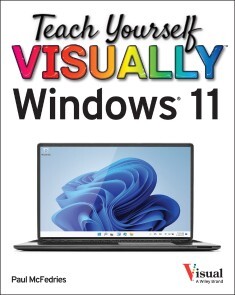
Teach Yourself VISUALLY Windows 11
EVERYTHING YOU NEED TO KNOW ABOUT WINDOWS 11 IN A SINGLE, VISUAL BOOKTeach Yourself VISUALLY Windows 11 collects all the resources you need to master the day-to-day use of Microsoft’s new operating system and delivers them in a single resource. Fully illustrated, step-by-step instructions are combined with crystal-clear screenshots to walk you through the basic and advanced functions of Windows 11.Teach Yourself VISUALLY Windows 11 offers the best visual learning techniques with comprehensive source material about the interface and substance of Windows 11, as well as:* Stepwise guidance on working with files, digital pictures, and media* Instructions for customizing Windows 11 and sharing your computer with family members* Tutorials on installing and repairing applications, system maintenance, and computer securityThe fastest, easiest way for visual learners to get a grip on Windows 11, Teach Yourself VISUALLY Windows 11 is the best way to go from newbie to expert in no time at all.CHAPTER 1 GETTING STARTED WITH WINDOWSExplore the PC Screen 4Explore the Start Menu 5Start and Close an App 6Connect to Your Wireless Network 8Put Windows to Sleep 10Restart or Shut Down Windows 11Switch to a Microsoft Account 12Install an App 16Switch Between Running Apps 18Arrange Running Apps 20Uninstall an App 22CHAPTER 2 CUSTOMIZING WINDOWSPin an App to the Start Menu 26Open the Settings App 28Change the Lock Screen Background 30Choose a Lock Screen Status App 32Customize Syncing Between Devices 34Access an App’s Features 36Pin an App to the Taskbar 38Change the Theme 40Adjust the Volume 42Set the Time Zone 43Configure Windows to Work with Multiple Monitors 44Customize the Taskbar 46Work with Widgets 48Set Up Multiple Desktops 50CHAPTER 3 SURFING THE WEBOpen a Web Page 54Open a Web Page in a Tab 56Navigate Web Pages 58Find Text on a Page 59Navigate with the History List 60Change Your Startup Page 62Save Favorite Web Pages 64Take Advantage of the Favorites Bar 66Share a Web Page 68Search for Sites 70Download a File 72CHAPTER 4 SENDING AND RECEIVING EMAILLaunch the Mail App 76Configure Mail Settings 77Configure an Email Account 78Send an Email Message 80Format the Message Text 82Add a File Attachment 84Save a Draft of a Message 86Receive and Read Email Messages 88Reply to a Message 90Forward a Message 92Open and Save an Attachment 94Delete a Message 96Create a Folder for Saving Messages 98CHAPTER 5 GETTING SOCIAL WITH WINDOWSCreate a Contact 102Add Your Google Account 104Add Your iCloud Account 106View a Contact 108Edit a Contact 110Assign a Photo to a Contact 112Add Extra Fields to a Contact 114Filter the Contacts List 116Combine Multiple Profiles for a Contact 118View Your Calendar 120Add an Event to Your Calendar 122Create a Recurring Event 124Add an Event Reminder 125Send or Respond to an Event Invitation 126Customize Your Calendar 128CHAPTER 6 PERFORMING DAY-TO-DAY TASKS WITH APPSSearch Your PC 132Write a Note 134Make a To‐Do List 136Configure Skype 138Call Someone Using Skype 140Display a Location on a Map 142Get Directions to a Location 144Check Your Weather Forecast 146Check Another City’s Weather Forecast 148Perform Calculations 150Record a Voice Memo 152Set an Alarm 154CHAPTER 7 WORKING WITH IMAGESImport Images from a Digital Camera 158Scan an Image 160Navigate the Pictures Folder 162View Your Images 164Start a Slide Show 166Set an Image as the Photos App Tile 167Repair an Image 168Add a Photo Effect 170Crop an Image 172Rotate an Image 174Delete an Image 175Print an Image 176Take a Picture with Your PC Camera 178CHAPTER 8 WORKING WITH MULTIMEDIAImport Videos from a Digital Camera 182Navigate the Videos Folder 184Watch a Video 186Edit a Video 188Make a Movie 192Play a Music CD 196Copy Tracks from a Music CD 200Navigate the Music Folder 202Play Music 204Create a Playlist 206Switch Between Audio Devices 208CHAPTER 9 EDITING DOCUMENTSCreate and Save a Document 212Open a Document 214Change the Text Font 216Find Text 218Replace Text 220Insert Special Symbols 222Make a Copy of a Document 224Create a OneNote Notebook 226Add Pages and Sections to a Notebook 228Add Text Notes 230Add an Image to a Notebook Page 232Work with Notebook Lists 234Print a Document 236CHAPTER 10 WORKING WITH FILESSelect a File 240Change the File View 242Preview a File 243Copy a File 244Move a File 245Rename a File 246Create a New File 247Delete a File 248Restore a Deleted File 249Add a File to Your OneDrive 250Extract Files from a Compressed Folder 252Specify a Different Program When Opening a File 254CHAPTER 11 SHARING YOUR COMPUTERDisplay User Accounts 258Create a User Account 260Switch Between Accounts 262Change Your User Account Picture 264Change a User’s Password 266Delete an Account 268Add a Child to Your PC 270Set Restrictions on a Child Account 272CHAPTER 12 GETTING MORE FROM A TABLET PCUnderstanding Gestures 276Using Gestures to Control Windows 278Display the Touch Keyboard 280Input Text with the Touch Keyboard 282Customize the Touch Keyboard Size and Theme 284Adjust Screen Brightness 286Monitor Battery Life 287CHAPTER 13 IMPLEMENTING SECURITYUnderstanding Windows Security 290Check for Security Problems 292Create a Picture Password 294Sign In with a PIN 298Set Up a Fingerprint Sign‐In 300Lock Your Computer 302Configure Your PC to Lock Automatically 304Browse the Web Privately 306Control Your Private Information 308Clear Your Activity History 310CHAPTER 14 MAKING WINDOWS MORE ACCESSIBLEIncrease the Text Size 314Magnify Screen Areas 316Have Screen Text Read to You 318Change to a High‐Contrast Theme 320Apply a Color Filter 322Flash the Screen During Audio Notifications 324Make the Keyboard More Accessible 326Control Windows via Voice 328Index 330

Diagnosis and Fault-tolerant Control 1
This book presents recent advances in fault diagnosis strategies for complex dynamic systems. Its impetus derives from the need for an overview of the challenges of the fault diagnosis technique, especially for those demanding systems that require reliability, availability, maintainability and safety to ensure efficient operations. Moreover, the need for a high degree of tolerance with respect to possible faults represents a further key point, primarily for complex systems, as modeling and control are inherently challenging, and maintenance is both expensive and safety-critical.Diagnosis and Fault-tolerant Control 1 also presents and compares different diagnosis schemes using established case studies that are widely used in related literature. The main features of this book regard the analysis, design and implementation of proper solutions for the problems of fault diagnosis in safety critical systems. The design of the considered solutions involves robust data-driven, model-based approaches. VICENC PUIG is Professor of Automatic Control at the Universitat Politècnica de Catalunya (UPC), Spain. He has published more than 80 journal articles and more than 350 articles in international conference/workshop proceedings related to diagnosis and faulttolerant control.SILVIO SIMANI is Professor of Automatic Control in the Engineering Department of Ferrara University, Italy. He has published about 260 journal and conference papers, several book chapters and four monographs on fault diagnosis and sustainable control topics.Introduction ixVicenç Puig and Silvio SimaniCHAPTER 1 MATHEMATICAL MODELING AND FAULT DESCRIPTION 1Silvio Simani1.1. Introduction 11.2. Model-based FDI techniques 21.3. Modeling of faulty systems 31.3.1. Fault modeling and description 51.3.2. Mathematical description 61.4. Residual generation 111.5. Residual generation techniques 141.5.1. Residual generation via parameter estimation 151.5.2. Observer-based approaches 181.5.3. Fault detection via parity equations 241.6. Change detection and symptom evaluation 281.7. Residual generation robustness problem 301.7.1. FDI H∞ approach 321.7.2. Active and passive disturbance decoupling 351.8. Fault diagnosis technique integration 361.8.1. Fuzzy logic for residual generation 371.8.2. Neural networks for fault diagnosis 381.8.3. Neuro-fuzzy approaches to FDI 401.8.4. Fault detectability and isolability 421.8.5. NF model structure identification 431.8.6. NF residual generation for FDI 441.9. Conclusion 461.10. References 47CHAPTER 2 STRUCTURAL ANALYSIS 57Mattias Krysander and Erik Frisk2.1. Introduction 572.2. Background 582.2.1. Structural models 582.2.2. Dulmage–Mendelsohn decomposition and matchings 602.2.3. Dulmage–Mendelsohn decomposition and simulation 632.3. Fault isolability analysis 642.3.1. Fault detectability analysis 642.3.2. Fault isolability analysis 652.3.3. Canonical isolability decomposition of the overdetermined part 672.4. Testable submodels 692.4.1. Basic definitions 692.4.2. MSO algorithm 712.4.3. Residual generation based on matching 722.5. Sensor placement 742.5.1. The basic sensor placement problem 742.5.2. A structural approach 752.6. Summary and discussion 802.7. References 81CHAPTER 3 SET-BASED FAULT DETECTION AND ISOLATION 83Ye Wang and Vicenç Puig3.1. Introduction 833.2. Notations, definitions and properties 843.3. Problem statement 863.3.1. Uncertain discrete-time linear systems 863.3.2. Set-based methods 863.3.3. FDI problem statement 883.4. Proposed techniques 893.4.1. Set-membership approach 893.4.2. Zonotopic observer 903.4.3. Relationship between set-based methods 913.5. Design methods 923.5.1. Robustness conditions 923.5.2. Fault sensitivity condition 963.6. Fault detection and isolation procedures 993.6.1. Fault detection 993.6.2. Fault isolation 1003.7. Application example: quadruple-tank system 1013.7.1. Results with robustness condition 1053.7.2. Results with robustness and fault sensitivity conditions 1053.8. Conclusion 1053.9. References 109CHAPTER 4 DIAGNOSIS OF STOCHASTIC SYSTEMS 111Gregory Provan4.1. Introduction 1114.2. Stochastic diagnosis task 1134.2.1. Notation 1134.2.2. Problem formulation 1134.2.3. Representing uncertainty 1154.3. Inference methods for diagnosis task 1164.3.1. Difference with other tasks 1164.4. Model-based approach 1174.4.1. Traditional FDD methods 1174.4.2. Bayesian inversion/filtering 1204.5. Data-driven approaches 1224.5.1. ML methods 1234.5.2. Statistical methods 1244.6. Hybrid approaches: surrogate methods 1254.6.1. Fitting surrogate models via sampling 1254.7. Comparative analysis of approaches 1264.8. Summary and conclusions 1274.9. References 128CHAPTER 5 DATA-DRIVEN METHODS FOR FAULT DIAGNOSIS 131Silvio Simani5.1. Introduction 1315.2. Models for linear system fault diagnosis 1335.3. Parameter estimation methods for fault diagnosis 1355.3.1. Data-driven method in ideal conditions 1355.3.2. Data-driven methods in real scenarios 1385.3.3. Algebraic Frisch scheme 1395.3.4. Dynamic Frisch scheme 1415.3.5. MIMO case Frisch scheme 1455.4. Nonlinear dynamic system identification 1465.4.1. Piecewise affine model 1475.4.2. Hybrid model structure 1485.4.3. Nonlinear system approximation 1495.4.4. Model continuity and domain partitioning 1515.4.5. Local affine model estimation 1545.4.6. Multiple-model estimation 1585.5. Fuzzy data-driven approach to fault diagnosis 1645.5.1. Fuzzy model identification 1655.5.2. Takagi–Sugeno prototypes 1675.5.3. Data-driven fuzzy modeling 1705.5.4. Clustering methods 1705.5.5. Fuzzy c-means clustering algorithms 1725.5.6. Gustafson–Kessel clustering algorithm 1745.5.7. Optimal number of clusters 1765.6. Fuzzy model identification 1765.6.1. Nonlinear model identification 1785.6.2. Product space clustering identification 1815.6.3. Fuzzy clustering model identification 1835.6.4. Antecedent membership function estimation 1835.6.5. Estimating consequent parameters 1855.7. Conclusion 1895.8. References 189CHAPTER 6 THE ARTIFICIAL INTELLIGENCE APPROACH TO MODEL-BASED DIAGNOSIS 197Belarmino Pulido, Carlos J. Alonso-González and Anibal Bregon6.1. Introduction 1976.2. Case studies 1996.3. Knowledge-based diagnosis systems 2016.3.1. Diagnosis task and system model 2036.3.2. Diagnosis of physical devices 2066.3.3. Limits of KBS for diagnosis of physical devices 2076.4. Model-based diagnosis 2086.4.1. Formalization of consistency-based diagnosis and its first implementation, GDE 2096.5. CBD for dynamic systems 2176.5.1. Different approaches for CBD of dynamic systems 2196.5.2. PCs for the three-tank system case study 2226.6. Conclusion 2246.7. References 226List of Authors 231Index 233Summary of Volume 2 237

The Tactile Internet
The Tactile Internet will change the landscape of communication by introducing a new paradigm that enables the remote delivery of haptic data.This book answers the many questions surrounding the Tactile Internet, including its reference architecture and adapted compression methods for conveying haptic information. It also describes the key enablers for deploying the applications of the Tactile Internet.As an antecedent technology, the IoT is tackled, explaining the differences and similarities between the Tactile Internet, the Internet of Things and the Internet of Everything. The essentials of teleoperation systems are summarized and the challenges that face this paradigm in its implementation and deployment are also discussed.Finally, a teleoperation case study demonstrating an application of the Tactile Internet is investigated to demonstrate its functionalities, architecture and performance. TARA ALI-YAHIYA is Associate Professor at Paris-Saclay University, France. She is deputy head of the Networking & Stochastic and Combinatorial Optimization Team at LISN Laboratory. She has an HDR, PhD and MSc in Telecommunications and was a post-doctoral researcher at Telecom SudParis.WRYA MONNET is a faculty member of the CSE department at the University of Kurdistan Hewler, Iraq. He has 23 years of experience in industry and academia and has done post-doctoral research at Telecom SudParis, France. He worked as an R&D and embedded software engineer for 10 years.Foreword xiIan F. AkyildizPreface xiiiTara Ali-Yahiya and Wrya MonnetList of Acronyms xvCHAPTER 1 INTRODUCTION TO TACTILE INTERNET 1Tara Ali-Yahiya1. 1. Human perception and Tactile Internet 21. 2. The roadmap towards Tactile Internet 31. 3. What is Tactile Internet? 51. 4. Cyber-Physical Systems and TI 71. 4. 1. Physical world 71. 4. 2. Internet of Things 71. 4. 3. Communication 71. 4. 4. Storage and computation 81. 4. 5. Feedback 81. 4. 6. Smart computing 101. 5. References 11CHAPTER 2 REFERENCE ARCHITECTURE OF THE TACTILE INTERNET 13Tara Ali-Yahiya2. 1. Tactile Internet system architecture 132. 2. IEEE 1918. 1 use cases 152. 2. 1. Teleoperation 162. 2. 2. Automotive 172. 2. 3. Immersive virtual reality (IVR) 172. 2. 4. Internet of drones 182. 2. 5. Inter personal communication 182. 2. 6. Live haptic-enabled broadcast 192. 2. 7. Cooperative automated driving 192. 3. Conclusion 202. 4. References 20CHAPTER 3 TACTILE INTERNET KEY ENABLERS 21Tara Ali-Yahiya3. 1. Introduction 213. 1. 1. The fifth-generation system architecture 213. 1. 2. Network slicing 233. 1. 3. Network function virtualization 253. 1. 4. Software-defined networking 263. 1. 5. Edge computing 273. 1. 6. Artificial intelligence 293. 2. Conclusion 313. 3. References 31CHAPTER 4 6G FOR TACTILE INTERNET 35Pinar Kirci and Tara Ali-Yahiya4. 1. Introduction 354. 2. Thearchitectureof6G 374. 2. 1. Networkperformanceof6G 384. 2. 2. Space network 394. 2. 3. Air network 404. 2. 4. Ground network 404. 2. 5. Underwater network 414. 3. 6G channel measurements and characteristics 414. 3. 1. Optical wireless channel 414. 3. 2. Unmanned aerial vehicle (UAV) channel 424. 3. 3. Underwater acoustic channel 434. 3. 4. Satellite channel 434. 3. 5. RFandterahertznetworksin6G 454. 3. 6. Visible light communication technology 484. 3. 7. Orbital angular momentum technology 484. 4. 6GcellularInternetofThings 494. 5. Energy self-sustainability (ESS) in 6G 504. 6. IoT-integrated ultra smart city life 524. 7. AI-enabled6Gnetworks 554. 8. AI- and ML-based security management in super IoT 594. 9. Securityfor6G 604. 10. The WEAFMnecosystem (water, earth, air, fire micro/nanoecosystem) with 6G and Tactile Internet 614. 11. References 63CHAPTER 5 IOT, IOE AND TACTILE INTERNET 65Wrya Monnet5. 1. From M2MtoIoT 665. 2. Classification of remote monitoring and control systems 665. 3. IoT-enabling technologies 675. 3. 1. IoT hardware 675. 3. 2. IoT software 675. 3. 3. IoT connectivity 675. 4. Architectural design and interfaces 685. 5. IoT communication protocols 715. 5. 1. Message Queuing Telemetry Transport (MQTT) 725. 5. 2. Constrained Application Protocol (CoAP) 745. 5. 3. Data Distribution Service for real-time systems (DDS) 765. 5. 4. Open Mobile Alliance Device Management (OMA-DM) 795. 6. Internet of Everything (IoE) 805. 6. 1. Enabling technologies for the IoE 815. 7. Protocol comparisons and the readiness for TI 825. 8. TI-IoT models and challenges 835. 9. Edge computing in the IoT 855. 9. 1. Edge computing paradigms 865. 10. Real-time IoT and analytics versus real time in TI 885. 11. From IoT towardsTI 885. 12. Conclusion 905. 13. References 91CHAPTER 6 TELEROBOTICS 95Wrya Monnet6. 1. Introduction 956. 2. Teleoperation evolution to telepresence 966. 3. Tele presence applications 976. 4. Teleoperation system components 996. 4. 1. Master domains 1026. 4. 2. Network domain (communication channel) 1026. 4. 3. Slave domain 1026. 5. Architecture of bilateral teleoperation control system 1036. 5. 1. Classification of the control systems architectures 1066. 5. 2. Discrete architecture with transmission delay 1076. 6. Performance and transparency of telepresence systems 1106. 6. 1. Passivity and stability 1106. 6. 2. Time delay issues 1126. 7. Other methods for time-delay mitigation 1166. 8. Teleoperation over the Internet 1176. 9. Multiple access to a teleoperation system 1196. 10. A use case 1216. 11. Conclusion 1226. 12. References 122CHAPTER 7 HAPTIC DATA: COMPRESSION AND TRANSMISSION PROTOCOLS 127Wrya Monnet7. 1. Introduction 1277. 2. Haptic perception 1287. 2. 1. Human haptic perception 1287. 2. 2. Telerobotic tactile and haptic perception 1287. 2. 3. Tactile sensing for material recognition 1297. 2. 4. Tactile sensing for object shape recognition 1307. 2. 5. Tactile sensing for pose estimation 1317. 3. Haptic interfaces 1337. 3. 1. Haptic interface for tele presence 1337. 3. 2. Haptic and tactile sensors and actuators 1357. 4. Haptic compression 1397. 5. Haptic transport protocols 1427. 5. 1. Application layer protocols 1437. 5. 2. Transport layer protocols 1467. 6. Multi-transport protocols 1497. 7. Haptic transport protocol performance metrics 1497. 8. Conclusion 1507. 9. References 150CHAPTER 8 MAPPING WIRELESS NETWORKED ROBOTICS INTO TACTILE INTERNET 155Nicola Roberto Zema and Tara Ali-Yahiya8. 1. Wireless networked robots 1558. 2. WNR traffic requisites 1588. 2. 1. Types of traffic in WNRs 1588. 3. Traffic shaping and TI haptic codecs 1608. 3. 1. Introduction 1618. 3. 2. Mapping WNR control traffic to TI 1618. 4. WNRs in the Tactile Internet architecture 1648. 4. 1. WNRs in the TI architecture and interfaces 1658. 5. Conclusion 1698. 6. References 170CHAPTER 9 HOIP OVER 5G FOR TACTILE INTERNET TELEOPERATION APPLICATION 173Tara Ali-Yahiya, Wryamonnet and Bakhtiar M. Amin9. 1. Relatedworks 1749. 2. 5G architecture design for Tactile Internet 1799. 2. 1. Tactile edge A 1809. 2. 2. Network domain 1829. 2. 3. Protocol stack of 5G integration with IEEE 1918. 1 1829. 3. HapticsoverIP 1839. 4. Teleoperationcasestudy 1859. 4. 1. Master to slave (uplink) data rate in edge A 1879. 4. 2. Slave to master (downlink) data rate in edge B 1879. 4. 3. Encapsulating the haptic data in HoIP 1889. 4. 4. 5G network data and control handling 1889. 4. 5. Case study operational states 1909. 4. 6. Case study protocol stack 1919. 5. Simulationresults 1929. 5. 1. Simulation topology 1939. 5. 2. NS3networkarchitecture 1949. 5. 3. Simulation scenario 1969. 5. 4. Simulation results 1989. 6. Conclusion 2039. 7. References 203CHAPTER 10 ISSUES AND CHALLENGES FACING LOW LATENCY IN THE TACTILE INTERNET 209Tara Ali-Yahiya10. 1. Introduction 20910. 1. 1. Technical requirements for the TI 21110. 2. Low latency in the Tactile Internet 21210. 2. 1. Resource allocation 21210. 2. 2. Mobile edge computing 21310. 2. 3. Network coding 21410. 2. 4. Haptic communication protocols 21410. 3. Intelligence and the Tactile Internet 21610. 4. Edge intelligent 21610. 5. Openissues 21910. 6. Conclusion 22010. 7. References 221List of Authors 227Index 229

Das iPad-Buch für Senioren (3. Auflg.)
Wegweiser durch den Fachbegriff-Dschungel* Klare, verständliche Sprache* Fachbegriffe werden erläutert* Ausführliche Beispiele zu typischen AnwendungenTablet-Computer sind wegen ihrer einfachen Handhabung und vielfältigen Einsatzmöglichkeiten beliebt. Z.B. Videotelefonate mit den Enkeln haben in den Corona-Monaten für viele einen besonderen Stellenwert erlangt. Apples iPads stehen im Ruf, verlässlich zu sein, nicht so schnell zu veralten und durch ihr Design zu überzeugen. Der Umgang ist allerdings für viele nicht selbst erklärend. Gerade erste Versuche können so schnell zu einer Enttäuschung werden.Phillip Kiefer hat auch die dritte Auflage seiner bewährten Anleitung zu Apples Tablet überarbeitet und aktualisiert. Das Buch bahnt für Sie einen Weg durch den Fachbegriff-Dschungel und erläutert die Bedienung und die Funktionen der Apple-Tablets. Die Standard-Programme der iPads erklärt der Autor Ihnen mit anschaulichen Beispielen: So lernen Sie beispielsweise "Fotos" kennen, das Programm zum Betrachten, Bearbeiten, Ordnen und Versenden Ihrer Bilder. Sie erfahren, wie Sie Dokumente und Daten in der iCloud, Apples Datenspeicher im Internet, ablegen. Auch erklärt das Buch, wie Sie Ihre Passwörter einfach, aber geschützt handhaben, und vieles mehr.Erläuterungen und Bilder sind auf das neue iPadOS 15 aktualisiert.Philip Kiefer, geboren in Friedrichshafen am Bodensee, studierte Literaturwissenschaften und Philosophie in Tübingen und Oxford. Nebenher jobbte er in verschiedenen Verlagen sowie in einem Altenpflegeheim. Ende 2001 machte er sich als Autor selbstständig und hat bis heute über 150 Bücher in namhaften Verlagen veröffentlicht, darunter zahlreiche Computerbücher speziell für Senioren.

Das Internet gehört uns allen!
Protokolle, Datenschutz, Zensur und Internet Governance anschaulich illustriert. Erstauflage, November 2021.Das Internet hat die zwischenmenschliche Kommunikation tiefgreifend verändert, aber die meisten von uns verstehen nicht wirklich, wie es funktioniert. Wie können Informationen durch das Internet reisen? Können wir online wirklich anonym und privat sein? Wer kontrolliert das Internet, und warum ist das wichtig? Und... was hat es mit den ganzen Katzen auf sich?»Das Internet gehört uns allen!« beantwortet diese Fragen und mehr. In klarer Sprache und mit skurrilen Illustrationen übersetzt das Autorenteam hochtechnische Themen in verständliche Sprache, die das komplizierteste Computernetzwerk der Welt entmystifiziert.Mit der Comic-Katze Catnip erfahren Sie mehr über:das »Wie-Was-Warum« von Knoten, Paketen und Internet-Protokollen;kryptografische Techniken, die die Geheimhaltung und Integrität Ihrer Daten zu gewährleisten;Zensur und Möglichkeiten der Überwachung und wie Sie diese umgehen könnenKybernetik, Algorithmen und darüber wie Computer Entscheidungen treffenDie Zentralisierung der Macht im Internet, ihre Auswirkungen auf die Demokratie und wie sie die Menschenrechte beeinträchtigtInternet-Governance und Möglichkeiten, sich zu engagierenDieses Buch ist auch ein Aufruf zum Handeln, indem es einen Fahrplan aufstellt, wie Sie Ihr neu erworbenes Wissen nutzen können, um die Entwicklung digitaler, inklusiver und die Rechte achtender Internet-Gesetze und -Politik zu beeinflussen.Egal, ob Sie sich um die Sicherheit im Internet sorgen, ein Anwalt sind, der sich mit Fragen der weltweiten Meinungsfreiheit befasst, oder einfach jemand mit einer katzenhaften Neugier auf die Netzwerkinfrastruktur, Sie werden begeistert sein – und aufgeklärt – von Catnips unterhaltsamen Leitfaden zum Verständnis, wie das Internet wirklich funktioniert!Leseproben (PDF-Links):VorwortInhaltsverzeichnisKapitel 1Kapitel 3Kapitel 7Kapitel 10Zu den Herausgebenden:ARTICLE 19 ist eine internationale Non-Profit-Organisation, die das Recht auf freie Meinungsäußerung, einschließlich des Zugangs zu Informationen, fördern, entwickeln und schützen will. Mit Hauptsitz in London und Büros in Bangladesch, Brasilien, Kenia, Mexiko, Senegal, Tunesien, Myanmar und den USA arbeitet ARTICLE 19 daran, die Wissenslücke über die Internet-Infrastruktur und deren Bedeutung für die Menschen zu schließen.

Samsung Galaxy M32
Die verständliche Anleitung für Ihr Smartphone:- Alle Funktionen & Einstellungen auf einen Blick- Schritt für Schritt erklärt – mit praktischen TippsMit diesem smarten Praxisbuch gelingt Ihnen der schnelle und sichere Einstieg in Ihr Smartphone. Lernen Sie das Samsung Galaxy M32 kennen und beherrschen! Anschauliche Anleitungen, Beispiele und Bilder zeigen Ihnen gut nachvollziehbar, wie Sie Ihr mobiles Gerät optimal handhaben – von der Ersteinrichtung und Personalisierung über die große Funktionsvielfalt bis zu den wichtigsten Anwendungen. Nutzen Sie darüber hinaus die übersichtlichen Spicker-Darstellungen: Damit können Sie jene Bedienungsschritte, die man am häufigsten braucht, aber immer wieder vergisst, auf einen Blick finden und umsetzen. Freuen Sie sich auf viele hilfreiche Tipps und legen Sie ganz einfach los!Aus dem Inhalt:- Alle Bedienelemente des Galaxy M32 auf einen Blick- Ersteinrichtung und Tipps zum Umzug- Google-Konto erstellen und verwalten- Die Benutzeroberfläche Ihres Smartphones personalisieren- Apps aus dem Play Store herunterladen- Kontakte anlegen und im Adressbuch verwalten- Anrufe tätigen und SMS austauschen - Nachrichten über Mail und WhatsApp versenden und empfangen- Uhr, Kalender, Maps und andere praktische Apps nutzen - Fotos sowie Videos aufnehmen, verwalten und teilen- Ins Internet gehen über WLAN und mobile Daten - Updates, Datenschutz und Sicherheit

Samsung Galaxy A32 / A32 5G
Die verständliche Anleitung für Ihr Smartphone:- Alle Funktionen & Einstellungen auf einen Blick- Schritt für Schritt erklärt – mit praktischen TippsMit diesem smarten Praxisbuch gelingt Ihnen der schnelle und sichere Einstieg in Ihr Smartphone. Lernen Sie Ihr Handymodell von Grund auf kennen und beherrschen! Anschauliche Anleitungen, Beispiele und Bilder zeigen Ihnen gut nachvollziehbar, wie Sie Ihr mobiles Gerät optimal handhaben – von der Ersteinrichtung und Personalisierung über die große Funktionsvielfalt bis zu den wichtigsten Anwendungen. Nutzen Sie darüber hinaus die übersichtlichen Spicker-Darstellungen: Damit können Sie jene Bedienungsschritte, die man am häufigsten braucht, aber immer wieder vergisst, auf einen Blick finden und umsetzen. Freuen Sie sich auf viele hilfreiche Tipps und legen Sie ganz einfach los!Aus dem Inhalt:- Alle Bedienelemente des Smartphones auf einen Blick- Ersteinrichtung und Tipps zum Umzug- Google-Konto erstellen und verwalten- Die Benutzeroberfläche Ihres Smartphones personalisieren- Apps aus dem Play Store herunterladen- Kontakte anlegen und im Adressbuch verwalten- Anrufe tätigen und SMS austauschen - Nachrichten über Mail und WhatsApp versenden und empfangen- Uhr, Kalender, Maps und andere praktische Apps nutzen - Fotos sowie Videos aufnehmen, verwalten und teilen- Ins Internet gehen über WLAN und mobile Daten - Updates, Datenschutz und Sicherheit

macOS Monterey For Dummies
UNLOCK THE POTENTIAL OF MACOS MONTEREY WITH THIS UPDATED GUIDE FROM "DR. MAC" HIMSELFMacs are famously an absolute pleasure to use. But it's even more fun discovering all the cool things a new version of macOS can do. macOS Monterey, introduced in 2021, makes the latest macOS features available to Mac users everywhere. macOS Monterey For Dummies is your personal roadmap to finding every single awesome new bell and whistle in this world-famous operating system.You'll read about upgrades to the accessibility options, how to use Live Text to grab text from all of your photos, manage your iPhone from your Mac and vice versa, and use the new Universal Control to seamlessly transition between Apple devices.You can also:* Learn how to watch TV or a movie with friends while you're on a FaceTime call* Explore the new "Shared With You" feature so you can access the content people send to you directly in the relevant app* Explore the online world with the Safari browser included with every installation of MacOS MontereyPerfect for anyone who wants to take full advantage of the latest version of Apple's intuitive and user-friendly operating system, macOS Monterey For Dummies is the fastest, easiest way to master the newest features and the coolest capabilities included with macOS Monterey. With hundreds of pages of simple instructions and images of the macOS interface, this is the last handbook you'll need to make the most of the newest macOS.BOB LEVITUS, better known as Dr. Mac, has been writing on all things Mac since 1996. He’s a regular contributor to technology publications and has penned over 90 how-to books on macOS, iPhone, iPad, Office for the Mac, and GarageBand.INTRODUCTION 1About This Book 1Foolish Assumptions 3Icons Used in This Book 3Beyond the Book 4Where to Go from Here 4PART 1: MACOS BASICS 5CHAPTER 1: MACOS MONTEREY 101 (PREREQUISITES: NONE) 7Gnawing to the Core of macOS 8A Safety Net for the Absolute Beginner (or Any User) 10Turning the dang thing on 10What you should see on startup 11Shutting down properly 14A few things you should definitely not do with your Mac 15Point-and-click 101 16Not Just a Beatles Movie: Help and the Help Menu 18CHAPTER 2: DESKTOP AND WINDOWS AND MENUS (OH MY!) 23Touring Finder and Its Desktop 24Anatomy of a Window 25Top o’ the window to ya! 27A scroll new world 29(Hyper)active windows 30Dialog Dealie-Boppers 32Working with Windows 34Opening and closing windows 34Resizing windows and window panes 35Moving windows 35Shuffling windows 36Menu Basics 38The ever-changing menu bar 39Contextual (shortcut) menus: They’re sooo contextual! 39Recognizing disabled options 41Navigating submenus 42Under the Apple menu tree 43Using keyboard shortcut commands 44CHAPTER 3: WHAT’S UP, DOCK? 45A Quick Introduction to Your Dock 46The default icons of the dock 47Trash talkin’ 49Opening application menus on the dock 51Reading dock icon body language 53Opening files from the dock 54Customizing Your Dock 54Adding dock icons 54Removing an icon from the dock 57Resizing the dock 58What should you put on your dock? 58Setting your dock preferences 60CHAPTER 4: GETTING TO KNOW FINDER AND ITS DESKTOP 65Introducing Finder and Its Minions: The Desktop and Icons 66Introducing the desktop 66Bellying up to the toolbar 68Figuring out what an icon is 71Identifying your Finder icons in the wild 72Aliases Are Awesome! 73Creating aliases 75Deleting aliases 76Hunting down an alias’s parent 76The View(s) from a Window 76Moving through folders fast in Column view 77Perusing in Icon view 79Listless? Try viewing folders as a list 79Hangin’ in the Gallery (view) 81What’s next on the (View) menu? 82Finder on the Menu 84The actual Finder menu 84Like a road map: The current folder’s pop-up menu 87Going places with the Go menu 88Customizing Finder Windows 90Adding folders to the sidebar 90Setting Finder preferences 90Digging for Icon Data in the Info Window 93CHAPTER 5: DELVING EVEN DEEPER INTO MONTEREY’S DESKTOP AND FINDER 97Cleaning Up Your Desktop Automatically with Stacks 97Managing your Stacks 100Quick Actions: Now Playing All Over Monterey 101Getting the most out of Markup 101Trimming video without launching an app 104Do It Quicker with Finder Quick Actions 105Creating PDFs without launching an app 105Creating custom Finder Quick Actions 106Four More Cool Monterey Tricks 107Shooting screens 107Dynamic desktop images 109PART 2: HOW STUFF WORKS 111CHAPTER 6: HAVING IT YOUR WAY 113Introducing System Preferences 113The Desktop & Screen Saver System Preferences Pane 115The Desktop tab 116The Screen Saver tab 117The General System Preferences Pane 118Adjusting the Keyboard, Mouse, Trackpad, and Other Hardware 121The Keyboard System Preferences pane 122The Mouse System Preferences pane 126The Bluetooth System Preferences pane 127The Trackpad System Preferences pane 127The Sound System Preferences Pane 129Changing sound effects 129Choosing output and input options 130CHAPTER 7: OPENING AND SAVING FILES 131A Quick Primer on Finding Files 132Understanding the macOS Folder Structure 132Understanding nested folders 134From the top: The Computer folder 135Peeking into the Applications folder 136Visiting the Library folders 136Let it be: The System folder 137There’s no place like Home 137Your personal library card 139Saving Your Document Before It’s Too Late 141Stepping through a basic save 142Save As versus Duplicate: Different names for the same result 148Open, Sez Me 150With drag-and-drop 152With a Quick Look 152When your Mac can’t open a file 153With the application of your choice 154CHAPTER 8: FILE AND FOLDER MANAGEMENT MADE EASY 157Organizing Your Stuff in Folders 157Files versus folders 158Organizing your stuff with subfolders 158Creating new folders 160Navigating with spring-loaded folders 161Smart folders 162Shuffling Files and Folders 164Moving files and folders 165Selecting multiple icons 166Playing the icon name game: Renaming icons 167Renaming multiple icons at once 168Compressing files 168Getting rid of icons 168The Incredible iCloud+ (and iCloud Drive) 169CHAPTER 9: COMPREHENDING THE MACOS CLIPBOARD 171Introducing the Clipboard 171Copying Files and Folders 173Pasting from the Clipboard 175Monterey’s Universal Clipboard 175PART 3: GETTING THINGS DONE 177CHAPTER 10: FIVE TERRIFIC TIME-SAVING TOOLS 179With a Quick Look 180Share and share alike with the Share menu 181Slide into Slideshow (full-screen) mode 182Spotlight on Finding Files and Folders Faster 183Using the Find command 184Using the Spotlight menu and its keyboard shortcut 186Blast Off with Mission Control 187The Mission Control pane: It’s painless 187Hot corners are hot stuff! 189Mission Control’s Spaces from 30,000 feet (an overview) 190Getting around in space(s) 192Taking Control of Essential Settings 193Launchpad: The Place for Applications 194CHAPTER 11: ORGANIZING YOUR LIFE 197Keeping Track with Calendar 198Navigating Calendar views 198Creating calendars 199Deleting a calendar 200Creating and managing events 201Reminders: Protection Against Forgetting 203Getting started with Reminders 204To do or not to do: Setting reminders 205Sharing lists and assigning reminders 206Everything You Need to Know about Notification Center 207Tweaking Notification settings 207Widget management 101 209Using Notification Center 210Getting focused 210Use Notes for Making Notes 211Take a Quick Note with Quick Note 215Tracking Productivity with Screen Time 215CHAPTER 12: ARE YOU SIRI-OUS? 217What Siri Can Do for You 217Working with Siri 219Making Siri Your Own 220CHAPTER 13: MAPS ARE WHERE IT’S AT 223Finding Your Current Location with Maps 223Finding a Person, Place, or Thing 224Views, Zooms, and Pans 225Maps and Contacts 227Time-saving Map Tools: Favorites, Guides, and Recents 228Favorites 228Guides 229Recents 230Smart Map Tricks 230Get route maps and driving directions 230Get walking directions 231Get directions for public transportation 232Get traffic info in real time 232Flyovers and look arounds 232Do more on the Info sheet 233CHAPTER 14: APPS BORN IN IOS 235Taking Stock of the Market with Stocks 236Adding and deleting stocks, funds, and indexes 237Details, details, details 237Charting a course 238Read All about It in News 239What are your interests? 239How News works 240Managing your news 240Recording Memos with Voice Memos 241Recording a voice memo 241Listening to a voice memo 242Naming a voice memo 243Trimming a voice memo 243Automating Repetitive Tasks with Shortcuts 244Controlling Lights, Locks, and More with Home 245PART 4: GETTING ALONG WITH OTHERS 247CHAPTER 15: (INTER)NETWORKING 249Getting Connected to the Internet 250Your internet service provider and you 251Plugging in your internet-connection settings 251Browsing the Web with Safari 253Owning your toolbar 254Using the Safari sidebar 255Checking out Help Center 260CHAPTER 16: DEALING WITH PEOPLE 261Collecting Your Contacts 261Adding contacts 262Importing contacts from other programs 263Creating a basic group 264Setting up a smart group (based on contact criteria) 266Deleting a group or smart group 266Sync + Contacts = your contacts everywhere 267Audio and Video Calls with FaceTime 268About SharePlay 269CHAPTER 17: COMMUNICATING WITH MAIL AND MESSAGES 271Sending and Receiving Email with Mail 271Setting Up Mail 272A quick overview of the toolbar 272Composing a new message 274Sending email from the Contacts app 276Checking your mail 278Dealing with spam 279Mailboxes smart and plain 280Changing your preferences 282Sign here, please 283Mail rules rule 284Take a (Quick) look and (Slide) show me some photos 286Markup and Mail Drop 286Communicating with Messages 288What the heck is an iMessage? 289Chit-chatting with Messages 289CHAPTER 18: SHARING YOUR MAC AND LIKING IT 293Introducing Networks and File Sharing 294Portrait of home office networking 295Three ways to build a network 297Setting Up File Sharing 299Access and Permissions: Who Can Do What 300Users and groups and guests 300Creating users 302macOS knows best: Folders shared by default 306Sharing a folder or disk by setting permissions 307Useful settings for permissions 311Unsharing a folder 314Connecting to a Shared Disk or Folder on a Remote Mac 314Changing Your Password 318Changing your account password on your Mac 319Changing the password of any account but your own on your Mac 319More Types of Sharing 320Sharing a screen 320Sharing the internet 321And yet more ways to share 322PART 5: GETTING CREATIVE 323CHAPTER 19: THE MUSICAL MAC 325Apple Music and iTunes Match Rock! 326Introducing Music (the App Formerly Known as iTunes) 327Working with Media 330Adding songs 330Listening to Radio 332All about Playlists 334Creating a regular playlist 334Working with smart playlists 336Working with the Genius playlist 337Burning a playlist to CD 338CHAPTER 20: THE MULTIMEDIA MAC 341Playing Movies and Music in QuickTime Player 342Watching TV 343Using the Books App 344Buying an e-book or audiobook 345Shopping for e-books without Apple 347Finding and Listening to Podcasts with the Podcasts App 348You’re the Star with Photo Booth 349Viewing and Converting Images and PDFs in Preview 351CHAPTER 21: WORDS AND LETTERS 353Processing Words with TextEdit 354Creating and composing a document 354Working with text 355Adding graphics to documents 358Font Mania 359Types of fonts 360Managing your fonts with Font Book 360CHAPTER 22: PUBLISH OR PERISH: THE FAIL-SAFE GUIDE TO PRINTING 363Before Diving In 364Ready: Connecting and Adding Your Printer 364Connecting your printer 365Setting up a printer for the first time 365One last thing: Printer sharing 368Set: Setting Up Your Document with Page Setup 368Print: Printing with the Print Sheet 370Printing a document 370Choosing among different printers 371Choosing custom settings 371Saving custom settings 374Preview and PDF Options 374PART 6: CARE AND FEEDING 377CHAPTER 23: FEATURES FOR THE WAY YOU WORK 379Finally, a Dark Mode 380App Shopping, Improved 381Using Your iPhone as Your Mac’s Camera or Scanner 383Talking and Listening to Your Mac 386Keyboard System Preferences pane: You talk and your Mac types 386Commanding your Mac by voice 388Listening to your Mac read your screen 389Automatic Automation 392Script Editor app: Write and edit AppleScripts 392Automator app: Automate almost anything 394A Few More Useful Goodies 396Accessibility System Preferences pane: Make your Mac more accessible 396Battery and Energy Saver System Preferences panes: For energy conservation and sleep 398Bluetooth System Preferences pane: Where Bluetooth lives 399Ink System Preferences pane: Visible to pen-input tablet users only 400Automatic Login in the Users & Groups System Preferences pane: Don’t bother with the login screen 400Allow your Apple Watch to unlock your Mac 401Boot Camp Assistant app: Run Windows on your Mac really 401AirPlay and AirPlay to Mac 402Handoff 403Universal Control 404CHAPTER 24: SAFETY FIRST: BACKUPS AND OTHER SECURITY ISSUES 405Backing Up is (Not) Hard to Do 406Backing up with Monterey’s excellent Time Machine 406Backing up by using the manual, brute-force method 409Backing up by using commercial backup software 410Why You Need Two Sets of Backups 411Non-Backup Security Concerns 412About viruses and other malware 412Install recommended software updates 414Protecting Your Data from Prying Eyes 415Blocking or limiting connections 416Locking down files with FileVault 416Setting other options for security 417CHAPTER 25: UTILITY CHEST 419In the Applications and Utilities Folders 419Calculator 419Activity Monitor 421Disk Utility 422Keychain Access 427Passwords System Preferences pane 429Migration Assistant 429System Information 430Terminal 430Screenshot 431The best keyboard shortcut to memorize 432Monterey screen-shooting options 433Monterey screen recording 434CHAPTER 26: TROUBLESHOOTING MACOS 435About Startup Disks and Booting 435Finding or creating a startup disk 436They call it a prohibitory sign for a reason 436Recovering with Recovery HD 438Step 1: Run First Aid 438Step 2: Safe boot into Safe mode 439Step 3: Zapping the PRAM/NVRAM 440Step 4: Reinstalling macOS 441Step 5: Things to try before taking your Mac in for repair 441If Your Mac Crashes at Startup 442Managing Storage 442PART 7: THE PART OF TENS 445CHAPTER 27: TEN WAYS TO SPEED UP YOUR MAC EXPERIENCE 447Use Those Keyboard Shortcuts 447Improve Your Typing Skills 448Try a Different Keyboard 449Change Your Resolution 450Purchase a Faster Mac 450Add RAM 451Add a Second Display 451Use Your iPad as a Second Display 452Upgrade to a Solid-State Drive (SSD) 452Get More Storage 453CHAPTER 28: TEN GREAT WEBSITES FOR MAC FREAKS 455The Mac Observer 456Macworld 456TidBITS 456iMore 457AppleWorld.Today 457The Wirecutter 457Apple Support 458Other World Computing 458Apple’s Refurbished and Clearance Store 459Six Colors 459Index 461

Statistical Analysis with Swift
Work with large data sets, create statistical models, and make predictions with statistical methods using the Swift programming language. The variety of problems that can be solved using statistical methods range in fields from financial management to machine learning to quality control and much more. Those who possess knowledge of statistical analysis become highly sought after candidates for companies worldwide.Starting with an introduction to statistics and probability theory, you will learn core concepts to analyze your data's distribution. You'll get an introduction to random variables, how to work with them, and how to leverage their properties in computations. On top of the mathematics, you’ll learn several essential features of the Swift language that significantly reduce friction when working with large data sets. These functionalities will prove especially useful when working with multivariate data, which applies to most information in today's complex world.Once you know how to describe a data set, you will learn how to create models to make predictions about future events. All provided data is generated from real-world contexts so that you can develop an intuition for how to apply statistical methods with Swift to projects you’re working on now.You will:• Work with real-world data using the Swift programming language• Compute essential properties of data distributions to understand your customers, products, and processes• Make predictions about future events and compute how robust those predictions are JIMMY M ANDERSSON is a software engineer in the automotive industry, specializing in acquiring and visualizing real-time data collected from cars. He is also a graduate student at Chalmers University of Technology, currently working towards a master's degree in data science and artificial intelligence. Outside of work and studies, Jimmy writes software development articles focusing on the Swift programming language. He also develops the StatKit library - a collection of statistical analysis tools for Swift developers. StatKit is open-source and available for anyone who wants to incorporate statistical methods into their programs.CHAPTER 1: SWIFT PRIMER• Introduction to Swift and its pros when working with large data sets• Provided data sets and how to load them using the Decodable protocol• Higher-Order Functions (map, filter, reduce, apply)CHAPTER 2: INTRODUCTION TO PROBABILITY AND RANDOM VARIABLES• What is a random variable?• Sample spaces• Laws and axioms of probability• Variable Independence• Conditional probabilityCHAPTER 3: DISTRIBUTIONS AND RANDOM NUMBERS• Mass and density functions• Discrete distributions• Discrete uniform distribution• Bernoulli trials• Binomial distribution• Poisson distribution• Continuous distributions• Continuous uniform distribution• Exponential distribution• Normal distribution• Implement a random number generator that samples from a given distributionCHAPTER 4: PREDICTING HOUSE SALE PRICES WITH LINEAR REGRESSION• Central tendency measures• Variance measures• Association measures• Stratification of data• Linear regressionCHAPTER 5: HYPOTHESIS TESTING• T Testing• Null and Alternative Hypotheses• P-value• Determining sample sizesCHAPTER 6: DATA COMPRESSION USING STATISTICAL METHODS• Measurement scales• Calculate the distribution of example data• Compute a Huffman Tree• Encode the original data in a smaller package• Decode the compressed dataCHAPTER 7: MOVIE RECOMMENDATIONS USING CLUSTERING• Data transformation• Similarity measurements• Simple movie recommendation systemCHAPTER 8: BRINGING IT ALL TOGETHER• Applying to new, real-world projects• Building your data intuition

Synology NAS
Sie wollen alles aus Ihrem Synology NAS herausholen? Ihre Daten zentral speichern, eigene Back-ups erstellen und Ihre Fotos, Filme und Dokumente überall sicher zur Verfügung stellen? Dann ist dieses Buch von Dennis Rühmer Ihr perfekter Ratgeber. Der Autor zeigt Ihnen, wie Sie Ihr NAS richtig konfigurieren und Ihre private Cloud aufsetzen. Damit können Sie Ihre Daten halten und verwalten, Ihre Medien bequem streamen, Live-TV aufnehmen, automatische Sicherungen Ihrer Rechner im Haushalt machen, Kalender und Kontakte verwalten u. v. m. Schnell lernen Sie die Software DiskStation Manager (DSM 7.0) im Detail kennen. Von einem reibungslosen Einstieg und einer nützlichen Kaufberatung über zentrale Grundlagen (z. B.: Was ist ein Raid-Level?) bis zu den vielfältigen Diensten erfahren Sie alles, was Sie über Ihr NAS wissen müssen. Aus dem Inhalt: Das richtige Gerät für Ihre Bedürfnisse wählenGeeignete Festplatten findenDaten einfach besser schützenDas Gerät erstmalig einrichten und in Betrieb nehmenDas System kennenlernenNetzwerkfreigaben im Heimnetz einrichten und verwaltenKalender und Adressbuch pflegenSicher von auswärts auf eigene Dateien zugreifenMusik abspielen mit der Audio StationFotos organisieren und teilen mit MomentsVideos genießen und verwalten mit der Video StationEin zentrales Back-up erstellenDer zentrale Drucker mit dem DruckerserverMeine eigene WebseiteVPN-Verbindungen einrichtenSmart Home: Kameraüberwachung mit der Surveillance StationDer zentrale TV-Server mit TvheadendSchritt für Schritt zu mehr Sicherheit im Heimnetz 1. Das richtige Gerät für Ihre Bedürfnisse wählen ... 11 Die J-Serie -- perfekt für Einsteiger ... 11 Die Value-Serie -- perfekt für Aufsteiger ... 13 Die Plus-Serie -- perfekt für Profis ... 15 Die Unterschiede der Modelle innerhalb einer Serie ... 16 Modellübersicht: Geräte für zwei Festplatten ... 18 Modellübersicht: Geräte für vier Festplatten ... 24 2. So finden Sie die richtige Festplatte ... 27 Gründe für den Einsatz mehrerer Festplatten ... 27 Normale Desktop-Festplatten eignen sich nicht für NAS-Geräte ... 31 Die Bedeutung der Bauform und der Rotationsgeschwindigkeit ... 35 Geeignete Modelle für zu Hause und das Büro ... 38 Die Wahl der richtigen Speicherkapazität ... 40 3. Ihre Daten im RAID-Verbund besser schützen ... 43 Festplatten im RAID-Verbund -- Datenschutz durch Redundanz ... 43 Jeder für sich, nur Strom für uns alle -- die Basic-Einstellung ... 46 Lasst uns zusammenlegen -- der Modus JBOD ... 46 Gemeinsam sind wir schnell -- der Modus RAID 0 ... 47 Doppelt hält besser -- der Modus RAID 1 ... 48 Klug gerechnet, viel gespart -- der Modus RAID 5 ... 48 Doppelt klug gerechnet -- der Modus RAID 6 ... 49 Nicht kleckern, sondern klotzen -- der Modus RAID 10 ... 50 Automatisch wird alles gut -- der SHR-Modus ... 50 4. Das Gerät erstmalig einrichten und in Betrieb nehmen ... 53 Einen geeigneten Aufstellungsort wählen ... 53 Der Einbau der Festplatten ... 54 Die DiskStation zum ersten Mal einschalten ... 57 Die Installation des Betriebssystems ... 57 Die Grundeinrichtung des Systems ... 60 Die ersten Schritte im neuen System ... 73 Benutzerkonten anlegen ... 76 Die Benachrichtigungsfunktion einrichten ... 81 5. Erstbegehung: Lernen Sie das System kennen ... 85 Die Hauptelemente auf dem Desktop ... 85 Die Systemsteuerung -- das Kontrollzentrum der DiskStation ... 91 Ihre Quelle für neue Softwarefunktionen -- das Paket-Zentrum ... 92 Die File Station -- der Datei-Explorer der DiskStation ... 94 Hat für (fast) alles eine Antwort parat -- die DSM Hilfe ... 95 6. Netzwerkfreigaben im Heimnetz verwalten ... 97 Nur für Sie selbst -- die Freigabe des home-Ordners ... 97 Für mehrere Personen -- gemeinsame Ordner ... 110 Die Arbeit mit der File Station ... 115 7. Der eigene Kalender und das eigene Adressbuch ... 121 Der eigene Kalender und seine Nutzung ... 121 Das eigene Adressbuch ... 133 8. Wie Sie mithilfe der Wolke Ihre Daten überall synchronisieren ... 143 Die Installation des Synology Drive Servers auf der DiskStation ... 145 Der Synology Drive Server im Detail ... 147 Das Webinterface von Synology Drive nutzen ... 152 Installation und Nutzung der Client-Anwendungen auf Notebook und Desktop-PC ... 156 Synology Drive auf Smartphone und Tablet ... 162 Die Arbeit mit Team-Ordnern ... 167 Synology Office nutzen ... 168 9. Musik abspielen mit der Audio Station ... 171 Der Medienserver verteilt Musik an andere Geräte ... 171 Die Audio Station spielt die gemeinsame Musik ... 177 Per App auf die Musiksammlung zugreifen ... 184 Auch die File Station hat musikalische Qualitäten ... 185 10. Fotos organisieren mit Synology Photos ... 187 Synology Photos installieren und einrichten ... 187 Fotos zu Synology Photos hochladen ... 189 Fotos mit Synology Photos organisieren ... 190 Fotos mit Synology Photos betrachten ... 195 Fotos für andere Personen freigeben ... 198 11. Videos verwalten mit der Video Station ... 201 Die Installation und Grundeinrichtung der Video Station auf Ihrer DiskStation ... 201 Die Videosammlung richtig sortieren ... 208 Die Videosammlung der Video Station hinzufügen ... 210 Videos wiedergeben ... 215 12. Alles an (s)einem Platz -- zentrale Backups erstellen ... 219 Daten anderer Rechner mit Synology Drive sichern ... 219 Die Daten der DiskStation auf einer externen Festplatte sichern ... 232 13. Ab ins Netz -- die DiskStation über das Internet erreichen ... 247 IP-Adressen und Domainnamen -- die Hausnummern im Internet ... 248 Ihre DiskStation bekommt ihre eigene Domain ... 249 Fit für die verschlüsselte Datenübertragung ... 254 Ihre DiskStation wird über das Internet erreichbar ... 257 Die DiskStation bekommt ihr eigenes Zertifikat ... 261 Alle Dienste über das Internet erreichbar machen ... 264 14. Ein zentrales Download-Gerät mit der Download Station ... 265 Die Download Station installieren und einrichten ... 266 Download-Aufgaben hinzufügen und ausführen ... 271 15. Unterwegs sicher auf Ihr NAS zugreifen: Die VPN-Verbindung ... 275 Grundlegendes zum Thema VPN ... 275 Installation und Konfiguration des VPN Servers ... 279 VPN-Verbindungen über PPTP ... 281 VPN-Verbindungen über L2TP/IPSec ... 282 VPN-Verbindungen über OpenVPN ... 290 Wie man die VPN-Verbindung nutzt ... 298 16. Kameraüberwachung mit der Surveillance Station ... 299 Die Installation der Surveillance Station ... 300 Die Surveillance Station einrichten ... 303 Die Zeitachse verwenden ... 313 Die Bewegungserkennung einstellen ... 314 Bestens informiert mit Benachrichtigungen ... 316 Zugriff von unterwegs über die App DS cam ... 318 Die Überwachung automatisch schalten -- der Home Mode ... 322 17. Website-Projekte auf der DiskStation betreiben ... 325 Eine eigene Website mit der Web Station veröffentlichen ... 325 Ein eigenes Wiki mit MediaWiki aufsetzen ... 336 Einen eigenen Blog mit WordPress führen ... 351 18. Schritt für Schritt zu mehr Sicherheit im Heimnetz ... 363 Grundlegende Sicherheitseinstellungen ... 363 Rat vom Sicherheitsberater einholen ... 369 Einen Virenscanner installieren ... 372 Den Netzwerkverkehr zur DiskStation automatisch verschlüsseln ... 375 Die Netzwerkports des DSM-Systems ändern ... 376 Verschlüsselung gemeinsamer Ordner ... 377 Zwei-Faktor-Authentifizierung für das Administratorkonto ... 381 19. Weitere Einstellungen und Komfortfunktionen ... 387 Die Programme der DiskStation aktuell halten ... 387 Der Chat-Service der DiskStation ... 388 Die Notizverwaltung ... 397 Persönliche Einstellungen und Komfortmerkmale ... 400 Anwendungen über Schnellzugriffe aufrufen ... 403 Aktualisieren von DSM und Sichern der Systemkonfiguration ... 405 Das Info-Center ... 409 Energie sparen mit der DiskStation ... 411 Nicht mehr benötigte Anwendungen deinstallieren ... 413 Die DiskStation mit einer festen IP-Adresse betreiben ... 416 Stichwortverzeichnis ... 417

Modularizing Legacy Projects Using TDD
Improve current or new projects with top notch testability and maintainability. Writing tests improves the design of your apps, as it pushes you to have a more modularized design. This in turn improves the maintainability and sustainability of your apps. This book is for iOS developers who already know the basics of iOS and Swift development but want to learn all the testing pro features in iOS.You'll start by reviewing the TDD Cycle and how to implement these concepts on a legacy project or a new one. You'll then walk through TDD step-by-step on a blank project, including setting up test targets, assertions, and expectations. You'll follow that with all levels of testing such as unit tests, integration tests, and end-to-end tests, and also tackle fairly complex, yet badly written legacy code.The book will take you through the journey of modularizing a legacy app using TDD. Throughout this journey, you will be introduced to multiple testing concepts and techniques, like writing tests for network and core data layers. You will write tests to ensure the thread safety of your app. And you’ll add a new feature while you are in the middle of refactoring, which is an important skill so you can keep adding features while you are fixing your technical debt. By the end of this book, you will have all the tools needed to become a testing master.WHAT YOU'LL LEARN* Use mocking and dependency injection to make components more testable* Write tests for asynchronous code like network code* Add new features to existing legacy apps using TDDWHO THIS BOOK IS FORExperienced iOS developers who care about software quality and meeting customer expectations. Khaled El-MorabeaKhaled is an engineering manager at Instabug. He has been an iOS developer for more than 8 years and leading the iOS team for more than 3 years. In that time he has worked on several projects. During his time at Instabug, he has worked on multiple integral products, both as a developer and as a strategic engineering manager.Hassaan El-Garem Hassaan has been involved in the field of iOS Development for 5 years, during which he worked on multiple apps and projects. He has a passion for testing and for working on complex projects, while maintaining the highest level of quality. Following his passion for testing has led him to create a closed-source testing framework used for randomized stress testing.Chapter 1: IntroductionWhy write tests?Levels of testingOverview of TDDChapter 2: Your First TestBasics of testing in iOSXCTestCode ExamplesChapter 3: The Testing PyramidTesting Level ValuesDistributing tests along levelsChapter 4: TDD Deep DiveCore conceptsComplex examplesImplement projects from scratch with TDDChapter 5: Modularization for the WinIntroducing a legacy projectTransform with maintainabilityBreak up larger componentsApply TDD for modularizationChapter 5: Dependency Injection and MocksWrite tests for a componentDownsides of these techniquesDeciding when to applyChapter 6: Avoiding Threading NightmaresThreading issuesSimulate situationsDetermine which components need to have multithreading testsChapter 7: Testing Your Network LayerTesting network code cDifferences between sync and async codeTest network codeChapter 8: Taming CoreDataCore DataTesting Core Data layerChapter 9: Adding Features to Legacy AppsTesting concepts and techniquesAdd a feature to an existing applicationTDD and modularizationModify a tested and modularized projectChapter 10: Handling Production IssuesImprove the application qualityMake sure that similar problems don't happen againTools used to identify and keep track of bugs and crashes.Add tests for every production issue discoveredChapter 11: Performance TestingWrite performance testsMetricKitValue of performance testingWrite performance tests for iOS applications
Windows 11 For Dummies
NEED WINDOWS HELP? FIND THE LATEST TIPS AND TRICKS IN THIS PERENNIAL FAVORITE ON WINDOWSWindows 11 promises to be the fastest, most secure, and most flexible version of the Microsoft operating system yet. With a promise like that, of course you want to start using it, as quickly as possible! Windows 11 For Dummies gives you that speed, security, and flexibility by getting you up to date with the latest in Windows. Windows expert and bestselling author Andy Rathbone gives you a helping hand by showing you how to get around the newly updated Windows 11 interface, how to use the new Windows tools like Teams and widgets, and how to use Android apps. Your tour of Windows 11 starts with the Start menu and ends with how to troubleshoot when things go wrong. In between you find out how to find files on your hard drive, connect with friends and colleagues on Microsoft Teams, transfer photos from your phone to your hard drive, or switch between your desktop and laptop. Additional topics include:* Navigating the Start menu* Finding where your files are hiding* Adding separate user accounts to keep your kids out of your business* Connecting to a WiFi network* Customizing your widgets* Switching to a laptop or tabletYou know what you want to get done. Keep Windows 11 For Dummies by your desktop, laptop, and tablet, and you can open it at any time to find out how to get your Windows computer to do what you need. ANDY RATHBONE probably didn’t think “someday I’m going to be the world’s all-time best-selling tech how-to book author” when he was finishing his comparative literature degree. A stint writing for computer magazines led to him writing Windows For Dummies, published in October 1992. Since then the book has seen 18 editions published and sold millions of copies. When not helping people find the Start button, Andy enjoys bird watching and playing ukulele.Introduction 1About This Book 2How to Use This Book 3Touchscreen Owners Aren’t Left Out 4And What about You? 5Icons Used in This Book 5Beyond the Book 6Where to Go from Here 6PART 1: WINDOWS 11 STUFF EVERYBODY THINKS YOU ALREADY KNOW7CHAPTER 1: WHAT IS WINDOWS 11? 9What Is Windows, and Why Are You Using It? 10What’s New in Windows 11? 12What’s Missing from Windows 11? 14Why Does Windows 11 Keep Changing? 16Can My Current PC Run Windows 11? 16The Different Flavors of Windows 11 18CHAPTER 2: STARTING WITH THE START MENU19Being Welcomed to the World of Windows 20Understanding user accounts 22Keeping your account private and secure 23Signing up for a Microsoft account 25Figuring Out the Windows 11 Start Menu 27Launching a Start menu program or app 29Finding something on the Start menu 29Viewing, closing, or returning to open apps 31Getting to know your free apps 32Adding or removing Start menu items 35Customizing the Start menu 36Exiting from Windows 39Temporarily leaving your computer 39Leaving your computer for the day 41CHAPTER 3: THE TRADITIONAL DESKTOP 43Finding the Desktop and the Start Menu 44Working with the Desktop 45Launching apps with the Start menu 47Jazzing up the desktop’s background 48Dumpster diving in the Recycle Bin 50Bellying Up to the Taskbar 52Shrinking windows to the taskbar and retrieving them 54Switching to different tasks from the taskbar’s Jump Lists 54Clicking the taskbar’s sensitive areas 55Seeing the Action Center and Notifications 58Viewing notifications 58Seeing Quick Settings icons 60Watching Widgets 60Customizing the taskbar 62Setting Up Virtual Desktops 63Making Programs Easier to Find 66CHAPTER 4: BASIC DESKTOP WINDOW MECHANICS 69Dissecting a Typical Desktop Window 70Tugging on a window’s title bar 71Navigating folders with a window’s Address bar 73Figuring out your folder’s new Menu bars 74Quick shortcuts with the Navigation pane 76Moving inside a window with its scroll bar 78Boring borders 80Maneuvering Windows Around the Desktop 81Moving a window to the top of the pile 81Moving a window from here to there 82Making a window fill the whole desktop 82Closing a window 83Making a window bigger or smaller 83Neatly placing windows side by side 83Making windows open to the same darn size 85CHAPTER 5: STORING AND ORGANIZING FILES 87Browsing the File Explorer File Cabinets 89Getting the Lowdown on Folders 92Peering into Your Drives, Folders, and Other Media 93Seeing the files on a drive 93Seeing what’s inside a folder 95Creating a New Folder 98Renaming a File or Folder 100Selecting Bunches of Files or Folders 100Getting Rid of a File or Folder 101Copying or Moving Files and Folders 103Seeing More Information about Files and Folders 105Writing to CDs and DVDs 107Buying the right kind of blank CDs and DVDs for burning 108Copying files to or from a CD or DVD 109Working with Flash Drives and Memory Cards 112OneDrive: Your Cubbyhole in the Clouds 113Setting up OneDrive 114Changing your OneDrive settings 116Opening and saving files from OneDrive 118Understanding which files live on OneDrive, your PC, or both places 120Accessing OneDrive from the internet 122PART 2: WORKING WITH PROGRAMS, APPS, AND FILES125CHAPTER 6: PLAYING WITH PROGRAMS, APPS, AND DOCUMENTS127Starting an App or Program 128Opening a Document 130Saving a Document 133Choosing Which Program Should Open Which File 134Navigating the Microsoft Store 138Adding new apps from the Microsoft Store app 138Uninstalling apps 141Taking the Lazy Way with a Desktop Shortcut 142Absolutely Essential Guide to Cutting, Copying, and Pasting 144The quick ’n’ dirty guide to cut ’n’ paste 144Selecting things to cut or copy 145Cutting or copying your selected goods 147Pasting information to another place 148CHAPTER 7: FINDING THE LOST151Finding Currently Running Apps and Programs 151Finding Lost Windows on the Desktop 153Locating a Missing App, Program, Setting, or File 154Finding a Missing File inside a Folder 158Finding Lost Photos 160Finding Other Computers on a Network 161CHAPTER 8: PRINTING AND SCANNING YOUR WORK163Printing from a Start Menu App 164Printing Your Masterpiece from the Desktop 166Adjusting how your work fits on the page 167Adjusting your printer’s settings 169Canceling a print job 171Printing a web page 172Troubleshooting your printer 174Scanning from the Start Menu 176PART 3: GETTING THINGS DONE ON THE INTERNET179CHAPTER 9: CRUISING THE WEB181What’s an ISP, and Why Do I Need One? 182Connecting Wirelessly to the Internet 183Browsing the Web with Microsoft Edge 186Moving from one web page to another 188Making Microsoft Edge open to your favorite site 190Revisiting favorite places 191Finding things on the internet 193Finding More Information on a Website 194Saving Information from the Internet 195Saving a web page 195Saving text 196Saving a picture 196Downloading a program, song, or other type of file 197CHAPTER 10: BEING SOCIAL: MAIL, CALENDAR, AND TEAMS CHAT199Adding Your Accounts to Windows 200Understanding the Mail App 202Switching among the Mail app’s views, menus, and accounts 202Composing and sending email 205Reading a received email 208Sending and receiving files through email 209Managing Your Contacts in the People App 212Adding contacts 214Deleting or editing contacts 215Managing Appointments in Calendar 216Meeting Online with Teams Chat 219Starting Teams Chat 219Sending text messages 221Holding video chats 222CHAPTER 11: SAFE COMPUTING227Understanding Those Annoying Permission Messages 227Staying Safe with Windows Security 228Avoiding and removing viruses 230Avoiding phishing scams 232Setting up controls for children 234PART 4: CUSTOMIZING AND UPGRADING WINDOWS 11237CHAPTER 12: CUSTOMIZING SETTINGS IN WINDOWS239Finding the Right Switch 240Flipping Switches with the Windows Settings App 241Adjusting the System settings 242Connecting and adjusting Bluetooth and other devices 249Connecting to nearby Wi-Fi networks and internet 255Personalizing your PC’s look and feel 256Fixing and removing apps 260Creating and changing accounts for others 263Changing date, time, and language settings quickly 263Setting up for video games 264Adapting Windows for your special physical needs 264Managing your privacy and security 266Staying current and safe with Windows Update 267CHAPTER 13: KEEPING WINDOWS FROM BREAKING269Backing Up Your Computer with File History 271Finding Technical Information about Your Computer 275Freeing Up Space on Your Hard Drive 276Setting Up Devices That Don’t Work (Fiddling with Drivers) 278CHAPTER 14: SHARING ONE COMPUTER WITH SEVERAL PEOPLE 281Understanding User Accounts 282Changing or Adding User Accounts 284Adding an account for a family member or friend 284Changing existing accounts 288Switching Quickly between Users 290Changing a User Account’s Picture 292Setting Up Passwords and Security 294Signing in with Windows Hello 296CHAPTER 15: CONNECTING COMPUTERS WITH A NETWORK299Understanding a Network’s Parts 300Setting Up a Small Network 302Buying parts for a network 302Setting up a wireless router 303Setting up Windows computers to connect to a network 304Sharing Files with Your Networked Computers 306Setting your home network to private 306Sharing files and folders on your private network 310Accessing what others have shared 312Sharing a printer on the network 313Sharing with Nearby Sharing 314Turning on Nearby Sharing 315Sharing files with Nearby Sharing 316PART 5: MUSIC, PHOTOS, AND VIDEOS319CHAPTER 16: PLAYING AND COPYING MUSIC321Playing Music with the Groove Music App 322Handing Music-Playing Chores Back to Windows Media Player 325Stocking the Windows Media Player Library 328Browsing the Windows Media Player Libraries 331Playing Music Files in a Playlist 334Controlling Your Now Playing Items 335Playing CDs 337Playing DVDs 338Playing Videos and TV Shows 338Creating, Saving, and Editing Playlists 339Ripping (Copying) CDs to Your PC 341Burning (Creating) Music CDs 342CHAPTER 17: FIDDLING WITH PHOTOS, VIDEOS, AND PHONES 345Dumping Photos from a Phone or Camera to Your Computer 346Making Photos and Videos with the Camera App 349Grabbing Photos from Your Android Phone through the Your Phone App 351Viewing Photos with the Photos App 354Viewing your photo collection 355Viewing photo albums 358Viewing a slideshow 360PART 6: HELP!361CHAPTER 18: THE CASE OF THE BROKEN WINDOW363The Magic Fixes in Windows 364Resetting your computer 364Restoring backups with File History 368Windows Keeps Asking Me for Permission 372I Need to Retrieve Deleted Files 374I Need to Fix Broken Apps 374My Settings Are Messed Up 375I Forgot My Password 377My Computer Is Frozen Solid 378CHAPTER 19: STRANGE MESSAGES: WHAT YOU DID DOES NOT COMPUTE381Add Your Microsoft Account 382Calendar Notifications 382Choose What Happens with This Device 383Deleted Files Are Removed Everywhere 384Did You Mean to Switch Apps? 385Do You Want to Allow This App to Make Changes to Your Device? 385Do You Want to Pin This App to the Taskbar? 386Do You Want to Save Changes? 386Enter Network Credentials 387How Do You Want to Open This File? 388Keep These Display Settings? 389Let’s Finish Setting Up 389No Usable Drive Found 390Save to OneDrive 391Select to Choose What Happens with Removable Drives 391Threats Found 392USB Device Not Recognized 393Verify Your Identity on This PC 394We’re Not Allowed to Find You 394You Don’t Currently Have Permission to Access This Folder 395Your Privacy Settings Blocked Access to Your Location 395CHAPTER 20: MOVING FROM AN OLD PC TO A NEW WINDOWS 11 PC397Moving to Windows 11 the Microsoft Way 397Hiring a Third Party to Make the Move 399Buying Laplink’s PCmover program 399Visiting a repair shop 401Transferring Files Yourself 401CHAPTER 21: HELP ON THE WINDOWS HELP SYSTEM407Getting Started with Windows 11 408Contacting Support 409Microsoft’s support options 410Microsoft’s free support options 410PART 7: THE PART OF TENS413CHAPTER 22: TEN THINGS YOU’LL HATE ABOUT WINDOWS 11 (AND HOW TO FIX THEM)415Knowing Whether Your PC Can Upgrade to Windows 11 416There’s No Backup Program! 416I Want the Start Button and Menu in the Lower-Left Corner! 417Windows 11 Keeps Changing! 418I Don’t Want a Microsoft Account 418Windows Makes Me Sign in All the Time 419I Can’t Line Up Two Windows on the Screen 420It Won’t Let Me Do Something Unless I’m an Administrator! 421I Don’t Know What Version of Windows I Have 421My Print Screen Key Doesn’t Work 422CHAPTER 23: TEN OR SO TIPS FOR TABLET AND LAPTOP OWNERS425Using the New Touchscreen Gestures 426Switching to Airplane Mode 427Connecting to a New Wireless Internet Network 428Toggling Your Tablet’s Screen Rotation 429Adjusting to Different Locations 430Turning on the Traffic Widget 431Backing Up Your Laptop Before Traveling 432Accessing the Mobility Center 432Turning Calculator into a Road Warrior Tool 433Index 435

Samsung Galaxy A03s
Die verständliche Anleitung für Ihr Smartphone:- Alle Funktionen & Einstellungen auf einen Blick- Schritt für Schritt erklärt – mit praktischen TippsMit diesem smarten Praxisbuch gelingt Ihnen der schnelle und sichere Einstieg in Ihr Smartphone. Lernen Sie das Samsung Galaxy A03s kennen und beherrschen! Anschauliche Anleitungen, Beispiele und Bilder zeigen Ihnen gut nachvollziehbar, wie Sie Ihr mobiles Gerät optimal handhaben – von der Ersteinrichtung und Personalisierung über die große Funktionsvielfalt bis zu den wichtigsten Anwendungen. Nutzen Sie darüber hinaus die übersichtlichen Spicker-Darstellungen: Damit können Sie jene Bedienungsschritte, die man am häufigsten braucht, aber immer wieder vergisst, auf einen Blick finden und umsetzen. Freuen Sie sich auf viele hilfreiche Tipps und legen Sie ganz einfach los!Aus dem Inhalt:- Alle Bedienelemente des Galaxy A03s auf einen Blick- Ersteinrichtung und Tipps zum Umzug- Google-Konto erstellen und verwalten- Die Benutzeroberfläche Ihres Smartphones personalisieren- Apps aus dem Play Store herunterladen- Kontakte anlegen und im Adressbuch verwalten- Anrufe tätigen und SMS austauschen - Nachrichten über Mail und WhatsApp versenden und empfangen- Uhr, Kalender, Maps und andere praktische Apps nutzen - Fotos sowie Videos aufnehmen, verwalten und teilen- Ins Internet gehen über WLAN und mobile Daten - Updates, Datenschutz und Sicherheit

POCO M3 Pro 5G
Die verständliche Anleitung für Ihr Smartphone:- Alle Funktionen & Einstellungen auf einen Blick- Schritt für Schritt erklärt – mit praktischen TippsMit diesem smarten Praxisbuch gelingt Ihnen der schnelle Einstieg in Ihr Smartphone. Lernen Sie das POCO M3 Pro 5G von Grund auf kennen und beherrschen! Anschauliche Anleitungen, Beispiele und Bilder zeigen Ihnen gut nachvollziehbar, wie Sie Ihr mobiles Gerät optimal handhaben – von der Ersteinrichtung und Personalisierung über die große Funktionsvielfalt bis zu den wichtigsten Anwendungen.Nutzen Sie darüber hinaus die übersichtlichen Spicker-Darstellungen: Damit können Sie jene Bedienungsschritte, die man am häufigsten braucht, aber immer wieder vergisst, auf einen Blick finden und umsetzen. Freuen Sie sich auf viele hilfreiche Tipps und legen Sie ganz einfach los!Aus dem Inhalt- Alle Bedienelemente des POCO M3 Pro 5G auf einen Blick- Ersteinrichtung und Tipps zum Umzug- Google-Konto erstellen und verwalten- Die Benutzeroberfläche Ihres Smartphones personalisieren- Apps aus dem Play Store herunterladen- Kontakte anlegen und im Adressbuch verwalten- Anrufe tätigen und SMS austauschen- Nachrichten über Mail und WhatsApp versenden und empfangen- Uhr, Kalender, Maps und andere praktische Apps nutzen- Fotos sowie Videos aufnehmen, verwalten und teilen- Ins Internet gehen über WLAN und mobile Daten- Updates, Datenschutz und Sicherheit

Samsung Galaxy A22 / A22 5G
Mit diesem smarten Praxisbuch gelingt Ihnen der schnelle und sichere Einstieg in Ihr Smartphone. Lernen Sie das Samsung Galaxy A22 bzw. A22 5G kennen und beherrschen!Anschauliche Anleitungen, Beispiele und Bilder zeigen Ihnen gut nachvollziehbar, wie Sie Ihr mobiles Gerät optimal handhaben – von der Ersteinrichtung und Personalisierung über die große Funktionsvielfalt bis zu den wichtigsten Anwendungen.Nutzen Sie darüber hinaus die übersichtlichen Spicker-Darstellungen: Damit können Sie jene Bedienungsschritte, die man am häufigsten braucht, aber immer wieder vergisst, auf einen Blick finden und umsetzen. Freuen Sie sich auf viele hilfreiche Tipps und legen Sie ganz einfach los!Aus dem Inhalt:- Alle Bedienelemente des Galaxy A22 / A22 5G auf einen Blick- Ersteinrichtung und Tipps zum Umzug- Google-Konto erstellen und verwalten- Die Benutzeroberfläche Ihres Smartphones personalisieren- Apps aus dem Play Store herunterladen- Kontakte anlegen und im Adressbuch verwalten- Anrufe tätigen und SMS austauschen- Nachrichten über Mail und WhatsApp versenden und empfangen- Uhr, Kalender, Maps und andere praktische Apps nutzen- Fotos sowie Videos aufnehmen, verwalten und teilen- Ins Internet gehen über WLAN und mobile Daten- Updates, Datenschutz und Sicherheit

macOS Daemonology
Take advantage of the full power of Swift through XPC. Development for macOS differs from iOS and web-based development because of multicomponent applications. Besides the usual GUI-based applications and app extensions, there are a wide range of daemons—processes that run in the background—to worry about. These include system monitoring, event listening, notification agents, and many-many more.First, you'll take a tour around different types of daemons: user agents, privileged helpers, login items, XPC services, and System Extensions. Knowing key specifics of the daemons will open a wide range of possibilities from non-trivial application development to system development. You'll find lots of examples, working code samples, and even ready-to-use utilities. The book will guide you step-by-step through preparation, registration, and management of all kinds of daemons.System Extensions are brand new for macOS and open additional powerful features for developers. You'll explore installation, user flow, and communication with System Extensions, too, with examples, of course. XPC provides an object-oriented way of communication. There’s no need for custom byte/text-based protocols. A good macOS developer has to know not only programming interfaces, but also design patterns related to technology. XPC communication has a few patterns of its own, and we'll go through them all, including uni- and bi-directional communication, passing objects by-value and by-proxy, handling connection invalidation, named and anonymous connections, and many more.WHAT YOU'LL LEARN* Use multiples types of daemons in your applications* Deal with System Extensions – the new type of system daemons* Get acquainted with Swift bridging patterns for XPC communicationWHO THIS BOOK IS FORSoftware developers and solution architects with at least a working knowledge of macOS and Swift programming. As overview, may be interested for software/solution architects.VOLODYMYR VASHURKIN (@ALKENSO) is an experienced macOS system and security developer and engineer. His first steps in daemonology were made while researching FileVault full disk encryption on macOS, and its interaction with iCloud services. iCloud on macOS uses plenty of system daemons and user agents, and investigating macOS’s infrastructure led to a solid understanding of how the background world of macOS works. This led him deeply into the development of security solutions for macOS. Working in the security area, Volodymyr gained practical skills for creating GUI-based applications with fewer user agents (user background processes) and root daemons (root'ed background processes). In developing his knowledge and skills, Volodymyr faced numerous tricky cases, lack of documentation, and minor and major documentation gaffes. He would like to help his readers avoid the same pitfalls. PART 1. DAEMONS: OVERVIEW & MANAGEMENTCHAPTER 1. DAEMONS AT A GLANCETHE OPERATING SYSTEM BACKGROUND WORLDDIFFERENT TYPES OF DAEMONSCHAPTER 2. LAUNCHD AND LAUNCHD JOBSLAUNCHD FUNCTIONAL RELATED TO DAEMONSDAEMONS' CONFIGURATION (.PLIST FILES).CHAPTER 3. LAUNCHCTLSETUP AND MANAGE DAEMONSLAUNCHCTL TOOL IN DETAILSWIFT API FOR DAEMONS MANAGEMENTPART 2. DAEMONS IN DETAILCHAPTER 4. CHOOSE THE RIGHT DAEMON FOR YOUCOMPARING DAEMON TYPESPICKING A DAEMON TYPE BASED ON NEEDSCHAPTER 5. CLASSIC DAEMONSWHAT IS A CLASSIC DAEMON?ROOT BACKGROUND PROCESSESCHAPTER 6. USER AGENTSSPECIFICS OF USER AGENTSUSER BACKGROUND PROCESSESCHAPTER 7. XPC SERVICESTHE SIMPLEST DAEMONWORKING WITH XPC SERVICESCHAPTER 8. PRIVILEGED HELPERSSPECIAL DAEMONSTHE OFFICIAL AND MODERN WAY OF PRIVILEGE ESCALATION IN MACOSCHAPTER 9. LOGIN ITEMSUSER AGENT LOGINITEMAPIS RELATED TO LOGINITEMCHAPTER 10. SYSTEM EXTENSIONS (SINCE MACOS 10.15)BRAND NEW DAEMON TYPESSYSTEM EXTENSIONENDPOINTSECURITY.FRAMEWORKREQUIRED ENTITLEMENTSSPECIFIC INSTALLATIONMANAGEMENTPART 3. TALKING TO DAEMONSCHAPTER 11. XPC COMMUNICATIONEXAMPLES OF XPC COMMUNICATION BETWEEN PROCESSESCORNER CASESPASSING OBJECTS BY-PROXYUSING NSPROGRESS WITHIN XPCOTHER DETAILSCHAPTER 12. XPC SECURITYNOTES AND RECOMMENDATIONSSECURING XPC COMMUNICATION BETWEEN PROCESSESCODE SIGNINGCHAPTER 13. XPC AND SWIFTADOPTING XPC COMMUNICATION TO SWIFTPASSING STRUCTURES OVER XPCWORKING WITH CALLBACKS INSTEAD OF DELEGATESPART 4. SPECIFICS AND NUANCESCHAPTER 14. USERAGENTS AND SANDBOXS (APPSTORE COMPATIBLE)USE USERAGENTS AS PART OF SANDBOXED APPLICATIONSAPPSTORE COMPATIBILITY

Alle Welt nutzt WhatsApp, den Messenger zum kostenlosen Versand von Nachrichten, Fotos und Videos. Aber nicht nur das: Damit können Sie sich innerhalb der Familie und in Freunde-Gruppen austauschen und sogar per Bild telefonieren. Doch wie richtet man sich ein Profil in der App ein, wie behält man den Überblick über seine Chats, wie lassen sich unerwünschte Kontakte blockieren, und was geschieht beim Wechsel zu einem neuen Smartphone? Dieses Buch leitet Sie leicht verständlich durch alle Möglichkeiten. So sind Sie von Anfang an sicher und mit Spaß dabei! Aus dem Inhalt: WhatsApp installieren und wichtige Einstellungen vornehmenKontakte einladen und in WhatsApp hinzufügenTextnachrichten mit Emojis und Stickern versendenSprachnachrichten diktieren und verschickenFotos in WhatsApp bearbeitenFotos, Videos und GIFs austauschenMusikdateien und Dokumente sendenKontakt- und Standortinformationen austauschenEine Gruppe erstellen und Mitglieder hinzufügenNachrichten innerhalb von Gruppen sendenPer Broadcast mit mehreren Kontakten kommunizierenChats stummschaltenKontakte über WhatsApp anrufenVideotelefonate führenEin Profil einrichtenDatenschutzeinstellungen anpassenBenachrichtigungen individuell einstellenChats nach Text und Medien durchsuchenNachrichten, Fotos und Videos archivieren oder löschenWhats App auch am PC verwendenBestimmte Kontakte blockieren Mit WhatsApp auf ein neues Smartphone umziehenDen WhatsApp-Account sicher löschen Kapitel 1. Erste Schritte mit WhatsApp ... 7 Wichtige Fakten vor dem Start ... 7 WhatsApp installieren ... 9 Der erste Start von WhatsApp ... 11 Ein Blick auf die Oberfläche ... 15 Kapitel 2. Textnachrichten senden und empfangen ... 19 Kontakte hinzufügen und auswählen ... 19 Der erste Chat: Text eingeben und senden ... 23 Tipps zur Nutzung der Bildschirmtastatur ... 25 Emojis und Sticker versenden ... 28 Nachrichten empfangen ... 32 Interessante Informationen rund um Chats ... 36 Kapitel 3. Fotos, Videos, Audio- und andere Dateien senden ... 39 Bereits vorhandene Fotos und Videos versenden ... 40 Kameraaufnahmen verschicken ... 43 Bildmaterial vor dem Versand bearbeiten ... 46 Sprachnachrichten aufzeichnen und verschicken ... 51 Empfangene Multimediadateien öffnen und ansehen ... 53 Kontaktdaten weiterleiten ... 58 Standortinformationen austauschen ... 61 Kapitel 4. Gruppenchats und Broadcast nutzen ... 65 Eine Gruppe erstellen und Mitglieder hinzufügen ... 65 Wer darf was? Wichtige Einstellungen für die Gruppe vornehmen ... 68 Nachrichten innerhalb der Gruppe austauschen ... 74 Mitglieder hinzufügen oder ausschließen ... 77 Und tschüss: Gruppe verlassen und löschen ... 81 Per Broadcast mit mehreren kommunizieren ... 83 Kapitel 5. Mit WhatsApp telefonieren ... 87 Kontakte über WhatsApp anrufen ... 88 Ein Telefonat mit mehreren Kontakten führen ... 92 Kapitel 6. WhatsApp individuell einrichten ... 95 Profilbild und Info hinzufügen ... 95 Statusinformationen ergänzen ... 99 Ein fröhlicher Hintergrund für Ihre Chats ... 105 Datenschutzeinstellungen anpassen ... 108 Benachrichtigungen individuell einstellen ... 112 Datenvolumen im Blick behalten ... 118 Kapitel 7. Übersicht im Chatchaos bewahren ... 121 Chats nach Text oder Medien durchsuchen ... 121 Wichtige Chats sofort im Blick ... 125 Optionen zur Sicherung von Chats ... 128 Nicht benötigte Chats archivieren oder löschen ... 132 Selbstlöschende Nachrichten aktivieren ... 136 Kapitel 8. Was tun, wenn ... ... 139 ... eine Nachricht versehentlich verschickt wurde? ... 139 ... sich die Sicherheitsnummer eines Kontakts geändert hat? ... 140 ... Sie einen Kontakt blockieren möchten? ... 143 ... Sie kuriose Nachrichten über WhatsApp erhalten? ... 145 ... Sie ein neues Smartphone nutzen? ... 146 ... Sie eine neue Mobilfunknummer erhalten? ... 149 ... Sie WhatsApp Web am Computer nutzen möchten? ... 150 ... Sie Ihren WhatsApp-Account löschen möchten? ... 156 Stichwortverzeichnis ... 159