

Knowhow

Microsoft OneNote
* WIE SIE MIT DEM DIGITALEN NOTIZBUCH KOMFORTABEL UND EFFEKTIV ARBEITEN* WERTVOLLE TIPPS ZUM FLEXIBLEN EINSATZ: IDEEN NOTIEREN, INFORMATIONEN STRUKTURIEREN, MITSCHRIFTEN ERSTELLEN* FÜR ALLE ONENOTE-ANWENDUNGEN: SOWOHL AUF DEM COMPUTER ALS AUCH MOBIL MIT DER ONENOTE-APPOneNote ist als Teil des Microsoft-Office-Pakets auf vielen PCs schon vorinstalliert und auch als kostenlose Online-Version sowie als mobile App verfügbar.Winfried Seimert zeigt Ihnen in diesem praxisnahen Buch, wie Sie mit dem vielseitigen digitalen Notizbuch komfortabel Ordnung und Struktur in Ihr digitales Leben bringen: Sie lernen, Informationen jeglicher Art zu sammeln und zu Ihren persönlichen Notizbüchern zusammenzufassen. Sie erfassen Informationen in Form von Texten oder Tabellen, speichern Links von interessanten Webseiten, integrieren Fotos, Audioaufzeichnungen und Videos - und Dateien können Sie ebenfalls hinzufügen. Außerdem lassen sich Ihre Notizen auch handschriftlich festhalten. Viele praktische Tipps helfen Ihnen dabei, die Möglichkeiten von OneNote flexibel für sich zu nutzen, Ihr gesammeltes Wissen zu strukturieren, gezielt wieder abzurufen und mit anderen zu teilen.Sie lernen außerdem, wie Sie OneNote in Zusammenarbeit mit anderen Office-Programmen wie Outlook oder Word einsetzen, und erfahren, welche fortgeschrittenen Möglichkeiten Ihnen das Add-in Onetastic bietet. So wird OneNote zu einem effektiven Helfer für Ihre Selbstorganisation sowie Ihr Wissens- und Informationsmanagement.AUS DEM INHALT:* Einsatz von Universal-, Web- und Desktop-App* Basiswissen: die Struktur von OneNote verstehen* Notizbücher erstellen und individuell gestalten* Inhalte erfassen: Texte, Tabellen, Bilder, Zeichnungen, Audio und Video* Inhalte verwalten: Sicherungsordner anlegen, Such-optionen nutzen, Dokumente teilen* OneNote für Fortgeschrittene: Mit Onetastic zusätzliche Features verwendenWinfried Seimert ist EDV-Dozent, Consultant und Autor zahlreicher Fachbücher insbesondere zu den Themen Software und Betriebssysteme. Dabei hat er immer den Komfort des Anwenders im Blick und erklärt entsprechend praxisnah. So erfreuen sich seine Bücher aufgrund ihrer durchdachten Strukturierung bereits seit Mitte der neunziger Jahre großer Beliebtheit.

Basiswissen Mobile App Testing
Grundlegende Methoden, Verfahren und Werkzeuge zum Testen von mobilen Applikationen.»Basiswissen Mobile App Testing« vermittelt die Grundlagen des Testens mobiler Apps und gibt einen fundierten Überblick über geeignete Testarten, Testmethoden, den Testprozess und das Testkonzept für mobile Anwendungen. Auch auf Qualitätskriterien, mobile App-Plattformen, Werkzeuge und die Automatisierung der Testausführung wird eingegangen. Viele Beispiele aus realen Kundenprojekten erleichtern die Umsetzung des Gelernten in die Praxis.Die Themen im Einzelnen:Geschäftliche & technische Faktoren, Herausforderungen & Risiken, Teststrategien für mobile AppsTests mit Bezug zur mobilen PlattformÜbliche Testarten und der Testprozess für mobile AppsMobile App-Plattformen, Werkzeuge und UmgebungenAutomatisierung der TestausführungDas Buch ist konform zum ISTQB®-Lehrplan »Certified Mobile Application Tester« und eignet sich mit vielen Beispielen und Übungen nicht nur bestens für die Prüfungsvorbereitung, sondern dient gleichzeitig als kompaktes Basiswerk zum Thema in der Praxis und an Hochschulen.Über die Autoren:Björn Lemke ist Managing Consultant bei der trendig technology services GmbH. Die Schwerpunkte seiner Arbeit sind Softwarequalitätssicherung, Integrated Technology and Operations (ITOps), IT-Service-Management (ITIL), Testmanagement, Testdatenmanagement, Testinfrastrukturmanagement sowie Mobile Application Testing in kleinen bis hin zu sehr grossen Projekten.Nils Röttger arbeitet bei der imbus AG in Möhrendorf als Berater, Projektleiter und Speaker und ist u. a. verantwortlich für die Ausbildung und den Bereich Mobile Testing. In seinen Vorträgen beschäftigt er sich immer wieder mit Themen wie exploratives Testen, Usability oder Ethik im Softwaretest.

Die Erstellung eines digitalen Zwillings
Die Erstellung der ersten digitalen Zwillinge sollte intuitiv sein. In diesem Buch werden Zwillinge aus unterschiedlichen Bereichen vorgestellt, die ohne große Vorkenntnisse aufgebaut werden können. Dem Leser wird durch Praxisbeispiele ein Verständnis für die Handhabung von Simcenter Amesim vermittelt. Ohne tiefgreifende mathematische Fähigkeiten werden beispielsweise Lüftungs- und Tankanlagen, Sonnenkollektoren oder ein einfacher Wagenheber nachgebaut. Jedes Rechenbeispiel schließt mit Arbeitsvorschlägen, um den Umgang mit dem Zwilling zu schulen. Einleitung.- Signale und Mathematik.- Der mechanische Zwilling.- Der thermische Zwilling.- Der hydraulische Zwilling.- Der pneumatische Zwilling.- Fazit.- Haftungsausschluss
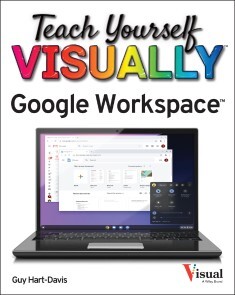
Teach Yourself VISUALLY Google Workspace
MASTER THE INS AND OUTS OF GOOGLE'S FREE-TO-USE OFFICE AND PRODUCTIVITY SOFTWARETeach Yourself VISUALLY Google Workspace delivers the ultimate guide to getting the most out of Google's Workspace cloud software. Accomplished author Guy Hart-Davis offers readers the ability to tackle a huge number of everyday productivity problems with Google's intuitive collection of online tools. With over 700 full-color screenshots included to help you learn, you'll discover how to:* Manage your online Google Calendar* Master the files and folders in your Google Drive storage* Customize your folders and navigate your Gmail account* Create perfect spreadsheets, presentations, and documents in Google Sheets, Slides, and DocsPerfect for anyone who hopes to make sense of Google's highly practical and free online suite of tools, Teach Yourself VISUALLY Google Workspace also belongs on the bookshelves of those who already find themselves using Workspace and just want to get more out of it.GUY HART-DAVIS is the author of more than 100 computing books, including Teach Yourself VISUALLY Chromebook, Teach Yourself VISUALLY MacBook Pro and MacBook Air, and Teach Yourself VISUALLY iPhone.Chapter 1: Getting Started with G SuiteChapter 2: Managing Files and Folders in DriveChapter 3: Performing Common Tasks in Docs, Sheets, and SlidesChapter 4: Inserting Objects in Docs, Sheets, and SlidesChapter 5: Working in DocsChapter 6: Share and Collaborate on FilesChapter 7: Working in SheetsChapter 8: Learning Advanced Sheets FeaturesChapter 9: Working in SlidesChapter 10: Sending and Receiving E-MailChapter 11: Organizing Your LifeChapter 12: Creating Forms

Introducing Blockchain with Lisp
Implement blockchain from scratch covering all the details with Racket, a general-purpose Lisp. You'll start by exploring what a blockchain is, so you have a solid foundation for the rest of the book. You'll then be ready to learn Racket before starting on your blockchain implementation. Once you have a working blockchain, you'll move onto extending it. The book's appendices provide supporting resources to help you in your blockchain projects.The recommended approach for the book is to follow along and write the code as it’s being explained instead of reading passively. This way you will get the most out of it. All of the source code is available for free download from GitHub.WHAT YOU WILL LEARN* Discover the Racket programming language and how to use it* Implement a blockchain from scratch using Lisp* Implement smart contracts and peer-to-peer support* Learn how to use macros to employ more general abstractionsWHO THIS BOOK IS FORNovices that have at least some experience with programming, as well as some basic working experience with computers. The book also assumes some experience with high school mathematics, such as functions.Boro Sitnikovski has over ten years of experience working professionally as a software engineer. He started programming with assembly on an Intel x86 at the age of ten. While in high school, he won several prizes in competitive programming, varying from 4th, 3rd, and 1st place. He is an informatics graduate - his bachelor’s thesis was titled “Programming in Haskell using algebraic data structures”, and his master’s thesis was titled “Formal verification of Instruction Sets in Virtual Machines”. He has also published a few papers on software verification. Other research interests of his include programming languages, mathematics, logic, algorithms, and writing correct software. He is a strong believer in the open-source philosophy and contributes to various open-source projects. In his spare time, he enjoys some time off with his family.1: Introduction to Blockchain2: Racket Programming Language3: Blockchain Implementation4: Extending the BlockchainConclusionFurther ReadingAppendix A: Macros

Fit für die digitale Zukunft
Die Digitalisierung verändert die Gesellschaft, sie stellt neue Anforderungen an die Menschen und führt zu neuen Herausforderungen. Das ist inzwischen hinreichend bekannt. Was aber werden konkret die Herausforderungen sein, denen sich die Menschen stellen müssen, welche Fähigkeiten müssen sie sich aneignen und wie können sie sich optimal auf die kommenden Veränderungen vorbereiten? In dem Buch geht es nicht um einen theoretischen Blick in die Kristallkugel, sondern der Autor greift die schon erkennbaren Veränderungen auf und entwickelt daraus Handlungsempfehlungen, um eine Vorbereitung auf die Veränderungen zu ermöglichen. Dabei geht es um einen zusammenhängenden Blick auf die Fragen, die in absehbarer Zukunft relevant werden, wie z.B. Veränderungen in der Art des Zusammenlebens, dem Verhältnis von Staat und Bürger oder der Vermittlung von Fähigkeiten und Wissen. Ziel des Buches ist es, dem Leser nicht einen abstrakten Zugang zu wesentlichen Bereichen der Digitalisierung zu ermöglichen, sondern konkrete Themen, die für den Leser schon sichtbar sind, zu analysieren, die Hintergründe aufzuzeigen und ihm die Angst vor den kommenden Veränderungen zu nehmen.

Verwaltung von Windows 10 mit Gruppenrichtlinien und Intune (5. Auflg.)
Ein praktischer Leitfaden in 5. Auflage, 03/2021.Die 5. Auflage des Gruppenrichtlinien-Bestsellers wurde für das aktuelle Feature Release von Windows überarbeitet und um Themen wie die Windows-10-Verwaltung über Microsoft Intune und Auditing ergänzt. Das Buch ist Grundlagen-, Praxis- und Nachschlagewerk in einem. Berücksichtigt werden sowohl die Gruppenrichtlinien-Einstellungen in Windows 10 als auch die Windows Server-Versionen 2019, 2016, 2012 und 2008 R2.Gruppenrichtlinien-Know-how für Einsteiger und Profis:Einsteiger führt das Buch von der Basisverwaltung von Gruppenrichtlinien bis hin zur Entwicklung eigener Vorlagen durch alle wichtigen Themen.Profis finden in diesem Buch Informationen zur Planung von Gruppenrichtlinien, zur Verwaltung (PowerShell und AGMP), zur Erweiterung (per Fremdhersteller-Tools) sowie zur Automatisierung mit PowerShell.Eine Fülle von Beispielen aus der administrativen Praxis zeigt Ihnen, wo Sie welche Einstellungen vornehmen können, wie sich diese auswirken und wie Sie in Ihrer täglichen Arbeit dadurch Zeit sparen können. Zahlreiche Tipps und Hinweise helfen Ihnen bei der Fehlersuche und Problembehebung und warnen Sie vor typischen Fallen.

Data Science für Einsteiger
Die Datenflut beherrschbar machen: Schnell und sicher navigieren, Potenziale erkennen.Kein Unternehmen kann es sich leisten, Datenanalyse zu ignorieren! Dieses Werk zeigt, wie Daten analysiert werden können und wie daraus Schlussfolgerungen für die Unternehmensstrategie abgeleitet werden können.In jedem Unternehmen werden heute in großem Umfang Daten generiert, die die Grundlage für wichtige Entscheidungen bilden können. Bevor aus den Daten Schlussfolgerungen abgeleitet werden können, sind die Daten in zuverlässiger und reproduzierbarer Weise zu erfassen, auf Fehler und grobe Abweichungen zu prüfen und zu säubern sowie statistisch zu analysieren und für Managementpräsentationen vorzubereiten. Der Leser erhält hierfür eine Schritt-für-Schritt-Anleitung und er erfährt, wie aus rohen Daten zuverlässige Informationen werden. Leseprobe (PDF-Link)
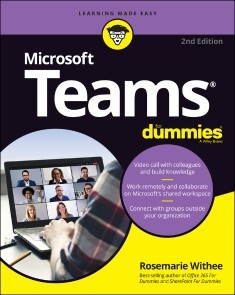
Microsoft Teams For Dummies
WORK SEAMLESSLY TOGETHER WITH MICROSOFT TEAMSIt was only a matter of time before Microsoft 365 built an actual virtual office. And Microsoft Teams is it, rocketing from 13 to 75 million daily users in a single year. The new edition of Microsoft Teams For Dummies gives you an in-depth introductory tour through the latest version of the app, exploring the many different ways you can chat, call, meet, work remotely, and collaborate with others in real time—whether you're using it as an all-in-one tool for working from home or as an extension to your brick-and-mortar office. Available as a stand-alone app or as part of Microsoft 365, it allows you to work seamlessly with almost any other Microsoft app.The friendly onboarding provided by this book takes you from the basics of file-sharing, organizing teams, and using video to must-have insights into less obvious functionality, such as posting the same message to multiple channels, muffling background noise (useful if you're working from home!), and choosing more than one feed to concentrate on when video-conferencing (allowing you to pay attention to the speaker and your team members at the same time). As well as clueing you in on how things work, you'll also find advice on the most effective ways of using them, with best-practices recommendations and tips on integrating Microsoft Teams into your existing workflows.* Set up the interface* Communicate on chat and video, inside and outside your org* Integrate Microsoft Teams with your other Office apps* Optimize your approach to meetings, working across large teams, and more!Whether you're using Microsoft Teams for work, within your family, or for a collaborative hobby, you'll find everything you need to get everyone on the same page in the same virtual room.ROSEMARIE WITHEE is a technology professional and the author of the latest editions of Office 365 For Dummies and Sharepoint For Dummies, as well as the first edition of Microsoft Teams For Dummies.INTRODUCTION 1About This Book 1Foolish Assumptions 2Icons Used in This Book 2Beyond the Book 3Where to Go from Here 3PART 1: GETTING STARTED WITH MICROSOFT TEAMS 5CHAPTER 1: GETTING UP AND RUNNING WITH MICROSOFT TEAMS 7Wrapping Your Head Around Microsoft Teams 8Getting Familiar with Teams Terminology 10Getting Started with the Teams App 11Getting Teams for free 11Getting Teams through Microsoft 365 14CHAPTER 2: NAVIGATING MICROSOFT TEAMS 17Downloading, Installing, and Opening Teams 17Taking a Quick Spin Around Teams 22Activity 22Chat 23Teams 23Calendar 24Calls 24Files 26Using Teams Across Many Devices and Platforms 26Using Teams to Organize Your Life 27CHAPTER 3: STARTING YOUR FIRST TEAM AND MANAGING SETTINGS 29Creating a New Team 29Inviting People to Your Team 35Managing Your Team Settings 37Managing User Settings 40General 42Privacy 43Notifications 43Devices 44Permissions 44Calls 44PART 2: EXPLORING CHAT, TEAMS, CHANNELS, AND APPS 45CHAPTER 4: STAYING CONNECTED TO OTHERS WITH CHANNELS AND CHAT 47Instant Messaging in Teams 48Sending Messages in Channels 49Creating a New Channel 51Configuring a Channel 54Adding Moderators 57Moving from a Channel to a Chat 58Starting a private chat 59Adding multiple people to a chat 60Giving a chat a title 61Pinning a chat to the top of the list 62Sending More than Text When Chatting 62Adding emojis, GIFs, and stickers 63Adding a file 64Reacting to chat messages 66CHAPTER 5: EXTENDING TEAMS WITH APPS, BOTS, AND CONNECTORS 67Discovering Apps Already Installed 68The Files tab 68The Wiki tab 69Browsing and Adding Apps 70Exploring Popular Apps 74Popular apps from Microsoft 74Popular apps from third-party companies 78Integrating Teams with Microsoft Power Platform 80Power BI 81Power Apps 81Power Automate 82Power Virtual Agents 82Setting Permissions for Apps 83Getting Chatty with Bots 84CHAPTER 6: UNSHACKLING YOURSELF WITH THE TEAMS MOBILE APP 85Installing the Teams Mobile App 86Installing on iOS 86Installing on Android 86Finding Your Way Around the Teams Mobile App 89Tapping Your Way through Teams 92Interacting with messages 93Getting used to navigation 94Organizing Your Home Life 95Using the mobile app for chatting 96Using the mobile app for calling 97Sharing files with contacts or groups 98Planning events 99Sharing your location 100CHAPTER 7: WORKING WITH PEOPLE OUTSIDE YOUR ORGANIZATION 103Understanding How Teams Works with People Outside Your Organization 104Working with Guest Users 105Enabling guest access 105Configuring guest settings 106Inviting guests to the team 108Understanding the guest user experience 112Setting permissions for guest users at the team level 112Interacting with External Users 114CHAPTER 8: TAMING THE NOISE AND STAYING FOCUSED. 117Embracing the Activity Feed 118Hiding and Showing Teams and Channels 119Filtering by Team or Channel 121Changing the Order of Teams in Your List 122Muting Channels to Decrease Notifications 122Tracking Important Activity with Custom Notifications 124Searching for Past Conversations 124Getting Creative with Search and Hashtags 125PART 3: STAYING IN SYNC WITH MEETINGS AND CONFERENCING 127CHAPTER 9: WORKING REMOTELY: EMBRACING TEAMS TO MAKE MEETINGS BETTER 129Getting Up to Speed with Teams Meetings 130Viewing Your Calendar in Teams 131Creating a New Meeting and Inviting People 132Joining an Existing Meeting 136Using Teams for Conference Calls 137Connecting with Video 138Breaking Out into Breakout Rooms 141Getting Together with Together Mode 146Enabling Together Mode 147Using Together Mode in your meetings 147What Are Live Events? 148CHAPTER 10: BRINGING TEAMS INTO THE PHYSICAL WORLD 151Discovering How Teams Is More Than Software 152Going Hands Free with Teams 153Getting Visual with Cameras 154Using Desktop Phones for Teams 155Turning a Conference Room into a Teams Room 156PART 4: TAKING COMMUNICATION TO THE NEXT LEVEL WITH VOICE 159CHAPTER 11: MAKING AND RECEIVING CALLS 161Making Phone Calls in Teams 161Calling another Teams user 162Finding the Calls dashboard 163Receiving a Call in Teams 165Using Teams with Phone Numbers 165Adding Phone Numbers to Teams 167Obtaining a license and dial plan 167Signing up for a new phone number 169Assigning a phone number to a Teams user 172Bringing an existing phone number to Teams 173Unassigning or changing the phone number assigned to a user 175Setting Up a Teams Phone 176CHAPTER 12: LETTING TEAMS BE YOUR PERSONAL OPERATOR 177Setting Up Audio Devices in Teams 178Customizing How You Receive Calls 181Restricting Calls with Do Not Disturb 182Delegating Access to Others 183Digging into Modern Voicemail 185Understanding Phone Number Types 187Taking calls in an orderly fashion with call queues 188Routing callers with auto attendants 190PART 5: BECOMING A MICROSOFT TEAMS ADMINISTRATOR 193CHAPTER 13: GETTING TO KNOW THE TEAMS ADMIN CENTER 195Finding and Signing In to the Teams Admin Center 196Getting Familiar with the Teams Admin Center 198Adding New Users to Microsoft 365 and Teams 202Managing Teams Users 204CHAPTER 14: DIGGING INTO TEAMS ADMINISTRATION 207Configuring Teams 208Making Configuration Changes for Meetings 209Conference bridges 210Meeting policies 210Meeting settings 211Live events policies 211Live events settings 212Adjusting Settings for the Entire Organization 212Identifying Locations of Offices and Buildings 213Adding Default Teams Apps 214Setting Policies for Chat and Channels 217Managing Devices for Your Organization 218PART 6: MOLDING TEAMS TO FIT YOUR UNIQUE ORGANIZATION 219CHAPTER 15: USING TEAMS IN SMALL AND MEDIUM-SIZED ORGANIZATIONS 221Focusing on the Internet 222Understanding How Teams Fits Your Organization 223Keeping it simple (1 or 2 people) 224Taking your organization to the next level (2 to 25 people) 226Growing large (25 to 250 people) 227CHAPTER 16: UNLEASHING FEATURES DESIGNED FOR LARGE ENTERPRISES 229Managing Large Numbers of Teams 230Archiving a team 232Deleting a team 235Bringing in the Network Engineers 235Dividing and Conquering with Fine-Tuned Admin Roles 237Creating a Policy to Retain or Delete Content 238Exploring Enterprise Voice Features 240Reporting and Analytics 241Upgrading from Skype for Business to Teams 243Getting Help from the Experts 243CHAPTER 17: LEARNING HOW TEAMS EMBRACES INDUSTRY-SPECIFIC NEEDS 245Getting the Most from Teams for Education 246Creating a team from a class list 246Using Insights to assess student engagement 247Using FlipGrid 248Using Teams in Government Agencies 249Leveraging Teams for Consulting and Service-Based Companies 250Empowering Healthcare Providers 250Modernizing Retail Stores 251Tapping into Teams for Firstline Workers 252PART 7: THE PART OF TENS 255CHAPTER 18: TEN TIPS FOR BETTER TEAMS MEETINGS 257Chatting During a Meeting 257Capturing a Meeting with a Recording 258Keeping Noise Under Control with Mute 260Blurring Your Background 261Taking Notes 263Using a Whiteboard 265Sharing Your Screen 267Taking Control of Someone Else’s Screen 268Organizing Teams to Fit Your Meeting Needs 269Using Teams While a Meeting Is in Progress 269CHAPTER 19: TEN TEAMS APPS WORTH DISCOVERING 271Microsoft Office 271Task Management 272Design 273Customer Service 274Development 275Education 276Social Media 277Survey 277Marketing 278Miscellaneous 278CHAPTER 20: TEN WAYS TO LEARN MORE ABOUT TEAMS 281Get Information Directly from Microsoft 281Enroll in an Online Class 283Keep Up with Experts 284Attend User Groups and Meetups 285Get Certified 286Subscribe to the Microsoft Teams Podcast 286Attend the Microsoft Ignite Conference 287Get Updates in Your Inbox 288Discover the Microsoft Teams Roadmap 289Continue Learning with Rosemarie (Your Author) 290Index 293

Versionsverwaltung mit Git (3. Auflg.)
Der Praxiseinstieg mit praktischer Referenzkarte in aktualisierter 3. Auflage 03/2021.Git ist in der Softwareentwicklung bereits weit verbreitet – sowohl in Firmen als auch in Open-Source-Projekten. Zum Einstieg lernen Anfänger häufig nur die wichtigsten Befehle, die schnell nicht mehr ausreichen, vor allem wenn die ersten Fehler auftreten.Dieses Buch behandelt einerseits die gängigen Befehle, die Sie beim täglichen Arbeiten mit Git brauchen. Andererseits geht es dem Autor auch darum, dass Sie Git als Ganzes verstehen, um es effektiv im Entwicklungsprozess einsetzen zu können.Der Fokus des Buchs liegt auf dem praktischen Arbeiten mit Git. Sie lernen anhand eines Projekts, welche Befehle es gibt, wie diese arbeiten und wie Sie auftretende Probleme lösen können. Neben alltäglichen Funktionen finden Sie auch seltener gebrauchte Kommandos, die aber ebenfalls wichtig sind. Dabei legt der Autor großen Wert auf die Einbindung und Anpassung des Entwicklungsprozesses.Im zweiten Teil des Buchs werden fortgeschrittene Themen behandelt. Der Schwerpunkt liegt auf dem Einsatz von Git in Teams. Darunter etwa das Hosten verteilter Repositories mit GitHub und GitLab. Ein weiteres Kapitel behandelt die Workflows, die je nach Anzahl der beteiligten Personen, Branches und Repositories eines Projekts variieren.Darüber hinaus gibt Ihnen der Autor hilfreiche Informationen für den Umstieg von Subversion, einen Überblick über grafische Git-Programme, Hinweise für eine langfristig nachvollziehbare Git-Historie sowie eine Einführung in DevOps, wofür Git die technische Grundlage bildet. Ein Kapitel zu häufig gestellten Fragen rundet diesen Praxiseinstieg ab.Das Buch richtet sich sowohl an blutige Einsteiger als auch an erfahrene Leser.Inhalt & Leseprobe (PDF-Link)
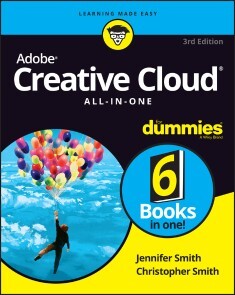
Adobe Creative Cloud All-in-One For Dummies
FLY HIGHER IN YOUR CREATIVE CLOUDAdobe Creative Cloud makes the most popular tools used by designers, photographers, and other creative professionals accessible in a single place. Adobe Creative Cloud All-in-One For Dummies is the ultimate one-stop reference guide for how to use them all. Whatever gets your creative juices flowing, you'll find the in-depth guidance required to deliver the results you want, from polishing-up photos and images to creating illustrations and designs. And once your assets are just how you want them, you can pick up best practices for managing and publishing via the amazing Adobe Bridge.Written by pro designers for those getting started with this powerful set of tools, this book gives you an overview of Creative Cloud and step-by-step coverage of the major applications—InDesign, Illustrator, Photoshop, Acrobat Pro, and Adobe XD, and Adobe Bridge—in seven mini-books that take you from the basics to more advanced topics. You'll also discover how to get your work noticed by building personal galleries and displaying your creative wares.* Find the essentials on the top tools in Adobe Creative Cloud* Build and enhance your design skills* Protect your documents with Acrobat Pro* Get the most out of each program with insider tipsWhatever your skill level and project needs, you'll find the essentials you need to demystify these complex programs and the knowledge to make your work shine even more brightly through the Cloud!JENNIFER SMITH is the director of user experience design practice at the American Graphics Institute. She is also a designer, consultant, educator, mentor, and author of over a dozen books on digital imaging and web publishing.CHRISTOPHER SMITH is president of the American Graphics Institute. He is author of more than ten books on digital publishing, including many of the Adobe official training guides.INTRODUCTION 1Why is It Important? 2About This Book 2Foolish Assumptions 4Icons Used in This Book 4Beyond the Book 4Where to Go from Here 5BOOK 1: GETTING STARTED WITH THE CREATIVE CLOUD SUITE 7CHAPTER 1: THE CREATIVE CLOUD 9Applications Covered in This Book 10Crossing the Adobe Bridge 11Getting started with Photoshop CC 11Introducing InDesign CC 11Using Illustrator CC 12Working with Acrobat DC 13Prototyping your apps with Adobe XD 14Integrating software 15Acquiring assets for this book 15CHAPTER 2: CREATIVE CLOUD APPLICATION MANAGEMENT 17Downloading Your First App 17Checking for updates 19Getting started 20CHAPTER 3: CREATIVE CLOUD EXTRAS FOR YOU 21Launching the Creative Cloud App 22Apps 22Categories 23Managing Your Fonts 24Resource Links 24Your Work 25Libraries 25Show Cloud Documents 29Discovering Design Opportunities with New Fonts 32Finding Images with Adobe Stock 33Promoting Yourself with Behance 34Creating a Cover 36Bonus! Adobe Portfolio 37It’s Not Just Apps! 38CHAPTER 4: USING COMMON MENUS AND COMMANDS 39Discovering Common Menus 39Using Dialog Boxes 41Encountering Alerts 43Discovering Common Menu Options 44About Contextual Menus 45Using Common Keyboard Shortcuts 46Changing Your Preferences 48CHAPTER 5: EXPLORING COMMON PANELS 51Understanding the Common Workspace 51Using Panels in the Workspace 53Moving panels 54Looking at common panels 55BOOK 2: ADOBE BRIDGE 57CHAPTER 1: ORGANIZING AND MANAGING YOUR FILES WITH ADOBE BRIDGE 59Getting to Know the Adobe Bridge Workspace 60Practice makes perfect 62Finding and using your folders within Adobe Bridge 62The default workspace 64Looking for a better view 65Creating a new folder 66Moving a file to another folder 67Making a favorite 68Investigating the Application bar 69Developing a Bridge habit 69CHAPTER 2: TAKING ADVANTAGE OF METADATA IN ADOBE BRIDGE 71Locating Your Files 71Using Keywords 74Creating a Metadata Template 75Searching for Files Using Adobe Bridge 77Searching by name or keyword 77Using the Filter panel 78Saving a Collection 79CHAPTER 3: USING AUTOMATION TOOLS IN ADOBE BRIDGE 81Getting Files from Your Camera 81Automation Tools in Adobe Bridge 83Batch renaming your files 83Exporting your files from Bridge 85Loading files as layers 85Building a contact sheet 86BOOK 3: PHOTOSHOP CC 89CHAPTER 1: GETTING INTO PHOTOSHOP CC BASICS 91The Start Screen 91The New Document Window 92Sample Images Can Help You Investigate More Features 93Opening an Image 94Getting to Know the Tools 94Navigating the Work Area 97Changing your workspace 97Resetting your workspace 99Docking and saving panels 99Saving your workspace 100Taking advantage of workspace features 100Zooming in to get a better look 100Choosing Your Screen Mode 102Getting Started with Basic Tasks in Photoshop CC 102Cropping an image 102Using grids as you crop 105Using the Frame tool to create cropped images 106Saving images 109CHAPTER 2: MESSING WITH MODE MATTERS 111Working with Bitmap Images 111Choosing the Correct Photoshop Mode 113Bitmap 113Grayscale 113Duotone 114Index color 117RGB 117CMYK 118LAB color 118Multichannel 119Bit depth 119CHAPTER 3: MAKING SELECTIVE CHANGES 121Getting to Know the Selection Tools 121The Marquee tool 122The Lasso tool 125The Object Selection tool 126The Quick Selection tool 127The Magic Wand tool 128Painting a selection with the Quick Mask tool 129Manipulating Selections with Refine Selection 132Transforming selections 132Transforming selections 132Feathering 135Tweaking the edges of a selection in the Select and Mask workspace 138Selecting the Subject 143Saving Selections 144CHAPTER 4: USING THE PHOTOSHOP PEN TOOL 145Selecting the Right Pen Tool for the Task 146Using a Path as a Selection 146Creating Curved Paths 148Clipping Paths 150Using Shape Layers 152Creating and using a custom shape 153Changing the color of the shape 155Changing the color fill of a custom shape 156Changing the stroke on a live vector shape 157Creating a stroke on a custom shape 158Removing a shape layer 159CHAPTER 5: CREATING IMAGES IN THE RIGHT RESOLUTION FOR PRINT AND THE WEB 161Creating Images for Print 161The resolution formula 163Changing the resolution 163Determining the Resolution for Web Images 166Applying the Unsharp Mask Filter to an Image 167CHAPTER 6: CREATING A GOOD IMAGE 169Reading a Histogram 169Breaking into key types 172Starting the process to improve your image 174Creating a Good Tone Curve 174Finding the highlight and the shadow 176Setting the highlight and shadow values 180Adjusting the midtone 181Finding a neutral 182Editing an Adjustment Layer 184Testing a Printer 185CHAPTER 7: WORKING WITH PAINTING AND RETOUCHING TOOLS 187Using the Swatches Panel 187Choosing Foreground and Background Colors 188The Painting and Retouching Tools 189Changing the brush 190The Spot Healing Brush tool and the Content-Aware feature 191The Healing Brush tool 193The Patch tool 194The Red Eye tool 195The Brush tool 195The Clone Stamp tool 198The History Brush tool 200The Eraser tool 201The Gradient tool 201Blending Modes 204Painting with color 206Filling selections 207Saving Presets 208CHAPTER 8: USING LAYERS 209Creating and Working with Layers 209Duplicating a Layer 212Selecting a Layer 212Controlling the visibility of a layer 213Rearranging the stacking order 213Creating a Text Layer 213Warping text 214Fine-tuning text 214Check that spelling! 215Using Layer Masks 215Creating a layer mask from a selection 216Creating a vector mask from a pen path 218Organizing Your Layers 220Activating multiple layers simultaneously 220Layer groups 220Duplicating a layer group 221Filter Capabilities in the Layers Panel 222Merging and Flattening Images 222Merging 223Flattening 223CHAPTER 9: GOING BEYOND THE BASICS WITH LAYERS 225Using Layer Styles 225Applying a style 225Creating and saving a style 227Thinking about opacity versus fill 228Smart, Really Smart! Smart Objects 229Finding Tools and Features That Are Hidden 230Using the Frame Tool 231Working with Artboards in Photoshop 232Adding additional artboards 234Adding content to the second artboard 234Experimenting with 3D Files 237Preserving Corrective Perspective with the Vanishing Point Feature 238CHAPTER 10: SAVING PHOTOSHOP IMAGES FOR PRINT AND THE WEB 243Backing Up with a Save 244Choosing a File Format for Saving 244Wonderful and easy Photoshop PSD 245Photoshop EPS 245Photoshop PDF 245TIFF 246DCS 246Saving Images for the Web 246PNG 247JPEG 248GIF 250Matte 254Saving Settings 254BOOK 4: INDESIGN CC 257CHAPTER 1: INTRODUCING INDESIGN CC 259Getting Started with InDesign CC 259Creating a new publication 260Opening an existing publication 263Touring the Workspace 263Tools 265Menus 266Panels 267Contextual menus 270Setting Up the Workspace 271Showing and hiding grids and guides 271Snapping to a grid or a guide 272Using Smart Guides 273Customizing menus 274Customizing the interface appearance 275Saving a custom workspace 275Working with Documents 276Importing new content 277Viewing content 278Saving your publication 278CHAPTER 2: WORKING WITH TEXT AND TEXT FRAMES 281Understanding Text, Font, and Frames 282Creating and Using Text Frames 282Creating text frames with the Type tool 283Creating text frames with the Frame tool 284Creating text frames from a shape 284Adding Text to Your Publication 284Importing text 285Controlling text flow 285Adding placeholder text 286Copying and pasting text 287Looking at Text Frame Options 287Changing text frame options 288Using and modifying columns 289Modifying and Connecting Text Frames on a Page 290Resizing and moving the text frame 291Threading text frames 292Adding a page jump number 295Understanding Paragraph Settings 297Indenting your text 297Text alignment and justification 298Saving a paragraph style 299Editing Stories 300Using the story editor 300Checking for correct spelling 302Using custom spelling dictionaries 302Using Tables 303Creating tables 303Editing table settings 305Creating table styles 306Looking at Text on a Path 307CHAPTER 3: UNDERSTANDING PAGE LAYOUT 309Importing Images 309Importing PDFs 311Importing other InDesign documents 311Linking and Embedding Images 312Setting Image Quality and Display 314Selecting Images 315Manipulating Text and Graphics in a Layout 316Page orientation and size 316Margins, columns, and gutters 317Using guides and snapping 317Locking objects and guides 319Merging Text and Graphics 320Wrapping objects with text 320Modifying a text wrap 322Working with Pages and the Pages Panel 323Selecting and moving pages 324Adding and deleting pages 325Numbering your pages 325Using Master Spreads in Page Layout 326Creating a master spread 327Applying, removing, and deleting master pages 327Changing individual page sizes 328CHAPTER 4: DRAWING IN INDESIGN 329Getting Started with Drawing 329Paths and shapes 330Points and segments 332Getting to Know the Tools of the Trade 332The Pencil tool 333The Pen tool 333Basic shapes and frame shapes 333Drawing Shapes 334Creating a shape with exact dimensions 334Using the Polygon tool 335Editing Basic Shapes 336Changing the size with the Transform panel 336Changing the size with the Free Transform tool 337Creating your own custom shapes 337Changing the stroke of a shape 339Changing the shear value 340Rotating a shape 340Drawing Freeform Paths 340Using the Pencil tool 340Using the Pen tool 341Editing Freeform Paths 342Modifying Frame Corners 343Using Fills 344Creating basic fills 344Making transparent fills 345Filling with gradients 346Removing fills 348Adding Layers 349Creating QR Codes 350CHAPTER 5: UNDERSTANDING COLOR 351Selecting Color with Color Controls 351Understanding Color Models 352Using Color Swatches and Libraries 353The Swatches panel 353Swatch libraries 354CHAPTER 6: CLIPPING PATHS, ALIGNMENT, AND OBJECT TRANSFORMATION 357Working with Transformations 358Looking at the Transform panel 358Using the Free Transform tool 360Rotating objects 361Scaling objects 363Shearing objects 363Reflecting objects 364Understanding Clipping Paths 365Arranging Objects on the Page 366Aligning objects 366Distributing objects 367CHAPTER 7: EXPORTING TO PDF AND PRINTING 369Preflight: Preparing Your Documents for Printing 369Packaging Your Documents 371Understanding File Formats 372Exporting Publications 374Exporting PDF documents for printing 374Exporting EPS files 376Exporting JPEG and PNG files 377Exporting text files 378Printing Your Work 379Understanding bleed 379Doing it yourself: Printing and proofing at home or the office 380CHAPTER 8: CREATING DIGITAL DOCUMENTS USING EPUB AND PUBLISH ONLINE 383Choosing the Right Digital Format 384Planning Layouts for Digital Distribution 384Adapting Print Documents to Share Digitally 385Creating liquid layout rules for alternative layouts 386Creating alternate layouts 387Adding interactivity to digital documents 389Exporting Digital Books as EPUB 390Preparing EPUB (Reflowable) Books 390Exporting EPUB (Reflowable) Books 391Exporting EPUB (Fixed-Layout) 393Publish Online 394Share for Review 396BOOK 5: ILLUSTRATOR CC 399CHAPTER 1: DISCOVERING ILLUSTRATOR CC 401Deciding When to Use Illustrator CC 401Creating a New Document 403Try a Template 407Opening an Existing Document 407Taking a Look at the Document Window 407Navigating the Work Area with Zoom Controls 410Taking Advantage of Artboards 411Creating multiple artboards 412Using the Artboard Panel 413Printing a document with multiple artboards 414Checking Out the Panels 415Getting to Know Your Workspace 416Becoming Familiar with the Tools 417Changing Views 420CHAPTER 2: USING THE SELECTION TOOLS 423Getting to Know the Selection Tools 423Giving selections a try 424Anchor points 425Bounding boxes 426Introducing all the selection tools 427Working with Selections 428More practice with selections 428Selecting an anchor point 429Using a marquee to select an object 430Selecting multiple objects 431Saving a selection 431Grouping and Ungrouping 432Creating a group 432Using Isolation mode 433Manipulating Selected Objects 433CHAPTER 3: CREATING BASIC SHAPES AND BEYOND 437The Basic Shape Tools 437Creating rectangles and ellipses 438Working with the Live corners feature 439The Rounded Rectangle tool 440Using the Polygon tool 441Using the Star tool 441Resizing Shapes 442Tips for Creating Shapes 444Making some pies 444Creating advanced shapes 445Using the Pathfinders 446Using the Shape Builder tool 447CHAPTER 4: USING THE PEN TOOL AND INTEGRATING IMAGES 449Pen Tool Fundamentals 450Creating a straight line 451Creating a constrained straight line 453Creating a curve 453Reconnecting to an existing path 454Controlling curves 455Creating a corner point 456Additional Pen Tools 457Adding tools to help make paths 458Using the Eraser tool 458Tracing Artwork 460Creating a template layer 460Using Image Trace 461Changing the view 463Other Details You Should Know about Placing Images 463CHAPTER 5: USING TYPE IN ILLUSTRATOR 465Working with Type 465Creating text areas 466Creating a line of text 466Flowing text into an area 467Dealing with text overflow 467Creating columns of text with the Area Type tool 467Threading text into shapes 470Wrapping text 471Outlining text 472Putting text on a path, in a closed shape, or on the path of a shape 474Assigning Font Styles 476Using the Character Panel 478Using the Paragraph Panel 480Alignment 481Indentation 481Text Utilities: Your Key to Efficiency 482Find and Replace 482Spell checker 482The Hyphenation feature 483The Find Font feature 484The Change Case feature 485Text styles 485CHAPTER 6: ORGANIZING YOUR ILLUSTRATIONS 491Setting Ruler Increments 491Using Guides 492Creating a ruler guide 492Creating a custom guide 493Using the Properties Panel for Placement 493Changing the Ruler Origin 494What You Need to Know about Object Arrangement 494Hiding Objects 496Locking Objects 497Creating a Clipping Mask 498Creating a Mask of Illustrator Objects Using the Blend Tool 500Creating a Clipping Path Using the Draw Inside Button 502CHAPTER 7: USING LAYERS 505Creating New Layers 506Using Layers for Selections 510Changing the Layer Stacking Order 511Moving and Cloning Objects 512Hiding Layers 512Locking Layers 513CHAPTER 8: LIVENING UP ILLUSTRATIONS WITH COLOR 515Choosing a Document Profile 516Using the Swatches Panel 517Applying Color to the Fill and Stroke 519Changing the Width and Type of a Stroke 519Adding Arrowheads 522Using the Color Panel 523Saving Colors 524Building and using custom libraries 524Using the Color Guide and color groups 525Editing or Applying Colors 526Adding Pantone colors 527Editing Colors 529Building and Editing Patterns 530Advanced Pattern Editing 532Working with Gradients 534Using the Gradient tool 537Apply a gradient to a stroke 538Using transparency in gradient meshes 538Copying Color Attributes 540Painting Made Easy: The Live Paint Feature 541CHAPTER 9: USING THE TRANSFORM AND DISTORTION TOOLS 543Working with Transformations 543Transforming an object 544Using the Transform tools 547Creating Distortions 550The Liquify tools 550Using the Envelope Distort command 552CHAPTER 10: WORKING WITH TRANSPARENCY AND SPECIAL EFFECTS TOOLS 557The Mesh Tool 557The Blend Tool 561Creating a blend 561Setting Blend options 562The Symbol Sprayer Tool 563Exploring the symbol tools 563Creating and spraying symbols on the artboard 565Transparency 566Blend modes 567Opacity masks 568CHAPTER 11: USING FILTERS AND EFFECTS 571Working with Effects 571Understanding the Appearance panel 572Applying an effect 572Adding a Drop Shadow effect 573Saving your combination of effects as a graphic style 575Saving Graphic Styles 576Creating 3D Artwork 577Adding Multiple Fills and Strokes 580Using the Perspective Grid 583CHAPTER 12: USING YOUR ILLUSTRATOR IMAGES 587Saving and Exporting Illustrator Files 587The native Adobe Illustrator file format 588Saving Illustrator files back to previous versions 590The PDF file format 590The EPS file format 592The SVG file format 593Saving Your Artwork for the Web 594Saving Multiple Assets out of Illustrator 597Flattening Transparency 599Flattening a file 599Using the Flattener Preview panel 601Printing from Illustrator 602BOOK 6: ADOBE XD 605CHAPTER 1: INTRODUCING THE XD WORKSPACE 607Understanding the Modern User Interface 607Creating a new artboard 608Using the tools 610Relating Objects to the Property Inspector 610Centering an object on the screen 610Using transform features 611Fixing position when scrolling 612Laying it all out 612Changing the appearance of your object 614A Little Bit about Artboards 616Saving your file 617Cloning your text objects to the first artboard 618Duplicating your artboard 619Creating a third artboard by cloning 620Editing your text to fit the screens 621Experimenting with artboard properties 621Adding an image 621Keyboard Shortcuts for Navigating the Workspace 623Design View versus Prototype Mode 624Creating your links 624Testing your prototype 625CHAPTER 2: WORKING WITH ARTBOARDS 627Starting Your Document and Adding an Artboard 627Creating New Artboards 628Resizing an Artboard 629Adding a New Artboard 629Using the Layers Panel 630Adding Objects to Your Artboards 631Arranging Artboards in Your Pasteboard Area 632Aligning and Distributing Your Artboards 632Adding Scrolling Capability to an Artboard 633Adding Guides to Your Artboard 635CHAPTER 3: CREATING YOUR USER INTERFACE (UI) WITH SHAPES, PATHS, AND CUSTOM SHAPES 637Working with the Basic Shapes 637What’s included in XD 638Determining the size 638Using a Shape to Create a Button 639Creating a border 640Sampling a color using the eyedropper 641Adding text to your button 641Creating a gradient 642Changing the Direction and Angle of Your Gradient 644Using the Pen Tool 645Editing shapes 646Creating Custom Shapes 647Adding lines 648Importing from Illustrator 648CHAPTER 4: BUILDING YOUR UI 649Layers and the Objects They Contain 649Artboards and layers 650What can you do with your artboards inside the Layers panel? 651Transforming Objects 658Aligning and Distributing 658Be smart about your guides 658Using the Align and Distribute feature 659CHAPTER 5: WORKING WITH TEXT IN YOUR XD PROJECT 661Using the Text Tool 661Adjusting Text Properties 662About readability and font selections 663Selecting your font family 664Saving Your Properties as an Asset 666Using the Spellchecker 668Importing Text 668Using the Repeat Grid Feature 668Importing updated images into your repeated grid 670Updating your text in your repeated grid 671CHAPTER 6: WORKING WITH IMAGERY IN XD 673Importing Artwork into Your Prototype 673Working with Images in XD 674Masking your images 675Masking multiple objects 676Importing Vector Images into XD 677Exporting Selected Artwork from XD 678Exporting multiple items 679Exporting your artboards 680CHAPTER 7: CREATING DESIGN LIBRARIES 681Saving Reusable Objects as Components 681Making edits to your component 683Unlinking a component 684Saving colors in your libraries 684Saving Character Styles 685Discovering Libraries 686Using shared libraries 687Updating a published library 687Editing a component 688Taking Advantage of UI Kits 688CHAPTER 8: ADDING INTERACTIVITY TO YOUR XD PROJECT 691Entering Prototype Mode 691Discovering the many ways to link your artboards 693Creating animations 696Creating a Drag Trigger 698Creating an Overlay 699Adding States and Rollovers 701CHAPTER 9: SHARING YOUR XD PROJECT 705Viewing Your App/Website on Your Desktop 705Creating a Movie for Your User Story 707Using the Device Preview Feature 707Sharing Your XD File with Others 709Sharing a specific user flow 709Selecting a View setting 710Adding collaborators to your XD document 713Index 715

Clubhouse
In ist, wer drin ist. Und wer drin ist, der kann mitreden: Kommen Sie ins angesagte Clubhouse und seien Sie von Anfang an dabei! Der Clubhouse-Talkmaster Bernd Schmitt zeigt in diesem Buch, was Sie bei Ihrem Start in der neuen App beachten sollten, wie Sie die Clubhouse-Werkzeuge optimal einsetzen und Fallstricke umgehen. Sie erfahren, wie Sie sich Zutritt zum Clubhouse verschaffen, Talks finden und daran teilnehmen sowie erfolgreich eigene Talks veranstalten. Moderieren Sie alleine oder im Team, bauen Sie mithilfe der Profitipps Ihre Reichweite aus und vergrößern Sie Ihre Fanbase. Zehn praktische Kapitel mit Knigge sowie ein Glossar machen Sie fit für Ihren Auftritt im Clubhouse!Aus dem Inhalt:-Reinkommen: Einladungen erhalten und versenden-Name wählen und Profil einrichten-Talks finden und teilnehmen-Zuhören und sprechen-Eigene Talks veranstalten-Talks ankündigen und bekannt machen-Zuhörerinnen und Zuhörer gewinnen-Moderation und Co-Moderation-Reichweite erhöhen und Follower gewinnen-Talks über Instagram und Twitter bewerben-Rechtliche Aspekte und Datenschutz-Der kleine Clubhouse-Knigge-Glossar: die 100 wichtigsten Clubhouse-Begriffe

Machtwechsel der Intelligenzen
Das Buch führt dem am gesellschaftlichen Leben interessierten Leser allgemein verständlich vor Augen, wie KI funktioniert und wie sie alle Lebensräume dramatisch verändern wird. Von der Geschichte der KI über ihre Techniken und ihre vielfältigen Anwendungsfelder bis zu ihren ethisch-philosophischen Implikationen werden alle relevanten Aspekte ausführlich dargestellt. Der Autor bleibt dabei nicht im Deskriptiven, sondern nimmt auch mit klaren Worten kritisch Stellung zur KI-Entwicklung. Für den Leser sind die Ausführungen als fachliches Stützkorsett angelegt, um gegenüber den KI-Experten als kundiger Counterpart auftreten zu können. Die letzten beiden Kapitel entführen den Leser in die Zukunft des Lebens mit der Super-KI. Mit gewagten Szenarien alarmiert der Autor den Leser auf vergnügliche Weise, welch atemberaubende und gesellschaftlich hochexplosive Perspektiven sich mit der KI verbinden und welche ethischen und philosophischen Fragestellungen sich daraus ergeben. PROF. DR. GÜNTER CISEK, der große Organisationen wie IMF und Weltbank berät und regelmäßig Gastprofessuren in Asien übernimmt, thematisiert mit Sprachwitz gesellschaftskritische Themen stets mit großer kosmopolitischer Erfahrung und interdisziplinärem Ansatz. Der Leser kann sich stets darauf verlassen, dass er nicht nur beschreibt und analysiert, sondern gesellschaftskritisch auch stets wertend Stellung bezieht. Wie viel und was für künstliche Intelligenz verträgt der Mensch?.-Weißt Du, wie es ward? - Die Geschichte der KI.-Wie funktioniert KI? - Techniken der KI.-Wie realisiert sich KI? - KI bestimmt unser Leben.-Kaufst Du noch oder „influenzt“ Du schon? – Handel 4.0.-Wohin mit der „Sozialbrache“? – Industrie 4.0.-Wie verändert sich unser Miteinander? - Gesellschaftliche Implikationen der KI.-Paradiesische Zeiten oder das Ende der Welt? - Die Zukunft mit KI.

Simulation und Modellierung mit Scilab
Das vorlesungsbegleitende Buch führt zielgerichtet, kompetenzorientiert und fachübergreifend durch die Grundlagen der Numerischen Mathematik, Algorithmik, Programmierung, Modellierung sowie Simulation und erklärt diese mithilfe des Softwarepakets Scilab/Xcos detailliert an zahlreichen Anwendungen aus verschiedenen praxisrelevanten Gebieten des Ingenieurwesens.Neben detailliert dargestellten Beispielen dienen mehr als 300 Aufgaben zum Selbststudium mit ausführlichen Lösungen und Programmcodes zum Download der Lernzielkontrolle und der Prüfungsvorbereitung.Eingesetzt wird das frei verfügbare Softwarepaket Scilab/Xcos, das weitgehend zu MATLAB/Simulink kompatibel ist, um die wichtigsten Algorithmen der Numerischen Mathematik aus den Bereichen- Nichtlineare Gleichungen- Lineare Gleichungen- Numerische Integration- Lineare und nichtlineare Regression- Interpolation- Gewöhnliche und partielle Differenzialgleichungenzu implementieren und konkrete Fragestellungen aus der Mathematik, Physik, Bauphysik, Vermessung, Statik, Dynamik, Strömungsmechanik, Thermodynamik, Wärmeübertragung, Elektrotechnik und Regelungstechnik erfolgreich zu lösen.Als Zusatzmaterial zum Buch gibt es unter plus.hanser-fachbuch.de Lösungen der nummerischen Aufgaben und Downloadlinks rund um Scilab/Xcos. Prof. Dr.-Ing. Rudi Marek, Hochschule Deggendorf, Fakultät Bauingenieurwesen und Umwelttechnik, macht Lehrveranstaltungen in Ingenieurmathematik, Computernumerik, Numerischer Mathematik und Programmierung, insbesondere Vorlesungen in Ingenieuranalyse und Modellierung. Er war mehrere Jahre bei der HL-Technik AG München im Bereich der Gebäudesimulation und Bauphysik tätig.

Verwaltung von Windows 10 mit Gruppenrichtlinien und Intune
• Der kompakte Leitfaden für die praktische Arbeit mit Gruppenrichtlinien • Eigene Gruppenrichtlinienvorlagen erstellen • Für Profis: AGPM, PowerShell und DSC • Zahlreiche Beispiele aus der administrativen Praxis Die 5. Auflage des Gruppenrichtlinien-Bestsellers wurde für das aktuelle Feature Release von Windows überarbeitet und um Themen wie die Windows-10-Verwaltung über Microsoft Intune und Auditing ergänzt. Das Buch ist Grundlagen-, Praxis- und Nachschlagewerk in einem. Berücksichtigt werden sowohl die Gruppenrichtlinien-Einstellungen in Windows 10 als auch die Windows Server-Versionen 2019, 2016, 2012 und 2008 R2. Gruppenrichtlinien-Know-how für Einsteiger und Profis - Einsteiger führt das Buch von der Basisverwaltung von Gruppenrichtlinien bis hin zur Entwicklung eigener Vorlagen durch alle wichtigen Themen. - Profis finden in diesem Buch Informationen zur Planung von Gruppenrichtlinien, zur Verwaltung (PowerShell und AGMP), zur Erweiterung (per Fremdhersteller-Tools) sowie zur Automatisierung mit PowerShell. Eine Fülle von Beispielen aus der administrativen Praxis zeigt Ihnen, wo Sie welche Einstellungen vornehmen können, wie sich diese auswirken und wie Sie in Ihrer täglichen Arbeit dadurch Zeit sparen können. Zahlreiche Tipps und Hinweise helfen Ihnen bei der Fehlersuche und Problembehebung und warnen Sie vor typischen Fallen.

MCA Microsoft Office Specialist (Office 365 and Office 2019) Study Guide
MCA MICROSOFT OFFICE SPECIALIST (OFFICE 365 AND OFFICE 2019)STUDY GUIDEYOUR COMPLETE GUIDE TO PREPARING FOR THE MICROSOFT OFFICE SPECIALIST EXCEL EXAMThe MCA Microsoft Office Specialist (Office 365 and Office 2019) Study Guide: Excel Associate Exam MO-200 is your one-stop resource for preparing you to earn the Excel Associate certification. The exam measures your competencies in the fundamentals of Excel. This guide starts you off with an assessment test to measure what you already know and what you still need to learn. Then you move into professional scenarios and examples, practical exercises, and challenging chapter review questions. Finally, you can reinforce and retain what you’ve learned with the Sybex online learning environment and test bank. Get prepared for the Excel Associate Exam with Sybex.COVERAGE OF 100% OF ALL EXAM OBJECTIVES IN THIS STUDY GUIDE MEANS YOU’LL BE READY TO:* Create and manage worksheets and workbooks* Apply formulas and functions* Populate tables with data* Create and edit a workbook with multiple sheets* Add a graphic element to represent data visuallyINTERACTIVE LEARNING ENVIRONMENTTake your exam prep to the next level with Sybex’s superior interactive online study tools. To access our learning environment, simply visit WWW.WILEY.COM/GO/SYBEXTESTPREP, register your book to receive your unique PIN, and instantly gain one year of FREE access after activation to:* INTERACTIVE TEST BANK with a practice exam to help you identify areas where further review is needed. Get more than 90% of the answers correct, and you’re ready to take the certification exam.* 100 ELECTRONIC FLASHCARDS to reinforce learning and last-minute prep before the exam.* COMPREHENSIVE GLOSSARY in PDF format gives you instant access to the key terms so you are fully prepared.ERIC BUTOW has developed and taught networking, computing, and usability courses for Ed2Go, Virtual Training Company, California State University, Sacramento, and Udemy. Eric has also been a professional technical writer and started using Word, Excel, and PowerPoint professionally in 1994. He is the owner of Butow Communications Group (https://www.butow.net). BCG offers website development, online marketing, and technical writing services.Introduction xvAssessment Test xixCHAPTER 1 MANAGING WORKSHEETS AND WORKBOOKS 1Importing Data into Workbooks 2Bringing in Data from TXT Files 3Importing Data from CSV Files 4Navigating Within Workbooks 8Searching for Data Within a Workbook 8Navigating to Named Cells, Ranges, or Workbook Elements 10Inserting and Removing Hyperlinks 12Formatting Worksheets and Workbooks 20Modifying Page Settings 20Adjusting Row Height and Column Width 22Customizing Headers and Footers 30Customizing Options and Views 36Customizing the Quick Access Toolbar 37Displaying and Modifying Workbook Content in Different Views 41Freezing Worksheet Rows and Columns 44Changing Window Views 46Modifying Basic Workbook Properties 48Displaying Formulas 49Configuring Content for Collaboration 52Setting a Print Area 52Saving Workbooks in Other File Formats 54Configuring Print Settings 54Inspecting Workbooks for Issues 55Summary 59Key Terms 59Exam Essentials 59Review Questions 61CHAPTER 2 USING DATA CELLS AND RANGES 63Manipulating Data in Worksheets 64Pasting Data by Using Special Paste Options 64Filling Cells by Using Auto Filling 68Inserting and Deleting Multiple Columns or Rows 70Adding and Removing Cells 72Formatting Cells and Ranges 75Merging and Unmerging Cells 75Modifying Cell Alignment, Orientation, and Indentation 76Formatting Cells by Using Format Painter 79Wrapping Text Within Cells 80Using Number Formatting 82Applying Cell Formatting from the Format Cells Dialog Box 83Working with Cell Styles 84Clearing Cell Formatting 86Defining and Referencing Named Ranges 88Defining a Named Range 88Naming a Table 93Summarizing Data Visually 95Inserting Sparklines 95Applying Built-In Conditional Formatting 99Removing Conditional Formatting 101Summary 105Key Terms 105Exam Essentials 105Review Questions 107CHAPTER 3 WORKING WITH TABLES AND TABLE DATA 109Creating and Formatting Tables 110Creating Excel Tables from Cell Ranges 110Applying Table Styles 112Converting Tables to Cell Ranges 113Modifying Tables 115Adding or Remove Table Rows and Columns 115Configuring Table Style Options 118Inserting and Configuring Total Rows 119Filtering and Sorting Table Data 122Filtering Records 122Sorting Data by Multiple Columns 126Summary 128Key Terms 129Exam Essentials 129Review Questions 130CHAPTER 4 PERFORMING OPERATIONS BY USING FORMULAS AND FUNCTIONS 133Inserting References 134Inserting Relative, Absolute, and Mixed References 135Referencing Named Ranges and Named Tables in Formulas 137Calculating and Transforming Datas 140Performing Calculations Using the AVERAGE(), MAX(), MIN(), and SUM() Functions 140Perform Conditional Operations by Using the IF() Function 151Formatting and Modifying Text 155Formatting Text Using the RIGHT(), LEFT(), and MID() Functions 155Formatting Text Using the UPPER(), LOWER(), and LEN() Functions 159Formatting Text Using the CONCAT() and TEXTJOIN() Functions 163Summary 166Key Terms 167Exam Essentials 167Review Questions 168CHAPTER 5 MANAGING CHARTS 171Creating Charts 172Building Charts 172Working with Chart Sheets 174Modifying Charts 178Adding Data Series to Charts 178Switching Between Rows and Columns in Source Data 181Adding and Modifying Chart Elements 182Formatting Charts 185Using Chart Layouts 186Applying Chart Styles 194Adding Alternative Text to Charts for Accessibility 196Summary 198Key Terms 198Exam Essentials 199Review Questions 200APPENDIX: ANSWERS TO REVIEW QUESTIONS 203Chapter 1: Managing Worksheets and Workbooks 204Chapter 2: Using Data Cells and Ranges 204Chapter 3: Working with Tables and Table Data 205Chapter 4: Performing Operations by Using Formulas and Functions 206Chapter 5: Managing Charts 206Index 209

Building a Salesforce-Powered Front Office
Harness the power of Salesforce to manage and grow your business. This book shows you how to use the Salesforce CRM tool to consolidate consumer data into a single place to gain better insight into your business and more easily manage data.Data (such as email, spreadsheets, databases) is generated through the front office or face of your business, where your company interacts with customers and revenue is generated. In a hotel, for instance, the front office is the lobby where guests are greeted, their problems are handled, and room payments are made. Another example is a coffee shop, where the front office is an employee taking a customer's order or serving a drink.Salespeople connect to customers by selling your company’s goods or services. Marketing team members connect with them through advertising and promotional activities. Service and support staff assist customers with problems and provide help with products.This book introduces the many ways Salesforce-based innovations are transforming the technology landscape and the strategies that may be used for designing and launching a digital front office. The book examines how organizations can launch and grow digital solutions and strategies for the governance of the platform and provides an overview of digital transformation across industries.WHAT YOU WILL LEARN* Understand basic Salesforce concepts, including the digital front office process tower, lead to cash journey, core CRM functions, best practices, and more* Review data management concepts, integrated sales, customer service, marketing operations, and proposal and business development needs in a systematic way* Use frameworks to build a business architecture and multi-year technology roadmap* Get familiar with Salesforce business processes and concepts such as account, contact, lead, and opportunity management; marketing campaigns; master data management (MDM); and lead scoring, grading, and activity management across the front office* Define and develop digital marketing challenges and strategy (people, process, brand, messaging, and ROI), measure campaign data, and create an end-to-end campaign in SalesforceWHO THIS BOOK IS FORBusiness executives, C-suites, IT management, and Salesforce managers and professionals working in IT, business development, sales operations, program management, marketing operations, and proposal developmentRASHED CHOWDHURY is Senior Principal at Infosys where he consults with Fortune 500 companies on Salesforce strategy and front office development. He has 20+ years of experience in designing, developing, and architecting solutions in enterprise applications and Salesforce CRM.Rashed played a critical role in Salesforce CRM implementations, involving requirements gathering, solution design, configuration, deployment, and data migration in functional areas such as leads management, master data management (MDM), account management, campaign management, Miller Heiman Sales Management, and partner relationship management.Rashed is a part-time adjunct faculty member at the Robinson College of Business, Georgia State University, where he teaches masters-level students customer relationship management (CRM) and digital platform courses. He is a Salesforce Certified Administrator as well as a Certified Scrum Master.

Neue Algorithmen für praktische Probleme
In diesem Sammelband geht es darum, neue Algorithmen aus den Bereichen der Künstlichen Intelligenz (KI) und des Künstlichen Lebens (KL) und deren praktische Anwendung zu zeigen. Der wesentliche Aspekt des Bandes ist, dass in den Beiträgen exemplarisch gezeigt wird, dass und wie diese neuen Algorithmen auf praktische Probleme in sehr verschiedenen Bereichen erfolgreich eingesetzt werden können: Von der Modellierung sozialer Aspekte in der Softwareentwicklung bis zur Entscheidungsunterstützung, welche Start- und Landebahn an einem Flughafen ausgewählt werden soll; von der Analyse von Krankheitsverläufen bis zur Auswahl und Optimierung technischer Systeme, sowie Alternativen für die Bildbearbeitung.

Heimautomation mit Arduino, ESP8266 und Raspberry Pi
Das eigene Heim als Smart Home für Heimwerker, Bastler und Maker.Mit diesem umfassenden Praxis-Handbuch erfahren Sie, wie Sie Ihr Heim selbst automatisieren können.Anhand zahlreicher Beispiele lernen Sie Schritt für Schritt die Umsetzung verschiedener Projekte wie z.B. 433-MHz-Sender und -Empfänger, IoT-Gateway mit 433 MHz, drahtlose Infrarot-Fernsteuerung für den Fernseher, Wettermodul, drahtlose Klingel, Strom- und Briefkastenwächter und Aquarium-Timer.Der Autor zeigt Ihnen die praktischen Einsatzmöglichkeiten verschiedener Sensoren und Aktoren im Smart Home wie Licht-, Umwelt- und Barometersensor. Dabei werden zum einen selbst gebaute einfache Elektronik-Module mit Arduino, ESP8266 und Wemos-Modulen realisiert und über eine Schaltzentrale mit Raspberry Pi gesteuert. Zum anderen werden fertige Module wie Bewegungsmelder, Kontakte oder Rauchmelder über einfache Gateways ins System integriert. Dabei wird für die Zentrale Node-Red verwendet, um die Daten und Zustände zu verarbeiten und zu visualisieren.Jedes einzelne Projekt wird mit Stückliste und Steckbrett-Aufbau ausführlich dargestellt und beschrieben.Dieses Buch richtet sich an Bastler und Maker, die bereits etwas Erfahrung mit Arduino und Raspberry Pi gesammelt haben und nun praktische Anwendungen in ihrem Heim aufbauen möchten.Inhalte & Projekte:IoT-Hardware mit Arduino, ESP8266 und Raspberry PiArduino IDE und Node-RedDie Protokolle HTTP und MQTTArduino als SensormodulSchaltmodule mit Tasmota-FirmwareNode-Red als SchaltzentraleWettermodul mit Licht-, Umwelt- und Barometersensor433-MHz-Sender und -EmpfängerIoT-Gateway mit 433 MHzESP8266 als RF-GatewayNode-Red-Schaltzentrale mit Arduino-InterfaceDrahtlose Infrarot-Fernsteuerung für den FernseherDrahtlose KlingelAnalog-Wandler-ModulHomeautomation-PlattformenBriefkastenwächterStromwächterAquarium-TimerLeuchtstreifensteuerungInhalt & Leseprobe (PDF-Link)
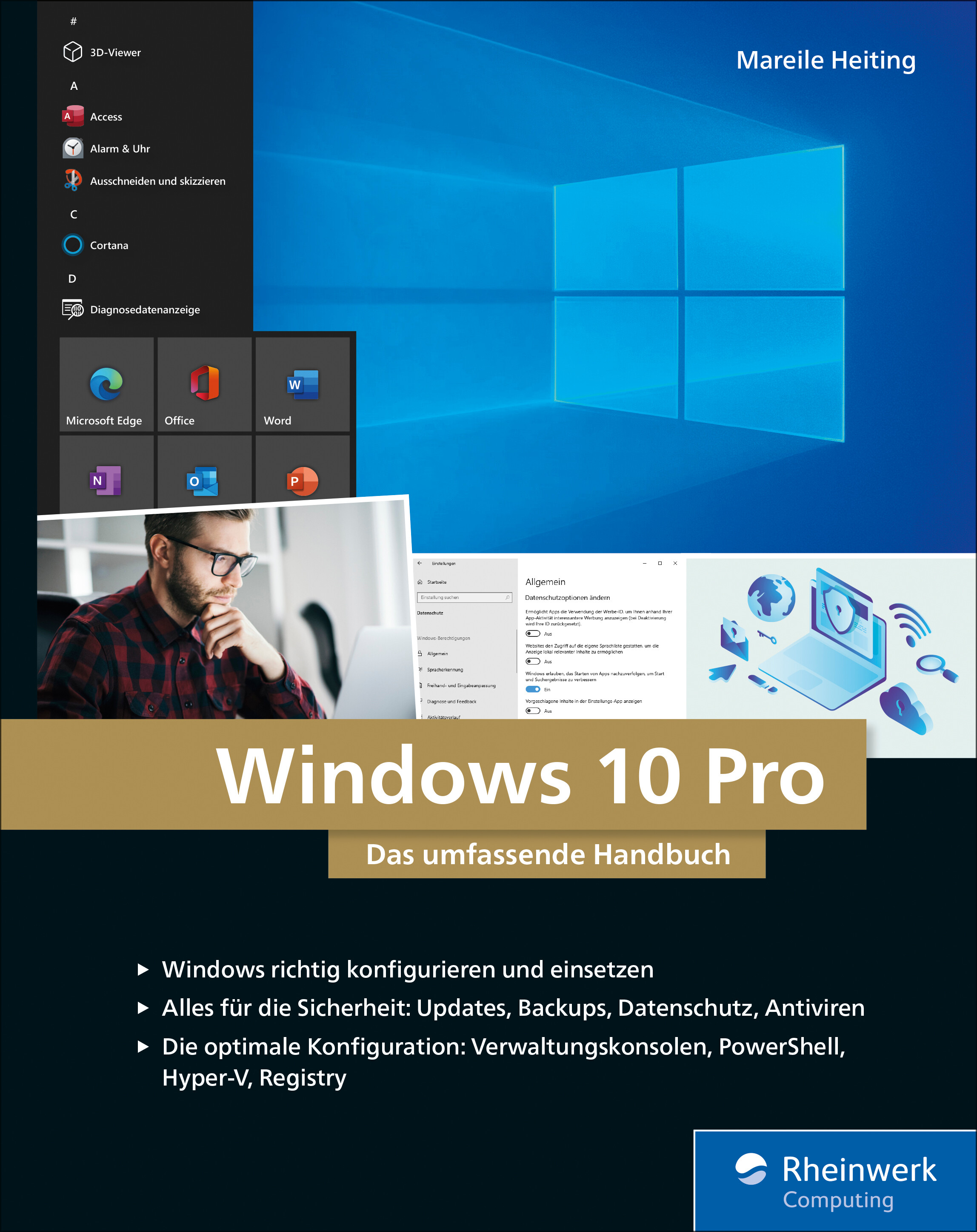
Windows 10 Pro
Das umfassende Handbuch - umfassendes Praxiswissen für Windows-Profis, aktuelle Auflage Februar 2021.Dieses Buch bietet Ihnen auf über 900 Seiten fundiertes Wissen für Windows-Anwender. Praxisnah dank der zahlreichen Anwendungsbeispiele und mit einer Fülle an Profitipps durchleuchtet Mareile Heiting alle Ecken und Winkel des Windows-Systems. Erfahren Sie, welche Features sich unter der Oberfläche verstecken und wie Sie Ihren Workflow spürbar verbessern. Profitieren Sie von aktuellen, effektiven Tipps für ein rundum abgesichertes System. Meistern Sie die Arbeit mit Windows-Rechnern und setzen Sie auch anspruchsvolle Anforderungen um: Netzwerk & VPN einrichten, Aufgaben automatisieren, Daten verschlüsseln und vieles mehr. Ideal als Nachschlagewerk für Power User und erfahrene Anwender von Windows 10.Alles zu Windows 10Updates und InstallationWindows 10 richtig nutzen: Desktop & AppsDaten verwalten und sichern: BitLocker, DatensicherungAlle Optionen und KonfigurationsmöglichkeitenSystemdienste und VerwaltungskonsolenTreiberprobleme lösen, Hardware einrichtenDatenschutz und PrivatsphäreVirenschutz und FirewallDatenfreigabe im NetzwerkRemotezugriff und VPNPowerShell & Windows Subsystem für LinuxVirtualisierung mit Hyper-VLeseprobe (PDF-Link)

Microsoft 365 Education
Endlich einfach erklärt: Mit Microsoft 365 können sich Lehrende digital organisieren und Unterricht multimedial gestalten. Wie Sie Microsoft Office in der Schule einsetzen und im Alltag viel Zeit sparen, zeigt Stefan Malter mit vielen Beispielen aus der Praxis. Präsentieren und kommunizieren Sie online per Video, gestalten Sie Unterrichtsmaterial multimedial und fördern Sie die digitalen Kompetenzen Ihrer Schülerinnen und Schüler. Profitieren Sie und Ihr Kollegium von den Microsoft-Apps und ihren vielfältigen Möglichkeiten zur Zusammenarbeit. Aus dem Inhalt: Unterrichtsmaterial und Arbeitsblätter mit Word und OneNote erstellenDigitale Tafelbilder und Präsentationen mit PowerPoint und Whiteboard-AppTermine, Aufgaben und Kontakte mit Outlook und Windows-AppsChats in Teams-Arbeitsgruppen und -KanälenOnline-Unterricht live in Teams durchführen und moderierenGemeinsam an Dateien und Projekten arbeitenOneNote-Kursnotizbücher für Schülerinnen und SchülerLehrerkonferenzen und Elternabende als VideokonferenzExcel: Grundlagen für Lehrende und Schüler*innenIndividuell Feedback zu Leistungen geben und Tests in Forms durchführenAudio-visuelle Medien erstellen und barrierefreie Tools einsetzenMicrosoft 365 auf mobilen GerätenDateien mit OneDrive und SharePoint synchron haltenGeräte einrichten, Daten speichern und schützen, Benutzerkonten verwaltenTipps für Schulorganisation und Administration Vorwort ... 13 Teil I. Microsoft 365 Education kennenlernen ... 15 1. Voraussetzungen für den digitalen Schulalltag mit Microsoft 365 ... 17 1.1 ... Hardware und Software: Voraussetzungen ... 19 1.2 ... Datenschutz - leidiges Thema, wichtiges Thema ... 21 2. Microsoft 365 Education: Was ist das? Was steckt da drin? ... 25 2.1 ... Unterschiedliche Lizenzen - unterschiedliche Möglichkeiten ... 25 2.2 ... Benutzerkonten in Microsoft 365 ... 26 2.3 ... Online-Portal von Microsoft 365 ... 28 2.4 ... Online arbeiten mit Microsoft 365 ... 34 2.5 ... Online und offline arbeiten mit Windows-Apps und Office-Programmen ... 36 3. Windows 10 einrichten und bedienen ... 37 3.1 ... Windows 10 auf einem neuen PC einrichten ... 37 3.2 ... Windows Updates - nervig, aber wichtig! ... 44 3.3 ... Windows-Sicherheit ... 48 3.4 ... Windows-Einstellungen: Produktiv arbeiten, persönlich wohlfühlen ... 50 3.5 ... Mehrere Benutzerkonten mit Windows 10 nutzen ... 62 3.6 ... PC zurücksetzen und Windows 10 neu installieren ... 65 4. Dateien speichern und verwalten mit Microsoft 365 und Windows 10 ... 69 4.1 ... Dateien online speichern mit OneDrive ... 69 4.2 ... Dateien offline speichern mit Windows 10 ... 81 4.3 ... Systempflege und Backups ... 101 5. Apps und Tools in Windows 10 ... 111 5.1 ... Apps in Windows 10 nutzen und verwalten ... 111 5.2 ... Microsoft Edge - Internetbrowser ... 120 5.3 ... Kurznotizen (Sticky Notes) - digitale Klebezettel ... 124 5.4 ... Microsoft To Do - digitale Aufgabenlisten ... 126 5.5 ... Ausschneiden und skizzieren - Screenshot-App ... 127 5.6 ... Fotos - einfache Bild- und Videobearbeitung ... 128 5.7 ... Kamera - Fotos und Videos aufnehmen ... 131 5.8 ... Filme & TV - Videos abspielen ... 133 5.9 ... Microsoft Whiteboard - die digitale Tafel ... 136 5.10 ... Paint und Paint 3D - digital zeichnen ... 139 5.11 ... Ihr Smartphone ... 142 5.12 ... Weitere Windows-Apps im Überblick ... 143 6. Office-Programme und Dienste in Microsoft 365 ... 149 6.1 ... Microsoft Office installieren und einrichten ... 150 6.2 ... Microsoft Teams - Dreh- und Angelpunkt für digitalen Unterricht ... 155 6.3 ... Microsoft Outlook für EMails, Kontakte und Kalender ... 164 6.4 ... Microsoft OneNote - digitale Notizbücher ... 166 6.5 ... Microsoft Word - Textverarbeitung mit festem Layout ... 169 6.6 ... Microsoft PowerPoint - Präsentationen und mehr ... 172 6.7 ... Microsoft Sway - interaktive Web-Präsentationen ... 174 6.8 ... Microsoft Excel - Tabellenkalkulation ... 176 6.9 ... Microsoft Forms ... 178 6.10 ... Microsoft Stream ... 180 6.11 ... Weitere Apps und Dienste in Microsoft 365 Education ... 182 Teil II. Microsoft 365 in Schule und Unterricht einsetzen ... 187 7. Unterrichtsmaterial recherchieren, erstellen und organisieren ... 189 7.1 ... Inhalte in OneNote sammeln ... 189 7.2 ... Internetrecherche mit Office-Apps und Microsoft Edge ... 204 7.3 ... Arbeitsblätter digital erstellen ... 217 7.4 ... Präsentationen für den Unterricht vorbereiten ... 232 8. Dokumente verteilen und zur Verfügung stellen ... 243 8.1 ... Ausdrucken mit Windows 10 ... 243 8.2 ... Per EMail versenden ... 248 8.3 ... Teilen per OneDrive ... 254 8.4 ... Dokumente bereitstellen in Microsoft Teams ... 261 8.5 ... Inhalte teilen mit OneNote und OneNote-Kursnotizbüchern (Class Notebooks) ... 268 9. Korrigieren, Feedback geben und prüfen mit Microsoft 365 ... 279 9.1 ... Aufsätze und Arbeiten korrigieren und kommentieren mit Microsoft Edge und Microsoft Word ... 279 9.2 ... Schüleraufgaben in OneNote-Kursnotizbüchern korrigieren und kommentieren ... 284 9.3 ... Aufgaben mit Microsoft Teams verteilen und bewerten ... 288 9.4 ... Tests und Quizze mit Microsoft Forms ... 296 9.5 ... Mündliche Prüfungen per Videokonferenz mit Microsoft Teams ... 310 10. Digitale Inhalte im Unterricht präsentieren ... 311 10.1 ... Beamer, Smartboard, TV - Projizieren mit Windows 10 ... 311 10.2 ... Präsentieren mit OneNote ... 315 10.3 ... Tafelbilder erstellen mit Microsoft Whiteboard ... 319 10.4 ... Präsentieren mit PowerPoint ... 324 11. Selbstorganisation im Lehrerbüro ... 331 11.1 ... Aufgaben und To-Do-Listen mit Sticky Notes, OneNote, Microsoft To Do und Outlook ... 331 11.2 ... Kalender und Termine mit Outlook ... 341 11.3 ... Gesprächsnotizen und Protokolle mit OneNote ... 348 11.4 ... Punkte und Noten ausrechnen mit Microsoft Excel ... 352 12. Kommunikation mit Kollegium, Schüler*innen und Eltern ... 361 12.1 ... Kontakte verwalten in Outlook und Microsoft 365 ... 361 12.2 ... Kommunikation per EMail mit Outlook ... 366 12.3 ... Chat-Nachrichten - Microsoft Teams als Messenger ... 376 12.4 ... Sprach- und Videoanrufe mit Microsoft Teams ... 382 12.5 ... Online-Besprechungen planen und durchführen mit Microsoft Teams ... 389 12.6 ... Online-Unterricht mit Microsoft Teams ... 396 Teil III. Weitere Möglichkeiten mit Microsoft 365 ... 405 13. Audio- und Videoproduktionen für den Unterricht ... 407 13.1 ... Audioaufnahmen mit dem Sprachrekorder für Windows 10 ... 407 13.2 ... Videoaufnahmen mit der Kamera-App für Windows 10 ... 411 13.3 ... Videoschnitt mit dem Video-Editor der Fotos-App ... 414 13.4 ... Erklärvideos mit PowerPoint produzieren ... 423 13.5 ... Videos verteilen mit OneDrive und Stream ... 431 14. Barrierefreiheit und erleichterte Bedienung mit Microsoft 365 ... 441 14.1 ... Erleichterte Bedienung mit Windows 10 ... 442 14.2 ... Barrierearme Dokumente mit den Office-Apps ... 454 15. Microsoft-Apps für mobile Geräte wie Smartphone und Tablet ... 459 15.1 ... Microsoft Office als mobile App ... 460 15.2 ... OneDrive als mobile App ... 471 15.3 ... OneNote als mobile App ... 473 15.4 ... Microsoft To Do als mobile App ... 477 15.5 ... Outlook als mobile App ... 479 15.6 ... Microsoft Teams als mobile App ... 486 15.7 ... Microsoft Edge als mobile App ... 490 15.8 ... Begleiter für Ihr Smartphone - Verbindung per App zu Windows 10 ... 494 16. Projekte mit Microsoft 365: Ideen für die Praxis ... 499 16.1 ... Klassenfahrt digital organisieren ... 499 16.2 ... Medienproduktion mit Schüler*innen ... 506 17. Tipps für die Administration von Microsoft 365 ... 511 17.1 ... Benutzerkonten im Admin Center erstellen und verwalten ... 514 17.2 ... Schülergeräte einrichten und verwalten ... 524 18. Hilfe bei Fragen und Problemen ... 533 18.1 ... Reparaturversuche mit Windows 10 ... 534 18.2 ... Hilfe und Support von Microsoft 365 ... 540 18.3 ... Online-Community »Microsoft 365 für Lehrer« ... 544 Index ... 547

GitHub - Eine praktische Einführung
GitHub - praktisch und anschaulich erklärt. Von den ersten Schritten bis zu eigenen GitHub Actions.GitHub ist derzeit die größte Internetplattform für Open-Source-Entwicklungsprojekte und bietet ein grafisches Webinterface mit vielen Funktionen für die gemeinsame Arbeit sowie interessante Community-Features. Technisch setzt es auf der bekannten Versionsverwaltung Git auf.Aber was ist ein Repository, Branch, Commit, Pull-Request oder Fork? Wie lege ich ein eigenes Projekt an? Was muss ich beim Mergen beachten und wann sind »etwas Git« oder Actions und Apps ein guter nächster Schritt?Einsteiger*innen lernen alle wichtigen Werkzeuge und Begriffe kennen, spielen typische Arbeitsschritte durch und erhalten über die Funktionalität der Plattform hinaus viele Infos und Praxistipps. Mit diesem verständlichen und humorvollen Leitfaden gelingt der unfallfreie Einstieg in die Open-Source-Welt – garantiert.GitHub – die Plattform kennenlernen Die Oberfläche erkunden und einen eigenen Account anlegenDas erste GitHub-Projekt Mit Repositories, Issues und Branches arbeiten, Pull-Requests erstellen und mergenOpen-Source-Lizenzen Unterschiede verstehen und eine passende Lizenz auswählenAuf eigenen und fremden Projekten zusammenarbeiten Projekte für Mitstreiter attraktiver machen, Maintainer einsetzen, Pull-Requests einreichen und Projekte forkenEinstieg in Git Git installieren und wichtige Befehle ausprobierenGit und GitHub im Zusammenspiel Projekte mit GitHub und Git bearbeiten und synchron halten, Repositories forken und Merge-Konflikte lösenMit Actions und Apps effizienter arbeiten Apps und Actions aus dem Marketplace installieren und eine eigene Action programmieren

Aerodynamic Study on the Vehicle Shape Parameters with Respect to Ground Simulation
Chenyi Zhang analyzes the influences of moving ground simulation technique in wind tunnel tests. In his work, the classical investigations on vehicle shape parameters with fixed ground conditions are reviewed with modern moving ground simulation technique. The investigations are performed by means of CFD simulations and model scale wind tunnel tests at IFS, University of Stuttgart. The shape parameters of two reference vehicles – the DrivAer and the AeroSUV model with notchback, fastback and estate back – are varied and investigated. The author presents different results in drag and lift for the varied geometry parameters. The classical results of the parametric study on the vehicle basic shapes for vehicle aerodynamics could be complemented with the findings of the present research. Basic Theories and State of the Art.- Results of the DrivAer Model.- Statistical Analysis of the Parameters.- Transferability Study on the SUV Model.

Wissensmanagement (7. Auflg.)
Grundlagen, Methoden und technische Unterstützung - ein aktueller und umfassender Überblick über das Thema Wissensmanagement.Die Entwicklung der letzten zehn Jahre zeigt, dass in Organisationen das Interesse am Wissensmanagement wächst. Dennoch ist festzustellen, dass der Nutzen des Wissensmanagements von einem tieferen Verständnis der verfügbaren Konzepte abhängt und nicht von der Unternehmensgröße.Das Themenfeld des Wissensmanagements wird in diesem Buch systematisch geordnet und in Verbindung mit den aktuellen Entwicklungen auf einem anspruchsvollen Niveau aufbereitet. Ziele sind eine umfassende Einführung und ein ganzheitlicher Überblick. Der Fokus wird dabei auch auf die praktische Umsetzung und auf ungelöste Probleme und Herausforderungen gelenkt. Damit bietet das Buch Orientierung in einem innovativen und zukunftsorientierten Anwendungsfeld, das mittlerweile in der Wissenschaft und in der Praxis gleichermaßen akzeptiert ist. Neu in der 7. Auflage ist das Thema KI in Verbindung mit Wissensmanagement und Fallbeispiele zu Wissensmanagement in Coronazeiten.AUS DEM INHALT:Die Herausforderung: Wandel und Bewältigung von Wandel in Unternehmen // Grundlagen des Wissensmanagements // Referenzdisziplinen des Wissensmanagements // Methodische und softwaretechnische Unterstützung des Wissensmanagements // Wissensmanagement in der Praxis